---
title: "Add Charts to a Sheet"
slug: "add-charts-to-a-sheet"
description: "Describes how to add graphs and charts to a Lasernet Core form."
tags: ["Charts", "Form Editor", "Lasernet Core"]
updated: 2026-10-01T16:10:06Z
published: 2026-10-01T16:10:06Z
canonical: "kb.lasernetgroup.com/add-charts-to-a-sheet"
---
> ## Documentation Index
> Fetch the complete documentation index at: https://kb.lasernetgroup.com/llms.txt
> Use this file to discover all available pages before exploring further.
# Add Charts to a Sheet
If a sheet’s output type supports the use of charts, you can add them to the form design.
Refer to the information that corresponds to the sheet’s output data type:
## EMF-Based Output (Lasernet Core 11, Lasernet Core 10, and Lasernet Essentials / Professional / Advanced)
> [!NOTE]
> Note
>
> The following information applies only to PDF, TIFF, and EMF sheets whose [underlying format](/v1/docs/create-a-form#underlying-output-formats) is EMF.
The Charts tool allows you to define the data for a chart in the input and insert a chart image in the output.

> [!NOTE]
> Note
>
> A chart plots one value for each line item, so chart data must be inside a pattern that matches the line items in the input. Create the pattern first, then create the chart data inside it. Chart data outside a pattern doesn't collect a value for each line item. For more information, see [Identify Line Items in the Input (Patterns)](/v1/docs/identify-line-items-in-the-input-data).
To define chart data in the input, proceed through the steps listed below:
1. On the toolbar, click the little arrow next to the **Charts** tool and then click **Create chart data**.
2. When the pointer becomes a cross, mark the area to define the data to be shown in the chart. Or, for some input data types (such as XML), you can click the input data value.
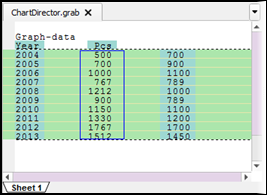
> [!NOTE]
> Note
>
> This example is based on text as input format, but collecting chart data is similar if XML is the input format.
3. If you want to edit the chart data, double-click the defined area. From the **Edit Chart Data** dialog, switch to the **Chart Data** tab.
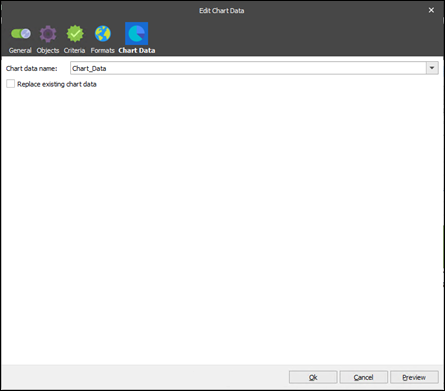
See the table below to learn more about the tab controls:
| Control | Description |
| --- | --- |
| **Chart data name** | A descriptive name for the chart data as defined in the input. |
| **Replace existing chart data** | If selected, any other chart data with the same name is replaced. |
The next step is to define all of the data sets for the chart type. For example, label data is required for all chart types; XTitle and YTitle data is required for xy-charts only.
> [!NOTE]
> Note
>
> The chart image in the output is an absolute rearrange, so you cannot add it to an output pattern. This applies only to the chart image. The chart data in the input must still be inside a pattern. You can position the chart image relative to other entities (see [Position Properties](/v1/docs/edit-rearrange-properties#position-properties)).
To create the output object (a chart image), proceed through the steps listed below:
1. On the toolbar, click the little arrow next to the **Charts** tool and then click **Insert chart image**.
2. When the pointer becomes a cross, mark the area to define the chart position in the output.
3. When releasing the mouse, the **Edit Chart** dialog opens with the **Chart** tab.
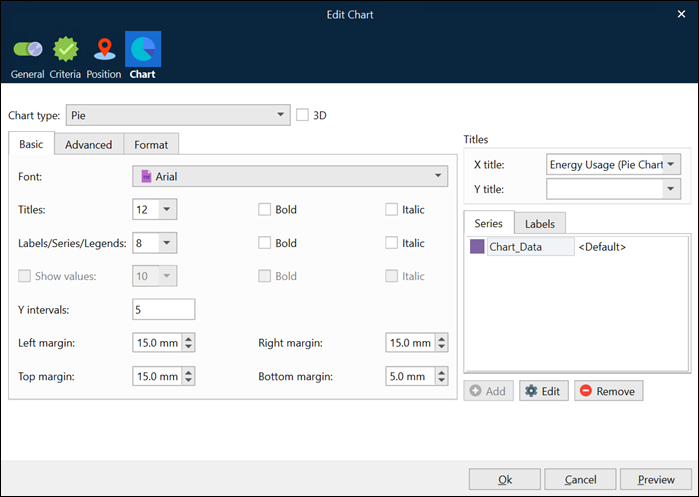
For detailed information about common controls, see [Edit Rearrange Properties](/v1/docs/edit-rearrange-properties).
The table below has more information about output-specific controls.
| Control | Description |
| --- | --- |
| **Chart type** | Using the drop-down list, it is possible to select a chart type. |
| **3D** | Select the checkbox to change the chart from a 2D to a 3D representation. |
| **X Title** | Use the drop-down list to select the chart data value or add a fixed text title for the X-axis. |
| **Y Title** | Use the drop-down list to select the chart data value or add a fixed text title for the Y-axis. The Y Title can contain an index with two values for “Pareto” and “Bar + Line” charts. The first value for the Y-axis title is positioned to the left, and the second value is to the right. |
| **Series** | Allows you to define a series for the chart. Use the **Add**, **Edit**, and **Remove** buttons to manipulate the chart data values available in the tab. |
| **Labels** | Allows you to specify the chart data value or add fixed text labels for the chart. Use the **Add**, **Edit**, and **Remove** buttons to manipulate the chart data values available in the tab. |
**Basic** tab controls:
| Control | Description |
| --- | --- |
| **Font** | Use the drop-down list to select the font to be applied to the X,Y Titles, Labels, Series, and Legends. |
| **Titles** | Use the drop-down list to select the font size to be applied to the X and Y Titles. |
| **Labels/Series/Legends** | Use the drop-down list to select the font size to be applied to the Labels, Series, and Legends. |
| **Show values** | Select the checkbox to show the data labels for the data points for xy charts. |
| **Bold** | Select the checkboxes to set the font style to bold for Titles and/or Labels/Series. |
| **Italic** | Select the checkbox to set the font style to italic for Titles and/or Labels/Series. |
| **Y Intervals** | Specifies how many value labels are displayed on the Y axis. |
| **Inner Radius** | Defines the inner radius of the donut chart type. |
| **Left/Right/Top/Bottom Margin** | Use to define the margin for each chart side. |
**Advanced** tab controls:
| Control | Description |
| --- | --- |
| **Labels** | Use the drop-down list to define how labels should be shown. The following options are available. XY charts: - **Horizontal** - **Vertical** - **Custom**. If selected, you can set the angle (in degrees) at which the labels should be positioned relative to the plot area. Pie charts: - **Horizontal** - **Hide** The default value is **Horizontal**. |
| **Hide border** | Selecting the checkbox allows you to hide the borders of the plot area. |
| **Show Legend** | Use the drop-down list to determine the legend location and visibility. The following options are available: - **Hide** - **Top** - **Bottom** - **Left** - **Right** The default value is **Hide** |
| **Hide legend border** | Select the checkbox to hide the legend borders. |
| **Transparent** | Use the drop-down list to set the transparency of the chart (**Yes**/**No**). |
| **Y Axis** | Sets the position of the y-axis on the plot area (left/right). The default is to the left. |
| **Gap** | The amount of space between the bars (or between bar groups for multi-bar layers). Example: a bar gap of 0.2 equates to 20% of the distance between two adjacent bars. A bar gap of 0 means there is no gap between the bars. The bar gap can be negative. In this case, the bars will overlap. For multi-bar layers, the Gap refers to the amount of space between bar groups, while Spacing refers to the amount of space between bars within the bar group. |
| **Spacing** | This parameter only applies to multi-bar charts. It is the amount of space between the bars in a bar group. |
| **Grid lines** | Allows showing or hiding grid lines for a chart. To this end, select the required value from the drop-down combo box. You can select to show horizontal grid lines, or vertical ones, or both, as well as hide grid lines. |
**Format** tab controls:
| Control | Descrption |
| --- | --- |
| **Left Y-Axis** | The format string, using {value} to denote the axis labels for the left Y axis. For example, ${value\|2.,} can be used to format the value to 2 decimal points, using “.” as the thousand and "," as the decimal separators respectively, and with a '$' sign in front. |
| **Right Y-Axis** | The format string, using {value} to denote the axis labels for the right Y axis. The option is enabled for “Bar + Line” and “Pareto” chart types only. |
| **Values** | The format string, using {value} to denote data labels for the data points. |
| **Legend** | Defines the format of legend text. Parameter substitution is used to allow you to configure exactly what information is contained in the text and its format. For example, when drawing a pie chart with a side label layout, the default sector label format string is: "{label} ({percent}%)". When the sector label is actually drawn, Lasernet Core will replace "{label}" with the sector name and "{percent}" with the sector percentage. So the above label format will result in output that looks similar to "ABC (34.56%)". You can change the sector label format by changing the format string. For example: {label}: US${value\|2} {percent}% The sector label will then become something like "ABC: US$123.00 (34.56%)". **Note:** This option only applies to Pie and Donut charts. |
| **Use regional profile** | Select the checkbox to use the regional profile (for details, see the Regional Profiles section of the Lasernet Developer guide). It works as follows: - The regional profile specified for the chart data object (**Input** tab > Format category is **Number** > **Output Format** tab > **Select Regional Profile** field) in the **Series values** option (see below) for the topmost series is used. - Format default values are overruled by the regional profile values. - If the default values are overruled manually (like {value\|2.,}), regional profile values are overruled. |
Once you have specified the required properties for the chart, click the **OK** button to insert a chart image.
Click the **Preview** button to preview a chart in the output, taking into account the properties you have specified (but without applying them).
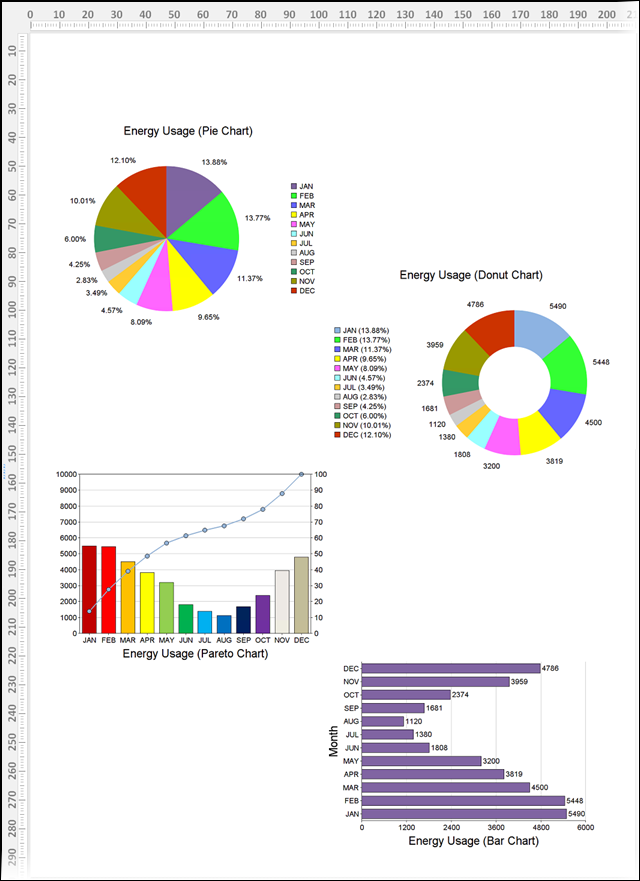
Once you have added the chart, you can resize and move it if necessary.
To resize the chart, hover over it and a sizing handle (a little square) appears. Click and drag the handle to make the table larger or smaller. The height and width ratio is maintained.
To move the chart, hover over it and a chart move handle appears. Using the chart move handle, drag the chart to the new location.
In addition, you can also change the corresponding values in the **Edit Rearrange** dialog to move and/or resize the chart.
To edit the chart you have created, right-click it and then click **Properties** or double-click the chart. The **Edit Rearrange** dialog opens. Use the controls described above to change the chart as required.
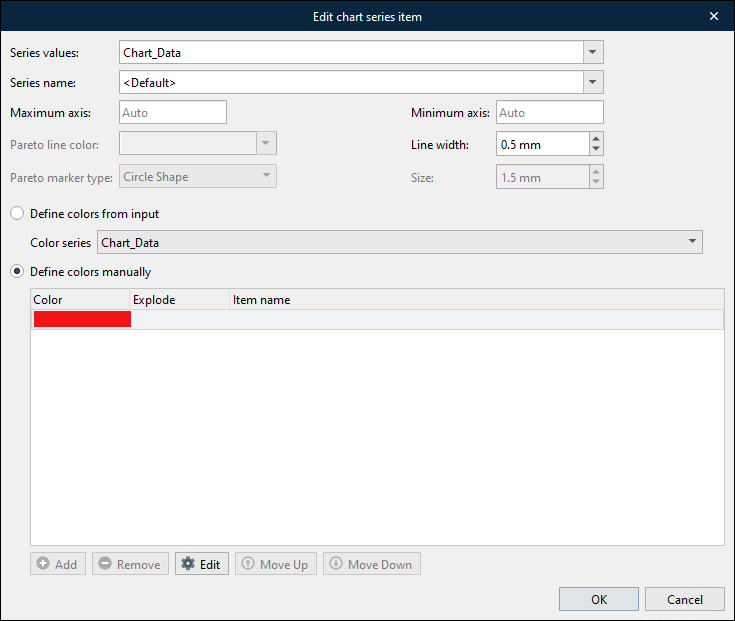
You can change a series you have specified using the **Series** tab of the **Edit Rearrange** dialog. To edit a series, select it in the list and click the **Edit** button, or double-click the series record. The **Edit chart series item** dialog appears.
> [!NOTE]
> Note
>
> The list of controls and their availability varies depending on selected chart type.
The following table provides information about the various controls.
| Control | Description |
| --- | --- |
| Series layout | Available only for Bar + Line chart type. Defines which layout series is used for Bar or Line. |
| Series values | Use the control to specify the chart data to be applied as a data set for the current series. |
| Series name | Use the control to specify the name for the current series in the legend. By default, the name of the chart data selected within the Series values control is set. In addition, you can select another chart data available in the drop-down list, or type a fixed text to define a series name. If several colors are defined for the series (see **Colors** description below in this table), the selected chart data will be used to define the item names if they are not already specified. |
| Format labels | For pie chart types only. Defines the format of label text. Parameter substitution is used to allow you to configure the information displayed and its format. The behavior is similar to that of Format Legend control described above. |
| Maximum Axis | Use the control to specify the upper bounds of the Y-axis. Both negative and positive values are allowed. |
| Minimum Axis | Use the control to specify the lower bounds of the Y-axis. Both negative and positive values are allowed. |
| Pareto line color | Pareto chart type only. Use the control to specify the color of the accumulated line. |
| Line width | Use the control to set the width of the line. |
| Pareto marker type | Pareto chart type only. Using the drop-down list, you can select a marker type for the accumulated line. |
| Size | Pareto chart type only. Use the control to specify the size of a marker. |
### Specify Chart Colors
You can specify which colors the chart uses to represent this series:
- **Area, bar, bar + line, line, spline, stacked bar, step line, and trend charts:** A single color represents the series. For example, the line color for a line chart.
- **Bar, Pareto, donut, and pie charts:** Each segment or value has a different color. You can specify which colors to use.
In the **Edit chart series item** window, chart colors are assigned in one of the following ways:
- **For area, bar, bar + line, line, spline, stacked bar, step line, and trend charts:** You select a single color for the series. See *Select a Single Color for the Series*.
- **For bar, Pareto, donut, and pie charts (which consist of separate chart items like bars or segments):**
- You can manually specify an ordered list of colors. Line items in the input data are indexed by their position in the data, and then their chart items are assigned the color that has the corresponding position in the color list. See *Index-Based Color Assignment*.
- If the input data specifies which color to use for each line item in the input XML, you can specify which chart data series captures that color data. Lasernet Core will assign each chart item the color specified by the corresponding element in the input XML. See *Color Assignment Based on Input Data*.
#### Select a Single Color for the Series
Select **Define colors manually**, and then select a color for the single item in the color list.

#### Index-Based Color Assignment
The line items represented by the pattern defined in the input data are indexed by their position in the input XML. For example, in the following XML, the form defines a pattern on the `product` element. The first `product` element (for apple) is indexed 1, the second `product` element (for banana) is indexed 2, and so on. In this example, the form defines a `Chart_Quantity` chart series on the `quantity` element, and a pie chart in the form uses `Chart_Quantity` as its **Series** data in the **Edit Chart** window.
```plaintext
Fruit
January 2026
- Apple
48773
- Banana
87332
- Orange
3454
```
Lasernet Core assigns colors to segments in bar, Pareto, donut, and pie charts according to their index position.
If chart colors are manually specified as a list, the first color in the list is assigned to the line item element indexed 1, the second color is assigned to element 2, and so on. However, as a result, the color used for the same item in different output documents might differ, if the line item element order in the XML differs for each job.
For example, if the first color in the list is red and Lasernet Core receives the XML above, the segment for the sales quantity for apples is colored red. But if the first `product` element in the XML for the next Lasernet Core job is for bananas, the segment for bananas is red.
> [!NOTE]
> Note
>
> If it is important that the color used for each specific chart item is consistent between output documents, see *Color Assignment Based on Input Data*.
To use index-based color assignment, follow these steps:
1. In the **Edit chart series item** window, select **Define colors manually** (see 1 in the image below).
2. Click the single item in the color list, and then click **Edit** (2).
3. In the **Chart item customisation** window, select an **Item color**, then click **OK**.
4. Click **Add** (3), select the new color list item, click **Edit**, and then select a color. Repeat this step until the list contains enough colors.
> [!NOTE]
> Note
>
> If the number of colors in the list is fewer than the number of chart items, Lasernet Core loops through the color list.
5. Click **OK** (4) to save your changes to the chart series.
.png)
> [!NOTE]
> Note
>
> For pie and donut charts, you can explode one segment.
>
> To explode a segment, edit its entry in the color list and set **Explode** to **Yes**.
> [!NOTE]
> Note
>
> For each segment or value in the chart, you can provide an item name for Lasernet Core to use in the legend box. Edit each entry in the color list and enter a value for **Item name**.
#### Color Assignment Based on Input Data
If each line item specifies a color, Lasernet Core can apply that color to the corresponding chart segment. This guarantees consistent segment coloring between output documents.
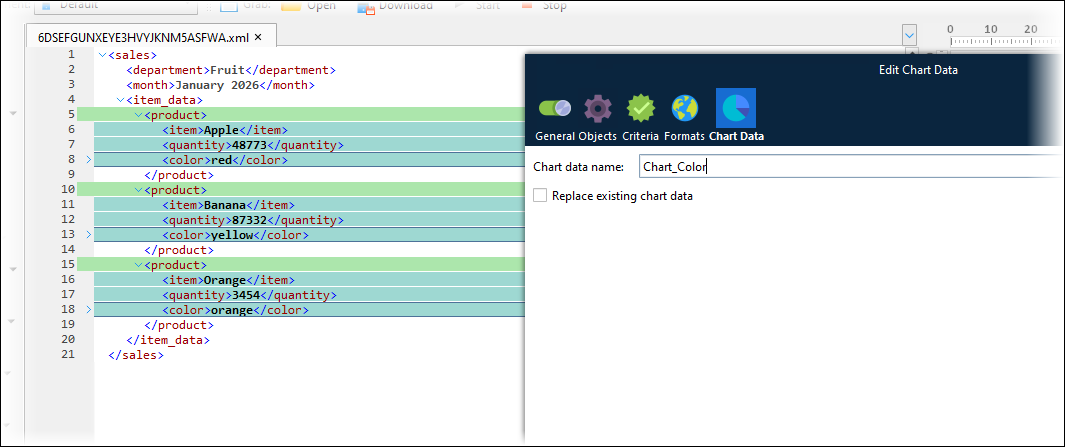
For example, in the XML below, each line item has a `color`. The form defines a chart series (`Chart_Color`) on the `color` element, and `Chart_color` is selected as the **Color series** in the **Edit chart series item** window for the `Chart_Quantity` chart series. As a result, Lasernet Core applies the `Chart_color` indexed 1 (red) to the chart segment that represents the `Chart_Quantity` that is indexed 1 (apple). If the next Lasernet Core job contained apple sales data as the second line item in its XML, apple’s sales quantity and color (red) would both be indexed 2, so the pie chart segment for apples would still be red.
```plaintext
Fruit
January 2026
- Apple
48773
red
- Banana
87332
yellow
- Orange
3454
orange
```
To assign colors based on input data, follow these steps:
1. Close the **Edit Chart** window.
2. Ensure that the input data contains supported color data values.
> [!NOTE]
> Note
>
> You can use the following color value formats:
>
> - A name from the [list of colors defined in the list of SVG color keyword names](https://www.w3.org/TR/SVG11/types.html#ColorKeywords).
> - RGB
> - `#RRGGBB`
> - Each of `RR`, `GG`, and `BB` is a two-digit hex value.
> - For example, magenta is `#FF00FF`.
> - `#RGB`
> - Each of `R`, `G`, and `B` is a single-digit hex value.
> - `R`, `G`, and `B` are repeated to form a `#RRGGBB` value.
> - For example, magenta is `#F0F`.
> - You can include or omit the preceding `#` character.
3. In the toolbar, click **Charts** > **Chart Data** and create a chart data series that captures the color data. For the example above, this could be `Chart_Color` on the `color` element.
4. Double-click the chart to open its **Edit Chart** window.
5. Click the chart’s data series on the **Series** tab, then click **Edit**.
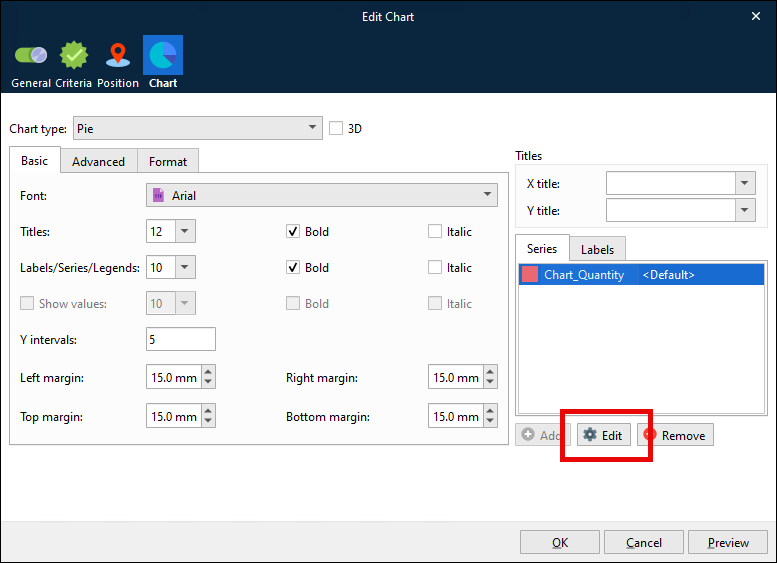
6. In the **Edit chart series item** window, select **Define colors from input**.
7. Select the color data chart series from the **Color series** list.
8. Click **OK** to save your changes to the chart series.
.png)
### Locate a Chart 'Relative To'
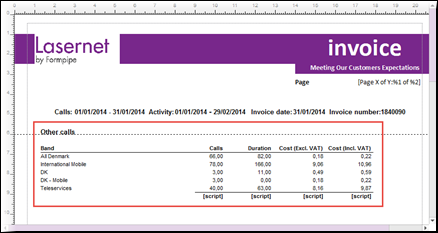
The following example will show you how to locate a chart relative to the bottom of a region. For more details about the ‘relative to’ options, see [Edit Rearrange Properties](/v1/docs/edit-rearrange-properties).
1. In the output, define the region of data relative to where you want to locate a chart. The picture below shows a region of data to locate our chart against:
2. Add a chart and then edit it if required.
3. Open the **Edit Rearrange** dialog by right-clicking the chart and then clicking **Properties** or double-clicking the chart you have added.
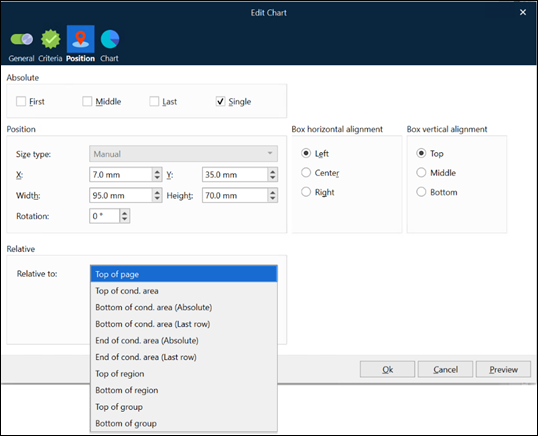
4. With the **Edit Rearrange** dialog open, switch to the **Position** tab.
5. From the **Relative to** drop-down list, select the preferred position on the page.
6. Once you are done, click the **OK** button.
The following image shows the result of locating the chart relative to **Bottom of region**.
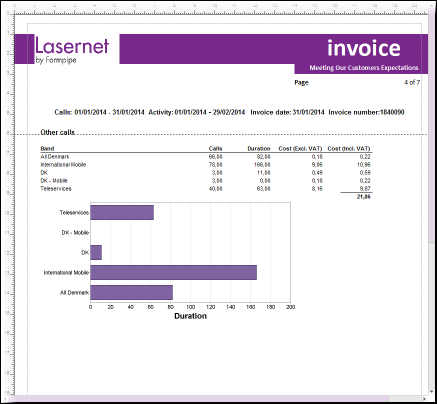
> [!NOTE]
> Note
>
> Once you have located the chart relative to the bottom of the region, the location of the chart is changed if a region is relocated.
The following image shows the difference (the Y-position for the region is modified).
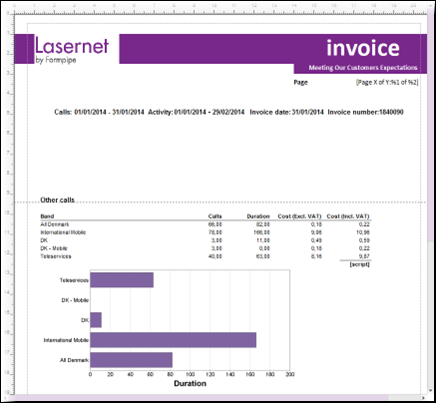
## Rich Text-Based Output (Lasernet Core 11 and 10 Only)
Click the **Charts** tool. The Form Editor will insert a chart at the cursor position, which you must design.
Drag data from a grab file to the relevant values or arguments area of the chart, or for more options right-click the chart, then click **Run Designer**.