Microsoft is updating their Service bus SDK libraries.
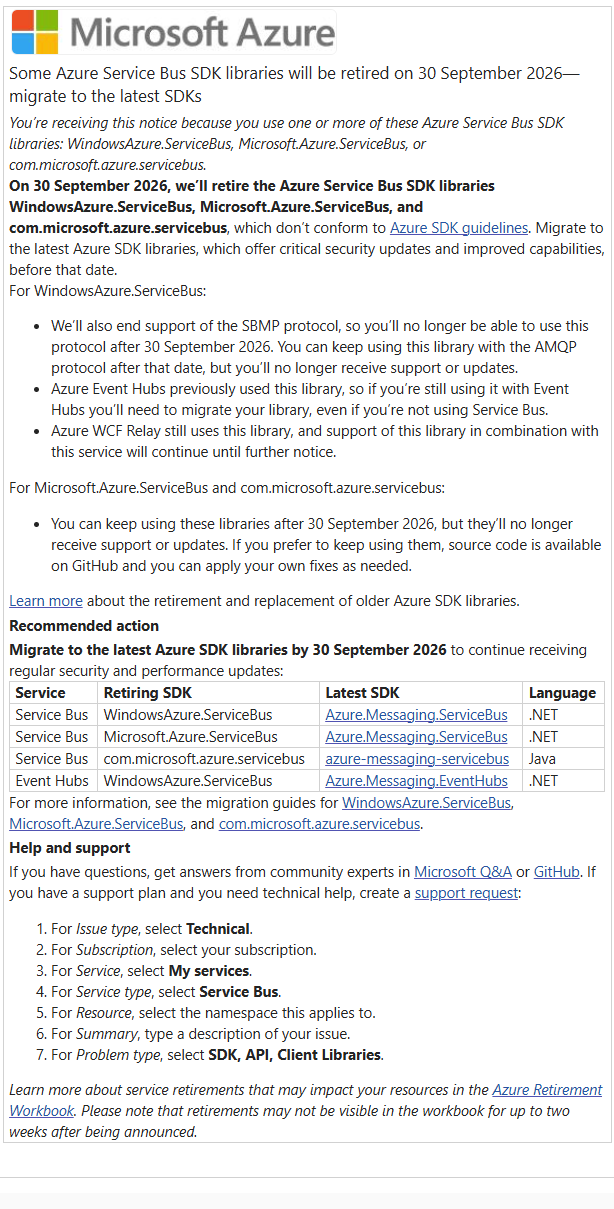
Affected Modules
We are using .Net SDK’s on our Lasernet Connector for Dynamics 365 Finance and Operations:
Lasernet Connector for Dynamics 365 Finance and Operations
Lasernet Cloud Print Connector for Dynamics 365 Finance and Operations
Summary of the Change
Service Bus connections strings Need to have “;TransportType=Amqp” in the end. It needs to be added before 30th September 2026.
In Lasernet Connector version 7.4 the SDK is updated for the Cloud print connector.
Applies to: Lasernet connector 7.2.2 or earlier
Lasernet Connections > Service Bus connection string update
Add “;TransportType=Amqp” in the end of the service bus connection string in Lasernet Connections. If you have a separate service bus for cloud printing - update also that with “;TransportType=Amqp”.
Cloud Print Connector
Updated configuration needs to be loaded to the Cloud Print Connector on all print servers. In order to update the Cloud Print Connector with the Service Bus with “;TransportType=Amqp” in the end.
Applies to: Lasernet connector 7.3.0, 7.3.1, 7.3.2
In version 7.3 we have added in Lasernet Connections, that “;TransportType=Amqp” is added automatically in the connection string for Service Bus (in the background, you cannot see it in the UI). You do not have to do anything in Lasernet connections, if you have 7.3.+ versions installed.
Cloud Print Connector
Updated configuration needs to be loaded to the Cloud Print Connector on all print servers. In order to update the Cloud Print Connector with the Service Bus with “;TransportType=Amqp” in the end. (Once updated to version 7.3 and later versions, you can in the Cloud Print configuration, see that the TransportType has been added to the Service bus)
No reasons to investigate or update
Lasernet Developer and Lasernet Printer Service Service Bus Modules are not affected
Lasernet Connector Business Central are not affected
Lasernet Connector 7.4 or higher are not affected. The SDK is updated for the Cloud print connector.
The Update Process - 7.2.2 and earlier
Update the Service Bus Connection string in Dynamics Lasernet Connector
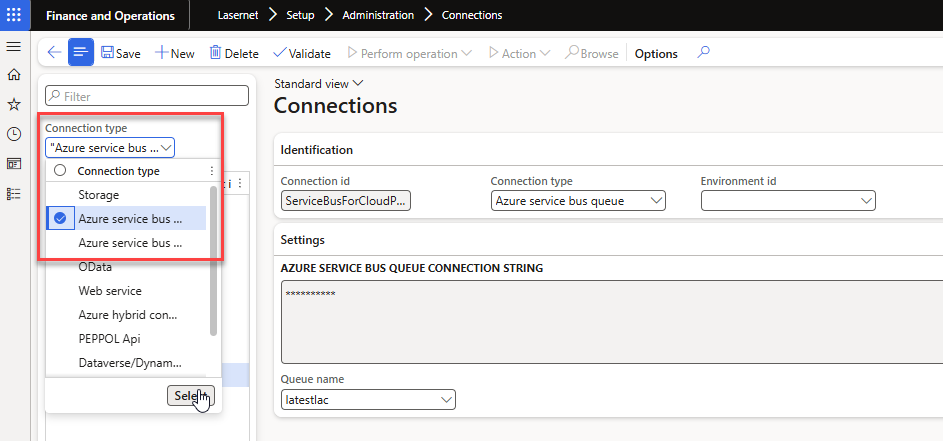
Open your Dynamics environment. Go to Lasernet > Setup > Administration > Connections
Find your Azure service bus queue.
You might have more than one, all service bus queues in Connections need to be updated.
Idea: Use the Connection type dropdown, mark Azure service bus queue and Azure bus service topic.
Click the eye icon to view the Service bus Connection string
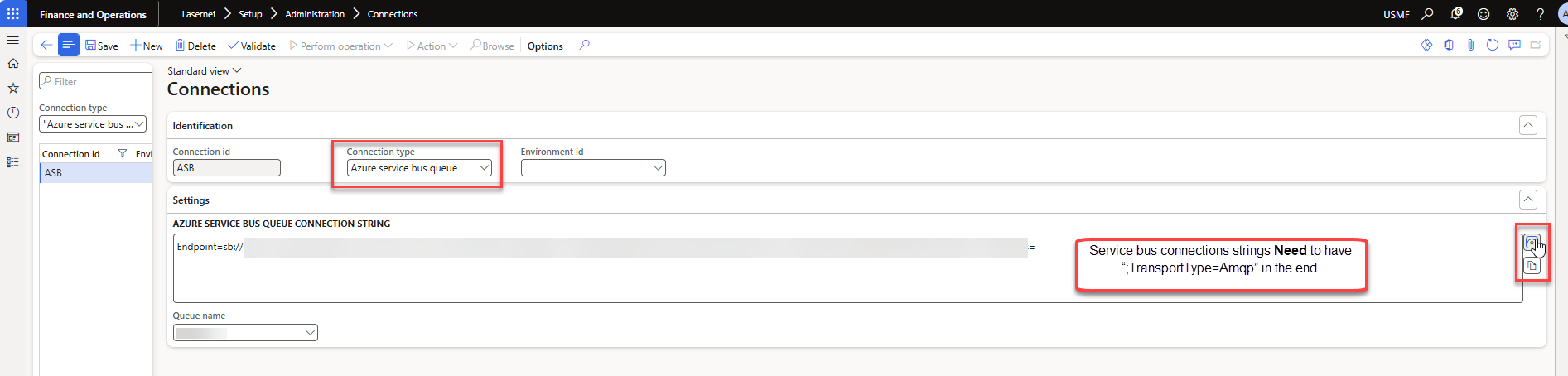
Add “;TransportType=Amqp” in the end
Click Validate - then Save.
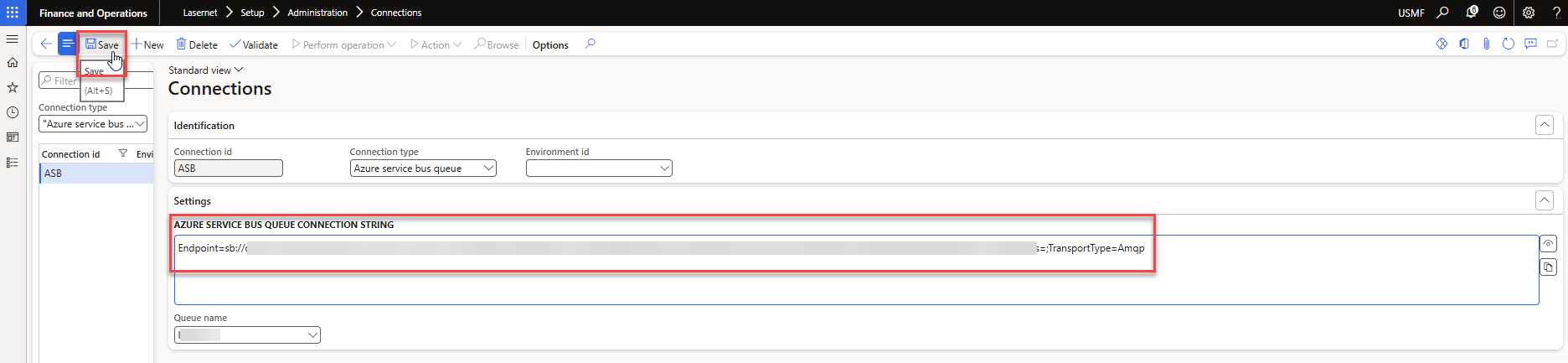
Update the Service Bus Connection string in Lasernet Cloud Print Connector
Go to Lasernet > Cloud print connector setup > User setup
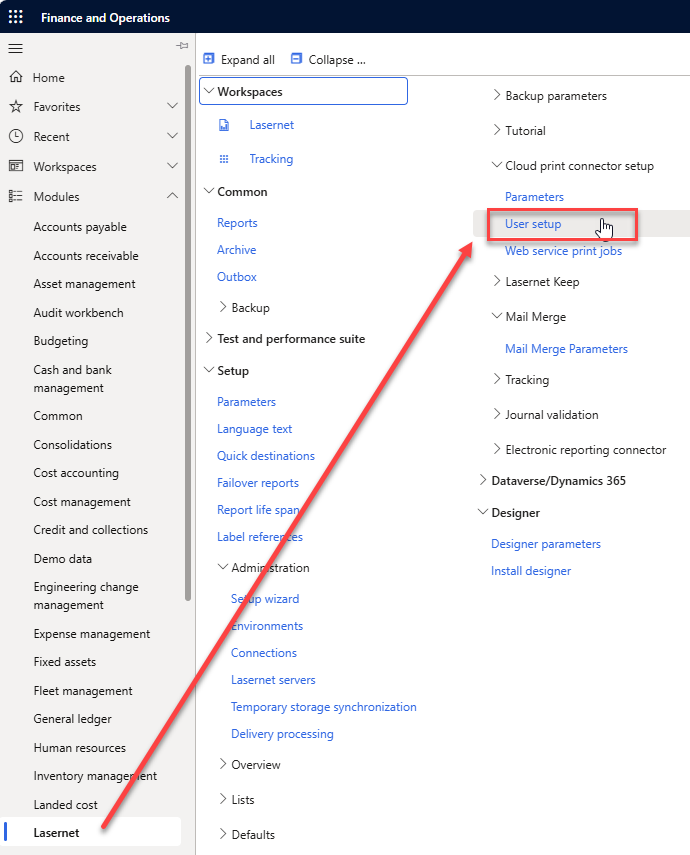
Click Download Lasernet Cloud Print Connector-configuration

Open the downloaded ConnectorConfiguration with Notepad.
You must add “;TransportType=Amqp” manually in the configuration file.
As you can see below, this configuration does not have transporttype in it:

In the configuration file, locate the Azure Service Bus connection string near the top of the file. It is highlighted in yellow in the example below.

The connection string is enclosed within quotation marks ("). Go to the end of the connection string, just before the closing quotation mark. Add the following text: ;TransportType=Amqp
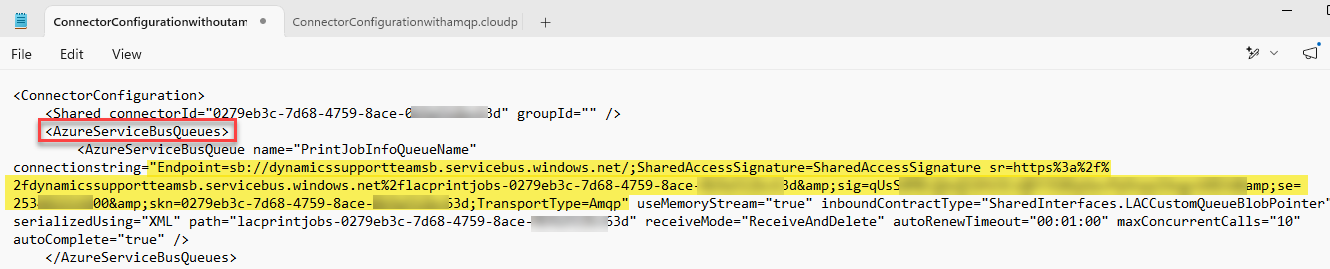
Great work – now save the configuration and go to your print server and update the cloud print connecter with the updated ConnectorConfiguration with Transport type.
Update Cloud print connector with new configuration file.
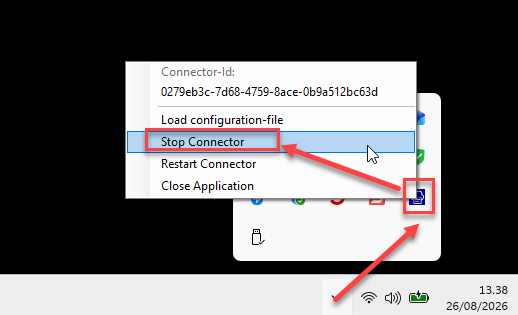
Go to the print server, (put your file somewhere where you can find it from print server)
Stop Connector
Load configuration-file
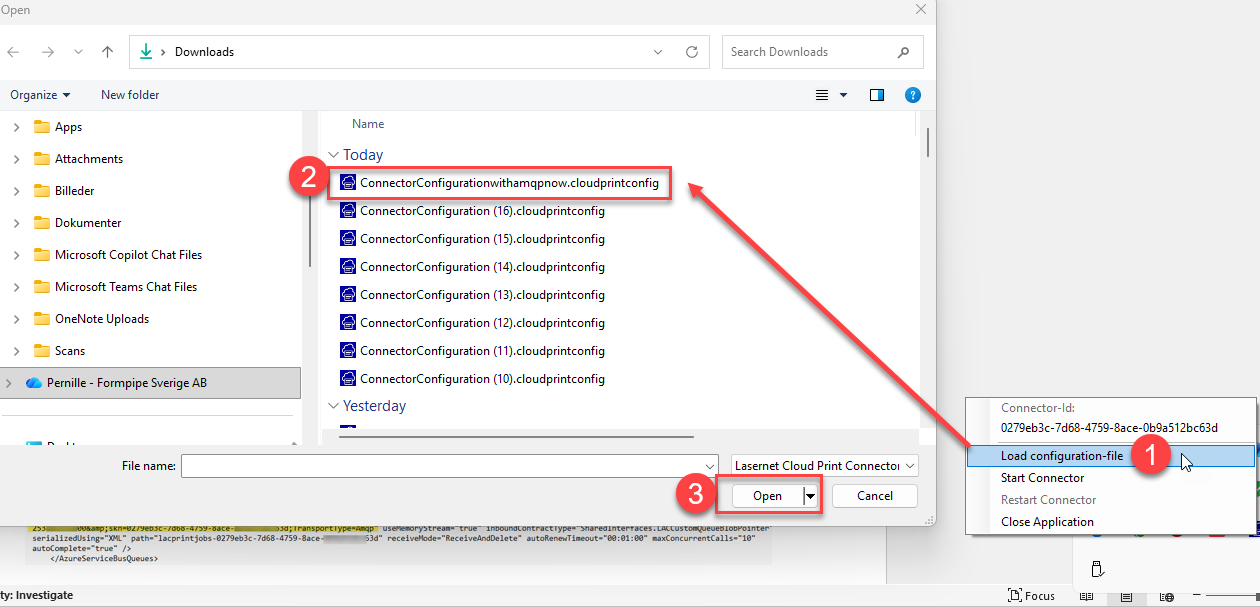
Click Load configuration file – the file folder opens – go to your file, mark it and click Open
Click OK
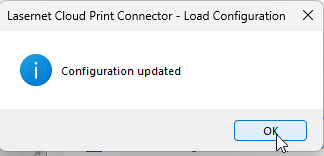
The Cloud Print Connector restarts automatically after a Configuration Load – so you are done now.
The Update Process - 7.3.0, 7.3.1 and 7.3.2
Update the Service Bus Connection string in Lasernet Cloud Print Connector
Go to Lasernet > Cloud print connector setup > User setup
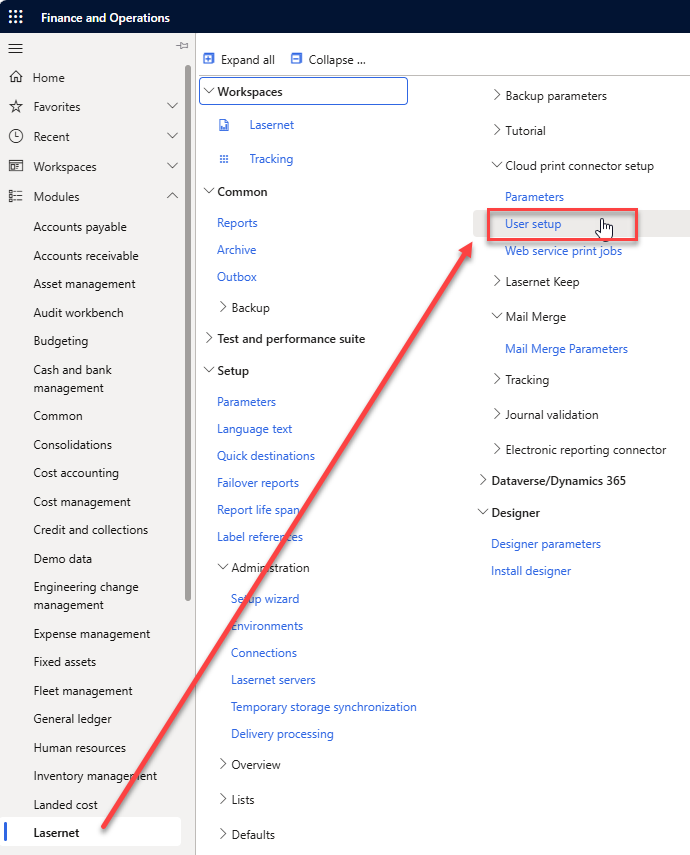
Click Download Lasernet Cloud Print Connector-configuration
(Since the version 7.3 has added the TransportType automatically, you don’t need to update the Connector configuration manually)

Update Cloud print connector with new configuration file
Go to the print server, (put your file somewhere where you can find it from print server)
Stop Connector
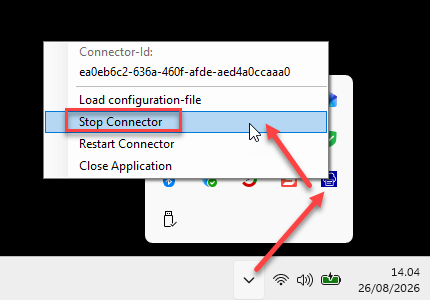
Load configuration-file
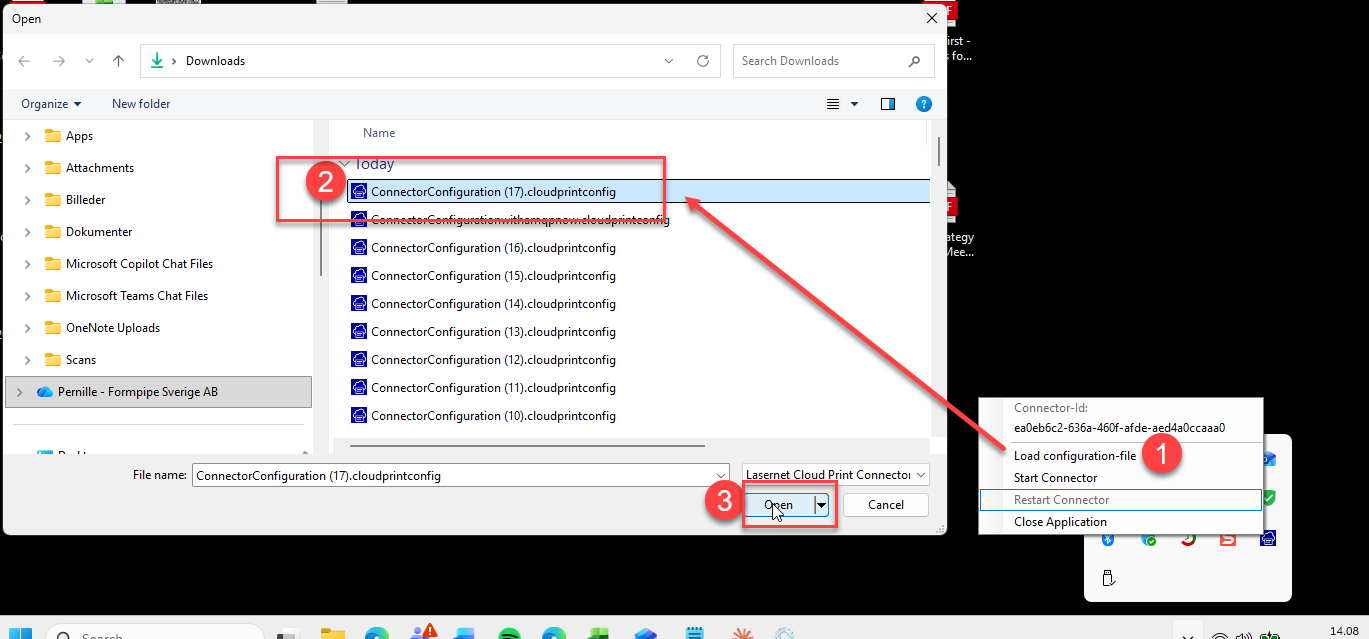
Click Load configuration file – the file folder opens – go to your file, mark it and click Open
Click OK
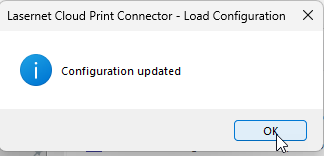
The Cloud Print Connector restarts automatically after a Configuration Load – so you are done now.