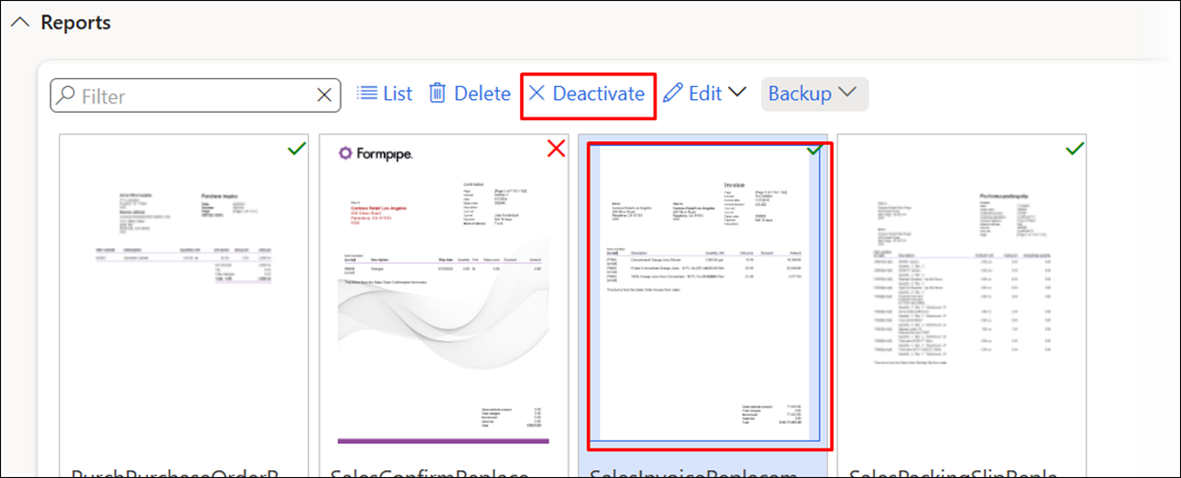
The Backup function available in the Reports sections of the Lasernet Essentials workspace enables users to Export and Import reports.
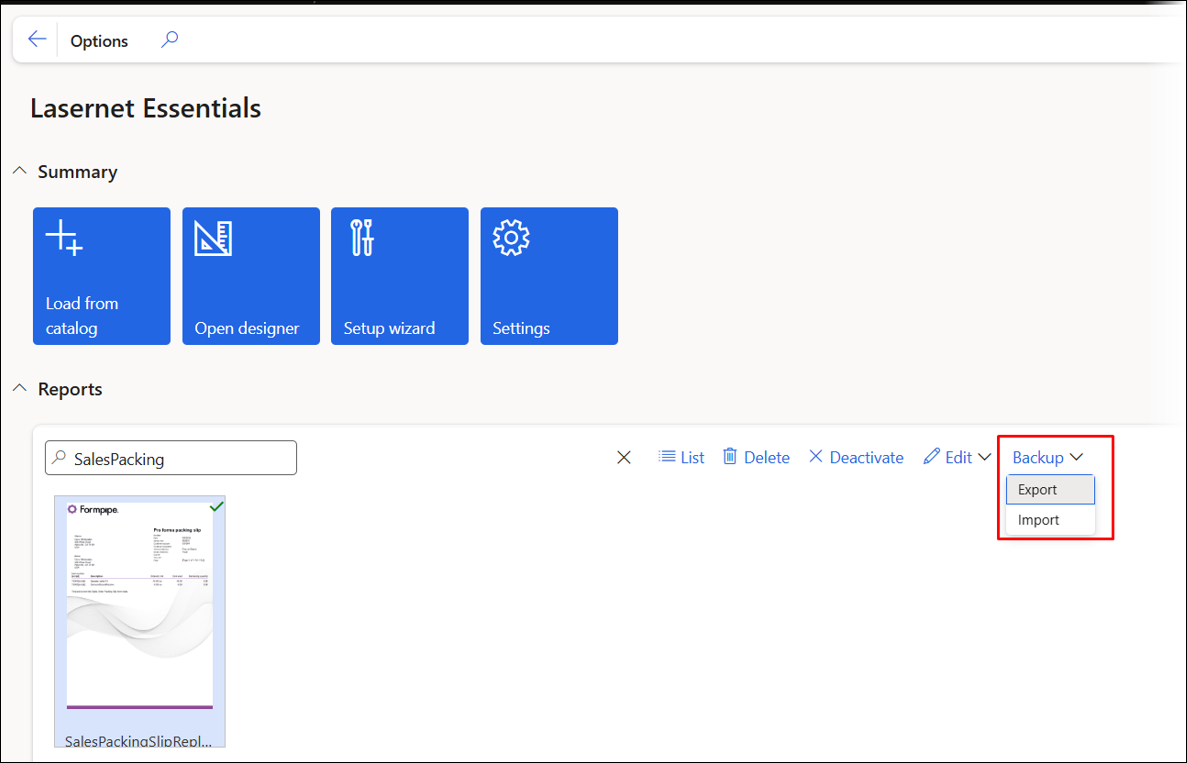
Read the following sections to learn how this feature works.
Export
The Export function is useful for moving a report from one legal entity to another or a new FO environment.
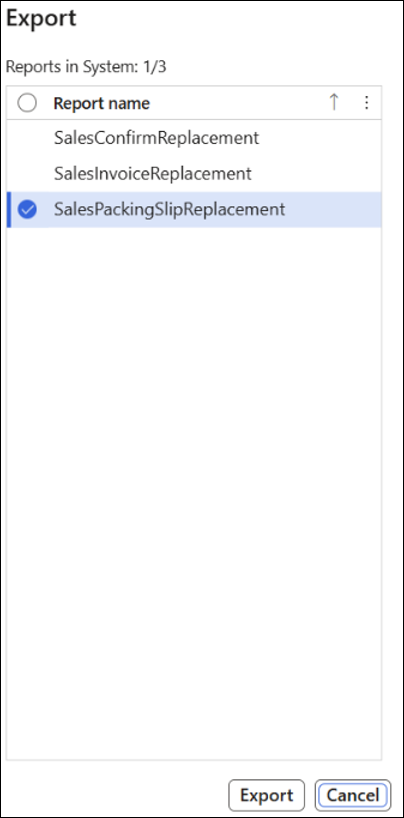
It is possible to export one report at a time or multiple reports together.
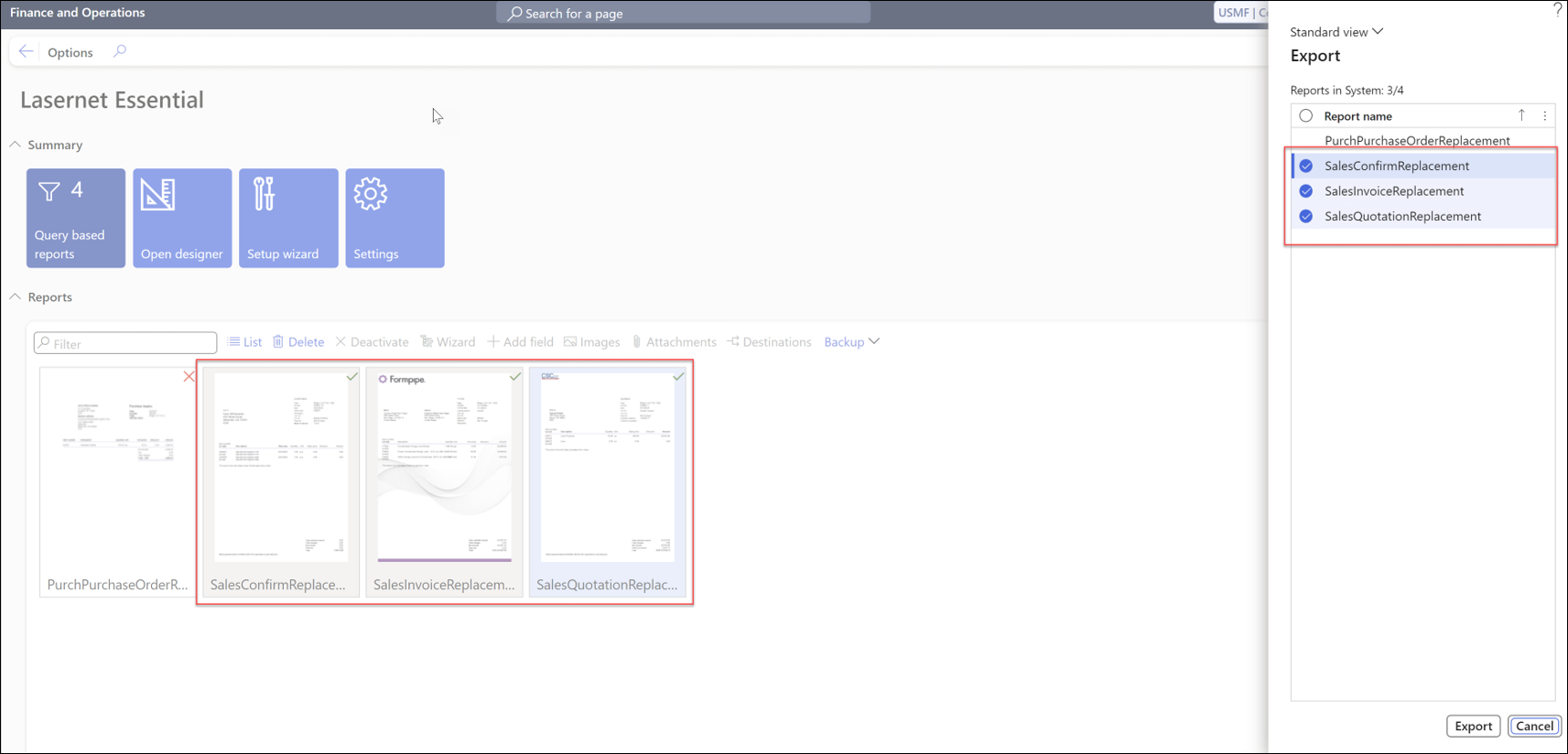
When using the Export function, the system includes both the required information in Dynamics and the report design(s).
Both the original SSRS report and the replacement report for the SSRS report are included in the export.
The export XML is downloaded as a compressed ZIP file with a single XML inside.

 The name of an export file containing a single report includes the Report name, Company, User, and Current Date & Time, such as:
Backup_SalesPackingSlipReplacement_usmf_Kim.Agerholm_09-03-2024_11-53-49.zip
Whereas the name of an export file containing multiple reports does not include the Report name, such as:
Backup_usmf_Kim.Agerholm_09-03-2024_11-58-8.zip
Import
Follow these steps to use the Import function:
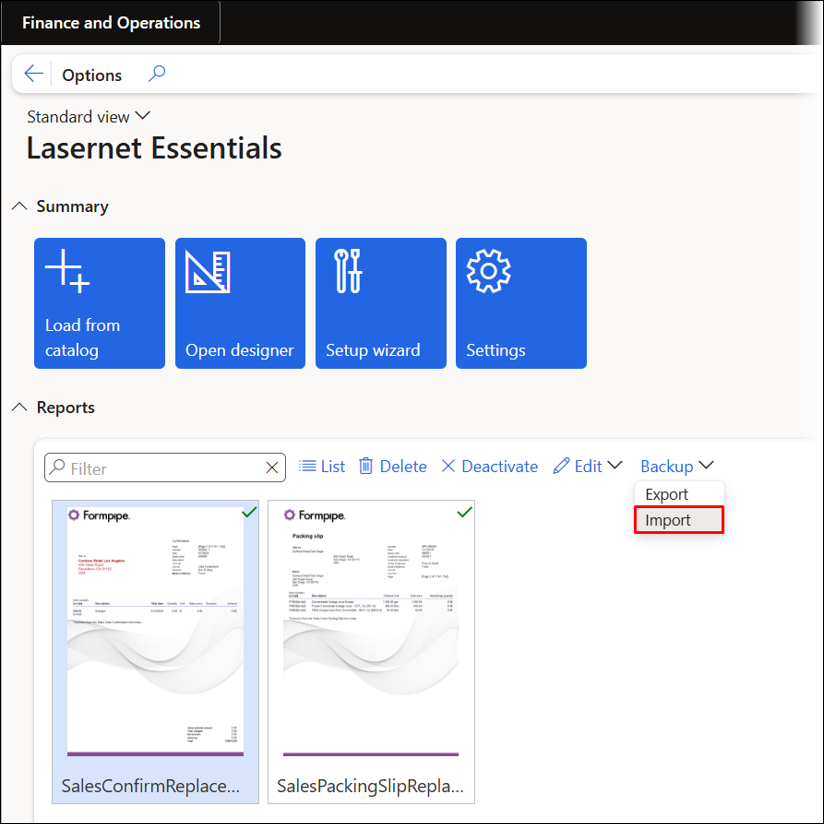
Ensure you are in the new legal entity or environment, then select Import from the Backup dropdown menu.
Select the required file with the configuration that should be imported. The extension for the file must always be .zip, and it is possible to import either a single report or multiple reports.
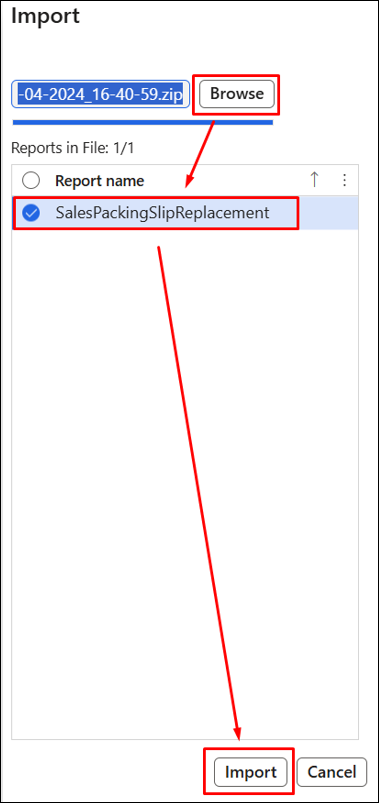
Once imported, the report is activated and added to your Lasernet Essentials workspace.
A warning appears when trying to activate more than three reports in Lasernet Essentials, as only three reports can be active at one time. Importing more than three reports will only activate three reports.
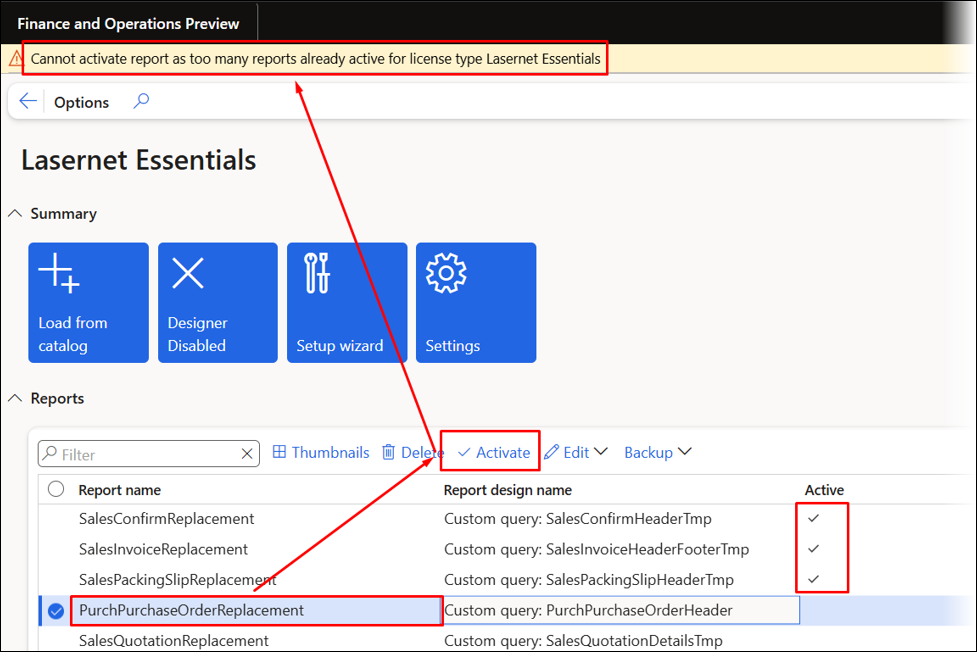
Warning
Cannot activate report as too many reports already active for license type Lasernet Essentials
Adding a new report when three reports are already activated configures the report but marks it as inactive.
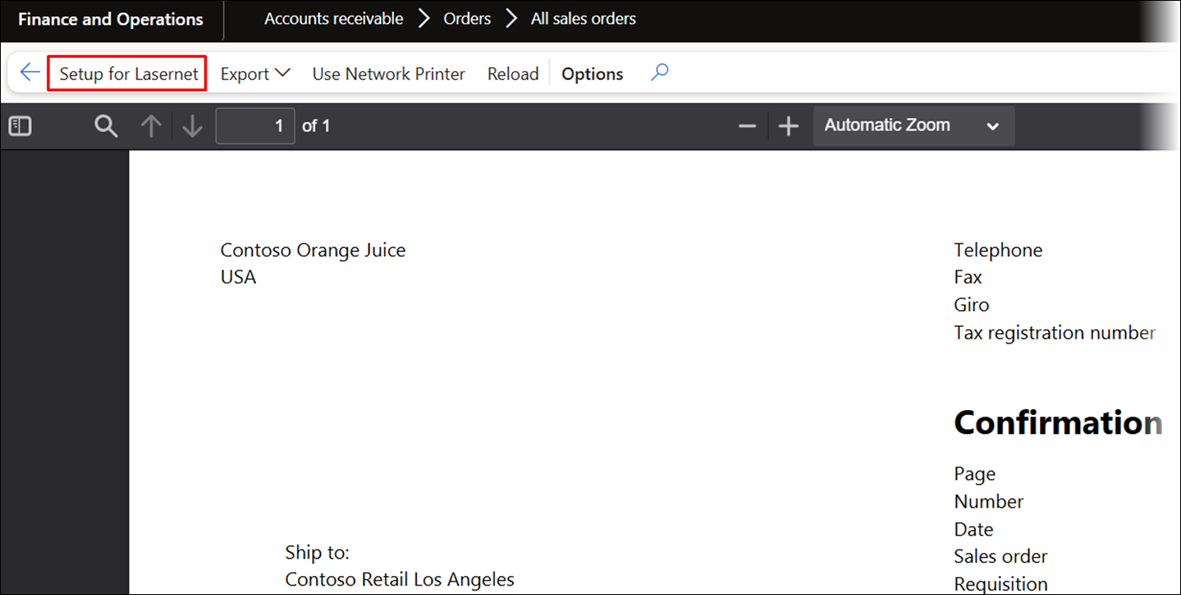
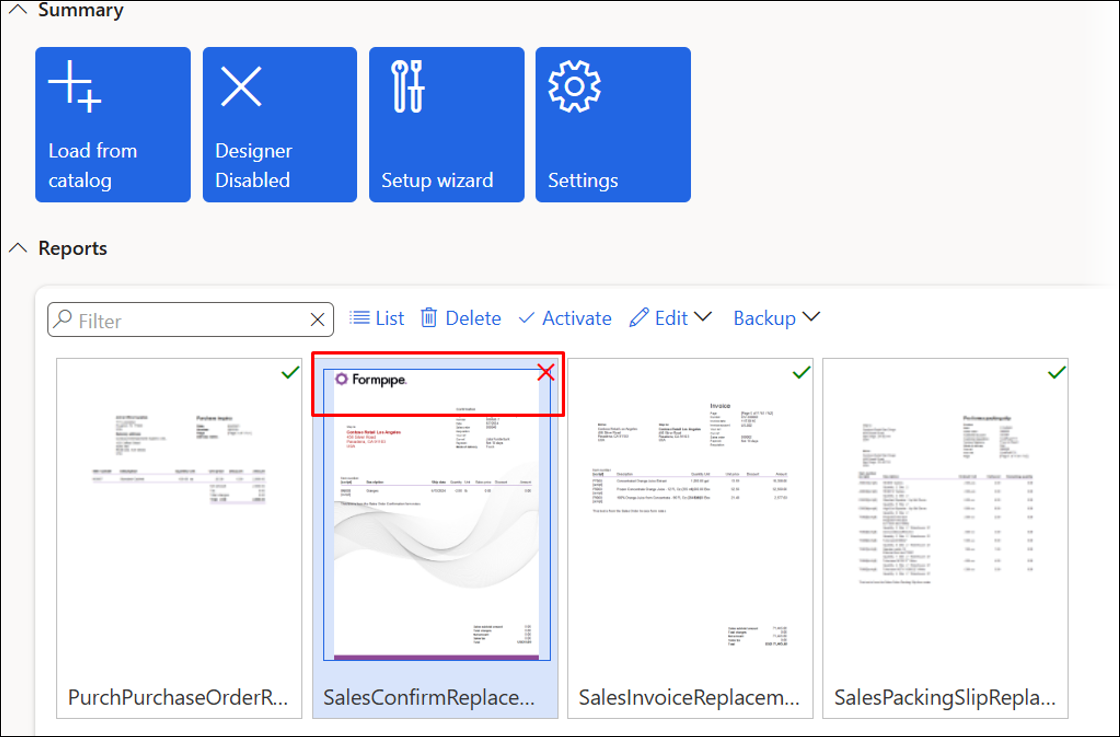
Deactivating one of the other reports will enable the report to be activated.