

Applies to: Lasernet Core 10
A clear-out of the Lasernet database and its temporary files may be necessary due to:
Too many FailedJobs slowing down the Lasernet application
A Lasernet job stuck in a loop, causing Lasernet to crash persistently
Clean Up Lasernet
Warning
Following this procedure will remove:
All active jobs
Any jobs paused for the Lasernet client
Follow these steps:
Ensure all inputs are paused, and no jobs are running through Lasernet.
Note
If necessary, wait for all jobs to finish processing. You can check their statuses using Lasernet Monitor.
Close all Lasernet applications.
Open Windows Services and stop the Lasernet 10 and Lasernet Config 10 services. Alternatively, end them using Task Manager.
Tip
Note the service name before you stop it.
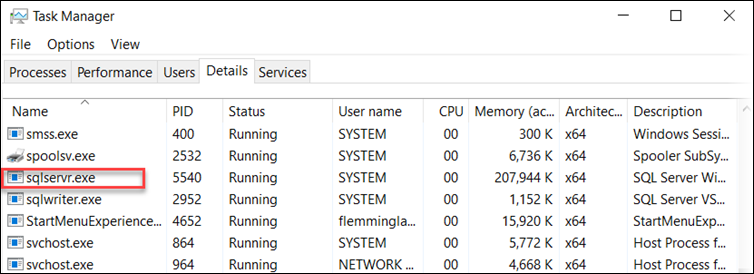
Open Task Manager and end the
sqlservr.exetask.
Note
This is the process handling LocalDB for both service instance and config. Because it is not a service, it cannot be stopped via Services.
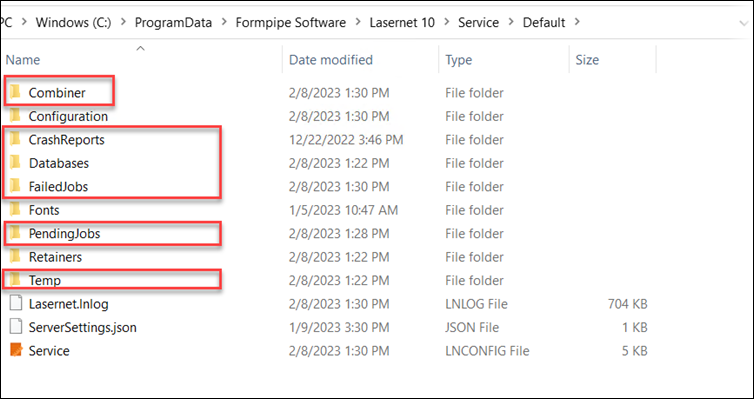
Clear the folders highlighted in red in the screenshot below, then restart the service.
Note
Open the
ProgramDatafolder (for example, navigate toC:\ProgramData\Formpipe Software\Lasernet 10\Service). Then, open the subfolder for the service name. This will differ depending on what you have named your service.
Note
The
Programdatafolder might not be visible because it may be hidden. In that case, type “Programdata” in the Search field.The
Databasesfolder only contains information about FailedJobs, ScheduledJobs, and PauseJobs. It contains no information about the Lasernet Configuration.If you use SQL Server as a database for running jobs, delete or rename the database using your preferred SQL tool.
Open Windows Services and restart the Lasernet 10 service, then restart the Lasernet Config 10 service.
Note
The service database will be re-created in the
Databasesfolder.
Resume the inputs, if any.
Lasernet will now be up and running again.
Troubleshooting
If you are still experiencing issues after following the steps in the previous section, clear the running configuration loaded to the service.
Follow these steps:
Repeat steps 1–5 from the previous section.
Open the
Configurationfolder and delete any files and folders inside it.
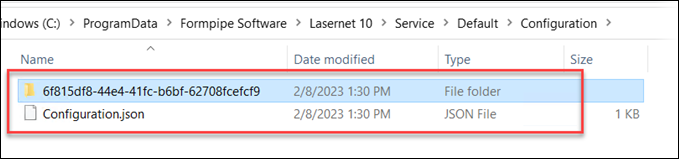
Repeat steps 6 and 7 from the previous section.
The service will start without the configuration loaded in Lasernet Monitor, as shown:

Commit and patch the configuration from Lasernet Developer to reload the configuration to the service.