Applies to: Lasernet Core 10
To allow Lasernet Meta to connect to Lasernet Core, a Meta Input Queue must be running. Configure the queues type in the Meta Input properties.
Queues
In the Queue tab you can add and administer a list of queues that will be available for the users running the Lasernet Meta application. For each queue you can add a list of fields by using the toolbox. Each field, depending on type, can have a set of properties.
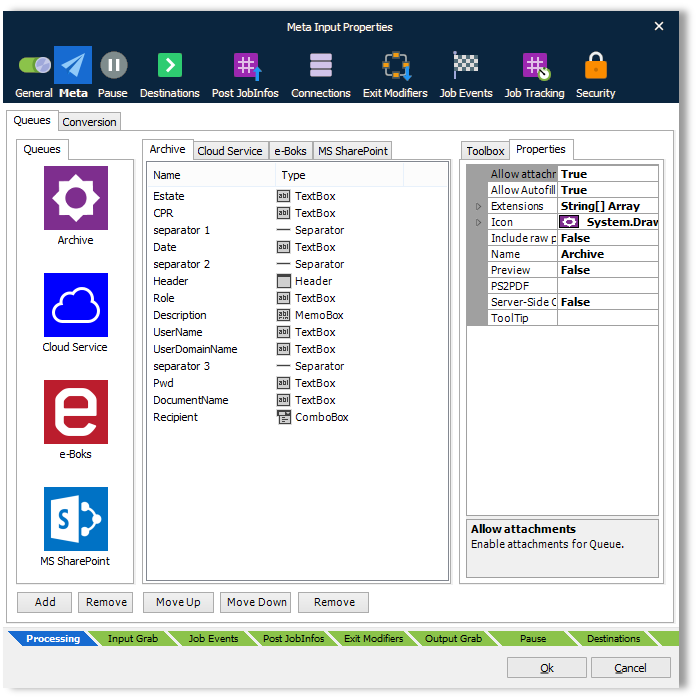
Add a new queue
In the above screen shot we have already added five queues with icons and a list of Meta fields.
Click the Add button in the Queues tab section to add a new queue.
General tab
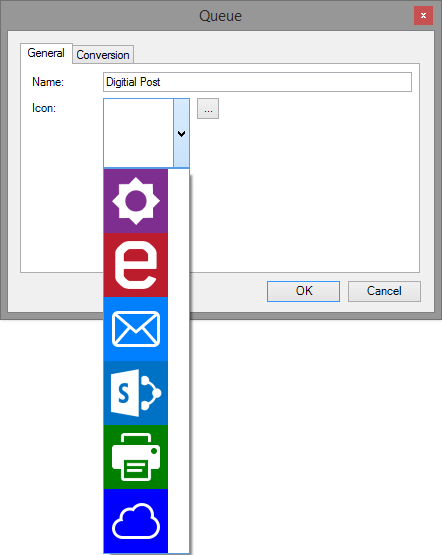
Type in a queue name and select one of the pre-defined icons from the icon list or you can click the browse button to select one of your own icons from a folder. Recommended icon format is 64 px. Other formats will automatically scale to fit the required icon size.
Conversion – server-side
In the Conversion tab you define parameters for converting PostScript to PDF on the server-side.
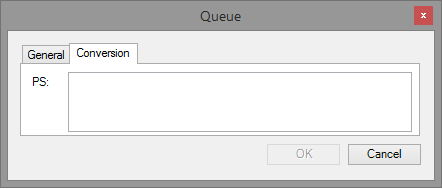
The Meta Input module has support for running an executable file from a command line. A tool like GhostScript is recommended for converting PostScript to PDF and can be used as a third-party converter. Lasernet Group does not sell or support GhostScript and the software must be downloaded, installed and maintained by the end-user.
Example of running GhostScript 9.16 from a command line:
"C:\Program Files\gs\gs9.16\bin\gswin64c.exe" -q -P- -dSAFER -dNOPAUSE -dBATCH -sDEVICE#pdfwrite -sOutputFile#%2 -dCompatibilityLevel#1.4 -c .setpdfwrite -f%1You can set up different conversion parameters for each queue if required (see GhostScript documentation for more information about supported parameters). The parameters defined on a queue and will have higher priority than defined in the general settings for the module.
Note
The conversion parameters can also be defined and is recommended to run in the Lasernet Meta application on client site and then leave the conversion settings in the Meta Input module empty. This way you can convert the documents locally instead of at server side. The Lasernet Meta application is bundled with a PDF converter, which can convert EMF to PDF. When using the converter bundled with the Lasernet Meta application there are no requirements for installing and running third party tools for converting documents into PDF.
Properties
A range of parameters can be defined for each queue. The properties are used to specify the name and icon of the queue, allow attachments, specific document types, preview options and converter settings on the server-side.
| Allow attachment | Enable attachments for queue. The user will be able to attach additional files to the primary job. |
| Allow Autofill | Autofill functionally has been configured for queue. The Autofill function requires that PDF data can be converted to a text format and automatically recognize the field data. The Lasernet Core Input Management solution is recommended to be used for auto filling of fields. |
| Extensions | List of allowed attachment extensions, like .pdf, .docx etc. Click … button to open the String Collection Editor. Insert the strings in the collection (one per line). Empty list (default) means any extension is allowed. |
| Icon | Click … button to pick up an icon for the queue from a folder. Recommended icon format is 64 px. Other formats will automatically scale to fit the required icon size. If you double click on the queue, in the left window, you can also select one of the predefined icons. |
| Name | Name of queue. |
| Preview | Queue can be used for preview only. |
| PS2PDF | Optional conversions settings for converting PostScript to PDF via a shell command. |
| Server-side | Print data will be converted on server-side. |
Fields
Select a queue for which you want to design a list of fields. The fields with values are used for adding Meta data to the incoming job. The toolbox includes the following tools: Header, Checkbox, TextBox, NumericUpDown, ComboBox, MemoBox, File and Separator.
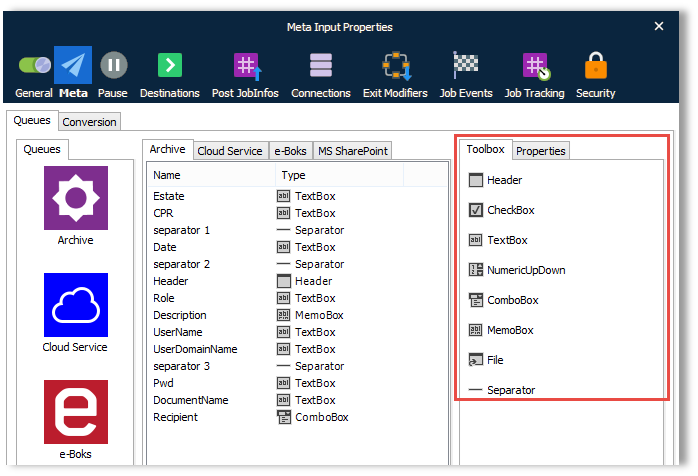
Drag and drop the tools from the toolbox to the selected queue window in the order you want them to appear in the Lasernet Meta application. You can order or remove them afterwards with the Move Up, Move Down and Remove buttons.
The tools are used for customizing the fields and the properties in the Lasernet Meta application.
| Header | A label text for a section of meta fields.
|
||||||||||||||||||||||||||
| CheckBox | A square box that can contain white space (False) or a tick mark (True).
|
||||||||||||||||||||||||||
| TextBox | A single-line text box that can contain a string with default 256 characters.
|
||||||||||||||||||||||||||
| NumericUpDown | A control that represents a numeric textbox that can be increased or decreased in value.
|
||||||||||||||||||||||||||
| ComboBox | A drop-down list and a single-line editable textbox, allowing the user to either type a value directly or select a value from the list.
|
||||||||||||||||||||||||||
| Memobox | A multi-line text box that can contain a string with default 1024 characters.
|
||||||||||||||||||||||||||
| File | A field to include a text or binary file added from a disk drive. The file field can as example contain a list, in a CSV or XLSX format, that is used by Lasernet Core to send the same job to multiple receivers.
|
||||||||||||||||||||||||||
| Separator | A graphical line to visually separate fields. Cannot contain data.
|
||||||||||||||||||||||||||
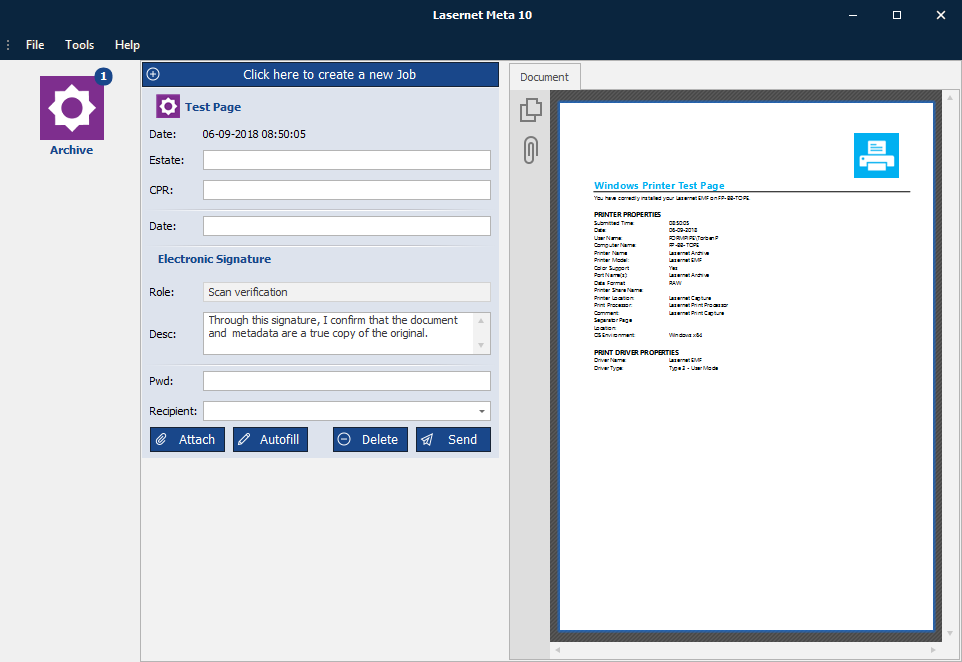
The queues defined in the Meta Input module can be added to the Lasernet Meta application one by one. Different users can have different queues with different Meta fields.
Validation
The Validation property can be used to validate the contents of a Meta field in the Lasernet Meta application. Meta fields not matching specified conditions will be marked with a red cross when the Send button is clicked and the job will not be released, before all fields are successful validated

Validate via regular expression
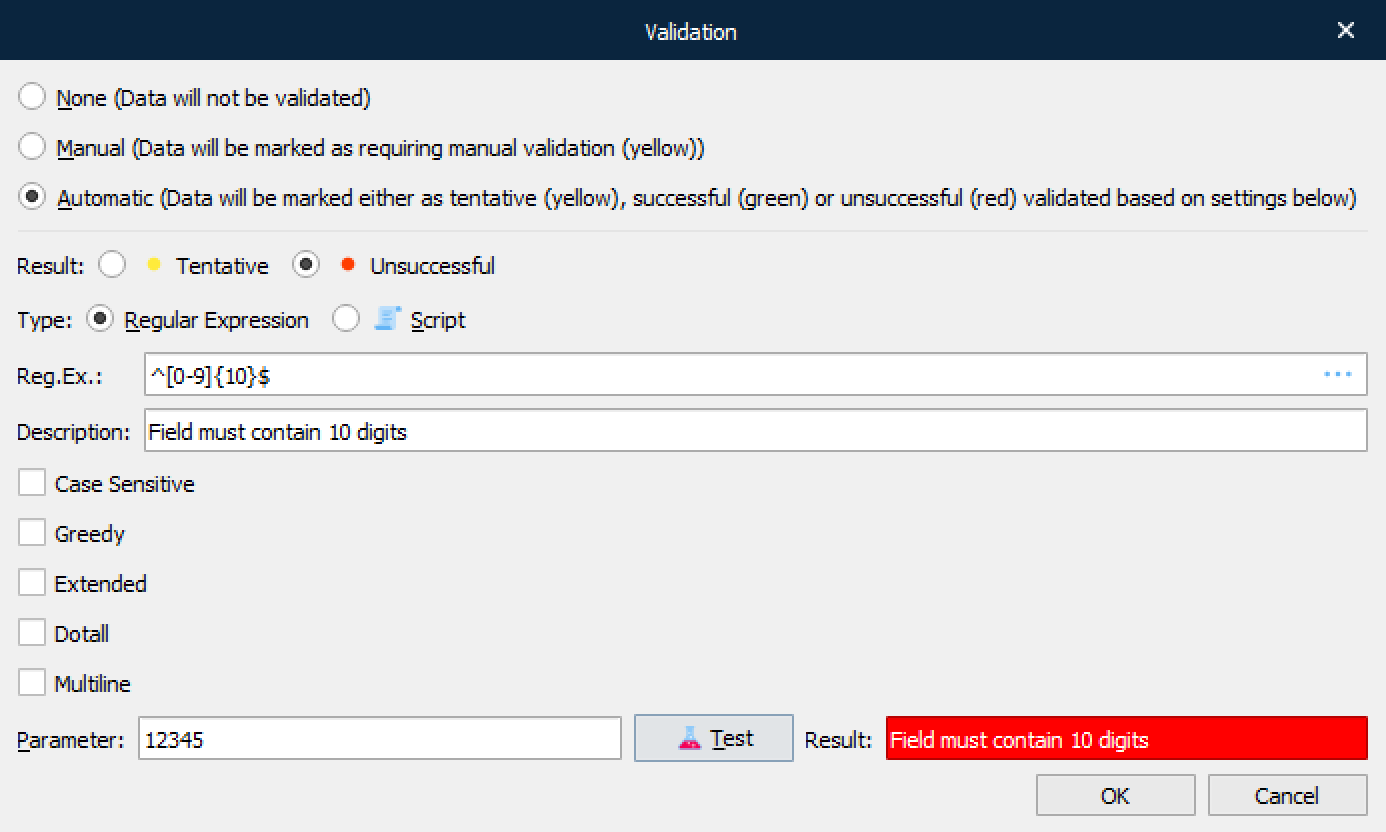
In this example we have created a regular expression matching a number in the US format with comma as thousand delimiters and dot as comma delimiter.
Regular Expression: ^[0-9]{1,3}(,[0-9]{3})*(\.[0-9]{2})?$
The $ sign at the end of the regular expression is essential to match the full string and not a part of the string.
The Parameter field and Test button are useful to validate the expected result of the regular expression. This functionality is for online testing only in the Lasernet Developer.

For more information regarding syntax regular expression, we recommend to search the Internet.
Validate via JavaScript
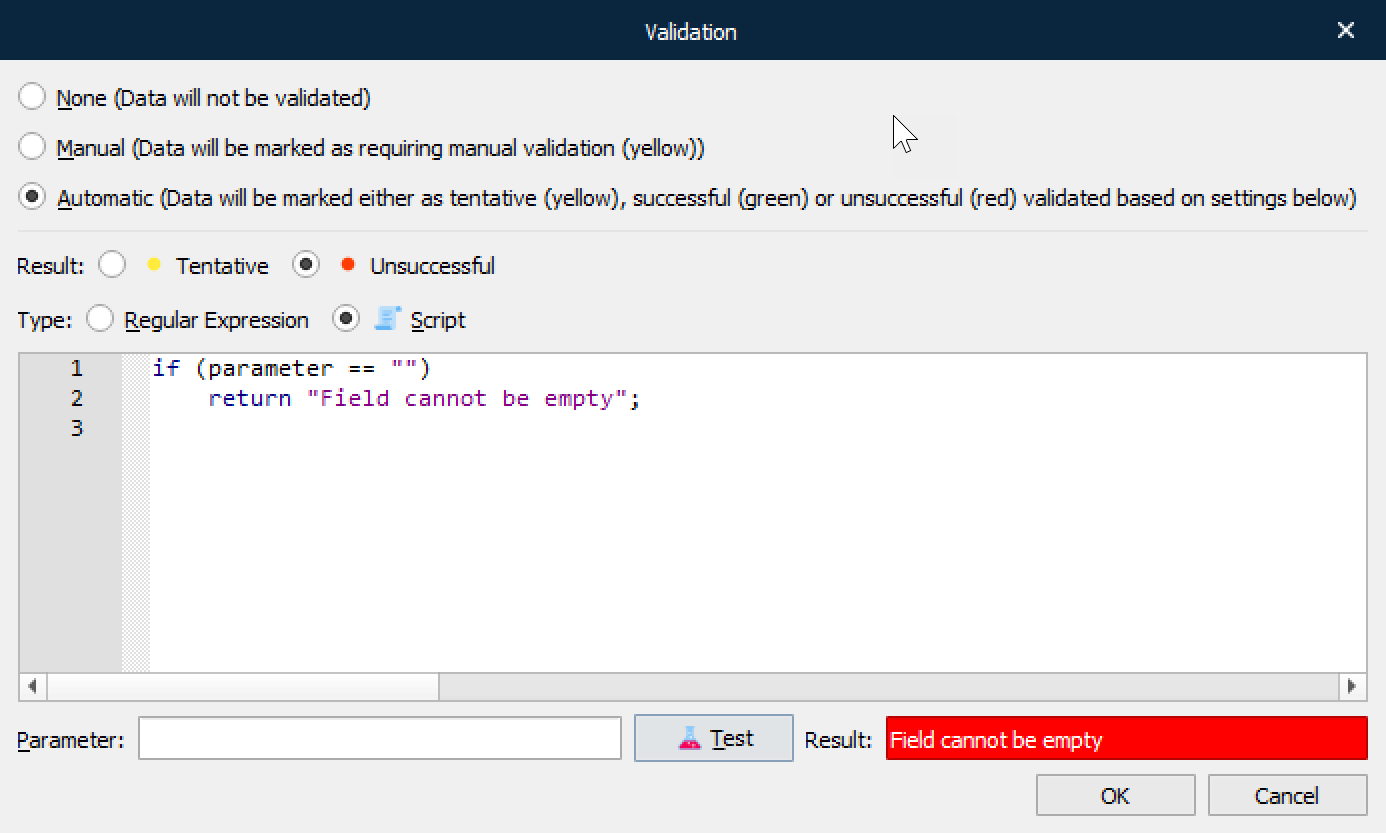
In this example we have created a JavaScript matching that the parameter is not empty and activated that an error result is marked as unsuccessful (red errors).
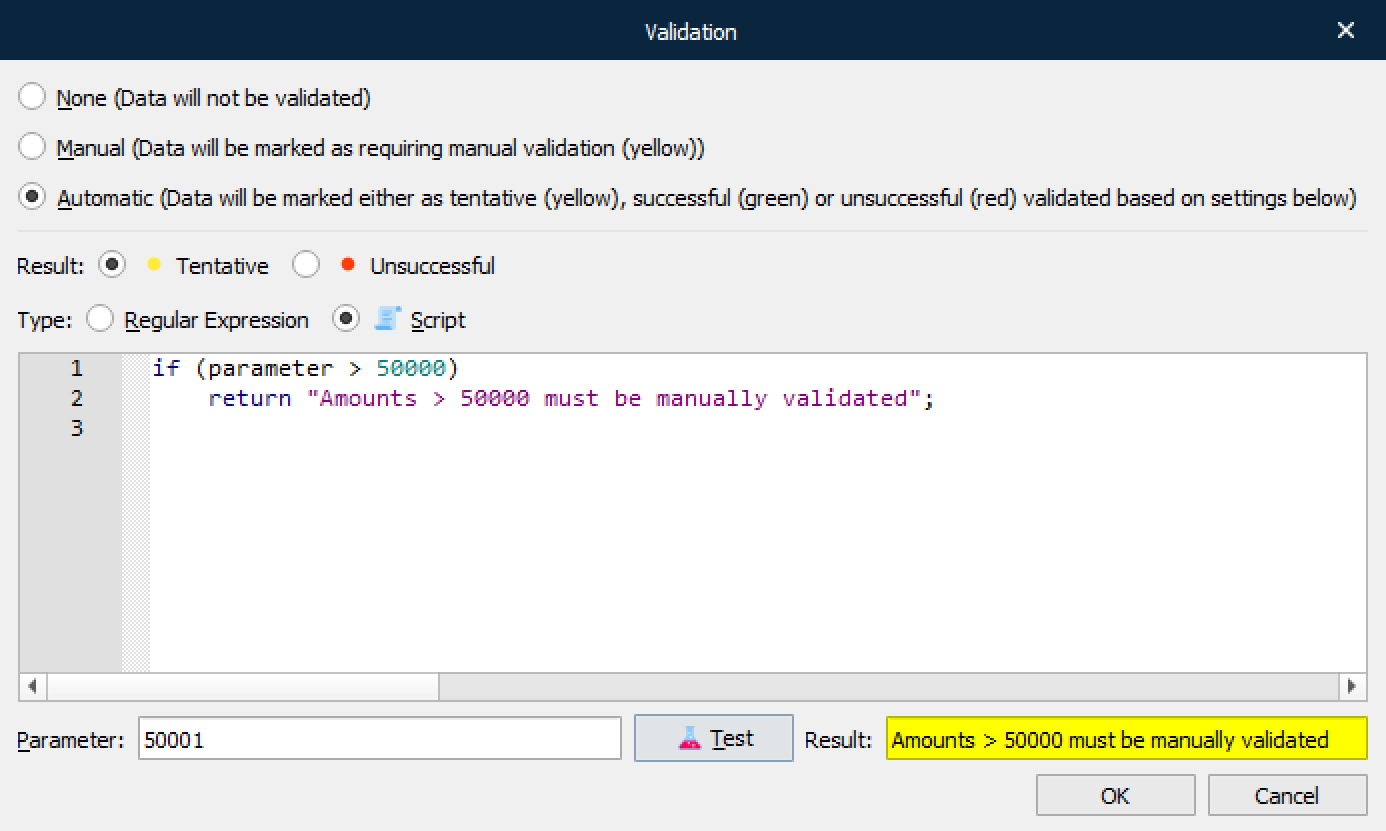
In this example we have created a JavaScript matching that the parameter is higher than a specific amount and activated that an error result is marked as tentative (yellow errors). The parameter string is essential and contains the contents of the JobInfo to be validated. The expression will return empty string when validation of parameter is successful and error text when it fails validation.
if (parameter > 50000)
return "Amounts > 50.000 must be validated";
else
return "";
The Parameter field and Test button are useful to validate the expected result of the JavaScript. This functionality is for online testing only in the Lasernet Developer.


Populating Meta Queues to the Lasernet Core Environment
When the queue(s) have been added to the Meta Input module you can click Update in the Lasernet Developer to populate the web services in the Lasernet Core environment. The Lasernet Meta application can now be installed on the clients and connect to the queues.