Applies to: Lasernet Core 10
The software and Windows printer queues can be deployed in silent-mode to the workstations by an administrator. Usage of deployment tools and security rules in Windows are not a part of this guide.
Step 1 – Install and configure Lasernet Meta manually
To create the required settings for your deployment tool you must install and configure at least a single client of Lasernet Meta manually, with option and queue settings.
The registry settings are as default stored in:
[HKEY_CURRENT_USER\Software\Formpipe Software\Lasernet 8\767D1DB0-ED35-4b4d-90A3-164DF31AF5FC\Meta]Step 2 – Export and Import settings
Before you deploy the software to the clients you must export the option and queue settings for Lasernet Meta:
Start regedit.exe, locate the previous listed registry sub path, right click and select Export the registry keys.
During deployment you can store the registry keys for Lasernet Meta in [HKEY_CURRENT_USER], which is the default value, or you can edit the registry file to import the settings in to [HKEY_LOCAL_MACHINE], by replacing the sub paths from [HKEY_CURRENT_USER] to [HKEY_LOCAL_MACHINE].
Note
If the user do not have administrative right or is not allowed to read/write in [HKEY_LOCAL_MACHINE] an “Attempted to perform an unauthorized operation” warning will be listed in the status bar of application.
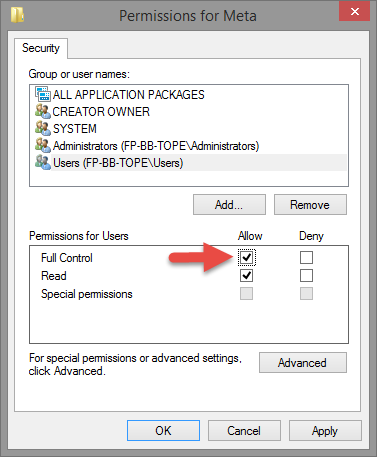
To run the application with a standard user, you must set the permission for Users to Full Control for:
[HKEY_LOCAL_MACHINE\Software\Formpipe Software\Lasernet 8\767D1DB0-ED35-4b4d-90A3-164DF31AF5FC\Meta]Any user running Lasernet Meta on the same computer will share the same options and values for queues imported to [HKEY_LOCAL_MACHINE].
Step 3 – Deployment
You are now ready to deploy and import the registry settings for Lasernet Meta via your preferred deployment tool.
Deploy the exported registry settings to the workstations with administrative rights via a login script.
Set the permissions as described for [HKEY_LOCAL_MACHINE] or leave as is for [HKEY_CURRENT_USER]
To install the software in silent mode run:
msiexec /i "C:\[Folder]\Lasernet Meta 10.x Setup.msi" /quiet
Note
To hide options and prevent the users to manually add new queues or edit existing settings in Lasernet Meta you can import/set an additional registry key/value in:
[HKEY_LOCAL_MACHINE\SOFTWARE\Formpipe Software\Lasernet 10\Meta\Meta\Settings]
"HideOptions"="True"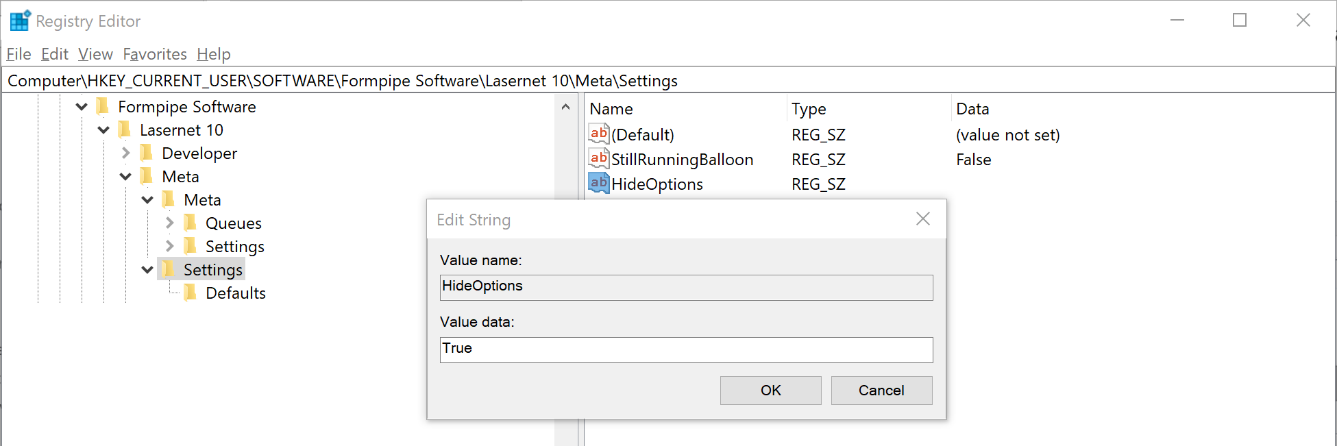
The HideOptions setting is a string with value set to True in [HKEY_LOCAL_MACHINE].
If options are not hidden, the user is able to manually add new Meta queues if the login credentials are known by the user.
You can always run “LnMeta.exe -function PrintersSync” to synchronize Windows printers and Lasernet Meta queues. This option is already executed by the Lasernet Meta 10.x Setup MSI installer during installation.
Registry location for manually added queues
Queues manually added to Lasernet Meta will always be located in [HKEY_CURRENT_USER] and only accessible for the user who added the queue. Both queues stored in [HKEY_LOCAL_MACHINE] and [HKEY_CURRENT_USER] will be accessible for the user.