Applies to: Lasernet Core 10
In the previous chapters we covered how to create OCR Fields with the built-in OCR tools and wizard to create Form Criteria, OCR Fields and Data Fields.
The solution also provides a Dictionary tool to automatically create objects with known phrases in the OCR Form. This requires a central database with a list of terms and regular expressions to recognize labels and extract data from documents.
Manage Dictionary
In the OCR Editor you can manage the Dictionary by clicking the Dictionary icon (1) in the application. In this mode you can only manage the Dictionary. All settings and functions used to manage OCR Forms are disabled.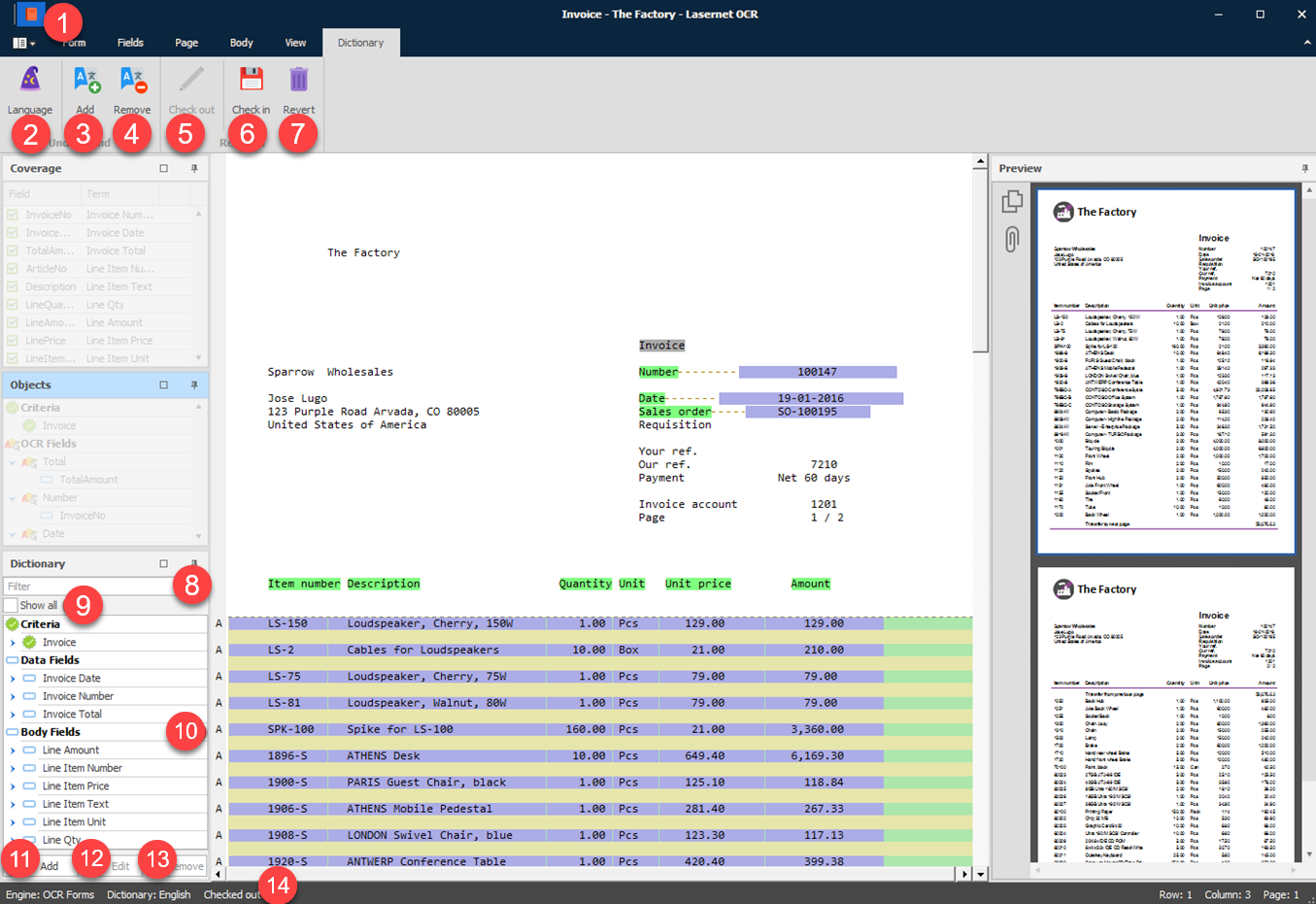
Select which Language you want to manage words for in the Dictionary. Before you can add or manage entries to the selected language, you must Check out (5) a private copy of the current version. Click Check in (6) to make your changes available to other users of the Dictionary. The selected Language and Check out status are available in the Status Bar (14).
Tool bar
Language Select which Language (2) you want to manage words for in the Dictionary.
Add Enabled in Check out mode. Click Add (3) to add a new Language to the Dictionary.
Remove Enabled in Check out mode. Click Remove (4) to remove a Language and all contents in the Dictionary for the selected Language.
A warning message will be shown stating before all translations, aliases and language specific regular expressions are lost.

Check out Click Check out (5) to prepare a new revision of the Dictionary. A private copy of the Dictionary will be created. Changes made to the Dictionary in Check out mode will not be available for other users after a Check in.
Check in Enabled in Check out mode. Click Check in (6) to update the Dictionary and deploy the modifications to other users of the dictionary.
Revert Enabled in Check out mode. Click Revert (7) to discard all changes made to the Dictionary since last Check in.
Dictionary
You can View, Add, Edit and Remove Terms from the Dictionary in the tree view in the Dictionary pane.
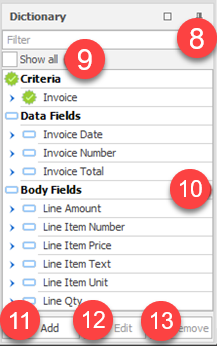
Filter Type a string to Filter (8) the contents of the Dictionary by.
Show all Enable Show all (9) to view all existing entries in the Dictionary for the selected language. Disable to show only the entries in the Dictionary that exist in the OCR Form that you are currently working on.
Dictionary The list of Criteria, Data Fields and Body Fields available in the Dictionary (10) for the selected Language.
Add Click Add (11) to manually add a new term to the Dictionary. Type the name in English for the term and a Description to describe the usage of the term.
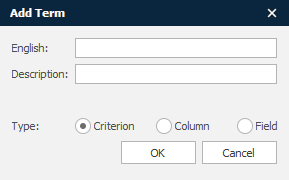
If you have selected a language other than English, an additional field for the selected language will be visible. In the field you can type in a translation for the language you are currently working with.
In dialogs, where the Term is present, the translated Term will be shown. The Term is bound to its English name and this will be the primary key in the Dictionary.
Edit Select a Criterion, a Data Field or a Body Field in the Dictionary. Click Edit (10) to change the contents of an existing Term.
Note
There are two variants of this dialog, depending on the context.
Edit Term – Criterion
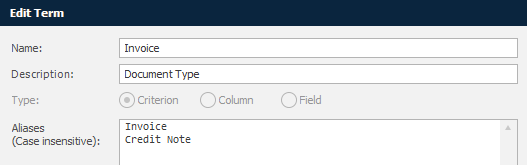
Edit term – Data Field
Remove Select a Criterion, Data Field or Body Field in the Dictionary and click Remove (11) to remove all aliases and language specific regular expressions for the selected Term. A warning message will be shown stating before all translations, aliases and language specific regular expressions are lost.
Understand tool
In Dictionary (1) mode there are tools to manage the Dictionary.
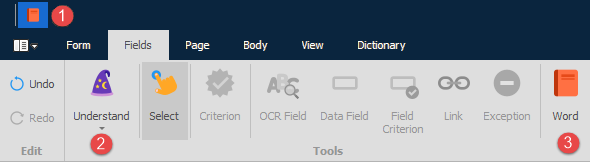
Click the Understand (2) tool and any Alias, connected to a Term that matches a string in the loaded document, will be highlighted in green boxes.
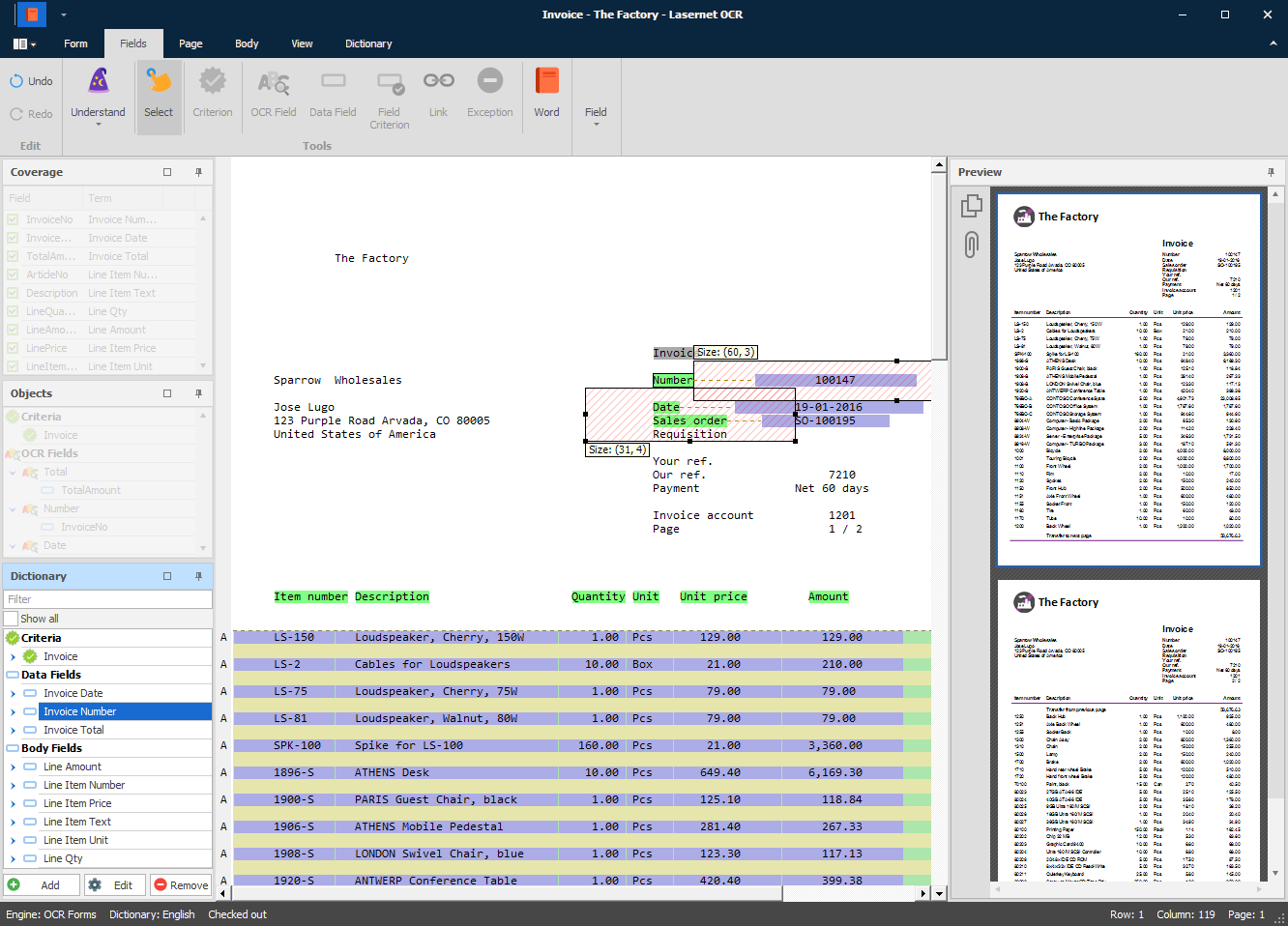
Aliases connected to Terms must be present in the loaded document as well as a Data Recognition (regular expression) in a specified area relative to an Alias. A Data recognition can be set for all languages or a specific language.
Click on any of the found Terms (green boxes) to view the location of area(s) where data recognition is running for the selected object. Drag and drop one of the anchor points to increase or decrease the size of the area for data recognition.
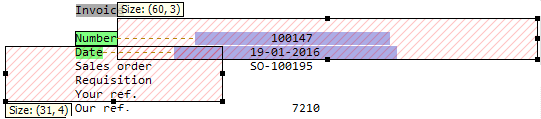
Double-click on the green item to edit the properties of the Term.
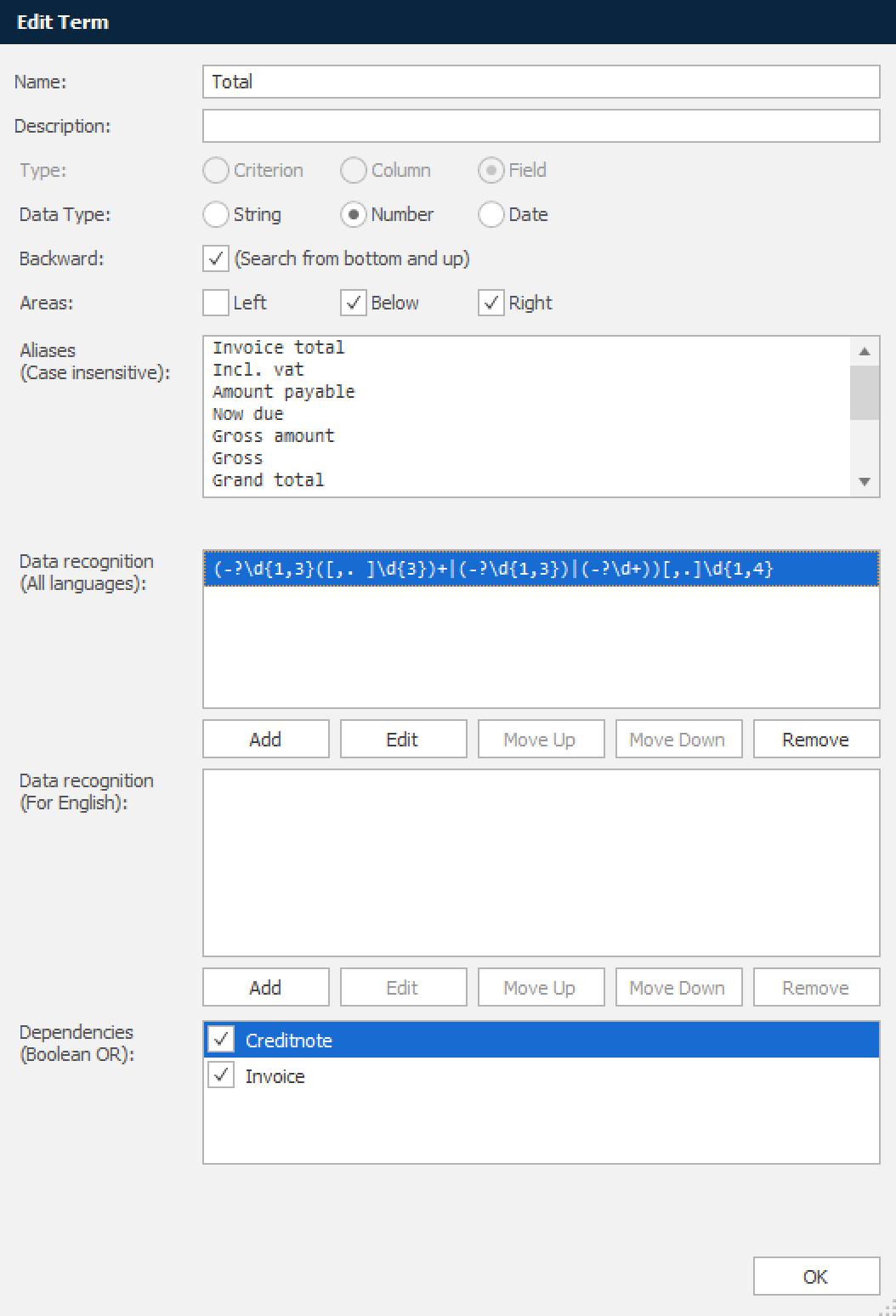
Name Name of Term that is stored in the Dictionary.
Description User-defined Description of Term.
Type Criterion defines that the Term is used to create a Criterion object that can recognize an OCR Form.
Column defines that the Term is used to automatically create OCR and Data Fields in the body of the OCR Form.
Field defines that the Term is used to automatically create OCR and Data Fields in the header and footer of the OCR Form.
Data type Selected Data type will automatically be assigned to the OCR Field.
Backward If selected, the search direction is from bottom upwards. We recommend this for fields that are always present at the bottom of a document, for example, the total amount.
Aliases One of the Aliases in the list must appear in an OCR Form to bind a Term to an OCR Field. The text strings are case insensitive and the first found string will bind the Term to an OCR Field if Data recognition is true.
Data recognition Regular expressions are used for Data recognition either for all languages or a specific language. The field has a list of pre-defined regular expressions to help you set up data recognition for common field types like amounts, dates, numbers, single words, multiple words, currency, SWIFT code, IBAN Number, VAT ID, E-mail and Web. You can customize your own regular expression(s) to handle other types of data recognition.
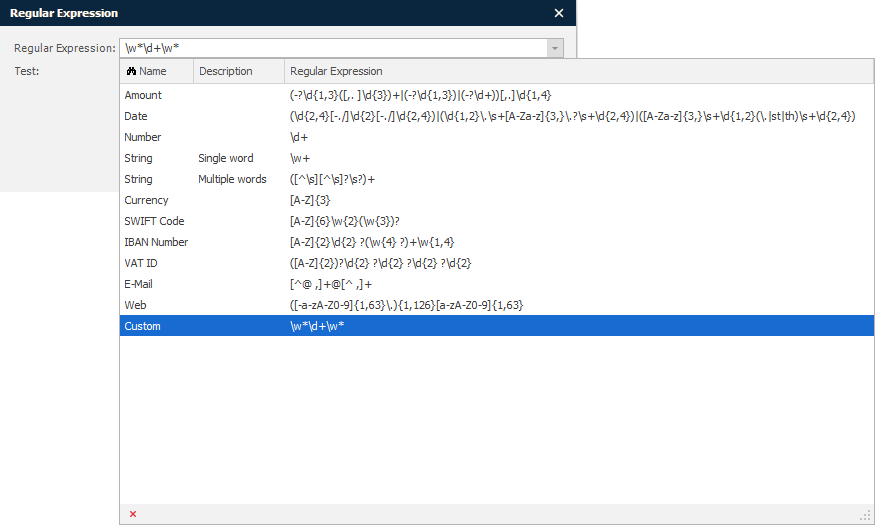
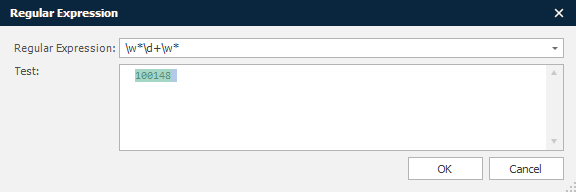
You can always test various combination of text strings to validate a regular expression. Strings marked with a green background show that the test string has been successfully recognised.
Dependencies For the most accurate recognition of a Term you can set up Dependencies to specific document type(s). This is often useful if you have an OCR solution running for several Document types and you want to ensure that the Term is only found on a specific type of document.
If you want to add additional words to the Dictionary you can use the Word (3) tool and mark words located in the Document.
Create OCR Forms with Dictionary
Turn off the Dictionary (1) mode and tools used to manage the Dictionary will be disabled.
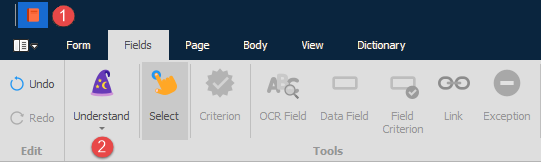
You can always switch to Dictionary (1) mode and add new Terms and Aliases to the Dictionary. Existing objects added to the OCR Form will not be lost.
Click the Understand (2) tool and any Alias, connected to a Term that matches a string in the loaded document, will be created as Criteria, OCR Fields and Data Fields.
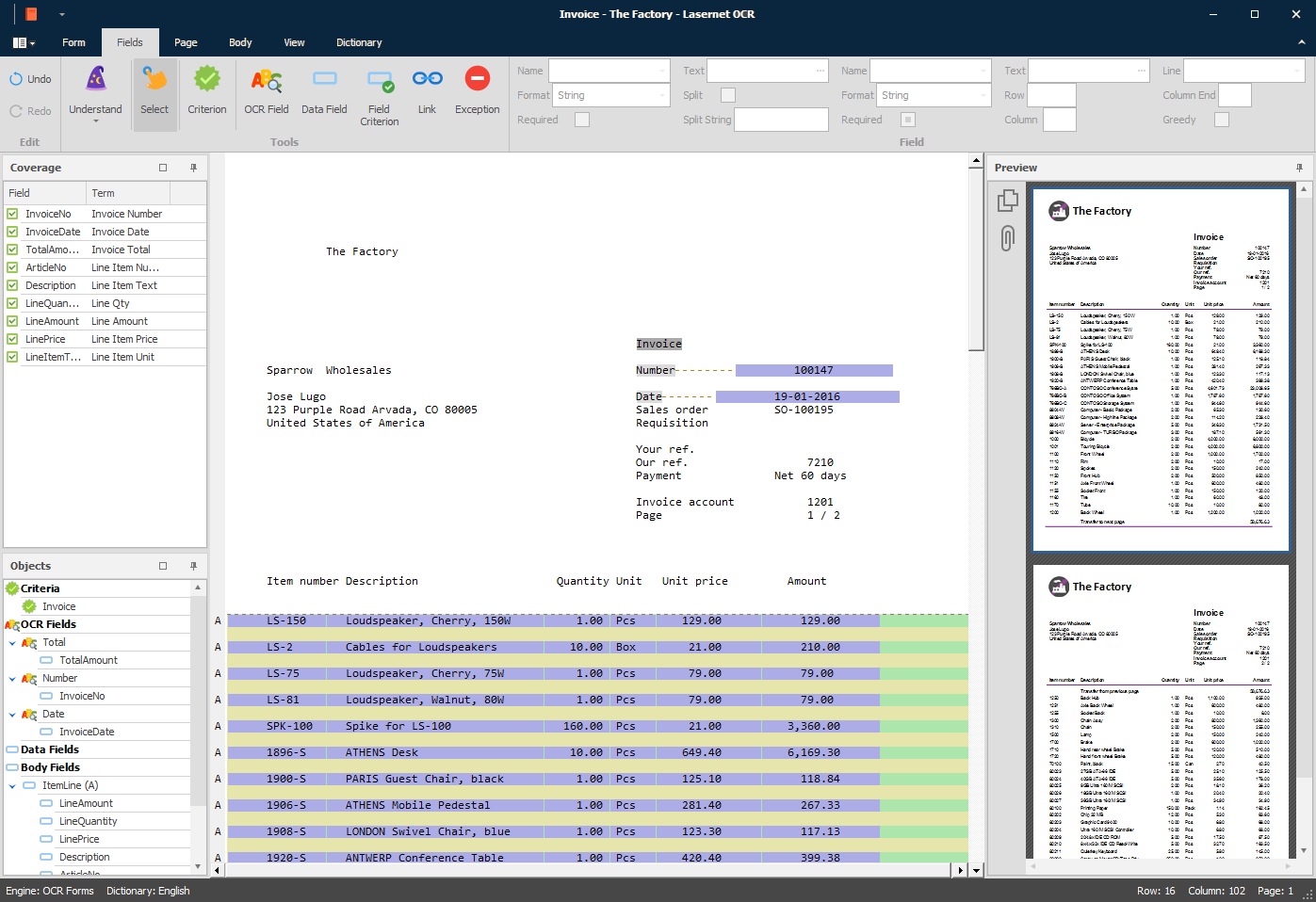
The Coverage window will show which fields have been automatically covered using the rules in the Dictionary.
The Objects window will show the property values for each object more in detail. If there is data in the document that has not been found, you can add the OCR Fields and Data Fields manually to finish the data extraction.
It is important to ensure that the objects which are automatically found are connected to the expected OCR and Data Fields and have the expected formatting properties. If the data is not extracted as expected, you must either manually correct the OCR Form objects or switch to Dictionary mode to optimize the contents of the Dictionary.
We recommend that you work with a checked-in version of the Dictionary to ensure you are using the latest revision.