---
title: "Encrypt the Autoform DM Datasource Password"
slug: "encrypt-the-autoform-dm-datasource-password"
description: "This page describes how to configure Autoform DM to store its datasource connection password in an encrypted format."
updated: 2026-04-21T09:43:30Z
published: 2026-04-21T09:43:30Z
canonical: "kb.lasernetgroup.com/encrypt-the-autoform-dm-datasource-password"
---
> ## Documentation Index
> Fetch the complete documentation index at: https://kb.lasernetgroup.com/llms.txt
> Use this file to discover all available pages before exploring further.
# Encrypt the Autoform DM Datasource Password
By default, the password that Autoform DM uses to connect to its datasource is stored as cleartext.
To mitigate this security risk, Autoform DM can store an encrypted password. This ensures that the password is not revealed when Autoform DM configuration files are viewed or shared.
> [!NOTE]
> Note
>
> An Autoform DM system’s datasource is a database, so the subject of this guide is the database connection password.
> [!NOTE]
> Note
>
> This guide applies only to Autoform DM systems running in standalone mode.
In summary, the implementation process for encrypting the Autoform DM datasource password is:
1. [Complete prerequisite steps](/v1/docs/encrypt-the-autoform-dm-datasource-password#prerequisite-steps).
2. [Install the custom Wildfly login module](/v1/docs/encrypt-the-autoform-dm-datasource-password#install-the-custom-wildfly-login-module).
3. [Generate an encrypted password](/v1/docs/encrypt-the-autoform-dm-datasource-password#generate-an-encrypted-password).
4. [Configure Autoform DM](/v1/docs/encrypt-the-autoform-dm-datasource-password#configure-autoform-dm).
5. [Start Autoform DM](/v1/docs/encrypt-the-autoform-dm-datasource-password#start-autoform-dm).
The steps are described in detail below.
## Prerequisite Steps
### Download the Required Files
To implement datasource password encryption, you will need the following components:
- `efs-pbetool.jar`: A CLI tool that encrypts the password.
- `pbeloginmodule-x.x.x-module.zip`: A ZIP archive that contains the Wildfly module that decrypts the password at runtime.
These components are packaged into a single ZIP file. Download the following ZIP file that is appropriate for your version of Autoform DM.
#### **Autoform DM 10.0 and Later**
[https://lngsupportdownloads.blob.core.windows.net/autoformdm/Tools/pbeloginmodule-1.0.1-dist.zip](https://lngsupportdownloads.blob.core.windows.net/autoformdm/Tools/pbeloginmodule-1.0.1-dist.zip)
This package includes PbeLoginModule-1.0.1
#### **Earlier Autoform DM Versions**
[https://lngsupportdownloads.blob.core.windows.net/autoformdm/Tools/LoginModuleTool.zip](https://lngsupportdownloads.blob.core.windows.net/autoformdm/Tools/LoginModuleTool.zip)
This package includes PbeLoginModule-1.0.0
### Back-Up the Current Autoform DM Configuration File
Locate the `standalone.xml` Autoform DM configuration file and make a backup copy of it. This file is in the `\standalone\configuration` directory of the Wildfly application server.
For example, if Autoform DM 10.4 is installed to create a node named Production and it is installed to its default location, the configuration file is `C:\Program Files\Formpipe Software\Autoform DM\Server_10.4 - Production\wildfly-22.0.1.Final\standalone\configuration\standalone.xml`.
## Install the Custom Wildfly Login Module
To install the password decryption module:
1. Open the ZIP file that you downloaded and then find `pbeloginmodule-1.0.1-module.zip` or `pbeloginmodule-1.0.0-module.zip` within it.
2. Extract `pbeloginmodule-1.0.1-module.zip` or `pbeloginmodule-1.0.0-module.zip` to the `modules` directory of the Wildfly application server.
> [!NOTE]
> Note
>
> For example, if Autoform DM 10.4 is installed to create a node named Production and it is installed to its default location, unpack the ZIP file’s contents to `C:\Program Files\Formpipe Software\Autoform DM\Server_10.4 - Production\wildfly-22.0.1.Final\modules\`.
Depending on the `pbeloginmodule` version that you installed, the Wildfly application server’s directory structure will now include `\modules\com\formpipe\tools\main` or `\modules\com\efstech\tools\main`.
## Generate an Encrypted Password
In summary, during this part of the process you use the `efs-pbetool` CLI tool to encrypt the password. After the tool outputs the encrypted password, make a note of it because you will need the encrypted password during the next stage of this process.
1. Open the ZIP file that you downloaded and then extract `efs-pbetool.jar` from it.
2. Depending on whether you want to use the default encryption key or you want to provide one, follow the instructions in the appropriate following section:
> [!NOTE]
> Note
>
> In the commands in the following sections, substitute `<db-password>` for the datasource password.
- [Use the Default Key to Encrypt the Password](/v1/docs/encrypt-the-autoform-dm-datasource-password#use-the-default-key-to-encrypt-the-password)
- [Use a Provided Key to Encrypt the Password](/v1/docs/encrypt-the-autoform-dm-datasource-password#use-a-provided-key-to-encrypt-the-password)
3. Make a note of the encrypted password that `efs-pbetool.jar` generates.
### Use the Default Key to Encrypt the Password
Run the following command: `java -jar efs-pbetool.jar <db-password>`
### Use a Provided Key to Encrypt the Password
If you want to provide your own encryption key to encrypt the password (instead of using the default key), follow these steps:
1. Generate the key value that you want to use.
2. Add the key to a file named `encryption.key`.
3. Run the following command. Substitute `<path to encryption.key file>` for the path to the `encryption.key` file that you created.
`java -jar efs-pbetool.jar <db-password> <path to encryption.key file>`
> [!NOTE]
> Note
>
> The path must be an absolute path that contains / (forward slashes). UNC paths are not supported.
## Configure Autoform DM
During this part of the process, you add the encrypted password to the Autoform DM configuration and then configure Autoform DM to decrypt the password.
Ideally, use the [scripted method](/v1/docs/encrypt-the-autoform-dm-datasource-password#scripted-configuration-update-autoform-dm-100-and-later) to prevent misconfiguration. This method applies to Autoform DM 10.0 and later.
Otherwise, follow the [manual configuration update steps](/v1/docs/encrypt-the-autoform-dm-datasource-password#manual-configuration-update-earlier-autoform-dm-versions).
### Scripted Configuration Update (Autoform DM 10.0 and Later)
Locate `Readme.md` in `pbeloginmodule-1.0.1-dist.zip` and follow the instructions in the `### Modify the datasource configuration` part of that file.
### Manual Configuration Update (Earlier Autoform DM Versions)
To manually update `standalone.xml`, follow these steps:
1. Find the `<security>` element (within the `datasource` element) and replace it with:
```xml
EncryptedDSPassword
```
For example:
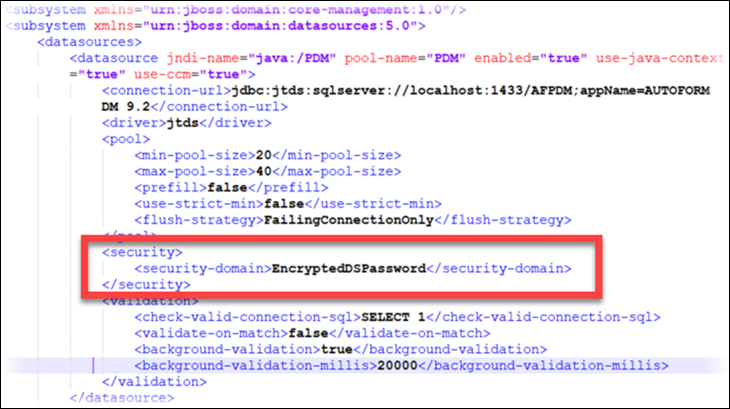
2. Find `subsystem xmlns="urn:jboss:domain:security` and then (based on the Autoform DM version) add one of the following `security-domain` configurations.
> [!NOTE]
> Note
>
> In the XML that follows this note, substitute `<ENCRYPTED_PASSWORD>` for the encrypted password generated earlier.
>
>
>
> If you used your own encryption key to encrypt the password (instead of the default key), copy the `encryption.key`file to an accessible location, then add the following `module-option` element to the XML: `<module-option name="key-file" value="<PATH_TO_KEY_FILE>"/>` . Appropriately substitute `<PATH_TO_KEY_FILE>`. The path must be an absolute path that contains / (forward slashes). UNC paths are not supported.
- **pbeLoginModule 1.0.1 (Autoform DM 10.0 and later)**
```xml
```
- **pbeLoginModule 1.0.0 (Earlier Autoform DM versions)**
```xml
```
## Start Autoform DM
Start Autoform DM. It will read the encrypted password from the configuration file, decrypt it, and then use the password to connect to the datasource.
## Troubleshooting and Rollback
If you encounter any issues, check the server logs for relevant messages.
If necessary, use the backup of the unmodified `standalone.xml` file to revert the configuration changes.