
This page describes how to start Keep and introduces you to the parts of Lasernet Keep that you use to upload documents or search the archive.
Log In to Keep
To log in to Keep, follow these steps:
In a web browser, go to Keep’s URL.
Note
Typically, it has a format similar to the following example (in which the Keep server is called
keep-server):https://keep-server/keepIf you are unsure of the correct URL or have trouble accessing Keep, contact your system administrator. They can confirm the URL and clarify whether you must include a port number within it.
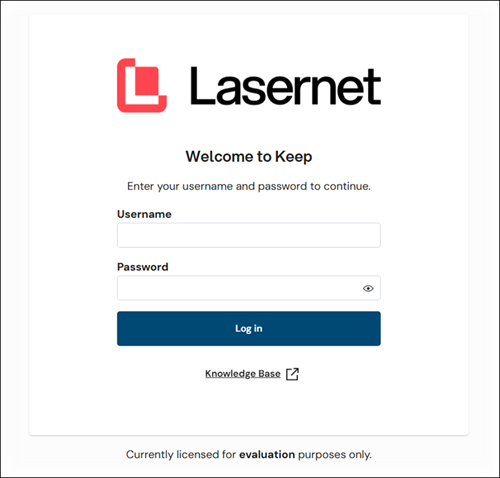
Enter your Username and Password, then click Log in.
Note
Depending on how Keep has been set up, the log in page might look different to the page above.
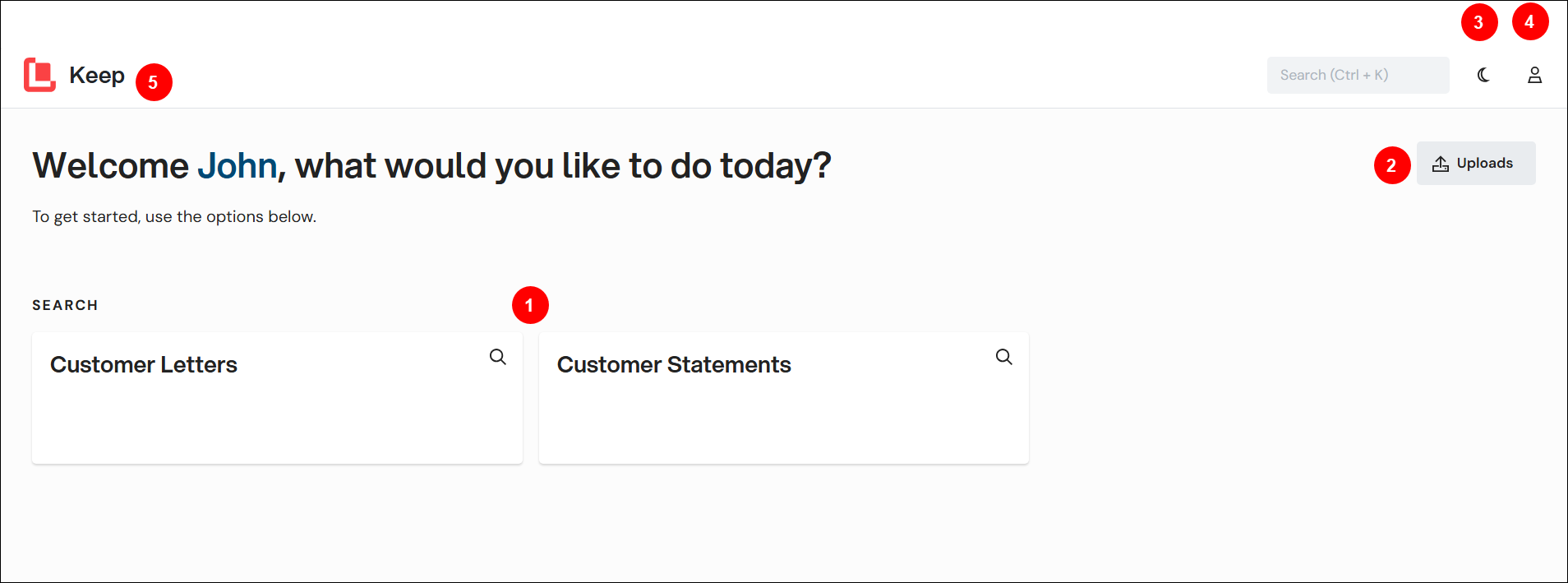
Find Your Way Around Keep
Number | Item | More information |
|---|---|---|
1 | Searches | To begin a search, click a tile.
|
2 | Uploads | To begin the upload process, click Uploads and then select an upload from the list.
|
3 | Dark mode switch | |
4 | Account | To open the Account info pane and access the Sign out button, click this button. You can also change your own password here. For more information, see Account Info Pane. |
5 | Return to home page | At any time, click Keep to return to this home page. |
Account Info Pane
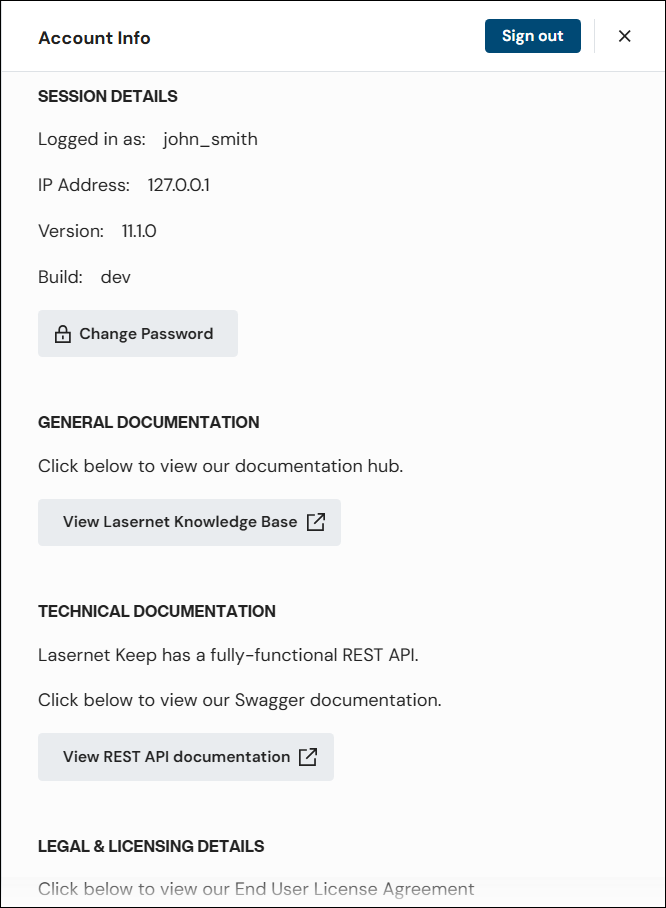
The Account Info pane displays information (such as username) about the user account that you are logged in as. It also provides links to relevant license agreements and documentation.
Click Change Password to change your own password for Keep.
To sign out of Keep, click Sign out.
Click x to close the pane.
Change Your Password
To change your password for Keep, follow these steps:
Open the Account Info pane.
Click Change Password.
Enter your current password into the Current Password box.
Enter your new password into the New Password and Confirm New Password boxes.
Note
Keep will notify you if the new password does not satisfy password complexity rules.
Click Confirm. Keep will log you out.
Use your new password to log in to Keep.