
Applies to: Lasernet Core 10
In some cases, the Lasernet administrator password may need to be reset. In order to do this, you will need admin rights on the server on which your Lasernet Config Server is installed. To reset your password, perform the following actions:
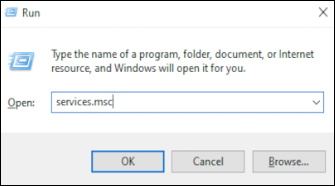
Open the Windows Start menu and search for “services.msc”.
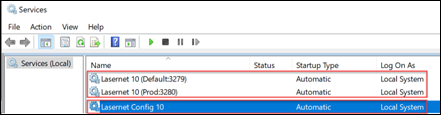
Scroll down the services list to find the Lasernet Config and Lasernet 10 services.
Right-click each of them and click Stop.
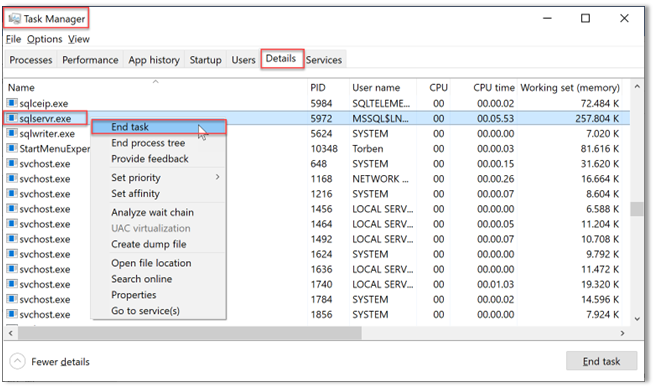
Open Task Manager and navigate to the details tab to locate any instances of sqlservr.exe.
Right-click it and then click End task.
Run a Windows Command Prompt with Admin permissions.
Type
cd C:\Program Files\Formpipe Software\Lasernet 10\in order to change the directory to the Lasernet 10 installations folder.Run LnConfig.exe in the Command Prompt with the following parameter:
LnConfig.exe -reset-admin-password.
Note
This will generate a list of database errors, as the database is no longer being utilized by the sqlservr.exe process. This means it is now open to a password reset. As a result, a new password for the admin account is generated and shown in the console. This must be changed when you next log into the config server website.
In services.msc, restart the Lasernet Config 10 and Lasernet 10 Services.
The sqlservr.exe will automatically restart when the Lasernet Config 10 and Lasernet 10 Services are started.