Applies to: Lasernet Core 11
This engine is used for converting Infor ERP LN Baan files to an optimized XML format.
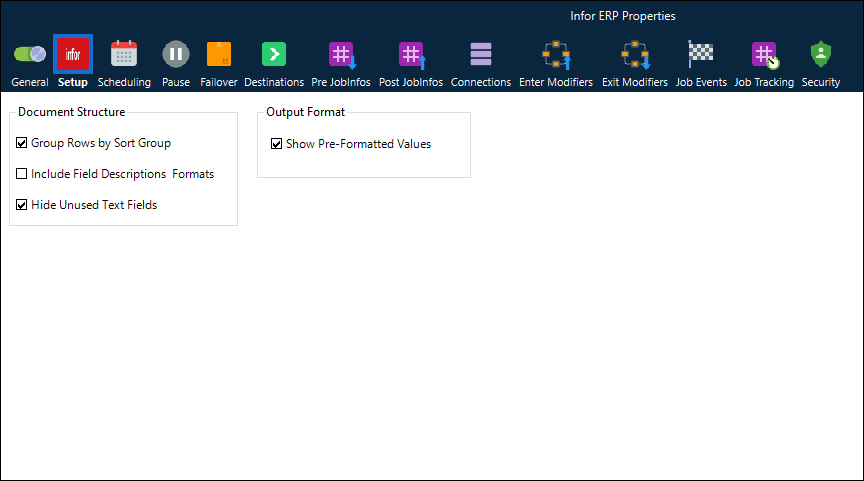
Setup Tab
The Setup tab contains the following two sections.
Document Structure
Group Rows by Sort Group | When this checkbox is selected, the output data is organized in an XML hierarchy by sort groups, with records grouped within their corresponding sort-group elements. For example: <sortgroup1 value="VFI">
<sortgroup2 value="10158617">
<sortgroup3 value="0">
<before.r.copy.nr.5>
<before.r.copy.nr.5.1>
<Label_sli2400.002>Date du jour</Label_sli2400.002>
<utc.num>22/05/2025 11:13</utc.num>
<Label_sli2400.011>Union européenne</Label_sli2400.011>
<c.meec>Oui</c.meec>
<text.col.14>:</text.col.14>
When the checkbox is cleared, data is output in a flatter XML structure. |
Include Field Descriptions Formats | When this checkbox is selected, additional XML attributes are added to output elements, and additional field-formatting information is included. For example: <Label_cisli.bpid>Tiers</Label_cisli.bpid>
<r.ih.title display.format="%-3.3s">ZZZ</r.ih.title>
<r.ih.itbp display.format="%-9.9s">100002605</r.ih.itbp>
<r.ih.itbp.name display.format="%.35s">RENAULT TRUCKS DEFENSE</r.ih.itbp.name>
<text.col.36>:</text.col.36>
When it is cleared, only the standard field values are output. |
Hide Unused Text Fields | When this checkbox is selected, elements with empty <text id> attributes are omitted. For example, if the input were: <row rc="1" layout="before.r.line.header.key.30.1"><e textid="275187044"></e></row>
<row rc="1" layout="before.r.line.header.key.30.1"><e textid="275187044">VEHICULE DE BASE : RENAULT MASTER FV L2H2</e></row>
<row rc="1" layout="before.r.line.header.key.30.1"><e textid="">CONTREMARQUE :</e></row>
<row rc="1" layout="before.r.line.header.key.30.1"><e textid="275187044">USAGE : PUBLIC</e></row>
<row rc="1" layout="before.r.line.header.key.30.1"><e textid="275187044">CHASSIS :</e></row>
The output would be: <before.r.line.header.key.30.1>
<r.header.text />
</before.r.line.header.key.30.1>
<before.r.line.header.key.30.1>
<r.header.text>VEHICULE DE BASE : RENAULT MASTER FV L2H2</r.header.text>
</before.r.line.header.key.30.1>
<before.r.line.header.key.30.1 />
<before.r.line.header.key.30.1>
<r.header.text>USAGE : PUBLIC</r.header.text>
</before.r.line.header.key.30.1>
<before.r.line.header.key.30.1>
<r.header.text>CHASSIS :</r.header.text>
</before.r.line.header.key.30.1>
When the checkbox is cleared, those elements are included in the output. |
Show Pre-Formatted Values | When this checkbox is selected, the original input, unformatted value is preserved as an XML attribute, while the formatted value is written as the element value. Formatting may include currency symbols and other display formats. For example: <tcemm030.fcmp unformated.value="500">$500,00</tcemm030.fcmp>
When the checkbox is cleared, only the original unformatted value is written in the output, and no formatting metadata is included. |

