If you plan on using Azure File Share with Lasernet Developer and Service without using the Microsoft Entra ID, you can follow the example steps listed in this article. We have tested with the settings shown in the screenshots, but other methods may also work.
Steps
Open a Storage Account in Azure and mirror the settings displayed in the following image:

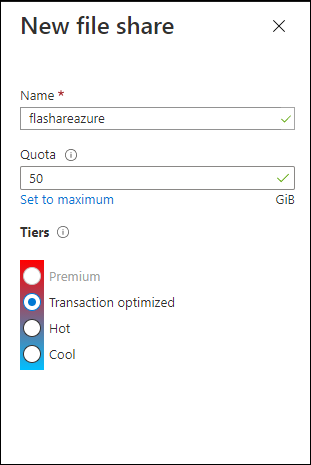
Create a new File Share using the settings displayed in the following image:
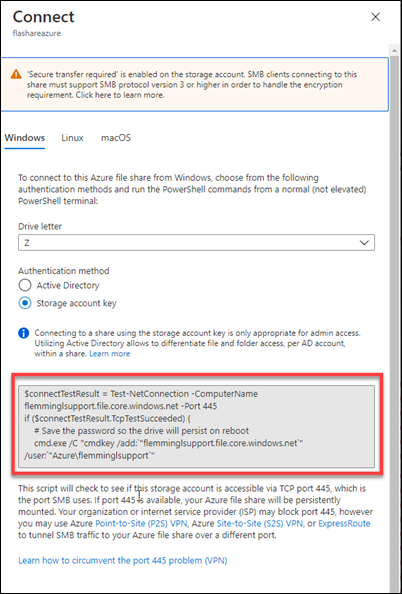
To create a connection from Windows ®, navigate to Connect on the File Share and copy the text in the grey script box.
Open PowerShell, paste the text into the PowerShell command line and click Enter. The following is displayed:
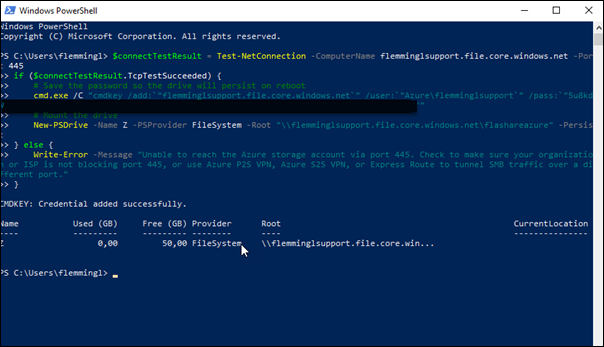
The Azure File Share is mapped to your account in Windows ® permanently.
Map to Lasernet
To enable Azure File Share to work with Lasernet, follow these steps:
Open Lasernet Developer and set your service to run as the same user.
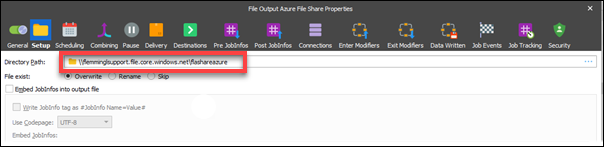
Open the Setup tab on the Output module and enter the full path (not the drive letter) into the Directory Path field.