
Move Fixed Reports
Several ways exist to move fixed reports. This section of the Fix Reports guide provides some examples.
Note
This process can vary from environment to environment, so we cannot provide a detailed step-by-step guide. Always refer to Microsoft documentation.
Create a Model File
To create a model file, follow these steps:
Log in to your Dynamics server and run a Command Prompt as Administrator.
In File Explorer, locate the
Fix reportsfolder. All reports are saved here by default (unless there are reports from another ISV solution):K:\AosService\PackagesLocalDirectory\LACFixReportsForApplicationSuite.Open the Command Prompt and navigate to your
AosService\PackagesLocalDirectory\binfolder.
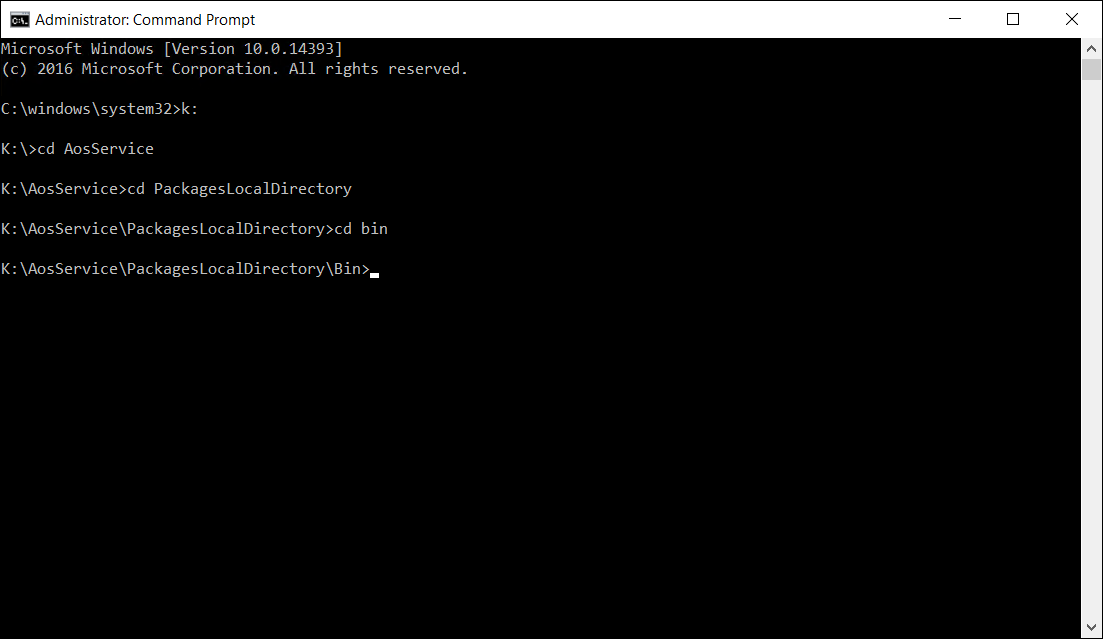
Run the model to create the model. Remember that your output path should exist before doing this.
Example
modelutil -export -metadatastorepath=K:\AosService\PackagesLocalDirectory -modelname=LACFixReportsForApplicationSuite -outputpath=C:\LACExport
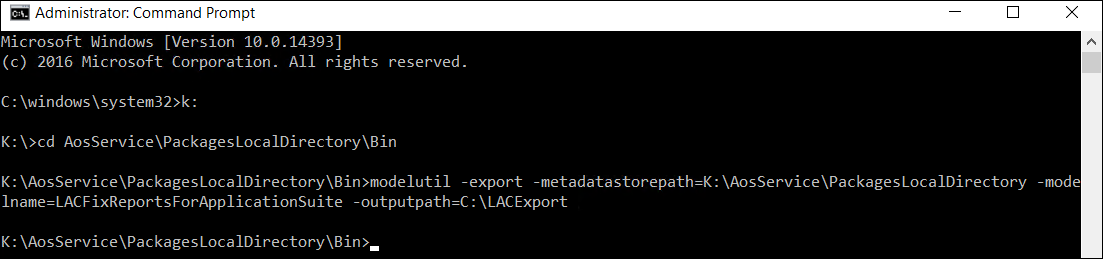
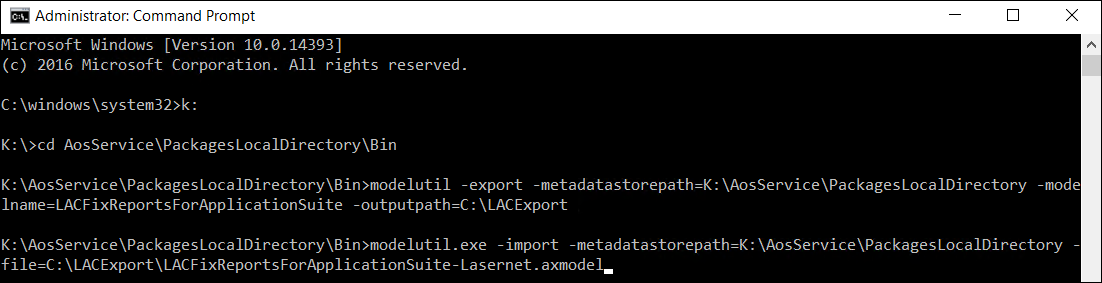
You can now import this model file into any non-production environment.
Import example
modelutil.exe -import -metadatastorepath=K:\AosService\PackagesLocalDirectory -file=C:\LACExport\LACFixReportsForApplicationSuite-Lasernet.axmodel
Create a Deployable Package
To create a deployable package, follow these steps:
Log in to your Dynamics server and run Visual Studio as Administrator.
In File Explorer, locate the
Fix reportsfolder. All reports are saved here by default (unless there are reports from another ISV solution):K:\AosService\PackagesLocalDirectory\LACFixReportsForApplicationSuite.In Visual Studio, click Dynamics 365 > Deploy > Create Deployment Package.
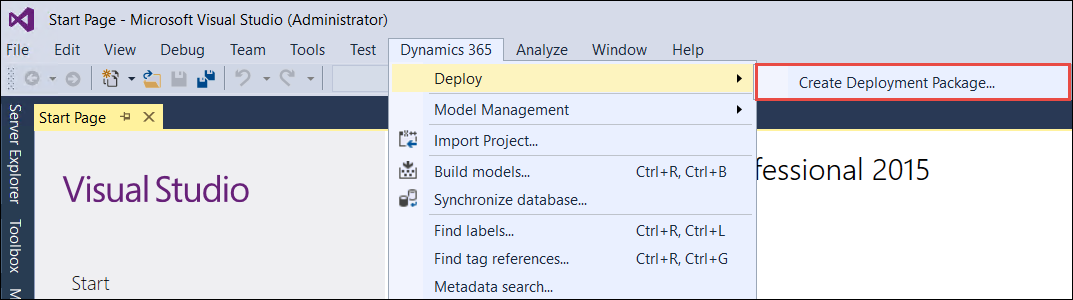
Scroll down and select LACFixReportsForApplicationSuite. The name may vary depending on other ISV solutions.
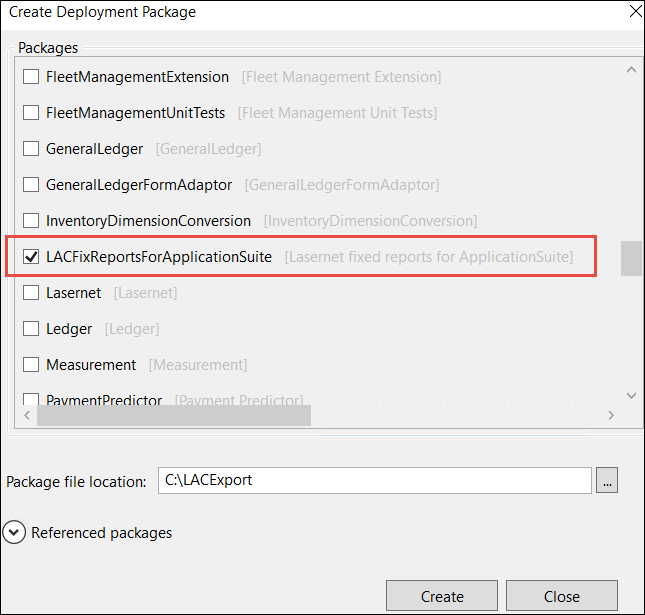
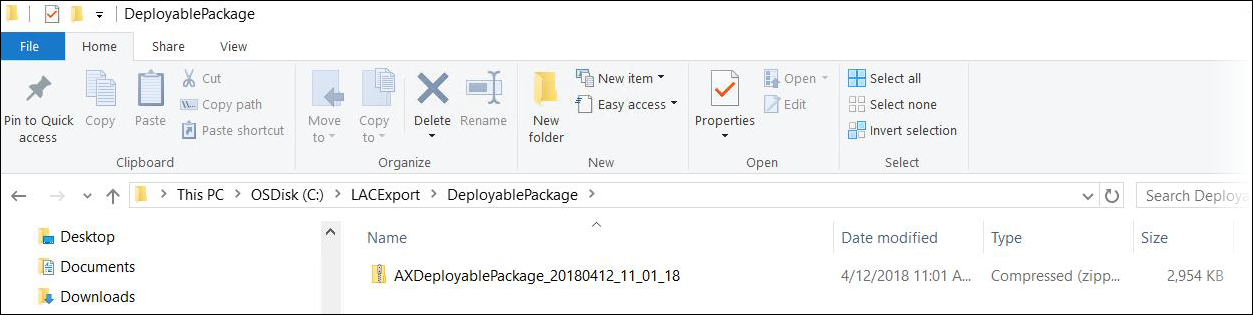
The packages are now ready for import.
Note
You still need permission to access the folder and the reporting server on the receiving environment. After all fixes are moved, you might need to deploy the reports again via Lasernet > Reports > Fixed report version > Deploy.

If the following error occurs, then the reports have not been deployed correctly:
Error
Posting Lasernet report SalesConfirm.Report The item ‘/Dynamics/LAC_Fix_SalesConfirm.Report’ cannot be found.
