

Applies to: Lasernet Core 11
Splits PDF documents into multiple parts. Each part becomes a new Lasernet Core job.
This modifier is used to process incoming PDFs that consist of multiple individual documents combined into a single PDF file. For example, the PDF could contain multiple invoices that you need to split into individual PDFs.
Specify How Lasernet Core Splits a PDF
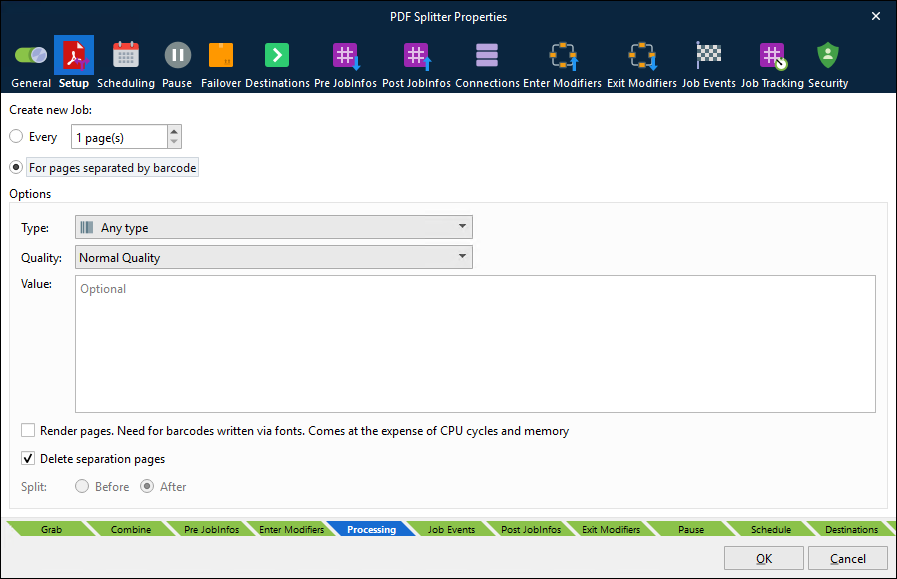
The Create new Job setting determines how Lasernet Core splits a PDF document into multiple smaller jobs:
Every <number> page(s): The PDF is split according to the specified page interval. For example, if this option is selected and set to 2 page(s), a 10-page incoming PDF is split into 5 double-page PDFs.
For pages separated by barcode: If this option is selected, you must specify which type of barcode denotes the end of each individual document within the PDF. When a Lasenet Core environment processes an incoming PDF, it will analyze each page and split the document when it encounters that type of barcode. For example, the incoming PDF might consist of multiple individual documents of varying lengths but that all contain a barcode on their final page. This feature can split the PDF into individual documents based on the occurrence of those barcodes.
Options (For Pages Separated by Barcode)
The following options are relevant to the For pages separated by barcode option:
Type: Select the type of barcode that you want to search for.
Note
If you select a particular barcode type instead of Any type, the PDF Splitter engine will process the document more quickly.
Quality
High Performance: High-quality barcodes are recognized well in this mode.
High Quality: This preset is developed for low-quality barcodes. Able to detect highly damaged barcodes.
Max Quality: Able to recognize all possible barcodes (even incorrect barcodes).
Normal Quality: Suitable for most barcodes.
Value: Type the barcode value that you want Lasernet Core to look for.
Note
This is an optional field. If you do not specify a value, the PDF Splitter engine will search for any value. As a result, processing might take longer.
Render pages: If selected, barcodes embedded as fonts (vector graphics) are recognized and processed.
Note
Only select this option if your document contains font barcodes instead of image barcodes. When this option is selected, CPU and memory load increase, which results in longer processing times.
Delete separation pages and Split Before / After: These settings determine Lasernet Core’s behavior when it encounters a barcode:
If Delete separation pages is selected, pages that contain barcodes are deleted.
If Delete separation pages is not selected, you can set the Split option to Before or After:
If Before is selected, the PDF is split before the page that contains the barcode.
If After is selected, the PDF is split after the page that contains the barcode.
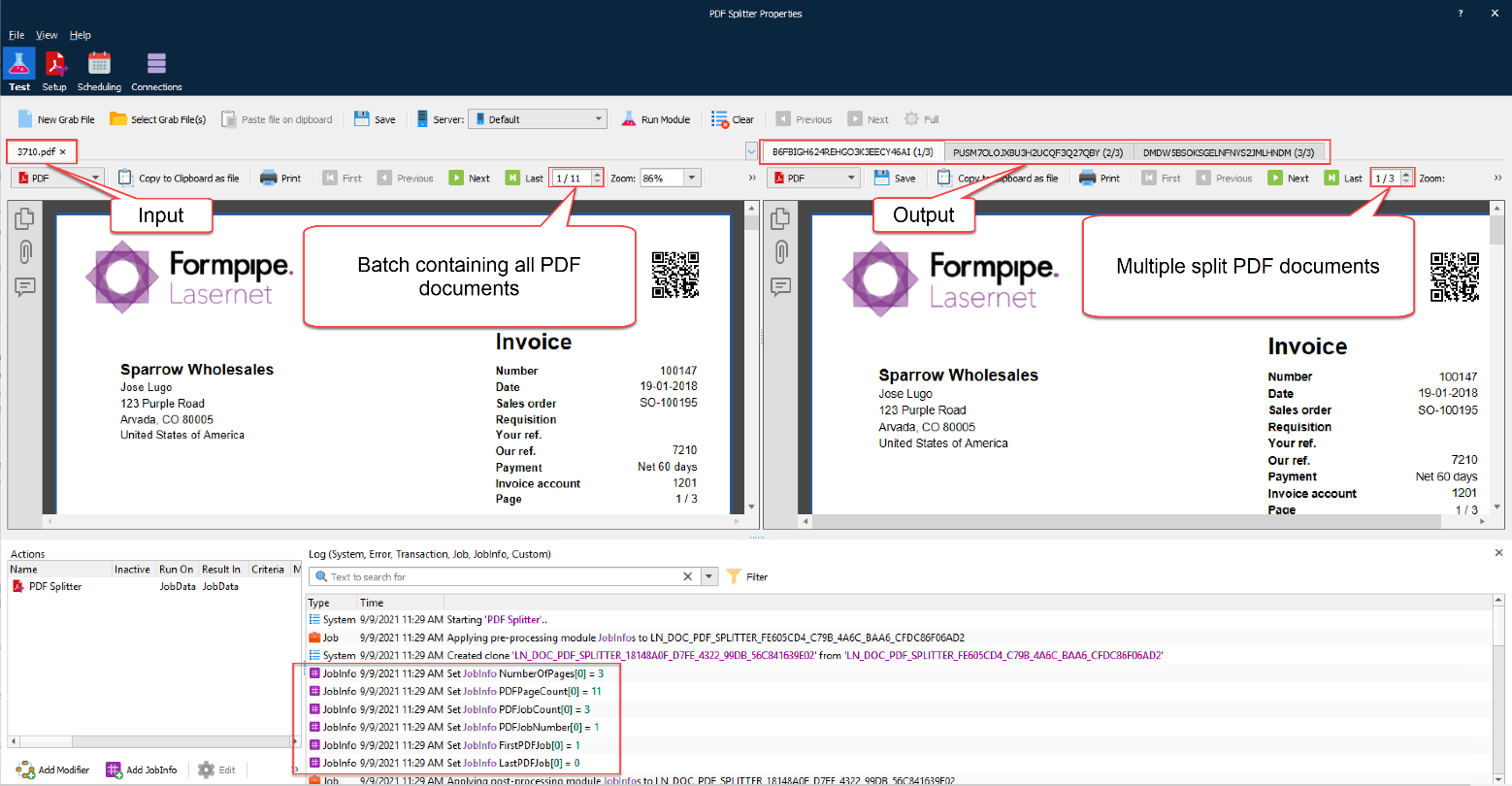
The following example shows one input PDF (a batch-generated document that contains multiple documents) being split into three output PDF documents.
JobInfos
The following JobInfos are created by the PDF Splitter:
NumberOfPages | Number of pages in the current split job. |
PDFPageCount | Total number of pages in incoming PDF job |
PDFJobCount | Total number of split PDF jobs |
PDFJobNumber | Job number for split PDF job |
FirstPDFJob | Boolean set to 1 (true) when the first split PDF job in the batch is created |
LastPDFJob | Boolean set to 1 (true) when the last split PDF job in the batch is created |