Applies to: Lasernet Core 10
Splits PDF documents into multiple parts.
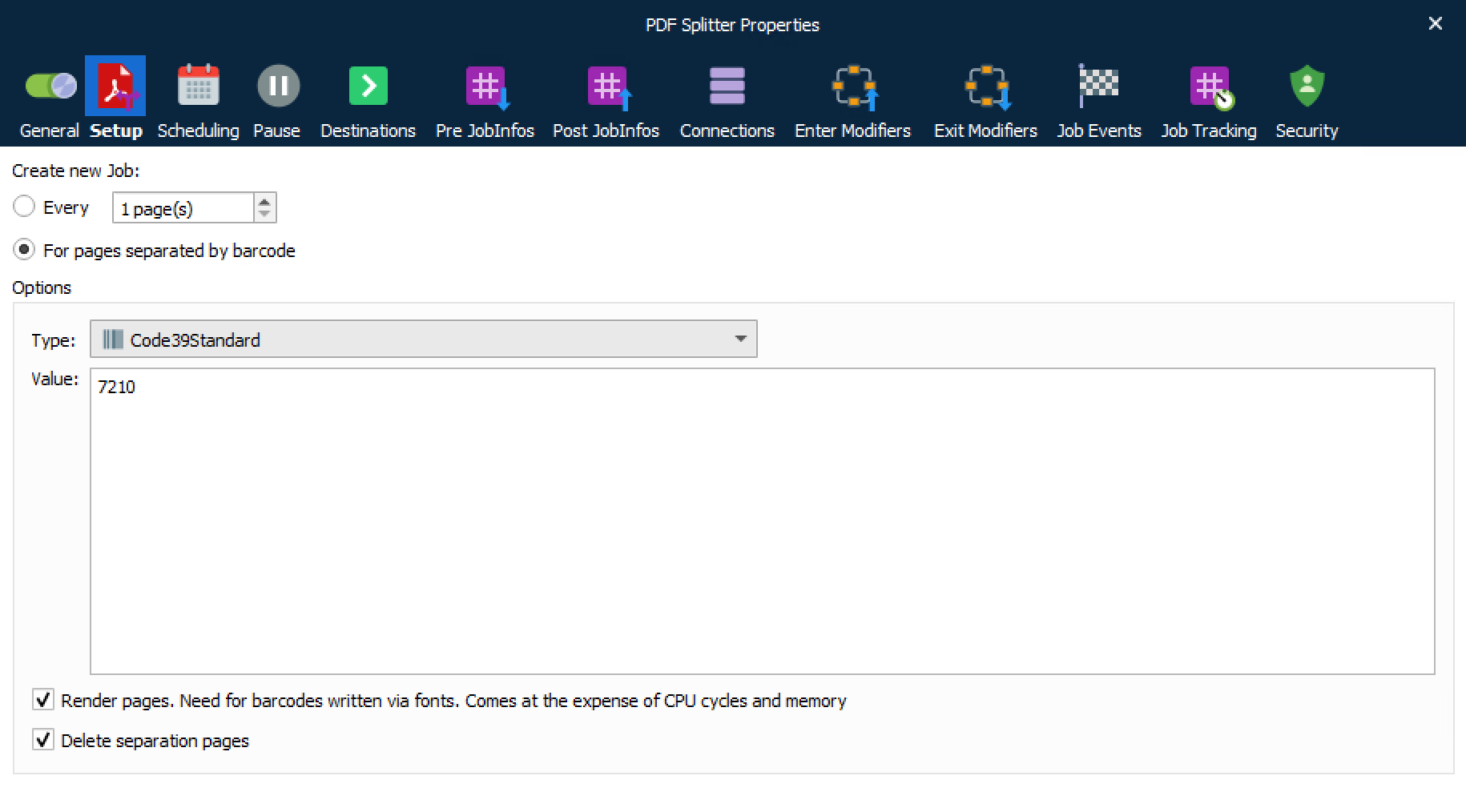
Create new Job
Select the method by which you want Lasernet Core to determine when to split documents:
Every: The PDF will be split at user-defined intervals. Adjust the number of pages between splits.
For pages separated by barcode: The PDF will be split wherever there is a page containing a specified barcode.
Options
The following options are relevant to the For pages separated by barcode option:
Type: Select, from the drop-down menu, the barcode type for which you want to search.
Note: We recommend selecting a particular barcode type instead of All types because PDF Splitter will process the document faster.
Value: Type the barcode value for which you want to search.
Note: This is an optional field. If you do not specify a value, the engine will search for any value and might take longer to process the document.
Render pages: If checked, barcodes embedded as fonts (vector graphics) will be recognised and processed.
Note: Only select this option if your document contains font barcodes instead of image barcodes. CPU and memory load will increase, resulting in longer processing time.
Delete separation pages: If checked, pages used to split the PDF will be automatically deleted from the output file.
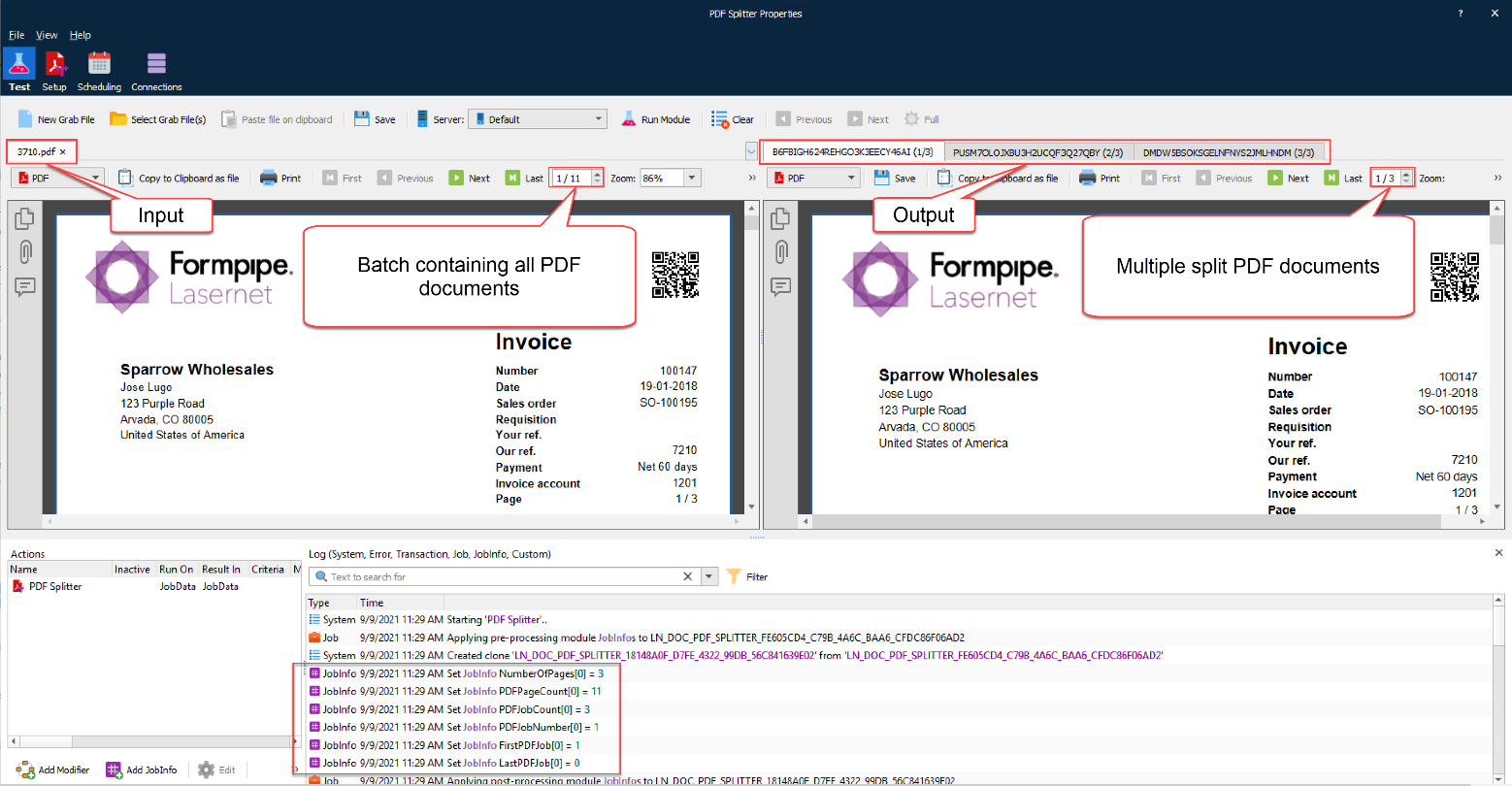
The example shows one input PDF (batch) being split into three output PDF documents.
JobInfos
The following JobInfos are created by the PDF Splitter:
| NumberOfPages | Number of pages in the current split job. |
| PDFPageCount | Total number of pages in incoming PDF job |
| PDFJobCount | Total number of split PDF jobs |
| PDFJobNumber | Job number for split PDF job |
| FirstPDFJob | Boolean set to 1 (true) when the first split PDF job in the batch is created |
| LastPDFJob | Boolean set to 1 (true) when the last split PDF job in the batch is created |