
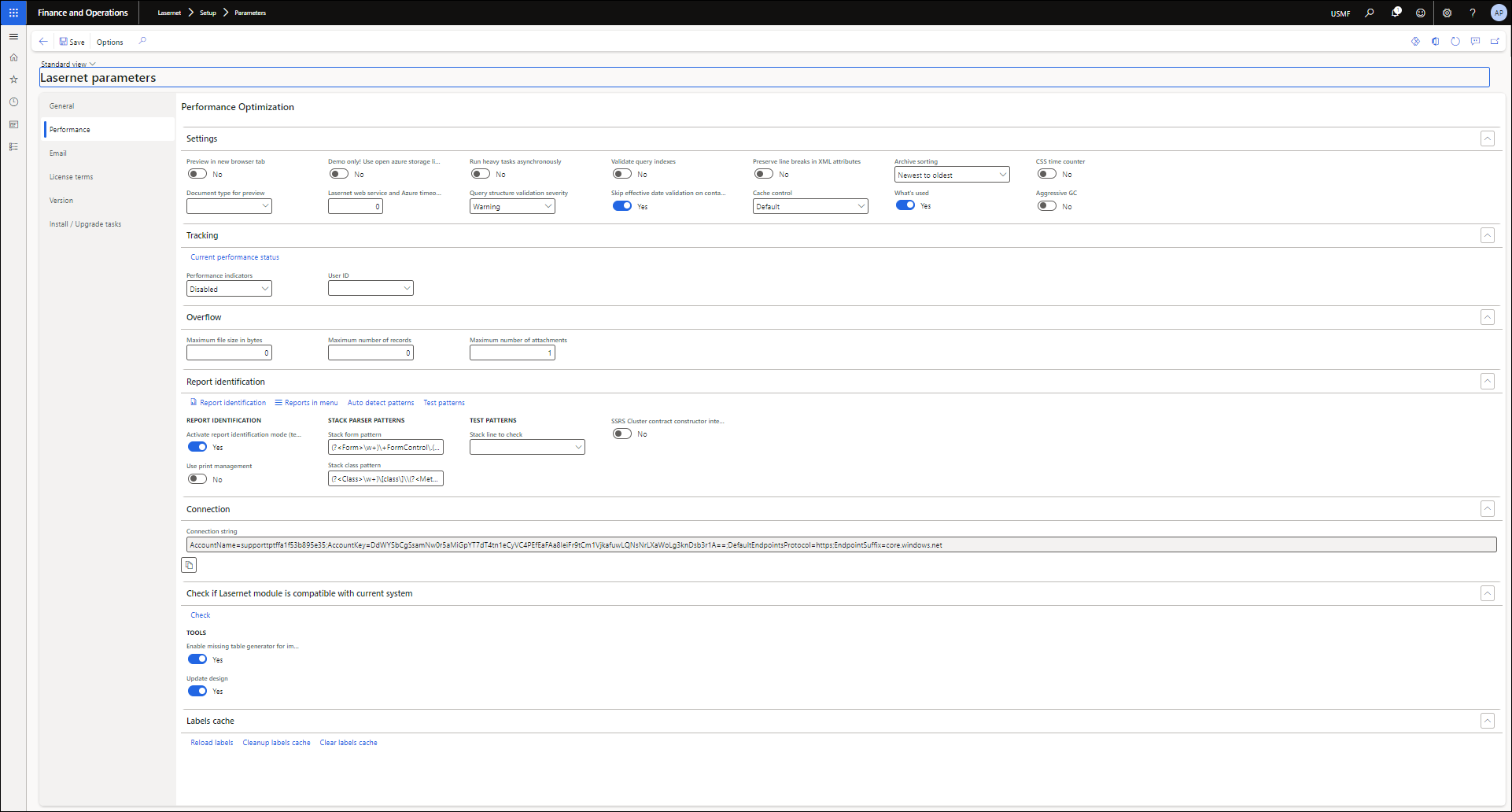
This page illustrates the features and uses of the Performance tab of the Lasernet parameters page.
For more information on the topic, watch our feature video.
Settings | Details |
|---|---|
Preview in new browser tab | Opens new documents in tabs instead of the main window. The Download and Print functionalities are available within the same browser tab. It is possible to download both the XML and PDF files (XML, EDI, DOCX, EXCEL, etc.). Users can print to both Lasernet destinations and a local printer. |
Demo only! Use open azure storage links for images and attachments | For demo purposes, open access tokens for Lasernet report attachment files and images are created. These links are not secured, and in the production environments, the Azure connection should be set up on Lasernet as well as in the MS Dynamics Finance and Operations Lasernet Servers configuration. |
Run heavy tasks asynchronously | When enabled, it is used to start lengthy tasks asynchronously. |
Document type for preview | To preview documents in a browser, a DocuValue record must be created, and the file must be saved in the file storage. If multiple document types are available in the Document type group, a document may be saved in the incorrect storage location. Therefore, it is recommended to select the File default type for a document viewer. If not specified, the first random document type for Files is selected. |
Query structure validation severity | Enables defining whether to display an error or a warning. Once the Error value is selected, an error is displayed if an issue occurs during this process. In this case, the error shall be fixed before finishing the process or proceeding to the next step in the Query Wizard. If the Error value is selected and the following error occurs, you are not allowed to either complete the process or proceed to the next step in the Query Wizard:
Once the Warning value is selected, a warning is displayed if an error occurs during this process. In this case, you can complete the process and proceed to the next step in the Query Wizard. A warning example:
Either warnings or errors (depending on the value you selected here) are displayed in the Query Wizard and while validating a report. |
Validate query indexes | Used to enable/disable the index validation for query relations, sorting, and grouping. By default, the index validation warnings are disabled in Lasernet FO Connector. The following option must be enabled before any warnings about indexes are displayed in the Query Wizard. |
Skip effective date validation on contact information | Backup feature in the event that the effective date validation does not work. |
Preserve line breaks in XML attributes | When enabled, attempts to preserve line breaks in XML attributes. |
Cache control | Cache settings for record caching. If you are experiencing memory problems, it may be worth considering using less cache. Performance might suffer, resulting in excessive calls to SQL, but less memory will be used. |
Archive sorting | Sort records in the Lasernet Archive from Newest to Oldest or Oldest to Newest. |
Enables the What’s used functionality. | |
CSS time counter | CSS-based time counter for the Dynamics 365 progress window. |
Aggressive GC | Aggressive garbage collection after each report execution. Enable if you experience your environment’s memory rising or slowing down at the end of the day. |
Tracking | Details |
|---|---|
Current performance status | Enables showing the memory consumption and CPU load values. Viewing the performance status can be useful in identifying the load at AOS and ensuring that memory is properly released, for example, before and after running a report. |
When this option is selected, an Infolog containing processing times is shown after a document is processed. This option is only functional with a User ID. Choose between a simple log and a full log. Use this for investigating query performance. | |
User ID | The performance Infolog is only displayed for the selected user. |
Overflow | Details |
|---|---|
Maximum file size in bytes | Limits accidental creation of big reports, stopping at the maximum allowed XML file size. Caution: This may slow down the generation process, as file size is checked for every fetched record during processing. |
Maximum number of records | Limits accidental creation of large reports by stopping at the maximum allowed fetched records per report. |
Maximum number of attachments | Limits the number of attachments in a report by stopping at the maximum allowed fetched by report. 100 is used if not otherwise specified. |
Report Identification | Deatils |
|---|---|
Set up Lasernet menus for custom reports. | |
Reports in menu | Enables viewing a list of reports added to the main menu, managing those report records, as well as adding new ones. |
Active report identification mode (temporarily) | If enabled, it shows the report identification setup button in the destination settings form. |
Connection | Details |
|---|---|
Connection string | Shows the Azure Storage Account Name and the Key used by MS Dynamics 365 Finance and Operations.
|
Check if Lasernet module is compatible with current system | Details |
|---|---|
Check | Enables running some unit tests on FormLetter Classes. This should only be used by the Lasernet Group. Clicking the button launches the application cross-check. Once finished, you get the cross-check result at the top of the page. |
Enable missing table generator for imported reports | Used to enable/disable automated generation of missing tables and/or fields for reports being imported. For more information about the function, see Missing Table Generator. |
Enables the Update design functionality. |