
This article provides a solution for the problem of a print job sent by the Lasernet Cloud Print Connector disappearing or being rejected by the printer.
Resolution
Within your Lasernet configuration, navigate to Modules and open the Azure Storage module named “Azure Storage Printer”.
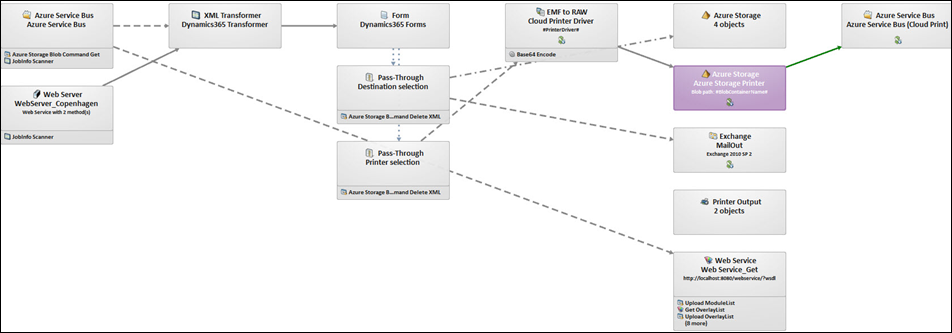
Select the Pre JobInfos tab and open the JobData JobInfo:

Change the DocumentType so it corresponds to your printer driver.
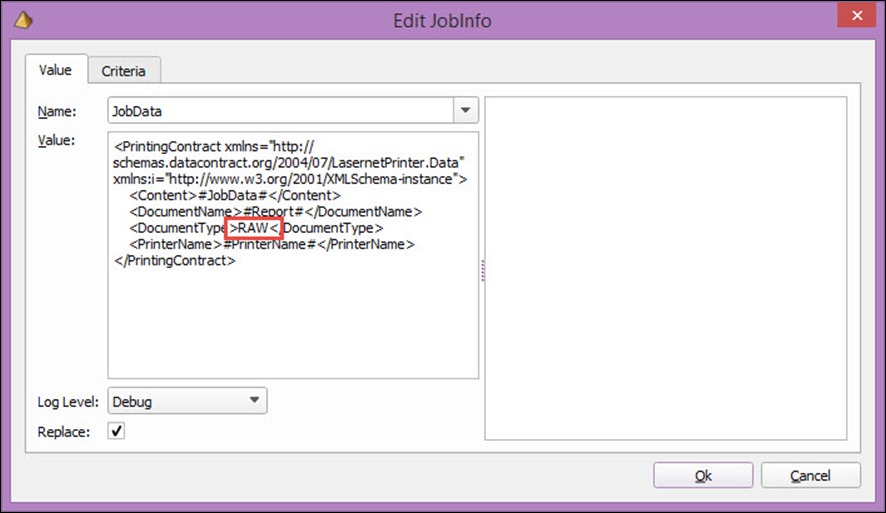
Note:
Suppose you have other printers working with RAW. In that case, it is a good idea to take a copy of the Azure Storage module named Azure Storage Printer and then on the Printer Destination module, add it as a destination with a criteria.
Additional Information
If you do not know the DocumentType for your printer, follow these steps:
Navigate to Devices and Printers (depending on your Windows version) on your print server.
Right-click the print icon and select See what's printing.
.png)
Click Printer > Pause Printing.
.png)
Select Printer and then Properties. Select Print Test Page, then close the window.
.png)
In the Print queue window, right-click the job and select Printer properties.
.png)
Now, you can see the DocumentType in Datatype.
.png)