Applies to: Lasernet Core 10
To view or deploy existing revisions of a configuration, start the Lasernet Config Server, and click the Deploy button in the tool bar.
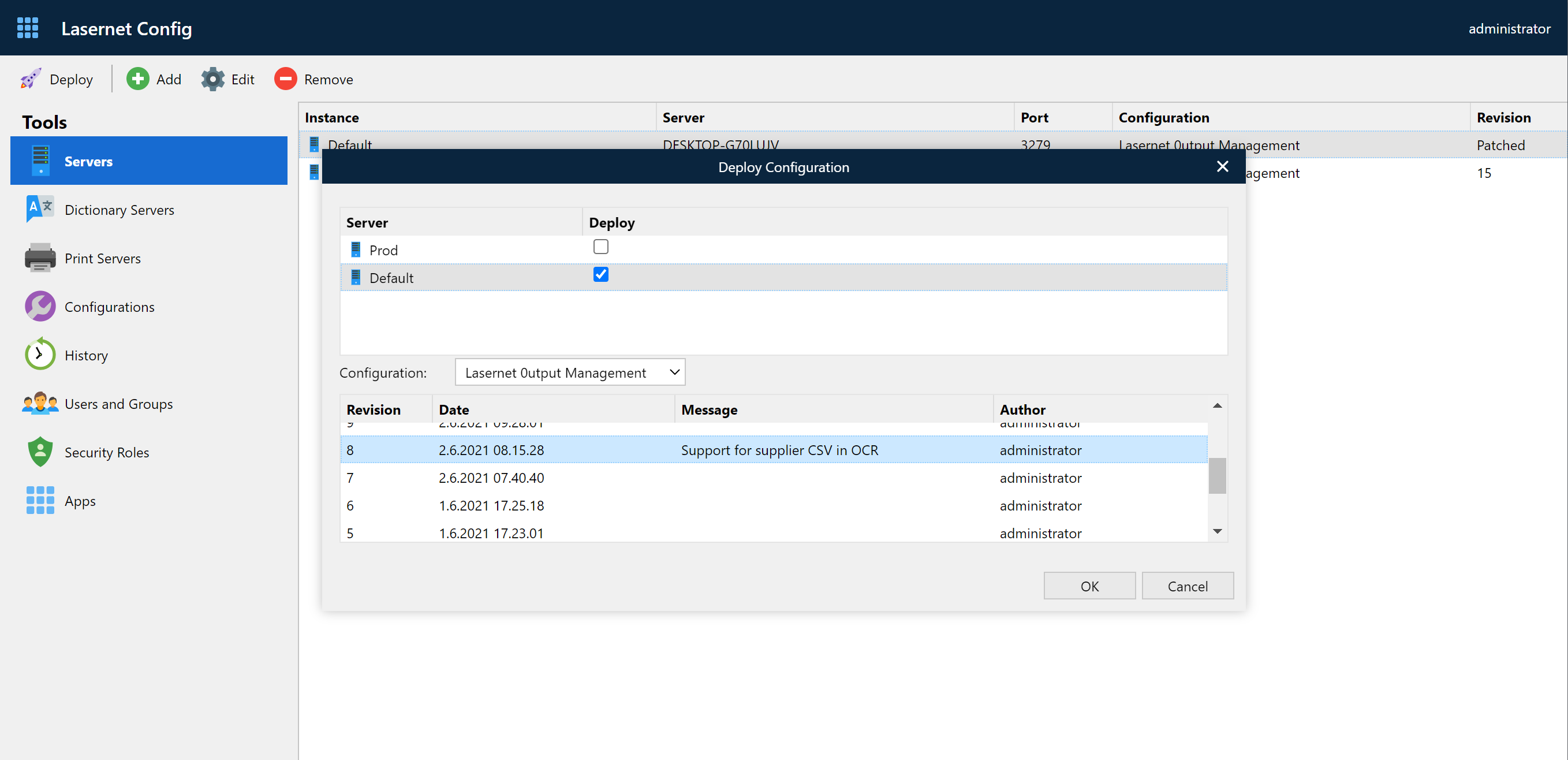
In the Deploy Configuration dialog you view and select any revision of a configuration you would like to deploy to any instance of a server available in the dropdown list.
History: Configuration Revisions
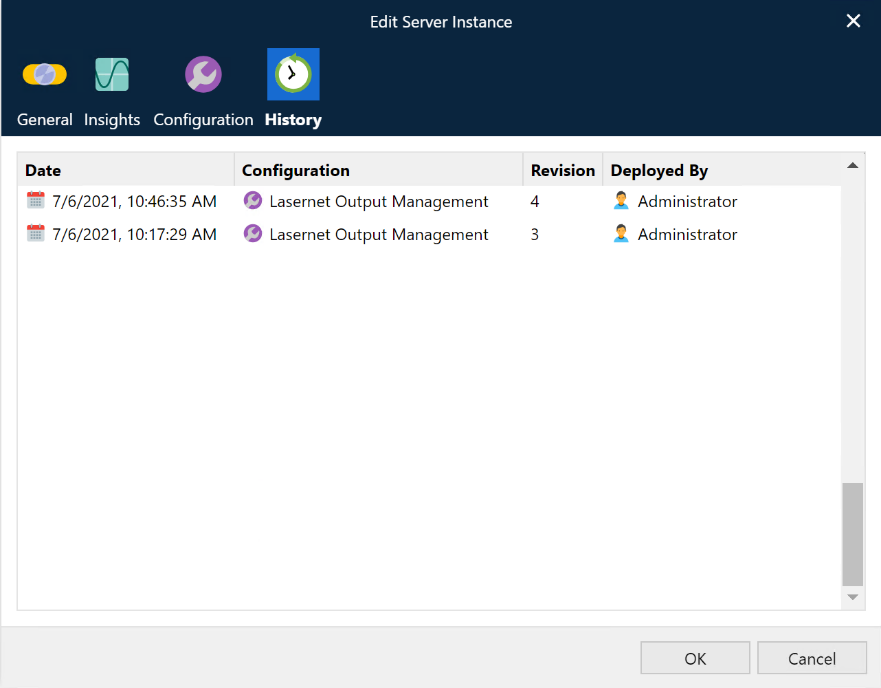
In the Lasernet Config Server you view the history of any revision deployed to any server instance. Select the server instance name and click the Edit button. In the Edit Server Instance dialog select the History tab.
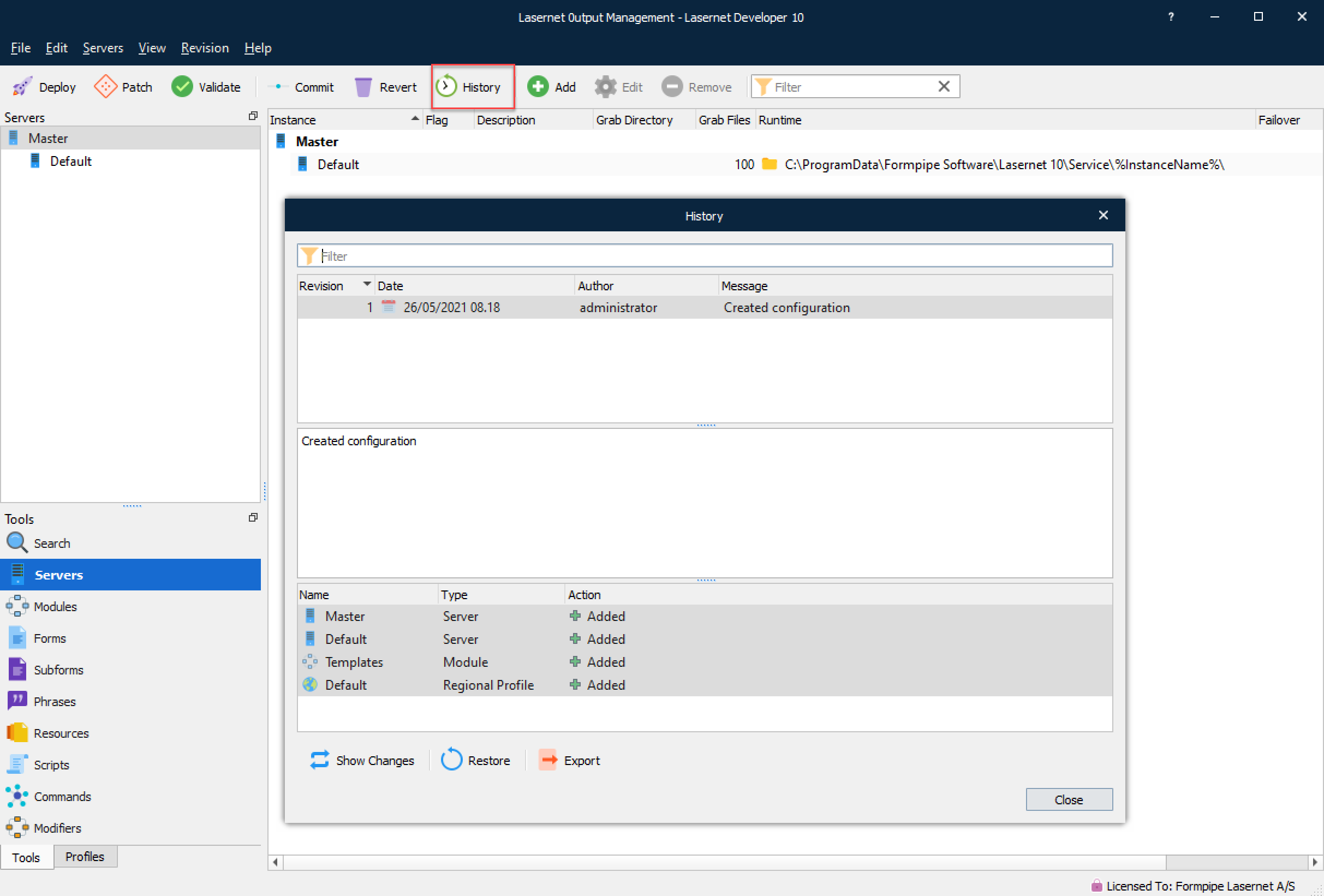
In the Lasernet Developer, you can also view and select any revision of a configuration by clicking the History button.
When you make any changes to a configuration, the changes are stored locally. To push those changes to the Lasernet Config Server, you have to commit them.
If you are not satisfied with the changes, you can revert them before committing or restore them after a commit.
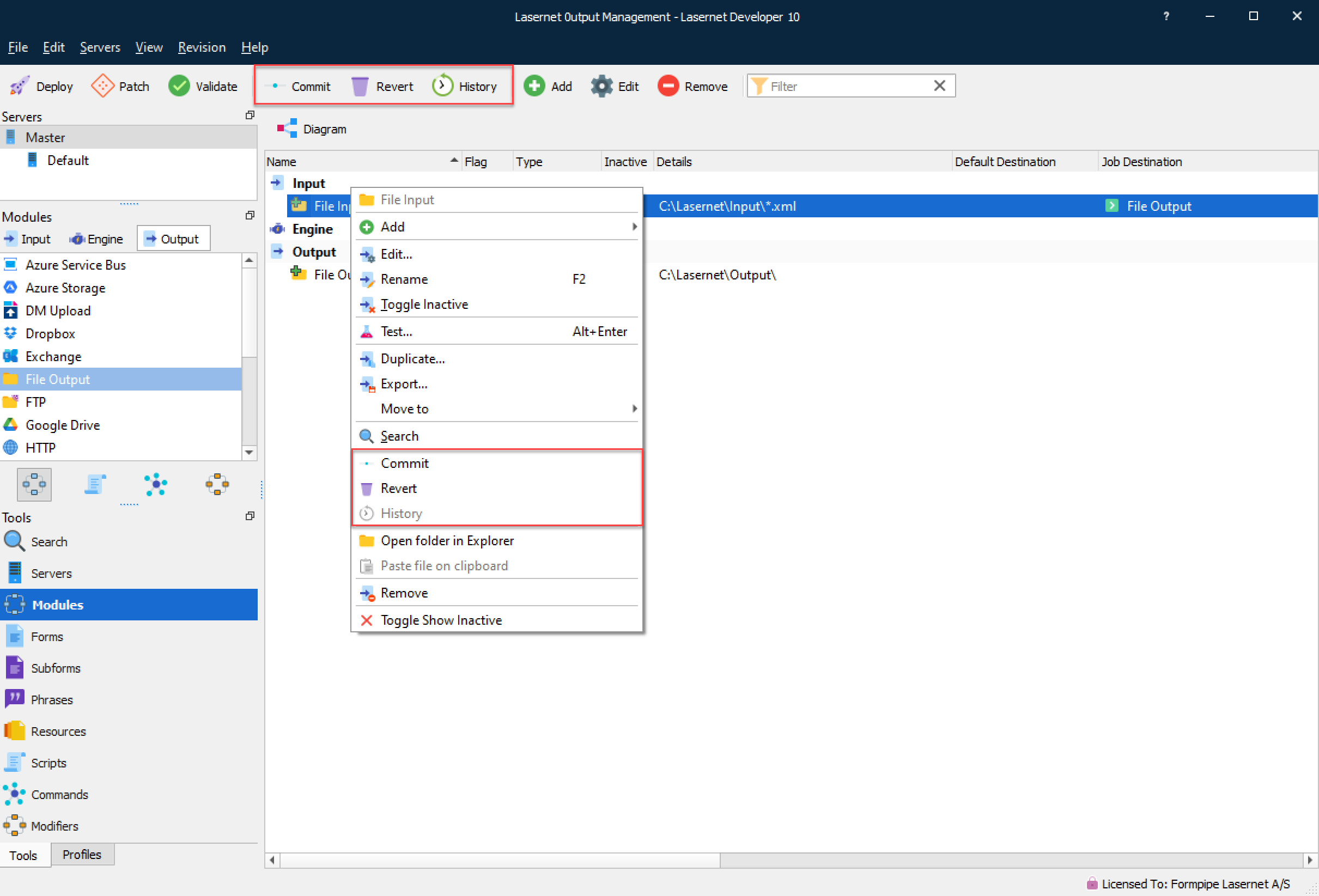
Commit
To push any new changes (additions, edits, deletions) to the configuration server since the last revision, click Commit.
Note
Typically, a commit is a set of one or more completed changes that together implement a single, specific improvement to the configuration. It is important that these changes are rigorously tested before you commit them.
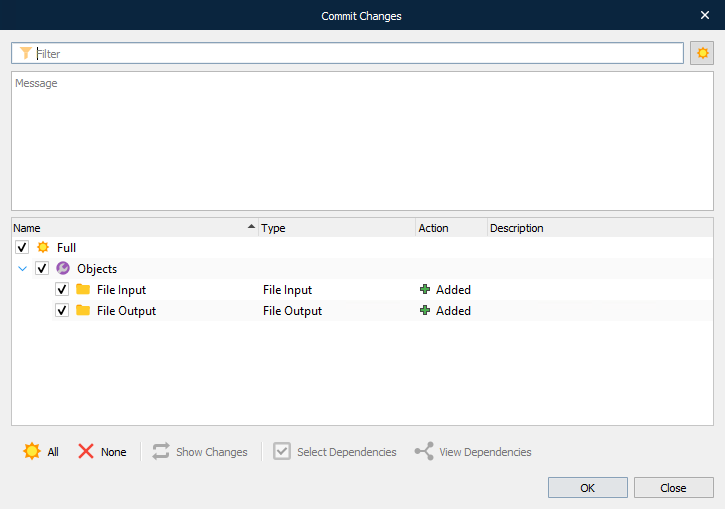
Select the items to commit, enter in the Message area a clear description of the changes you have made, and then click OK to confirm your action. The changes will then be sent to the configuration server and a progress window will appear.
Note
When committing changes to the Resources folder, including when removing or adding files to Grabs, Overlays, and Images, ensure that these items are selected in the commit tree. If you fail to do so, they will not be committed.
Important
To prevent issues, it is strongly recommended that you do not commit any resource files that are larger than 25 MB.
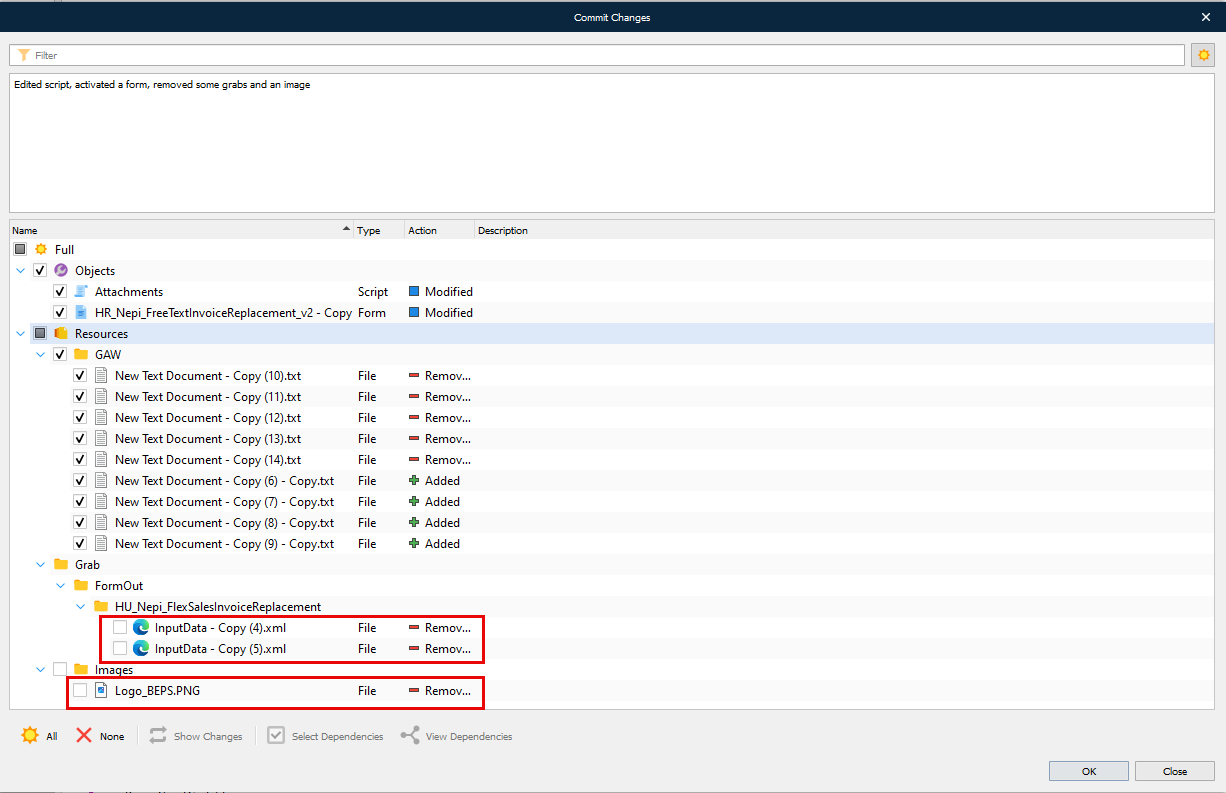
Once complete, click Close.
Important
To prevent Lasernet Core performance issues, do not commit:
Any resource files that the workflow defined by the configuration does not use.
Any resource files that are not useful for maintenance purposes.
When committing changes to the Resources folder, select only files that are necessary or useful. For example, do not commit images that are unused by the forms in the configuration or grab files that will not be essential in the future for testing the configuration. Be selective when choosing which resource files to commit, so that the new revision contains only necessary or useful resource files.
It is also important that you do not commit unfinished changes to the repository.
If you do not follow this advice, the configuration will grow very large because it will contain a large number of commits, or it will contain some commits that are very large in size. If a configuration is very large, Lasernet Core might be unable to load it.
Dependency Walker
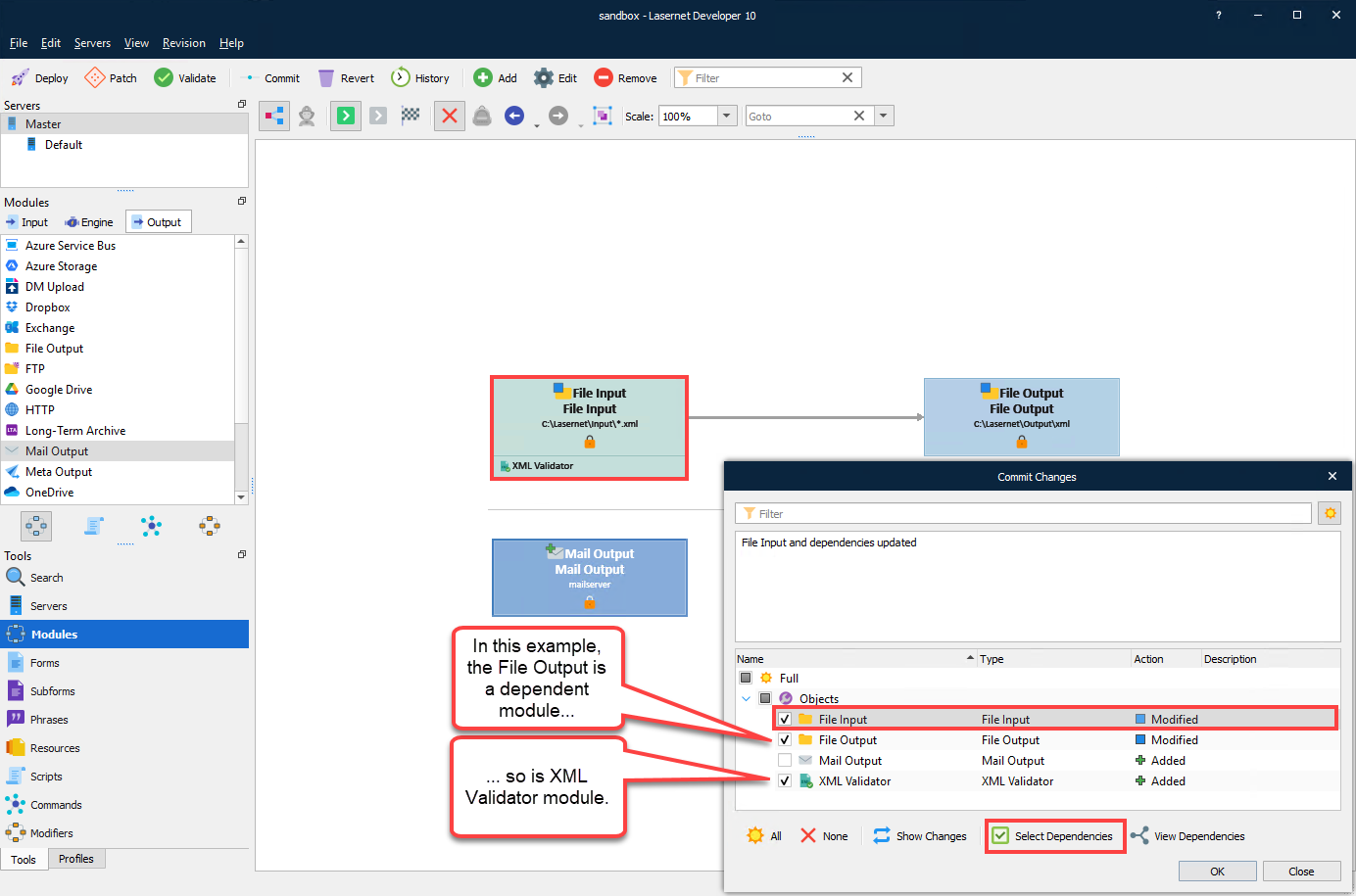
Select Dependencies – Automatically selects all other objects, related to the selected object, that have not yet been committed.
Note
Lasernet Core will not show:
More than one level of dependency.
References used by script functions.
References from JobInfo substitution.
DataType profiles used from Web Server input modules.
Database Connections added to SharePoint module.
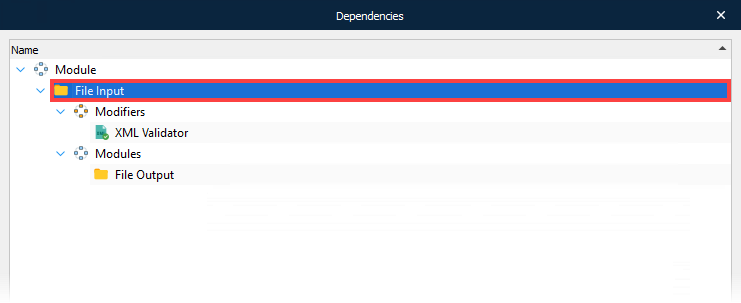
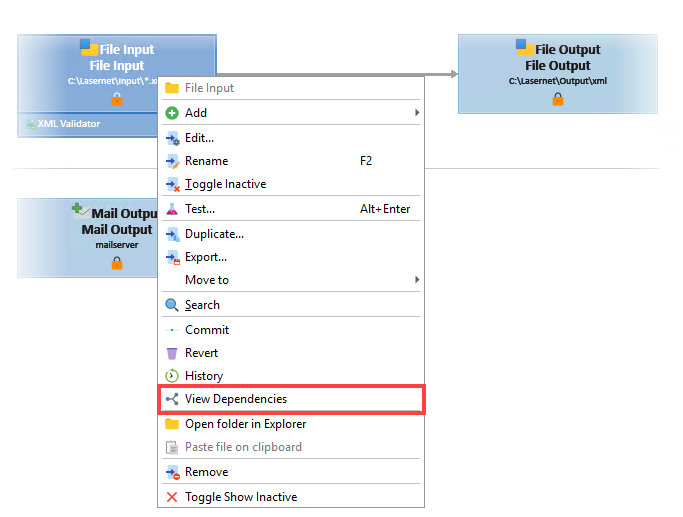
View Dependencies – Displays all dependencies to the selected object.
Note
You can also select View Dependencies by right-clicking a module or form.
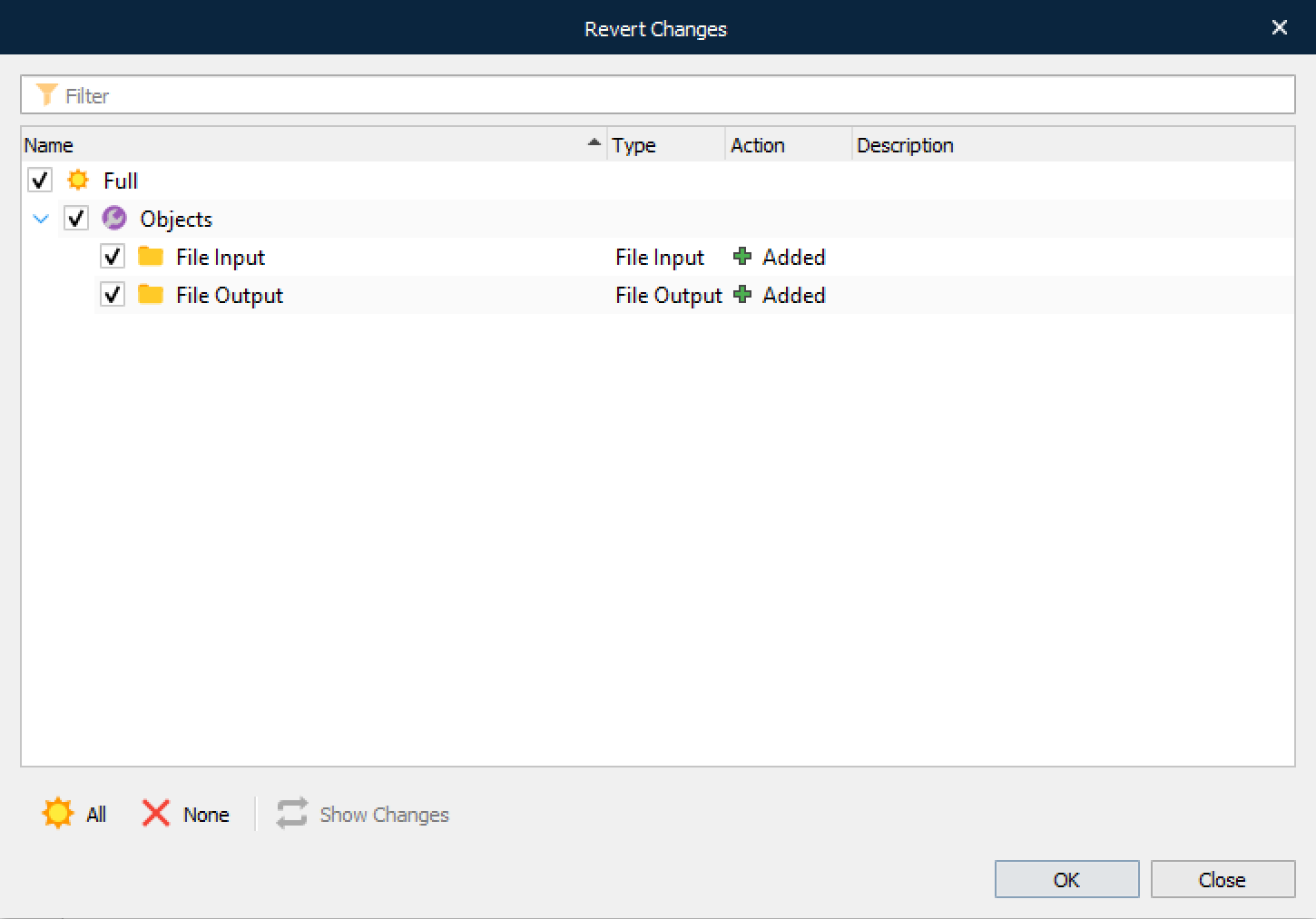
Revert
Click Revert to revert changes for selected objects since the last commit.
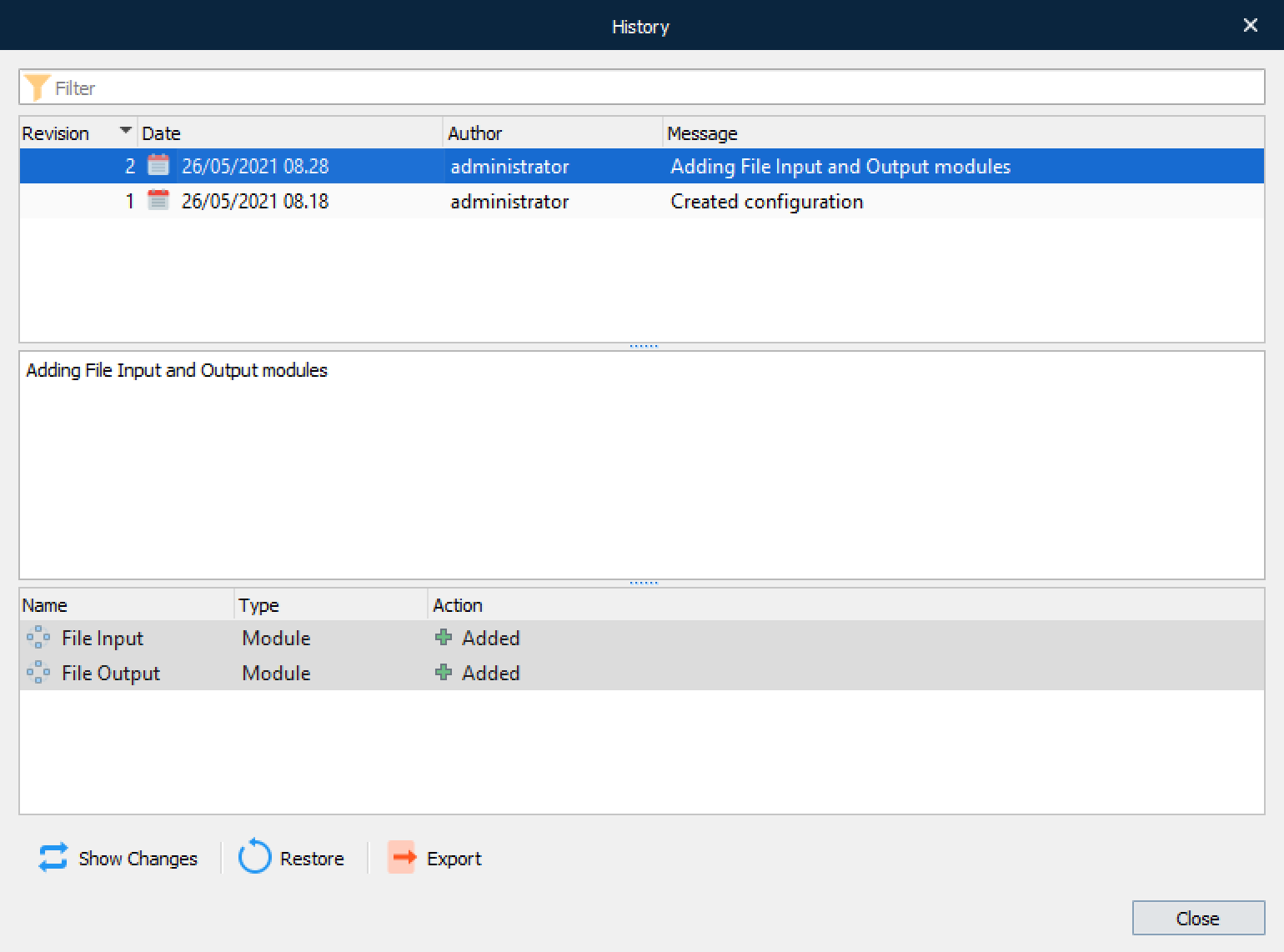
History
To view all of the commit changes as well as user information for past revisions, click History.
Deploy to Server
Once the changes made within a revision are accepted and approved, the revision can then be deployed to one or more servers. To do this, navigate to the Lasernet Config Server and click the Deploy button for the revision you want to deploy to the server.
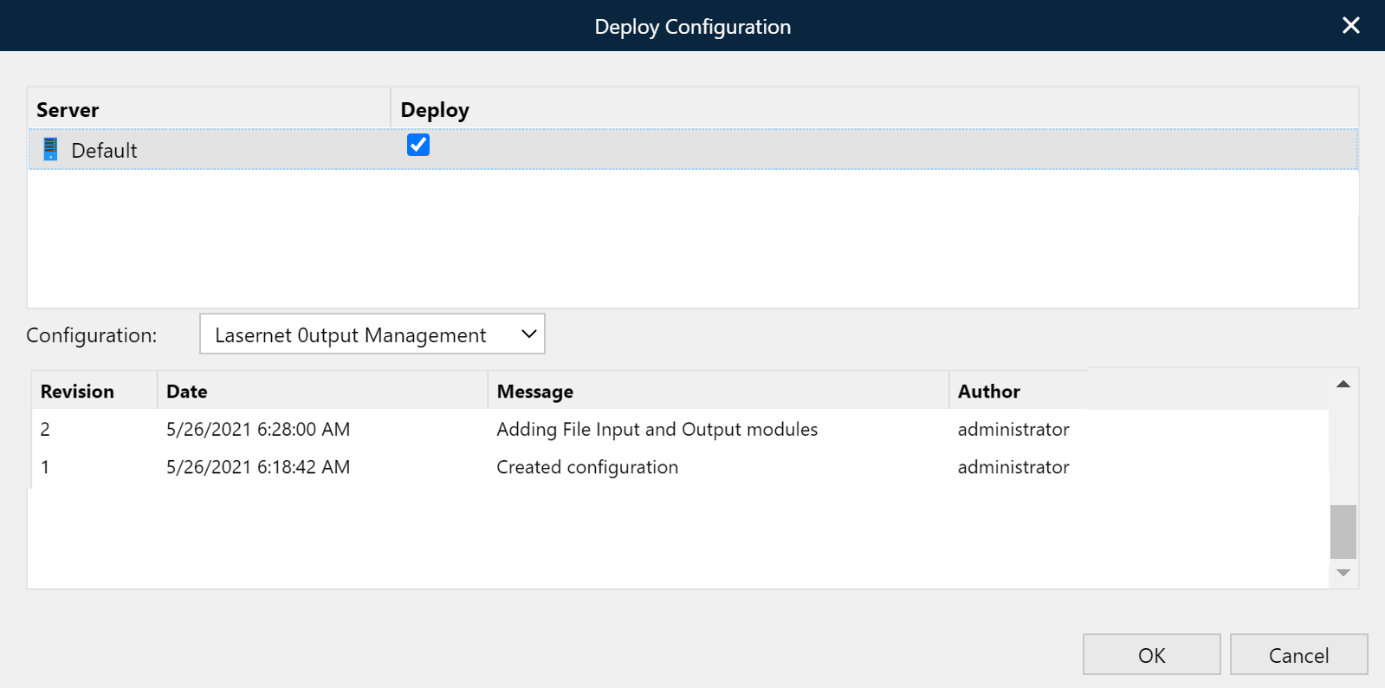
Deploy in Lasernet Developer
You can also activate the Deploy button in the Lasernet Developer application to deploy changes to a server.

Note
Only committed objects can be deployed.
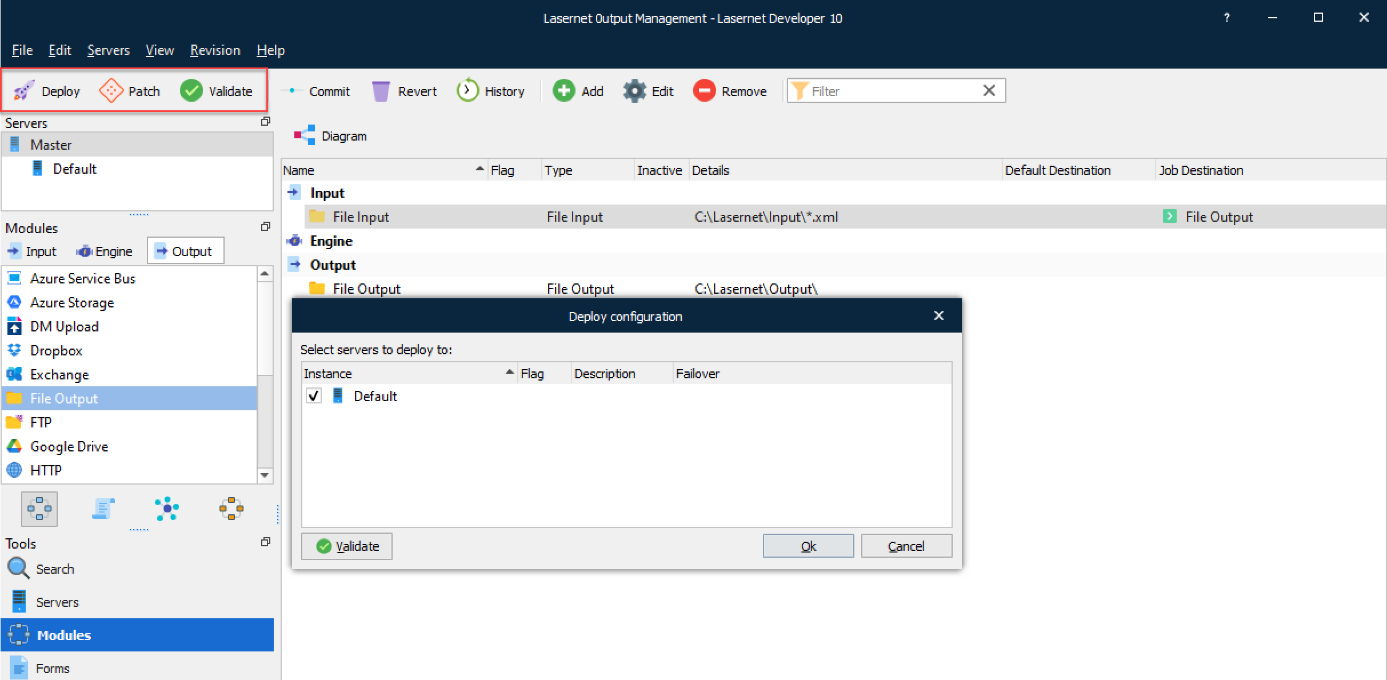
If you try to deploy objects or resources from the configuration you have not committed, you will see a warning message in the Deploy configuration dialog. You can click the Commit button at this point to commit the selected object(s) or click Ok to deploy a configuration without the uncommitted objects.
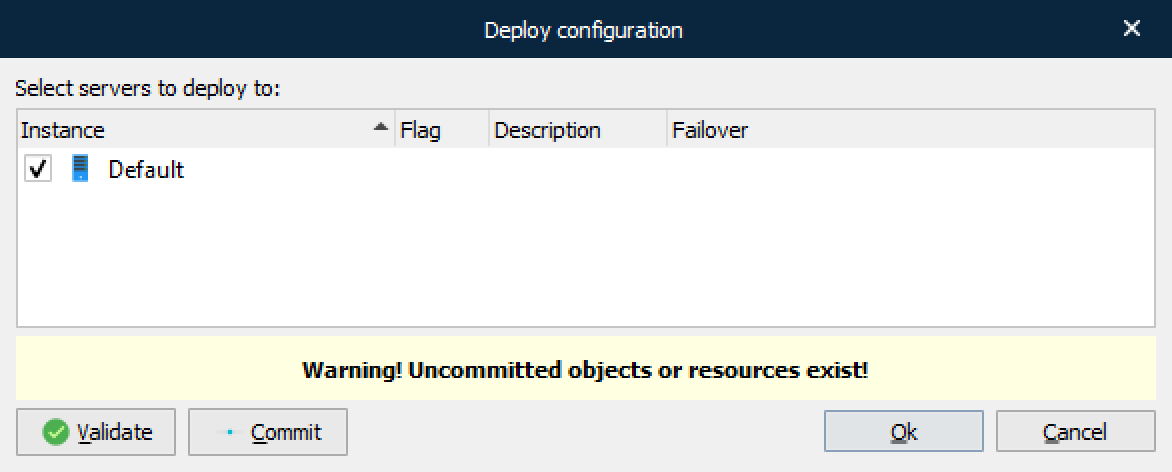
Click OK to confirm. The deployment will then start with a progress dialog.
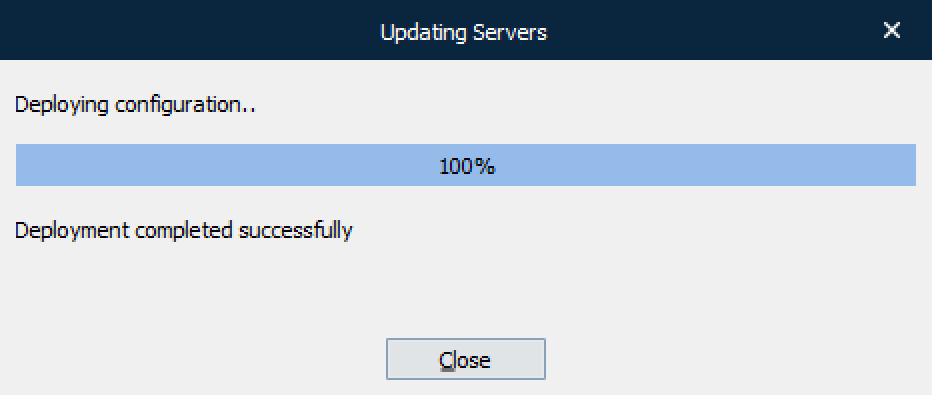
Once completed, click Close.
Note
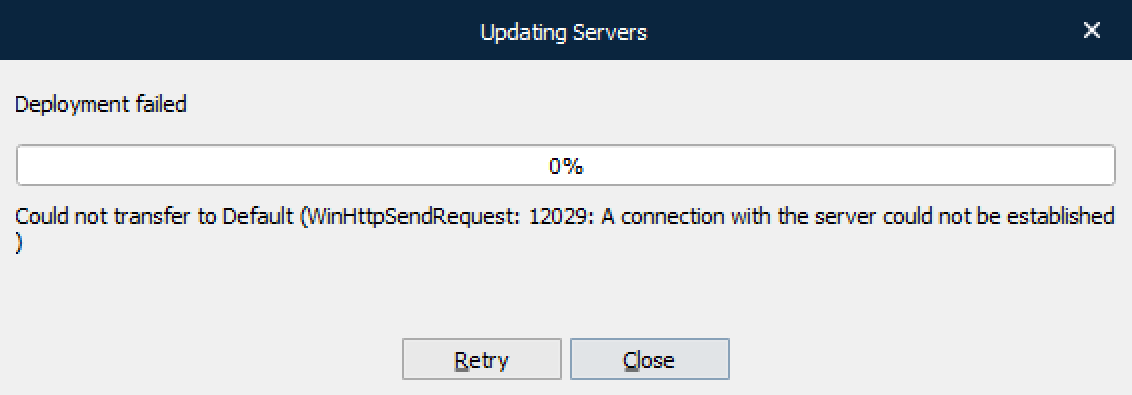
Before deploying, ensure there is an active connection between the Lasernet Developer, Lasernet Config Server and the Lasernet Core Service is running.
If the selected server Instance is not committed or stopped, or the Lasernet Config 10 service or connections are not running, the transfer process will fail.
History: View Changes
It is possible to view changes while committing them. To do this, click the Show Changes button.
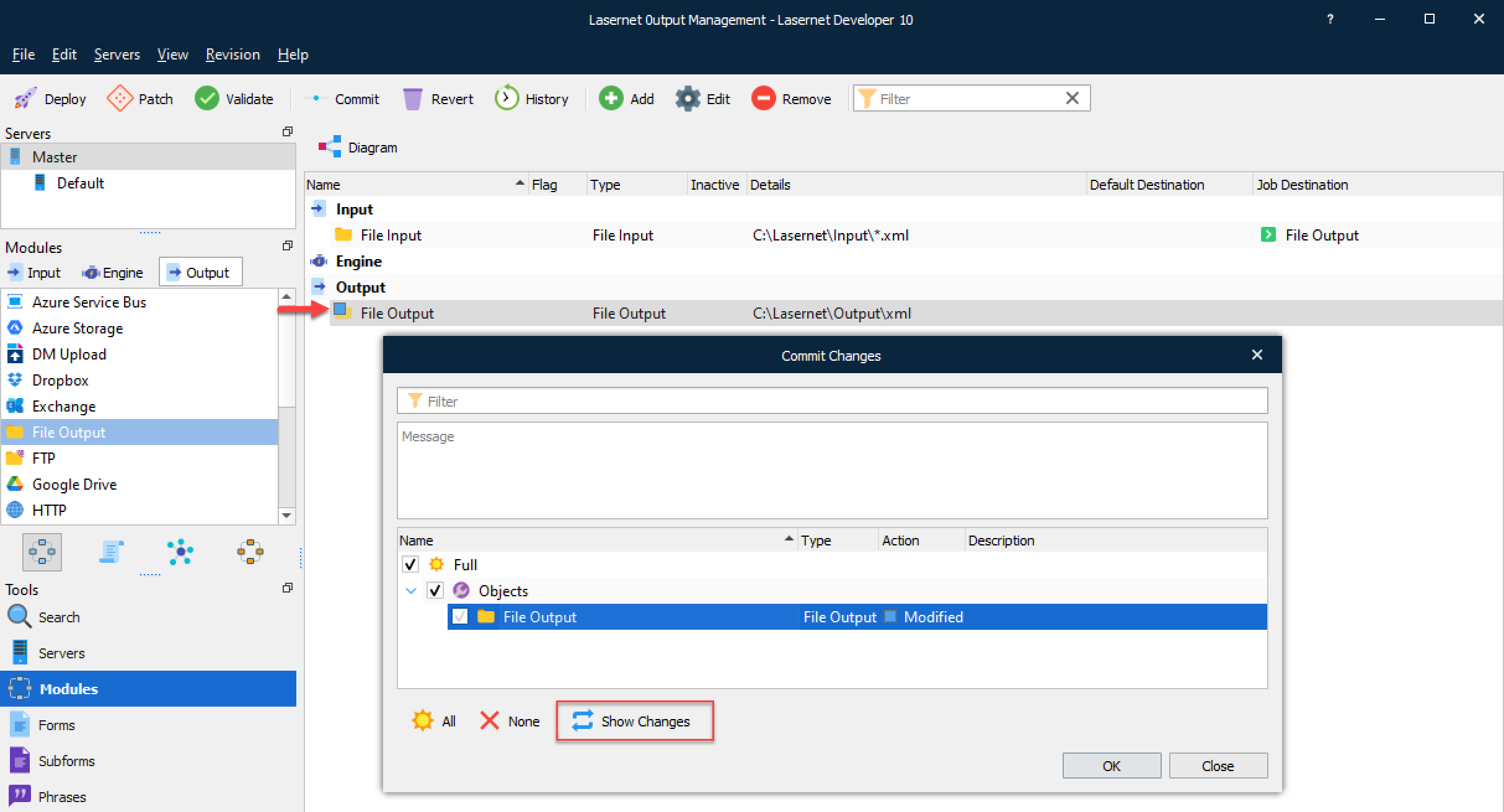
Changes are shown in a separate dialog.
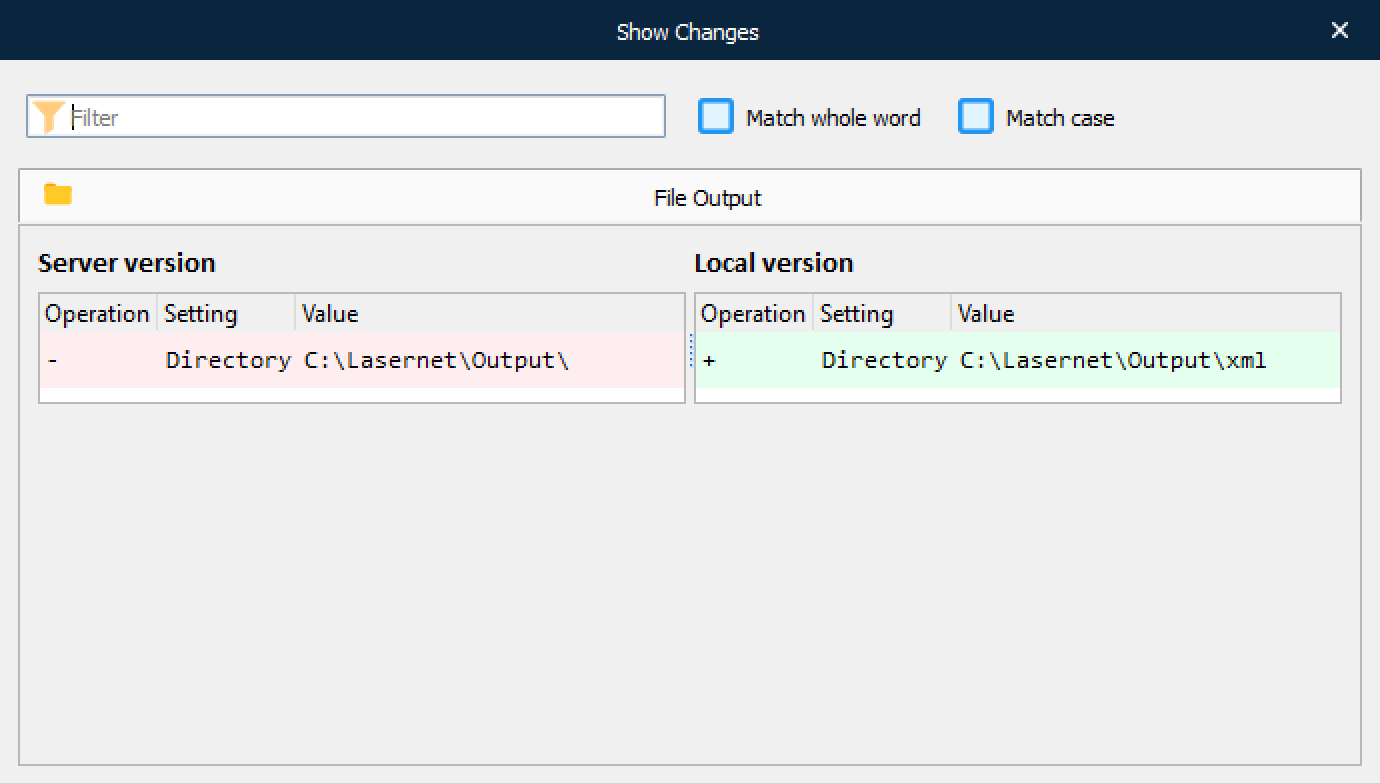
Confirm the commit by clicking OK. The progress dialog will then appear.
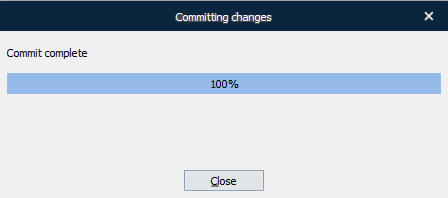
Once completed, click Close.
Deploy in Lasernet Config Server
In the Lasernet Config Server, select the Configuration that contains changes you want to deploy.
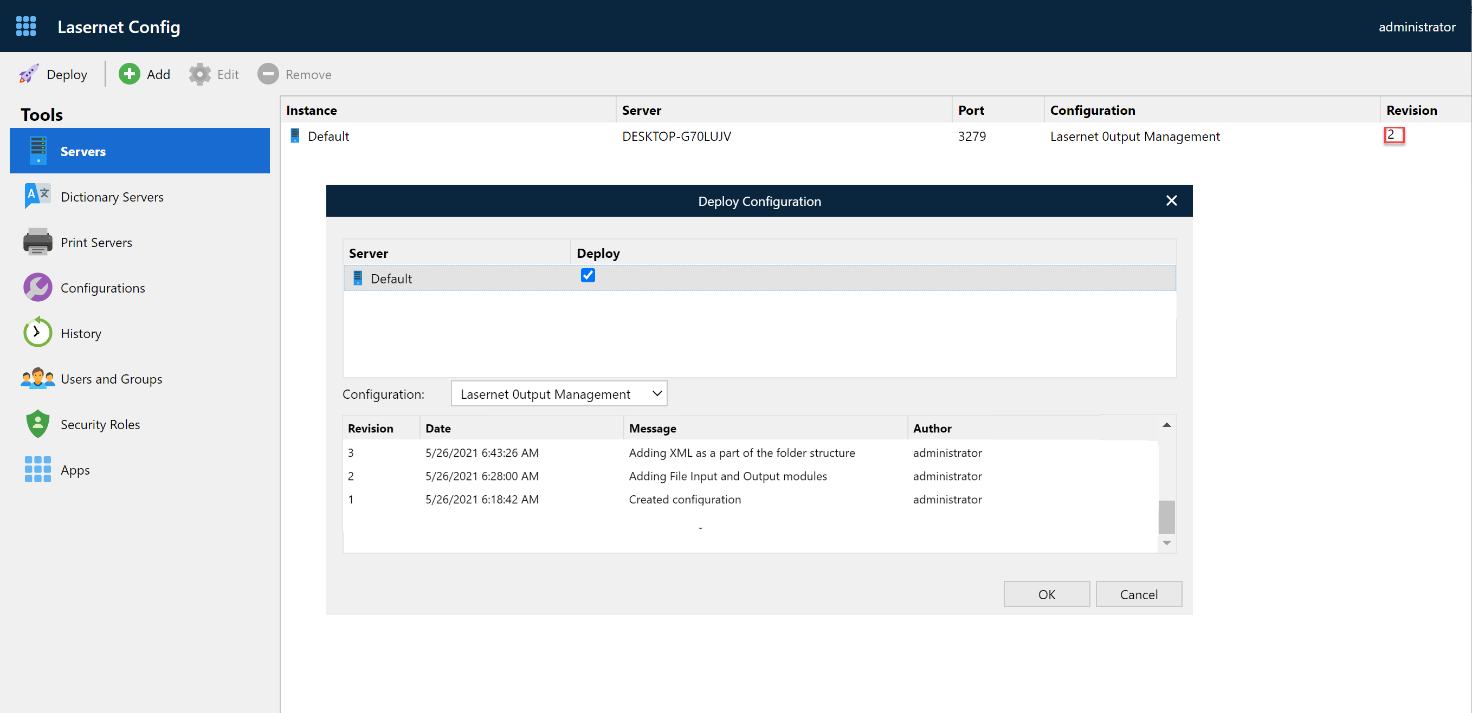
Select the newest revision to deploy the latest committed objects to the server and click OK.
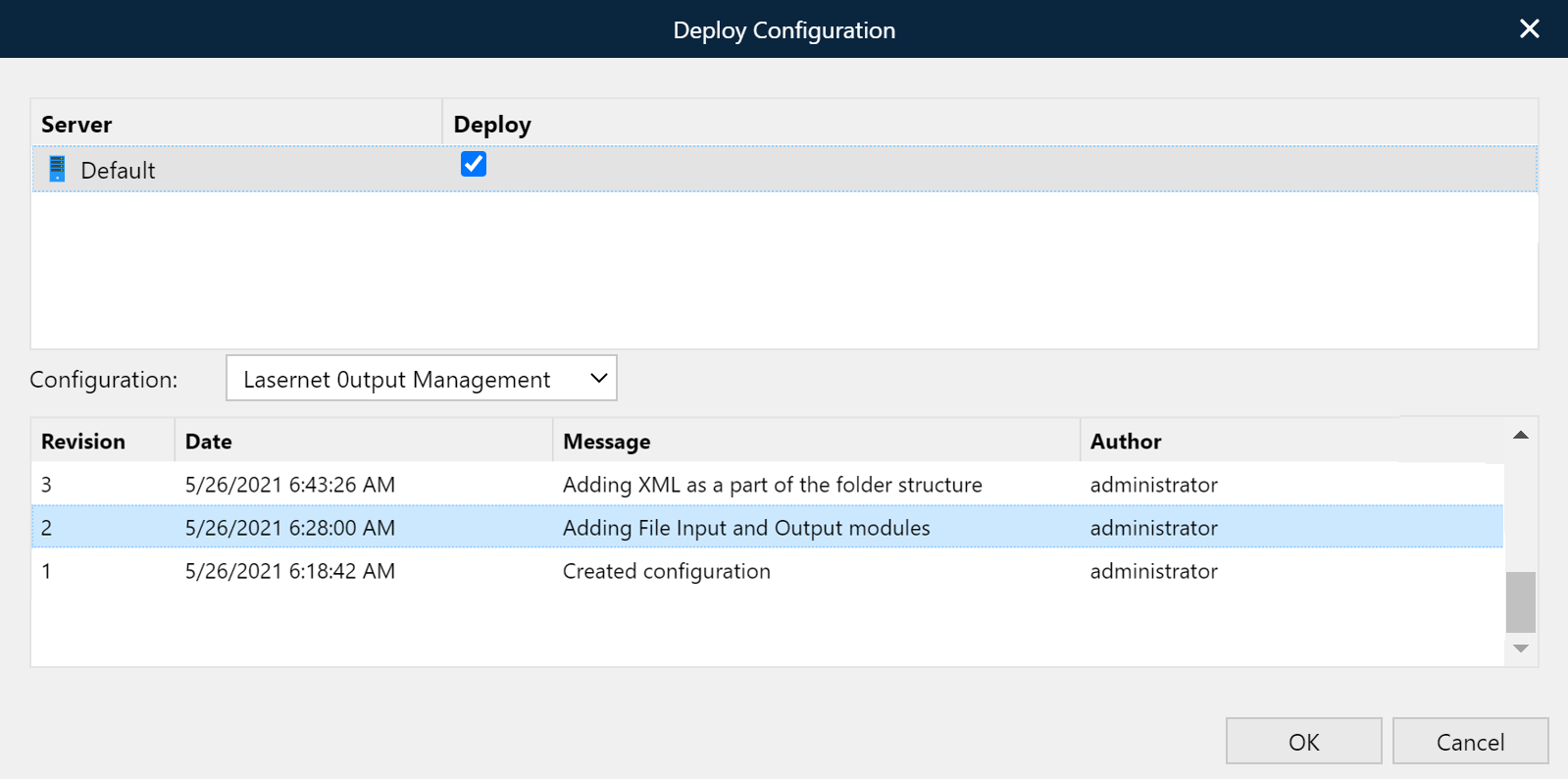
To deploy another revision select any of the revisions in the Deploy Configuration dialog and click OK.
The Deploy tool in the Lasernet Config Server work similarly to the one in the Lasernet Developer application. The only difference is that you can deploy old revisions from the Lasernet Config Server, whereas you can only deploy the newest revision from Lasernet Developer. You can, however, open an old revision in the Lasernet Developer for viewing and exporting purposes.
Once the deployment has completed successfully the dialog will report about this.
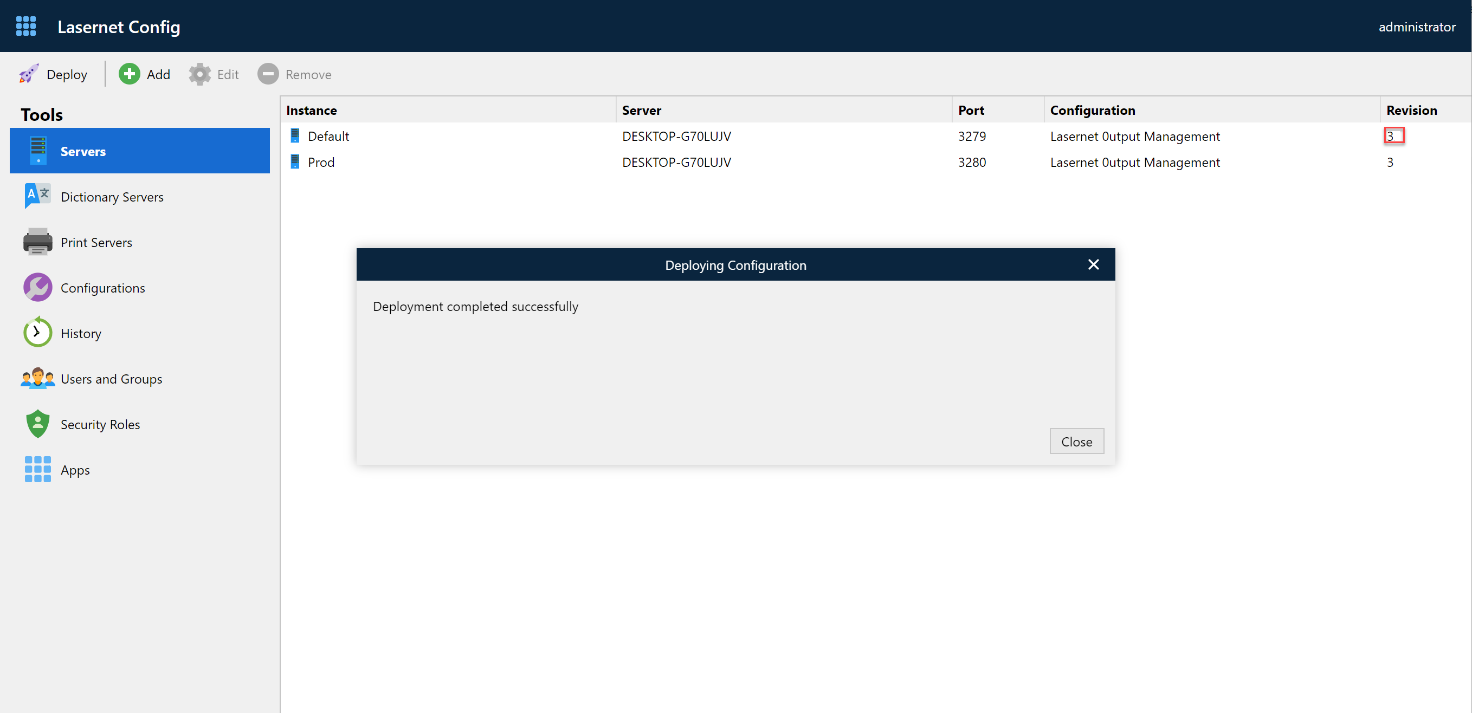
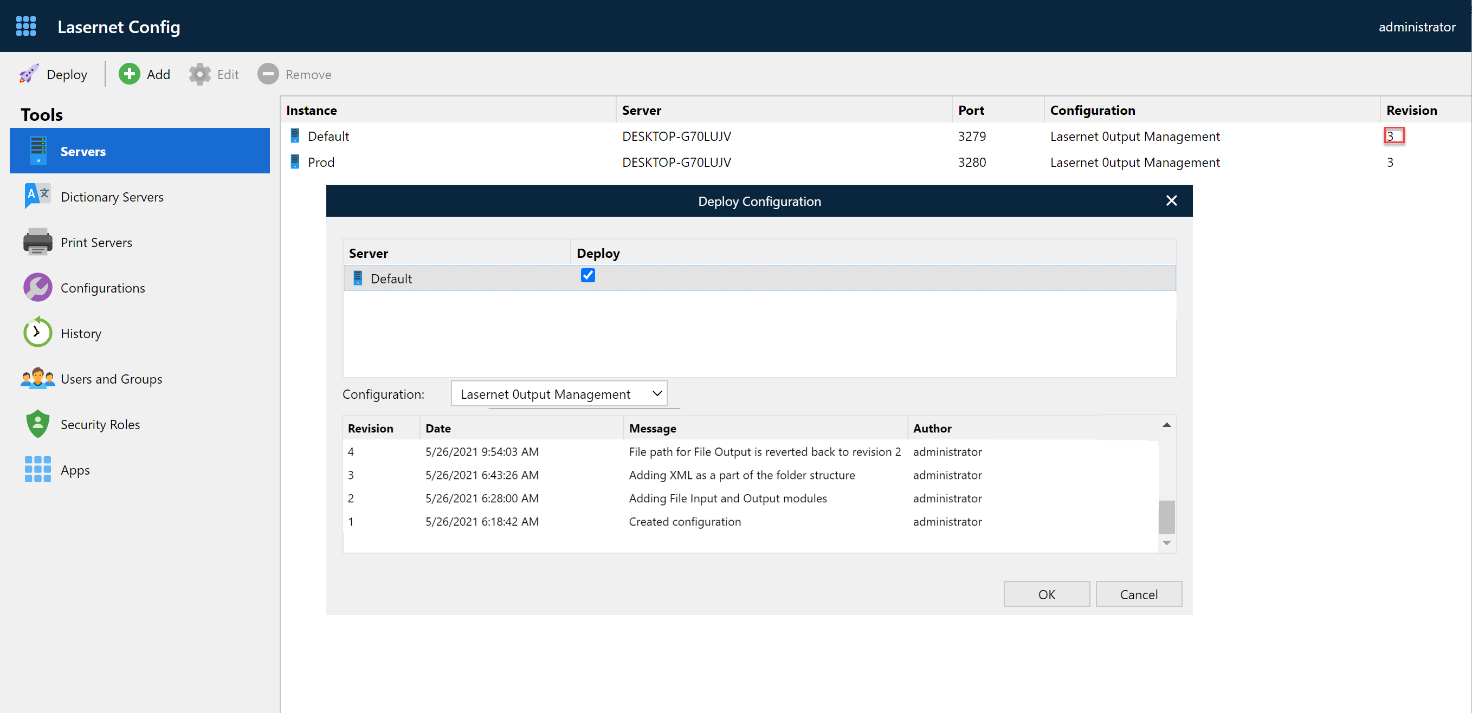
The example shows that Revision 3 of the Lasernet Output Management configuration is now active for the server instance named Default.
History: Show Changes and Restore
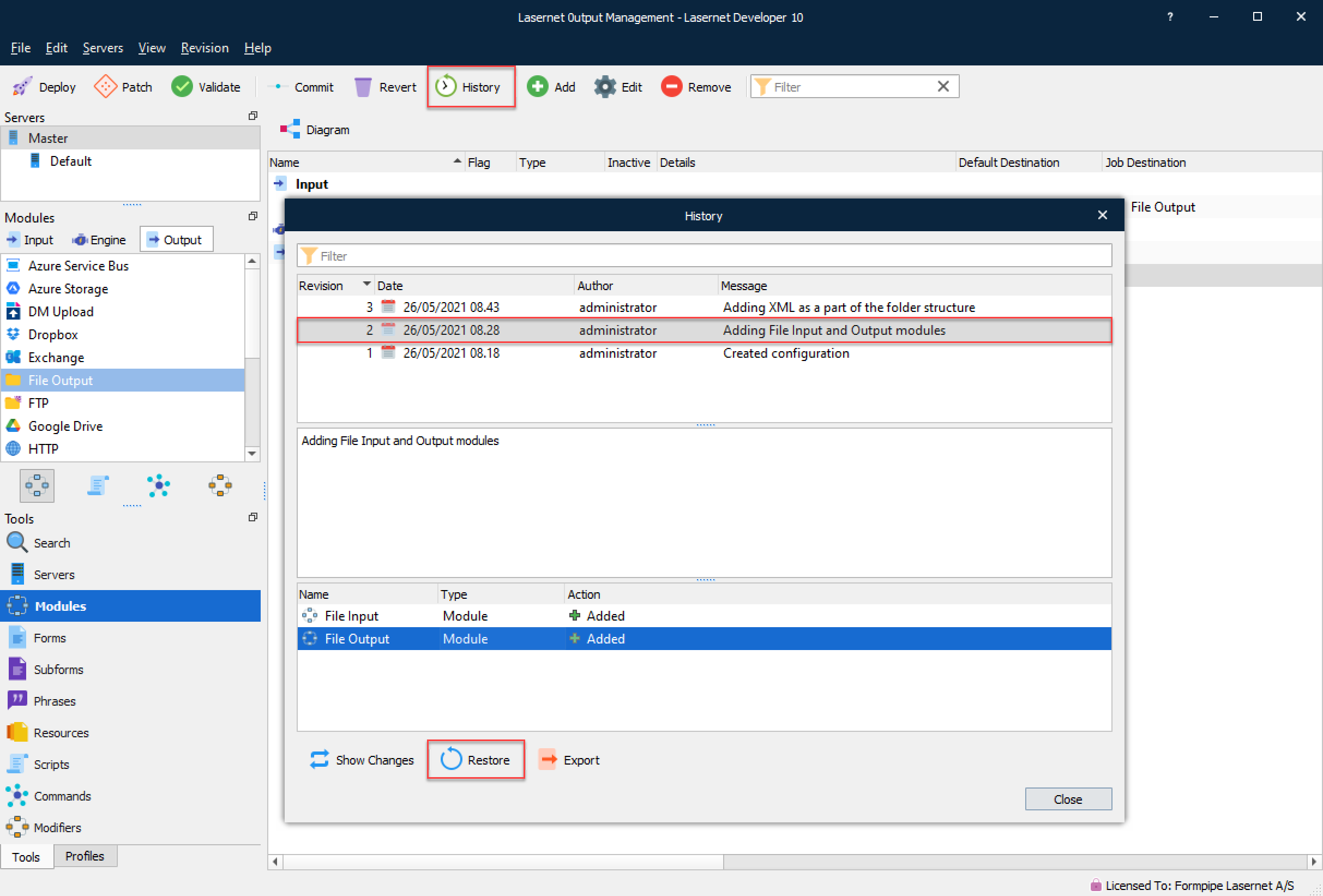
In the Lasernet Developer application, click the History button to view a list of changes made to a configuration.
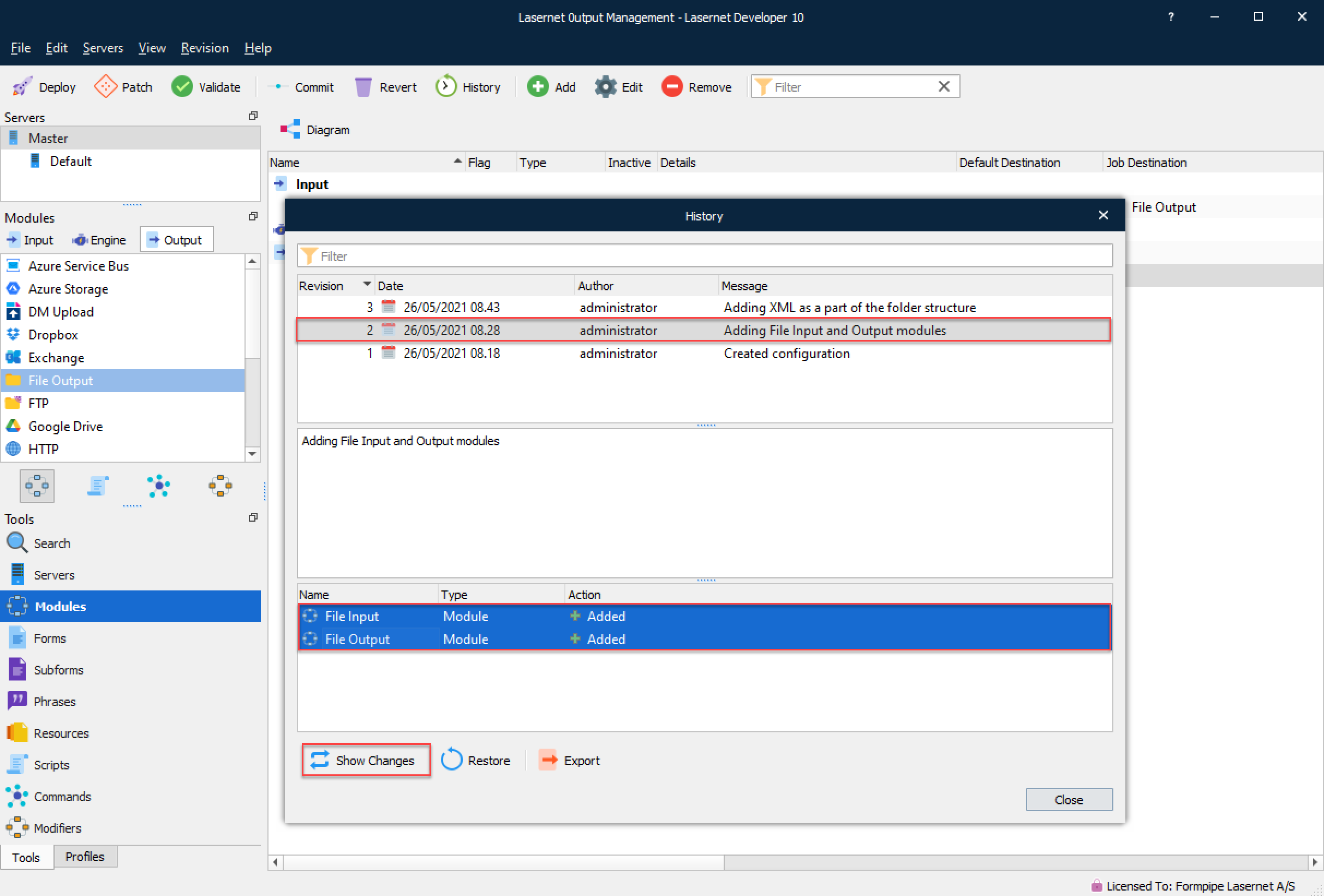
You can select up to 10 objects at a time to compare across revisions.
The example below shows two objects with all the settings added at the same time. To view changes separately, select the object tabs.
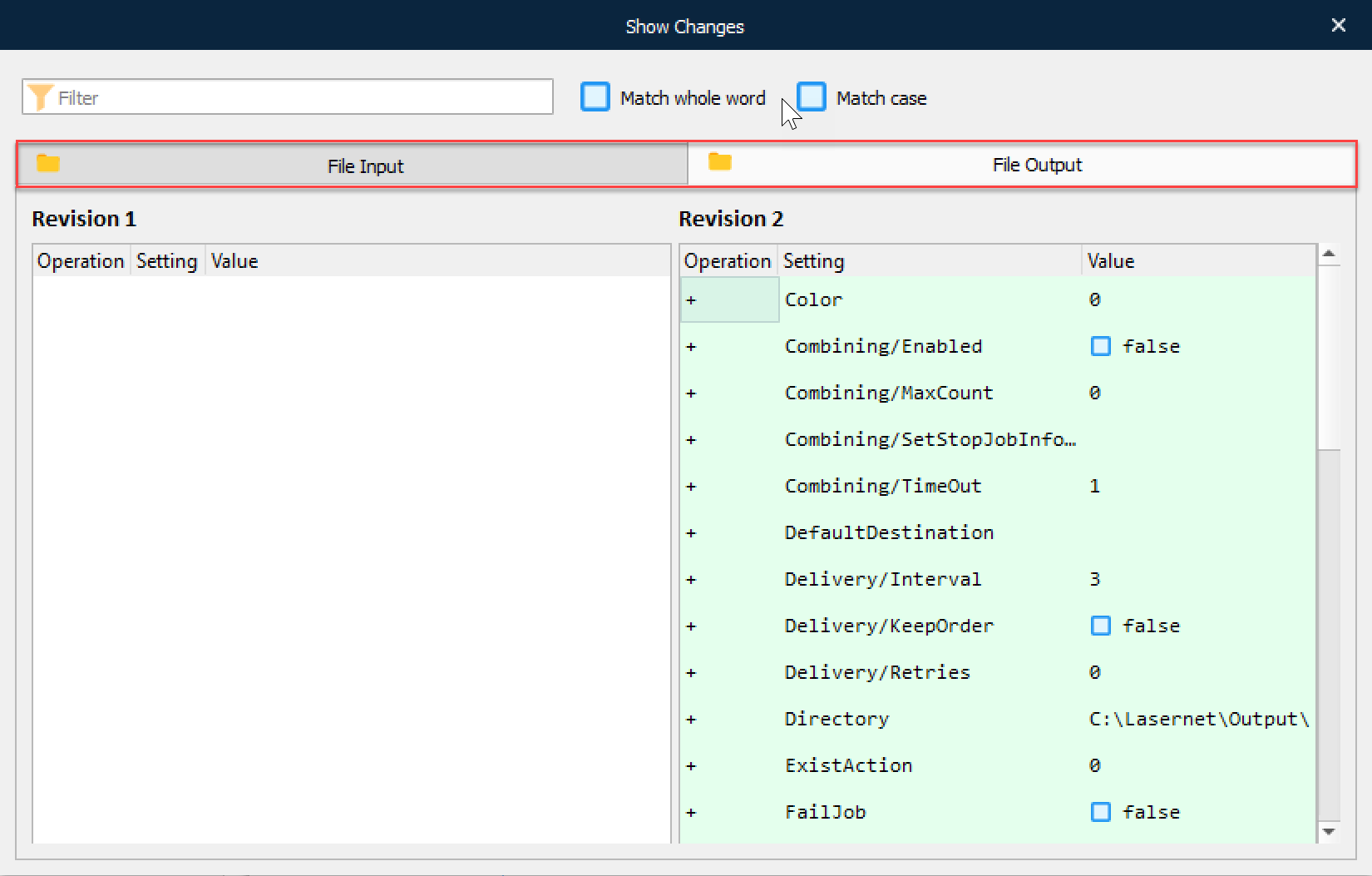
In the History dialog, click the Restore button to restore the selected object from an old revision and import it to the newest revision.
From the Import Object dialog (also accessible via the toolbar: File > Import Objects), select the required action.
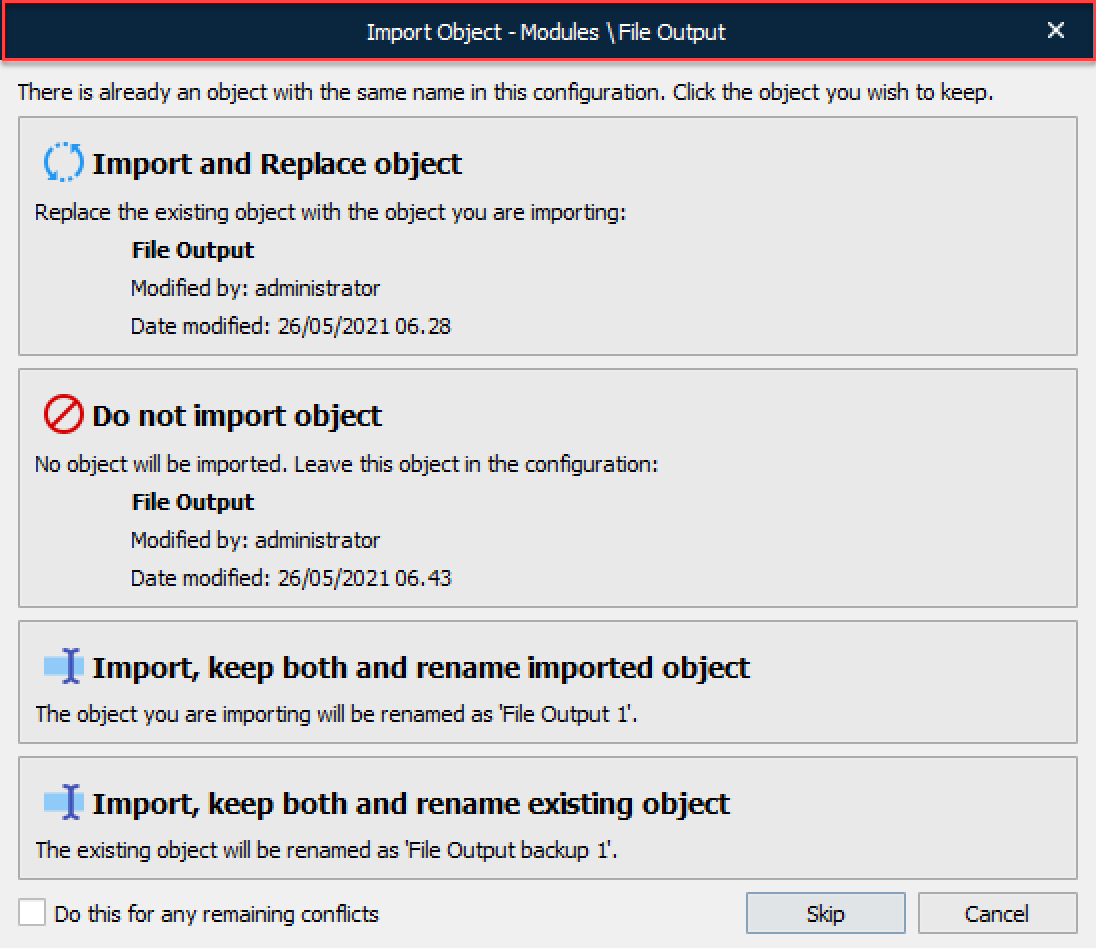
| Action | Description |
|---|---|
| Import and replace object | Replaces the existing object with the one being imported. |
| Do not import object | No object imported. All the objects stay the same. |
| Import, keep both and rename imported object | Keeps the existing object without renaming it, imports the new object and renames it. |
| Import, keep both and rename existing object | Keeps the existing object, renames it, and imports the new object without renaming it. |
If the old revision of the imported object has the same hash as the new one, the object will not be registered as modified.
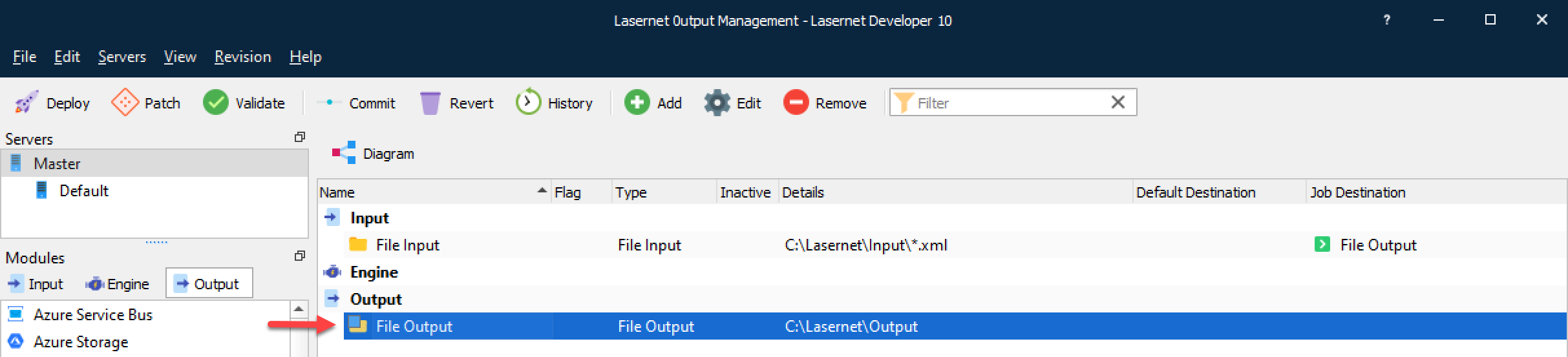
If the imported object differs from the one in the latest revision, it is defined as modified and must be committed before the revision is updated.
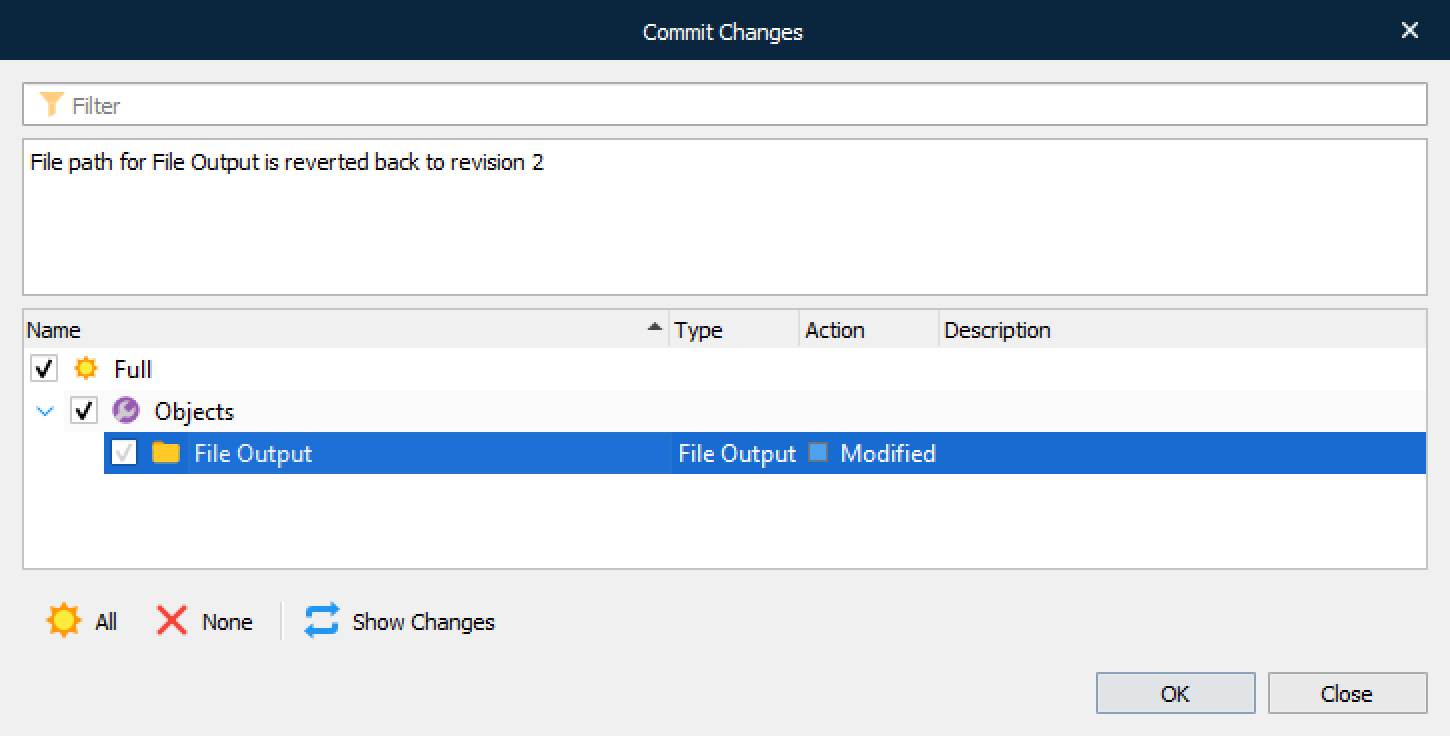
To validate that the restored object contains a modified property, click Show Changes.
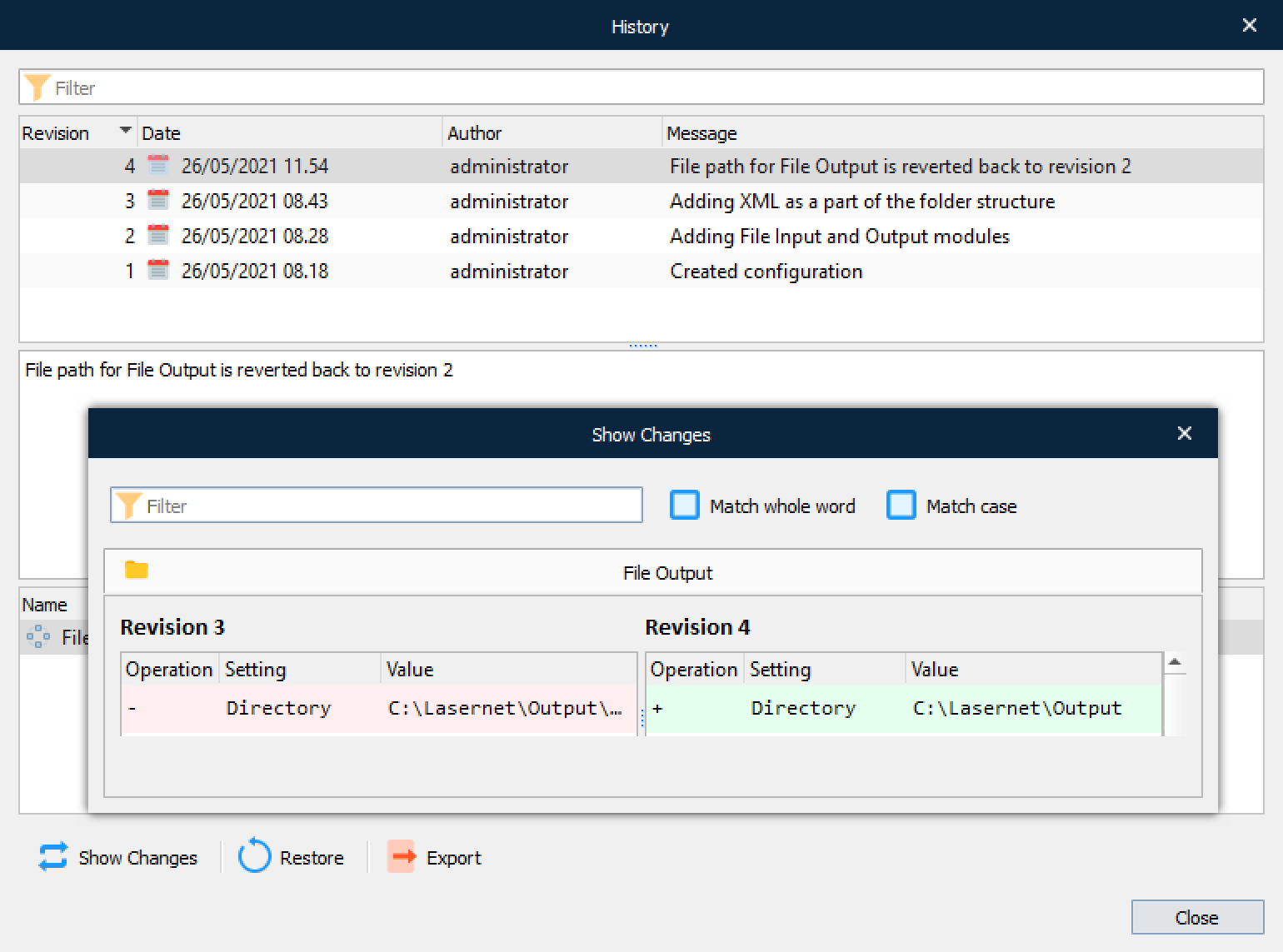
After committing, the configuration is deployed as a new revision.
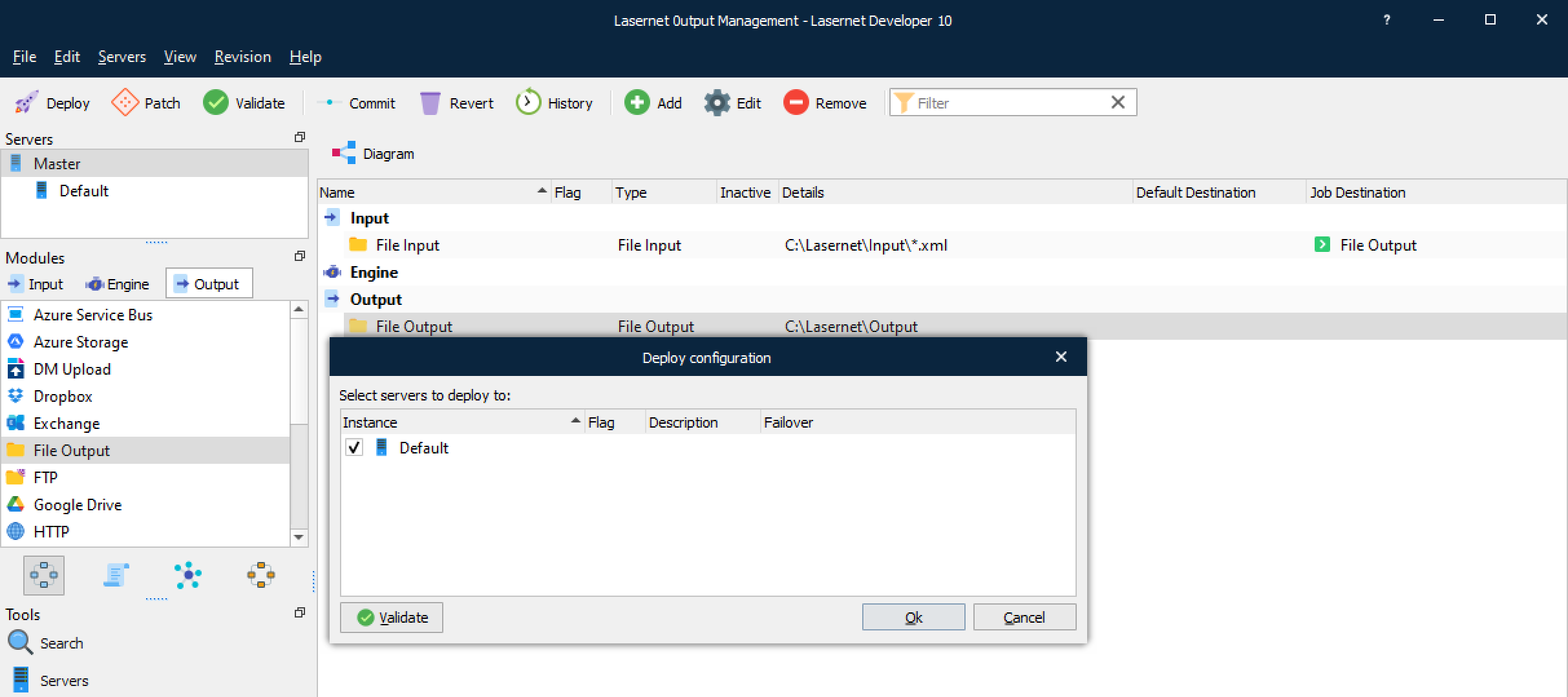
The example below shows that Revision 4, which includes the restored object, is active.
Open Old Revision of Configuration
To open an old revision of a configuration, follow the steps listed below:
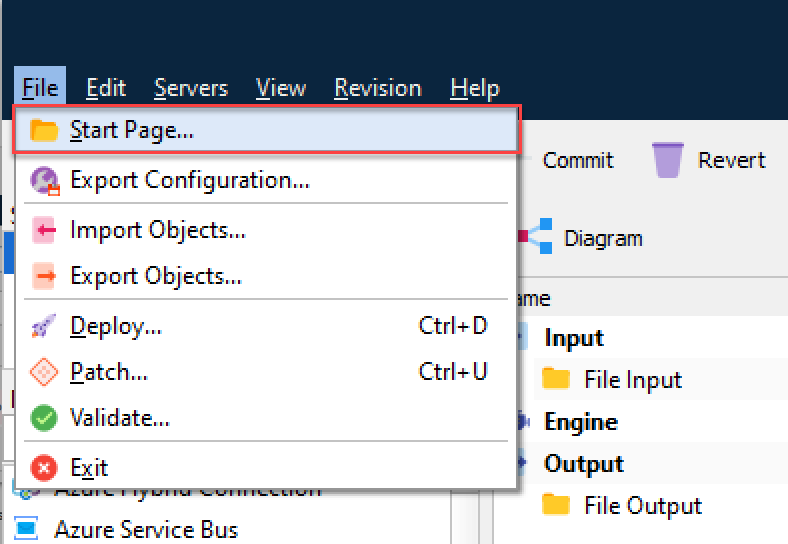
In Lasernet Developer, click Start Page… on the File menu.
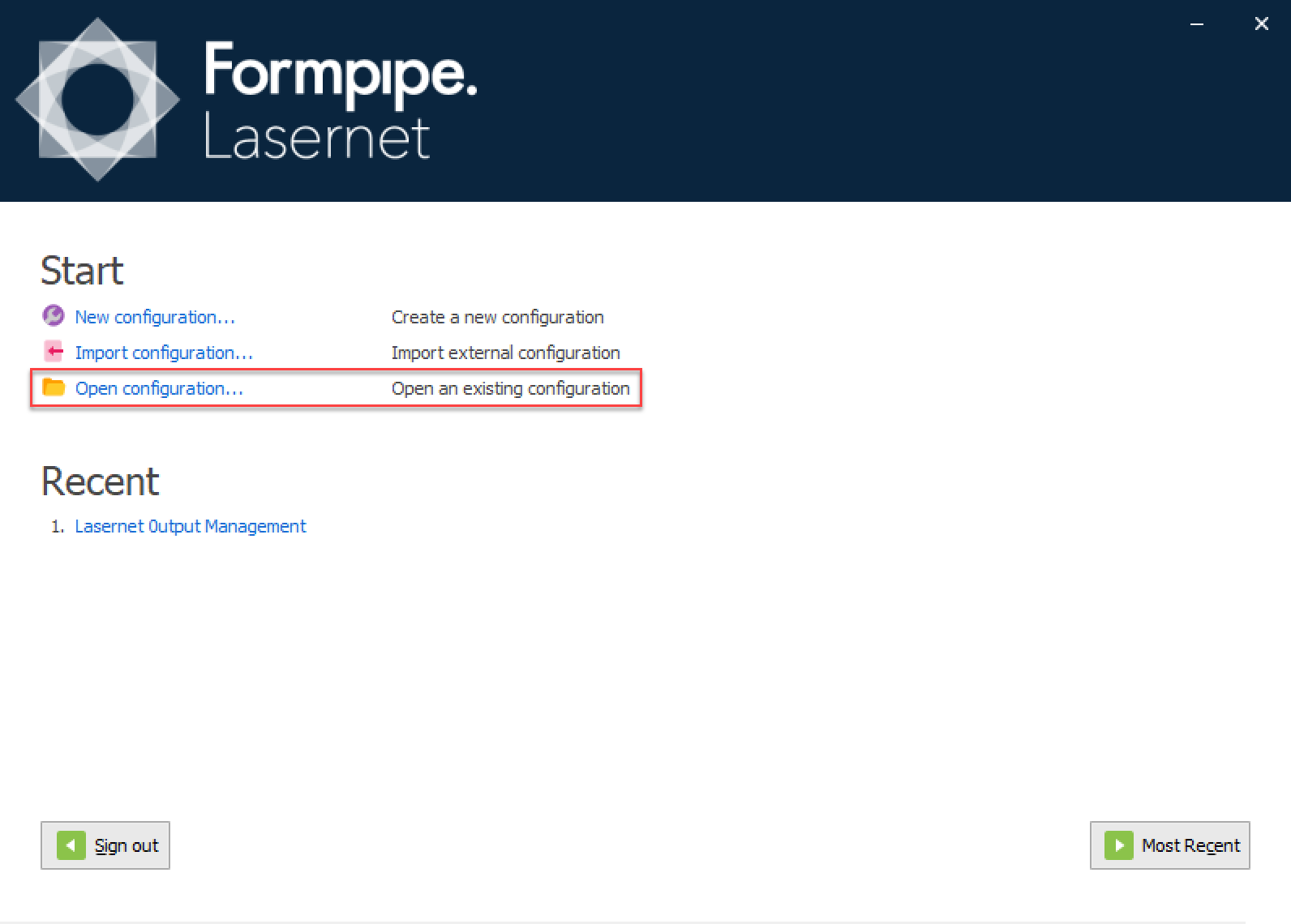
In the dialog displayed, click Open configuration….
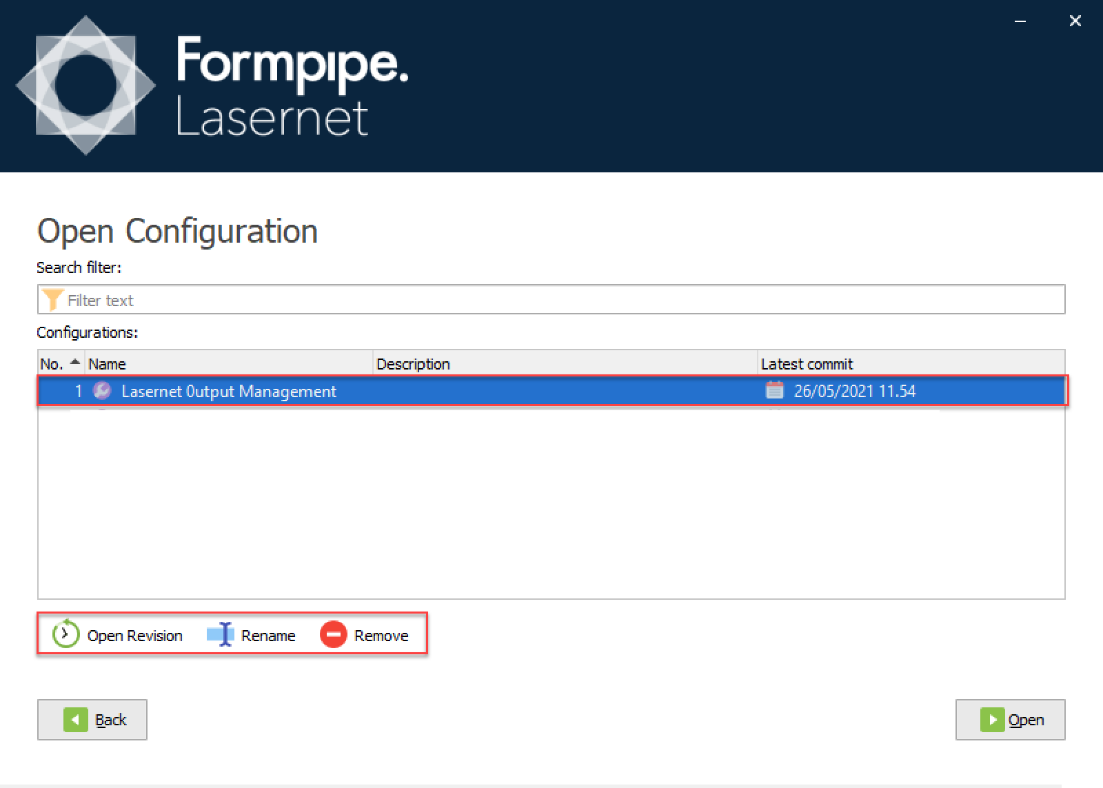
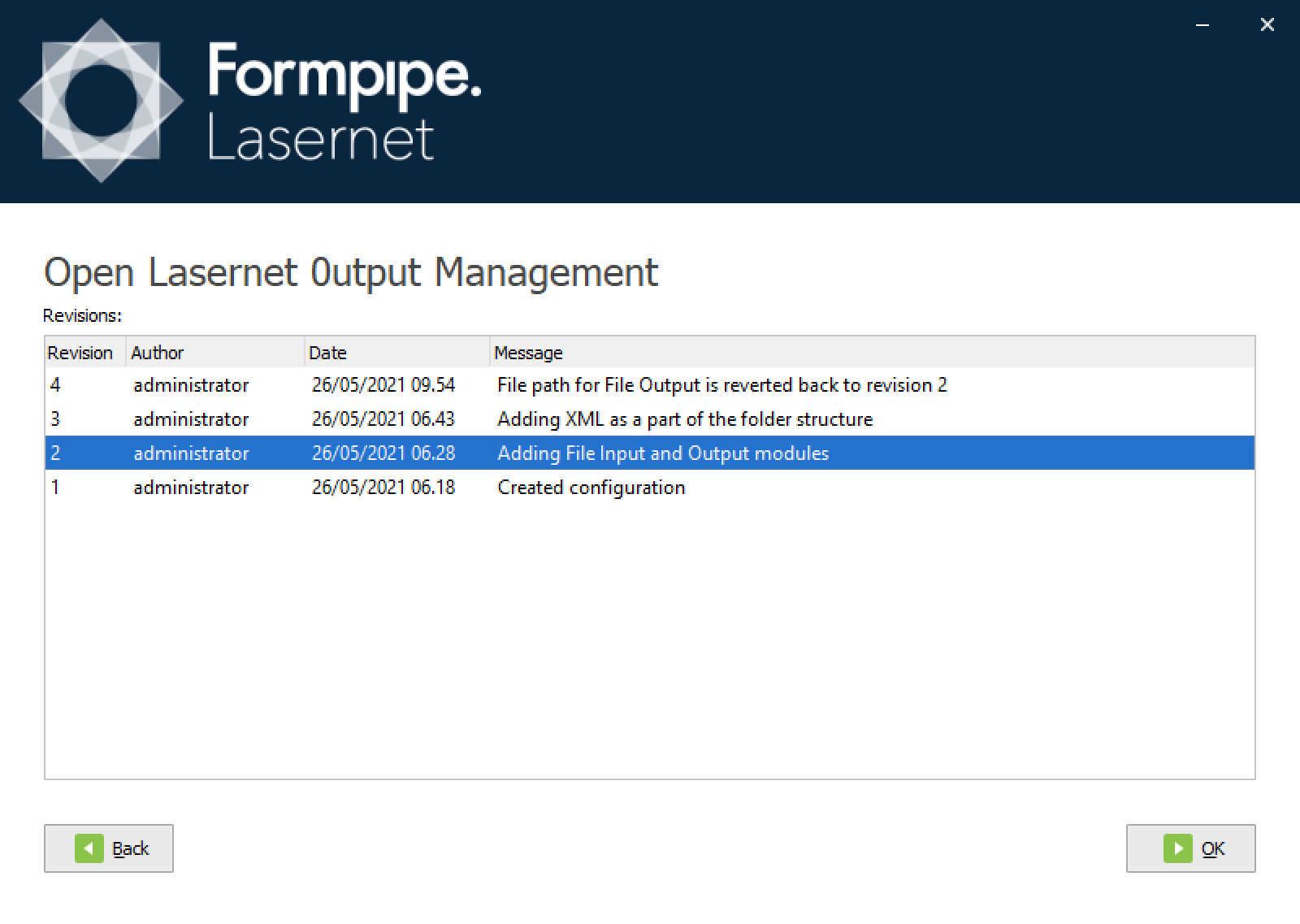
On the Open Configuration screen, you can rename or remove a configuration from the Lasernet Config Server, or you can click Open Revision to open any revision of the selected configuration.
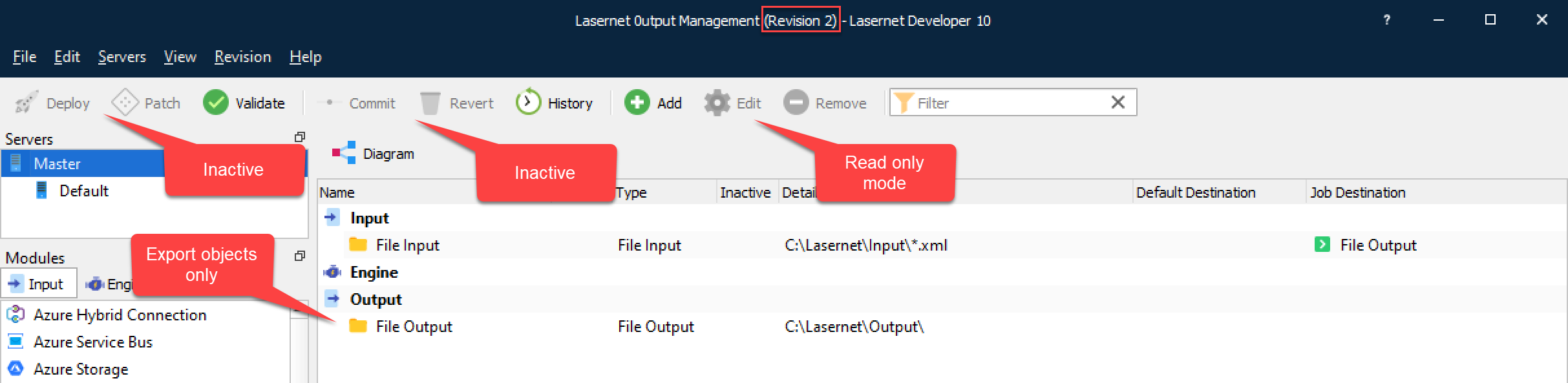
If you have restricted user rights in the Lasernet Developer application you can still open an old revision of a configuration, however most objects will be in read-only mode.
You can validate and view the history. Objects can also be exported and imported to the latest revision of another configuration.
Patch
Patch server is a way to verify your configuration on your server with added or modified objects in the configuration without being forced to a commit and create a new revision.
All objects in the configuration are then transferred to the selected server, and non-committed objects are merged to the latest revision.
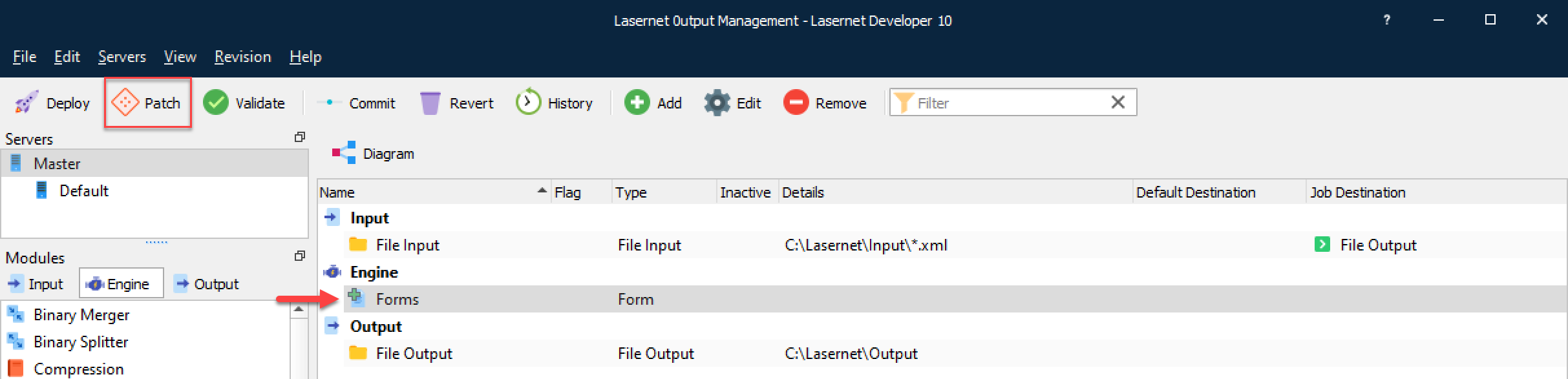
You can have multiple users patching the same server. Non-committed objects are then merged to a single patch.
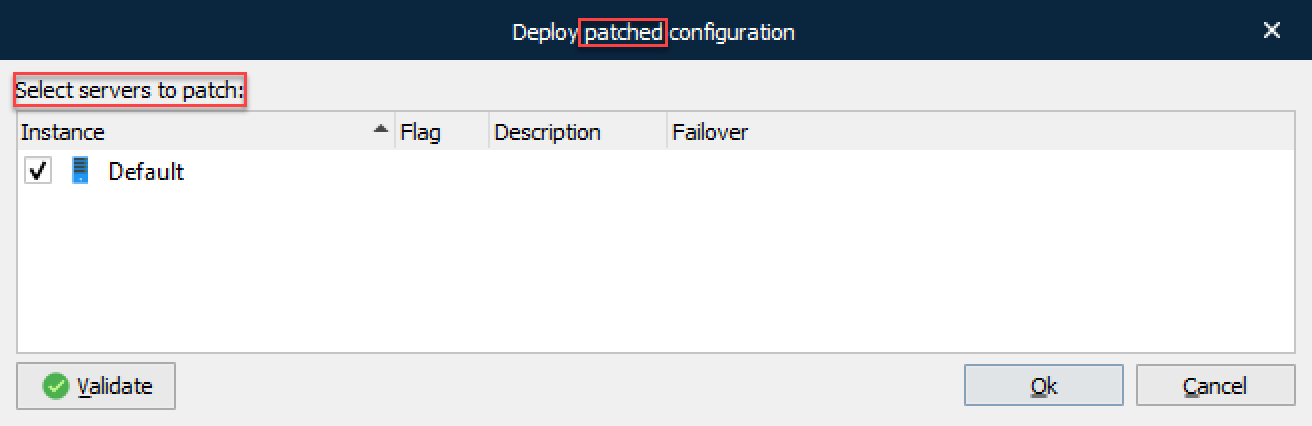
On the web interface of the Lasernet Config Server, go to the Deployment section and click the required instance to view the patched object(s) list.

The patch ID is an internal identifier that varies from user to user. The same user has the same ID.
The server runs in patch mode until a user creates a new commit/revision. Active patches for any user are then cleared. They must be either committed (including their objects), or a new patch with uncommitted objects will be created.
Important
Patch mode must be used carefully in a multi-user environment. The functionality is only recommended for testing purposes and advanced users.
Add Multiple Server Instances in Lasernet Config Server
Add another server instance to the Lasernet Config Server. In this example, an instance to run the production environment is added.

Add Multiple Server Instances in Lasernet Developer
Log in to Lasernet Developer and open the configuration again to obtain a list of servers recently added to the Lasernet Config Server.
In the Lasernet Developer, add a new server instance to your configuration and commit your changes.
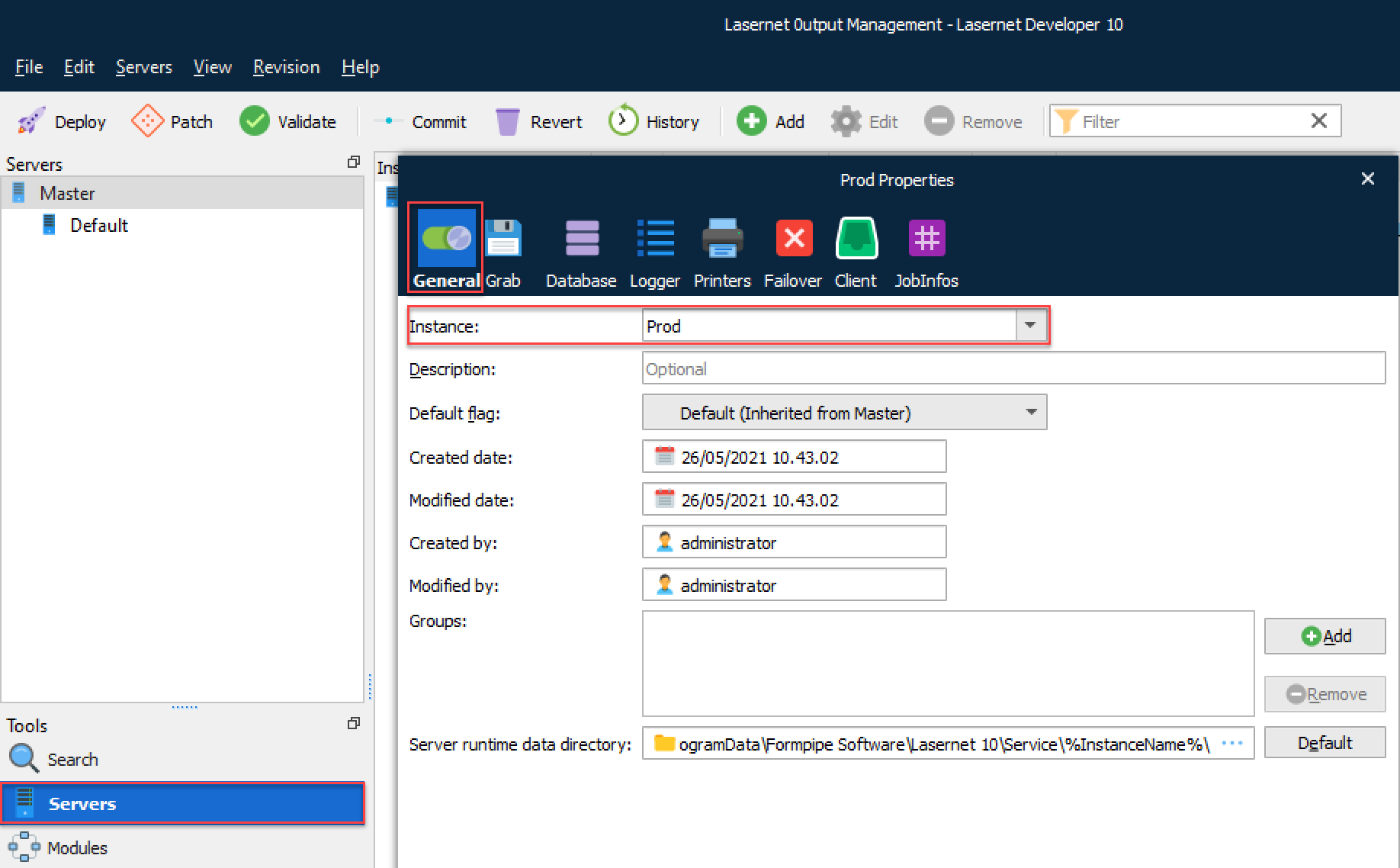
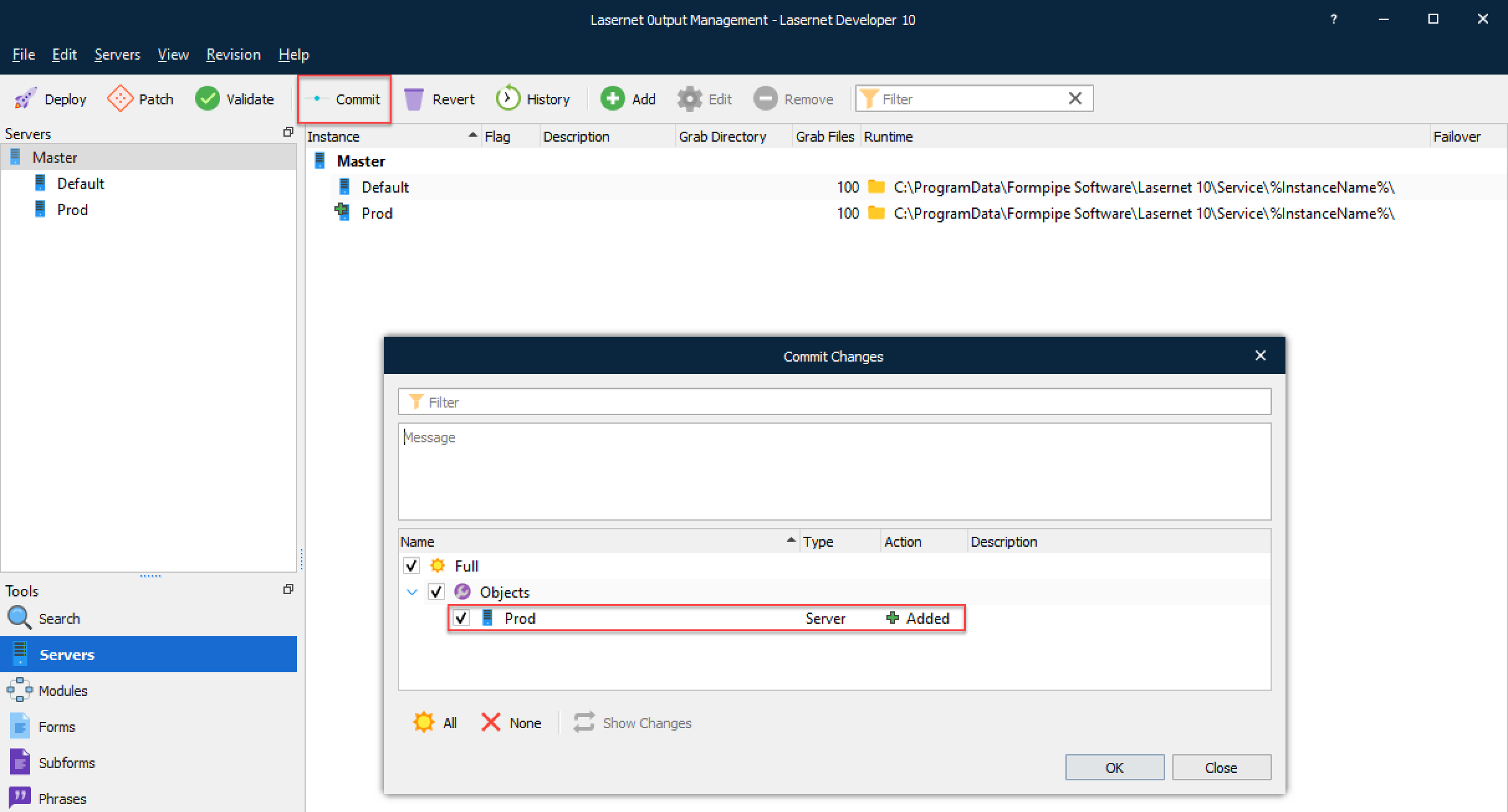
You are now able to deploy your configuration to your new server instance.