
Direct Printout Destinations
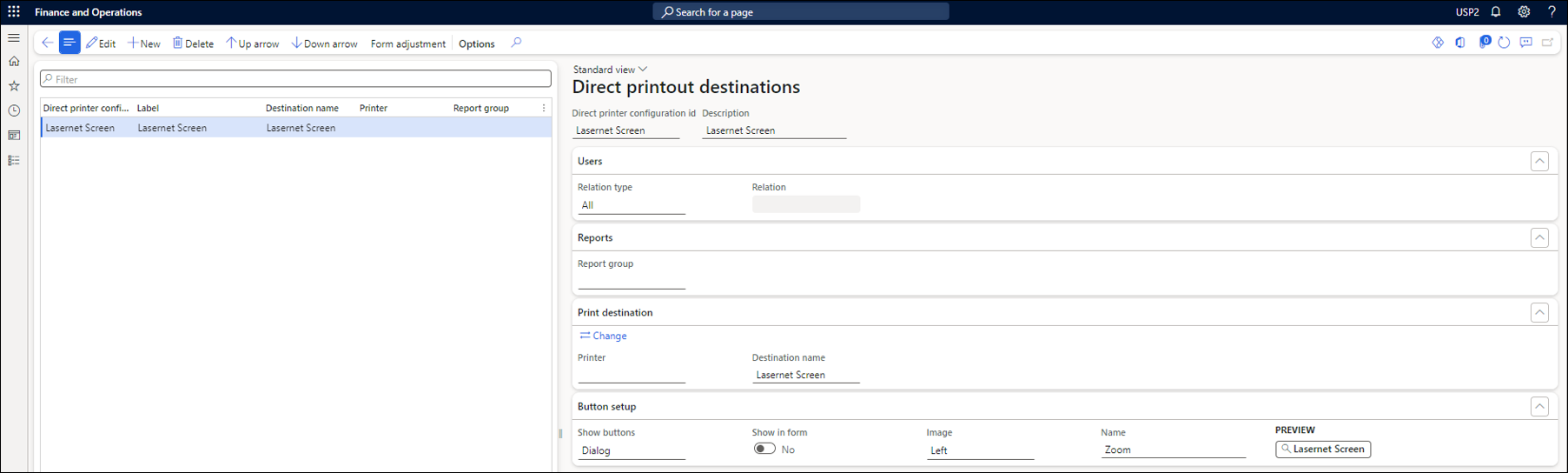
Field name | Description |
|---|---|
Direct printer configuration id | Print button ID. |
Description | Text on the button. A label can be selected as well. |
Users FastTab | |
Relation type | Table – Used to display the Print button for a single user. Group – Used to display the Print button for a single user group. All – Used to display the button for all users. |
Relation | Select a user or a user group. |
Reports FastTab | |
Report group | Select a Report group. |
Print destination FastTab | |
Printer | Displays the printer name. |
Destination name | Displays the destination name. |
Button setup FastTab | |
Show buttons | None – Does not show a button. Can be combined with Show in form so that you do not get any buttons, but a dropdown list instead. Dialog – The button is displayed on the print dialog form.
Journal – The button is displayed in the Journal.
Both – Shows the button on the print dialog form and the Journal. |
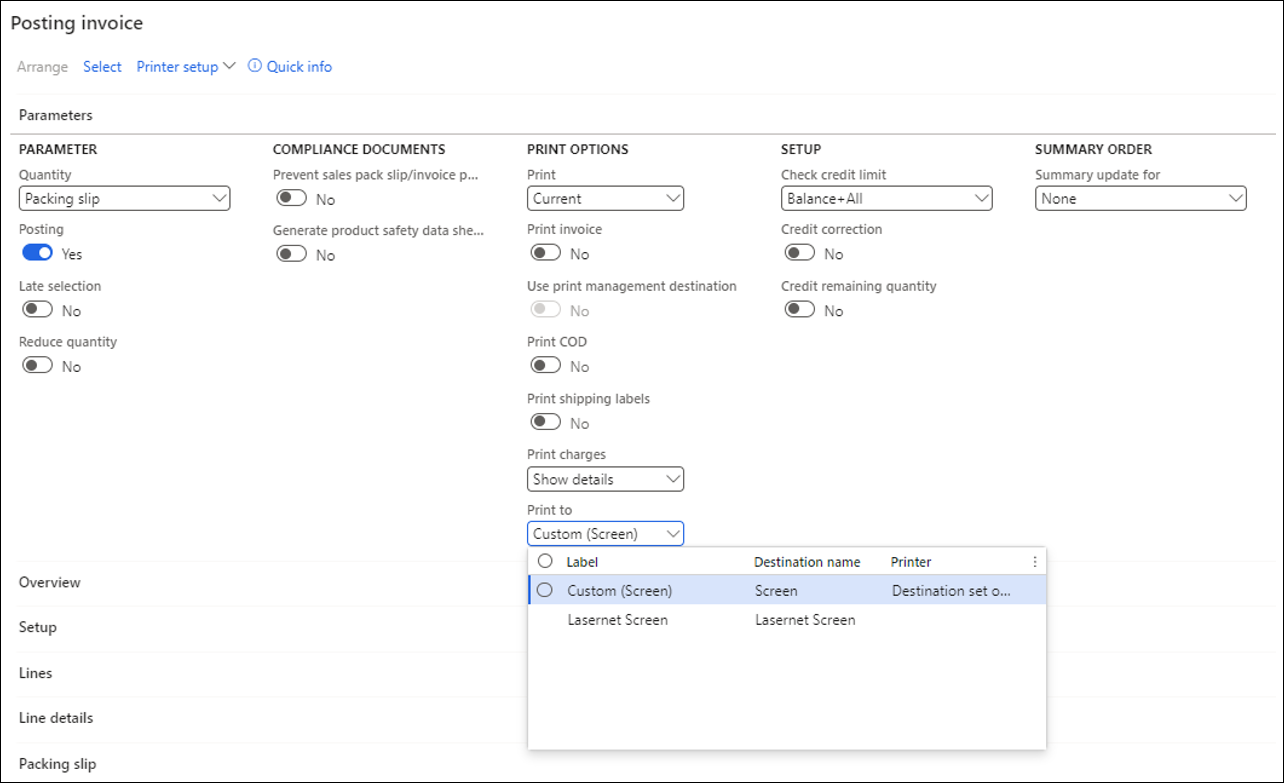
Show in form | If you do not want a button but would prefer a list it in a dropdown field instead. A Print to field will be displayed when Show buttons is set to None and Show in form is set to Yes. This drop-down field will list the Print buttons instead of displaying them at the top of the dialog form. Here is a screenshot of the Posting invoice dialog print form as an example.
|
Image | The number of the Dynamics 365 Finance and Operations image and position around the button label. |
Preview | Shows a preview of the button. |
Form Adjustment
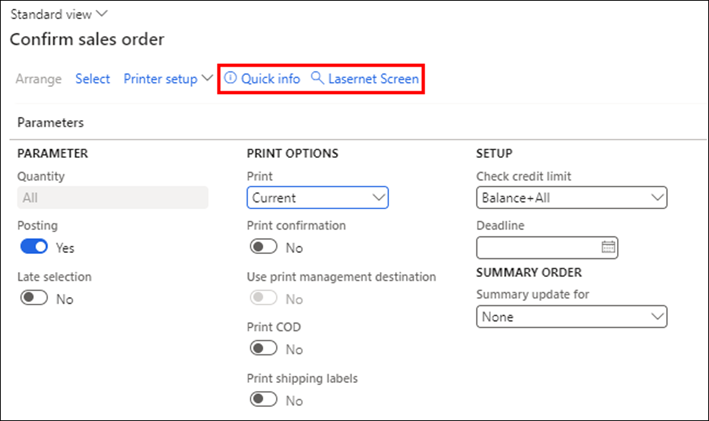
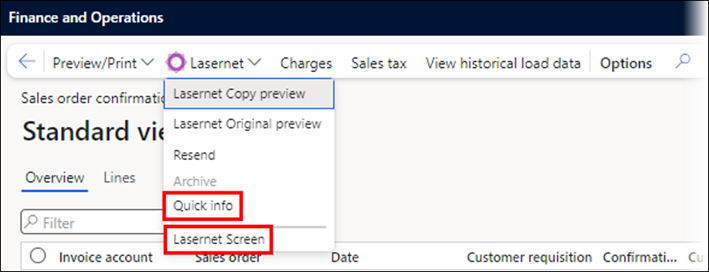
With Form adjustment, you can change the position of the button and the function for a single form.
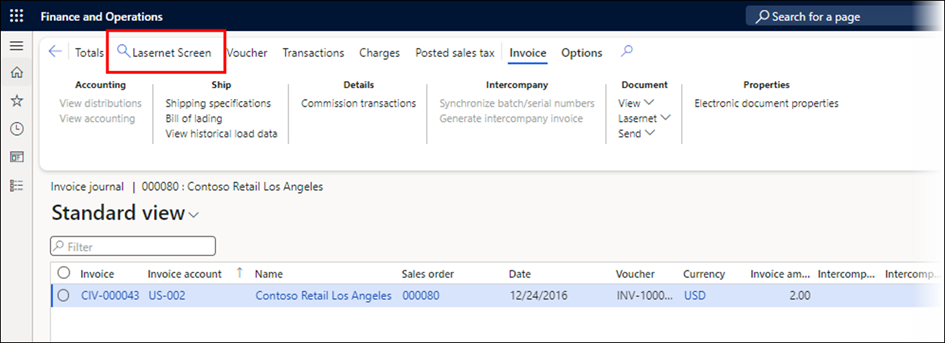
You can add a Print button on the Invoice journal form by following these steps:
Navigate to Print buttons > Common > Form adjustment.
Select the Invoice journal form name: CustInvoiceJournal.
Select the Print button in the Direct printer configuration id field.
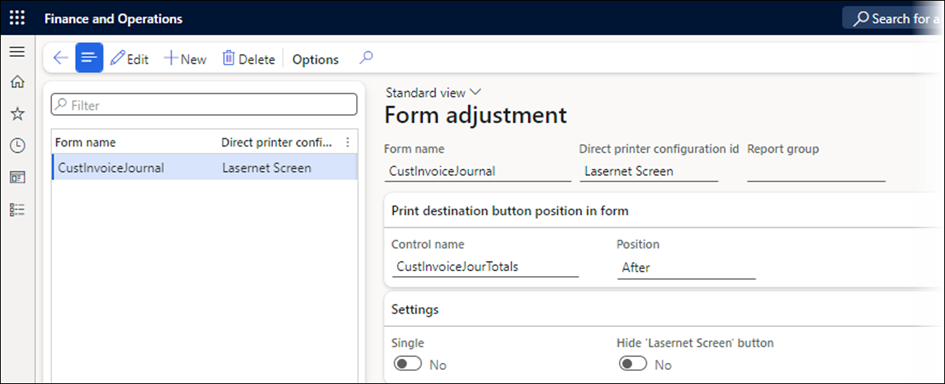
Target | Description |
|---|---|
Form name | The Print button will be applied to this form. |
Direct printer configuration id | Select a Direct printout destination. If no Direct printout destination is defined, all applicable Print buttons will be displayed. |
Report group | Select a Report group for which this Print button will work. Leaving this blank means the print button will not be restricted to certain reports. |
Print destination button position in form FastTab | |
Control name | This is used to define where the Print button should be placed. Select a control name - the Print button will be placed relative to this control name. |
Position | Select before or after. The Print button will be displayed before or after the Control name. |
Settings FastTab | |
Single button | Displays a single button. |
Hide button | Enabling will hide the Print button on this form. This feature can be combined with the Report group functionality. |
Auto-Add rules
With an Auto-add rule, you can control when and to which FO dialog buttons should be added, what their names should be, etc. You can control buttons directly on the print form as either buttons or a list view, as well as on an FO journal and in the Lasernet Archive.
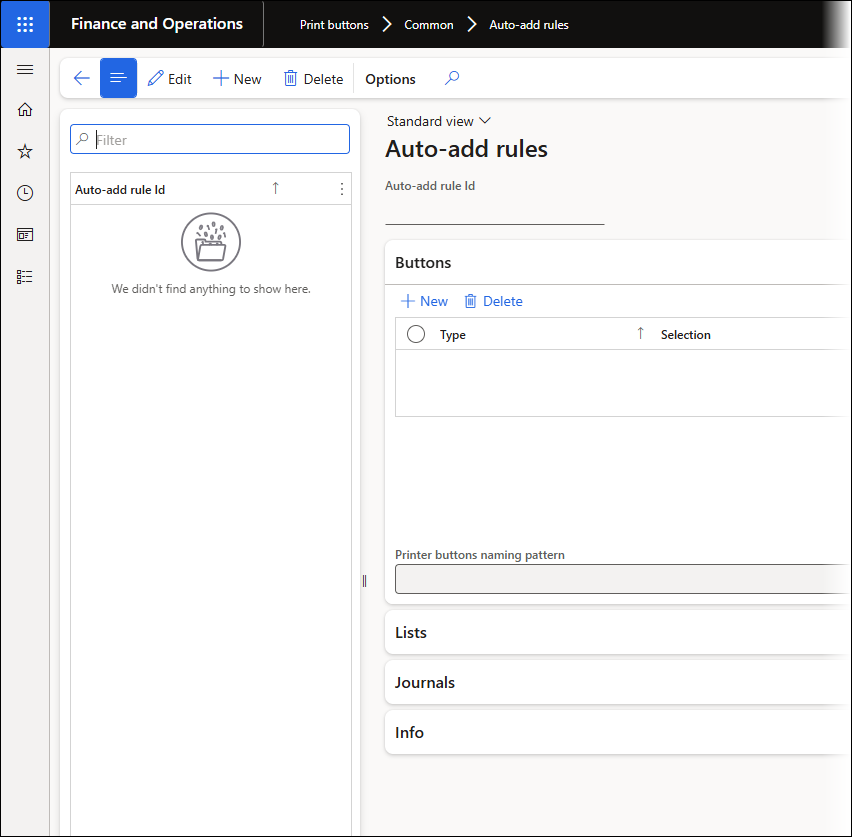
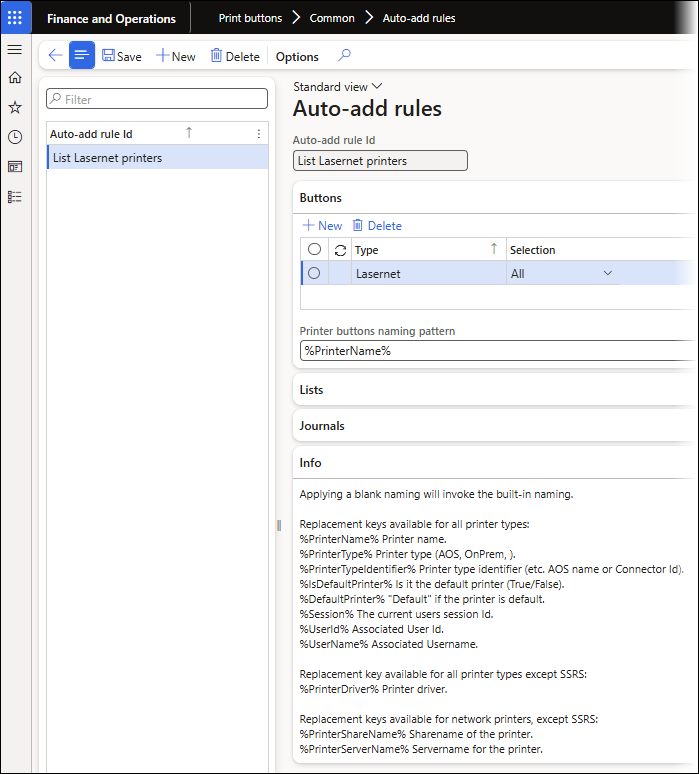
Buttons | Description |
|---|---|
Printer buttons naming pattern | The label on the button |
Type | Printer type |
Selection | Select whether it should be All or only the user’s Default printer. None deactivates the button. |
List | Description |
Printer buttons naming pattern | The label on the button |
Type | Printer type |
Selection | Select whether it should be All or only the user’s Default printer. None deactivates the button. |
Journals | Description |
Printer buttons naming pattern | The label on the button |
Type | Printer type |
Selection | Select whether it should be All or only the user’s Default printer. None deactivates the button. |
Report Group
Report groups are used to link Print buttons to reports. For example, you might have a print button that should only be displayed for Sales reports. Therefore, you could create a Report group for Sales reports and then link that Report group to the Print button. This functionality should not be confused with Report groups used in the Lasernet module - more information about those report groups can be found here.
In the following example, a Report group has been created for the Sales confirmation report and the Sales invoice report:
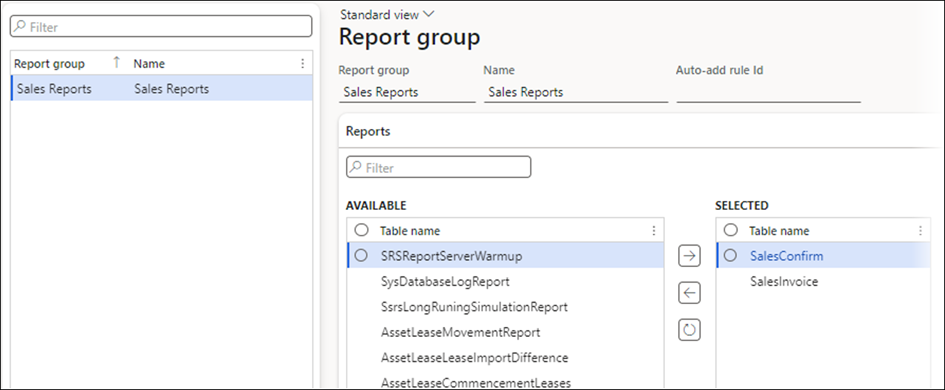
Field name | Description |
|---|---|
Report group | The Report group ID |
Name | Name of the Report group |
Auto-add rule Id | Select and Auto-add rule. |
Reports FastTab | |
Available | This is a list of reports that can be added to the Report group. |
Selected | This is a list of reports that have been added to the Report group. |