Applies to: Lasernet Core 10
Configuring OCR Engine
This chapter is intended for advanced users who configure the back-end for:
OCR Engine
OCR Fields
Validation
Dictionary
Workflow
From the Lasernet Developer, you must select the server instance from which you want to run the OCR Engine. Select Modules ► Engine ► OCR and click the Add tool to create a new OCR Engine for your input management workflow.
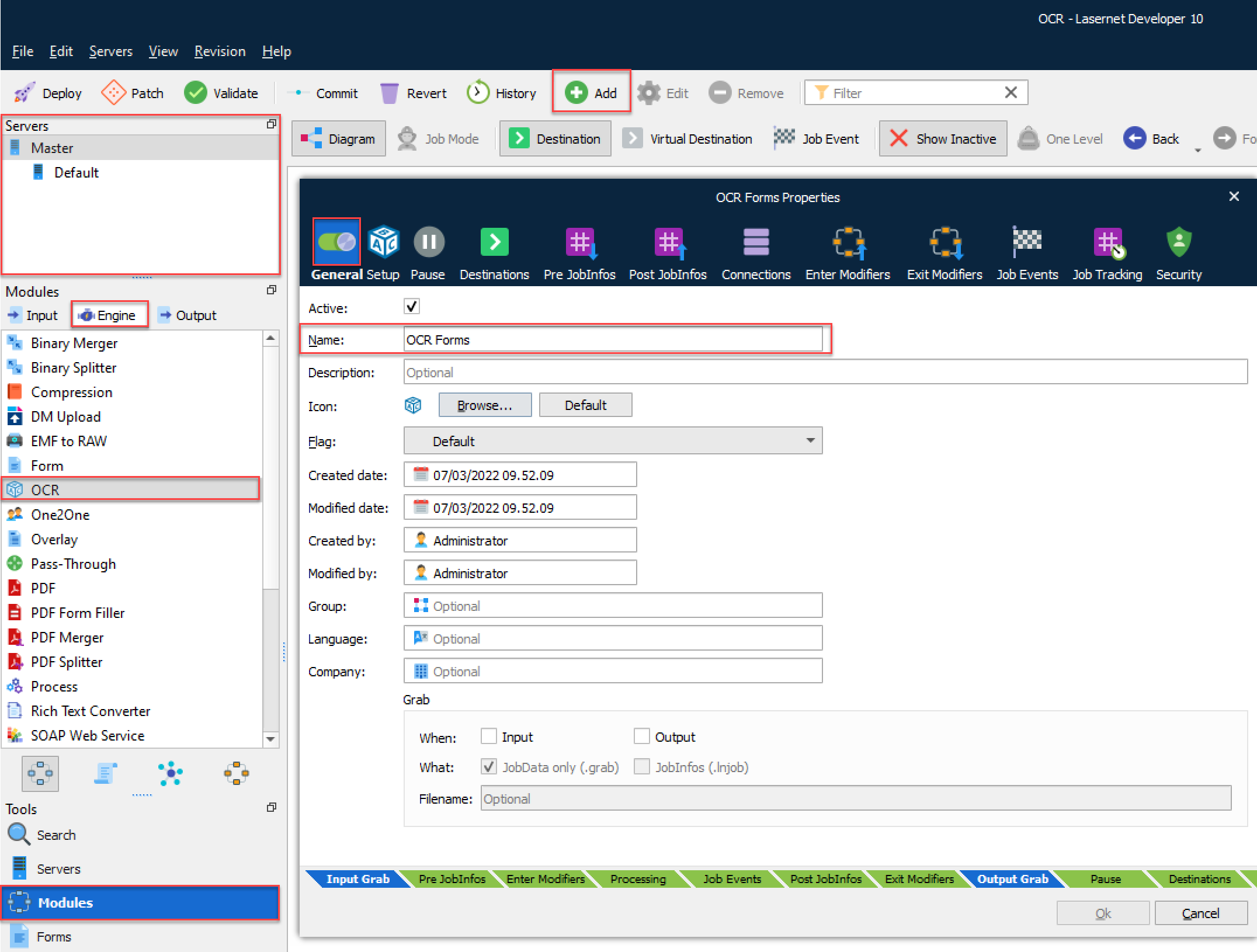
Type any name for the new OCR Engine. Select the Setup tab to define the list of documents for which you want to set up OCR scanning, and which fields you want to extract from the documents. The information defined in the OCR Engine is used by the OCR Editor to help the end user to set up documents, and by the OCR Engine to automatically extract the data via Lasernet Core.
Forms
In the Forms tab you define the forms directory where OCR Engine will store:
OCR Forms with the grabbed PDF
OCR Forms, created in Auto Capture mode, with the captured PDF
Note
We strongly recommend that you create a backup of this folder.
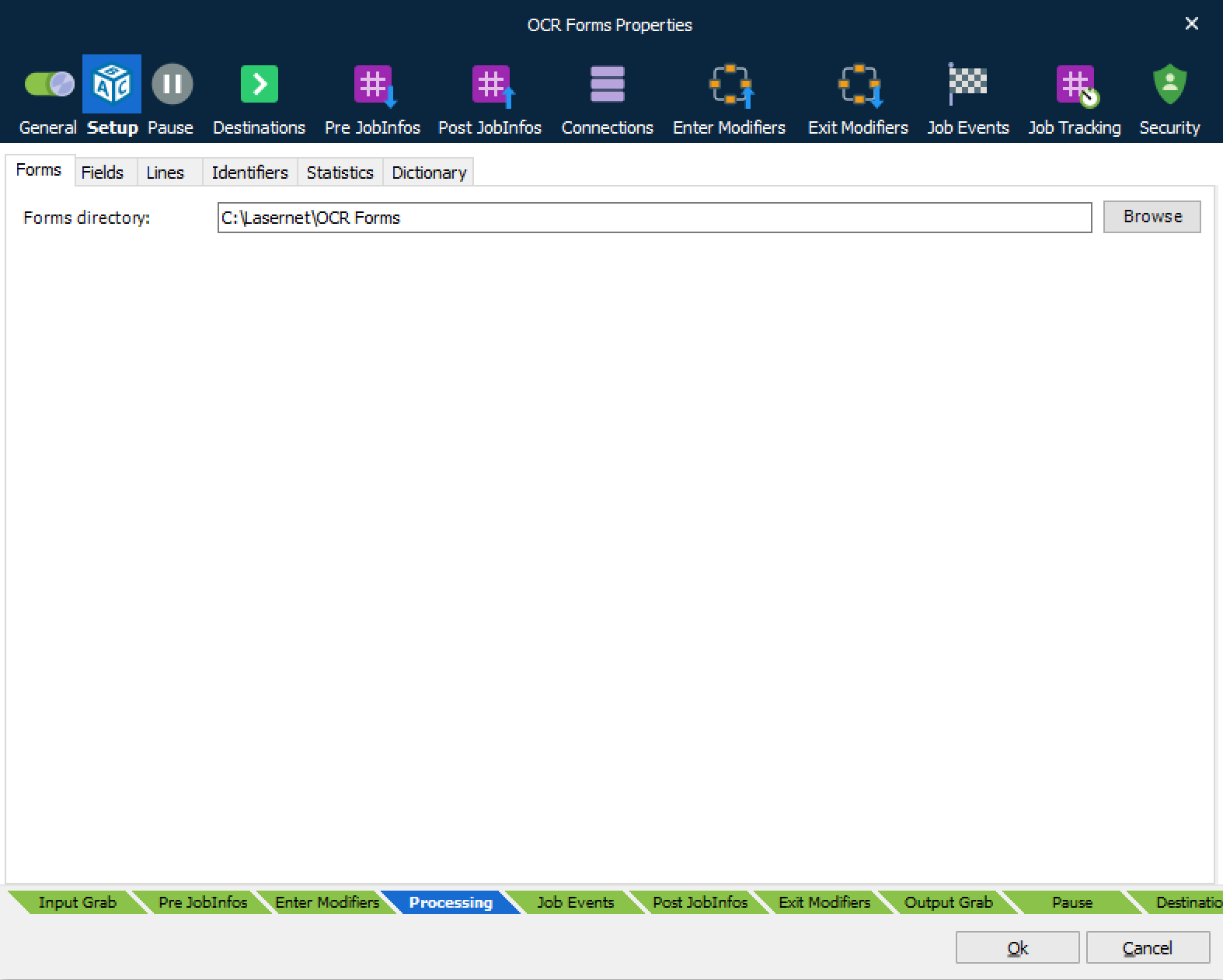
Forms directory Folder path for the OCR Engine to store the list of OCR forms, grabbed PDF and auto captured forms
Caution
Do not use the same directory as the “Server runtime data directory”, defined in the server settings of your Lasernet Core environment, or you will corrupt your OCR forms.
Fields
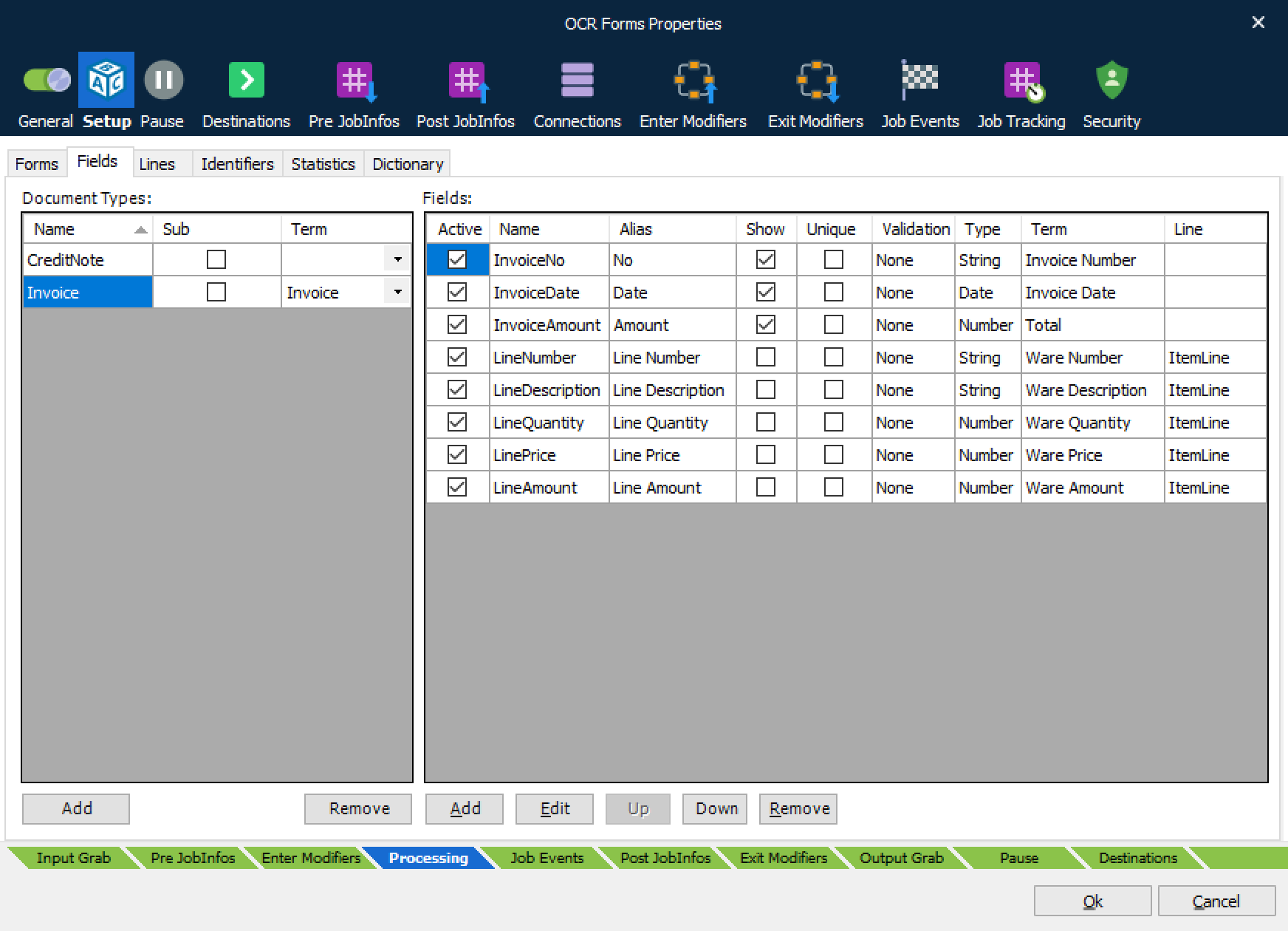
In the Fields tab you can add the Document Types, Field Names and Data Types required by a third-party workflow system. You can customize your OCR Fields with aliases to be used by OCR Editor, rights to show an OCR Field in the Lasernet Client and with validation rules to fail a job.
If the Dictionary is activated, you can create a link between documents and field types added to the OCR Engine, and terms added to the Dictionary. This will optimize the process of creating OCR Forms in the OCR Editor, or AutoCapture data in documents to automate the OCR process as much as possible.
Document Types
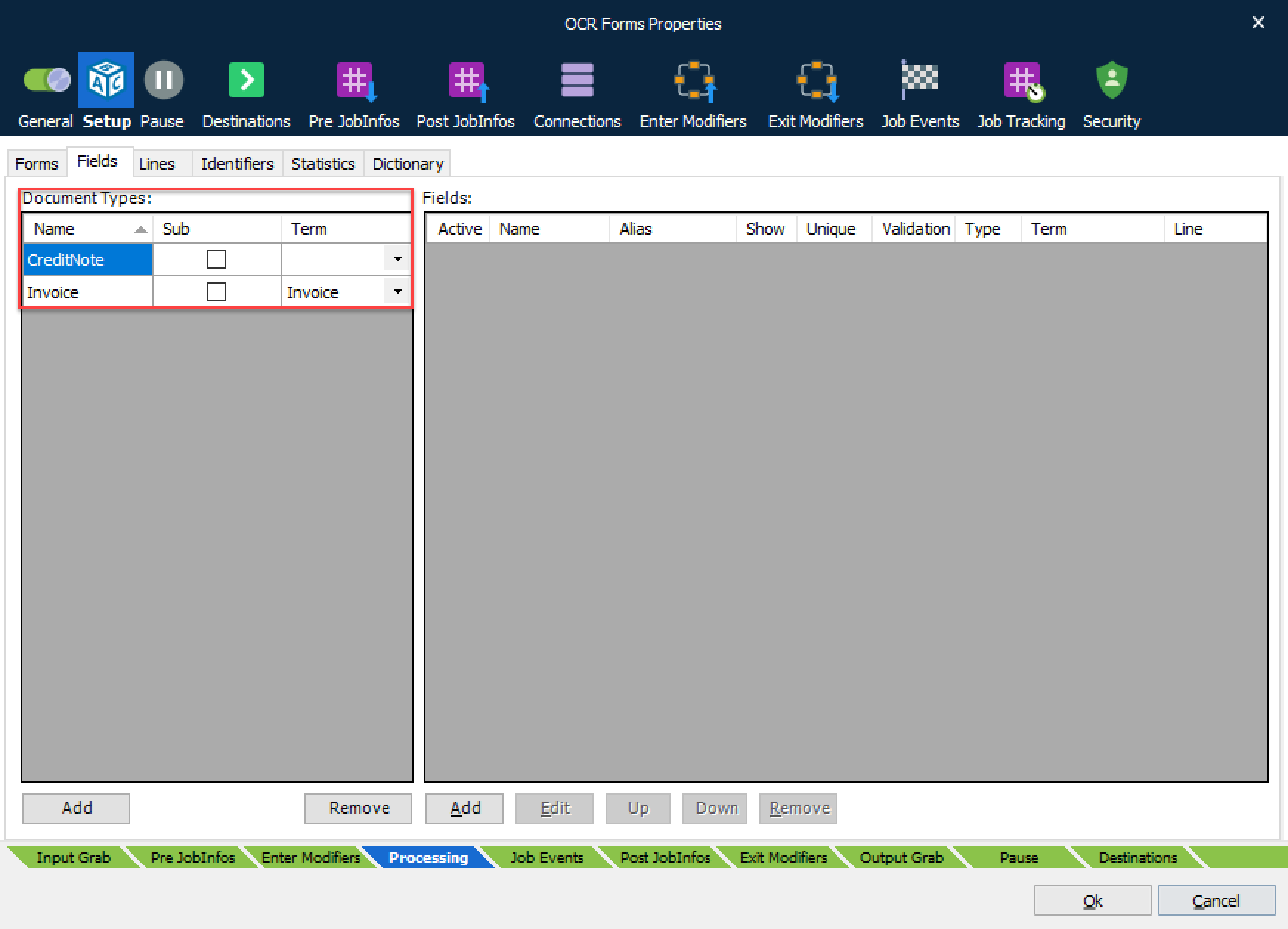
Add a Name for each of the document types from which you want to extract OCR data. For example, common document types are invoices, credit notes, orders etc. The document types must reflect the various documents from which you want to extract data via the OCR Engine. For each document type, you must add a list of fields that reflect the requirements of your external workflow system to which you want to export data.
Select the Sub checkbox when there are minor variants for specific documents types. For example, an invoice vs. proforma invoice, where you mark a document as a sub-type and allow the end user to select both the main document type and the sub-type when creating an OCR Form in the OCR Editor. This can help you improve the maintenance of OCR Fields by sharing field types between variants of the same document type.
Term The Term column is a binding between the OCR Field added to the OCR Engine, and a Term stored in the Dictionary database for automatic recognition of documents. Values are only accessible from the drop-down menu if the Dictionary Server is activated and is used by the AutoCapture feature, if activated.
Fields
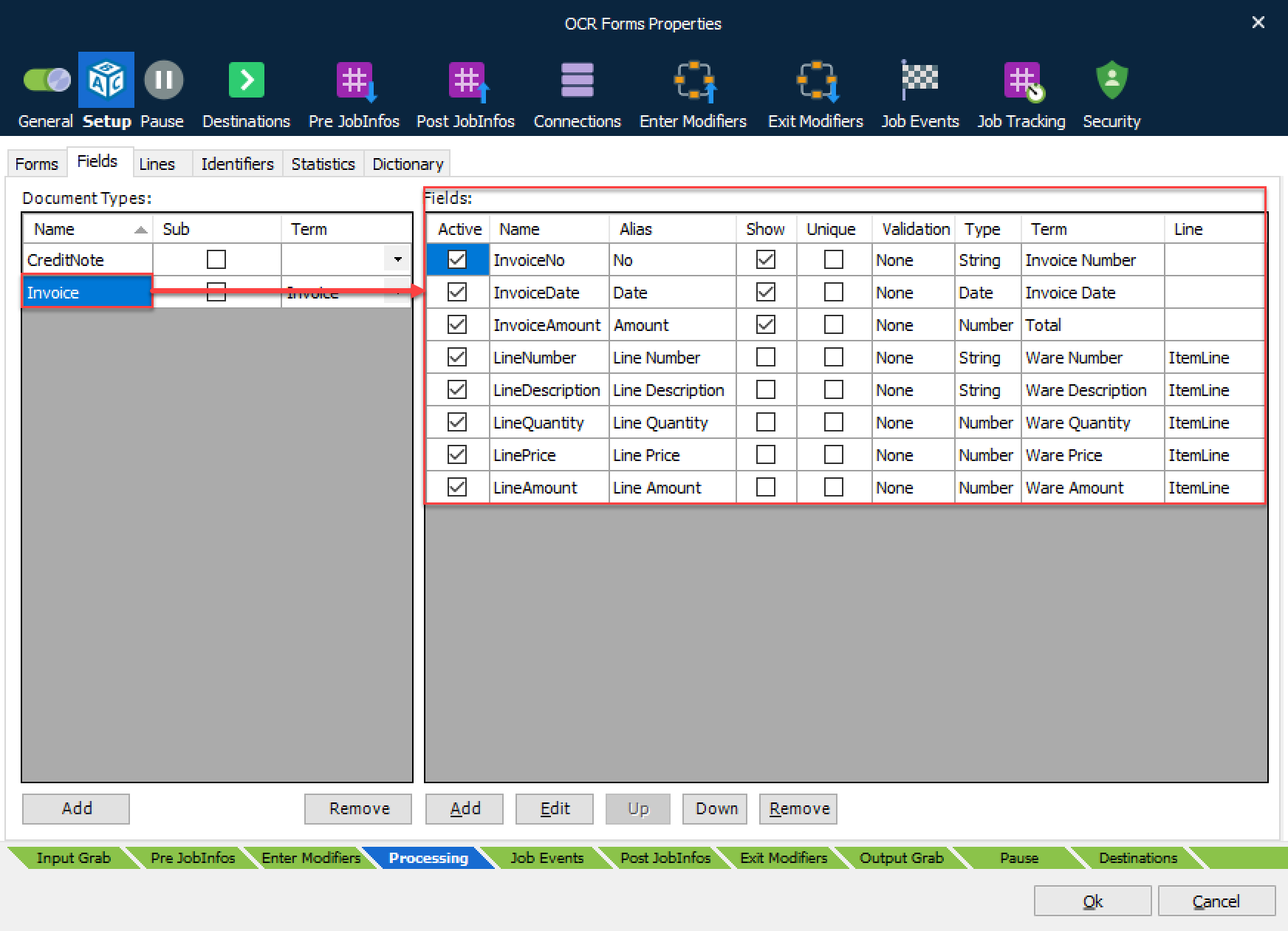
Field Names – Any Field Name added to a document will be listed and accessible from the OCR Editor.
The Name column must contain the field name to be included in XML data created as output from the OCR Engine. If an illegal tag name is entered you will prompted with an ! icon.
The Alias column must contain the logical field name seen by the end user in the OCR Editor. Logical names will help the end user to locate the required data fields in the incoming OCR documents.
Select the Show checkbox to enable viewing of the field name, or alias name (if entered) in the Lasernet Client. Note that if this field is not activated, validation cannot be performed by the end user in the Lasernet Client.
The Validation column will contain the value “None” if no validation for this field is required, or “Automatic” if a validation rule has been entered. Select a Field Name and click Edit to set up validation rules.
Each field can be defined as a Type, such as string, number or date. Use number and date formats for converting various incoming number and date formats, via Regional Profiles, into a standard format. Numbers will be converted to 99999.9999 (four decimals) and dates formatted to yyyyMMdd.
The Term column is used to connect a field name with the name of a term in the dictionary. A term consists of one or more aliases that appear in job data. When the dictionary understands a phrase, it will automatically be connected to the defined field name.
The Line column can associate an OCR Field to a specific type of item line added in the Lines tab. Binding OCR Fields to specific item lines will improve the steps for adding OCR Fields to an OCR Form, via the wizard in the OCR Editor.
Validation
Validation is used to validate the contents of an OCR Field. Metadata that does not match specified conditions will be marked either as tentative (yellow) or unsuccessful (red) in the Lasernet Client, which is used for approval of documents in the workflow.
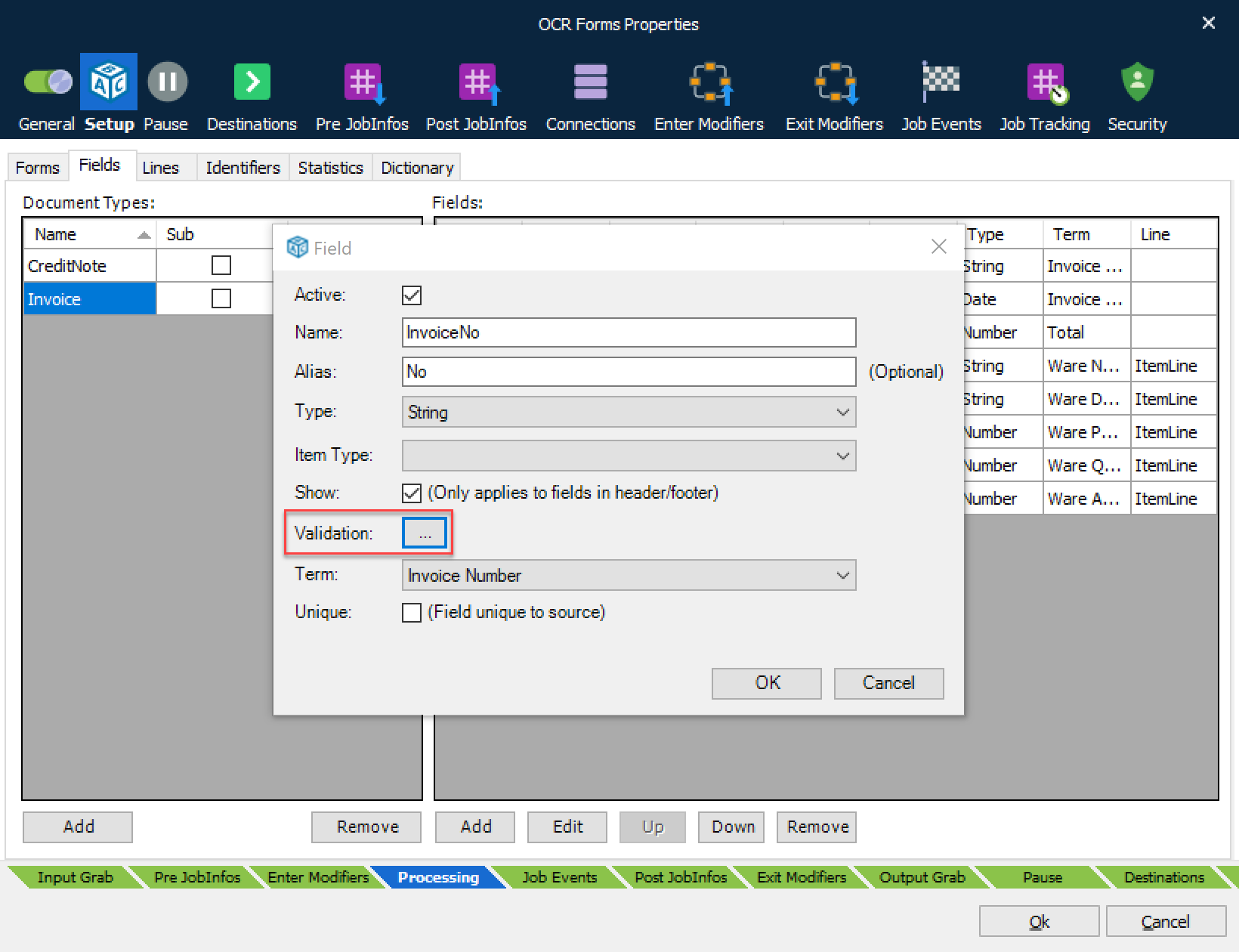
Select a Field Name, click Edit and click the Validation ... button to edit or create new validation rules.
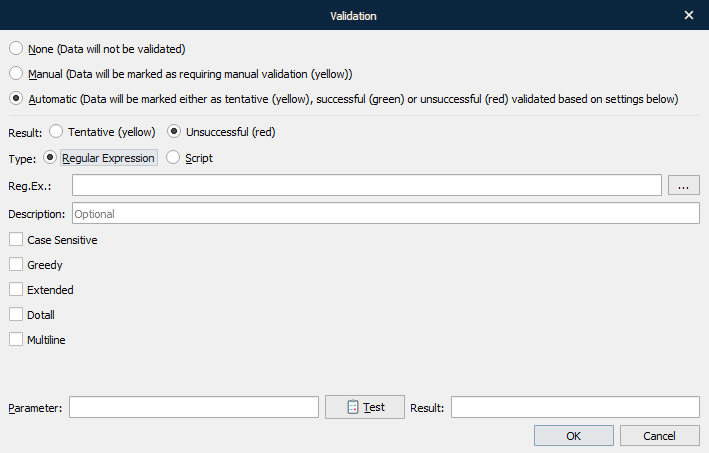
Select Regular Expression or Script to validate the contents of an OCR Field.
Validate with a regular expression
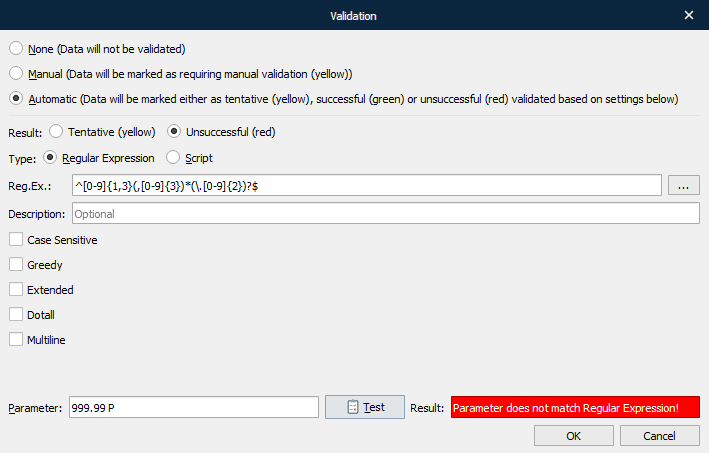
In the example we have created a regular expression matching a US formatted number, using a comma as the thousand delimiter and a dot as the comma delimiter.
Regular Expression: ^[0-9]{1,3}(,[0-9]{3})*(\.[0-9]{2})?$
The $ sign at the end of the regular expression is essential to match the full string and not a part of the string.
The Parameter field and Test button are useful to validate the expected result of the regular expression. This functionality is for online testing only in the Lasernet Developer.

For more information regarding regular expression syntax, we recommend using the internet for reference.
Validating dates and numbers
All fields defined with date or number as the field type must be validated against the internal date or number format handled by the OCR Engine; not as the format present in the document.
The internal format for dates is: yyyyMMdd
The internal format for numbers is: 99999.9999 (dot as the decimal splitter and four decimal places)
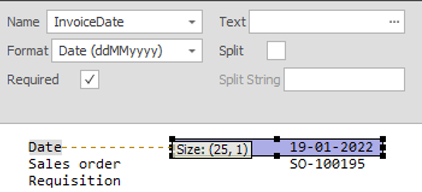
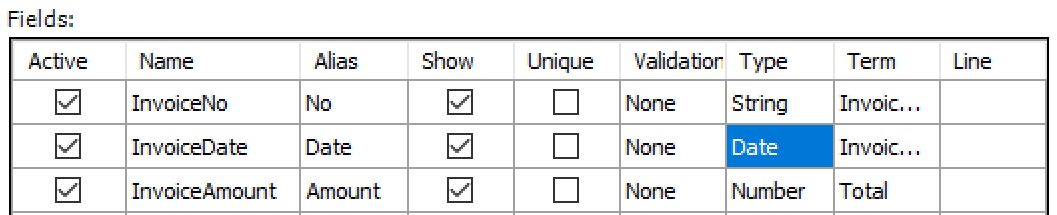
In this example, the date 19-01-2022 is extracted and converted into the internal format 20220119.
For the date field you must define a regular expression that validates to the internal format of yyyyMMdd. For numbers you must validate to the format 99999.9999
Validate via JavaScript
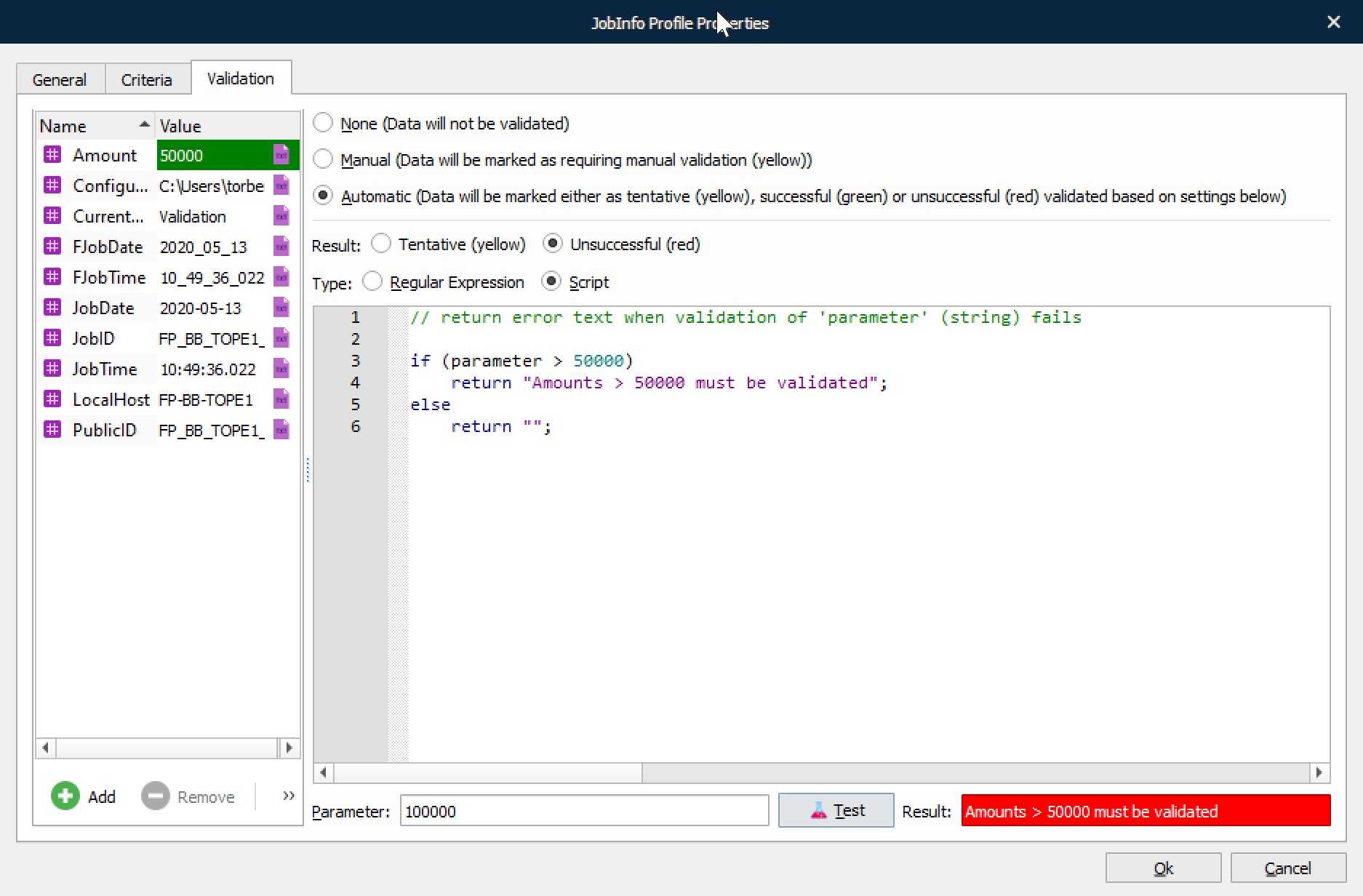
In this example we have created a JavaScript matching if a parameter is higher than a specific amount. The parameter string is essential and contains the contents of the JobInfo to be validated. The expression will return an empty string when validation of the parameter is successful and error text when it fails validation.
if (parameter > 50000)
return "Amounts > 50.000 must be validated";
else
return "";
To validate against a JobInfo included in the script, click Add to add the JobInfo Name and Value in the JobInfo grab window.
if (parseFloat(parameter) > parseFloat(job.getJobInfo("Amount")))
return "Amounts > 50.000 must be validated";
else
return "";
The Parameter field and Test button are useful to validate the expected result of the JavaScript. This functionality is for online testing only in the Lasernet Developer.


Supported JavaScript functions
The JavaScript tool in the OCR validation solution has support for a limited range of system functions compared to the Job Engine. The supported convert functions, job classes and arrays are:
- Static functions:
- Convert.toDate
- Convert.toDateRP
- Convert.toNumber
- Convert.toNumberRP
- Job class:
- All functions in the job class (see Job in the Lasernet Core 10 Scripting Guide).
- Arrays:
- Azure commands
- Database commands
- Modifier commands
- SharePoint commands
Note
The system functions are not supported for validation in Lasernet Meta, where validation runs on client side and not server side.
Line Types
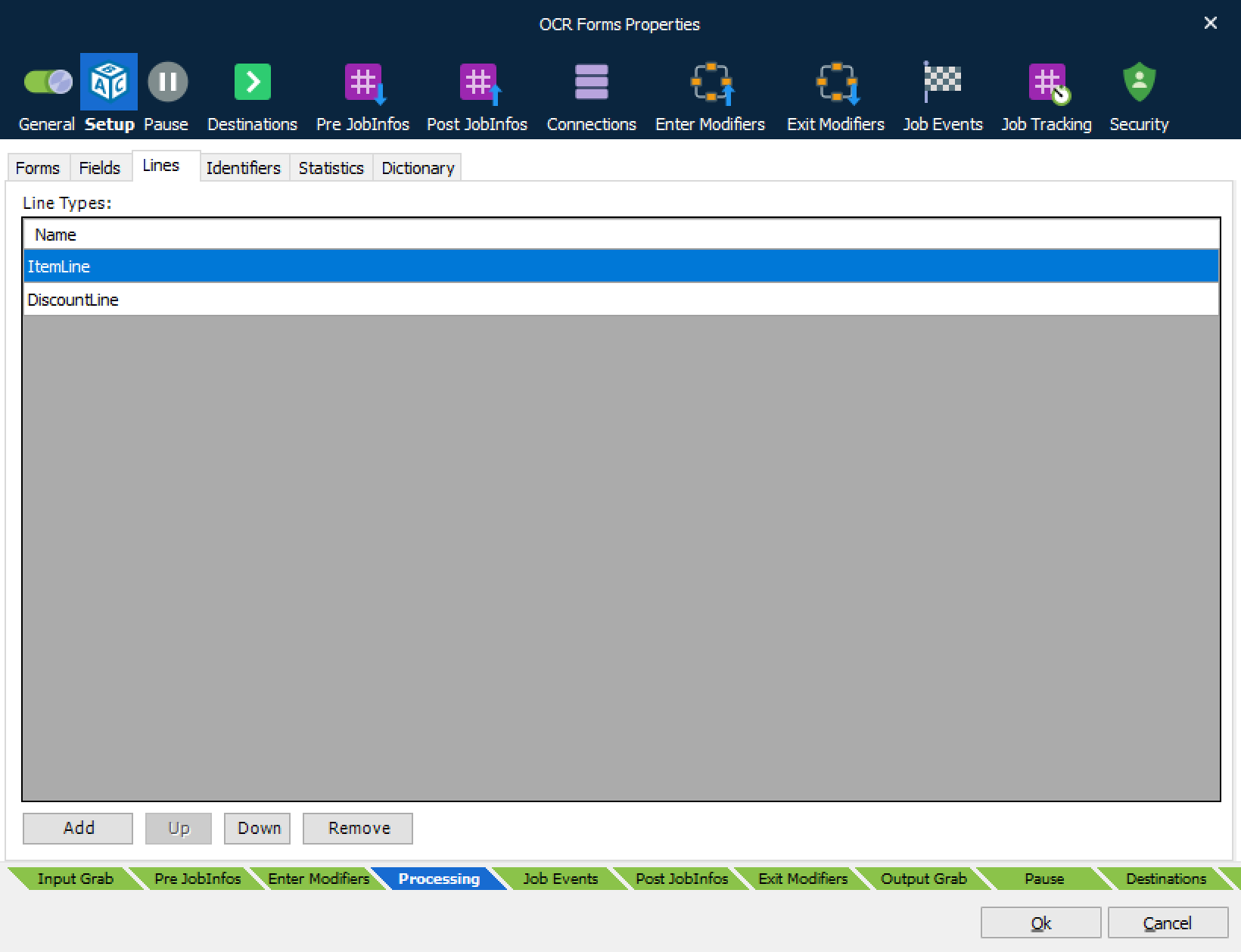
Line Types added to Line tab are assigned to the last Document Type selected in the Fields tab. When the list of Line Types is added, you can bind them to specific OCR Fields via the Line column in the Fields tab.
The Line Types with OCR Fields will be embedded in the output job if recognized by the OCR Engine. The list can be left empty if no lines are captured from the document. When recognizing Line Types in the body area of the incoming documents, the order of Line Types is important – Line Types at the top of the list will have the highest priority when the OCR Engine is recognizing lines. Move Line Types up and down to set the priority.
Identifiers
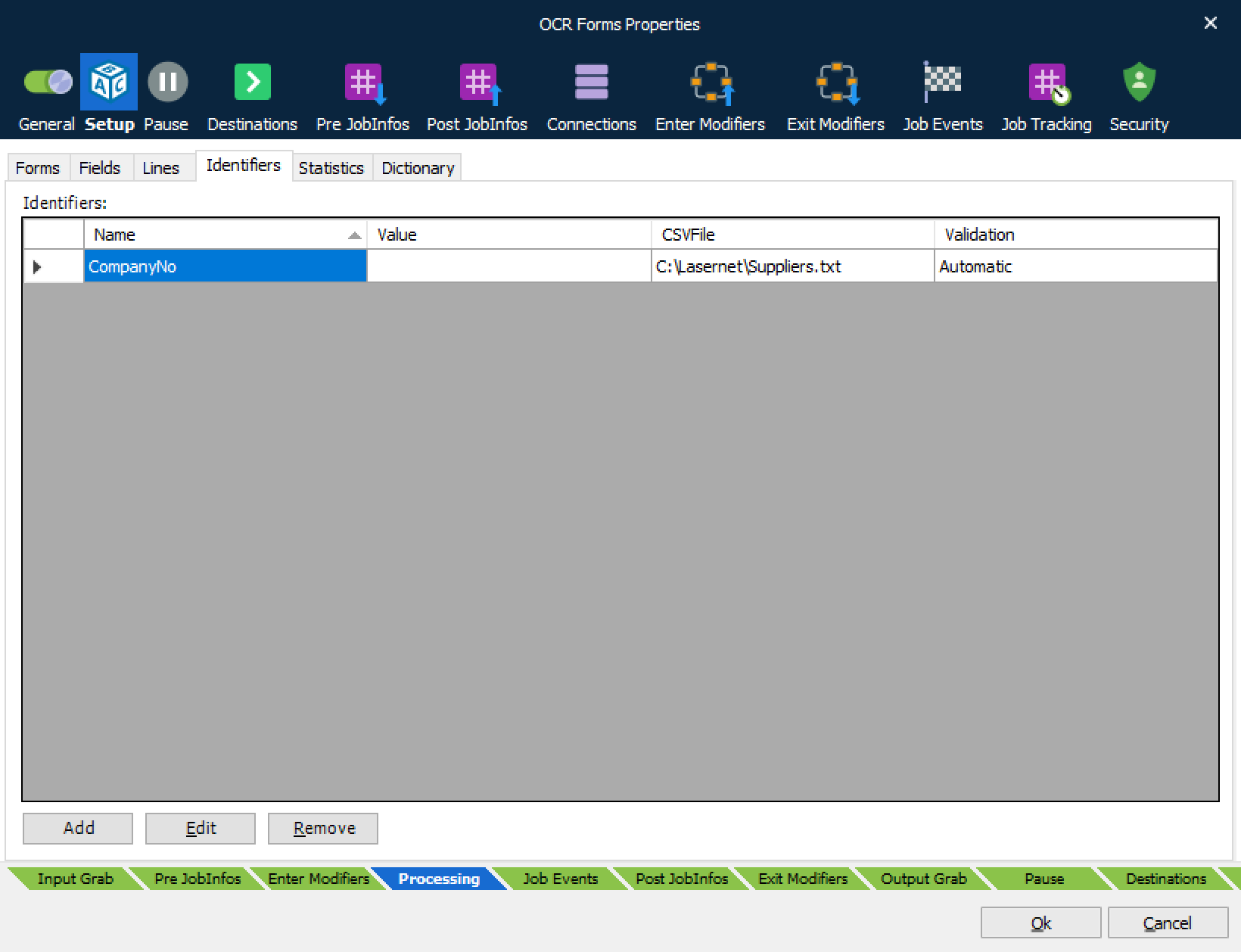
Identifiers are used for inserting fixed field names and values in the output data in OCR Forms from the Lasernet Client or OCR Editor. Set a default value for the field if required or leave empty.
Note
Only characters from A–Z are recommended as valid Identifier names. Spaces are not allowed.
Set the path and filename to a local CSV file stored on the Lasernet Core server. CSV files most be stored in the following format:
“Header1”,“Header2,“Header3”
“Value1,”Value2”,”Value3”
“Value1,”Value2”,”Value3”
The list of records added to the CSV file are included in the drop-down menu accessible from the Lasernet Client and OCR Editor. The value of the first column can be selected and used as the value for the field. Other columns are for viewing purposes only.
Header names (Required)
Field separator (Comma only)
Quotes: (Not required, but recommended)
Note
A maximum of 6 field columns are recommended for viewing purposes.
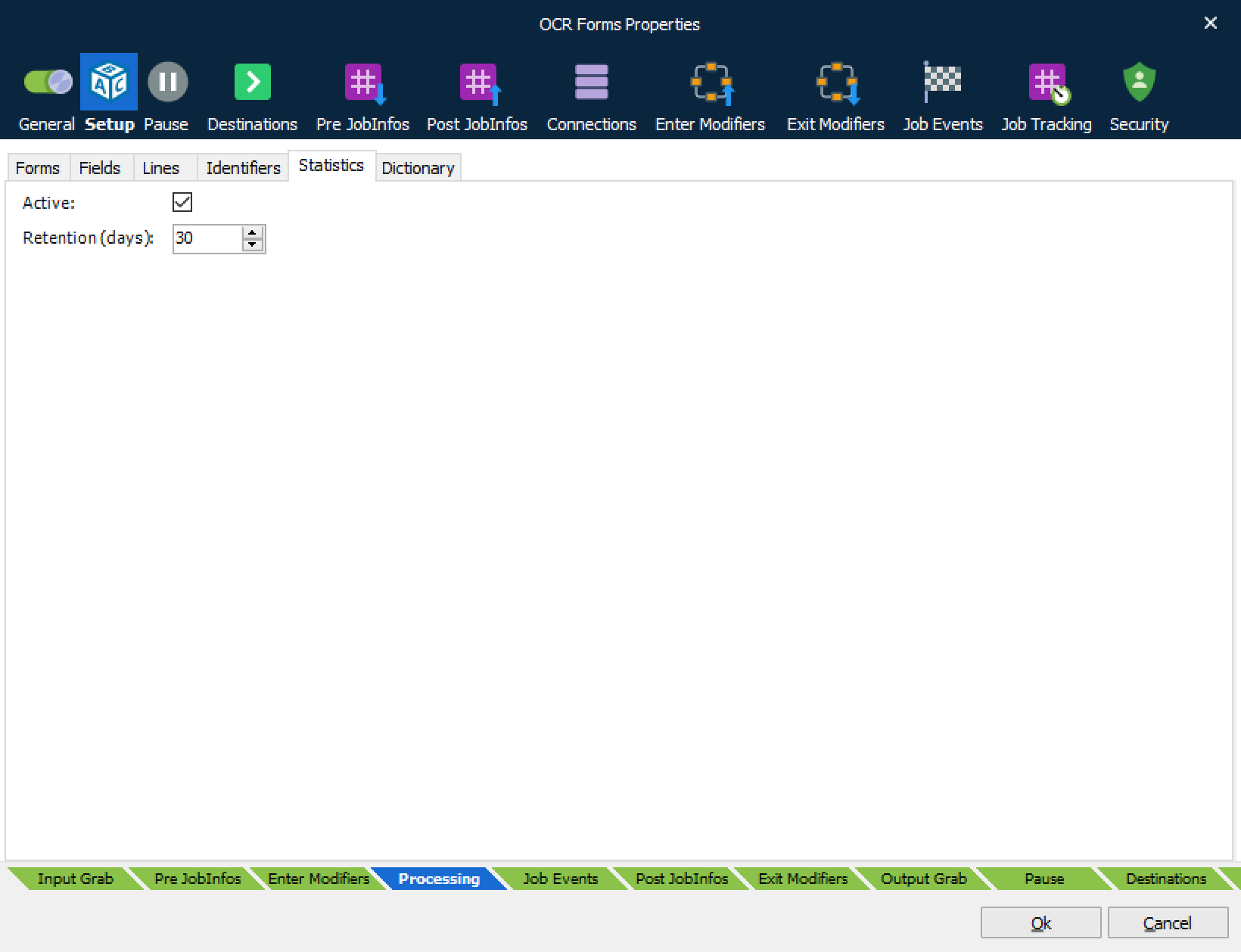
Statistics
Activate statistics and save information about the capture rate of OCR Fields for each document processed by the OCR Engine. This is a useful tool if you want to prioritize and improve the quality of extracted data for specific OCR Forms, particularly where there is a high load of incoming documents.
The statistics are accessible for the users in the OCR Editor and do not contain any confidential information. The statics contain information about number of hits per document and an average percentage of the number of captured OCR Fields for each OCR form.
Dictionary Service
The Lasernet Dictionary Service is an optional feature, which runs with a Microsoft SQL Server LocalDB database as the back-end, to automate the capturing of OCR data in documents.
The Lasernet Dictionary must be installed and configured with a service name and a port number in the Lasernet Server License Manager.
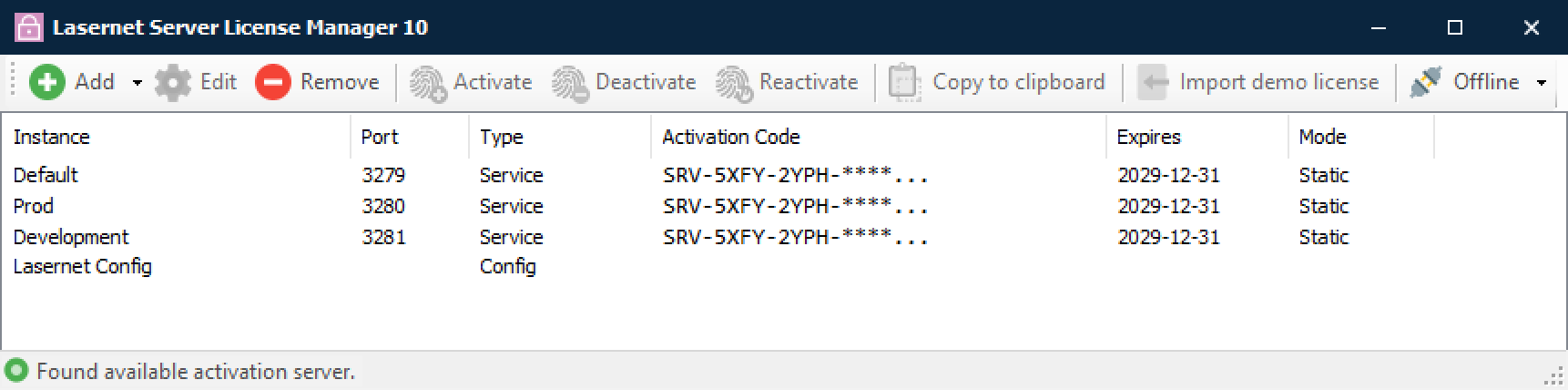
We recommend that you configure the same port number as for the Lasernet Config Server, where the default port number is 33443.
Click Add ► Dictionary Service then enter an Instance Name and a Port number.
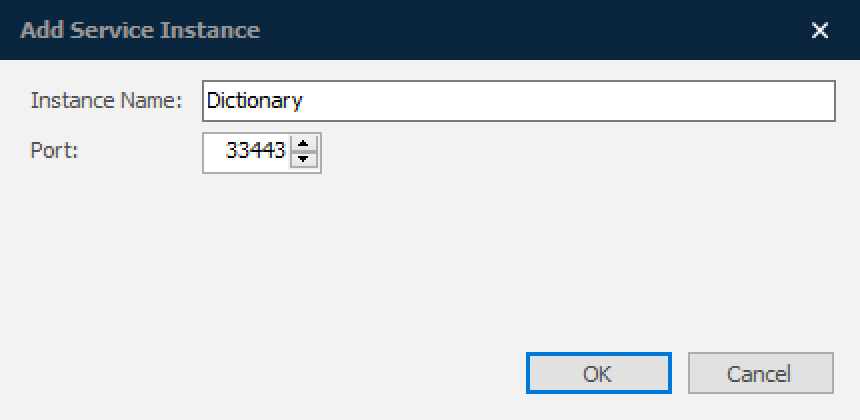
A new Dictionary will be created with the selected Instance Name.
Note
This instance does not require an additional license.
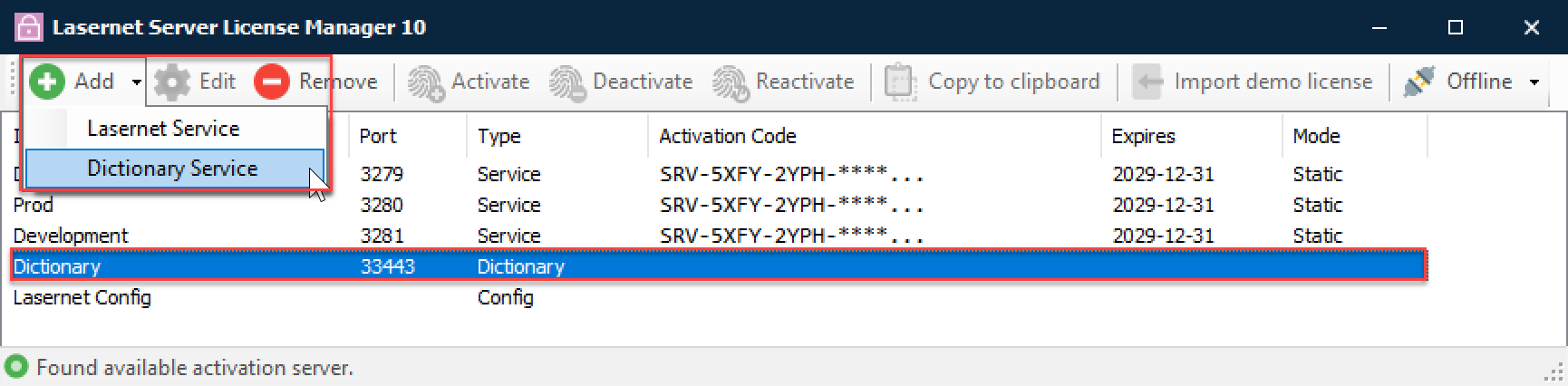
Start the relevant service in Windows services, on the Lasernet Core server.

Add and configure the Dictionary Server properties for the Lasernet Config Server.
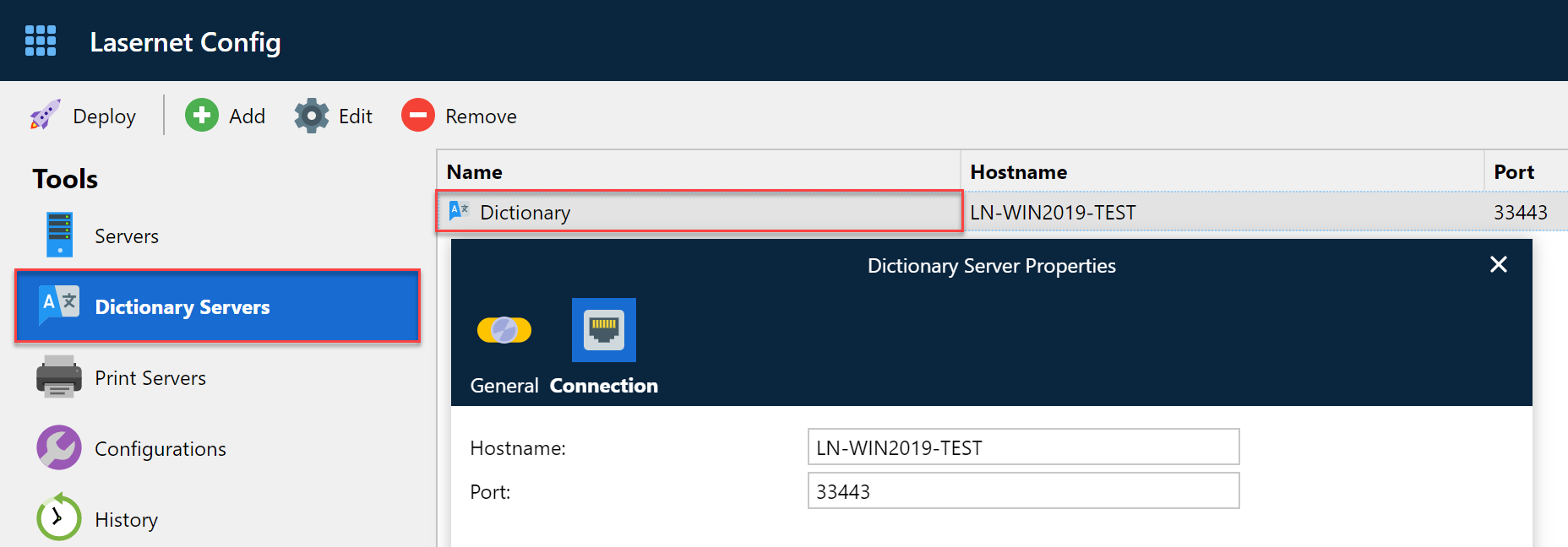
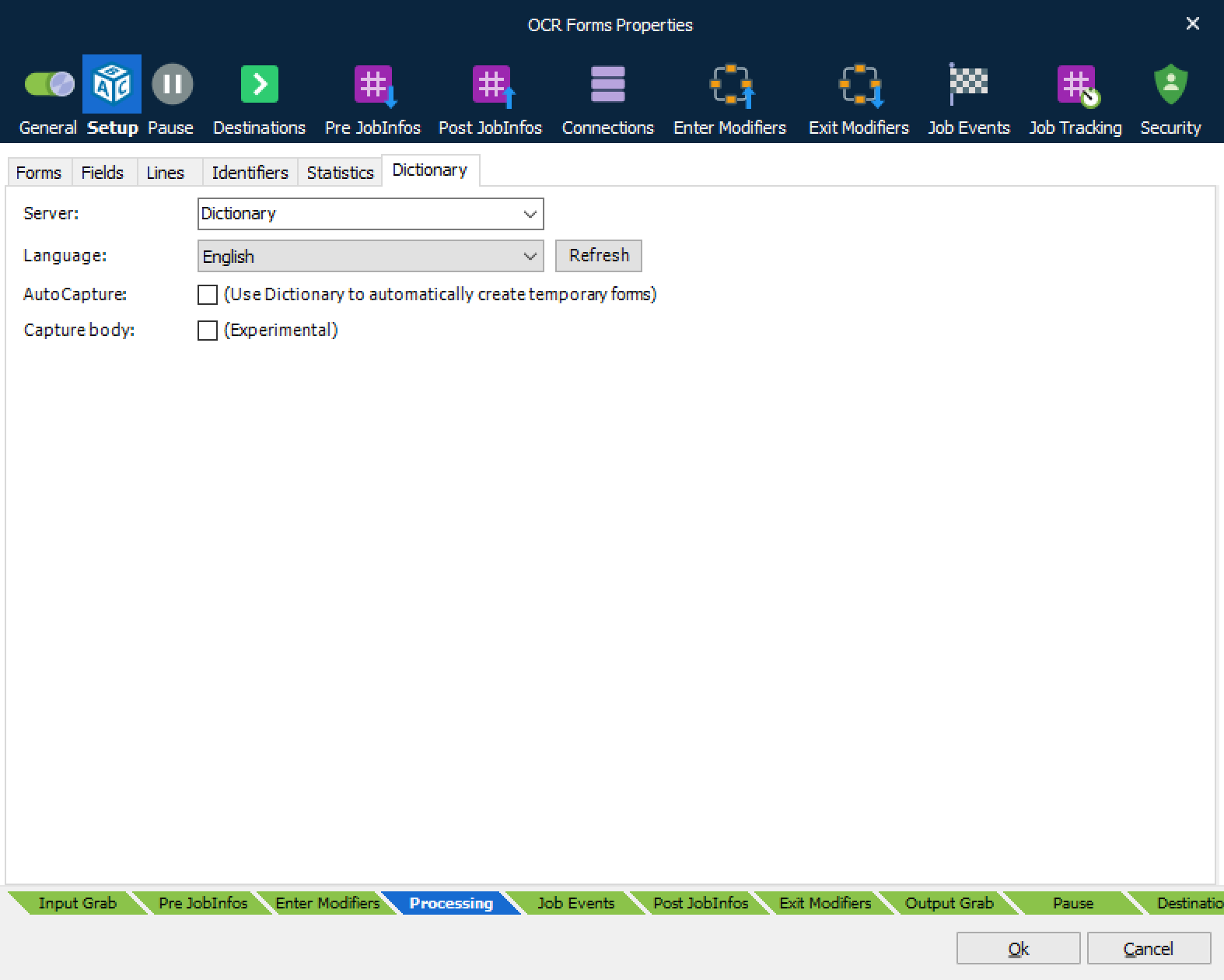
The Dictionary tab for the OCR Engine added to the Lasernet Developer has the following options:
Server From the drop-down menu, select a Dictionary Server added to the Lasernet Config Server.
Note
Leave the field empty to disable the connection to a Dictionary Server.
Language Select the primary language of the dictionary for users running the OCR Editor.
AutoCapture Select the checkbox for this feature and the OCR Engine will create temporary OCR forms for processed documents, using the dictionary server as an automated tool to extract any possible OCR field defined in the dictionary.
To improve extraction of data, the dictionary Server must be trained, by the OCR Editor, with information about OCR Fields and metadata recognition present in the processed documents.
Captured documents are, by default, paused by the system and validated/released by an end user from the Lasernet Client.
Capture body: Select the checkbox for this feature to extract item lines in the body of a document.
Note
This is a complex procedure and is recommended only for documents with a simple structure in the item lines.
Field Names and Regional Profiles
When setting up unique formats for amounts and dates in the output format, regional profiles must be created based on the incoming data fields. Regional Profiles, which are defined in the Lasernet Developer, will be available in any OCR Forms designed in OCR Editor.
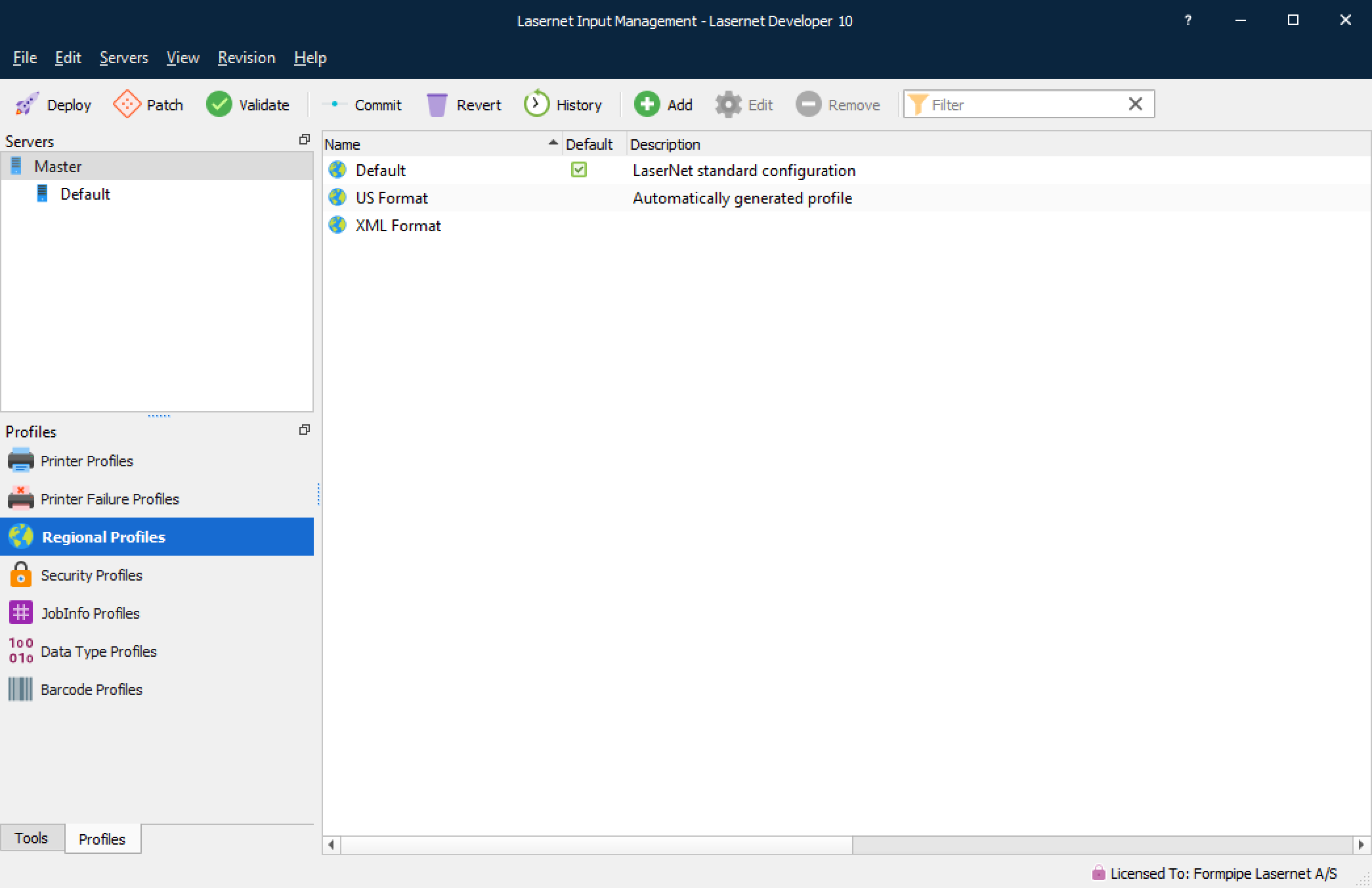
Formats for Dates and Numbers are accessed via Regional Profiles by OCR Editor.
Numbers and Date formats can be defined for any format that exists in the incoming documents and will be available for the OCR Editor.
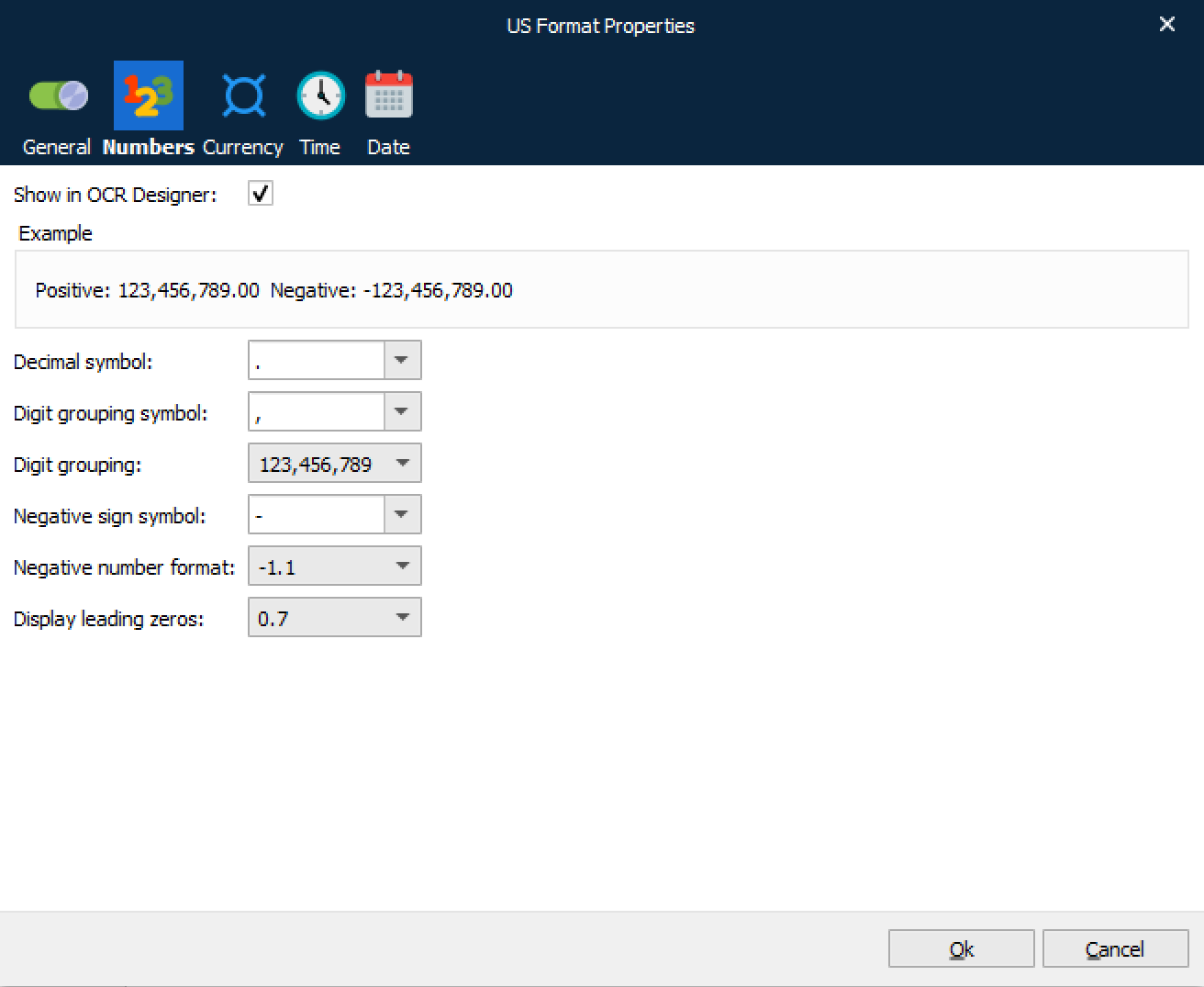
Field types defined as Numbers in the OCR Engine will make use of Number formats defined via the Number settings in the Regional Profiles.
Select the Show in OCR Designer checkbox to show the Regional Profile containing this Number format.
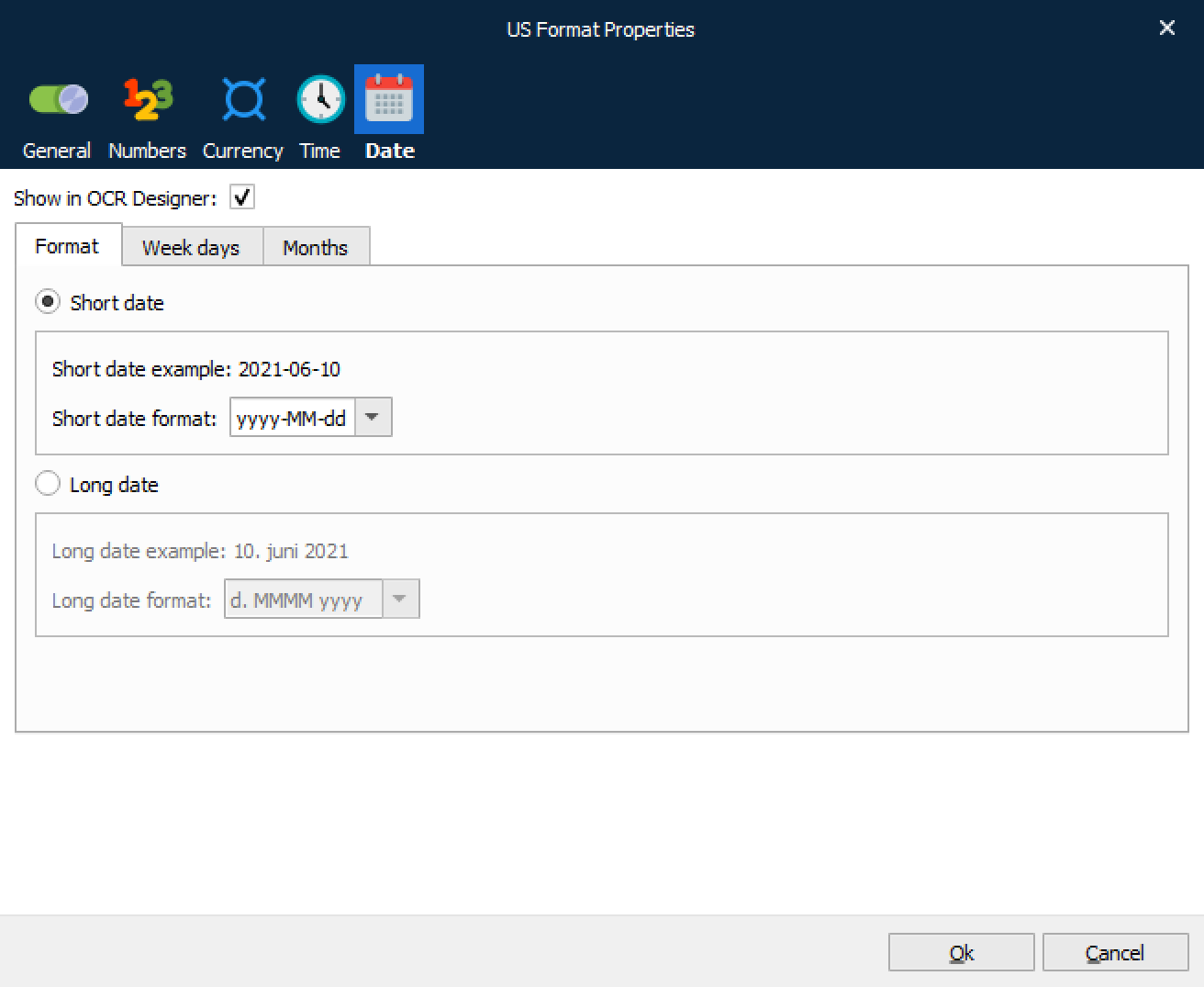
Date formats use the Date settings. Field types defined as strings do not use any regional settings.
Select the Show in OCR Designer checkbox to show the Regional Profile containing this Date format.
Example of a workflow
The input format for the Lasernet Core workflow is a PDF document. If your documents are scanned TIFF files you must configure the Tesseract OCR module to convert a scanned TIFF file into a text readable PDF document before it is processed by the PDF To Text module.

A PDF to Text modifier is used to convert PDF into a text document, which is used by the OCR Engine to extract the contents into an XML file. The output can be stored on any output location accessible to your external workflow system.
Input Module
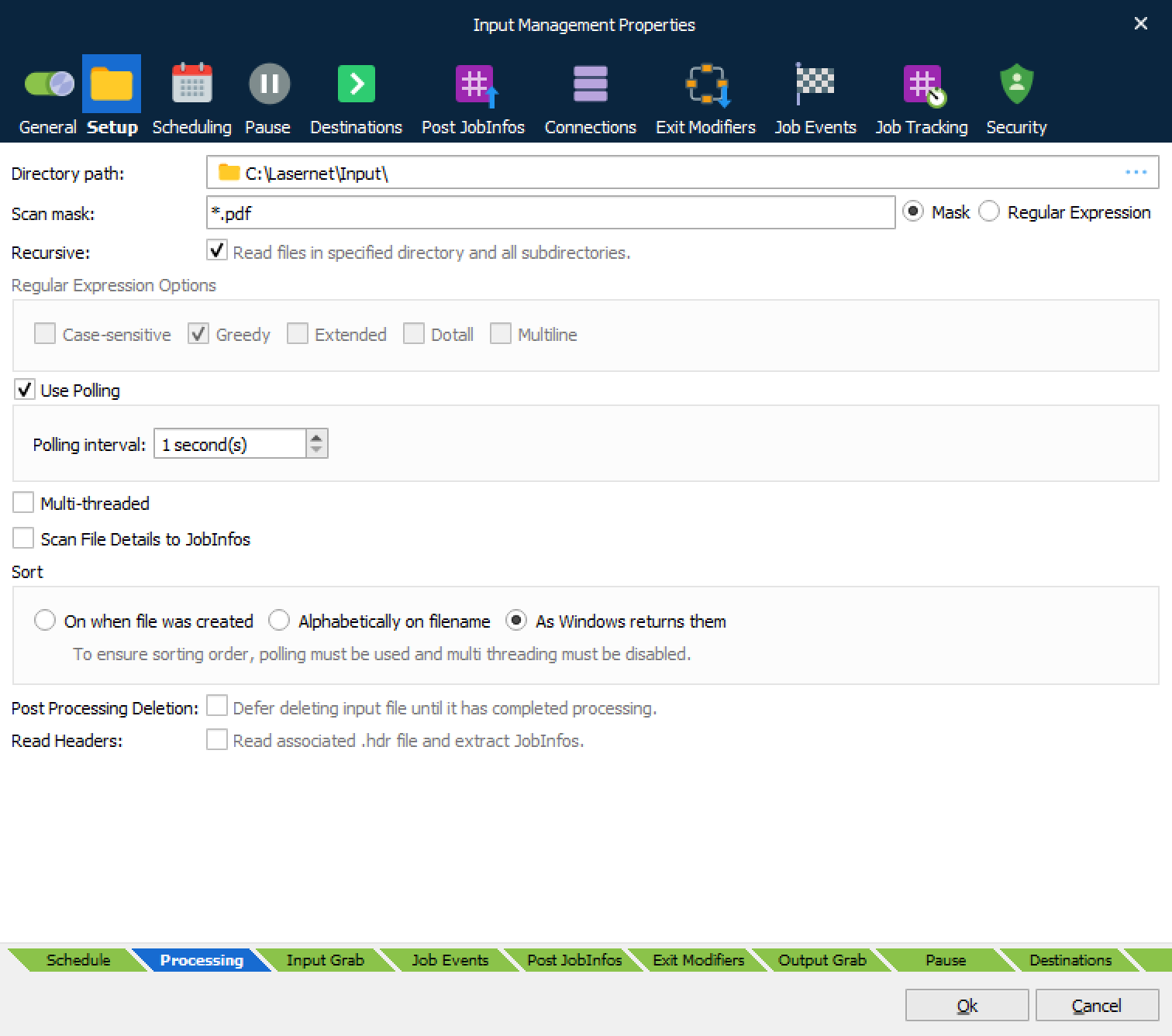
Add a File Input Port and set the scan mask to read for PDF files.
Enable Job Tracking ► Copy JobData on the input module to create a copy of the JobData before it is converted into text.
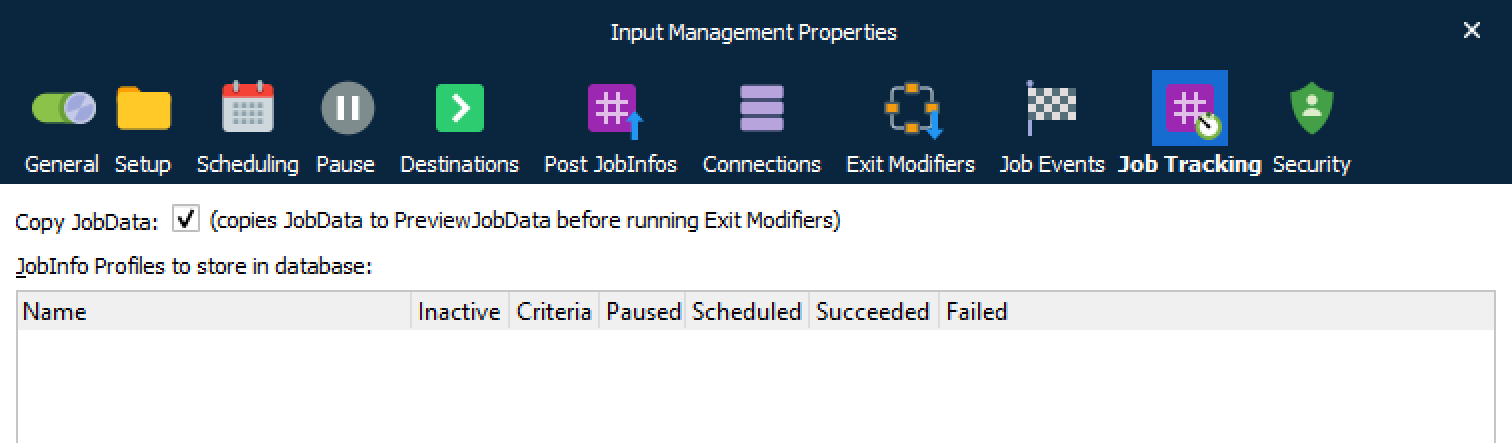
The incoming PDF document is copied into the JobInfo named PreviewJobData. The Lasernet Client and OCR Editor are now able to detect that the preview window shows the incoming document instead of JobData, which is a text file only.
Modifiers – PDF to Text and JobInfo Manipulation
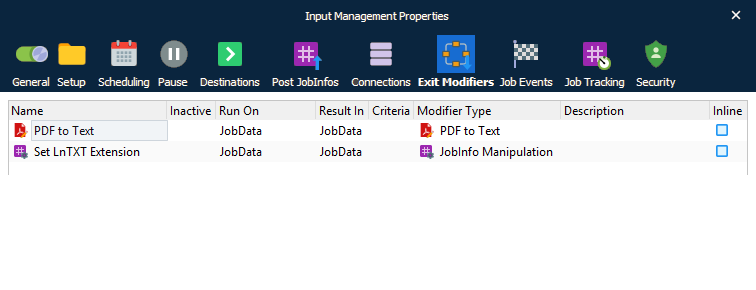
Add a PDF to Text modifier to the File Input module to convert PDF to a text format.
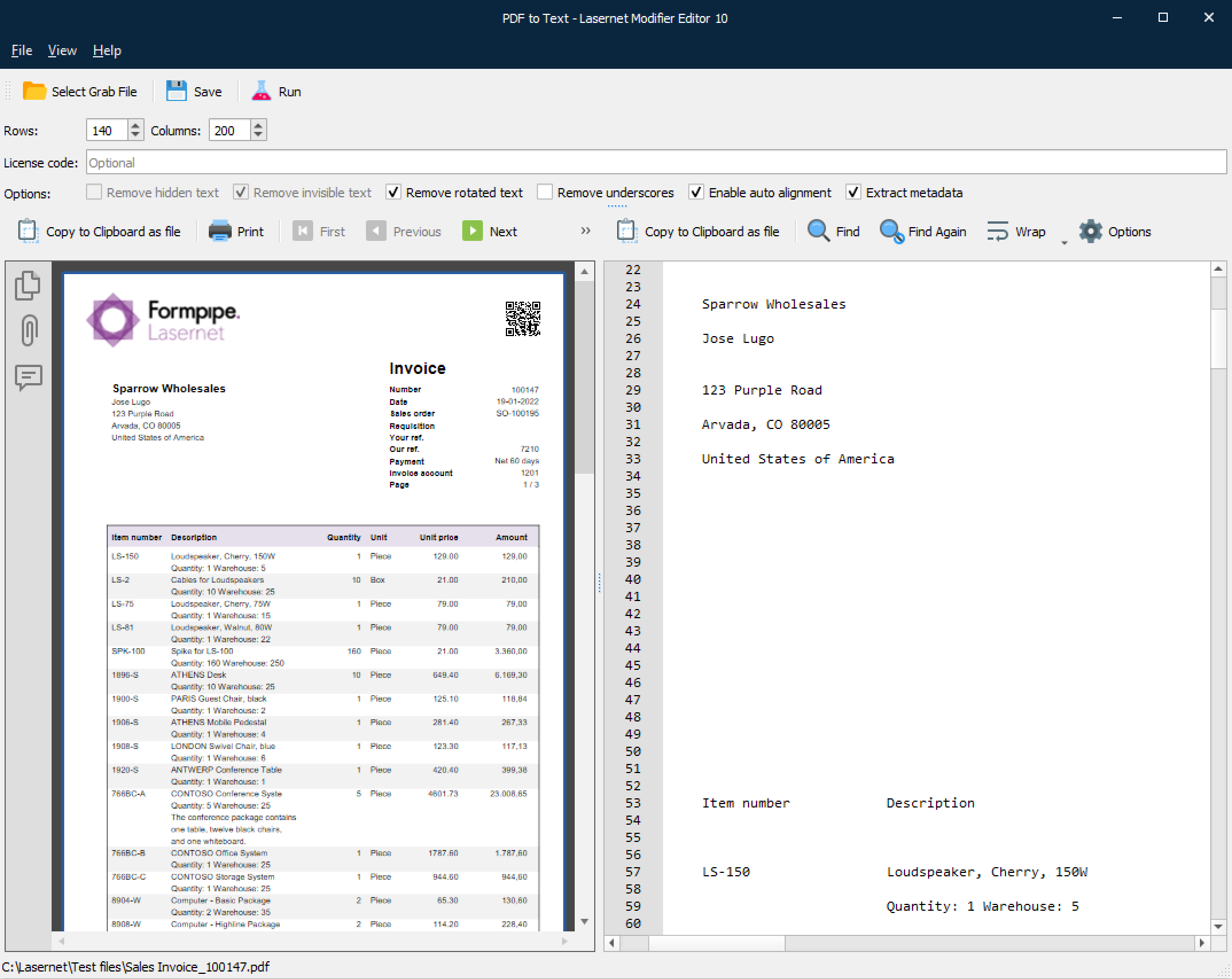
Values for Rows and Columns are used for the algorithm to extract the text strings, embedded in the PDF document, into a text grid. Rows represents the number of lines per page and columns represent the width of the text file.
In previous versions of Lasernet, an additional license code was required to run the PDF to Text modifier. To ensure backwards compatibility, you must enter your old license code here; otherwise, leave the field empty.
‘Hidden’ and ‘invisible’ text options allow you to remove text from PDF files which are usually not needed in the final text file, after conversion.
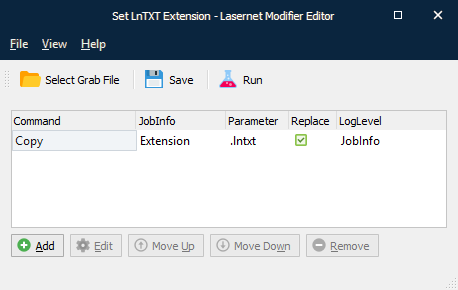
Create a JobInfo Manipulation and add the object as a second Exit Modifier on your File Input port. The modifier will associate the extension of text format with the OCR Editor.
Engine - OCR
Add an OCR Engine with a forms directory in which to store uploaded OCR Forms on server site.
Set up the list of document types you want to maintain in your OCR solution and a list of Field Names and Line Types.
OCR Engine – additional settings
In the Pause tab you can add a pause functionality for incoming documents, which are not recognized by the OCR Engine.
For processed documents the JobInfo: OCRMatch will be set to either 0 = not recognized or 1 = recognized.
By setting up a Job Destination and a validation criterion in the Pause tab you can do one of the following:
pause the jobs that have not been matched
validate successful OCR Engine matches
forward them to another module in the workflow
Note
OCR validation is an optional feature and if it is not configured, the JobInfo should not be added as a criterion for pausing jobs.
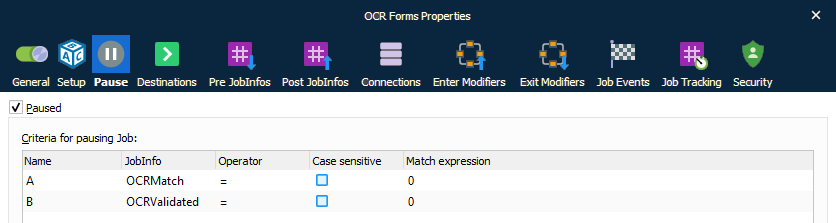
When the job has been processed by the OCR Engine, the JobInfos OCRMatch (Boolean) or OCRValidated (Boolean) (optional) can be used for checking if the job should be forwarded to the Form Engine or sent back to the OCR Engine.

When saving jobs in pause mode, you can save other available JobInfos as metadata for the job. This is maintained via a JobInfo Profile.
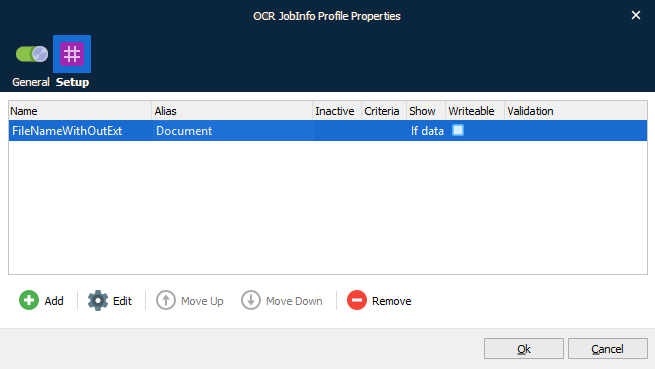
In this example, a JobInfo Profile named “OCR JobInfo Profile” is added for storing additional metadata like the document name without the file extension (FilenameWithoutExt) to a database.
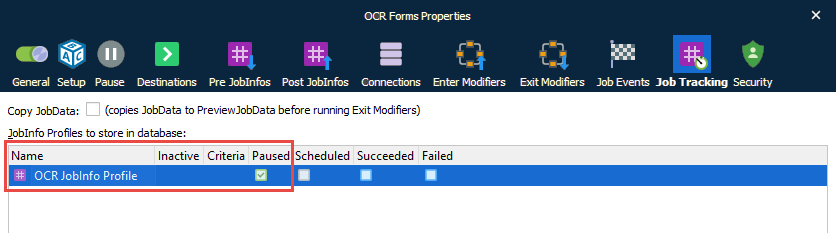
When the JobInfo Profile is created you can assign the profile to the OCR Engine ► Job Tracking tab and activate it for paused jobs only.
Modules – Output
Add a File Output module to save the data extracted by the OCR Engine. This must be in a location accessible from your external workflow system.
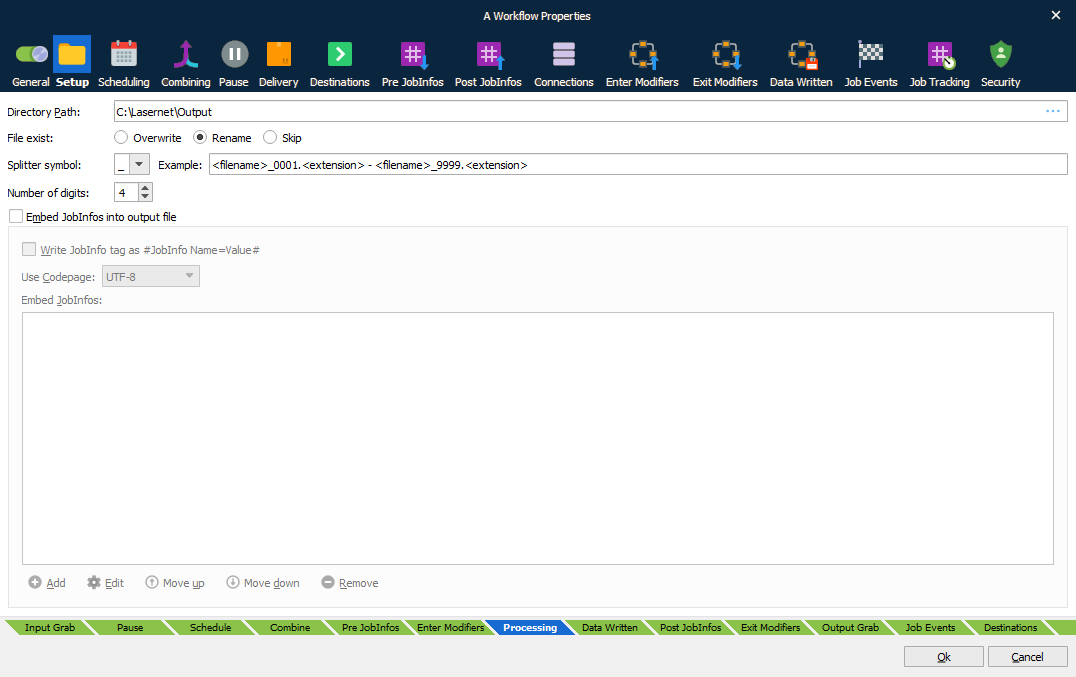
Set whether you want to overwrite, rename or skip the output if a file already exists with the same file name.
Convert OCR Engine XML to your own workflow format
XML formats created by the OCR Engine are produced to a standard format and are not specific to any workflow system.
It is possible to convert the XML format, created by the OCR Engine, to one that is supported by your workflow system. The configuration and design can be done in the Lasernet Form Editor or Lasernet XML Transformer and processed by the Lasernet Form Engine. Please ensure that you have the required XML Input and Output licenses for Lasernet Core.