Applies to: Lasernet Core 10
Create a Configuration
To create a new configuration, follow these steps:
Launch the Lasernet Developer.

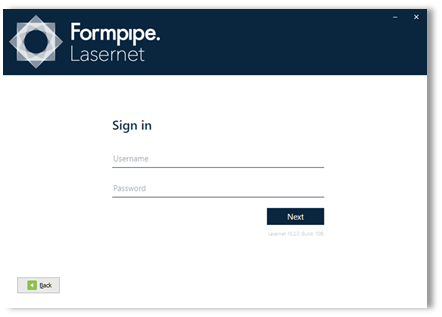
Enter your credentials and then click Connect.
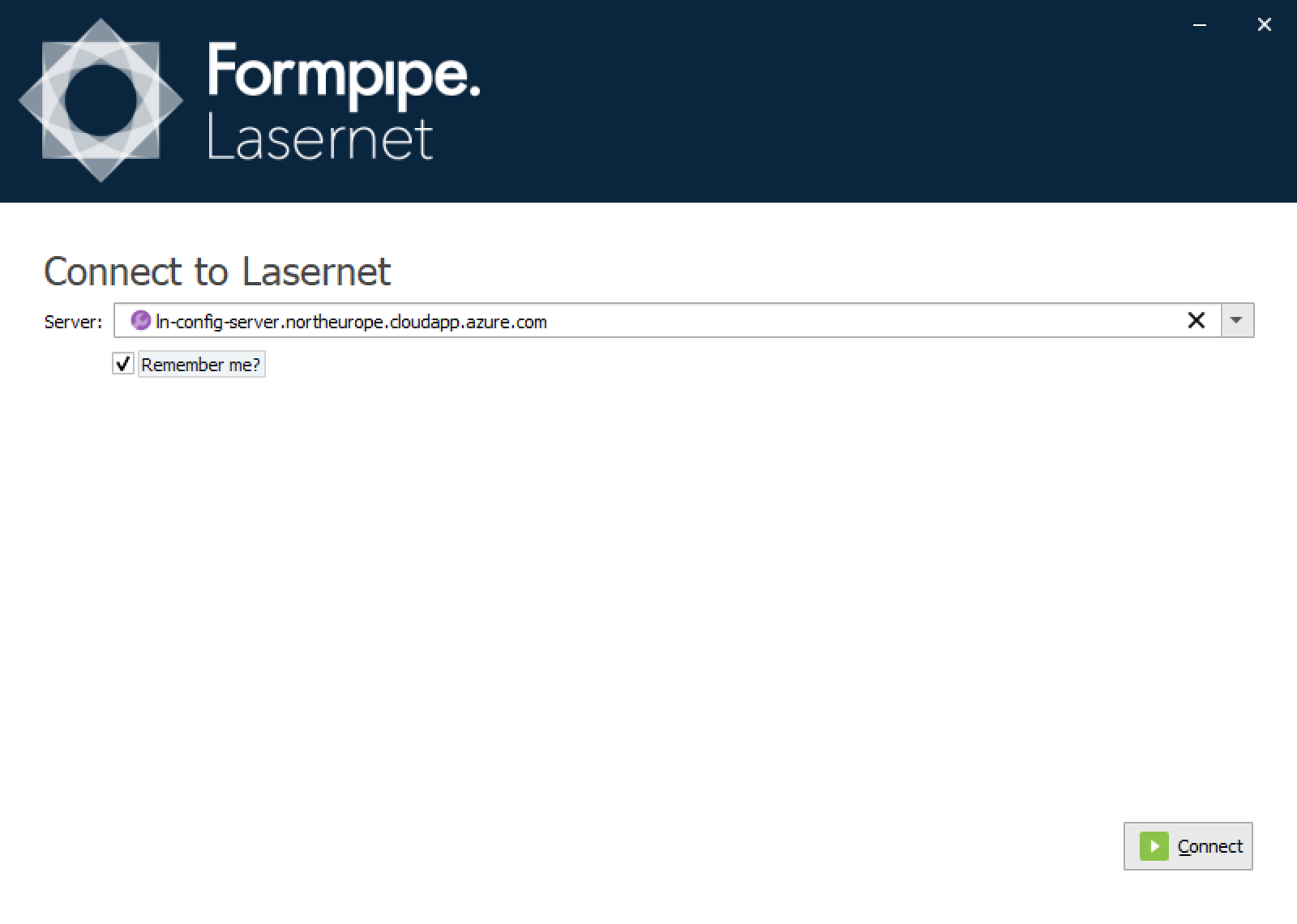
Enter your credentials and then click Connect.
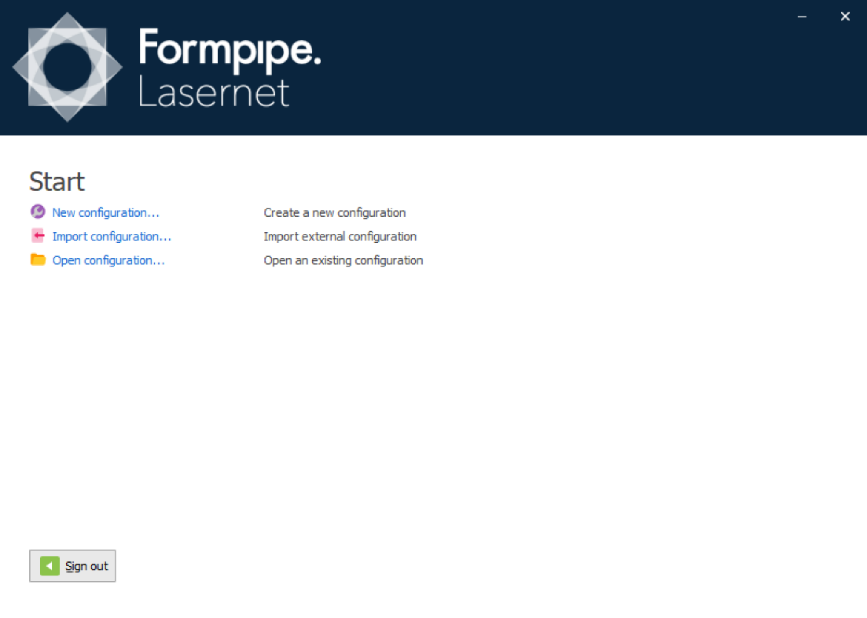
On the Start screen, click New configuration….
On the New Configuration screen, enter the required data and then click OK.
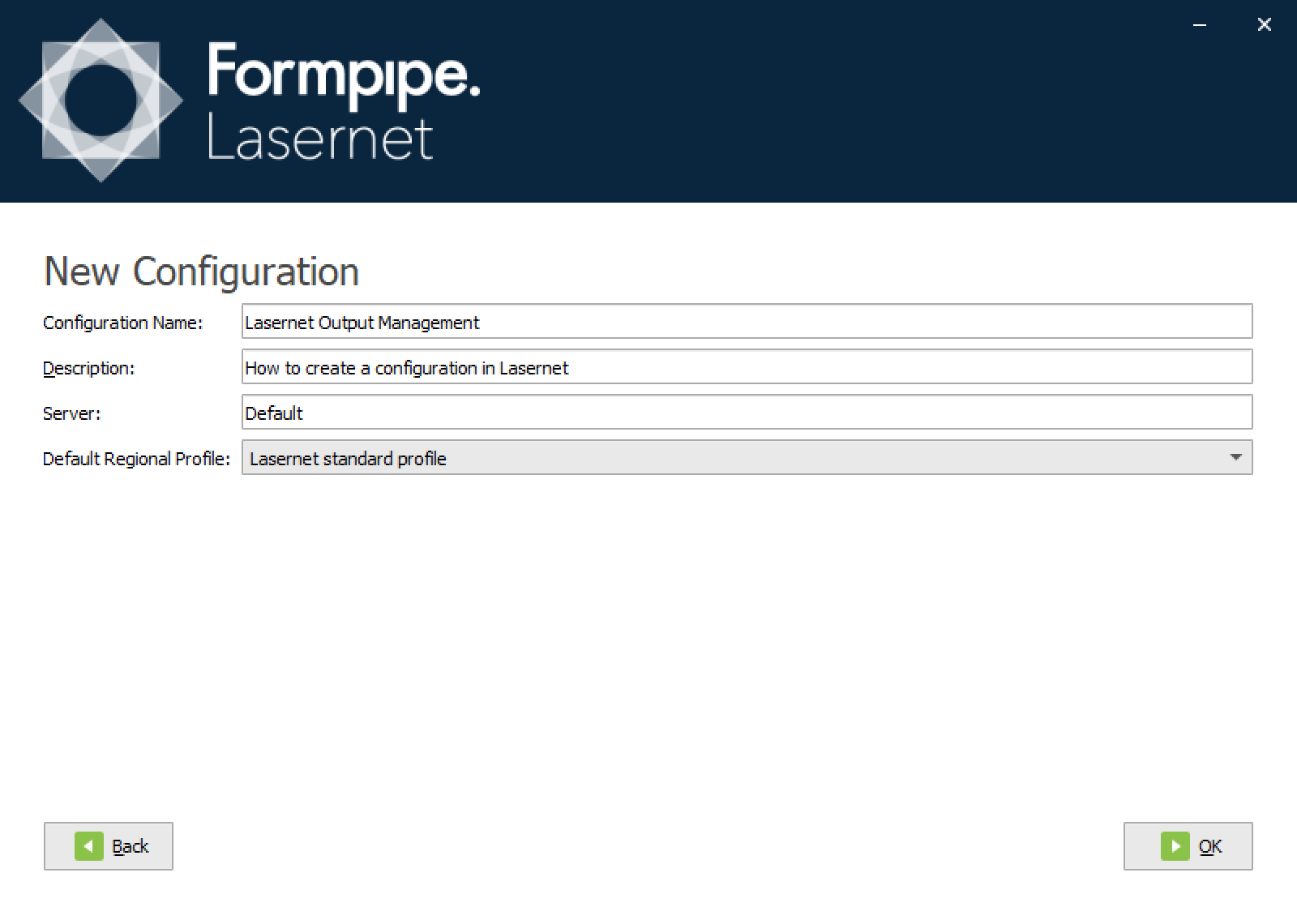
As a result, a new configuration is deployed to the Lasernet Config Server as ‘revision 1’.
A checked-out copy of the configuration is stored for your Windows user on the local computer at this location:
C:\Users\[WindowsUser]\AppData\Local\Formpipe Software\Lasernet 10\Developer\Configurations
Important
Uncommitted objects are stored in this location. If you do not have access to this folder, they will not be committed.
Import a Configuration
You can import an external configuration (lasernet.lnconfig) from a file, if coming from an older version of Lasernet.
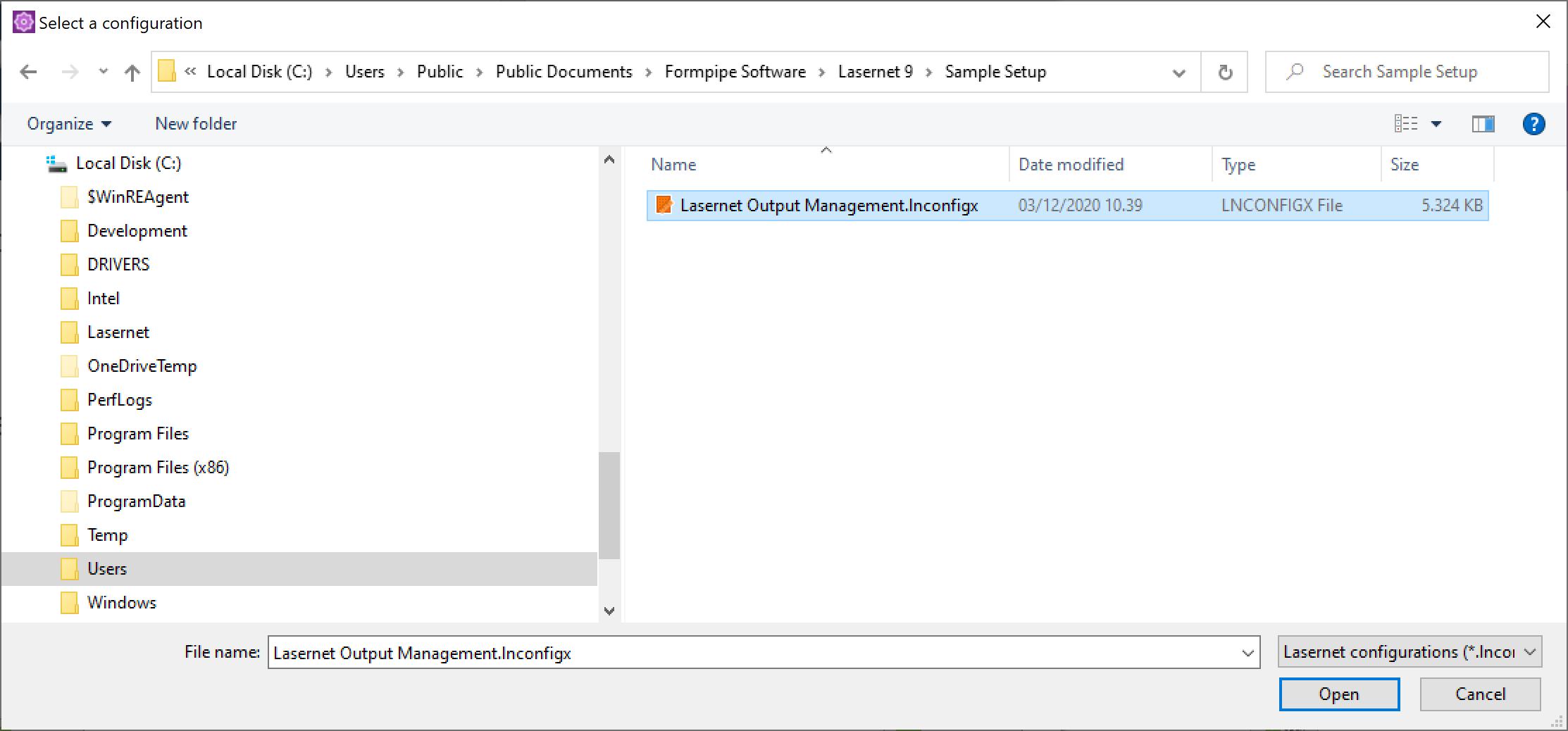
In addition, you can also import configurations exported from Lasernet Core 10 ([name].lnconfigx).
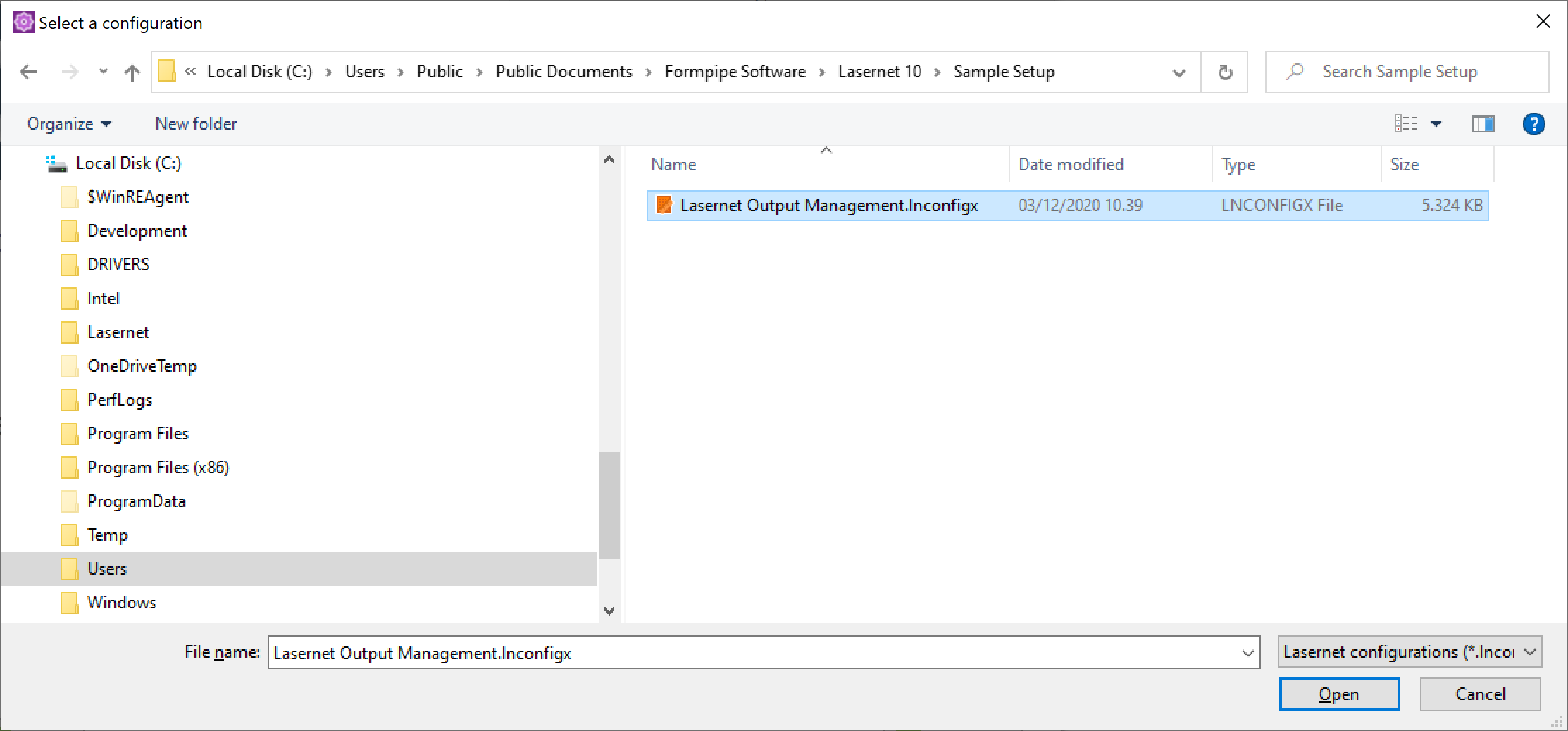
The Lasernet Core 10 installer includes a sample setup which can be imported from here:
C:\Users\Public\Documents\Formpipe Software\Lasernet 10\Sample Setup\Lasernet Output Management.lnconfigx
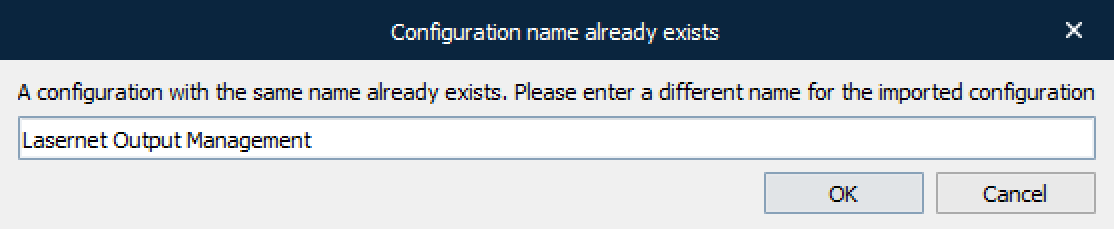
Lasernet Developer prevents you from importing a configuration with the same name to the Lasernet Config Server. You will be prompted to rename the imported configuration if the name already exists.
You cannot use the Export Configuration from the Lasernet Developer to export a full configuration from one computer and import it to another, replacing the configuration completely. Instead, the Exported Configuration can only be actioned from start page of the Developer, opening the exported configuration as a whole. If you remove a configuration before you open the exported configuration, your revision history will be lost.
Instead, you must use the Export and Import Objects functionality and select individual objects from the configurations as in previous versions of Lasernet. This is to ensure that the revision and history log will be updated successfully.
Open a Configuration
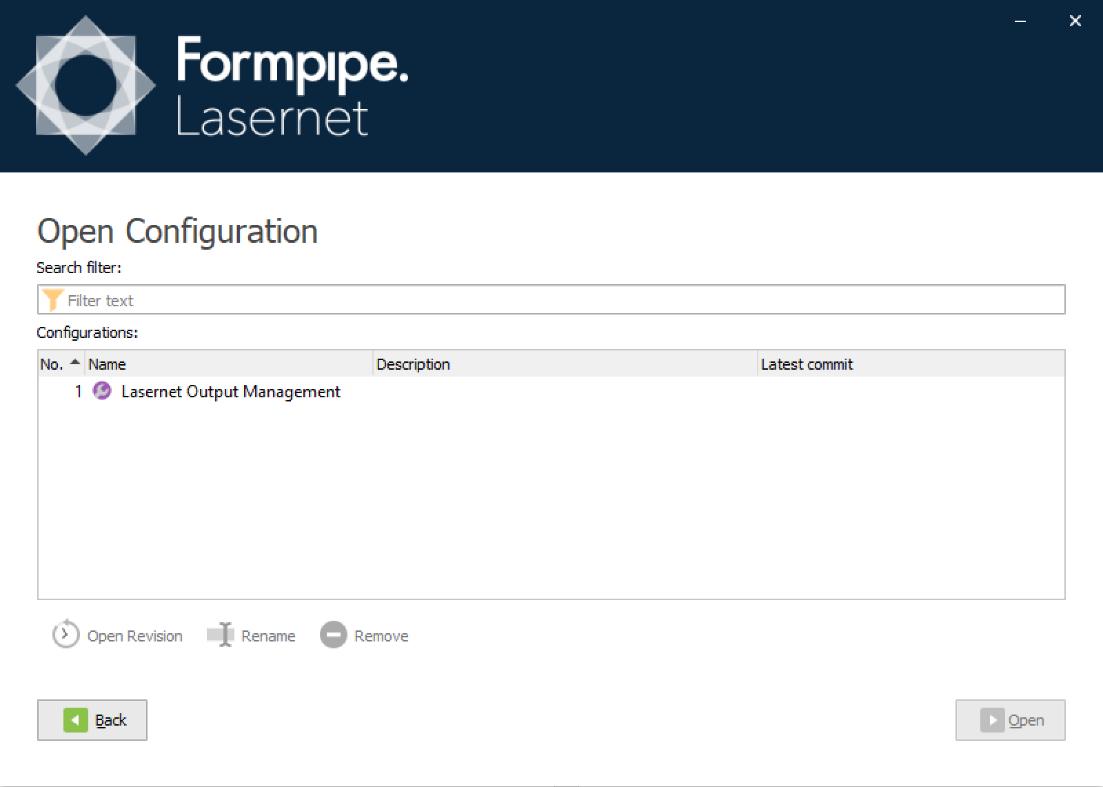
You can open, rename or remove an existing revision of a configuration stored on the Lasernet Config Server.
A configuration cannot be opened more than once at the same time by the same Windows user on the same computer.
A configuration opens in the Lasernet Developer application.
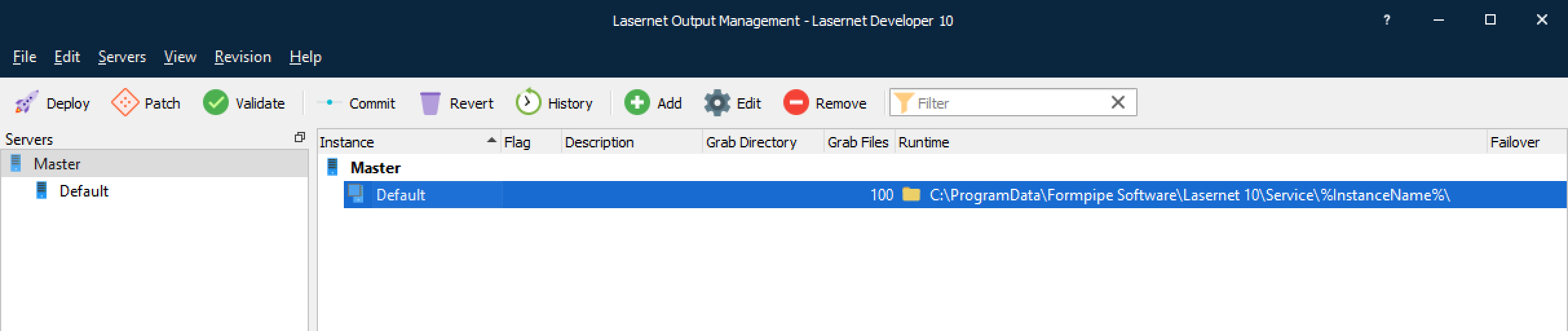
List of Configurations
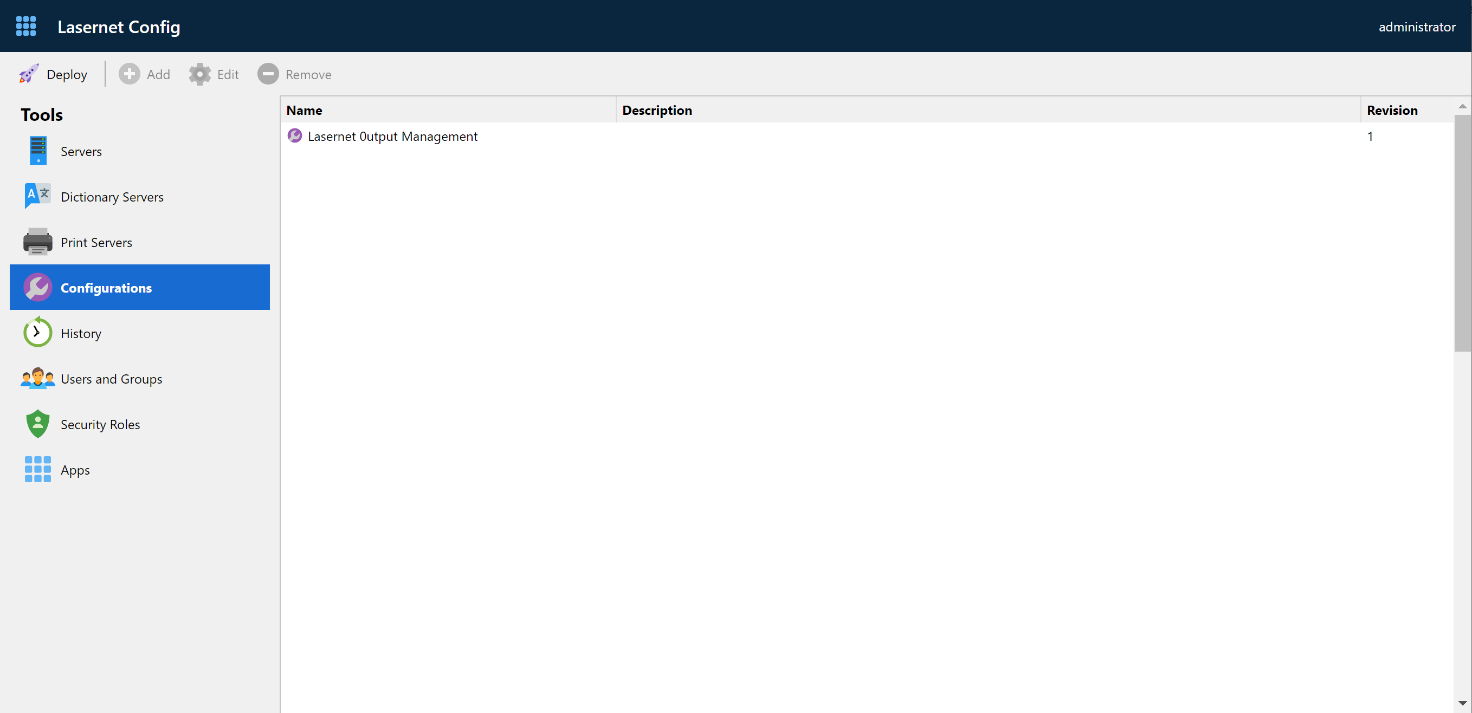
After you have created your first configuration it is stored in the Lasernet Config Server and figures in the Configurations tab.