Applies to: Lasernet Core 11
You can delete a configuration in Manage, the Lasernet Config web app, or Lasernet Developer.
Note
For Lasernet Core 10 documentation on this subject, see the Lasernet Config Server and Deployment Guide and Lasernet Developer Guide.
Manage
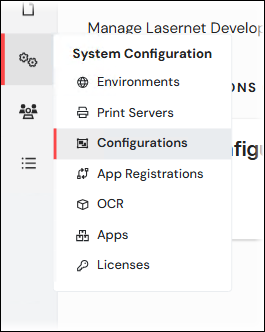
In the System Configuration menu, click Configurations.
Click the menu button (three vertical dots) on the configuration that you want to delete.
Click Delete.
In the Delete Configuration window, click Confirm.
.png)
Lasernet Config Web App
Note
The Lasernet Config web app was provided with earlier versions of Lasernet Core. It is a legacy web app and will be deprecated in a future version of Lasernet Core.
Expand for information
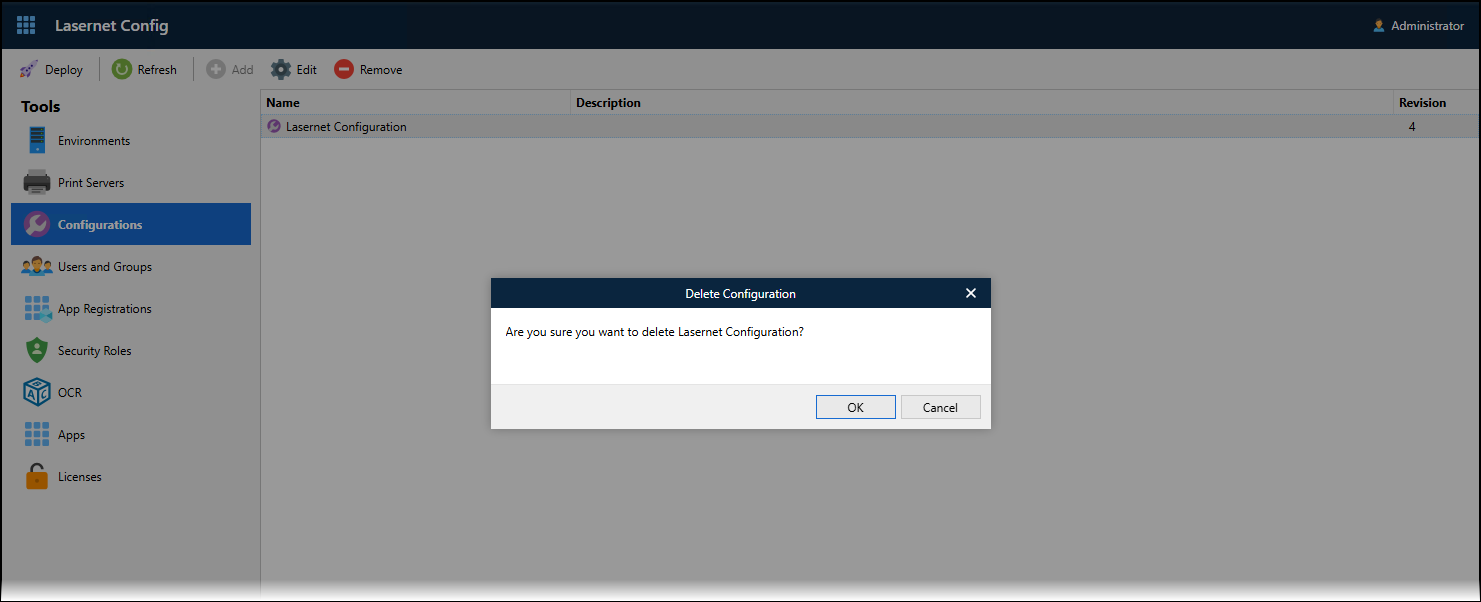
In the Tools menu, click Configurations.
Click a configuration in the table, then click Remove in the toolbar.
In the Delete Configuration window, click OK.
Lasernet Developer
In the Windows Start menu, click Lasernet Developer 11 > Lasernet Developer 11.
Select a Config Server to connect to, then click Connect.
Log in to that Config Server.
On the Start page, click Open configuration.
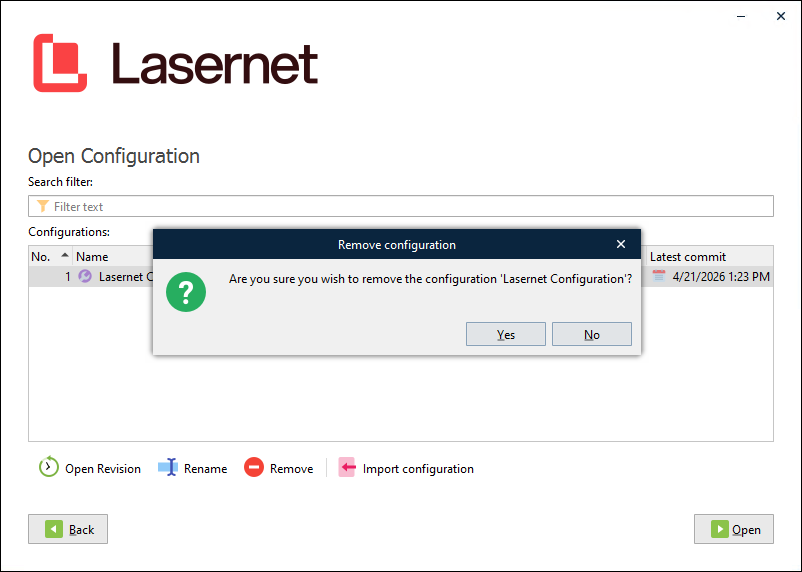
Select the configuration in the Configurations list, and then click Remove (below the configuration list).
In the Remove configuration window, click Yes.