Applies to: Lasernet Core 10
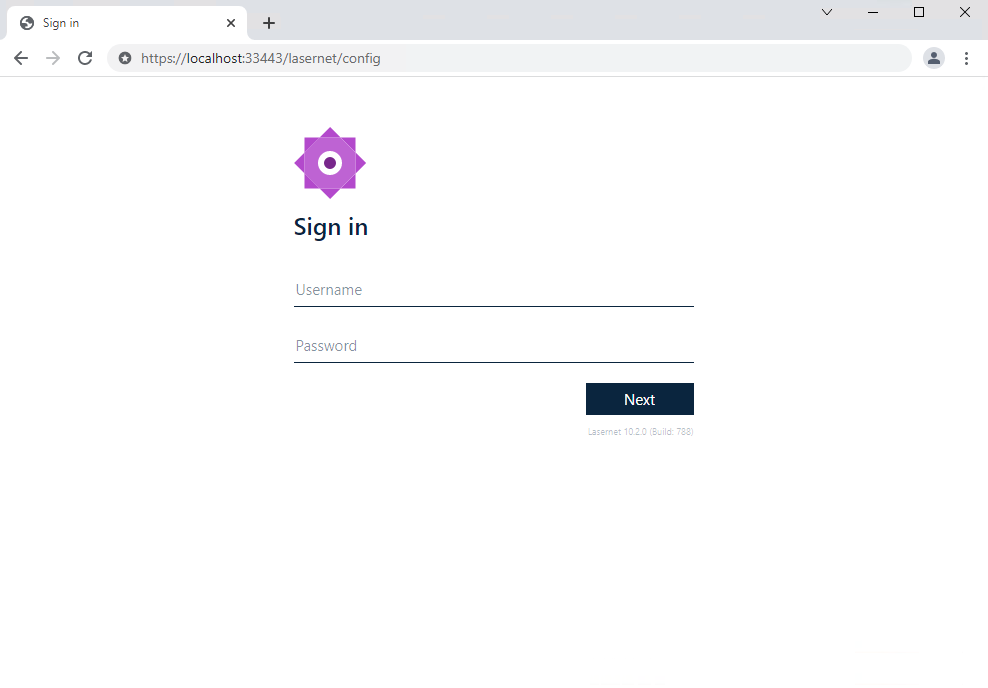
When your services have been installed and licensed, you can log in to the Lasernet Config Server 10.
https://localhost:33443/lasernet/config or replace localhost with the name of your server where the Lasernet Config Server is installed.
First time sign in as Admin and leave password empty to create a new password.
You will be re-directed to the Lasernet Config Server 10, where you can view configurations, manage deployments, view the history log, as well as manage servers, users, groups and security roles.
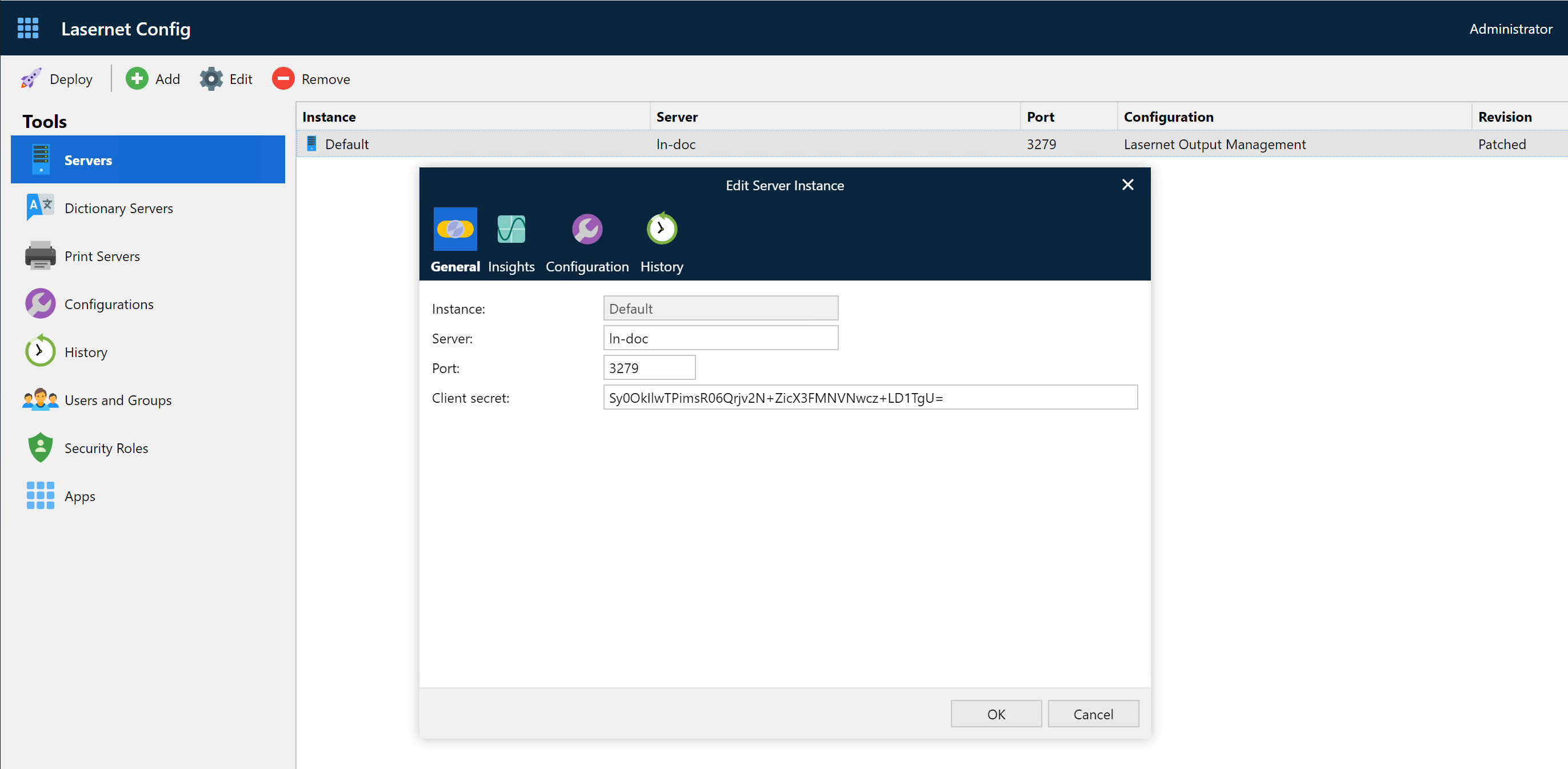
Servers
From here you can manage instance names, server names, port numbers and their client secrets for running servers.
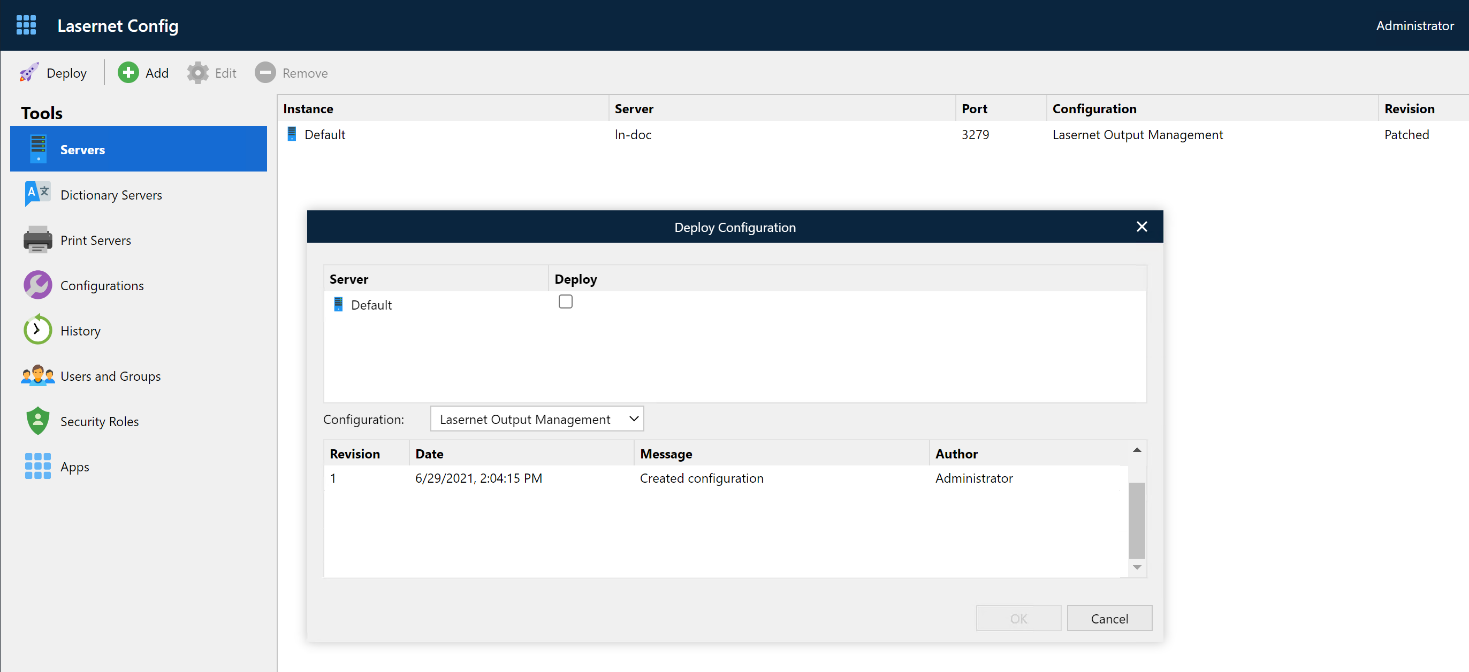
Deploy
The Deploy tool is used to manage and deploy revisions to any configuration. You can view the revision number, date, check in messages, author and the active running revision and history for servers and configurations.
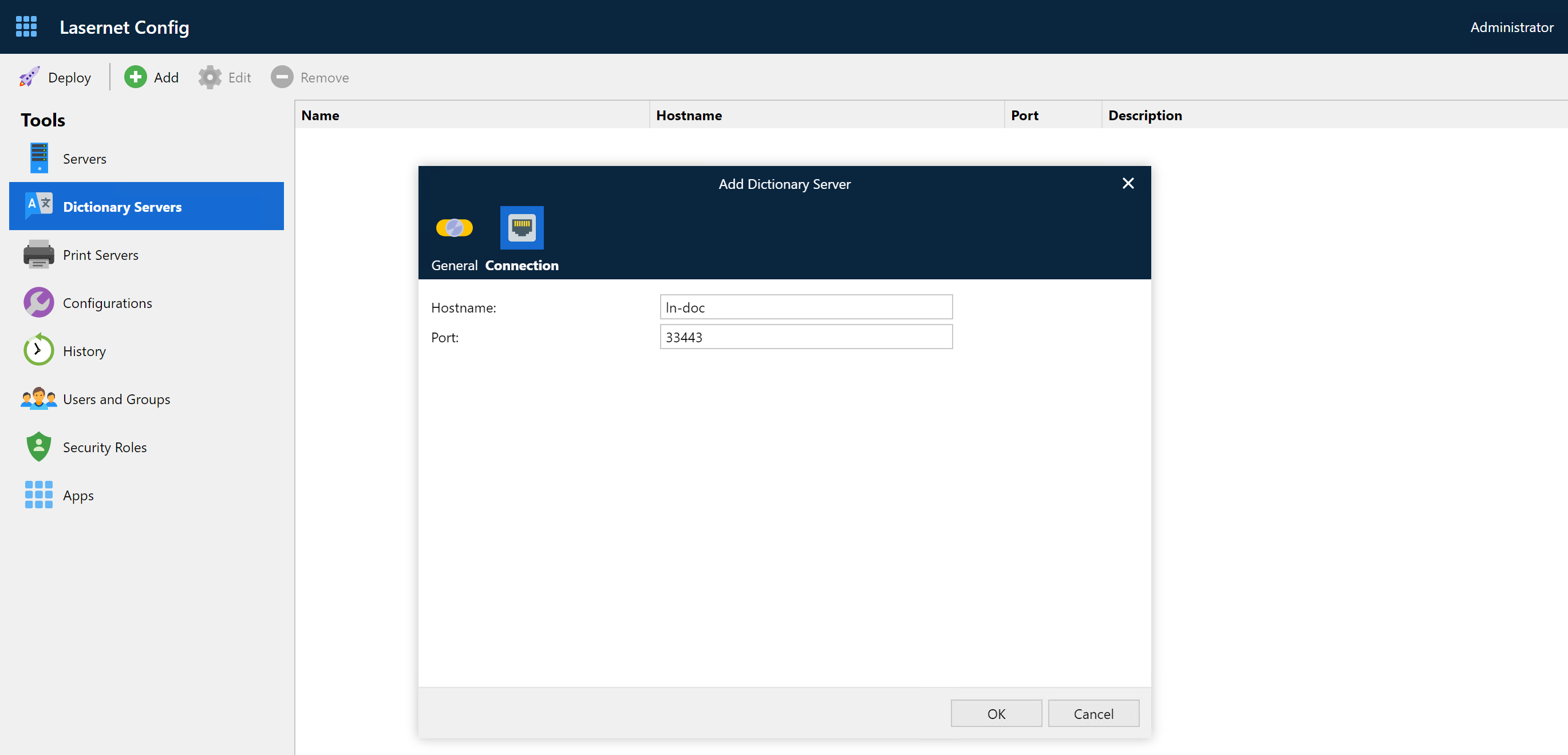
Dictionary Servers
Enables you to maintain hostname and port number for Dictionary Service as back-end for Lasernet Core Input Management / Lasernet OCR Engine.
Printer Servers
Enables you to maintain different printer instances in different locations, via cloud or on-premise.
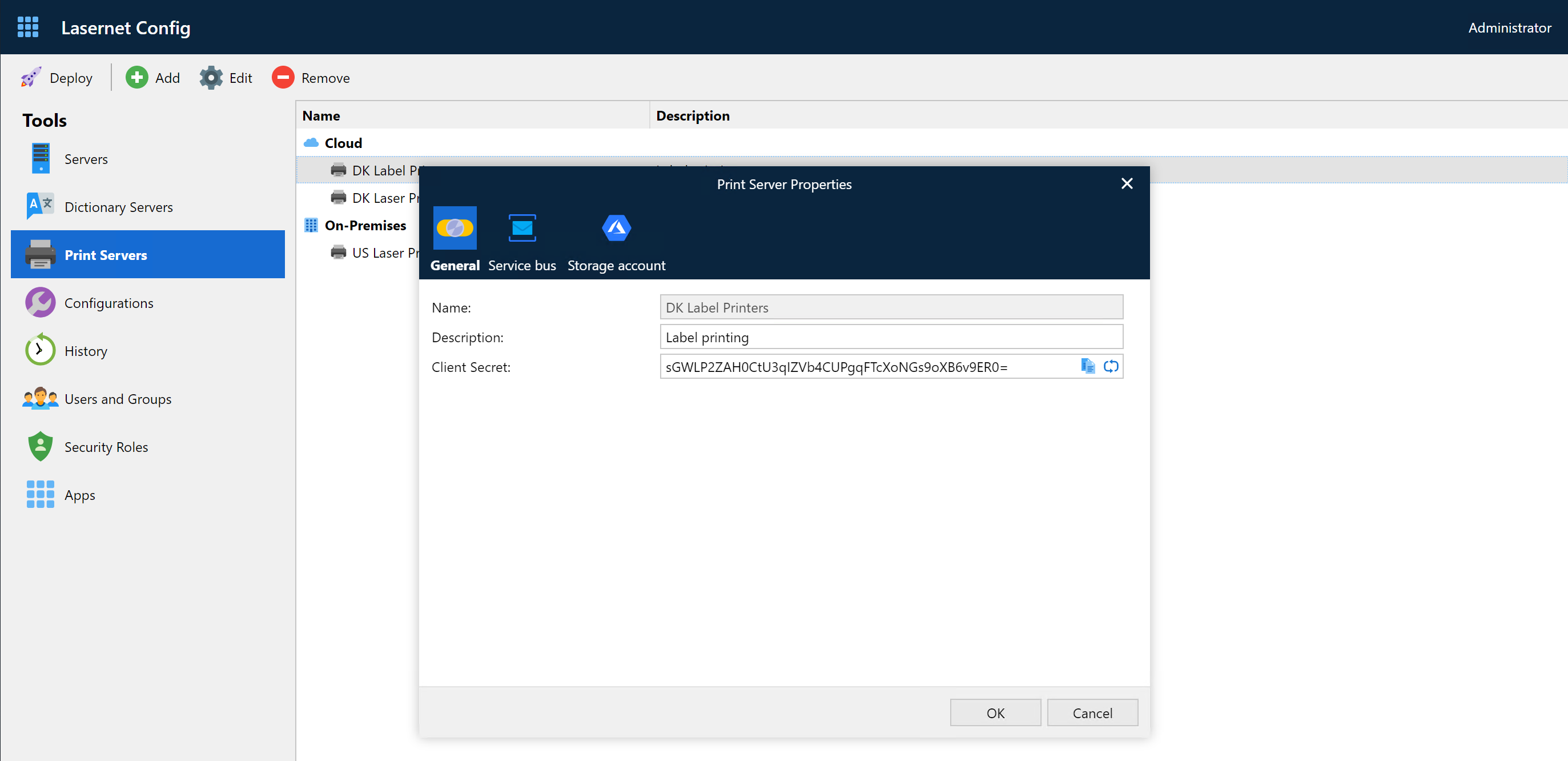
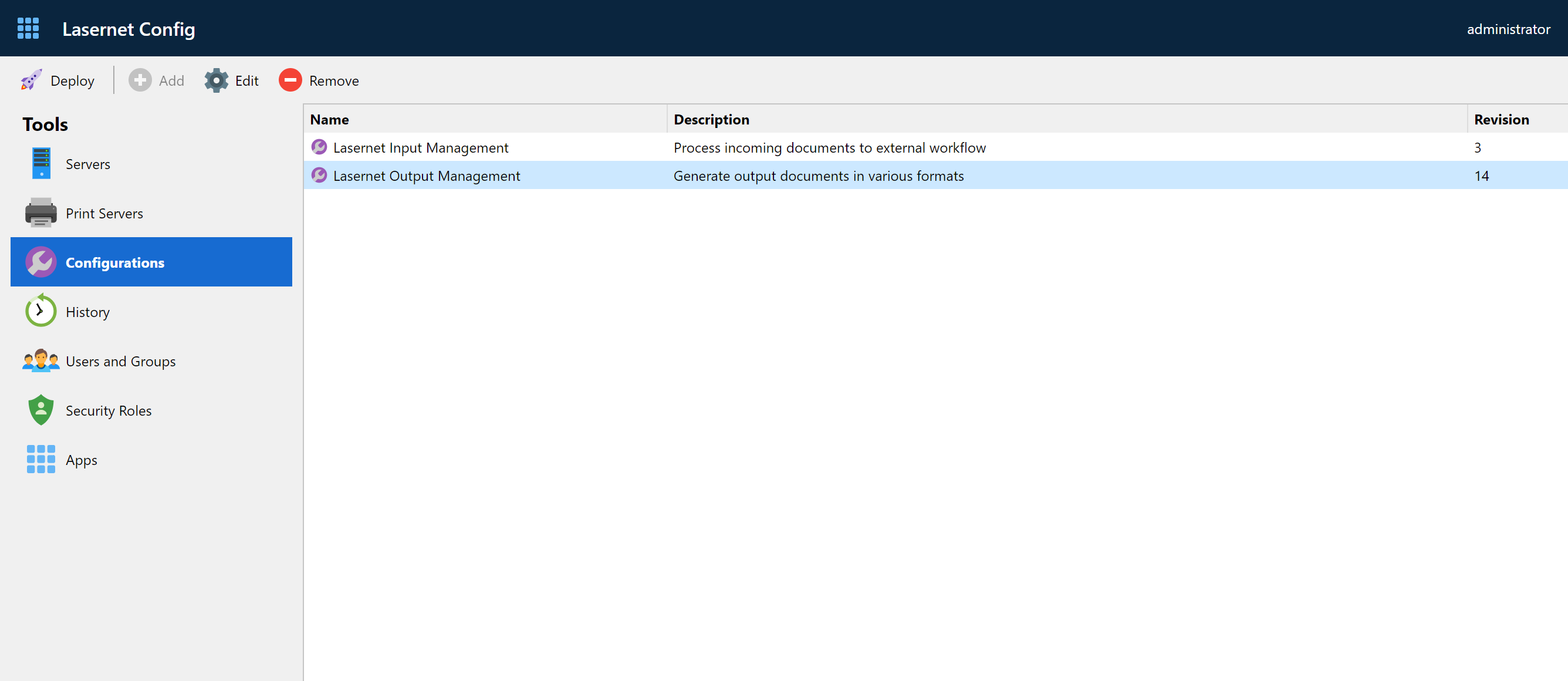
Configurations
This allows you to view, rename and remove configurations in a database running as back-end for Lasernet Config Server 10.
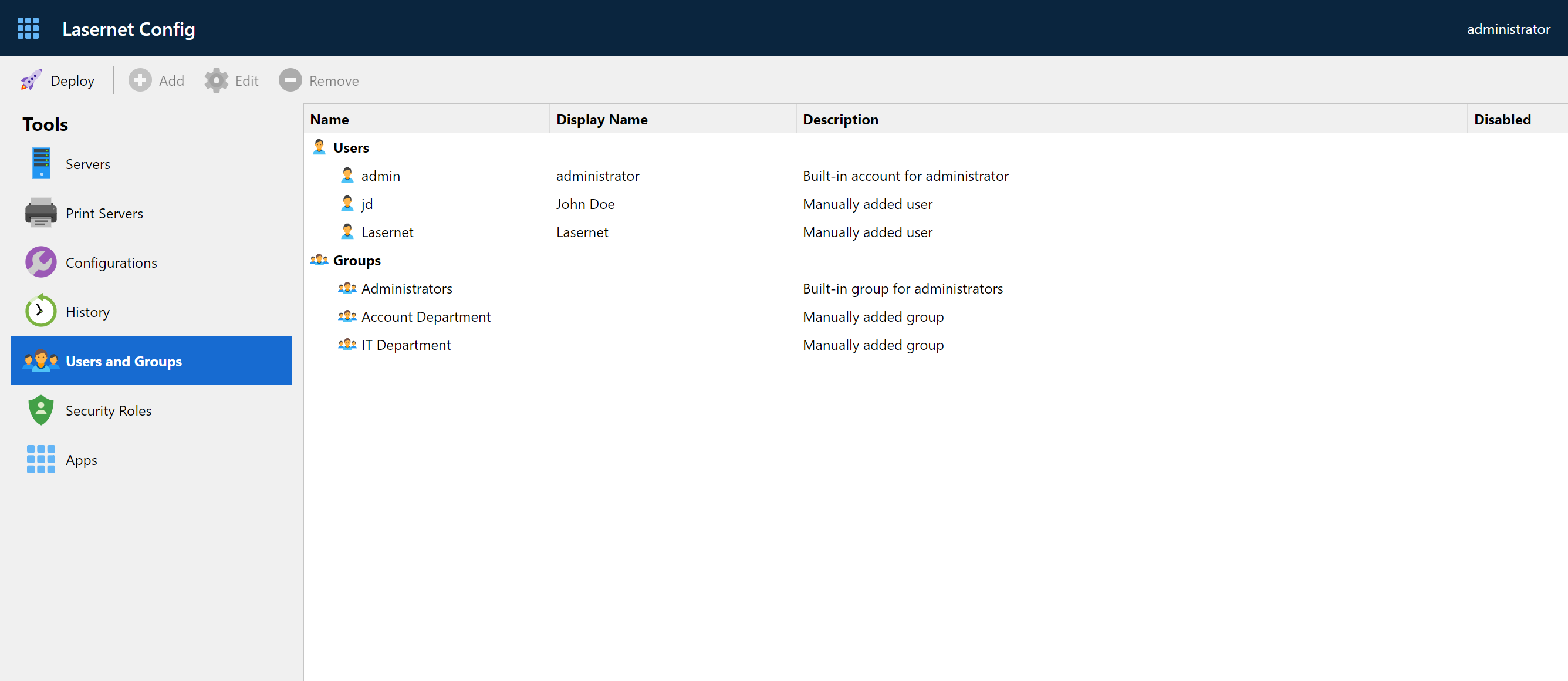
User and Groups
This tool allows you to manage local Lasernet Core users and groups. An alternative to Active Directory users and groups.
Security Roles for Developer and Client
You can manage access control to products and services provided by Lasernet Core from here.
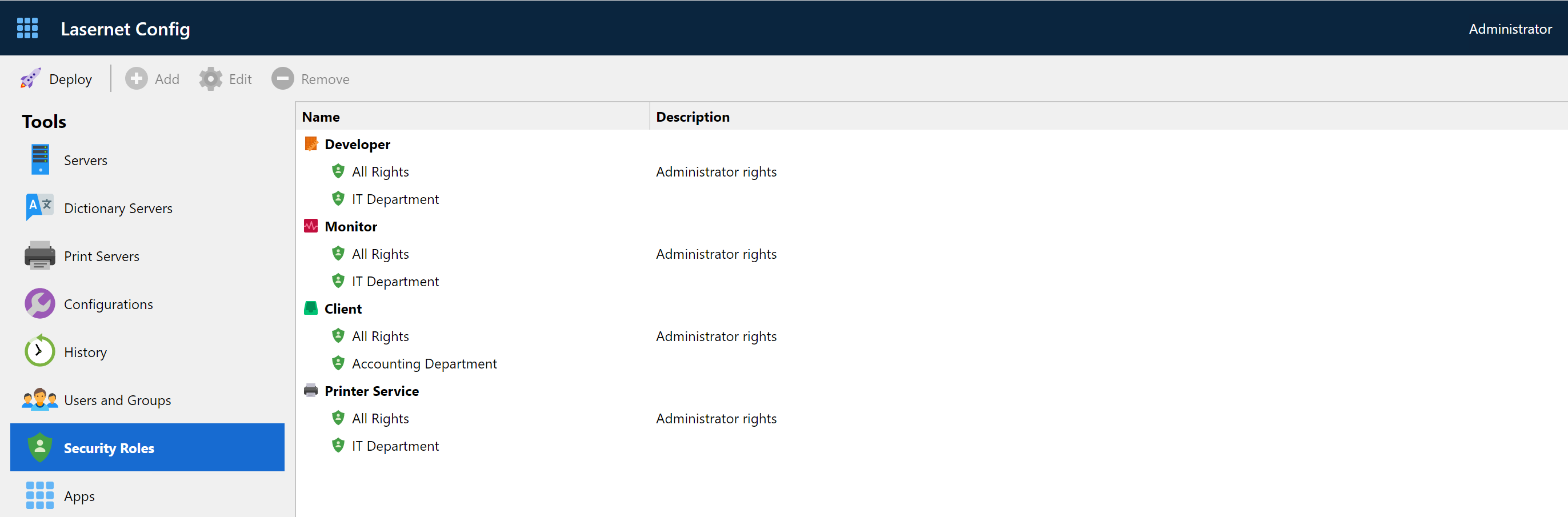
You can set Developer, Monitor, Client, Printer Service access by adding role members for local/AD users and groups.
For more detailed information, please refer to the Lasernet Config & Deployment guide.
Apps access from tool bar
You can manage access to apps from the tool bar.
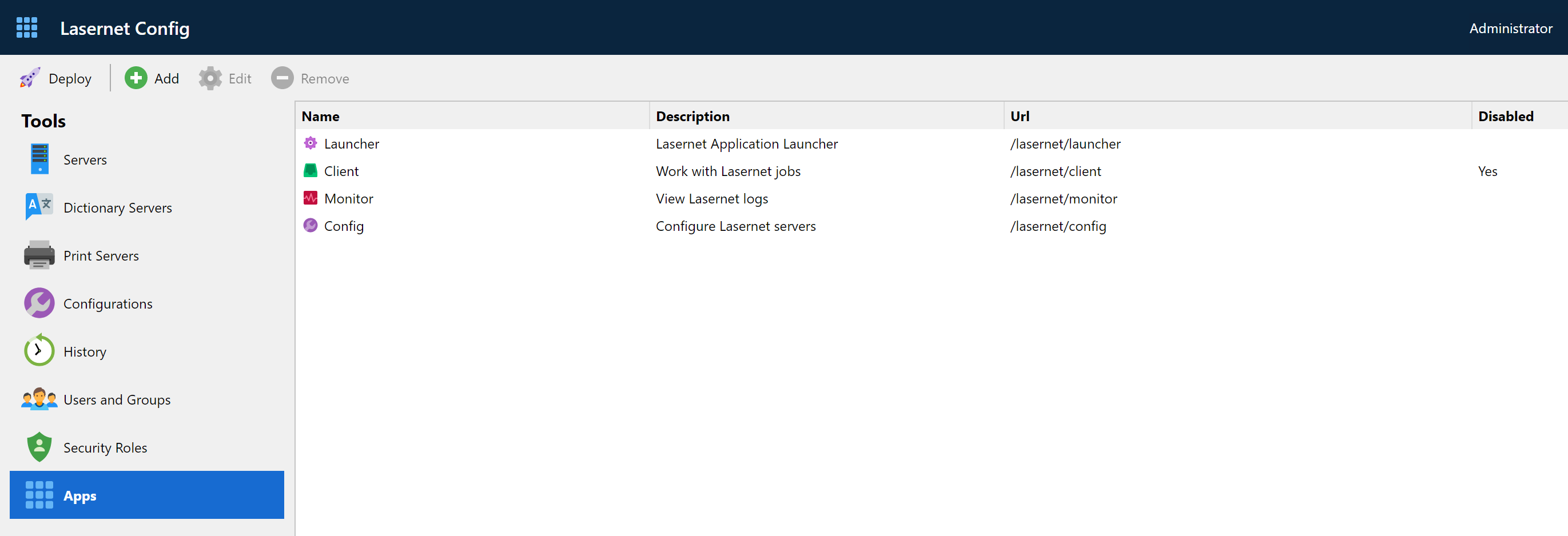
You can manage URL’s and enable/disable access to Lasernet Core web apps, or add access to external web sites, from the Apps menu.