Applies to: Lasernet Core 10
Running Service for Lasernet Config Server
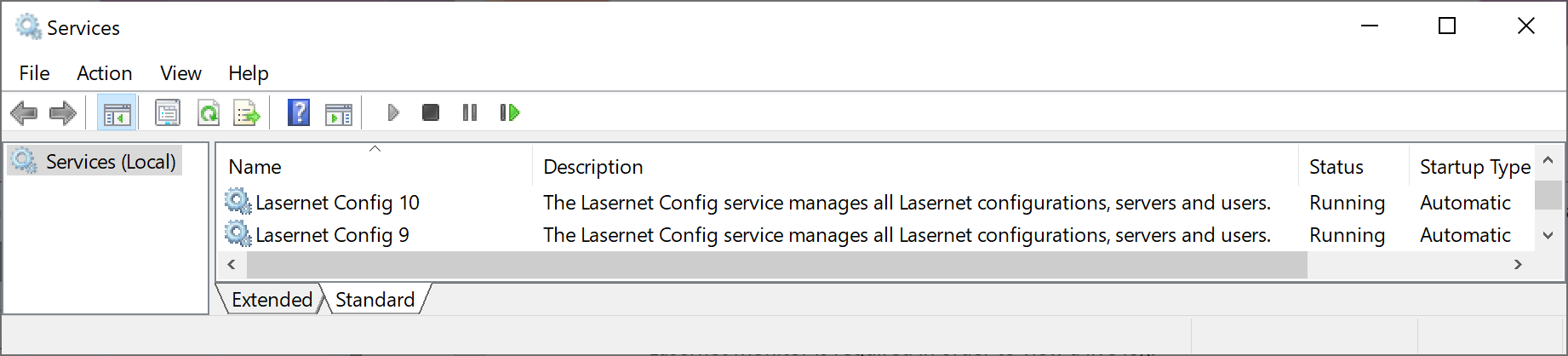
A single service named Lasernet Config 10 is installed by the Lasernet Core 10 installer and must be running for the Lasernet Config Server.
Note
If the Lasernet Config 9 service is installed, it can run at the same time as Lasernet Config 10 service.
Lasernet Config 10
This service manages all Lasernet Core configurations as well as connections to Lasernet Developer and Lasernet Server.
Default port number: 33443
Log file location: C:\ProgramData\Formpipe Software\Lasernet 10\Config\Default\Config.lnlog
Enhanced Lasernet Config Server settings location: C:\ProgramData\Formpipe Software\Lasernet 10\Config\Default\ServerSettings.json
For more detailed information, please refer to the Lasernet Config & Deployment guide.
Lasernet Config Server
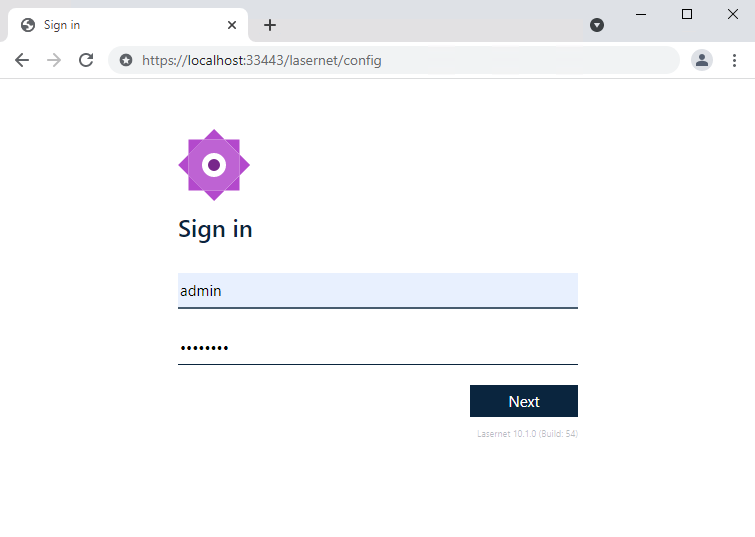
To access the Lasernet Config Server, use the following URL: https://[servername]:33443/lasernet/config
Lasernet Config Server: Getting Started
Login Page
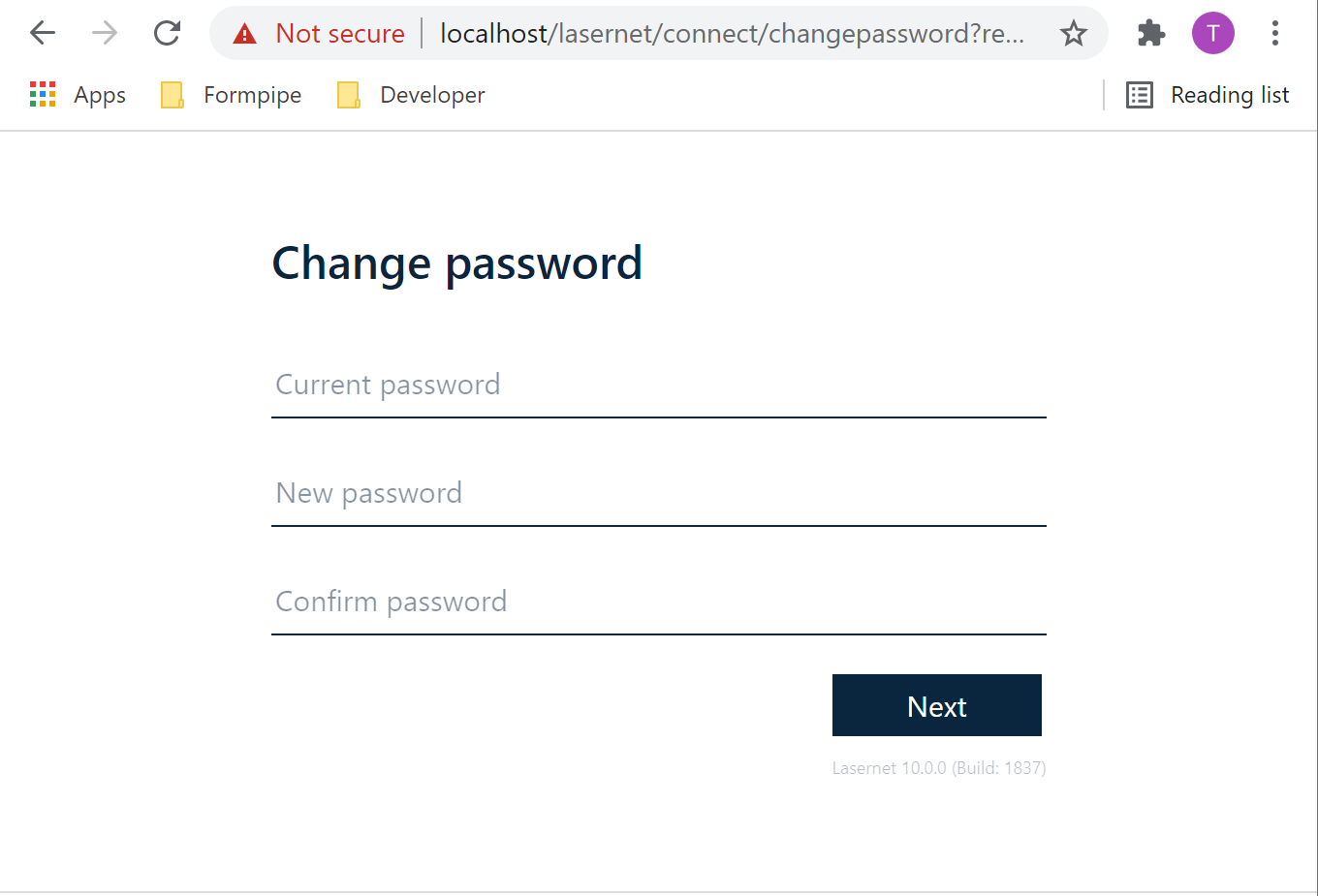
When logging in for the first time, create a new password for the admin user:
User: admin
Current password: [leave empty]
New password: [choose a password]
Confirm password: [choose a password]
You can now set a password for the admin account. The password must be changed when you log in to the config website for the first time.
If you forgot the password, run LnConfig.exe in the command line with admin rights:
LnConfig.exe -reset-admin-passwordAs a result, a new password for the admin account written to the console is generated.
Servers
Add a Server Instance
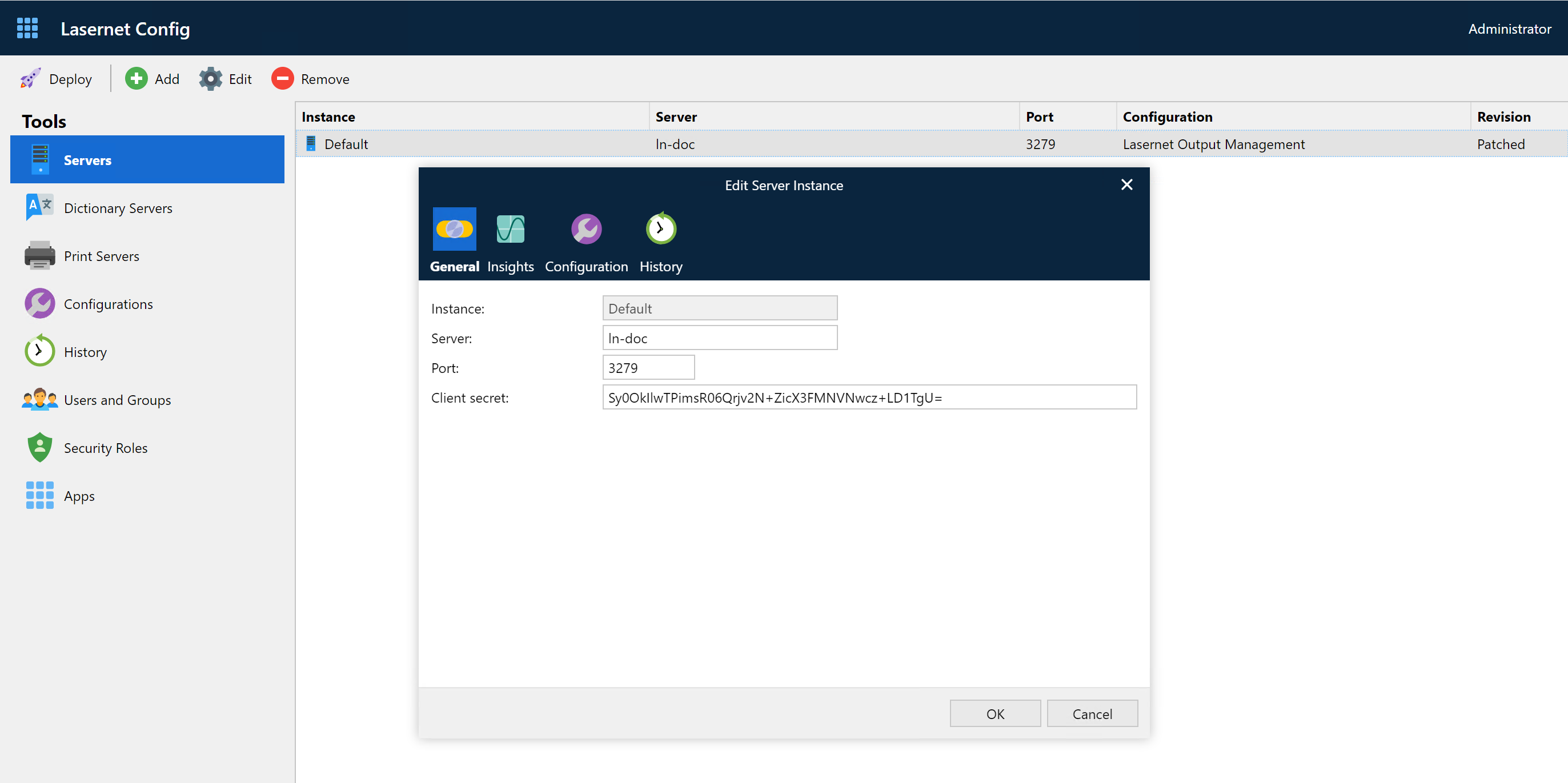
A new server instance must be added to the Servers tab.
Click Add to add a server instance.
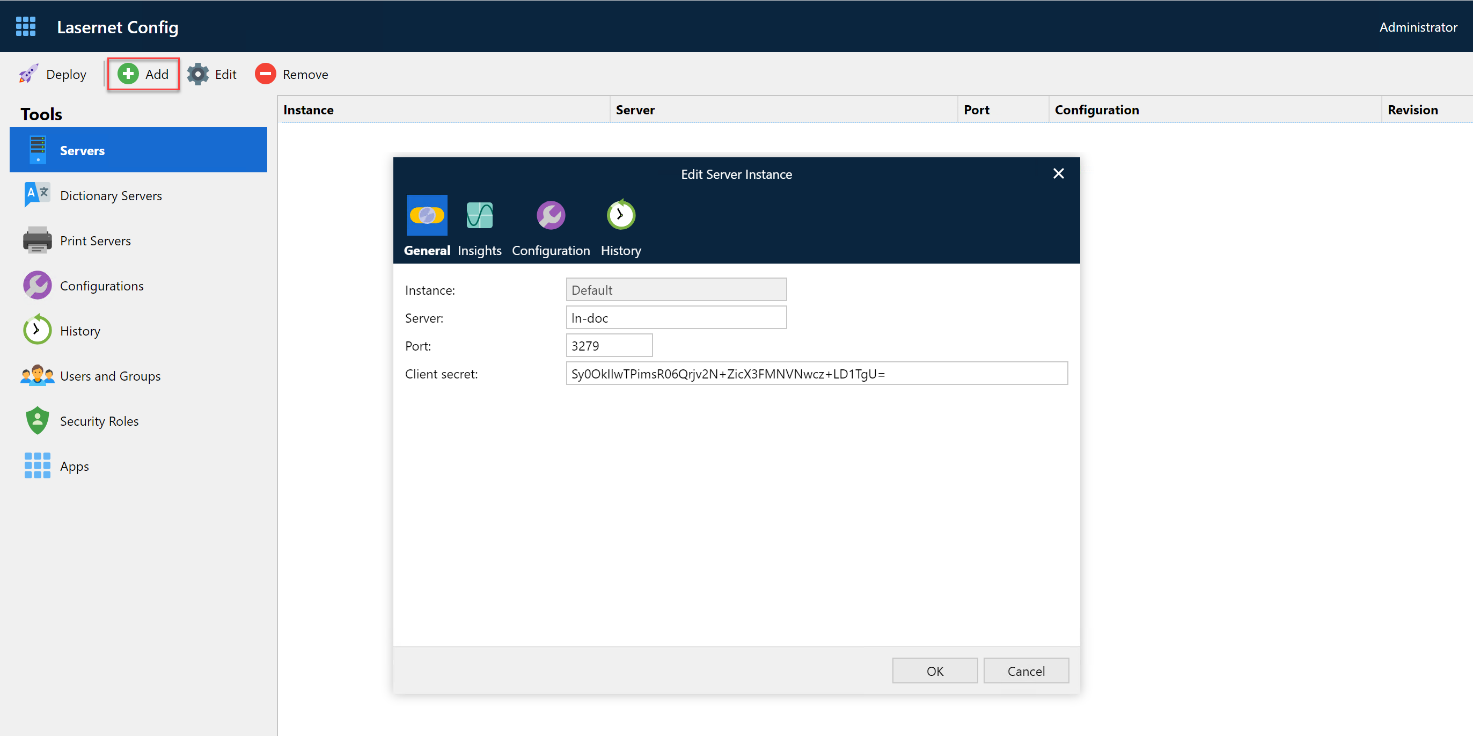
This will display the Edit Server Instance dialog.
Note
Instance names are unique and cannot be changed; they can be only removed.
The hostname and port number can be changed at any time. Both the host and port must have an active connection to the server when a configuration is deployed or patched.
The client secret associated with the service instance can be found and copied from the Lasernet Server License Manager.
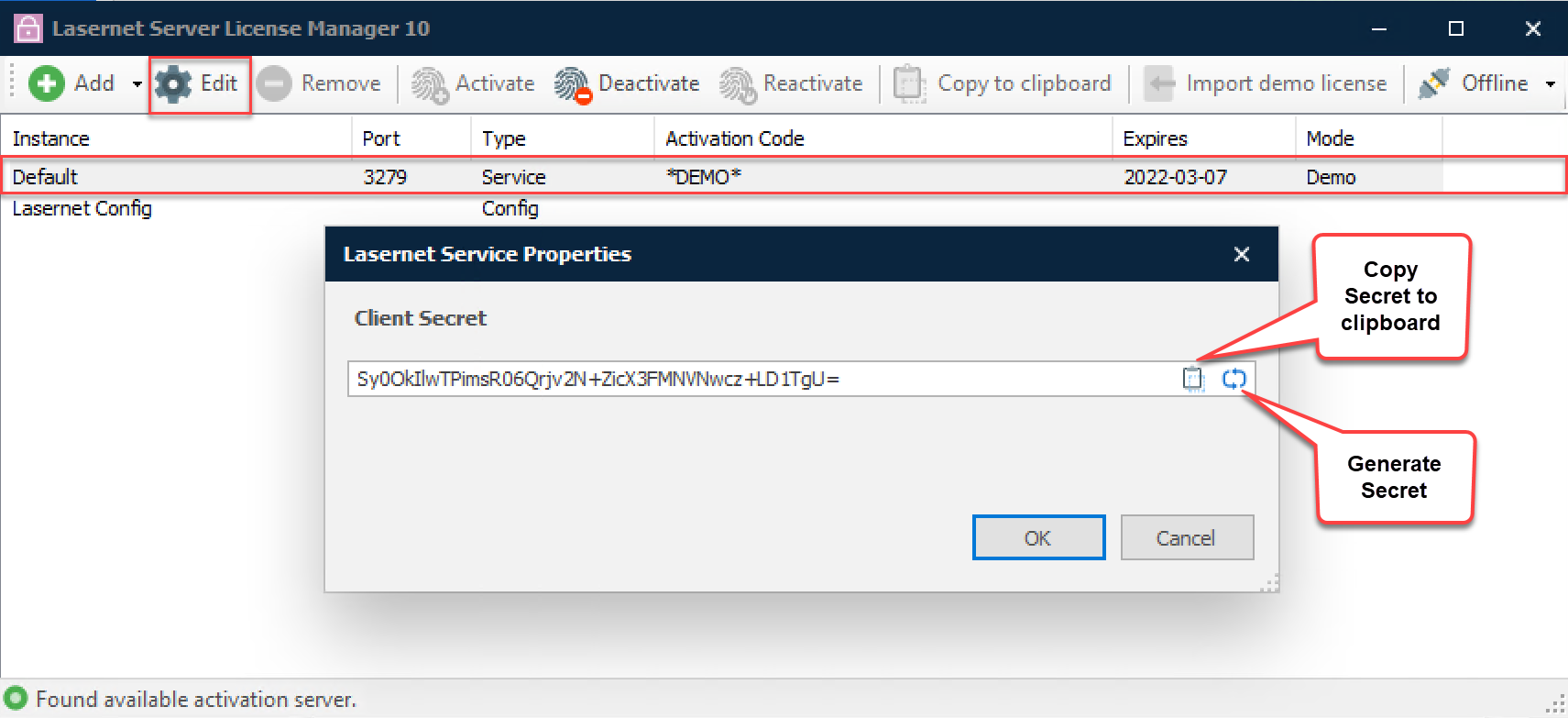
Select the Default service instance
Click Edit
Click the Copy icon
Paste the value to the Client secret property, for the same service instance name, on the Lasernet Config Server
Click OK in both dialogs