---
title: "Lasernet FO Connector 7.1.3 New Features and Fixes"
slug: "lasernet-fo-connector-713-new-features-and-fixes"
description: "Lasernet FO Connector 7.1.3 is released for Dynamics 365 for Finance and Operations versions 10.0.44 (PU68). Read for more information."
tags: ["New features and fixes", "Lasernet FO Connector", "Finance and Operations"]
updated: 2025-08-29T08:25:11Z
published: 2025-08-29T08:25:11Z
canonical: "kb.lasernetgroup.com/lasernet-fo-connector-713-new-features-and-fixes"
---
> ## Documentation Index
> Fetch the complete documentation index at: https://kb.lasernetgroup.com/llms.txt
> Use this file to discover all available pages before exploring further.
# Lasernet FO Connector 7.1.3 New Features and Fixes
## Lasernet for Dynamics 365 Finance and Operations
**Release version: 7.1.3**
**Release date**: 13th June 2025
### Introduction
This page describes the bug fixes in [Lasernet FO Connector 7.1.3](https://support.formpipe.com/downloads/files/lasernet-fo-connector-713).
The following documentation is available:
- [Release notes for Lasernet FO Connector 7.1.3](/v1/docs/lasernet-fo-connector-713-release-notes)
### Bug Fixes – Lasernet FO Connector 7.1.3
Lasernet FO Connector 7.1.3 is released for Dynamics 365 for Finance and Operations version 10.0.44 (PU68) and 10.0.45 (PU69).
The same source code is used across all versions.
This is a patch release provided through the following bug fixes in Lasernet FO Connector 7.1.3.
#### 466936@LAC365FO – An error occurs when using the SharePoint connection with standard FinOps 10.0.44 (PU68)
For more information, consult this [news post](https://support.formpipe.com/news/posts/compatibility-of-dynamics-365-finance-and-operations-10044-pu68-with-lasernet-fo-connector).
#### 466477@LAC365FO – Images included in the email body expire and are not displayed correctly
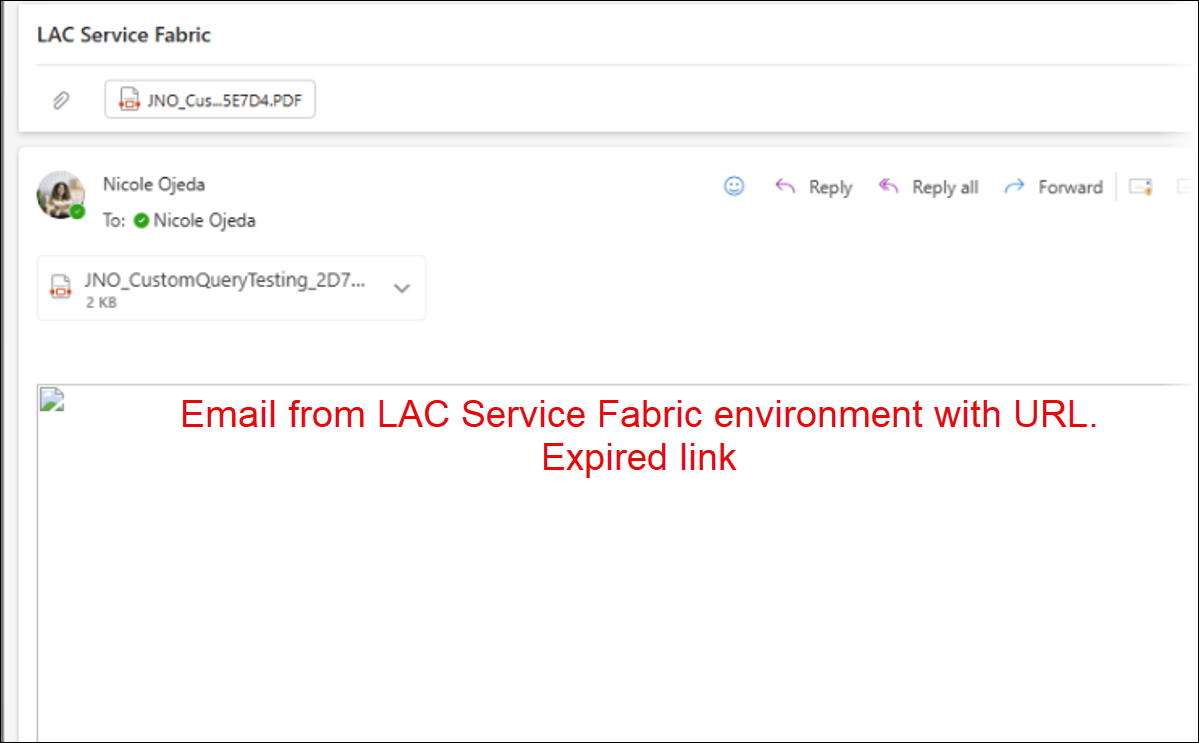
In previous versions, in Microsoft-hosted Service Fabric environments, any images added to the email body were not displayed correctly.
The following is an example:
#### How Do Images Work in the **Email Body** Form?
When editing the predefined destinations for your email, all used images are saved into a temporary Azure storage because the CK editor cleans up Base64-encoded data.
Once the editing is completed and the email body is saved to the database, all temporary image URLs are converted to placeholders.
Therefore, while editing, the code for the images looks as follows:
```xml
Testing images1
```
In the database, it is saved as:
```xml
Testing images1
```
When the report is generated, these placeholders are automatically replaced with Base64 data, as the temporary file URL is used only while editing.
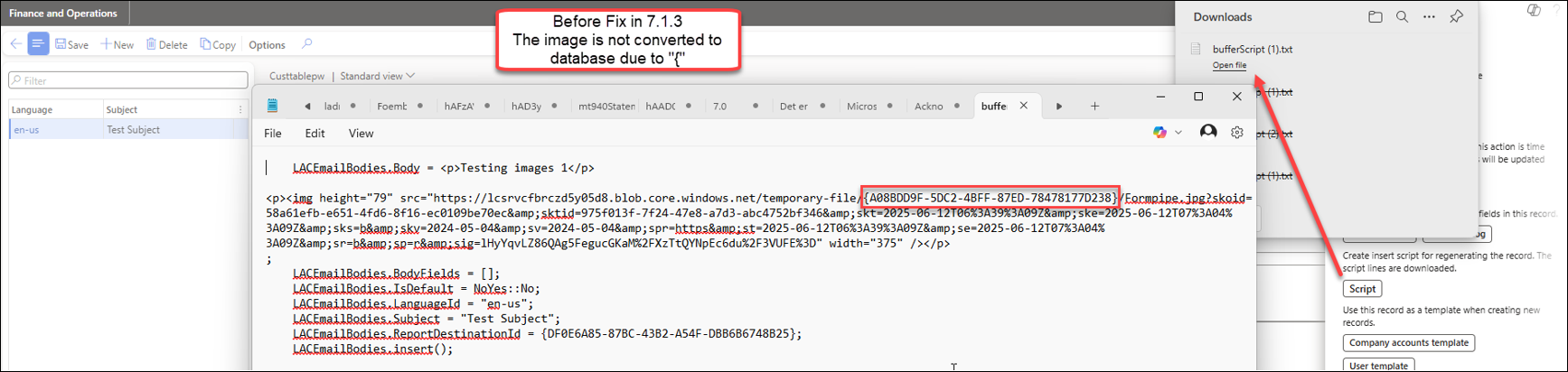
The issue described in this work item was due to the differences in the encoding of the URL (src).
In some environments, it is encoded as http://127.0.0.1:10000/devstoreaccount1/temporary-file/**%7B**9A14CCE1-2BF7-477A-BC5D-FB9C0EA16856%7D/...
In Service Fabric, instead, it is http://127.0.0.1:10000/devstoreaccount1/temporary-file/{9A14CCE1-2BF7-477A-BC5D-FB9C0EA16856**}**/
Notice that some environments use URL encoding ”%7B”, while others do not encode and use “{“.
The code written to recognize these patterns was only looking for “%7B”.
This has been fixed in Lasernet FO Connector 7.1.3, which supports the use of both “%7B” and “{“.
> [!TIP]
> Recommendation
>
> We recommend that customers who include images in the email body open and close the **Predefined destination** form (or **Email body** form) so that the updated code in 7.1.3 can replace URLs with ID placeholders.
To validate that everything is working, follow these steps:
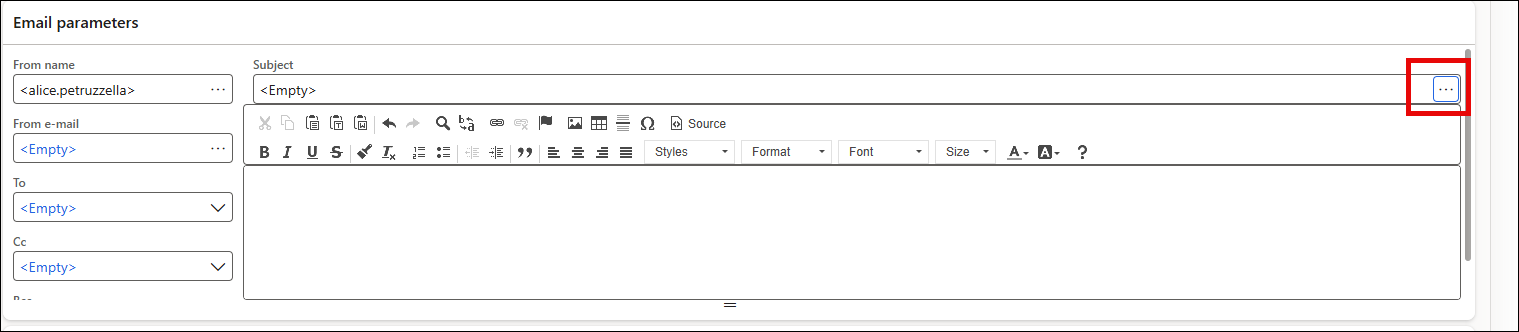
1. Navigate to **Lasernet** > **Setup** > **Overview** > **Destinations** > ellipses button on the **Email parameters** FastTab.
1. Click **Options** > **Record info**.
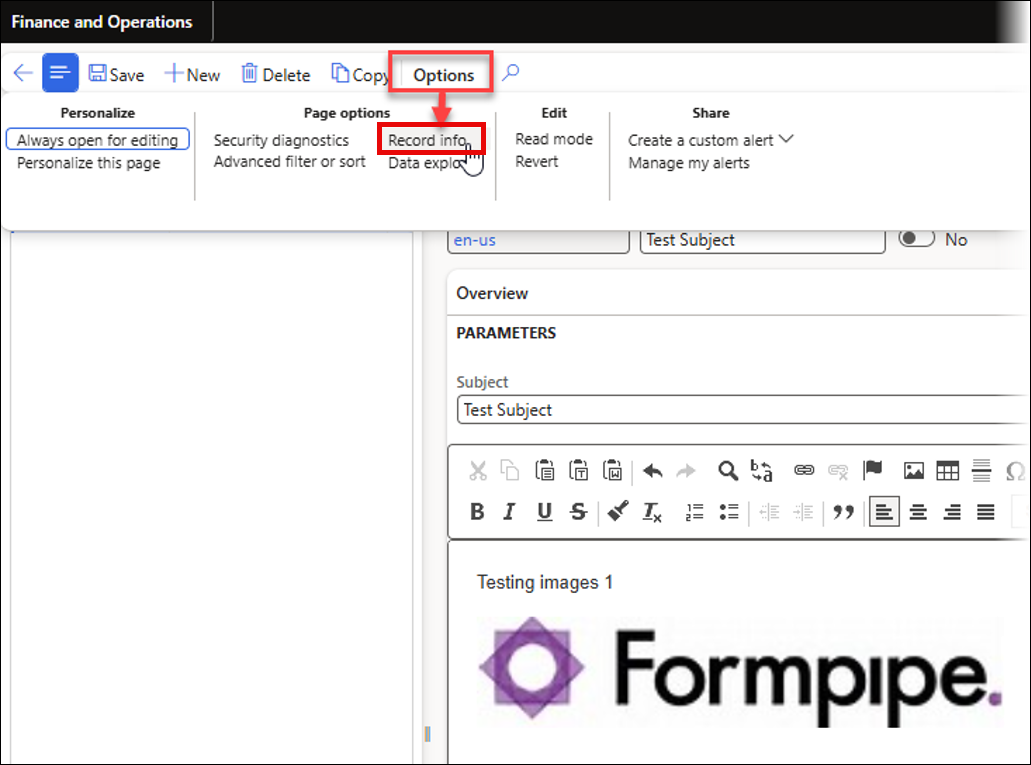
The **Record information** form opens.
1. Click **Script**.
2. Open the downloaded file `bufferScript`.
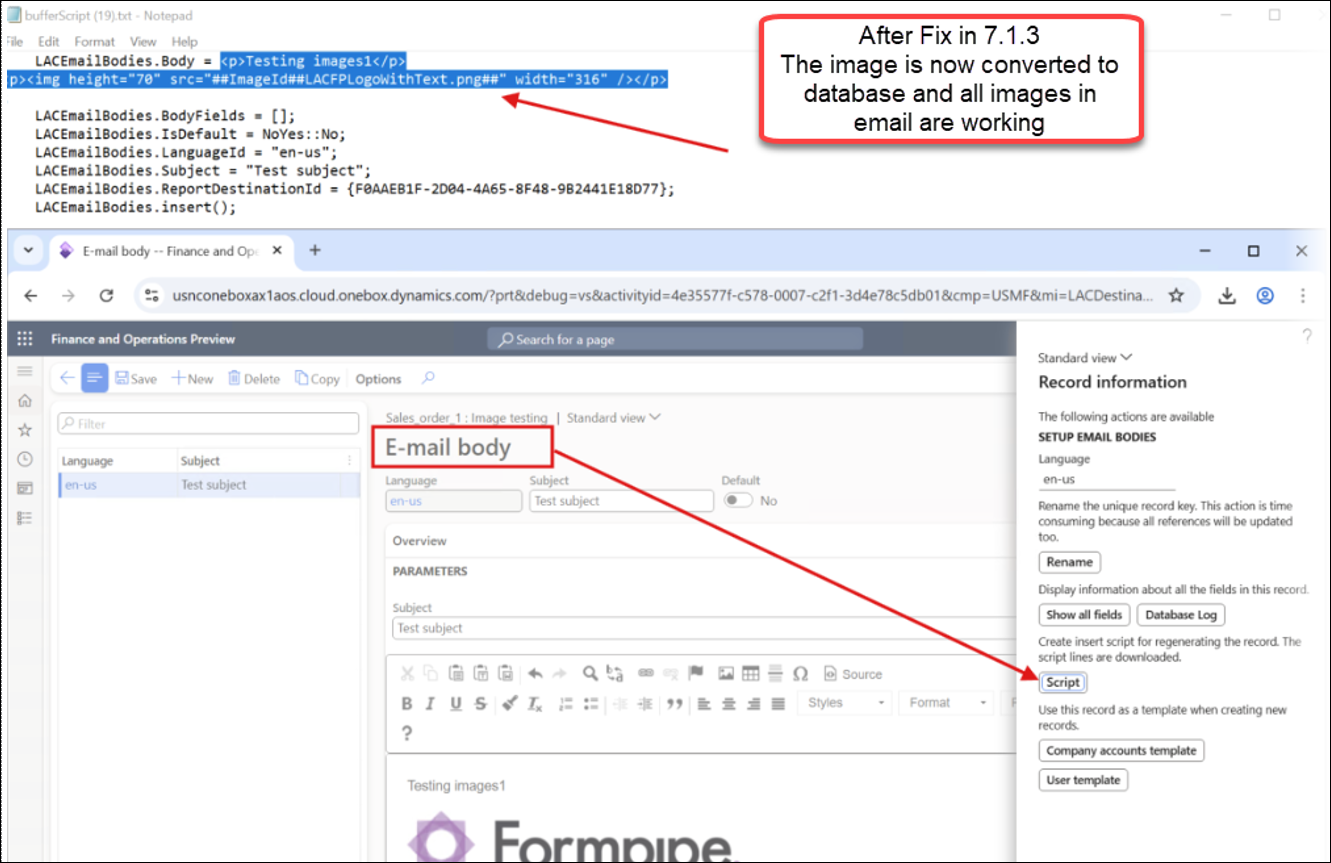
You can validate that the image has been converted to database by reading the downloaded `bufferScript`.
Before the 7.1.3 fix:
After the fix: