Applies to: Lasernet Core 10
Select the Security Roles tab to manage access control to Lasernet products and services.
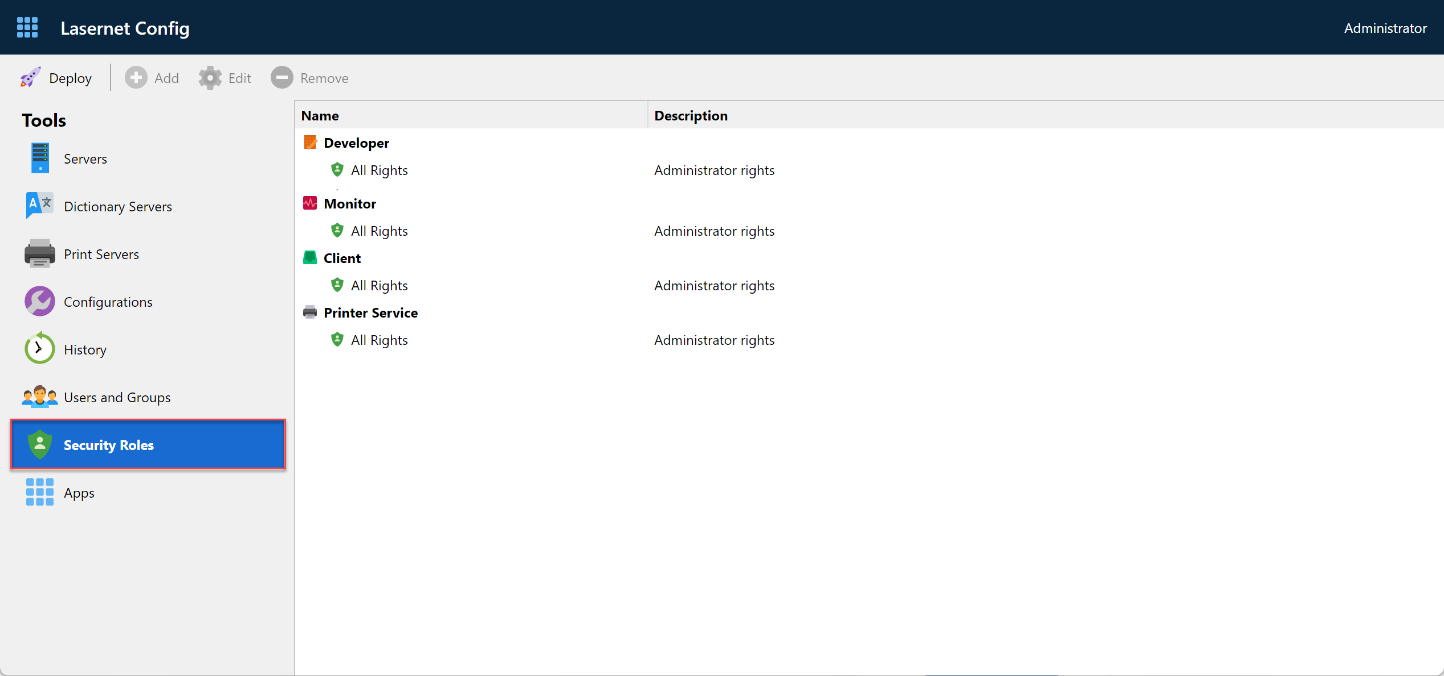
Developer
The Developer section of the Security Roles feature controls user rights in Lasernet Developer and on the Lasernet Config Server website. To add a new developer role, click Security Roles, then in the main part of the page click the Developer section, then click Add.
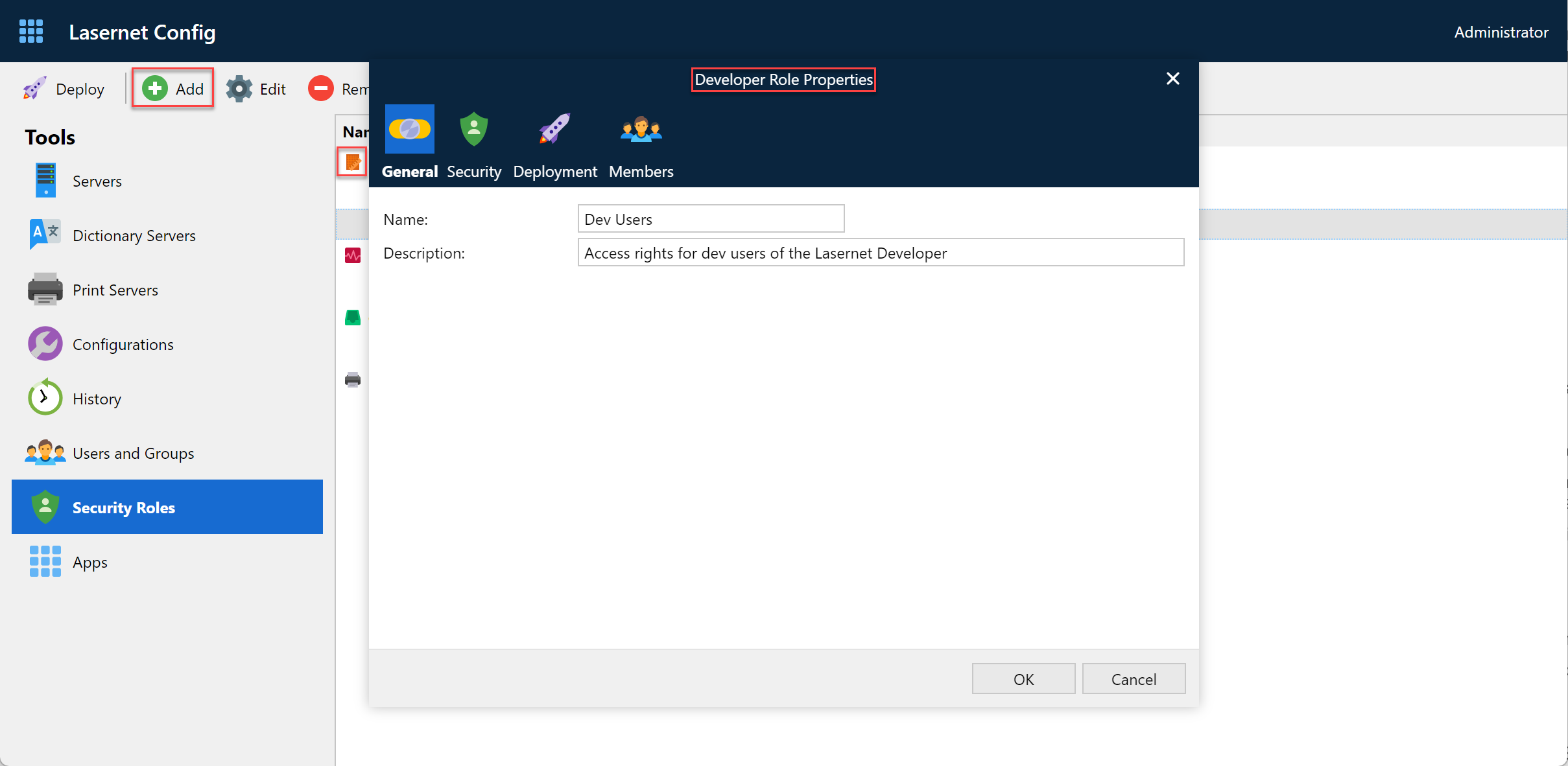
On the page displayed, enter a name and then click OK.
Once you are done, a new developer role appears in the list.
To remove a role, click that role and then click Remove.
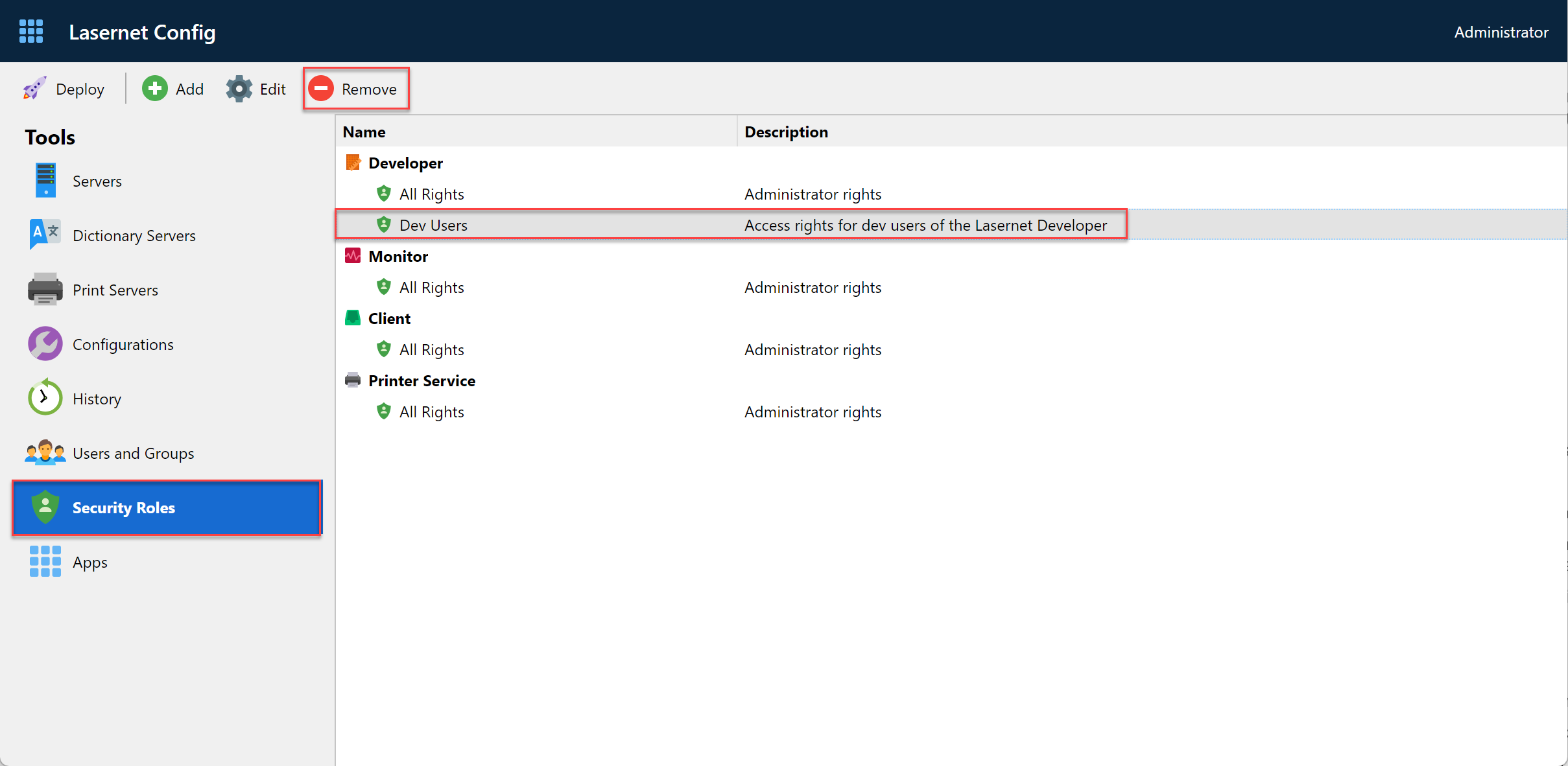
To edit the role, click that role and then Edit.
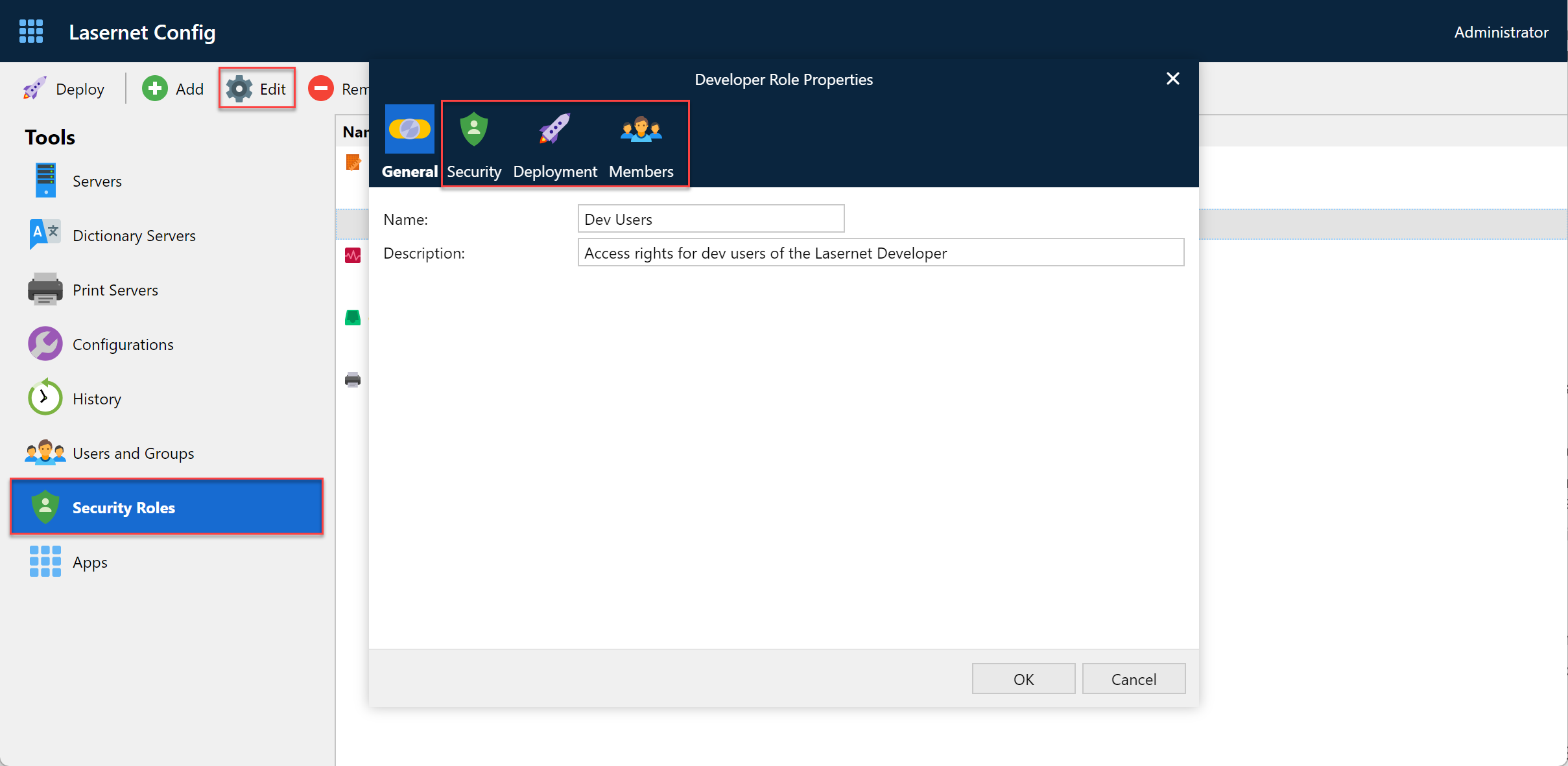
In the Developer Role Properties window, use the Security and Deployment tabs to configure the selected role’s rights to access various administrative tools in the Lasernet Config Server and configuration tools in the Lasernet Developer.
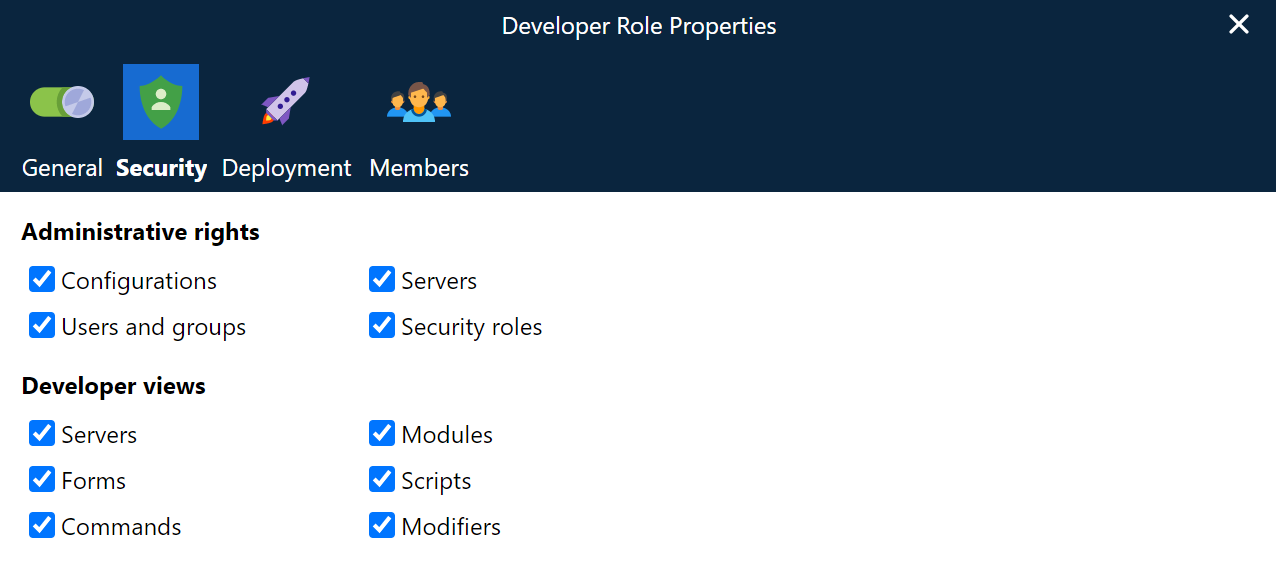
Security -> Administrative rights
To manage access rights for the Lasernet Config Server:
Activate Configuration to allow a user to view configuration settings, history and revisions.
Acitvate Servers to allow a user to manage server settings.
Activate Users and groups to allow a user to add, edit and delete users and groups.
Activate Security roles to allow members of a group to manage the security roles for Administrative rights, Developer views, Deployments to specific server instances.
Deactivate all administrative rights to prevent a user from logging in to the Lasernet Config Server.
Security -> Developer views
To manage access rights for the Lasernet Developer:
Activate Server to allow a user to add, edit and delete server settings.
Activate Modules to allow a user to add, edit and delete module settings.
Activate Forms to allow a user to access the Lasernet Form Editor, SubForms, Phrases, Printer Profiles, Regional Profiles and Barcode Profiles.
Activate Scripts to allow a user to add, edit and delete JavaScripts.
Activate Command to allow a user to add, edit and delete Connections and Command.
Activate Modifiers to allow a user to add, edit and delete Modifiers.
Deployment Rights
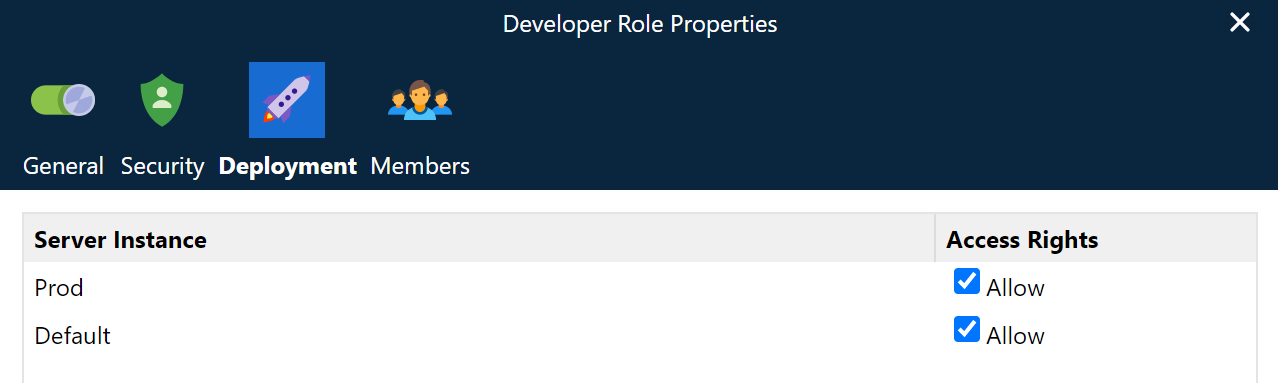
On the Deployment tab, you can grant configuration deployment rights for each server instance.
Members
On the Members tab, you can specify which groups are Members of the selected security role.
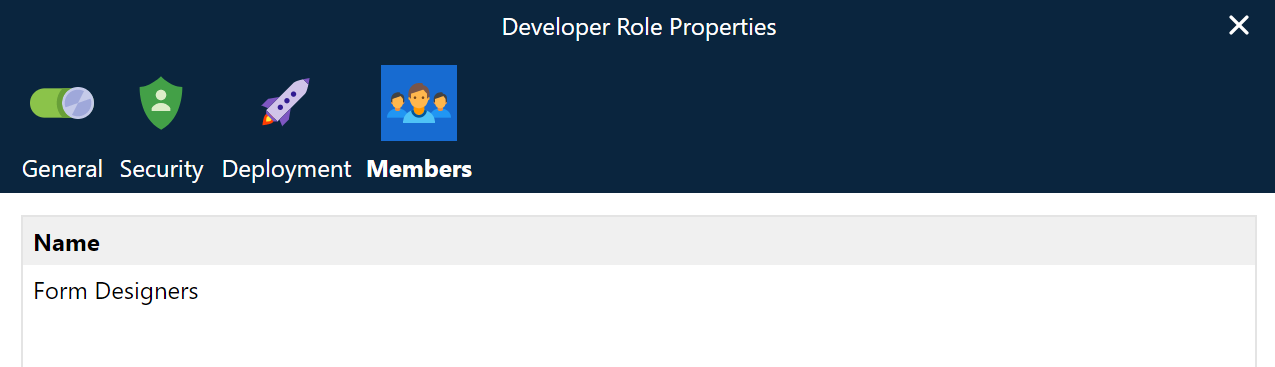
Local Lasernet Core groups and AD groups can be added as members of a security role.
Allow a User to Download Grab Files When Using the Lasernet Developer
Permission to download grab files when using Lasernet Developer is not granted by any of the Developer role permissions described above.
To allow a user to download grab files when using the Lasernet Developer, you must ensure that the user’s group is a member of the Monitor -> All rights role.
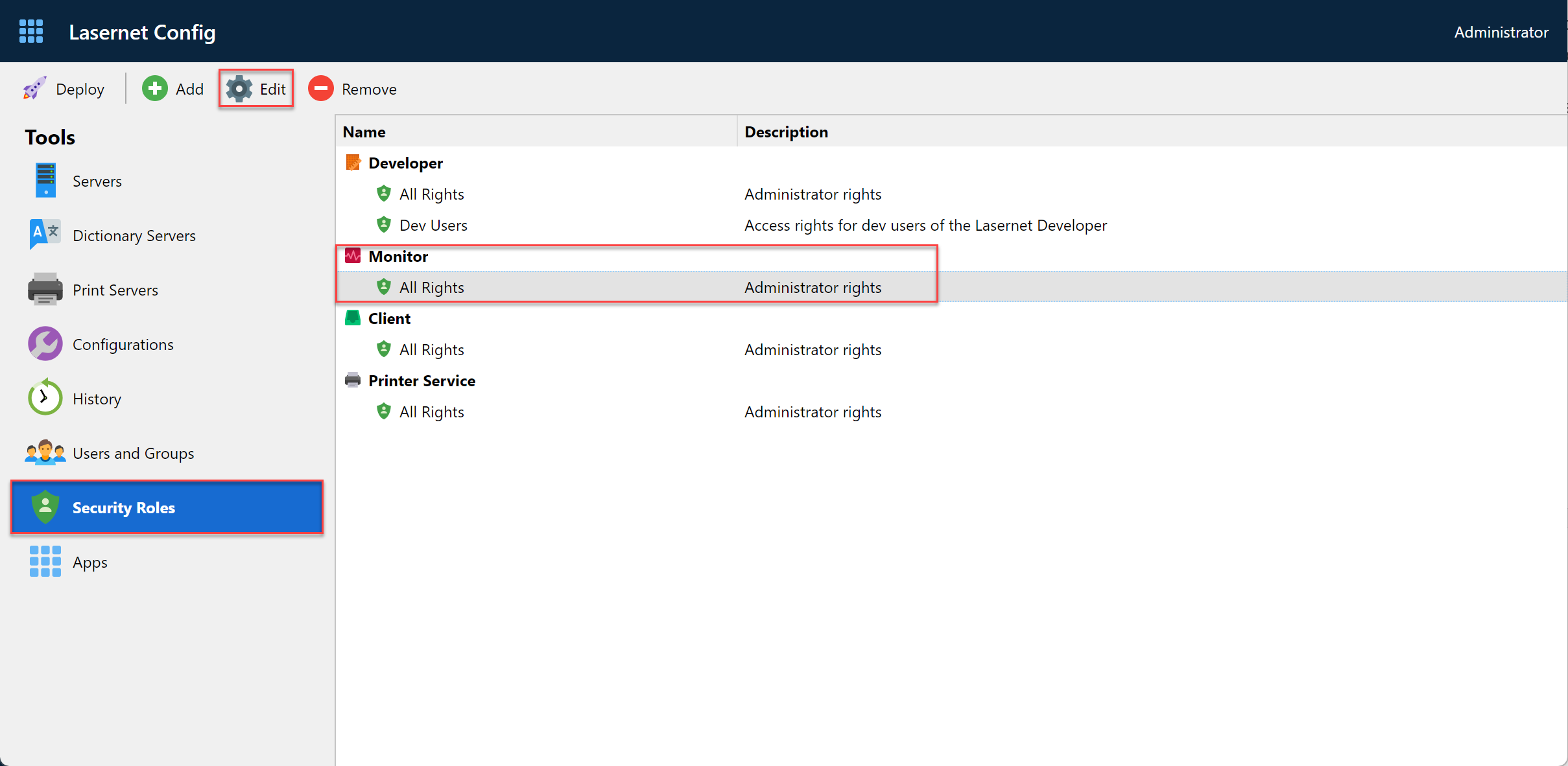
When you configure the Monitor -> All rights role, include the group that contains the user that you want to grant the access to.
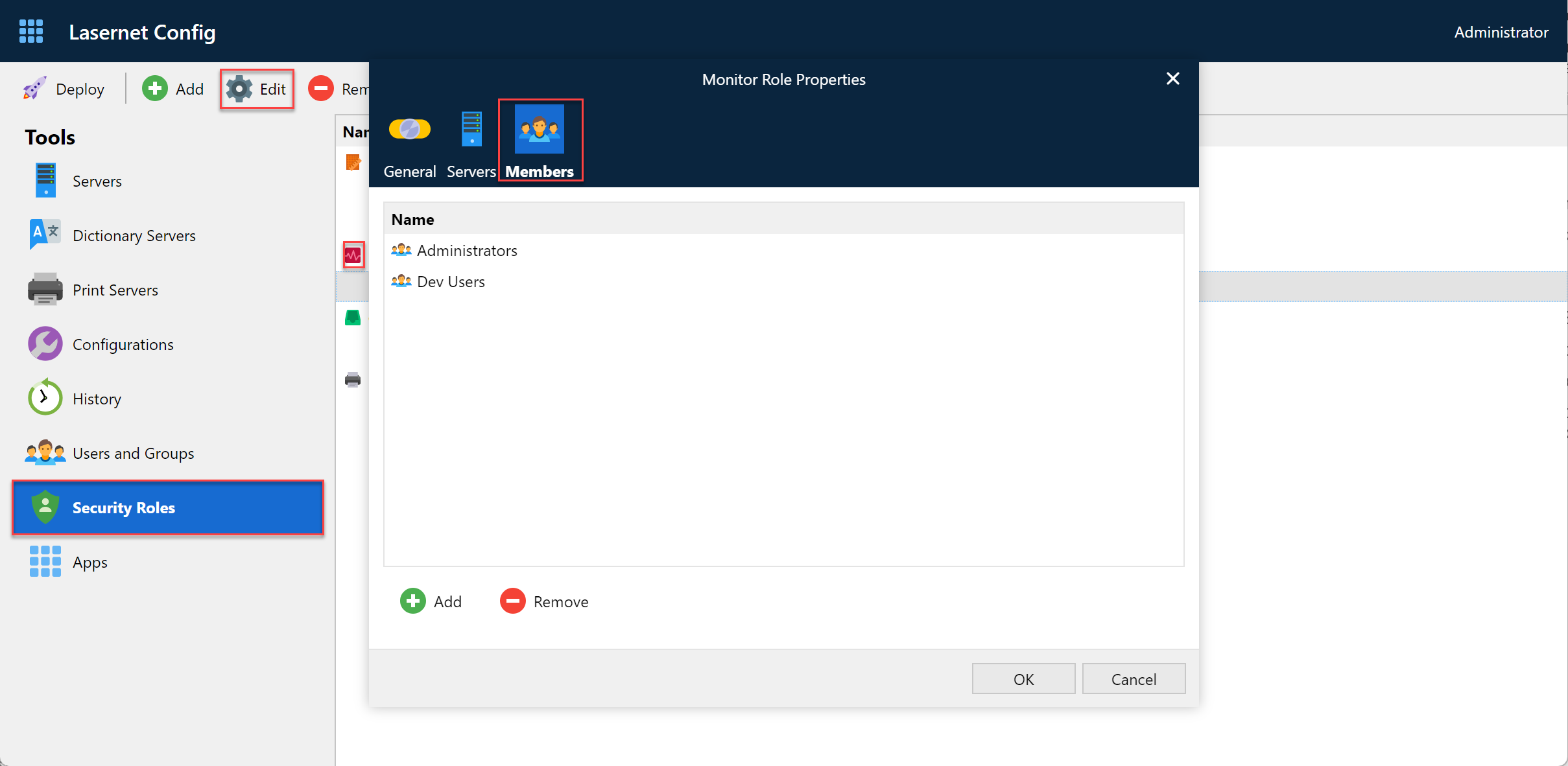
Users that have not been granted this access will be shown an “Access not allowed” error message when activating import grabs functionality from the Lasernet Developer.
Example of Security Roles for a User Logged in to the Lasernet Config Server
This section describes an example security configuration for a role, then shows the effect of that security configuration on the Lasernet Config Server user interface shown to a user who is a member of that role.
Security: The role’s administrative rights are restricted to administrating Configurations and Servers.
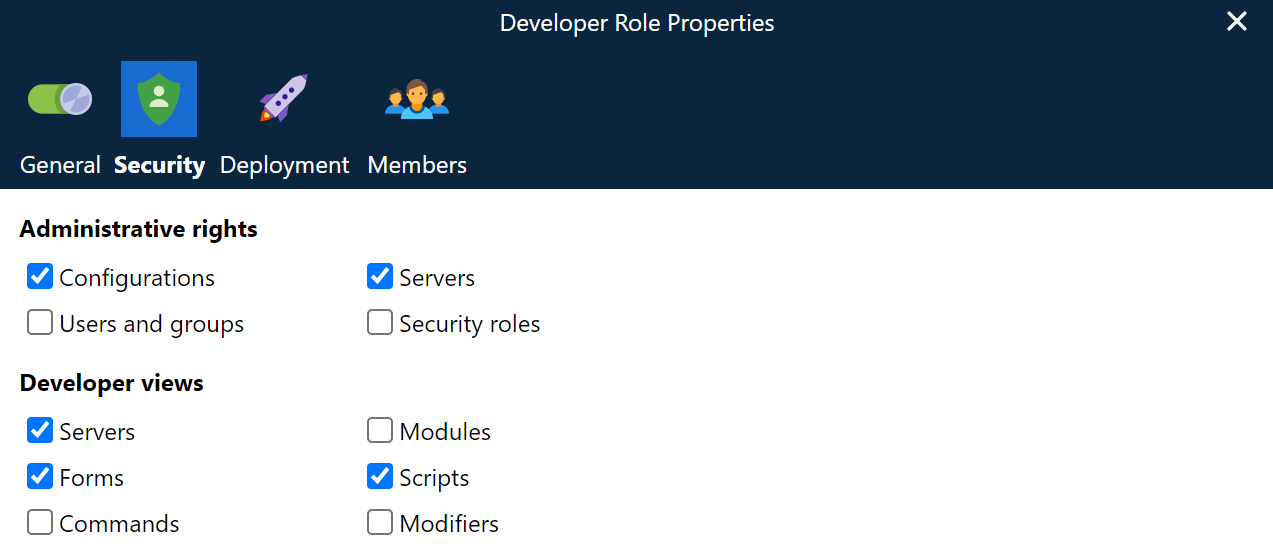
As a result, if a user that has that role logs in to the Lasernet Config Server, they do not have access (in the Tools area) to manage Users and Groups and Security Roles.
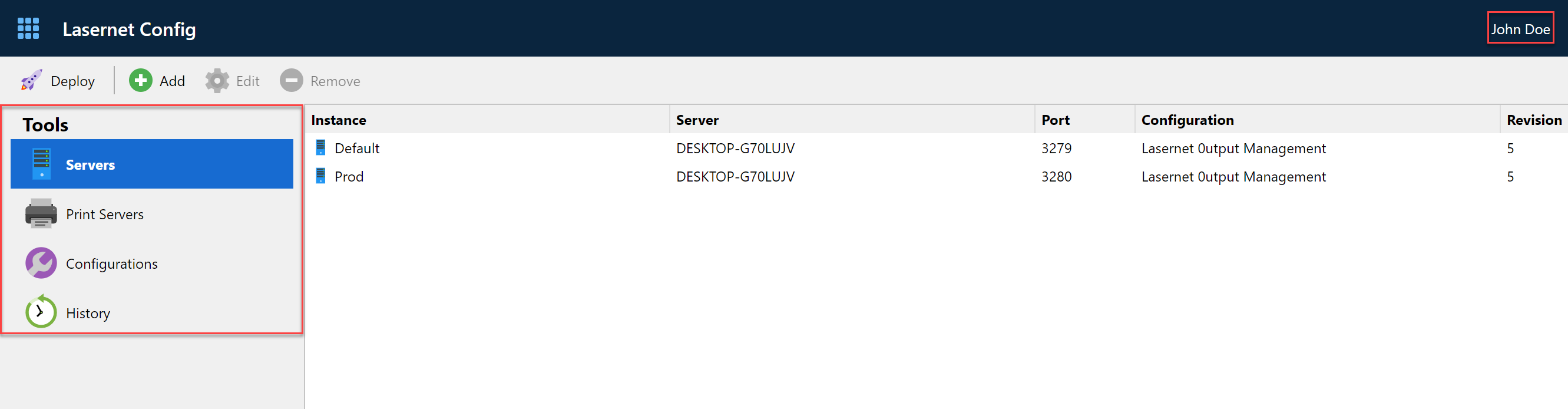
Deployment rights: The user’s role’s deployment rights are restricted to deploying configurations to the Default server instance only.
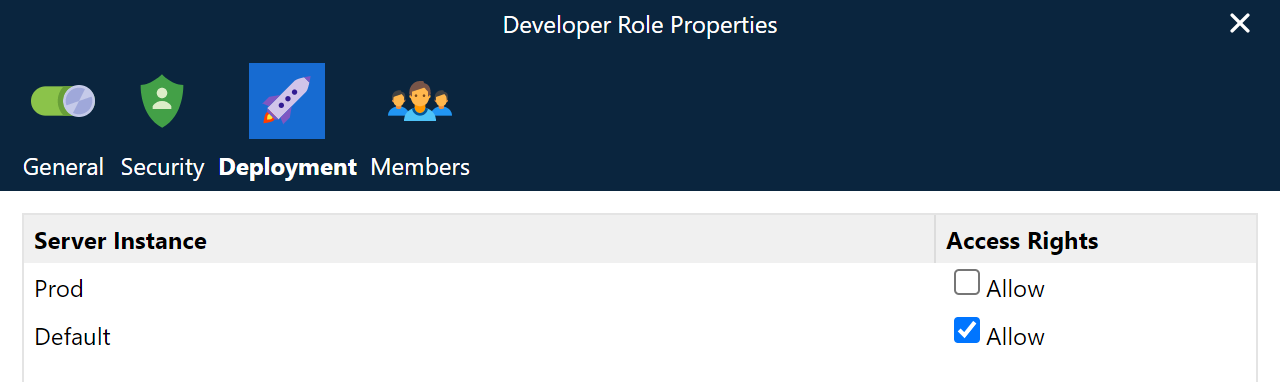
As a result, the list of accessible servers for deployment is now restricted to the Default server only.

Example of Security Roles for a User Logged in to the Lasernet Developer
This section describes an example security configuration for a role, then shows the effect of that security configuration on the Lasernet Developer user interface shown to a user who is a member of that role.
Security: The views that are available to the role in Lasernet Developer do not include the Commands, Modules, or Modifier views, because those checkboxes are not selected in the role’s security configuration.
To see the effect of this security configuration, first you must log in to the Lasernet Developer application as a user that is a member of the role that has the restricted rights described above.
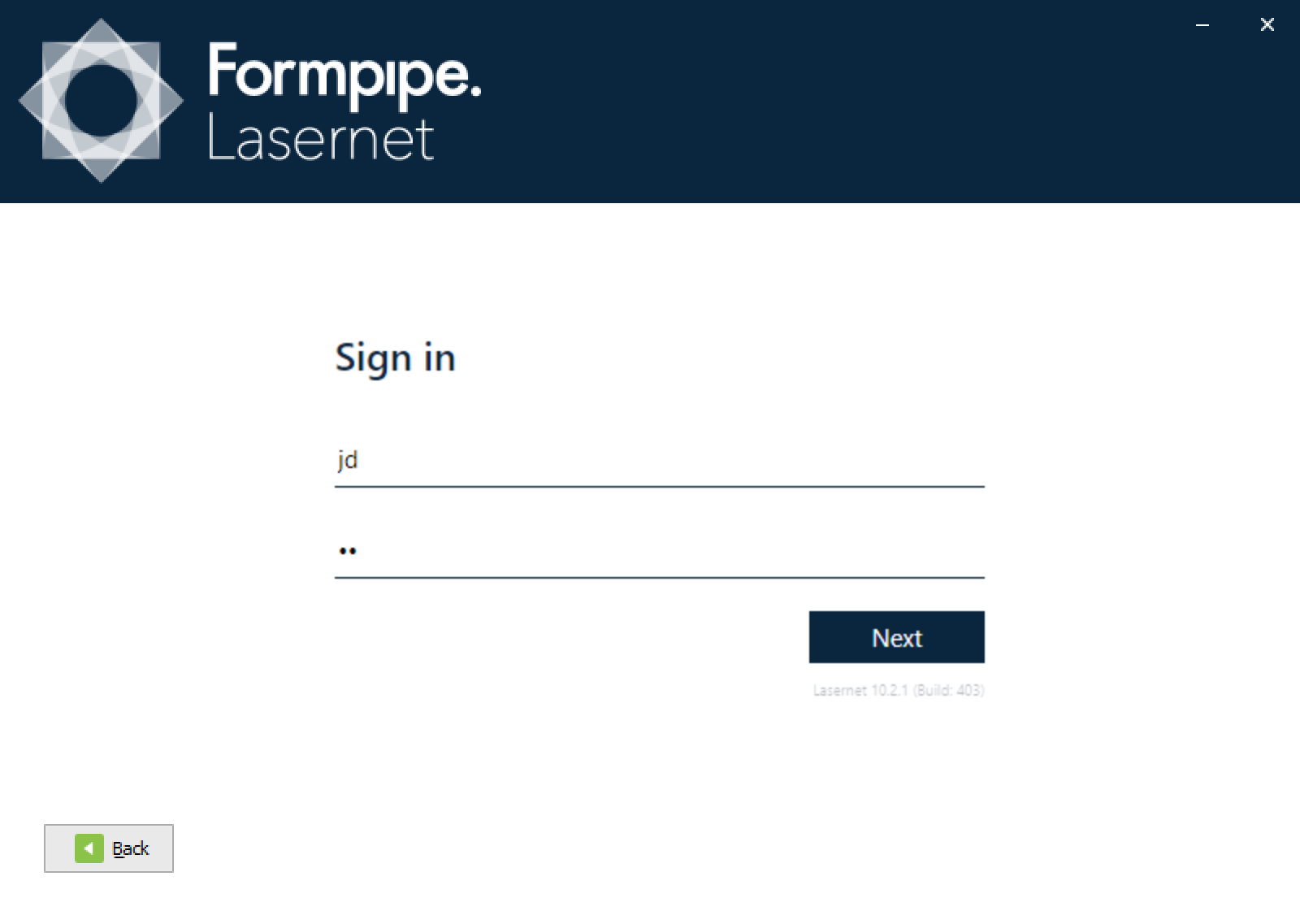
When you log in to the Lasernet Developer for the first time, the list of recently used configurations (in the lower part of the window) is empty. This list is stored in the Lasernet Config Server for each user.
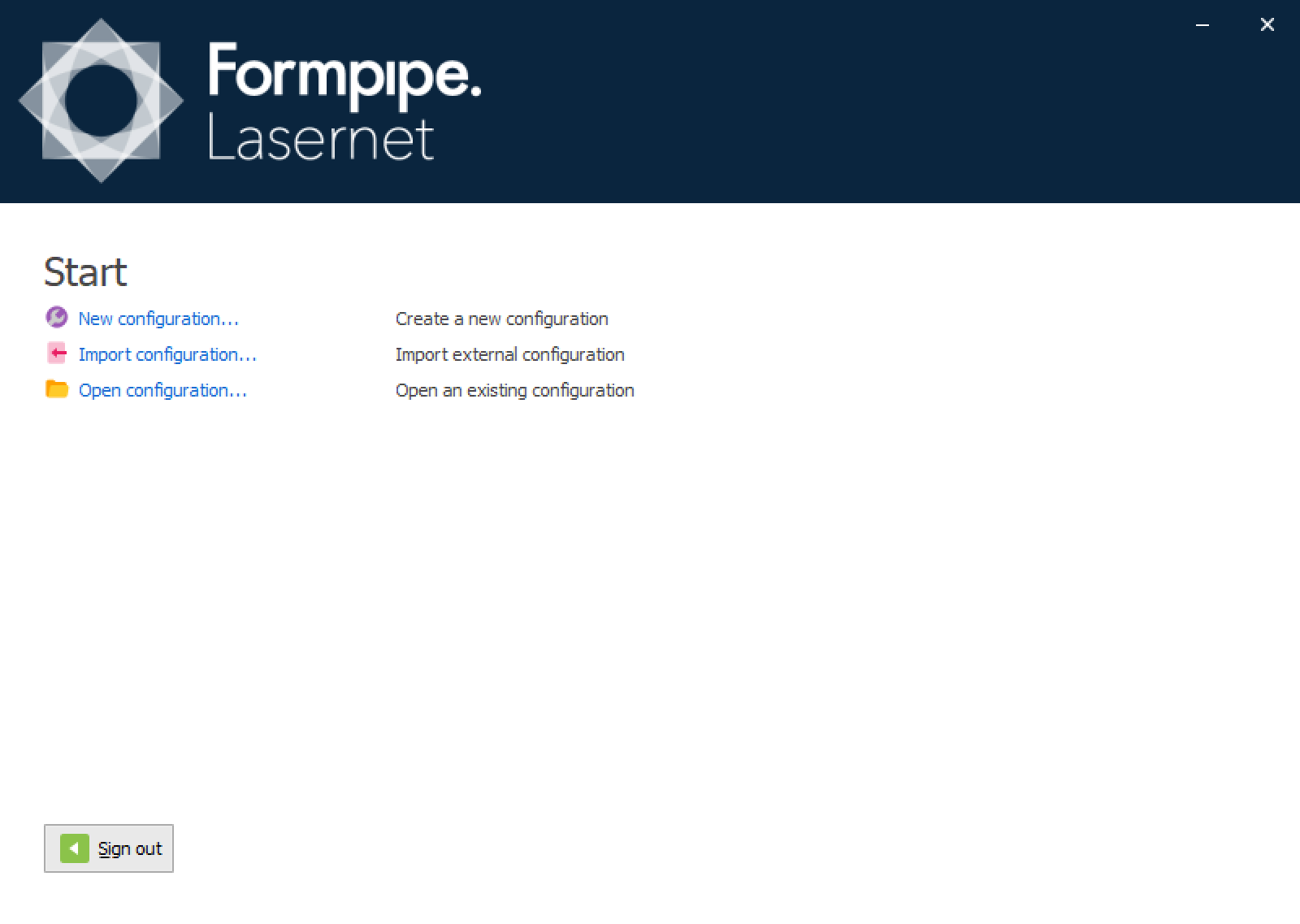
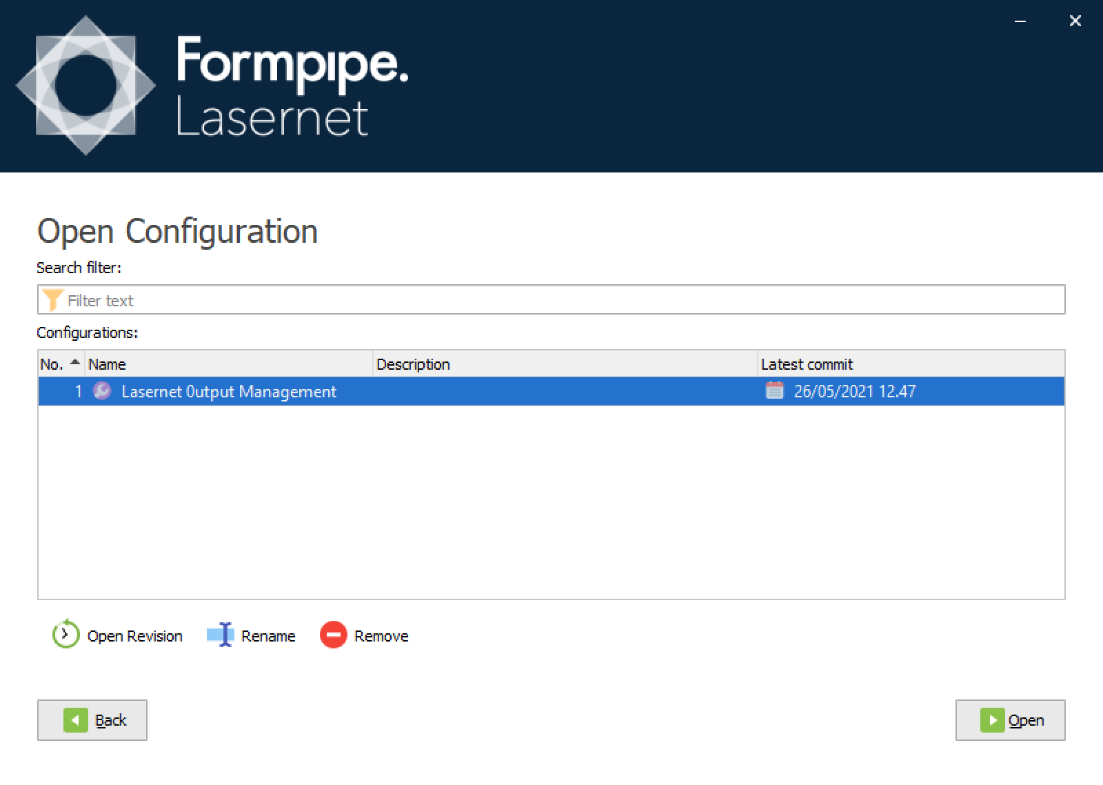
Because there is currently no list of recently used configurations, click Open configuration to open an already existing configuration (that is stored in Lasernet Config Server). Find the configuration that you want to use, then click Open.
After the Lasernet Developer loads, the Tools and Profiles tabs (see red-outlined area in the image below) enable the current user to add and edit the following object types:
Form
Subforms
Phrases
Resources
Printer Profiles
Regional Profiles
Barcode Profiles
As a result of the configuration of the user’s security role, the Modules, Commands, and Modifiers buttons that can appear in the Tools tab are hidden. Consequently, the user has no access to the functionality in Lasernet Developer that enables users to add, edit, and remove those types of object.
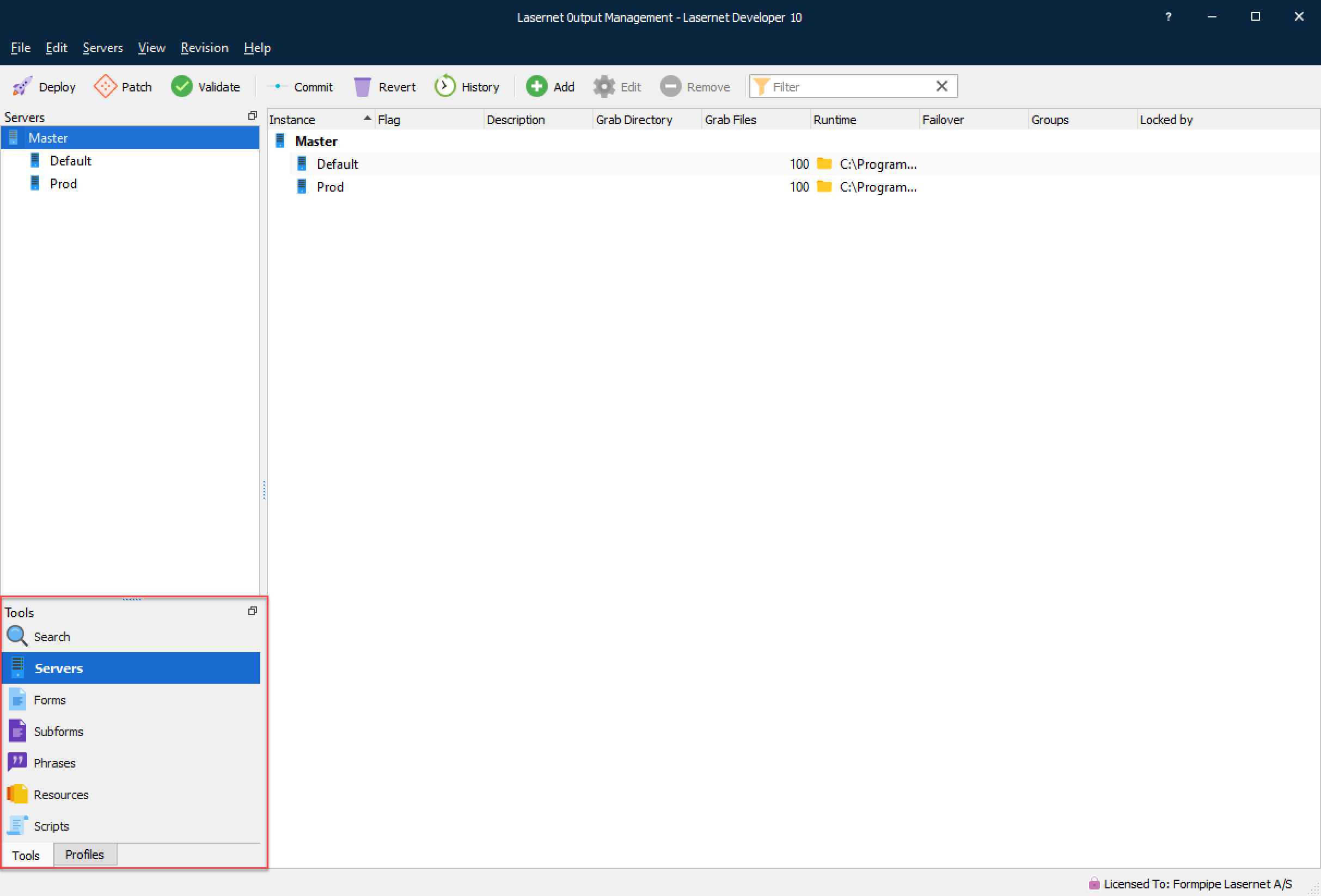
Users with restricted rights for viewing and writing specific object types can only import and export those same object types.
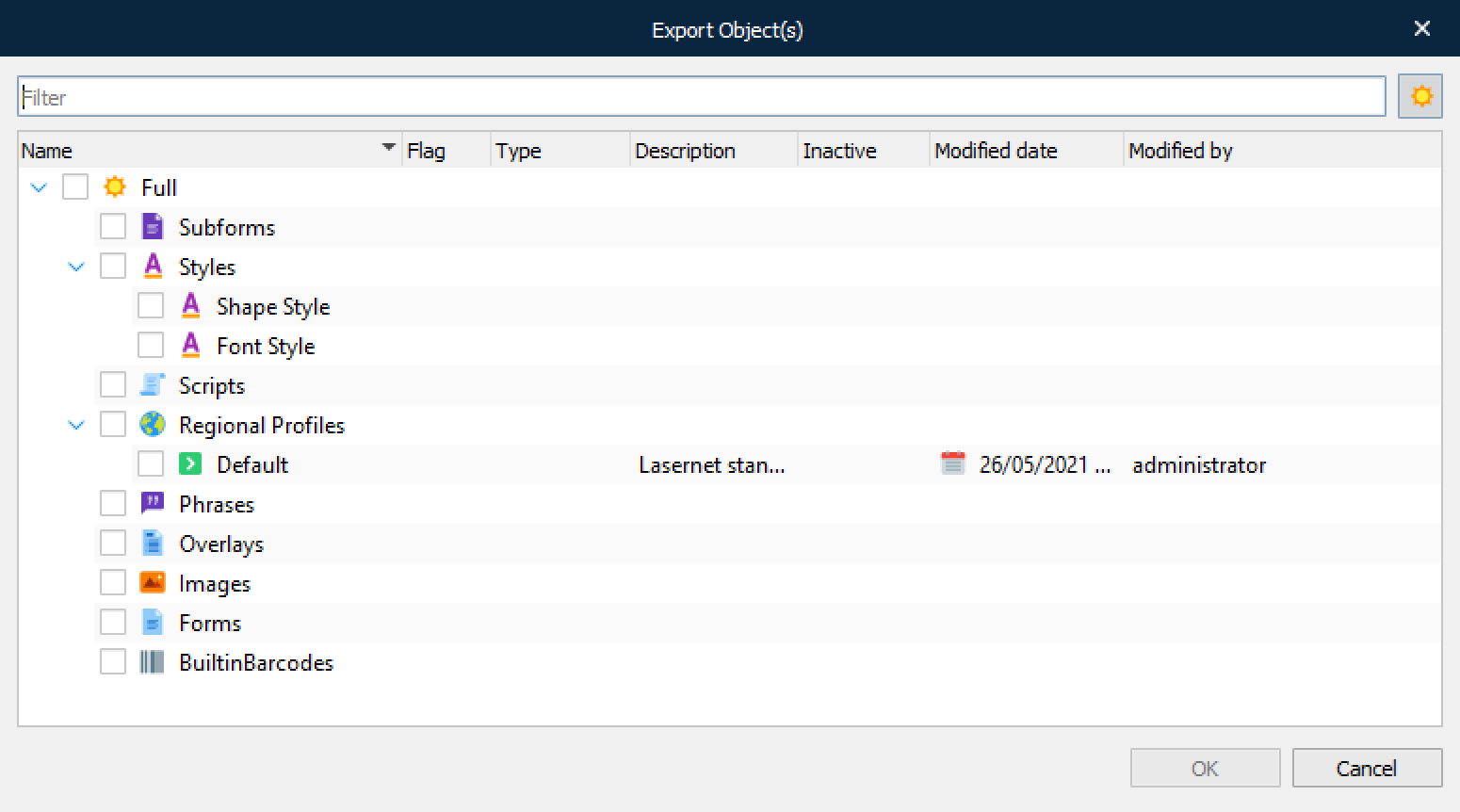
However, users that have restricted rights to add, edit, or delete particular types of object can access and add all object types to the configuration from the following dialogs in the editors:
Modifier events
Overlays
Grab file dialog
Connections
Destinations
Scripts
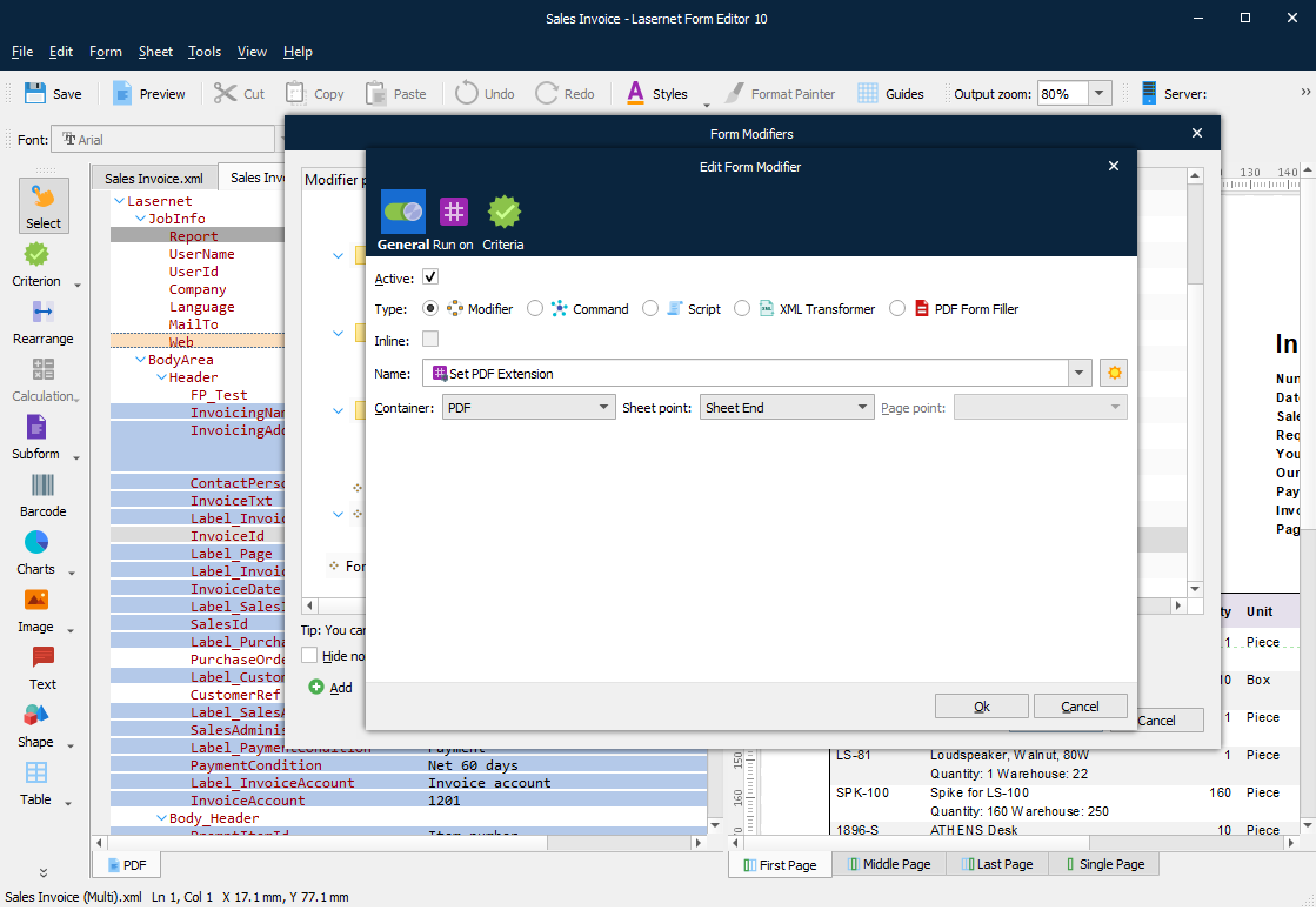
The example screenshot below shows the Edit Form Modifier event window in the Lasernet Form Editor. This window can be accessed by all users. Although the logged-in user has restricted rights to the parts of Lasernet Developer that enable users to add, edit, or delete particular types of object, the user can access all object types in this window. But, they cannot edit them.
Monitor
The Monitor security roles relate to the Lasernet Monitor application and define the server instances to which the user has access. Select the Monitor section and click Add to add a new role.
Click the Servers tab to view and amend the access rights for each instance. Select the Allow checkbox to grant access rights to the corresponding instance.
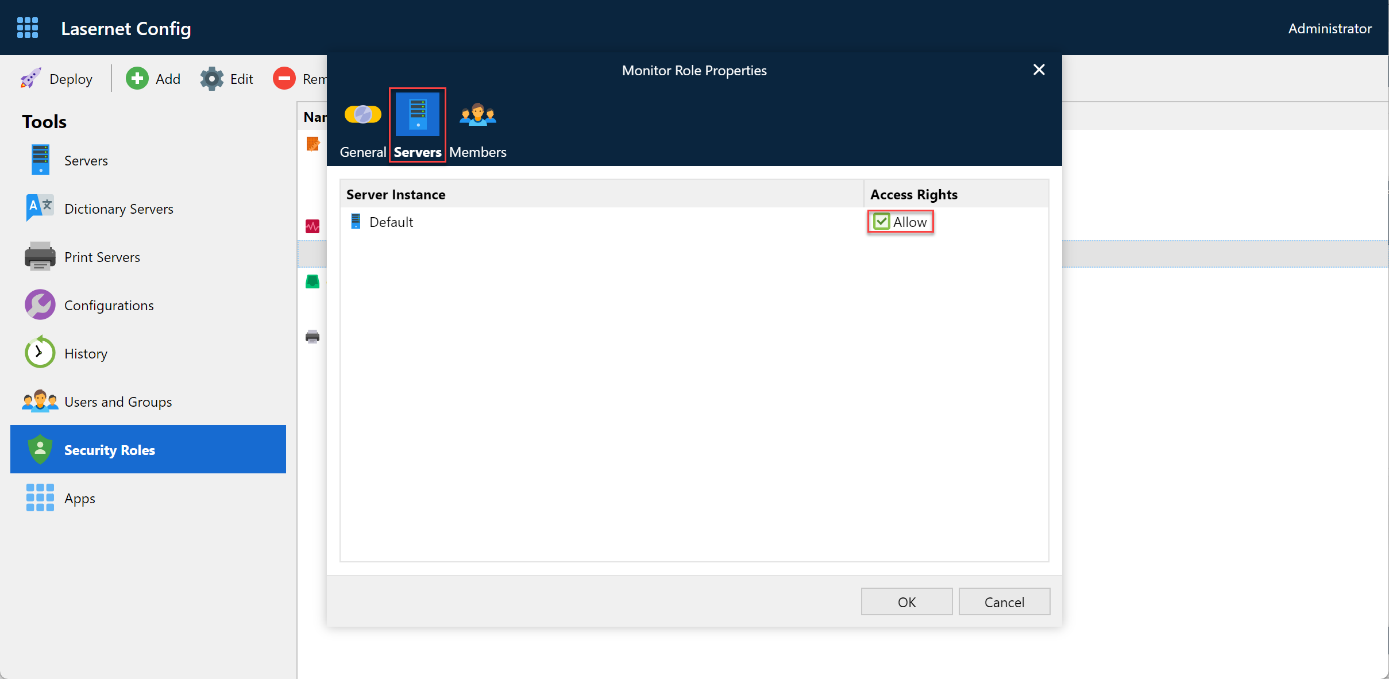
Use the Members tab to add groups to this role.
Important
The ability for a Lasernet Developer user to download grab files is managed by the Monitor -> All rights role. For more information, see Allow a User to Download Grab Files When Using the Lasernet Developer.
Client
Use the Client Role Properties window to add users, groups, or both, to a role that allows users to log in to the Lasernet Client. You can also set access rights to read, write and delete documents / jobs.
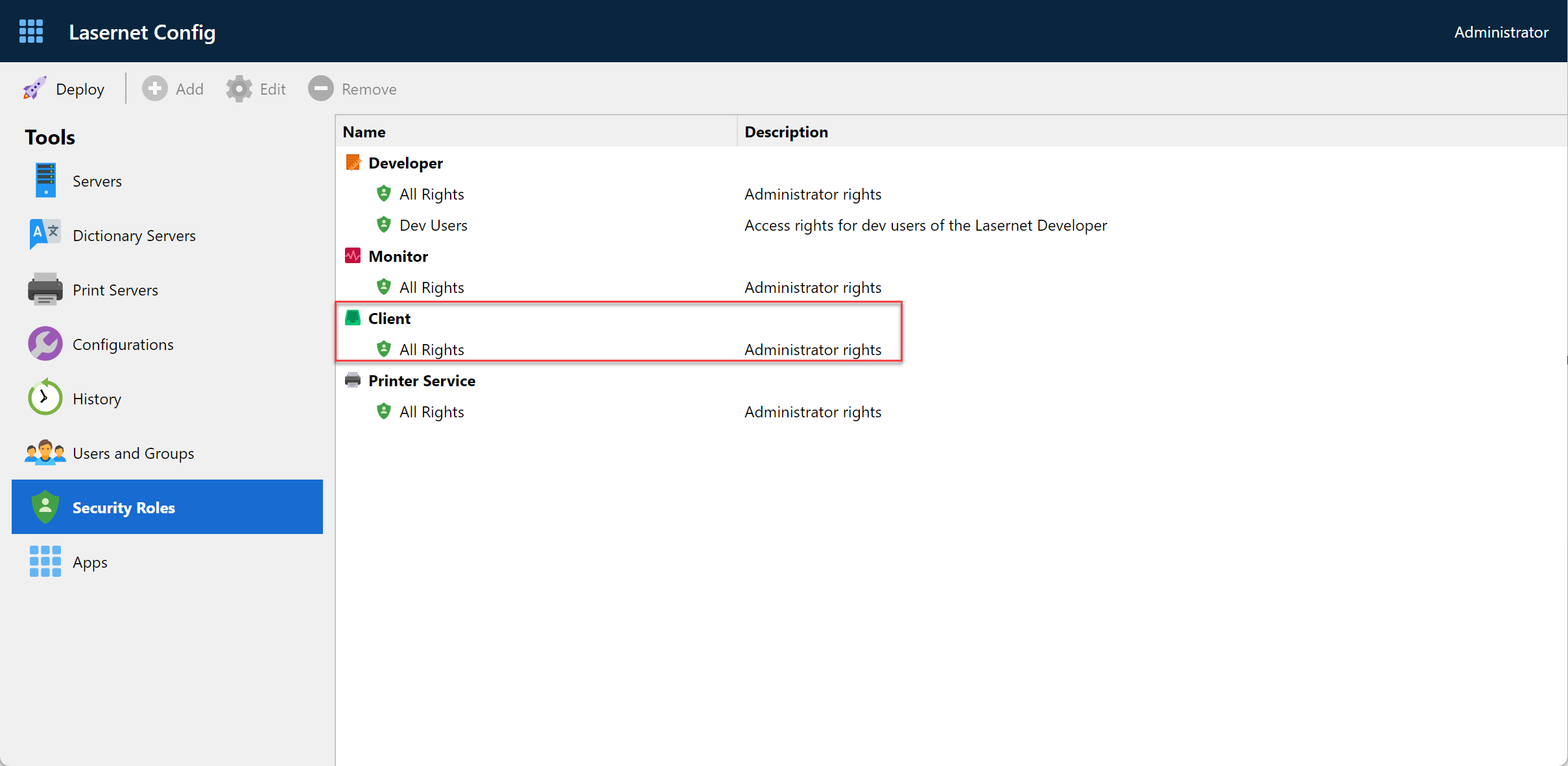
Administrators are members of the All Rights role, so they have full access permissions.
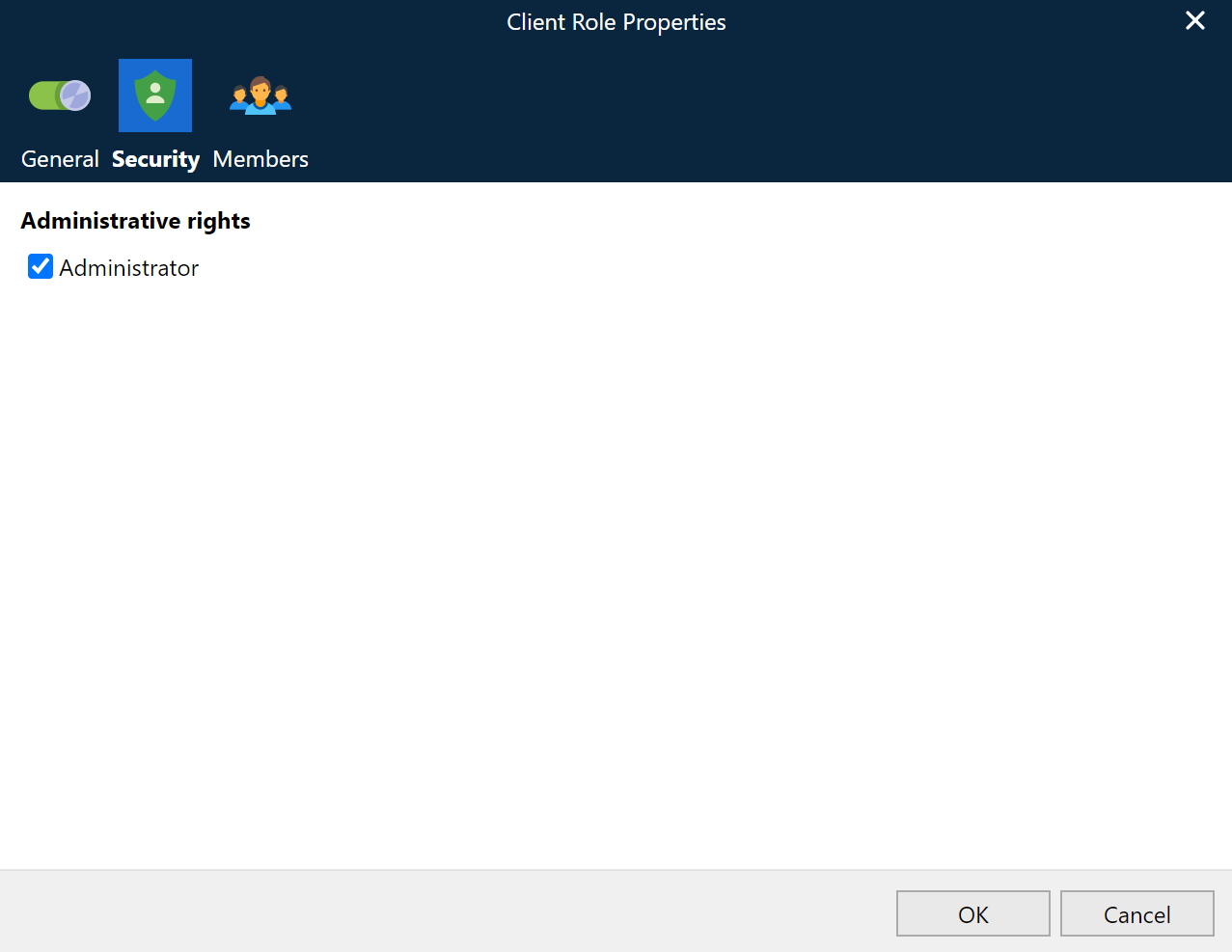
On the Security tab of the Client Role Properties window, you can specify whether Administrator rights are granted to role members.
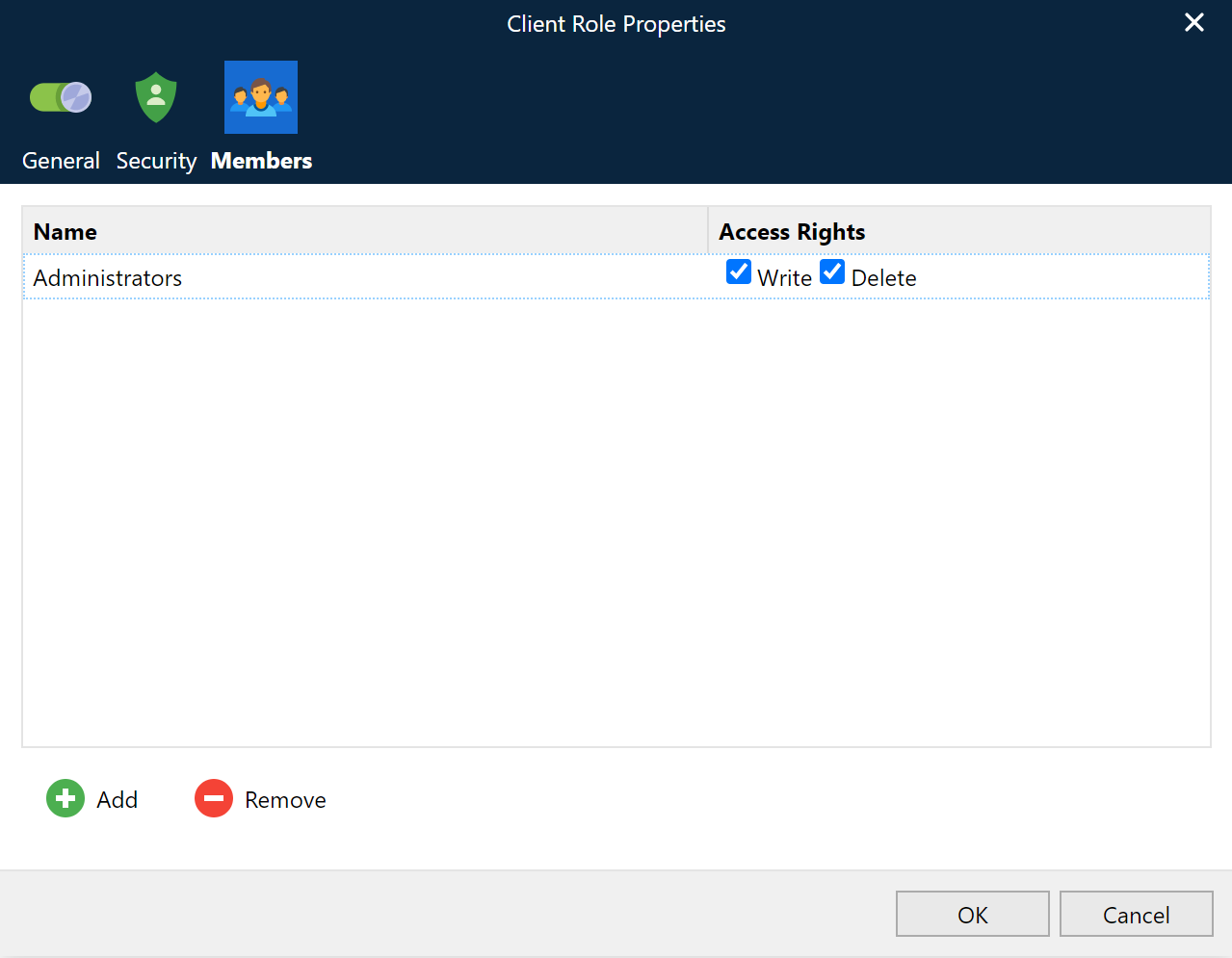
On the Members tab, you can specify which access rights (Write and Delete) are granted to the local Lasernet Core users/groups or Active Directory users/groups that are listed on the Members tab.
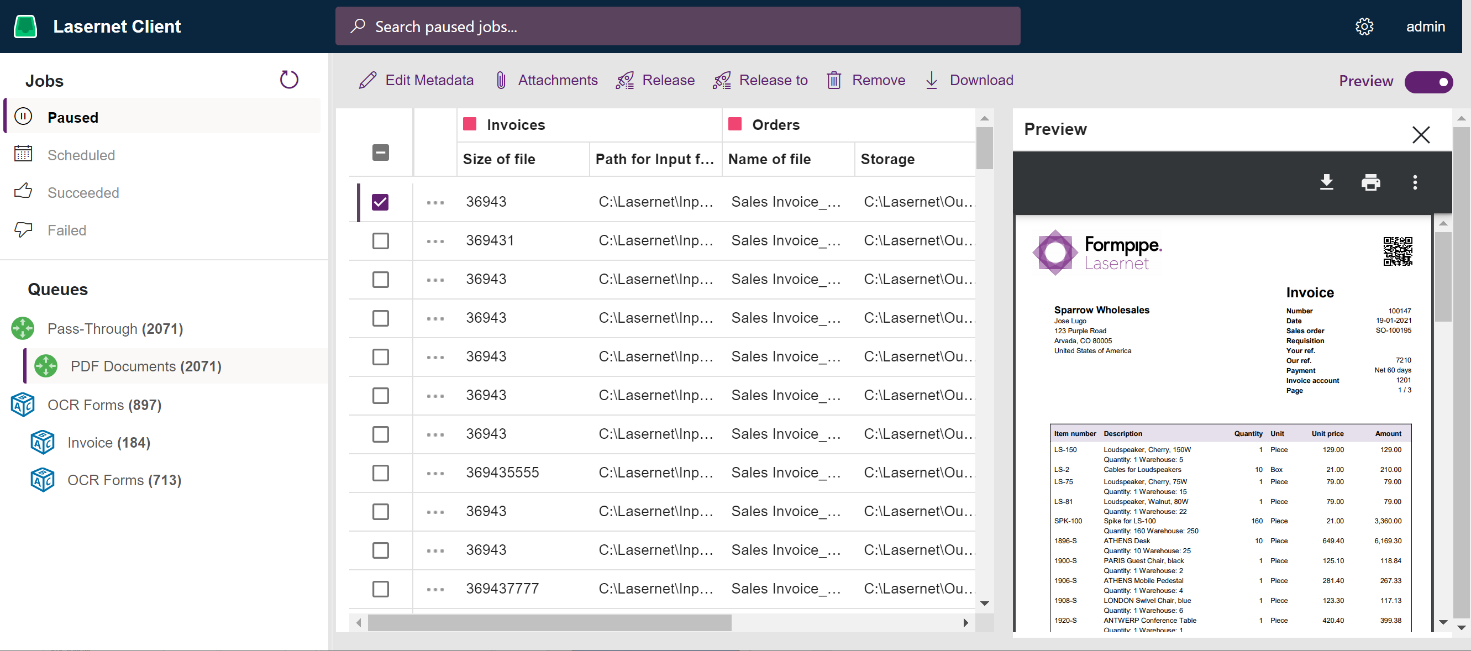
Lasernet Client
If you log in to Lasernet Client as admin, you can access all jobs. Whereas if you log in to Lasernet Client as a restricted user with a mapped security role, you will see only specific jobs.
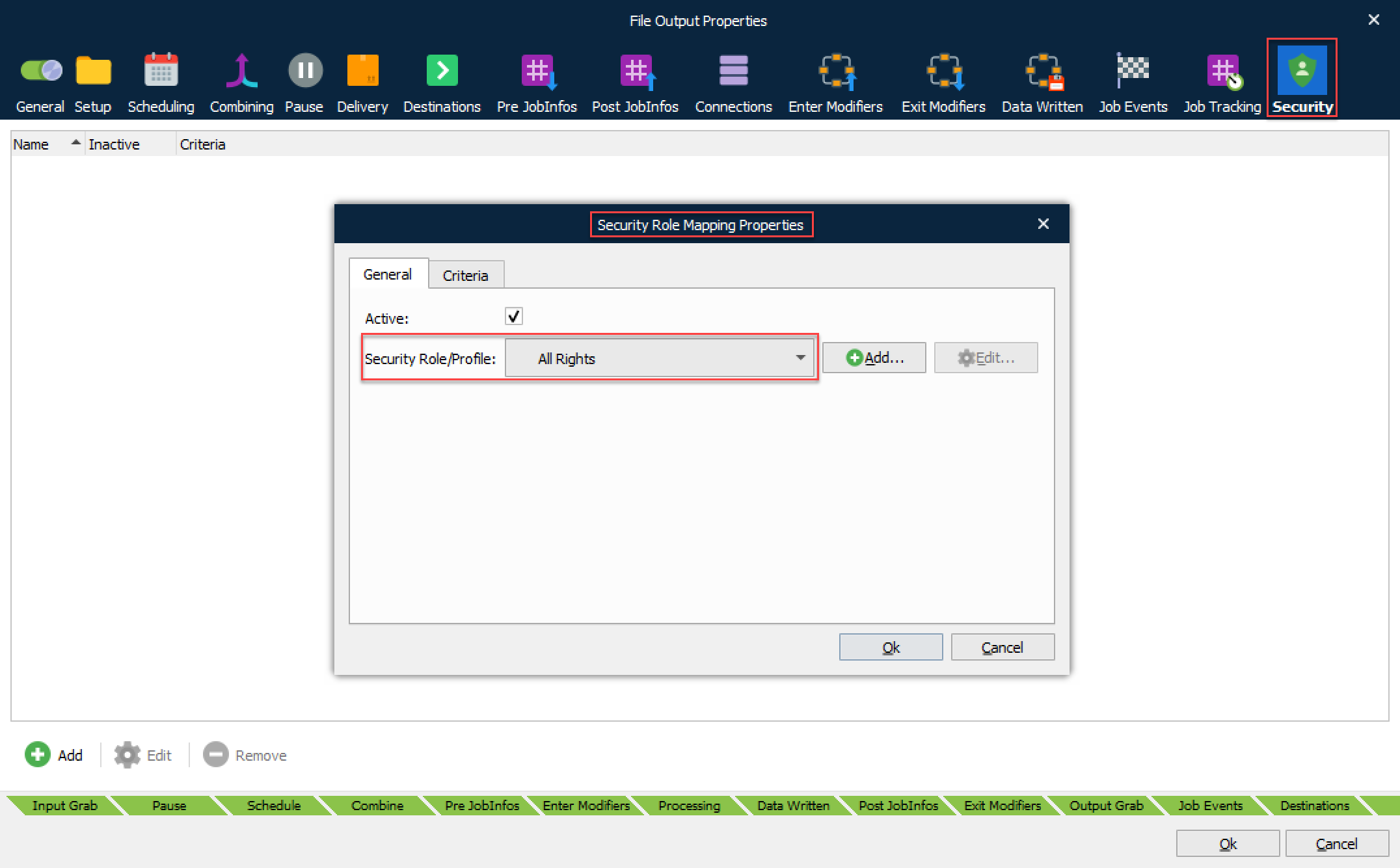
Security Roles Mapping in Lasernet Developer
Note
Security Profiles defined in Lasernet 9 or older are not migrated to Lasernet Core 10 and must be added to the Lasernet Config Server 10 by an Admin user.
The name of a security role added via the modules Security tab in Lasernet Developer will be migrated into Lasernet Core, retaining the name.
If the security roles added to the Lasernet Config Server 10 use the same names, and the user and groups assigned to the role are the same, they are compatible with older versions after upgrading to Lasernet Core 10.
New security roles added to the Lasernet Config Server are loaded in the Lasernet Developer every time the Security Role Mapping Properties dialog opens; therefore, the configuration does not require reloading.
Printer Service
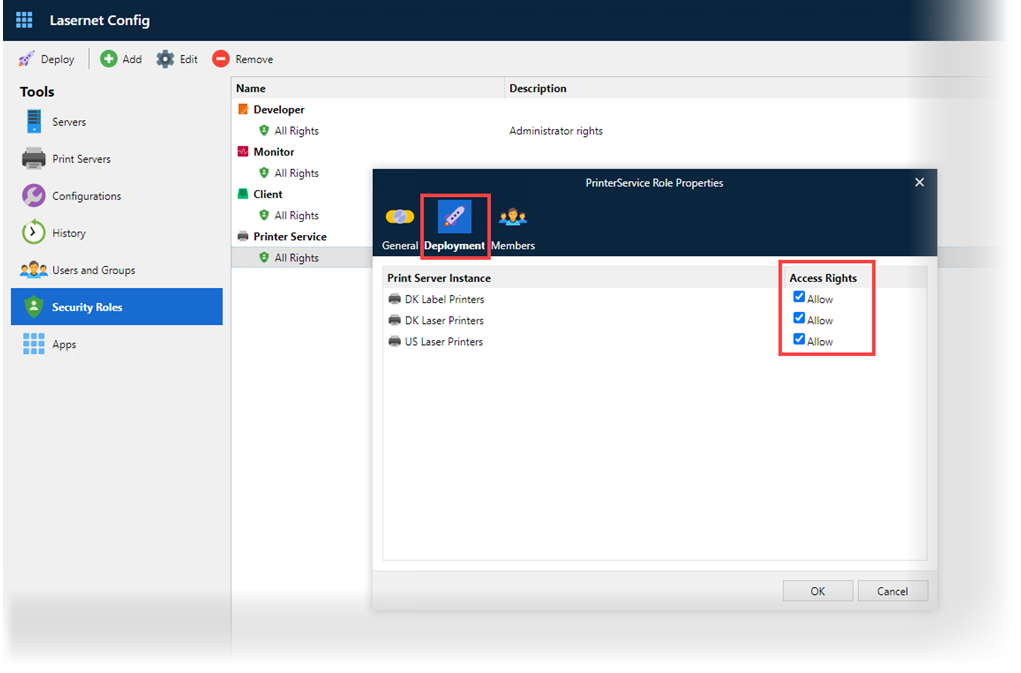
The Printer Service security roles relate to the Lasernet Printer Service application and specify which Printer Services the user can work with. Select the Printer Service section and click Add to add a new developer role.
Click the Deployment tab to view and amend the access rights for each Printer Service instance. Select the Allow checkbox to grant access rights to the corresponding Printer Service instance.