Applies to: Lasernet Core 10
Select the User and Groups tab to view and edit local Lasernet Core users.
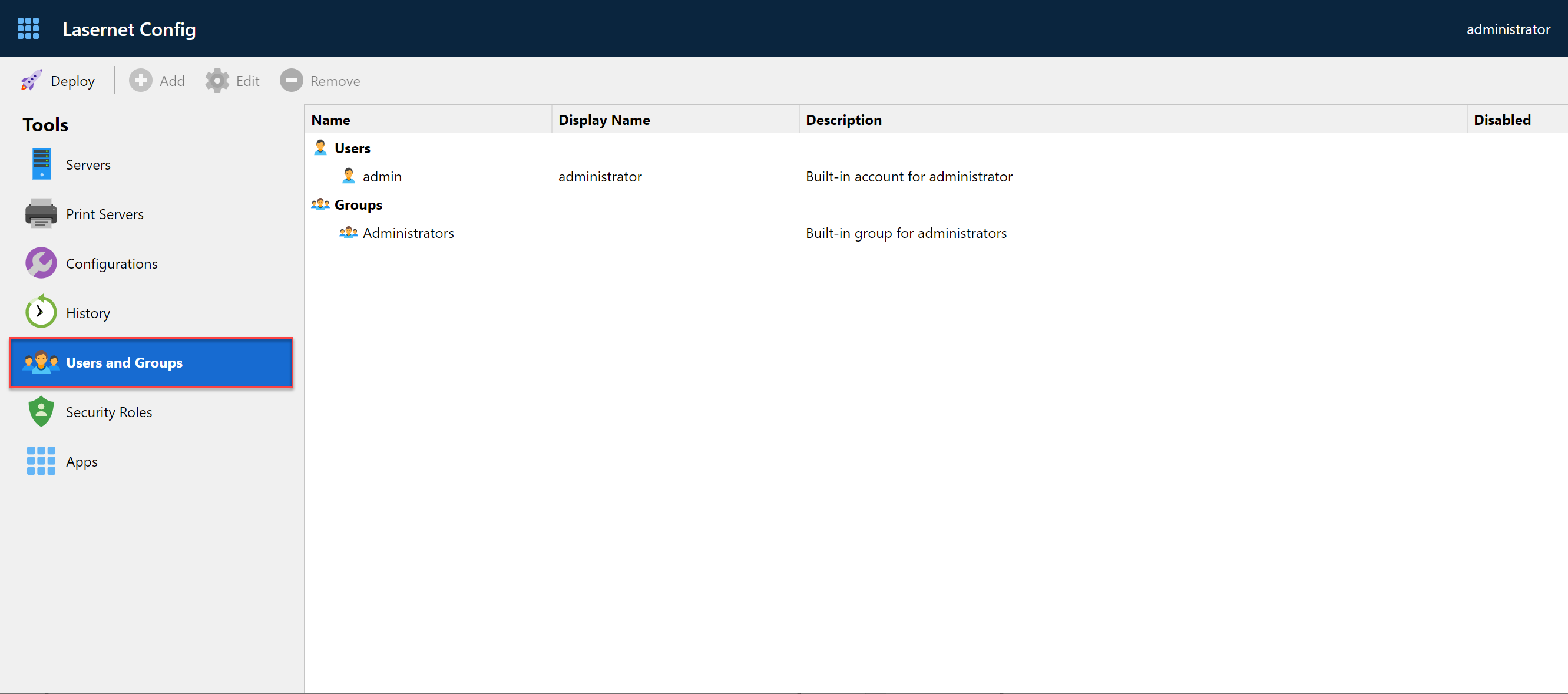
Lasernet Core has a default admin user and a group of administrators that cannot be removed. The security role cannot be changed for this user and this group.
New users can be added to the administrator group and will obtain the same privileges.
Important
Users and groups added to a configuration in an older version of Lasernet are not migrated to the Lasernet Config Server 10 and must be added manually.
Add User
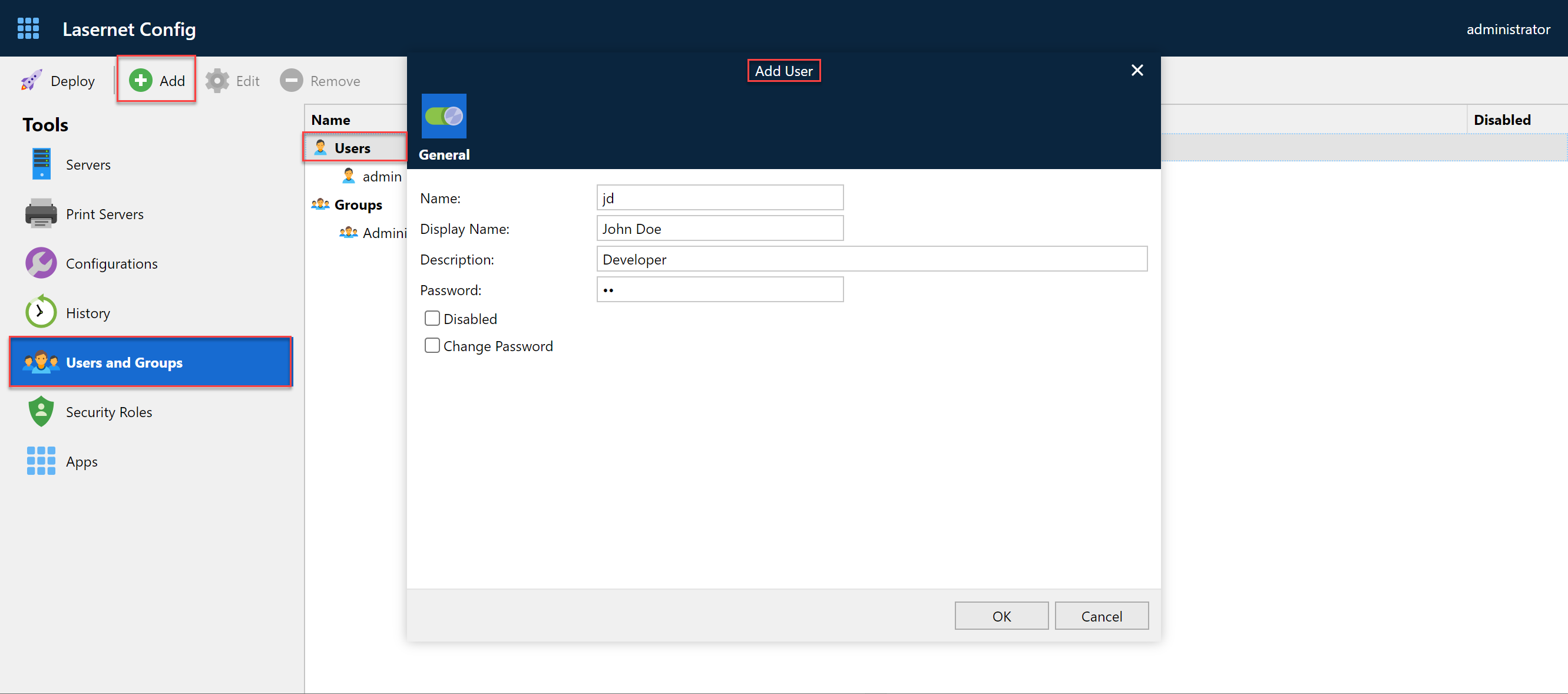
To add a user, select the Users section and click Add. Afterwards, fill in the fields with the required data and click the OK button.
Selecting the Disabled checkbox allows you to disable the user record (the admin record cannot be disabled).
You can force the user to change the password at next login, supported by the Lasernet Config Server and Lasernet Developer only, by selecting the Change password checkbox.
Edit User
To edit a user, click a name of the added user(s). You can now edit the name of the user, disable the account, force the user to change password at the next login or reset the password.
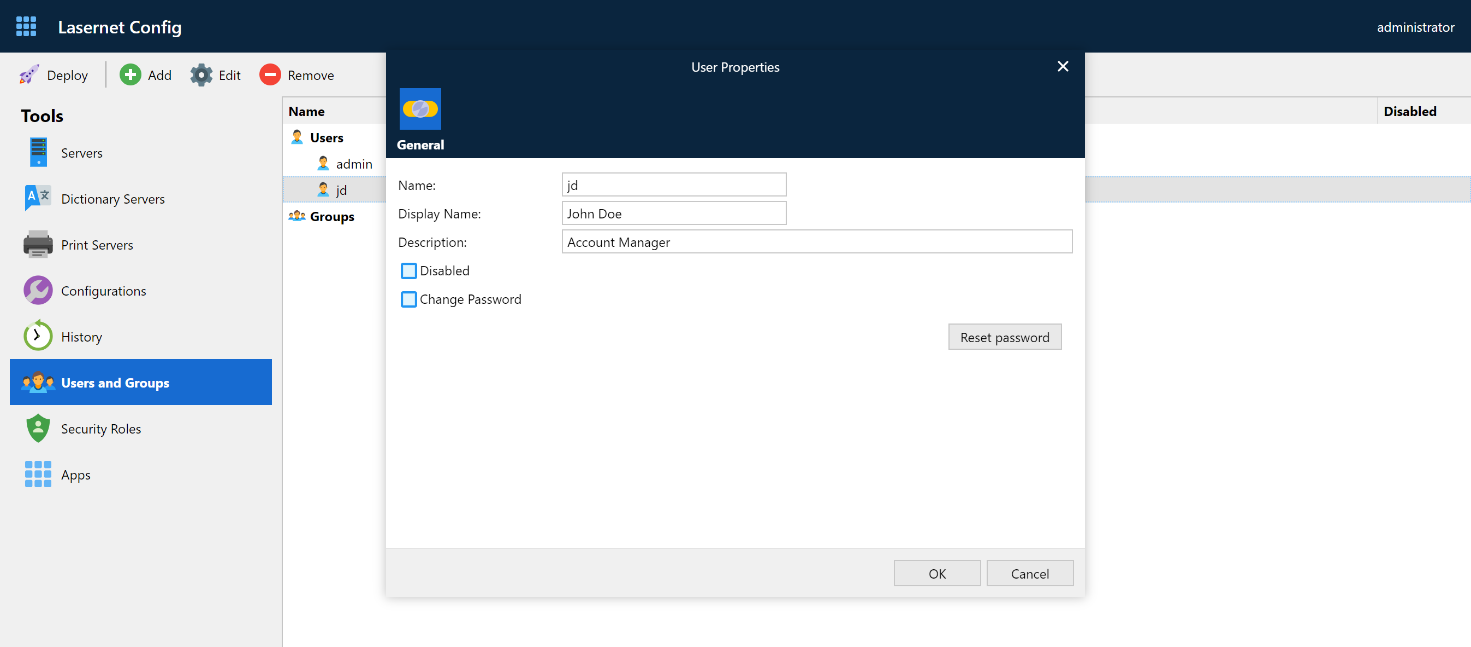
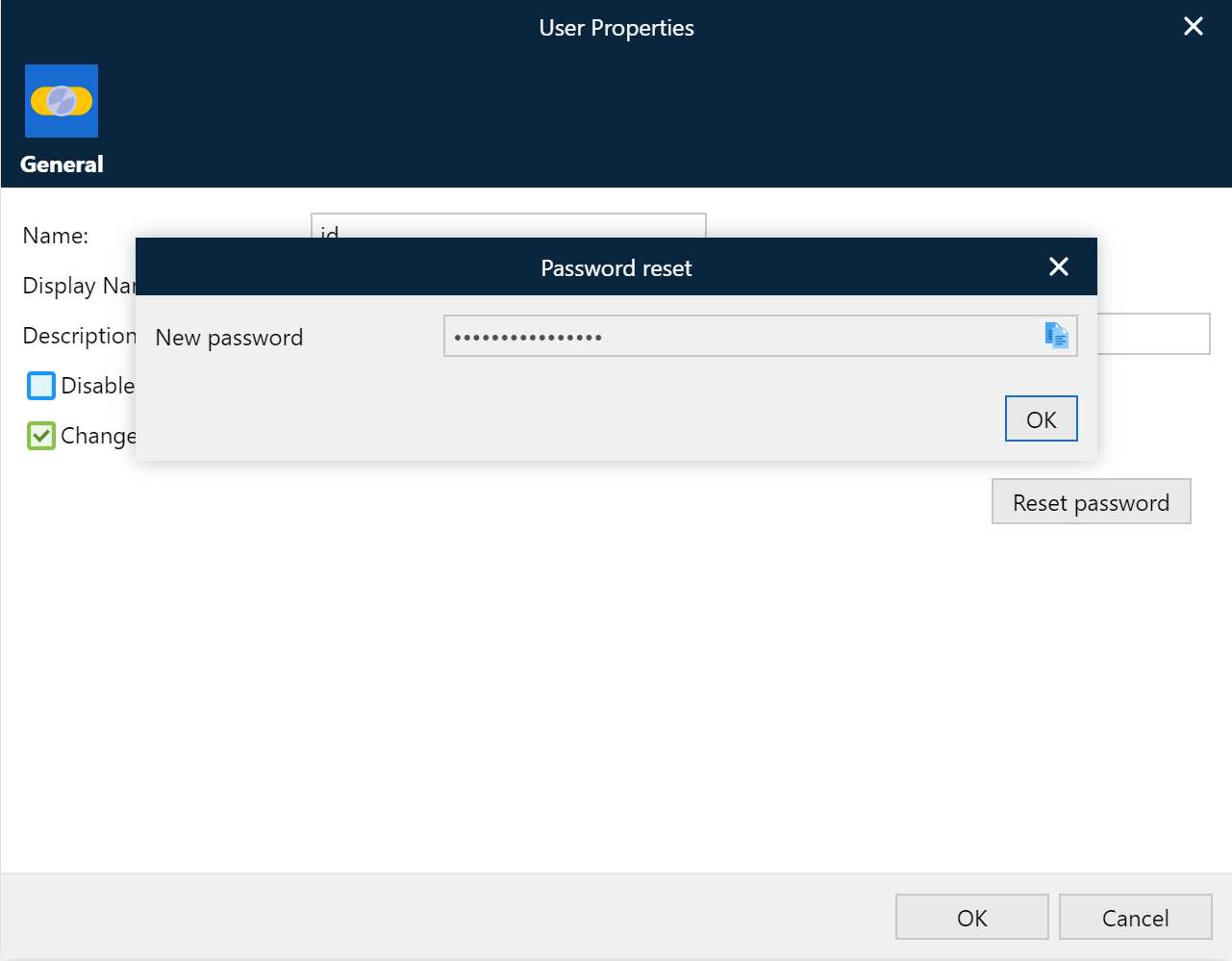
Click Reset password to create a new temporary password for the user. After you click the button, the Lasernet Config web app asks you to confirm that you want to reset the user’s password. If you continue, Lasernet Config resets the user’s password and displays it obscured in the Password reset window.
Click Copy to clipboard to copy the password in clear text. When the user next signs in, they will be asked to change their password.
Add Group
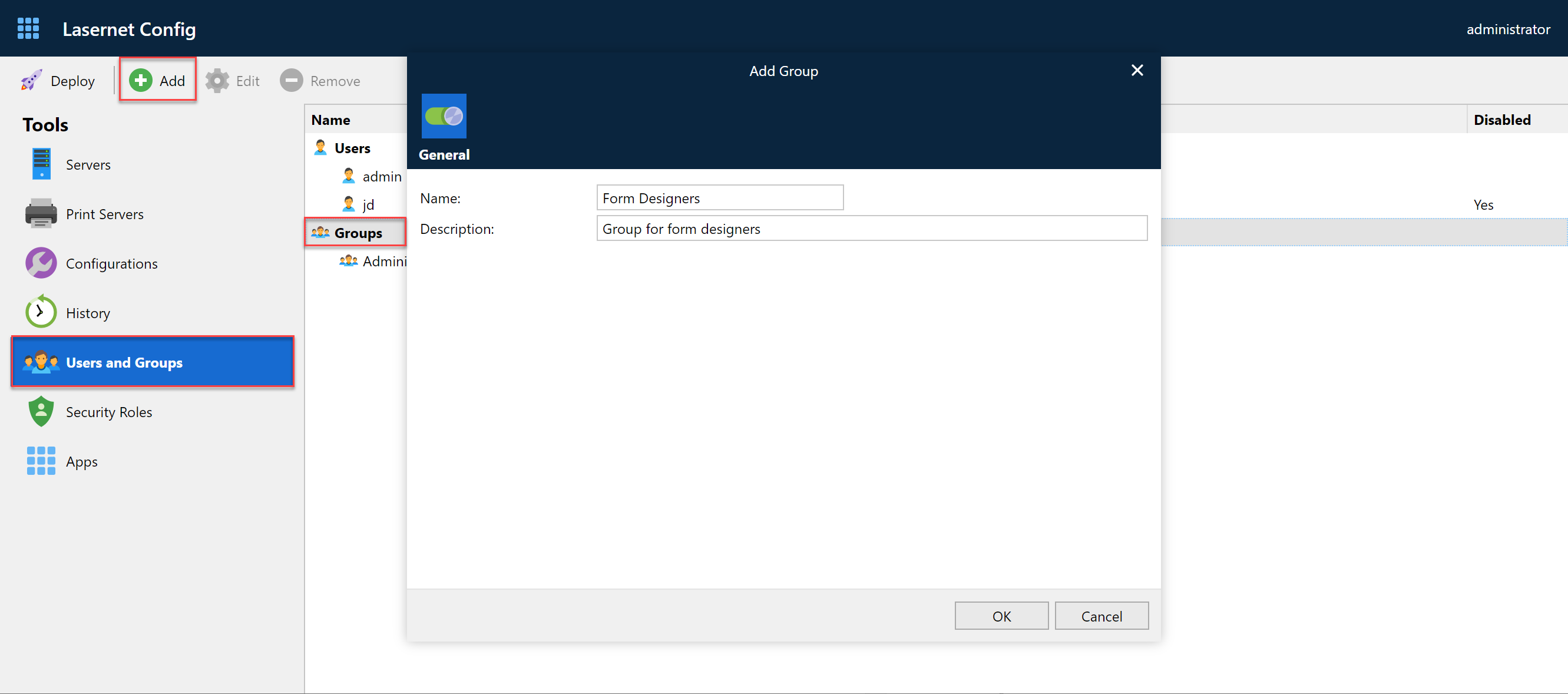
To add a group, select the Groups section and click Add. Afterwards, fill in the fields with the required data and click the OK button.
Edit Groups
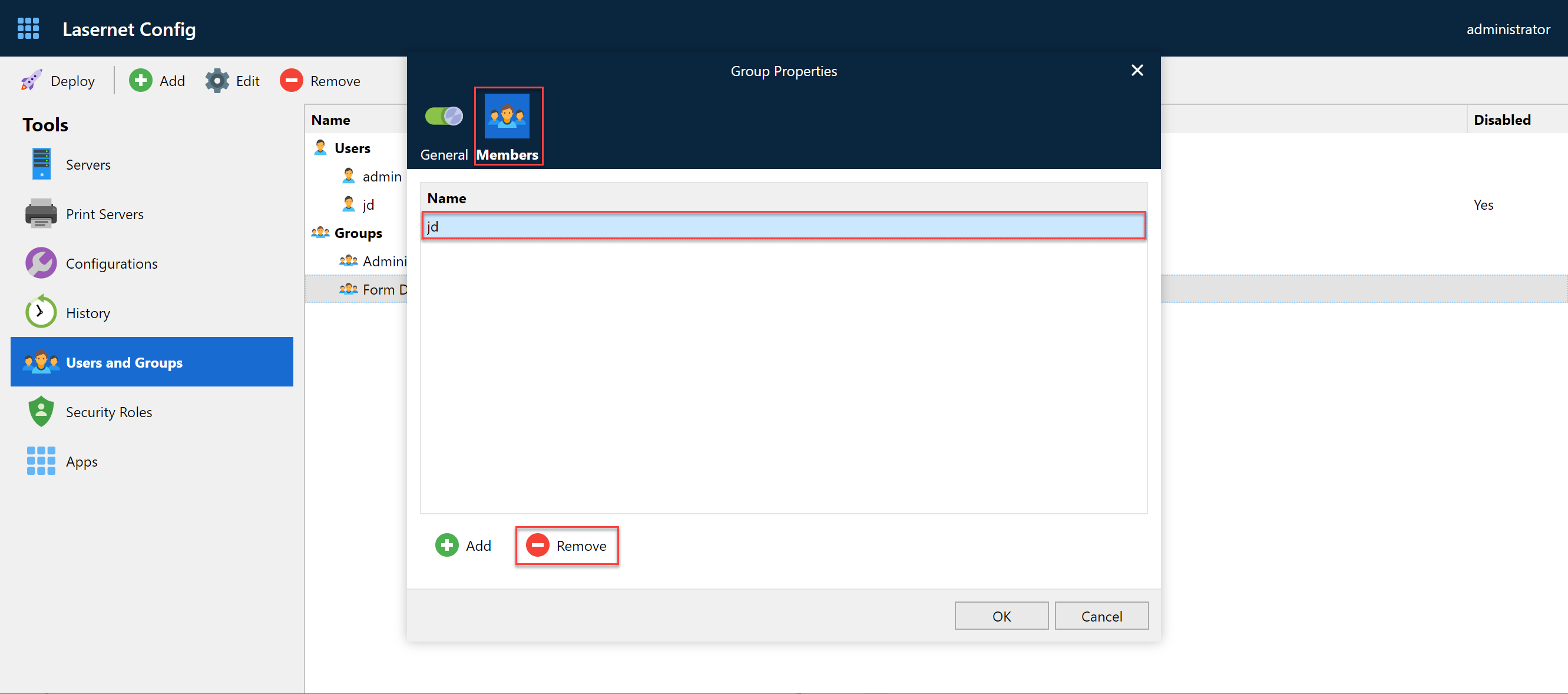
To edit a group, click a name of the added group. You can now add group members.
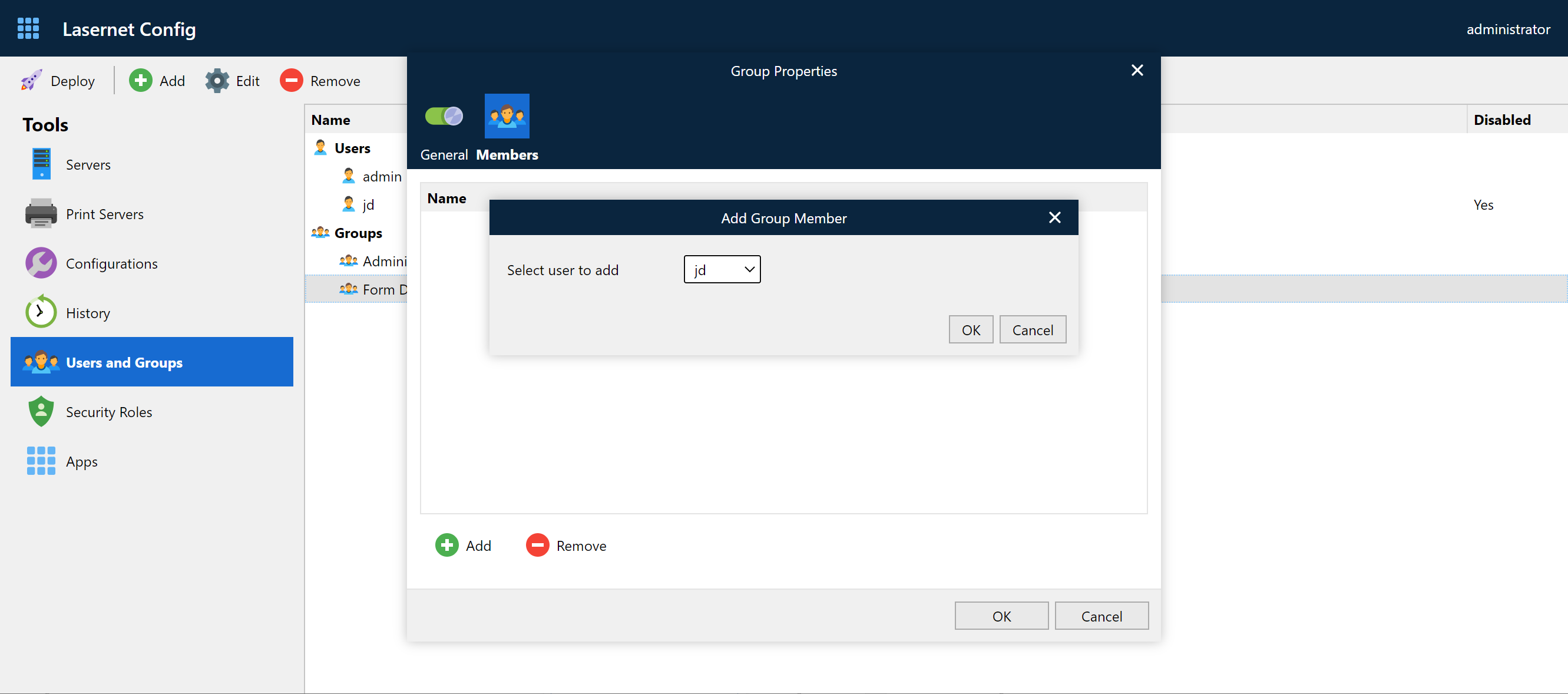
You can also remove group members, if required.