Applies to: Lasernet Core 10
Open Lasernet License Manager to migrate your pre-defined database from Microsoft SQL Server 2017 LocalDB to Microsoft SQL Server. The migration will include:
Configurations
Revisions
Deployment history log
Users and groups
Security Roles
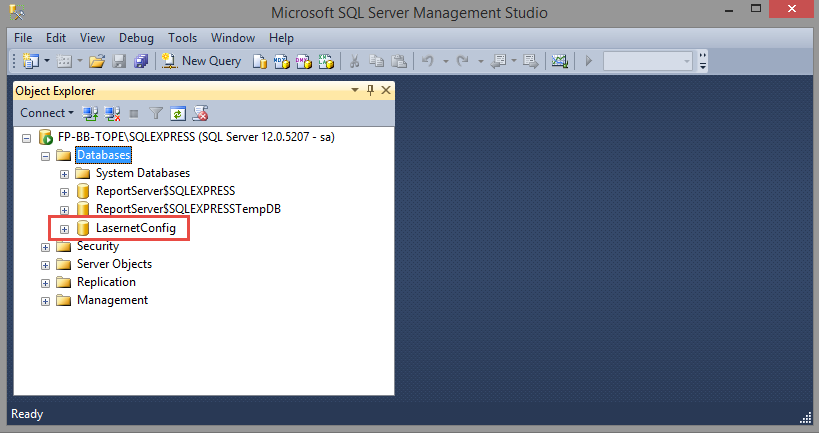
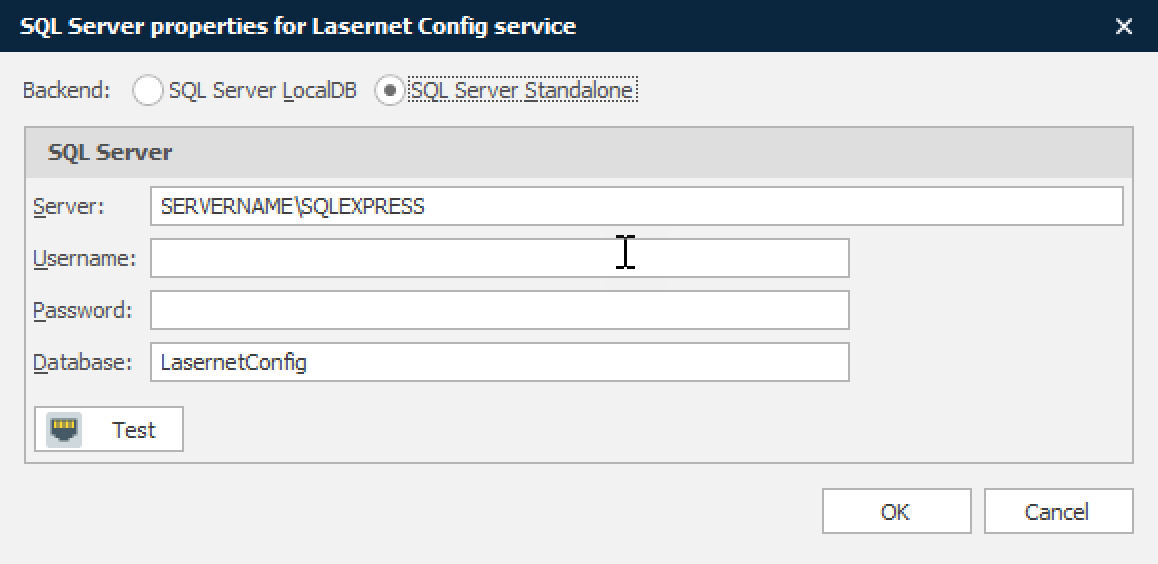
Create a new database with any name in Microsoft SQL Server Management Studio. The database is not added automatically by the migration process. In this example, a database is created in Microsoft SQL Server Express.
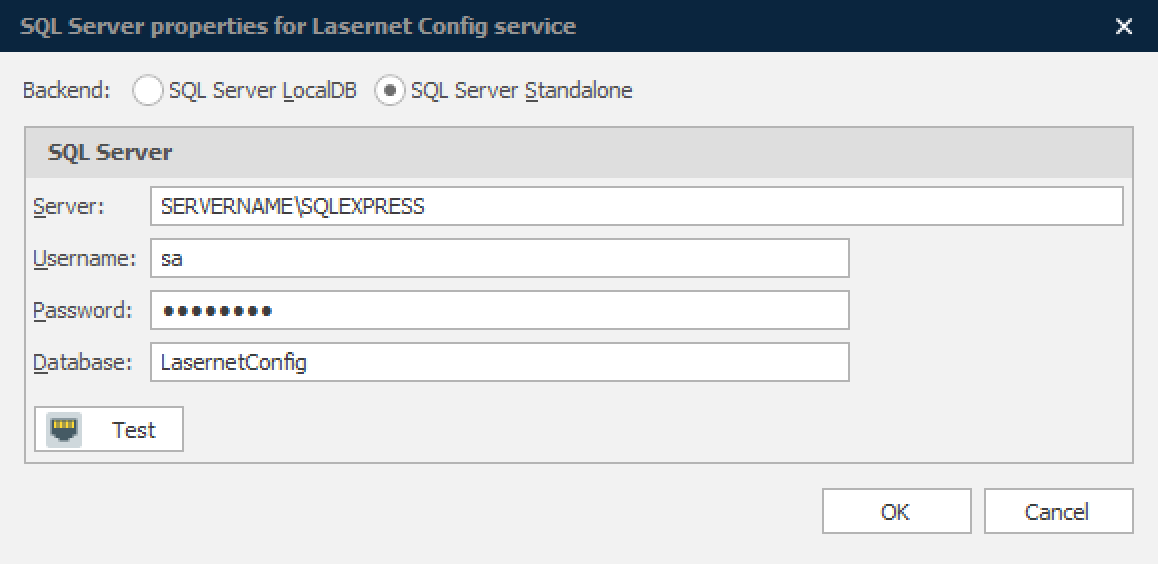
Click the Test button to validate the connection.
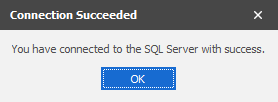
When the OK button becomes active, the connection is successfully established. Click the button to start the migration process.
A file with the connection settings is created in the folder.
C:\ProgramData\Formpipe Software\Lasernet 10\Config\Default\sqlserver.json
The Lasernet Config Server is now connected to the Microsoft SQL Server. No further actions are needed.
You cannot migrate the opposite way around. If the file sqlserver.json is removed, the Lasernet Config Server will connect to the Microsoft SQL Server 2017 LocalDB and use the same revision of the database from before the migration.
Windows User Authentication
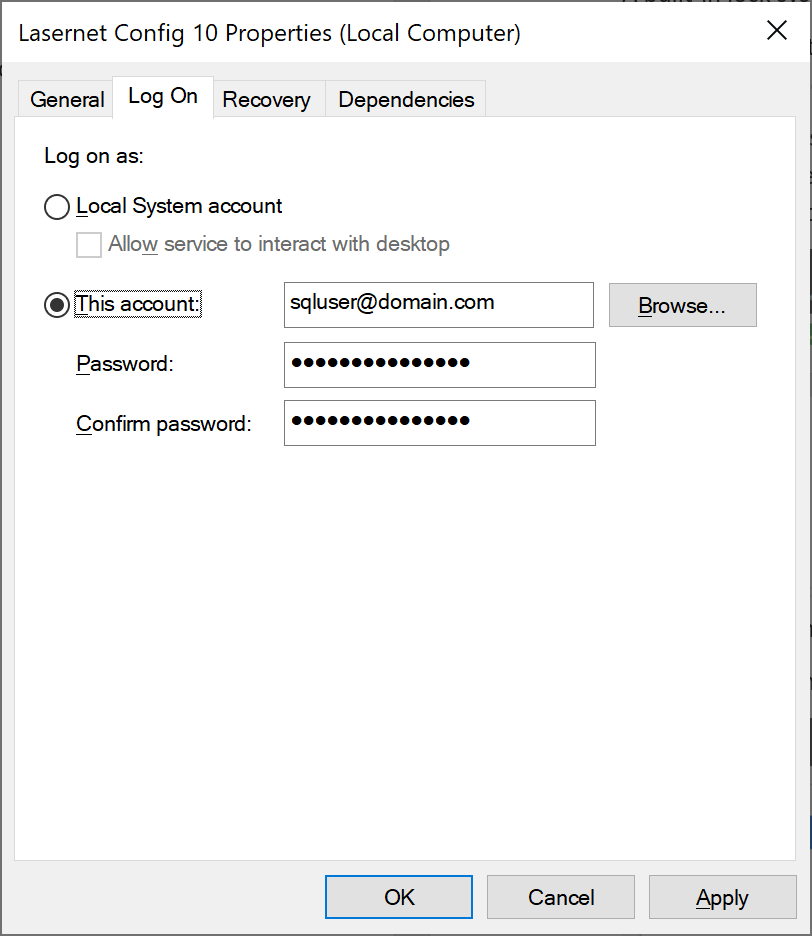
Support for Windows User Authentication in SQL Server is supported by the Lasernet Config Server, by leaving username and password empty in the Lasernet License Manager -> Config SQL Server settings
and authenticate the Lasernet Config 10 Service as the Windows user.