Applies to: Lasernet Core 10
Running Service for Lasernet Config Server
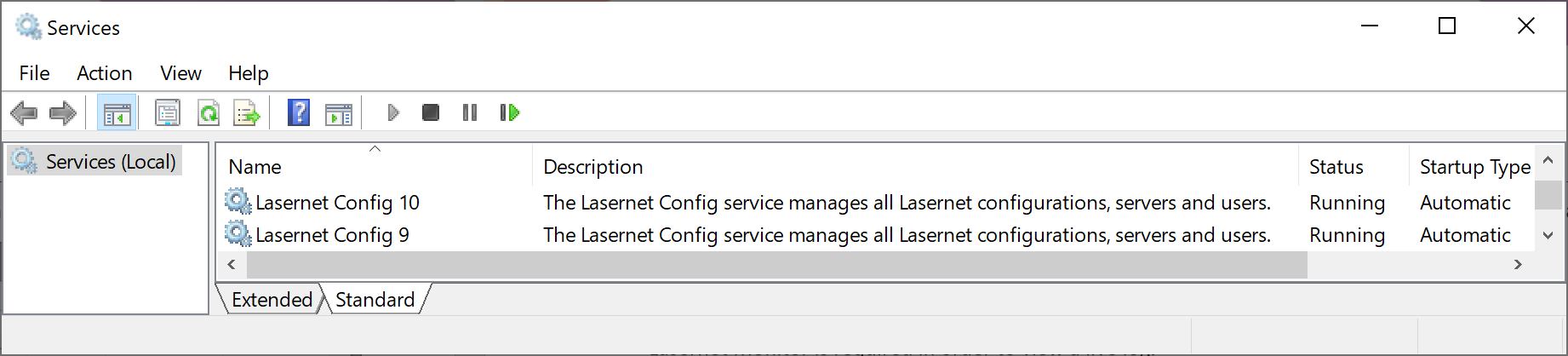
A single service named Lasernet Config 10 is installed by the Lasernet Core Server 10 installer and must be running for the Lasernet Config Server.
Note
The Lasernet Config 9 service can run on the same server at the same time.
Lasernet Config 10
This service manages all Lasernet Core configurations and act as a relay proxy between
Lasernet Developer
Lasernet Client app
Lasernet Web Client
Lasernet OCR
Lasernet Meta
and the Lasernet Core Service(s).
Lasernet Core Application Process
This chapter gives an overview of the Lasernet Core application process as well as information on how to manage, configure and run it.
Lasernet Developer 10: one (single client) or several computers (multiple clients) to create and build a configuration.
Lasernet Config Server 10: a single server to store configurations, server settings, revisions, history, users and groups and security roles. Access to a Microsoft SQL Server is required.
Lasernet Core Server 10: one (single) server to run the production service instance or several servers to setup an enterprise environment for the development, staging and backup servers. Access to a Microsoft SQL Server is required.
The applications and service can be installed on a single computer, but multi-server environment is recommended.
Note
Lasernet Core is pre-installed by default with a Microsoft SQL Server 2017 LocalDB. Migrating to Microsoft SQL Server is recommended for enterprise users backing up servers.
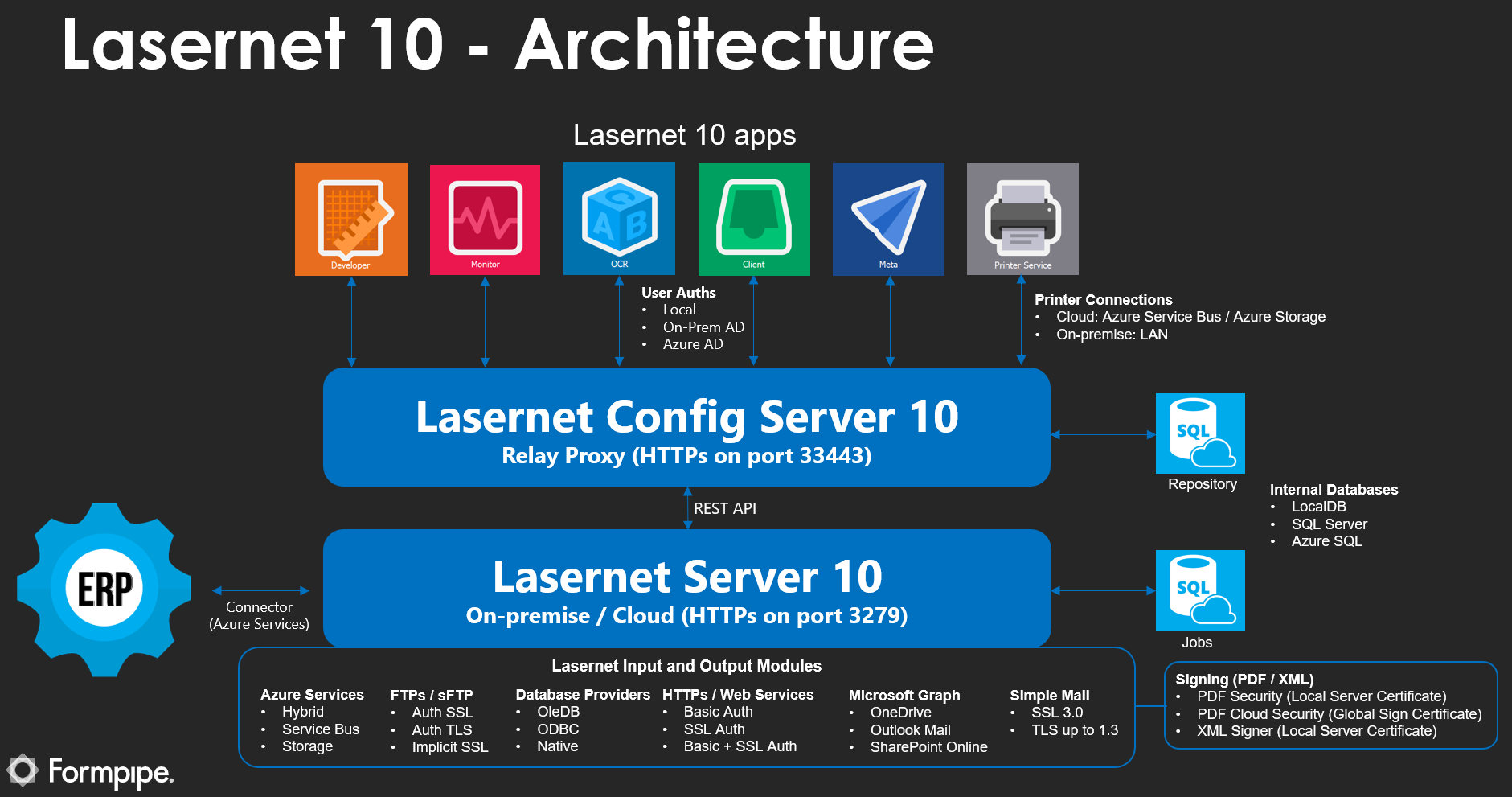
The listed port numbers are default values and can be changed in:
C:\ProgramData\Formpipe Software\Lasernet 10\Config\Default\ServerSettings.json
An open connection between the listed applications and services is required.
Lasernet Config Server
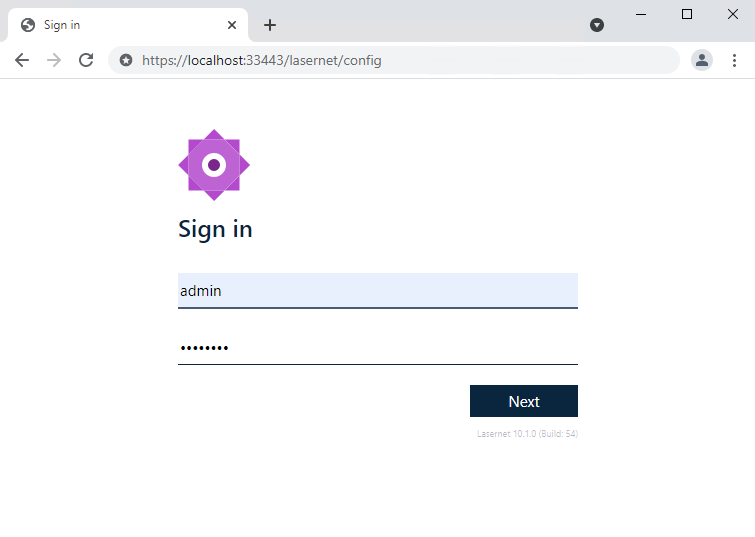
To access the Lasernet Config Server use the following URL:
https://[servername]:33443/lasernet/config
Disabling Internet Explorer Enhanced Security Configuration
On some computers you may need to disable the IE Enhanced Security Configuration in the Server Manager 🡪 Local Settings.
More information can be found here:
https://support.microsoft.com/en-au/help/815141/internet-explorer-enhanced-security-configuration-changes-the-browsing
Supported browsers are: Microsoft Edge, Google Chrome, Mozilla Firefox
Group policy to "disable" OCSP checking
On some computers, not connected to the Internet, you may need to change the OCSP request timeout in the Server Manager 🡪 Local Group Policy Editor 🡪 Local Computer Policy 🡪 Computer Configuration 🡪 Windows Settings 🡪 Security Settings 🡪 Public Key Policies
Object Type: Certificate Path Validation Settings
Tab: Network Retrieval
Define these policy settings: Active
Default URL retrieval timeout: 1 second (Default: 15 seconds)
Default path validation cumulative retrieval timeout: 1 second (Default: 20 seconds)