

Applies to: Lasernet Core 11
You can apply one or more text strings and images as stamps to pages in a PDF document.
You can enter text for the modifier to stamp. Images must be carried by a JobInfo as binary graphics in PNG, JPEG, or TIFF format before the modifier is executed. Similarly, if the stamp data is in PDF format, the PDF data must be carried by a JobInfo.
Notes
The sheet design must be processed before using the PDF Stamp modifier.
The modifier can be applied at sheet or module level.
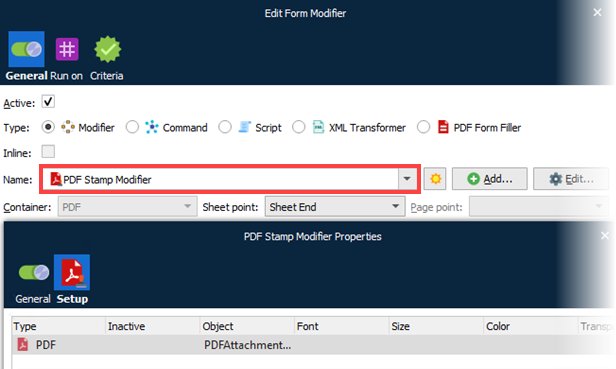
Add and Edit Stamper Items
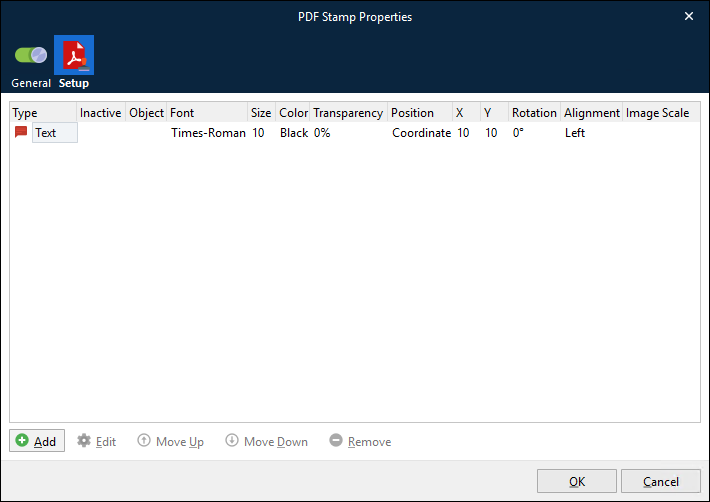
In the PDF Stamp Properties window:
Click Add to configure a new stamper item.
Click Edit to edit an existing stamper item.
The modifier inserts the items in the specified order as layers in the PDF document.
Stamper Item Properties
Stamper items have the following properties.
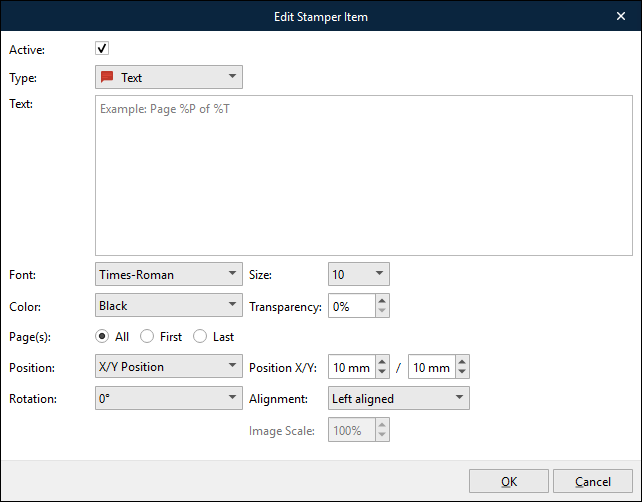
Active | Toggles the stamper item on or off. |
Text: Stamp the PDF with the text provided in the Text box. Image: Stamp the PDF with the image data carried by the specified JobInfo. PDF: Stamp the PDF with the PDF data carried by the specified JobInfo. | |
Text | A fixed text string. The text can contain parameters for inserting page numbers. Enter %P to insert the current page number and %T to insert the total page count. For example, Text can contain Page %P of %T |
JobInfo | Insert the contents (binary graphics or PDF data) of the specified JobInfo. Supported binary graphic formats:
|
Font | Select a font for text stamps. Standard Fonts As standard, the following fonts are available:
Fonts in the Lasernet Core Configuration If the Resources > Fonts area of the configuration contains TrueType (
|
Size | Font sizes available: 4-12, 14, 16, 18, 20, 22, 24, 26, 28, 36, 48, 72, and 96 pt. |
Color | Black, White, Red, Green or Blue. |
Transparency | Set a transparency value for the text. 0 % is opaque (darkest) and 100 % is fully transparent. Non-zero transparency is recommended for text inserted in the background. |
Page(s) | Specifies which page will be stamped:
|
Position | Set the position of the text. The values that you provide if X/Y Position is selected insert the text in a position relative to the upper left corner of the paper. Top, Center and Bottom positions are relative to the X/Y margins. |
Rotation | Rotate the text by the selected number of degrees:
|
Image Scale | Scale the image. Values below 100% reduce the image size (compared to the original image). Values above 100% enlarge the image. |