Applies to: Lasernet Core 10
Services
Lasernet Server 10 includes four main services and two additional services. The Lasernet Print Capture 10 service is automatically added by the installer. The Lasernet 10 service is installed from the Lasernet License Manager:
Lasernet Print Capture 10: This service will be started automatically by the installation program. When started it creates a Windows print queue named Lasernet Print Capture. The print queue is used for capturing overlay files which can then be imported manually into a Lasernet Core configuration, via the Lasernet Developer.
A printer port named Lasernet Capture is created in Microsoft Windows. To remove this printer port, the print queue must be deleted before stopping the Lasernet Print Capture service.
The service will be removed if you uninstall the software package.
Lasernet 10 (Default:3279): This is the service that is used for running setups (the default install uses the instance name ‘Default’, running on port 3279). By default, the service Startup Type is set to ‘Automatic’, and the Status will show as ‘Started’. After installation it may be necessary to change the account associated with the service as the default Local System user does not have any network rights. The name of the instance is written between the brackets () and the number after the colon shows the listening port. You can install and run more than one instance of the Lasernet 10 service.
The service will not be removed if you uninstall the software. You have to manually uninstall the service from the Lasernet Server License Manager. As good practice and to ensure your license can be reused, you should always deactivate the Lasernet Core license before you uninstall the software.
To start the service or change the account, go to Control Panel > Administrative Tools > Services

Right-click the Lasernet 10 service and choose ‘properties’ to set the ‘Log-on’ account. The chosen account must have a level of administrative privileges which, as a minimum, allows Lasernet Core to install and update printers.
Lasernet Config 10: A service to manage all the Lasernet Core Configurations.
Lasernet Client 10: A service that provides a web interface for Lasernet Client, to manage temporary stored jobs by the Lasernet 10 service. Installed by the Lasernet Client installer.
Lasernet Dictionary 10: Only required for users running Lasernet Core Input Management with dictionary support. Added from the Lasernet Server License Manager.
Lasernet Proxy Meta 10: Allows multiple Meta instances to run on the same machine. Installed by the Lasernet Meta 10 installer.
Folder Permissions
The Lasernet Core service stores its configuration files in an application data folder. The correct permissions must be set on this folder so that the account used by the Lasernet Core service can access it. The Lasernet Core service stores its data files in the folder:
C:\ProgramData\Formpipe Software\Lasernet 10
To set the access rights, browse to the folder in Windows Explorer, right-click on it and choose “Properties”. Choose the “Security” tab. Add the account that the Lasernet Core service is using to run and give the account Full Control to the folder.
Print Queues
The Lasernet Core install will install all necessary 64-bit printer components into the Windows spooler system. Printer components will not be removed when uninstalling Lasernet Core from the computer. This prevents you from losing importing Windows spooler settings when uninstalling Lasernet Core during an upgrade.
Lasernet Print Capture 10: Created by the Lasernet Print Capture and used for capturing overlay files which can then be imported manually into a Lasernet Core configuration, via the Lasernet Developer.
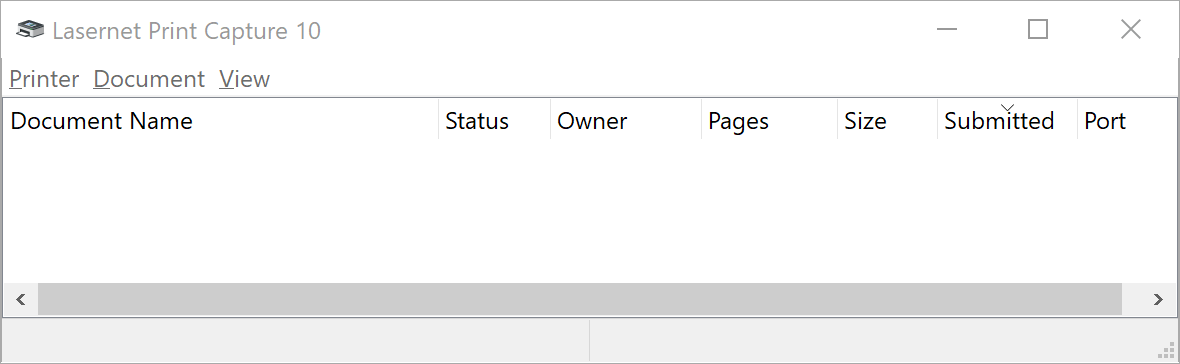
The print queue has user-defined device settings for the margin. The default left margin is 6.4 mm and the top margin is 4.2 mm.
The print queue will not be removed automatically when stopping the Lasernet Printer Capture service. This enables you to change the default settings without losing them when restarting the service.
The default print processor is set to Lasernet Print Processor (see advanced tab for your printer queue).
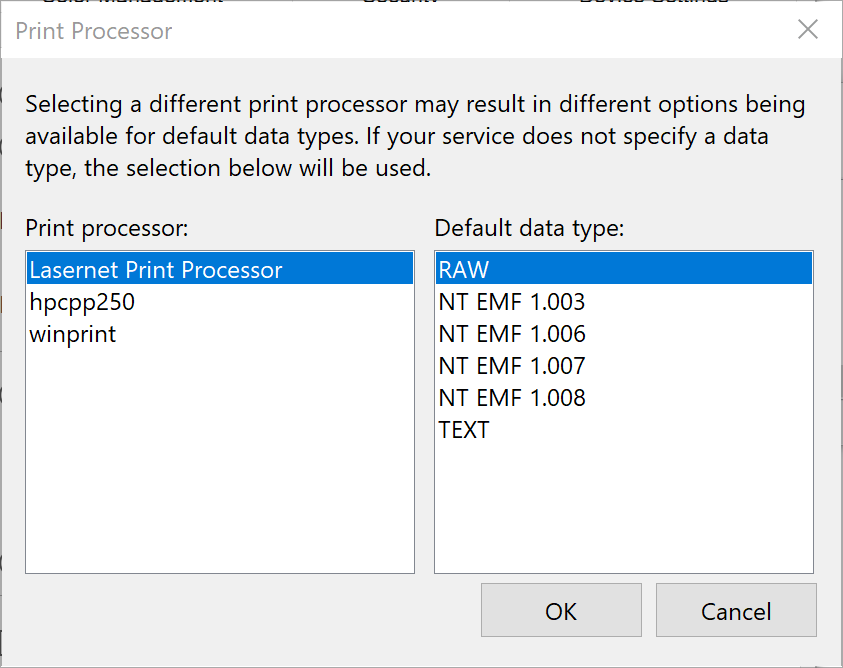
The Lasernet Print Processor bypasses the Windows spooler and a Windows EMF file is created as the preferred overlay file format.