Applies to: Lasernet Core 10
The SharePoint Output module is used to insert a new document in SharePoint with metadata or to update the metadata of an existing document. Supported connection types are Web Services and REST API (Legacy or Graph).
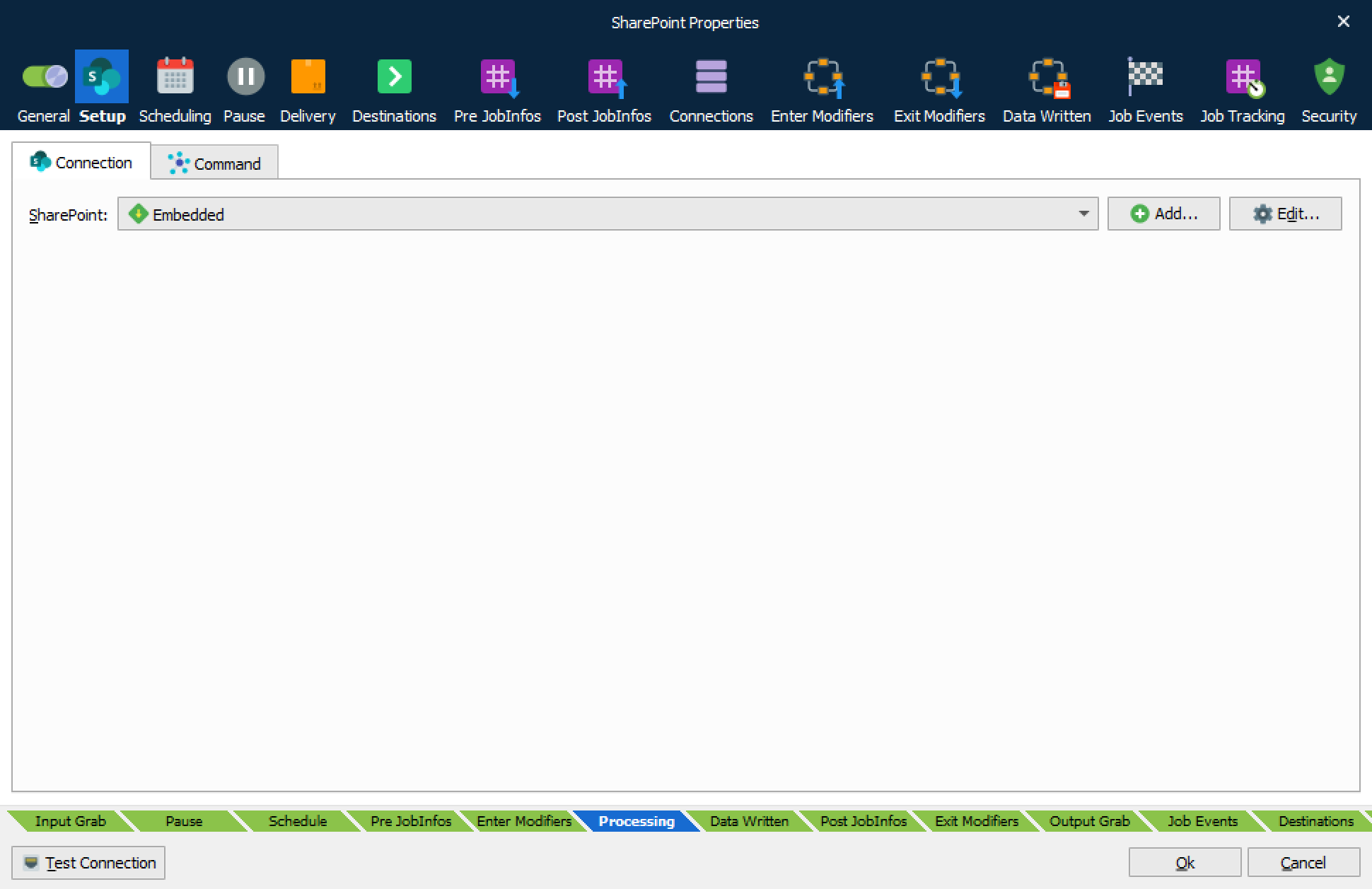
On the Connection tab, select Embedded from the drop-down menu and click Edit to set up a connection to SharePoint. An embedded connection is accessible from this module only.
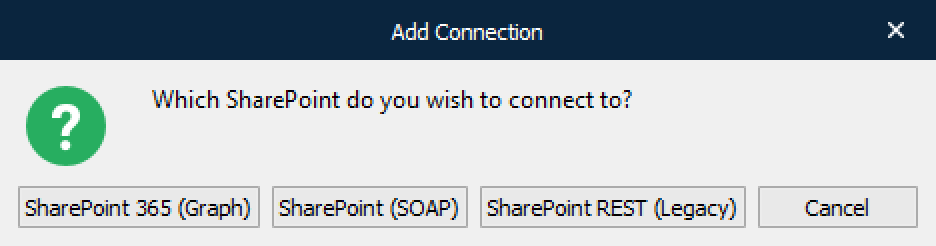
Supported API versions are:
SharePoint 365 (Graph)
SharePoint (SOAP)
SharePoint REST (Legacy)
Connect to SharePoint via Graph, SOAP (Web Service) or REST (Legacy). An advantage of using Graph (which is the latest Microsoft API) or REST is that you do not have to add references to any SharePoint 365 libraries or client assemblies. Instead, you make HTTP requests to the appropriate endpoints to retrieve or update SharePoint 365 entities, such as webs, lists, and list items.
Note
Supported command types and properties can vary between the protocols because not all types are supported by the Graph and REST interfaces.
Note
From December 2026 onwards, you must upgrade to Lasernet Core 10.13 to use this module. As part of that process, you must update this module in your Lasernet Core configuration. If you do not upgrade, your Lasernet Core system will stop working from December 2026. For more information and for steps that describe how to update this module in your configuration, see Make Mandatory Configuration Updates Due to OneDrive, Outlook Mail, and SharePoint Module Changes on the Lasernet Knowledge Base.
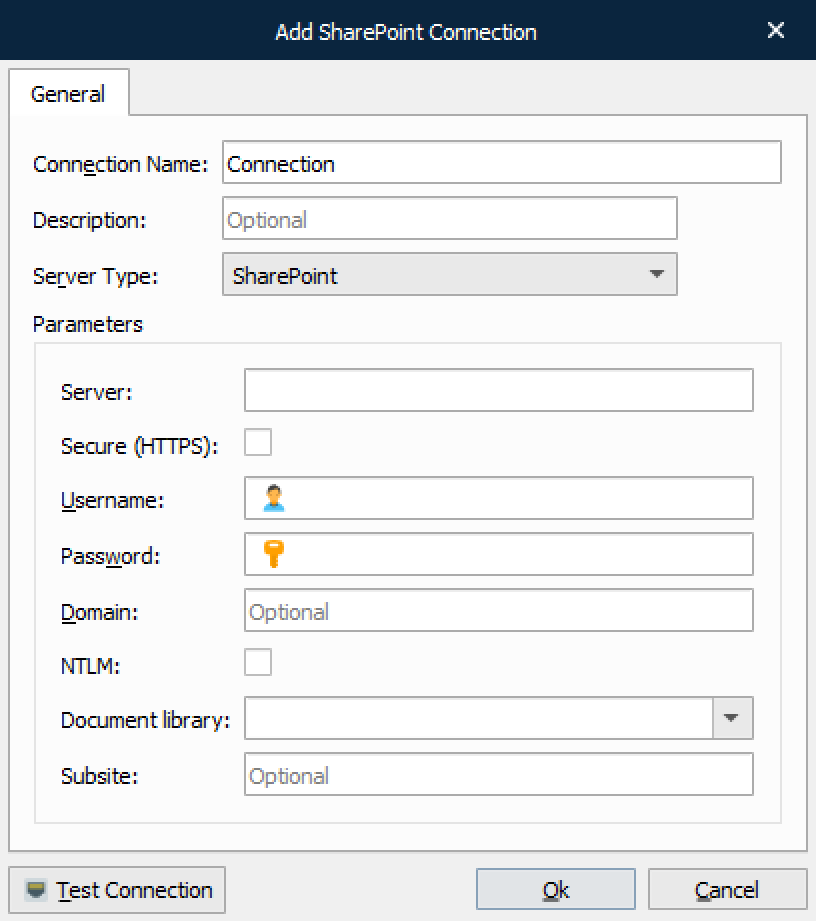
Connection: Web Services (SOAP)
Property | Description |
|---|---|
Protocol | Web Service |
Server | The name of the server.
|
Username | A SharePoint user with appropriate rights. The domain can be specified using the format: |
Password | Password of the SharePoint user. |
Domain | Domain name for SharePoint server. |
NTML | Windows network protocol for security. |
Document library | (Optional) The library where insert / update is done. Library can be specified as part of the destination path |
Subsite | If SharePoint is set up with subsites, a subsite must be specified |
Click Test Connection to validate the connection between the Lasernet Core module and SharePoint.
Connection: REST API (Legacy or Graph)
Select between Legacy

or Graph

as your preferred REST API connection type.
Important
In August 2025, Microsoft stopped allowing the use of legacy authentication with SharePoint 365. As a result, Lasernet Core must authenticate via Graph API.
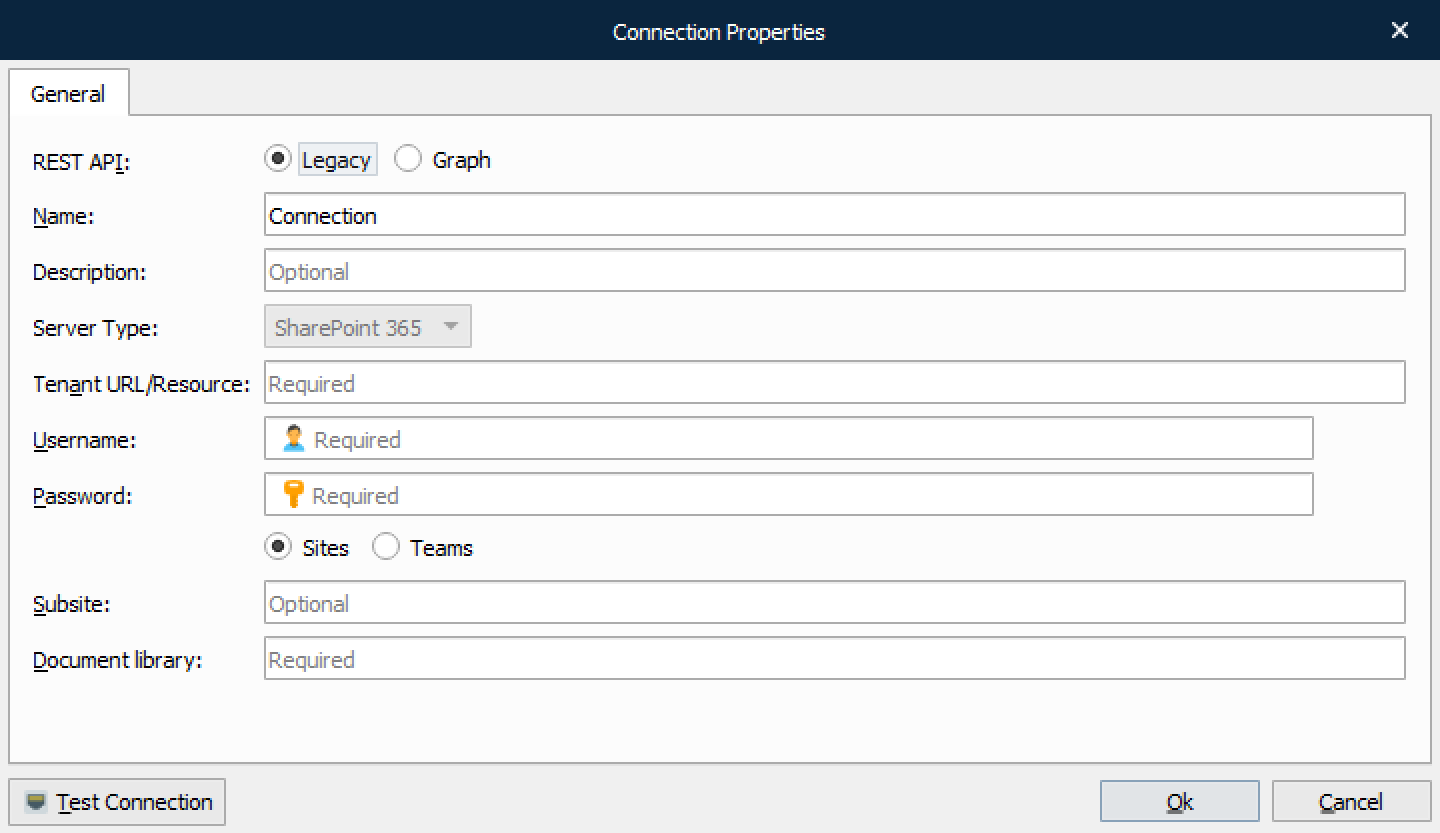
Connection: Legacy
Property | Description |
|---|---|
REST API | Select Legacy. |
Tenant URL/Resource | The tenant URL for your resource, like https://microsoft.sharepoint.com |
Secure (HTTPS) | HTTP security can be activated for encrypted communication and secure identification |
Username | A SharePoint user with appropriate rights. The domain can be specified using the format: |
Password | Password for the SharePoint user. |
Type of resource | Activate Teams if you want to connect to Teams instead of SharePoint |
Subsite | If SharePoint is set up with subsites, a subsite must be specified |
Document library | (Optional) The library where insert / update is done. Library can be specified as part of the destination path. |
Click Test Connection to validate the connection between the Lasernet Core module and SharePoint.
Connection: Graph
Select between User

or Application

as your preferred Authentication method.
REST API: Graph
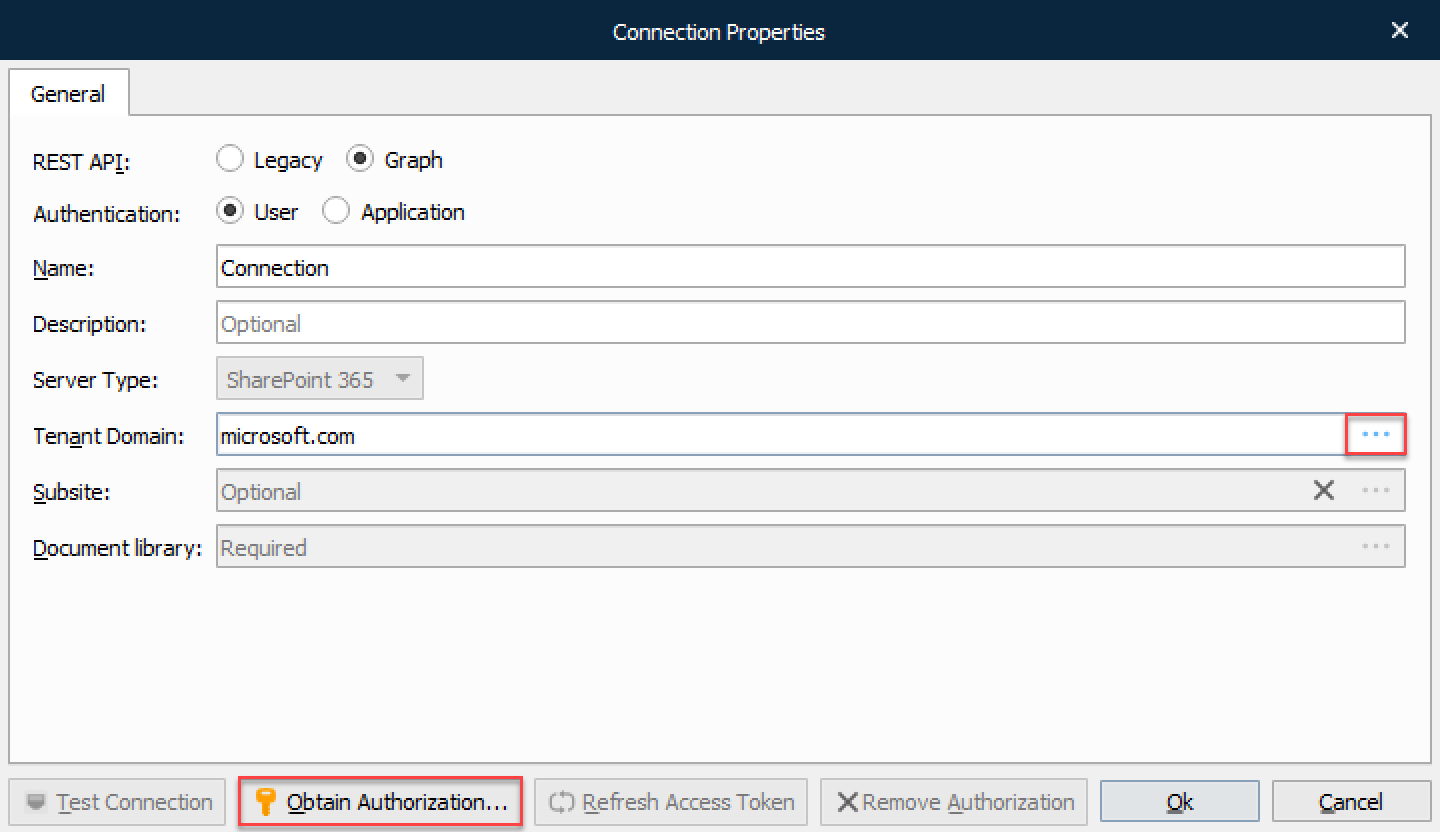
Authentication: Select User to authenticate with a user account in your organization
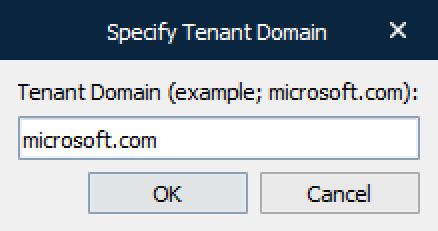
Tenant Domain: Click the … (ellipses) button to specify your domain, for example, microsoft.com
Click Obtain Authorization… and log in with user credentials to connect to an account in your organization.
or Application to authenticate as an application that is registered as an app.
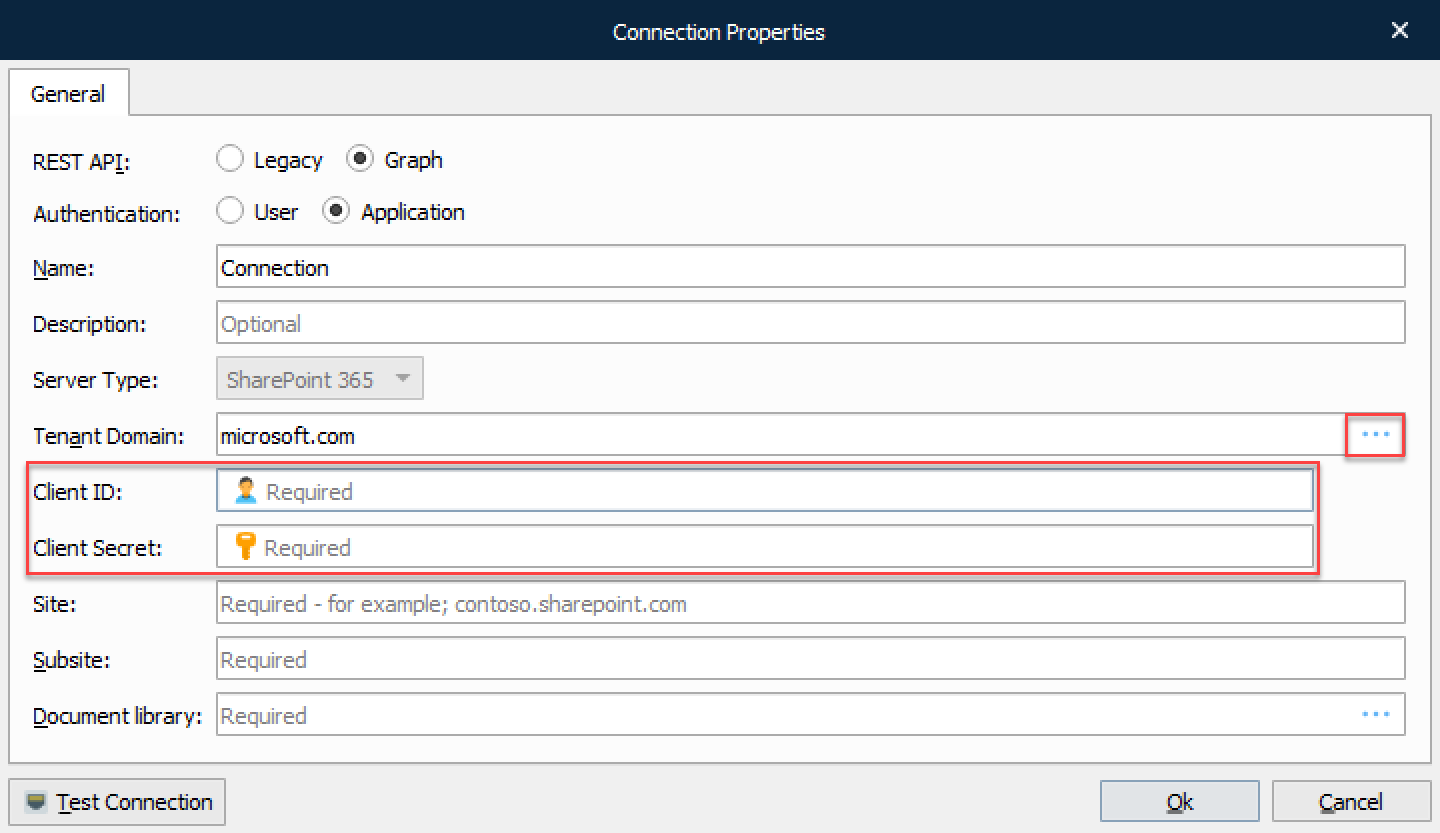
Application authentication for SharePoint Graph communication requires that:
Lasernet Core is registered as an app by an Entra ID admin.
The Entra ID admin has provided a client ID and client secret for the module to use to authenticate.
Property | Description |
|---|---|
Site | (Required) The organization site for your SharePoint |
Subsite | (Optional) If SharePoint is set up with subsites, a subsite must be specified. Click the … (three dots) button to get a list of your available subsites, then select a subsite. You might experience a short wait while Lasernet Developer downloads the list of subsites. This property supports JobInfo substitution. |
Document library | (Required) The library where insert / update is done. The library can be specified as part of the destination path. Click the … (ellipses) button to get a list of your available document libraries |
Click Test Connection to validate the connection between the Lasernet Core module and SharePoint.
Note
The button is activated when all required fields are completed.
Configure the Command
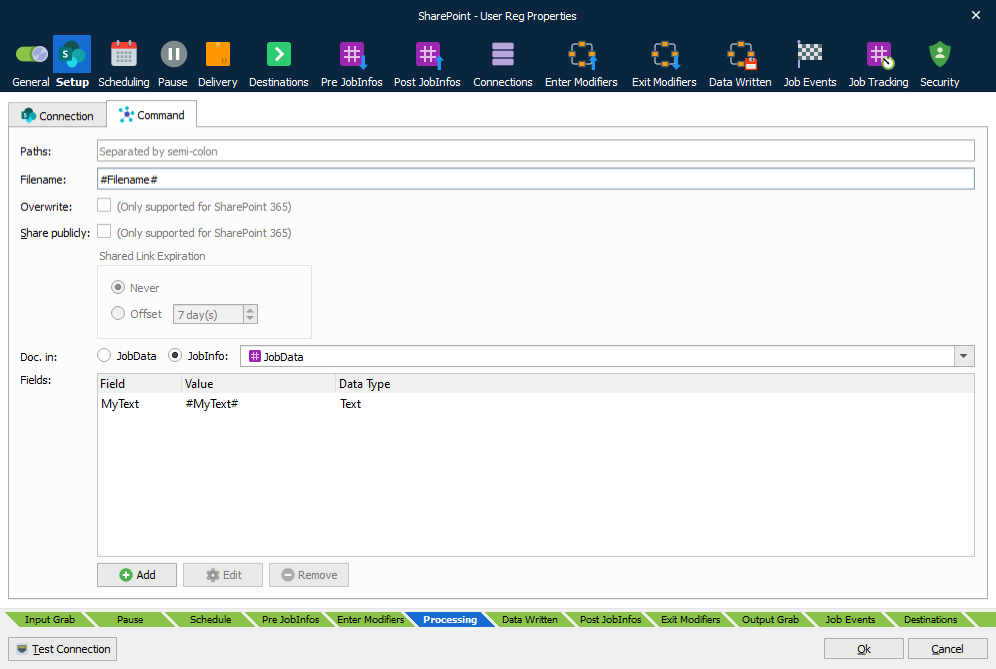
In the Command tab you must enter your Insert properties. Information about the properties is listed in Insert Document.
Insert Document
Documents can be inserted from JobData or another JobInfo.
Setting | Description |
|---|---|
Destination paths | It is possible to insert the same document in multiple paths in SharePoint. To do this, each path must be separated with a colon. |
Doc. in | Specifies where document data comes from:
|
Fields | A list of metadata to be inserted along the document. These fields must exist in the SharePoint library. 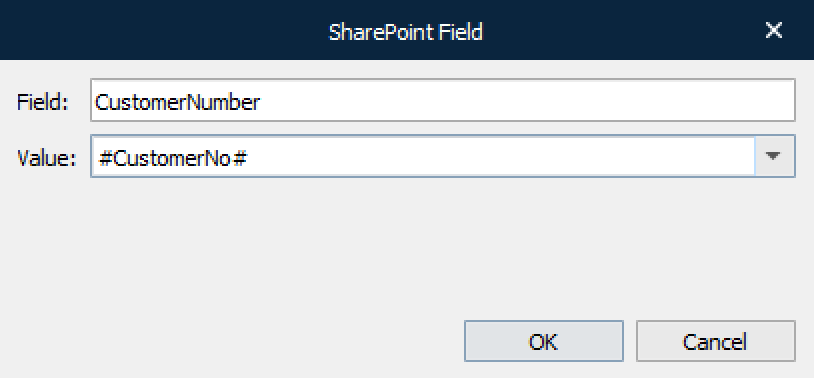 The data type of a field must match the data type of the field in SharePoint. You can use JobInfo substitution, as seen above, in the example with #CustomerNo# JobInfo. The data type field is required for Web Services only and is therefore hidden for REST. 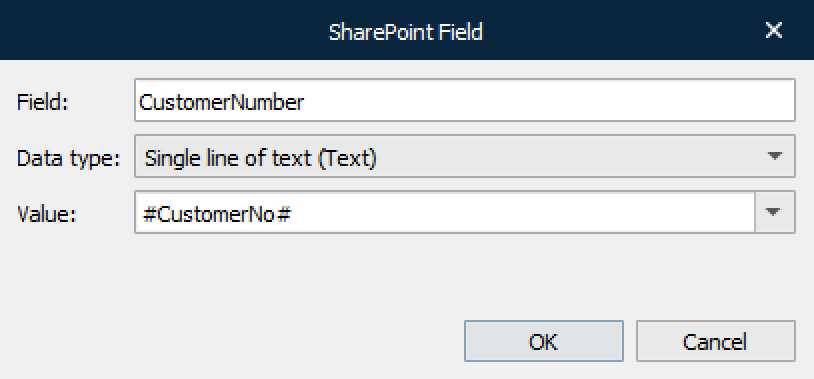 |
Update Document or Folder
Metadata for an existing Document or Folder in SharePoint can be updated via the Data in “Fields only” option. When this option is set, no document is uploaded – only metadata.
Note
Only one document or folder can be updated; however, inserting can be done in multiple paths.
Refer to Insert Document for a description of the settings.