Applies to: Lasernet Core 10
Login Page
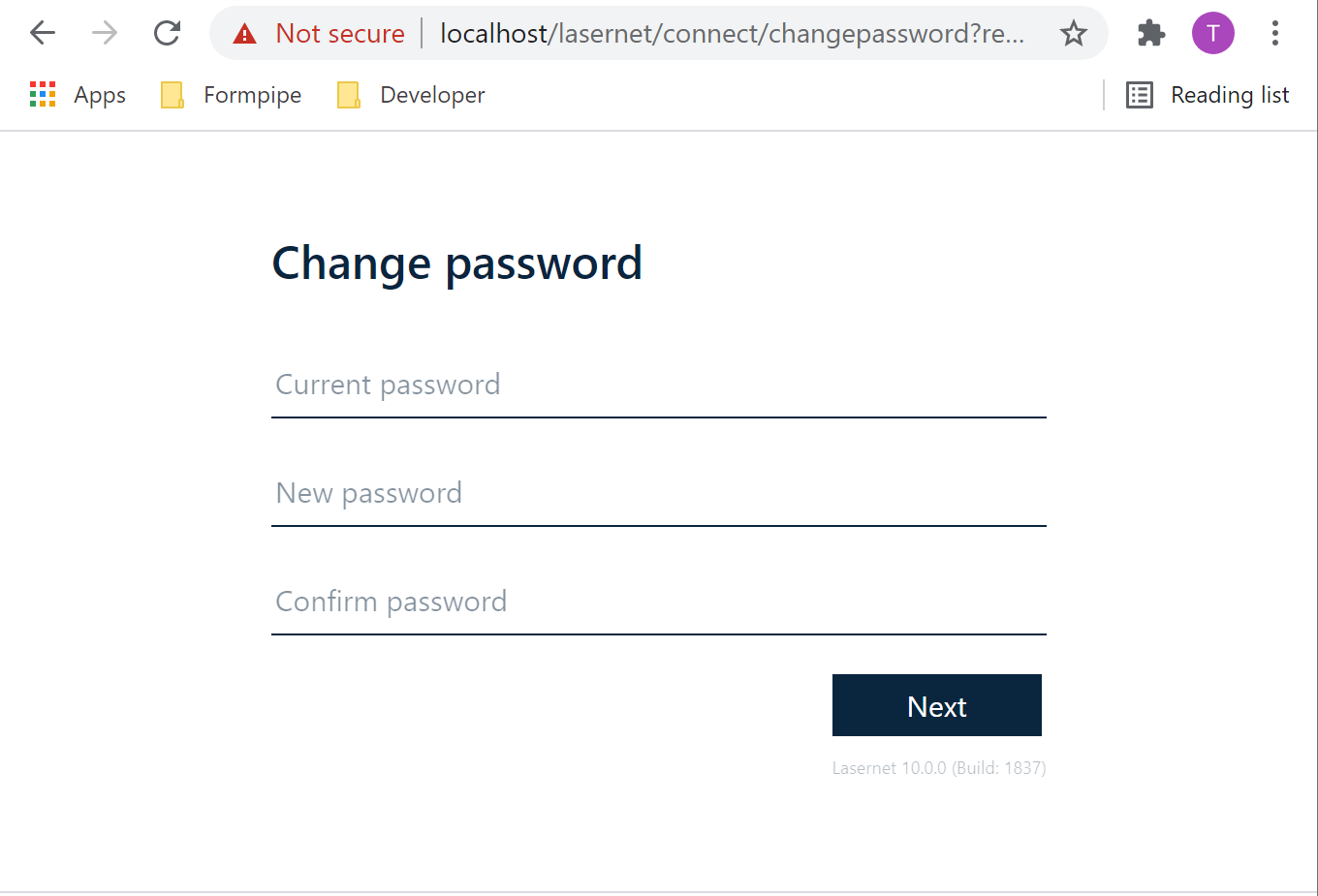
When logging in for the first time, create a new password for the admin user:
User: admin
Current password: [leave empty]
New password: [choose a password]
Confirm password: [choose a password]
You can now set a password for the admin account. The password must be changed when you log in to the config website for the first time.
Reset the Admin Password
If you forgot the password, you can always reset it. It requires that you have admin rights on the server, where the Lasernet Config Server is installed
You must run the following steps:
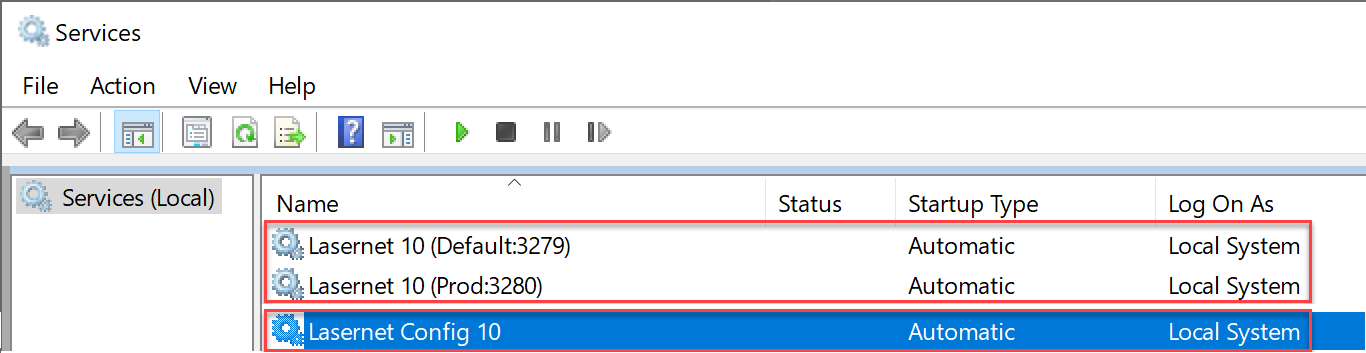
Run Services and stop your Lasernet Config 10 and Lasernet Core 10 Service(s).
Run the Task Manager and click the Details tab.
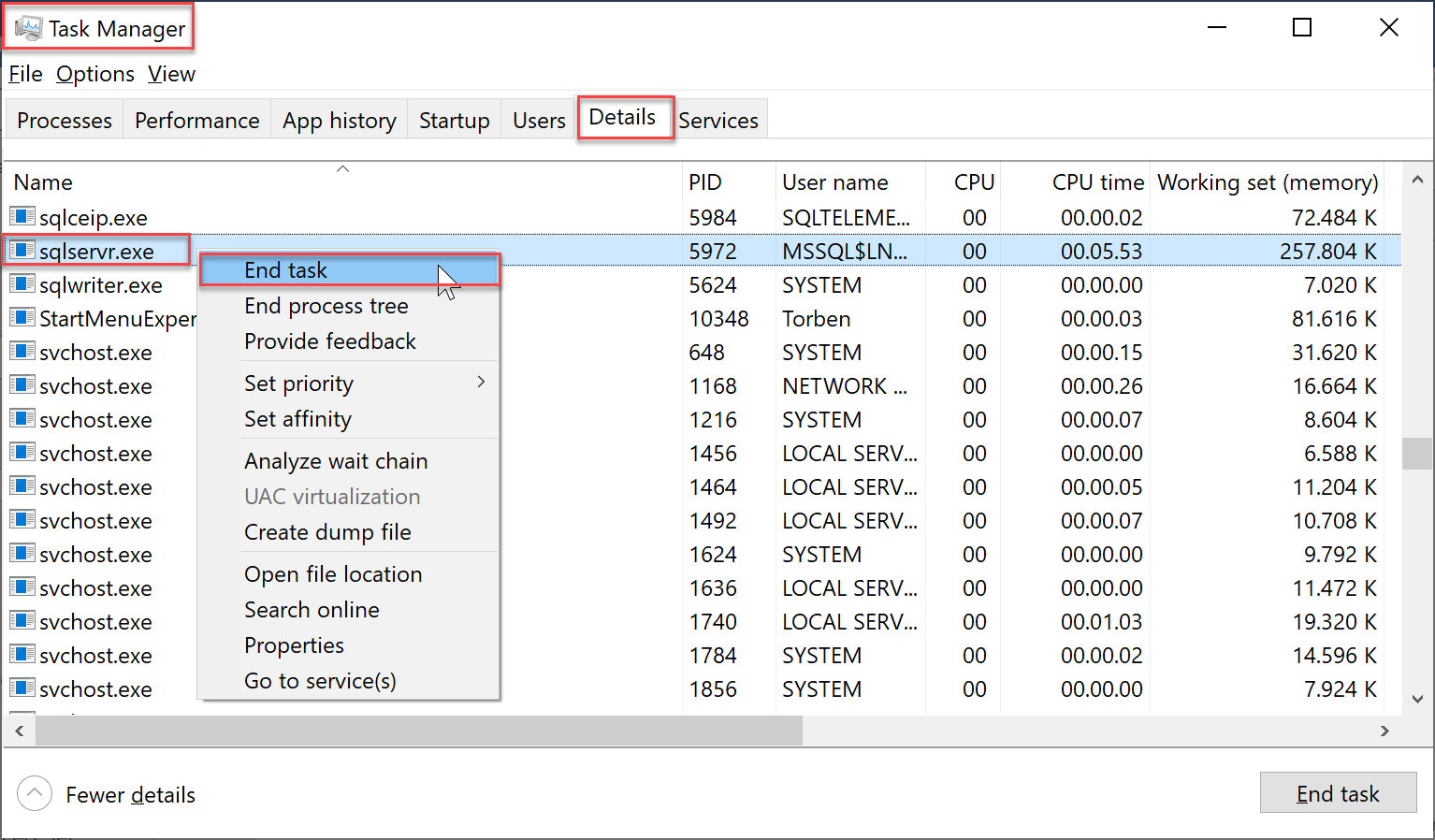
Select the sqlservr.exe, right click and select End task to kill the process. Continue this process for any sqlserver.exe running on the server.
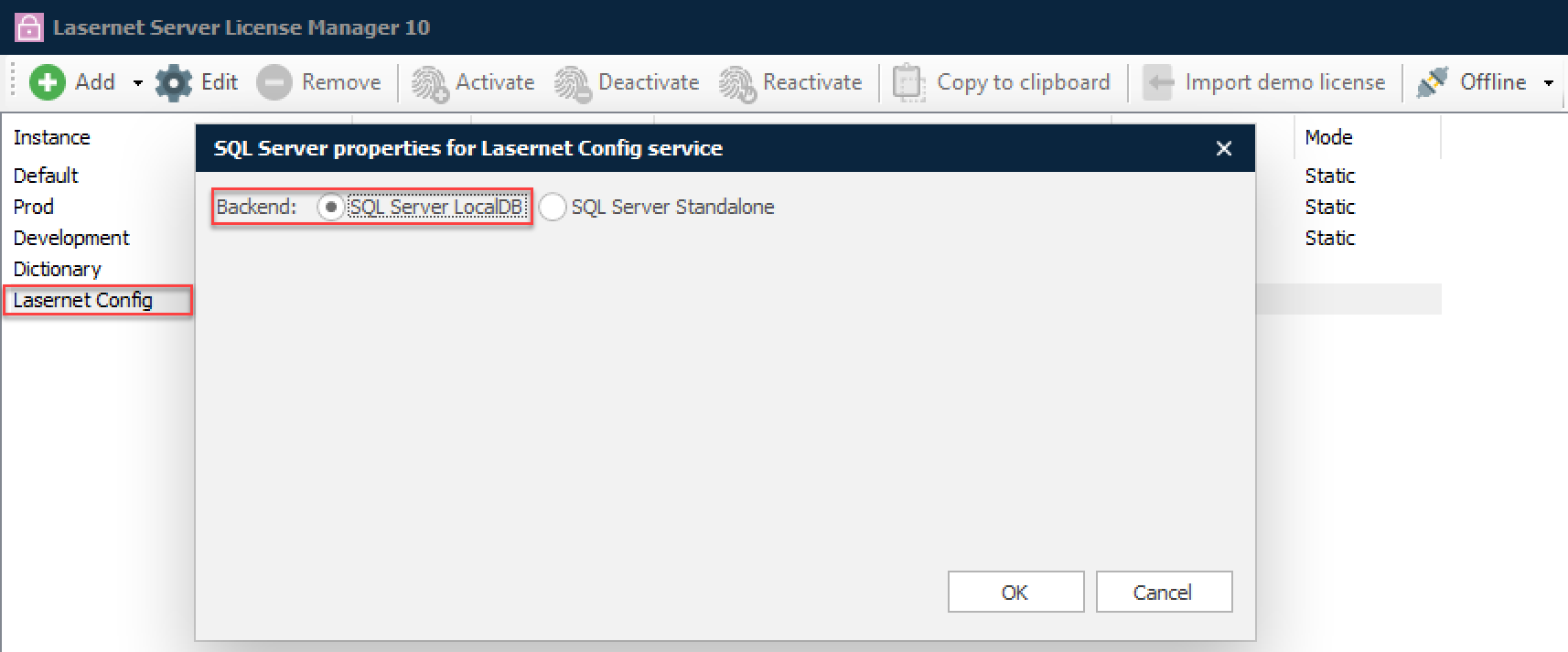
Note: This step is only needed when using SQL Server LocalDB for the Lasernet Config server.
Run a Windows command prompt with admin rights
Change the directory to Lasernet 10 installations folder
cd C:\Program Files\Formpipe Software\Lasernet 10\Run LnConfig.exe in the command prompt with the following parameter:
LnConfig.exe -reset-admin-passwordNote: This can generate a list of database errors in. In the fact that the database is no longer in use, by the sqlservr.exe process, means that it is now accessible for a password reset.
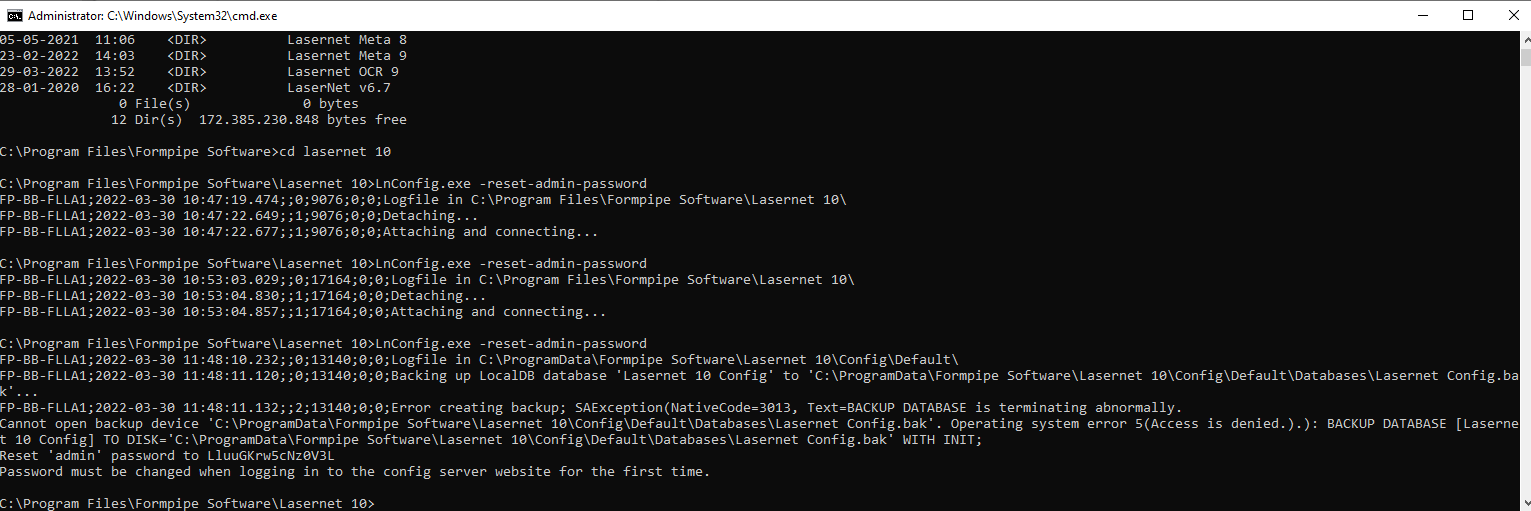
As a result, a new password for the admin account is generated and shown in the console. This password must be changed when logging in to the config server web site next time.
Start your Lasernet Config 10 and Lasernet Core 10 Service(s).
Note
The sqlserver.exe processes will automatically start again when Lasernet Config 10 and Lasernet Core 10 Service(s) are started.