
This article provides instructions on how to upgrade Lasernet 8 to Lasernet 9 or 10. This is often needed when upgrading from Lasernet Connector 5.x.x to 6.x.x.
Before upgrading your Lasernet configuration, ensure to create a backup.
Launch Lasernet
Launch your Lasernet 9 or 10 application.
Import your Lasernet Connector 5.x.x configuration.
Export
We recommend you export the following objects from your Lasernet 8 configuration so you can later import them to your Lasernet 9/10 configuration.
Note
For users who have added a new XML transformer to their existing configuration, a Jobinfo Scanner will need to be included, as Lasernet Connector version 6 runs the on XML transformer level.
To start the export process, follow these steps:
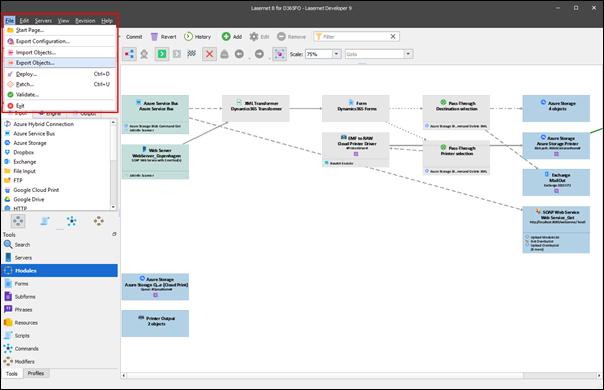
Click the File menu, then click Export Objects.
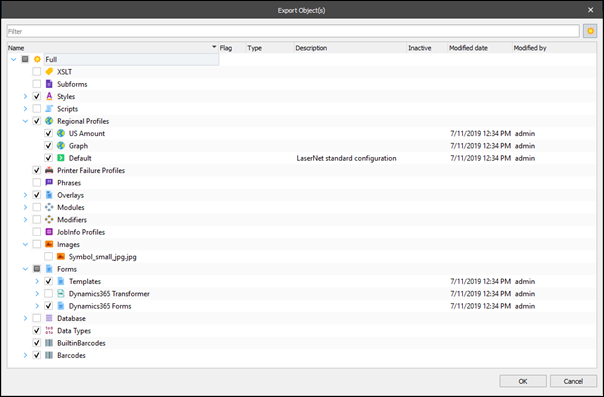
Ensure the following options are selected:
Ensure the following options for the printer are not selected:
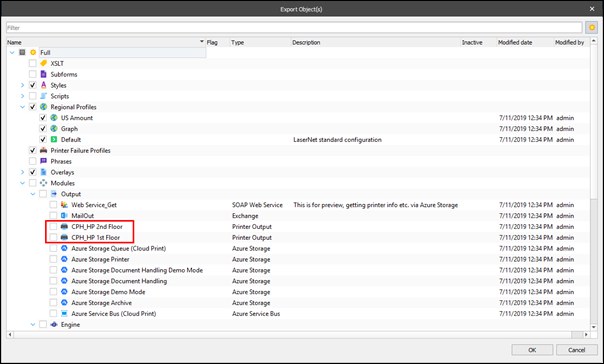
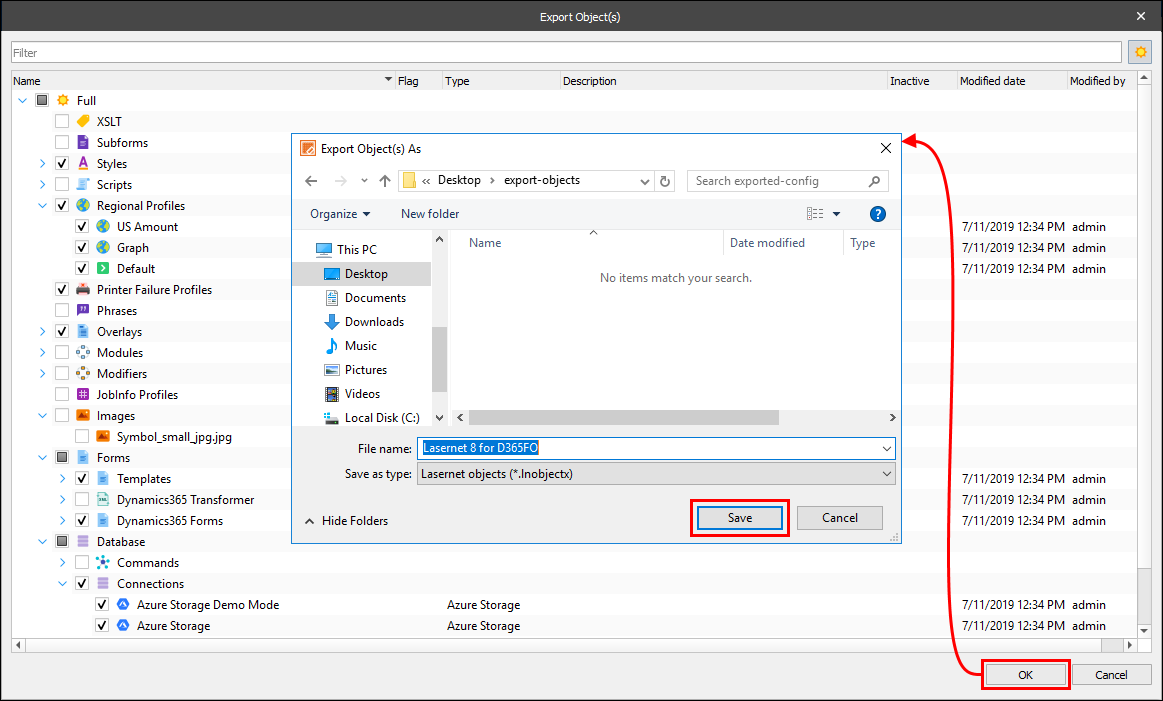
Select all the storage connection elements to be exported unless you want to manually add the information later, and then click OK.

In the Export Object(s) As dialog that appears, specify the directory where you want to save the file and the file name, then click Save.
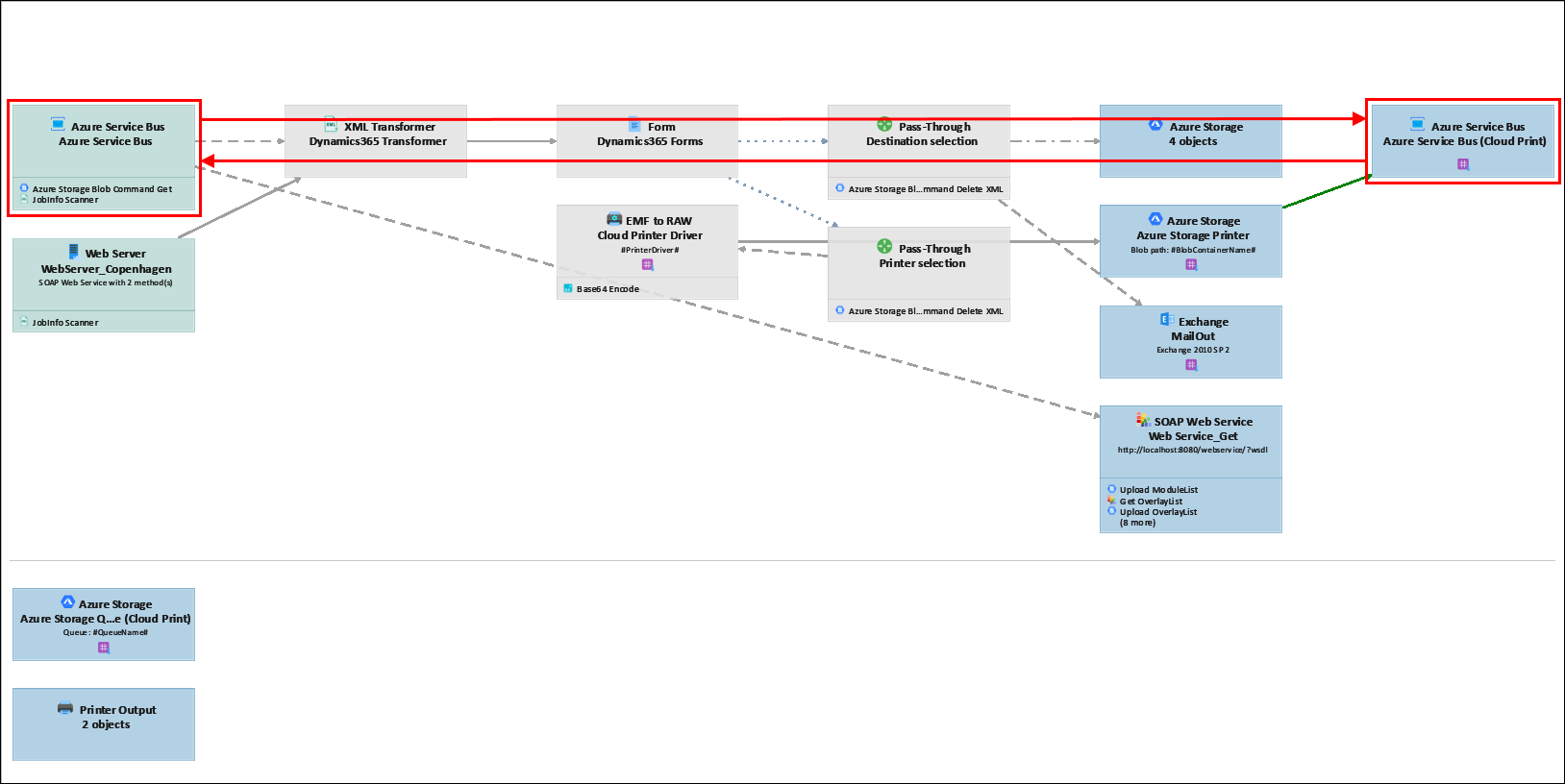
Similarly to the storage connections, you can export connections for the Azure Service Bus Queue or add the information manually.
Import
Once you have exported objects from your Lasernet 8 configuration and deployed the Lasernet default configuration for Lasernet FO Connector 6.x.x, import the objects you have exported from Lasernet 8 to Lasernet 9/10.
Follow these steps:
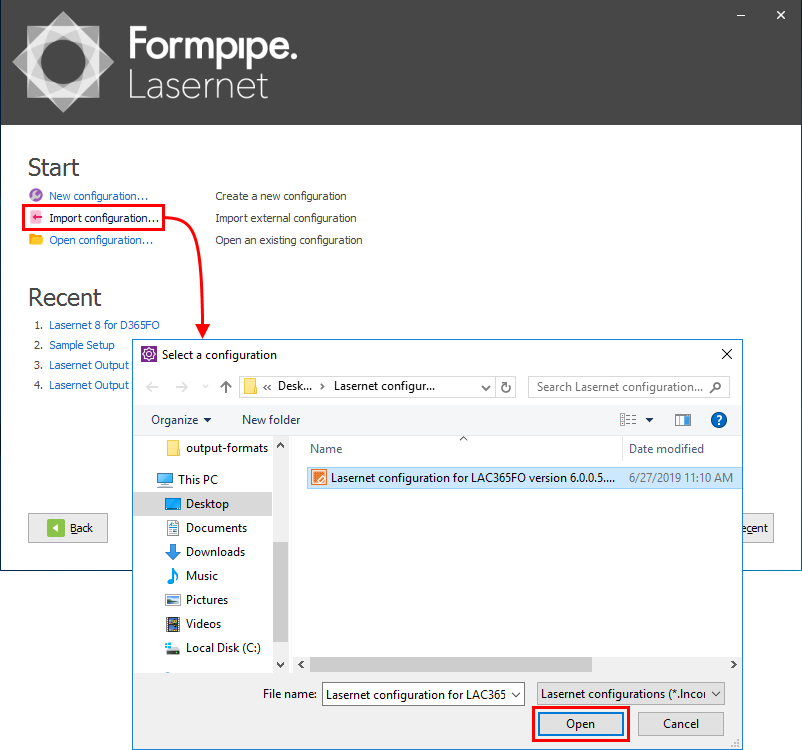
In Lasernet 9/10, import the latest Lasernet configuration for Lasernet FO Connector version 6.x.x.
Note
While importing, remove 0.0.5 in 6.0.0.5 in the file name to ensure LNCONFIGX as a file extension.
On the File menu, click Import Objects.
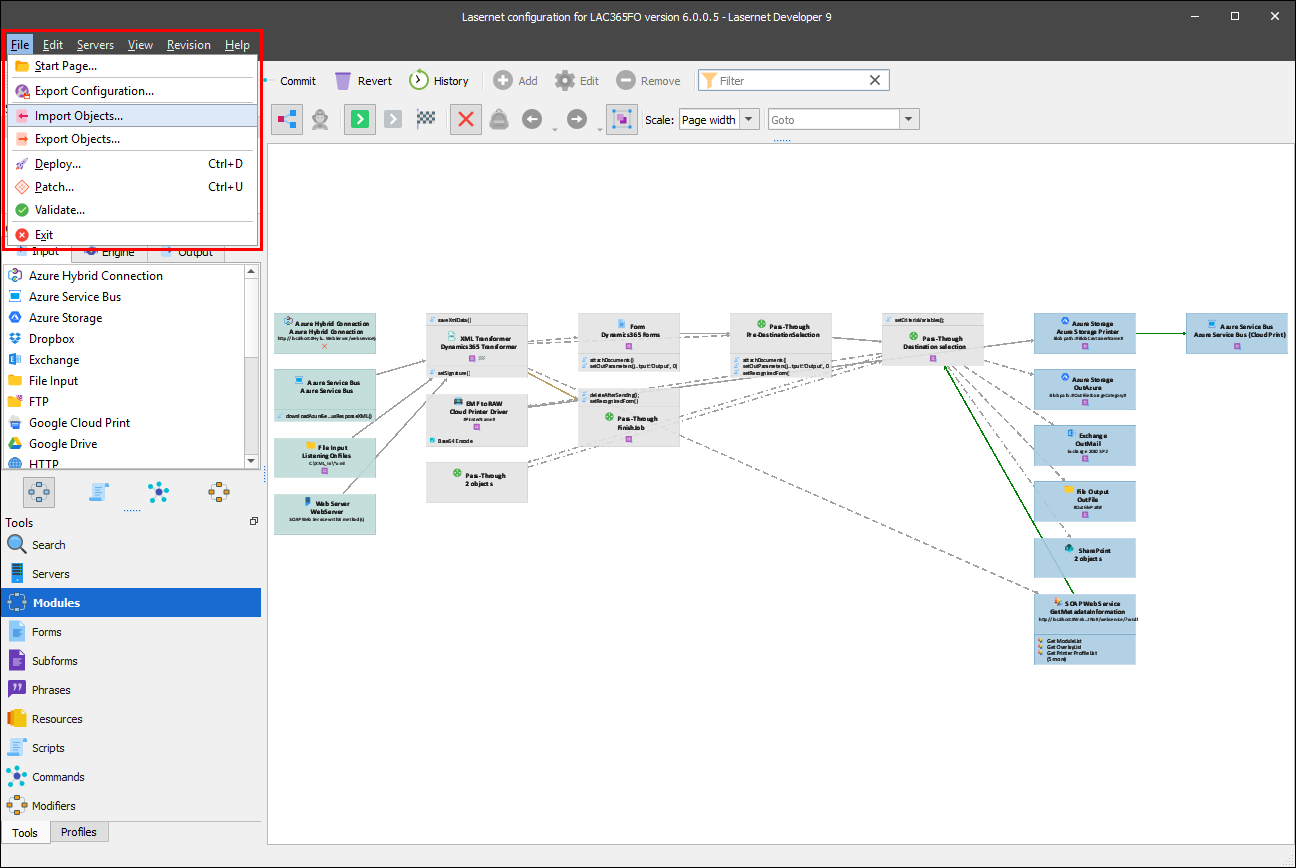
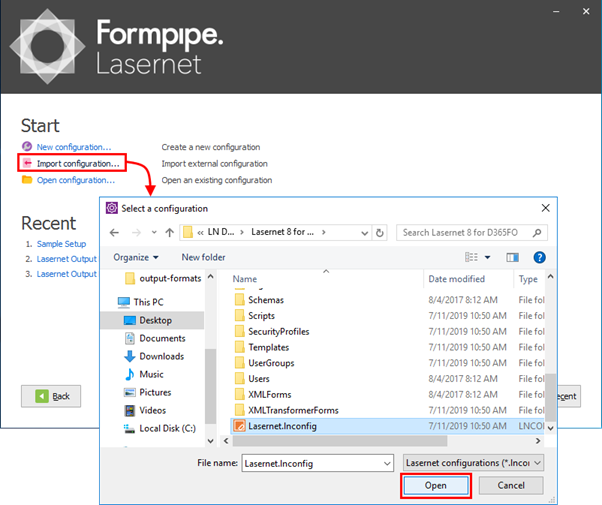
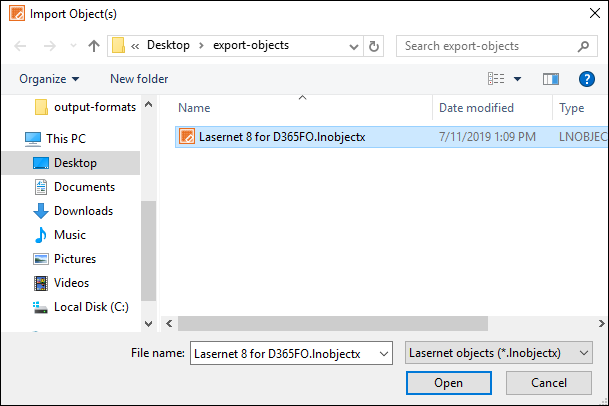
In the Import Object(s) dialog that opens, select the file containing the object you have exported from your Lasernet 8 configuration, then click Open.
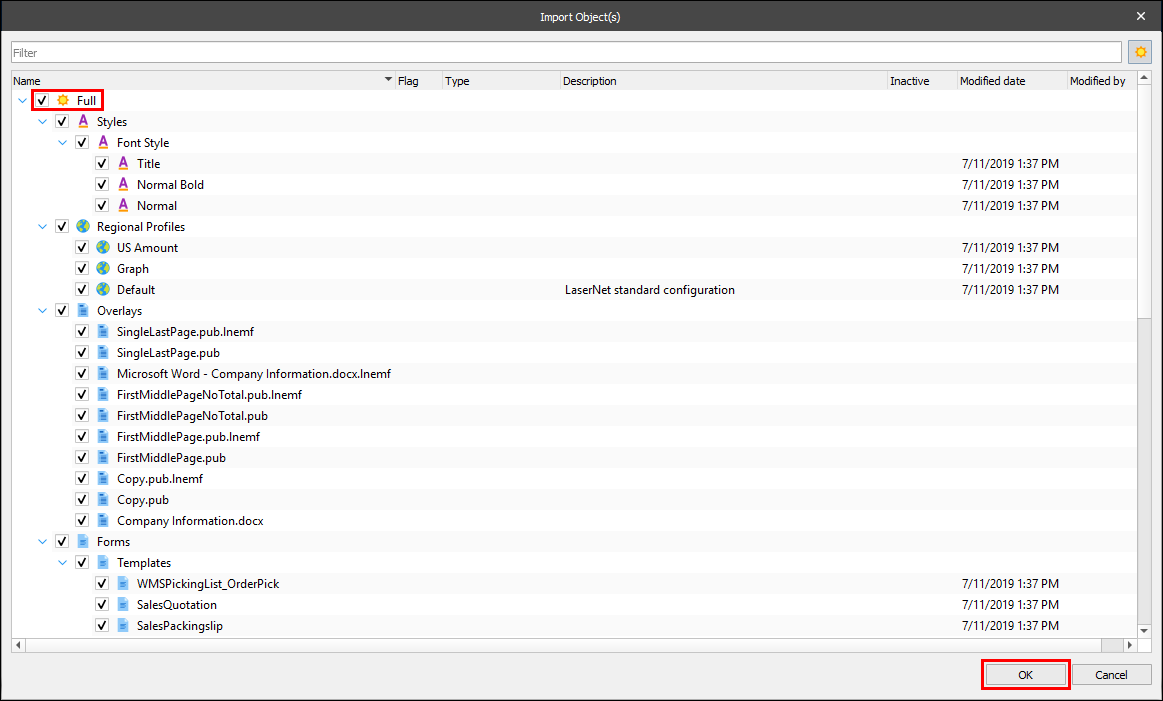
In the dialog displayed, check the Full checkbox to select all the objects, and then click OK.
Note
While importing objects to Lasernet 9, do not replace a template as well as a blank form available in Lasernet 9 Demo Setup.
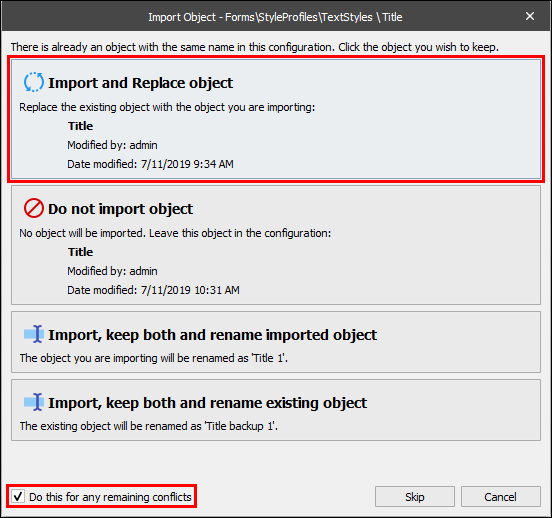
In the dialog displayed, select the Do this for any remaining conflicts checkbox, and then click Import and Replace object.
Changes to forms
Consider the following changes, which are to be applied to each form after the upgrade. It is possible to copy the information from the template form in the Lasernet 9/10 demo setup and add it to the forms being upgraded.
Blank Form
In Lasernet 9/10, the forms need criteria. In version 8, they do not. So, if you brought your Blank Form to Lasernet, you need to add the Form Criteria: XPath=Report, Operator = exists.
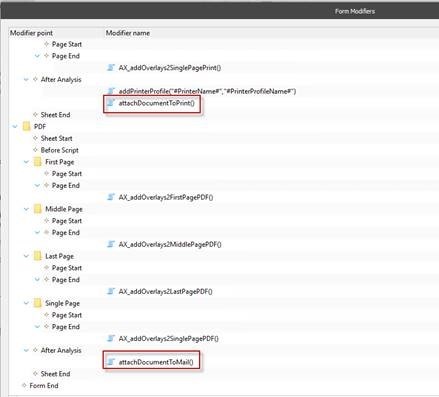
Sheet modifiers for PDF and Print sheet
The attachDocumentToPrint() and attachDocumentToMail are removed. The Pre-Destination Selection module manages this part.
Lasernet 9/New configuration | Lasernet 9/Old configuration |
|---|---|
|
|
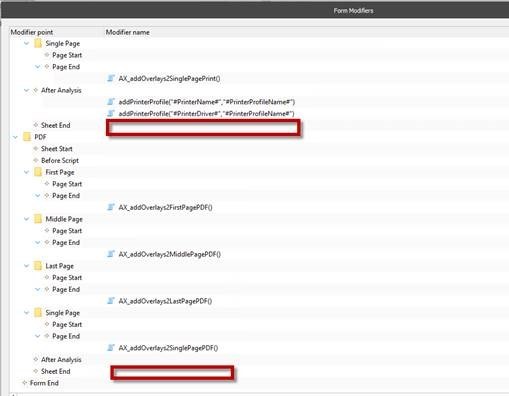
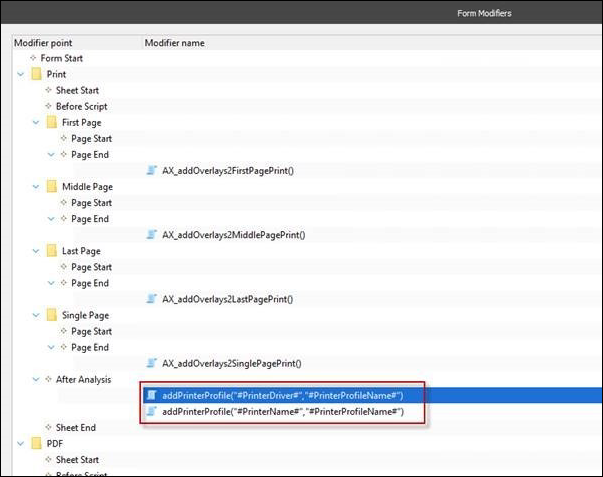
In addition, add both PrinterName and PrinterDriver related to the printer profile.
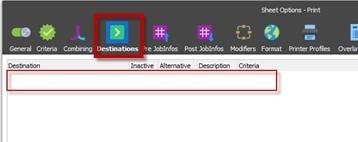
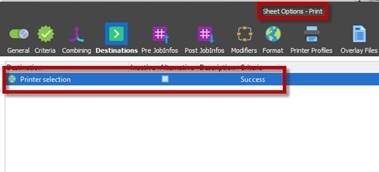
Print Sheet Options
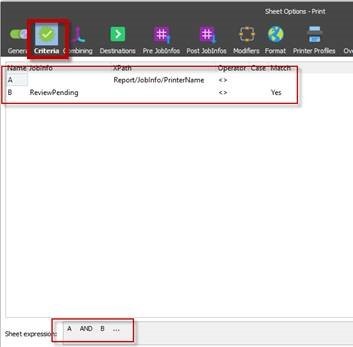
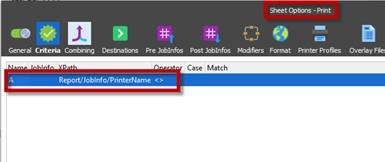
On the Criteria tab, change the criteria, and on the Destinations tab, remove the destination as follows:
Lasernet 9/New configuration | Lasernet 9/Old configuration |
|---|---|
|
|
|
|
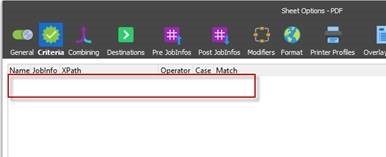
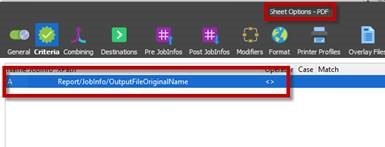
PDF Sheet Options
On the Criteria tab, remove available criteria, and on the Destinations tab, remove the destination as follows:
Lasernet 9/New configuration | Lasernet 9/Old configuration |
|---|---|
|
|
|
|
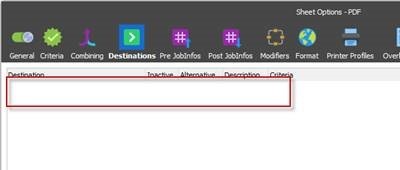

In Lasernet 9/10, the destination for both Print and PDF Sheets is defined in the Form module.
