Applies to: Lasernet Core 10
Lasernet Meta provides an easy-to-use environment for converting, attaching and sending documents with Meta data to the Lasernet Core environment.
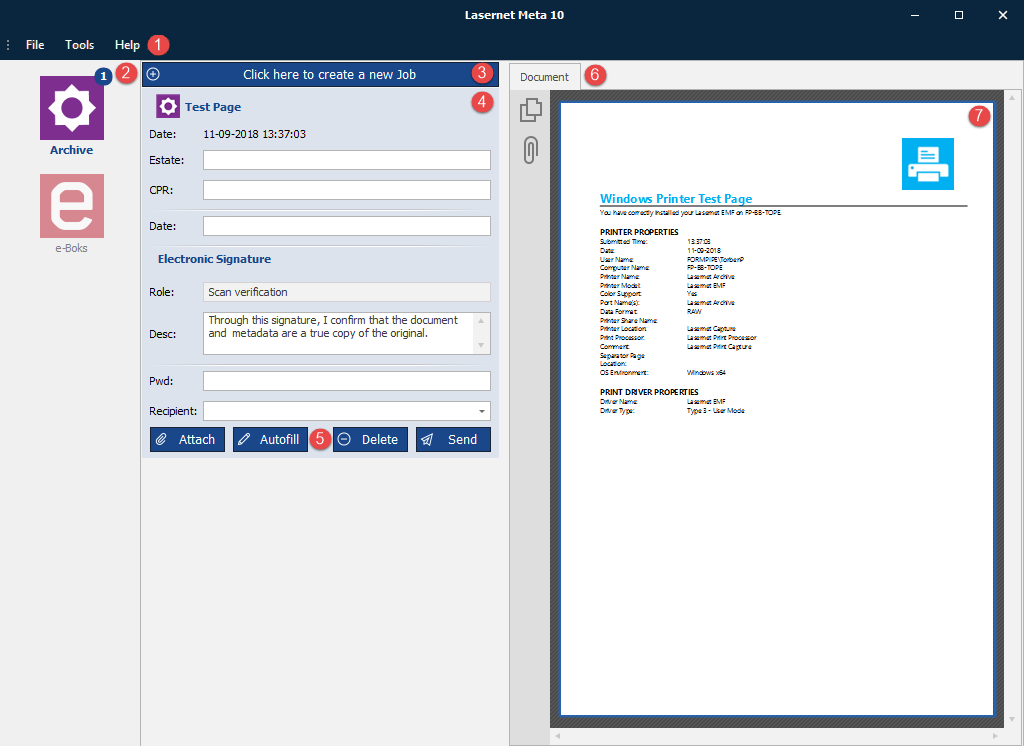
Lasernet Meta has three main areas. The Meta queues on the left, the Meta fields in the middle, and the preview on the right. The user interface is laid out as follows:
Menu bar (1)
In the Tools menu you configure the main options for the application.
Queues (2)
Right click in the Queue section to Add, Edit or Remove Meta queues. Click on a specific queue to view and administer available jobs, which are stored in the queue and ready to be send. You can always exit the application, with jobs stored in a queue, since jobs are stored temporary on disc.
Create a new job (3)
Click here if you manually want to add a new job to a queue with an extension allowed by the administrator (see Extensions property for Meta Input queue in the server settings). Before adding a job please first select a queue.
Meta card (4)
Card for typing in Meta values to be assigned to the job. A queue can contain up to 50 jobs and will afterwards be paused by system. When jobs are sent by user the queue will automatically be resumed and ready to receive new incoming jobs.
Tool buttons (5)
Four tool buttons are available in the bottom of each card. The Autofill button is only selectable if allowed by administrator (see Allow Autofill property for Meta Input queue in the server settings).
| Attachment | Click here if you want to add an attachment to the primary job with an extension allowed by the administrator (see Extensions property for Meta Input queue in the server settings). |
| Autofill | Autofill functionally has to be configured for the queue in the Lasernet Core environment. The Autofill function will, if possible, automatically insert Meta data retrieved from the job in to the Meta fields in the card. |
| Delete | Click here to delete the job from the queue. A warning will pop-up where you have to accept to delete the job. |
| Send | Click here to send the job with Meta data to the Lasernet Core environment. A warning will pop-up where you have to accept to send the job to the Lasernet Core environment. |
Jobdata and Attachments (6)
Right click here to Add or Remove the primary job or attachments with an extension allowed by the administrator. Removing jobs will not delete the Meta data added to the card. To delete both job, attachment and Meta data you must use the Delete button in the card.
Preview (7)
A preview of the job. A range of document formats can be previewed, like PDF, DOC, XLS, TXT and XML. Printed jobs will always be previewed as PDF, manually added jobs will be previewed in same format as received. File formats that cannot be previewed can also be sent with Meta data to the Lasernet Core environment if allowed by the administrator.