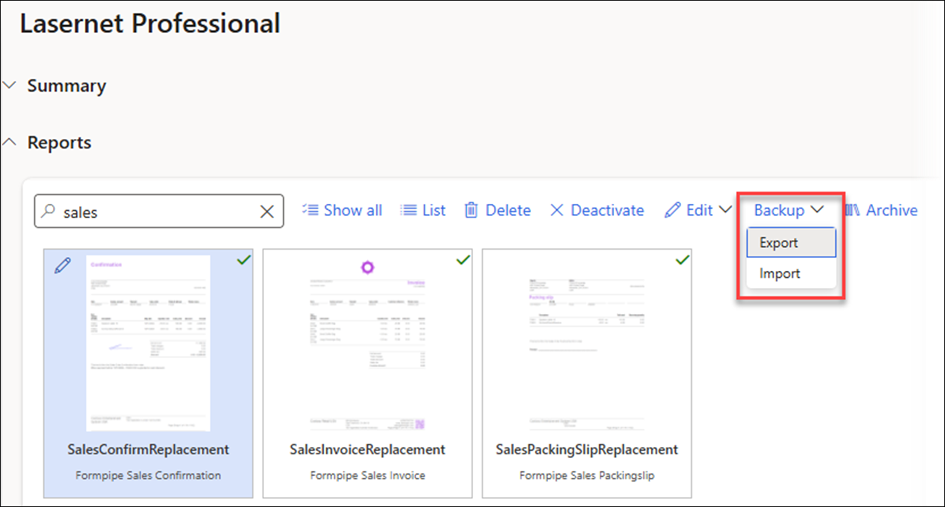
The Backup function available in the Reports sections of the Lasernet Professional workspace enables users to Export and Import reports.
Export
The Export function is useful for moving a report from one legal entity to another or a new FO environment.
It is possible to export one report at a time or multiple reports together. To do so, follow these steps:
Select Export from the Backup dropdown menu.
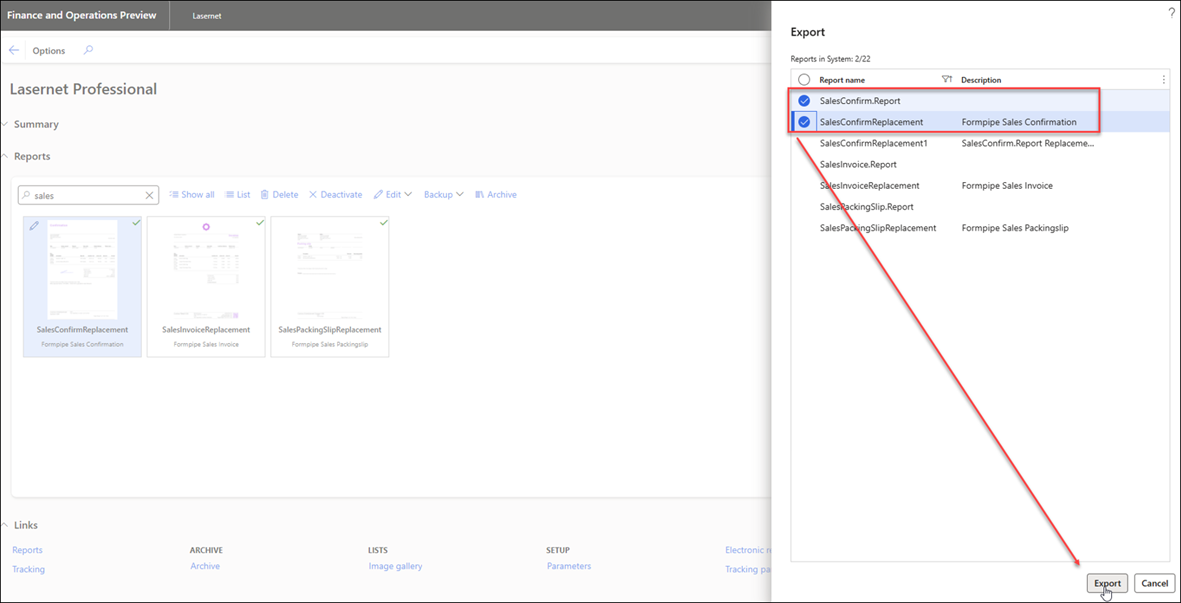
Mark both the original SSRS report and the Replacement report to be included in the export.
In the dialog that appears, click Export.
The export of a single report will include the Report name, Company, User, Current Date & Time: Backup_SalesPackingSlipReplacement_usmf_Kim.Agerholm_09-03-2024_11-53-49.zip
Whereas exports of multiple reports will not include the Report name: Backup_usmf_Kim.Agerholm_09-03-2024_11-58-8.zip
When exporting a report, the required information in Dynamics and the report design(s) are included in the export.
Import
Follow these steps to use the Import function:
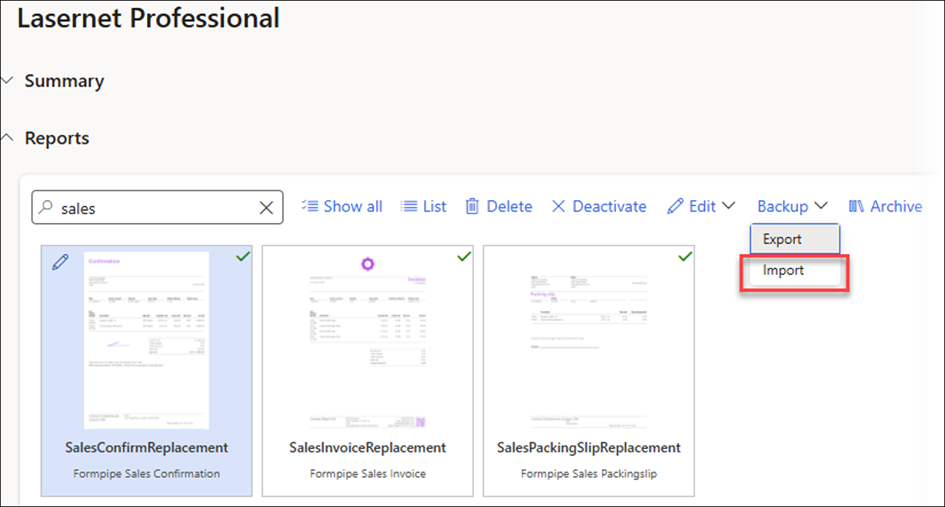
Ensure you are in the new legal entity or environment, then select Import from the Backup dropdown menu.
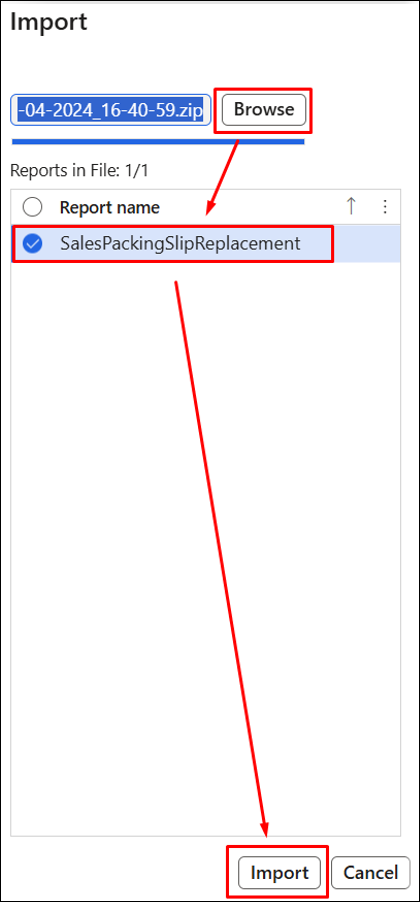
Select the file from your machine and then re-select the required file with the configuration that needs to be imported. The file extension is always .zip, and you can import either a single report or multiple reports.
In the dialog that appears, click Import.