Applies to: Lasernet Core 10
Starting Printer Service
Note: Before first use, you need to install the application.
Start the Printer Service application from the Windows Start menu or your desktop shortcut.
Connect
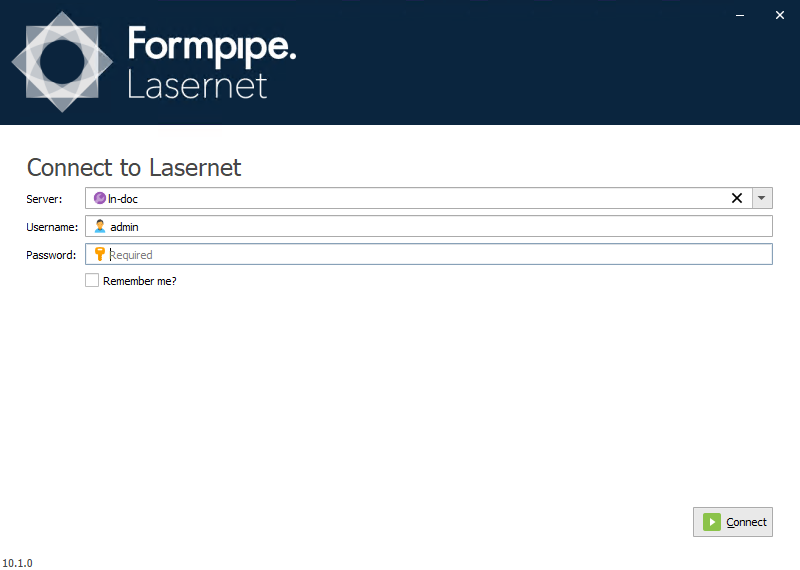
Connect to the Lasernet Config server by typing the server name and your credentials.
Printer Service Window
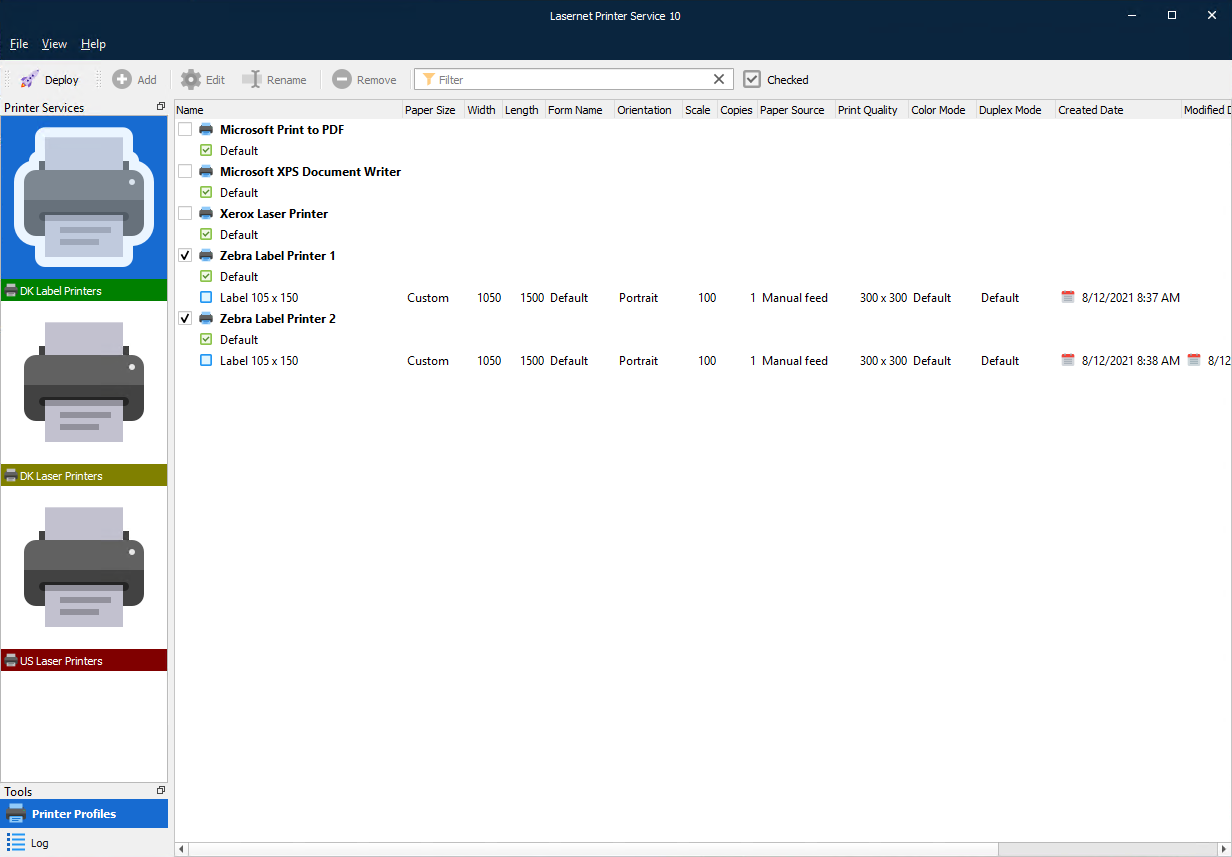
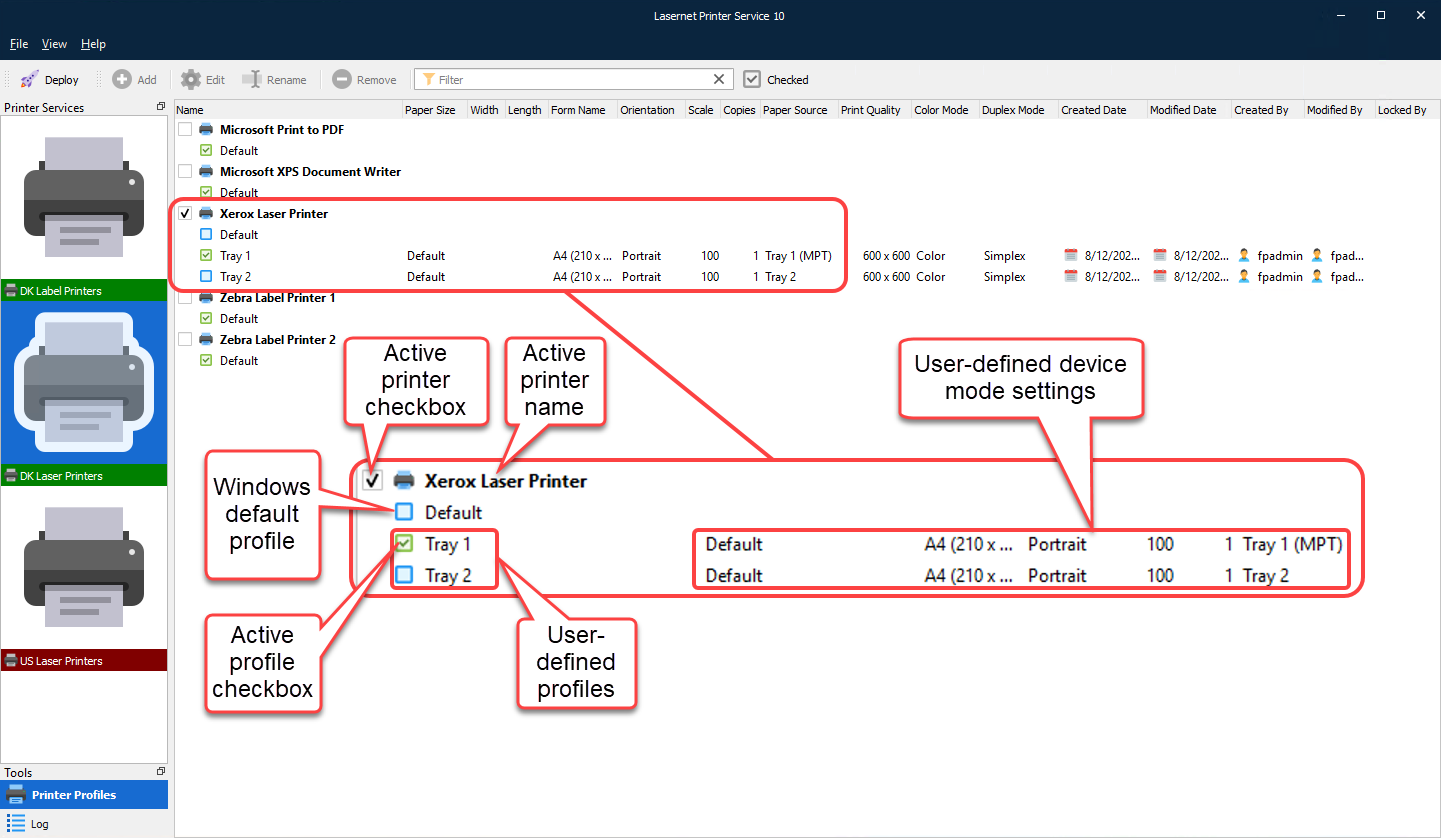
The Printer Service window lists all Windows printers. It also lists Lasernet Core profiles in which device mode settings are stored when they have been added. The Default profile refers to the default settings for the Windows printer, instead of a custom added printer profile.
Select the printer service on the left side for which you want to assign printers.
Note: Separate printer servers should have individual service bus queues. They should not share the same details.
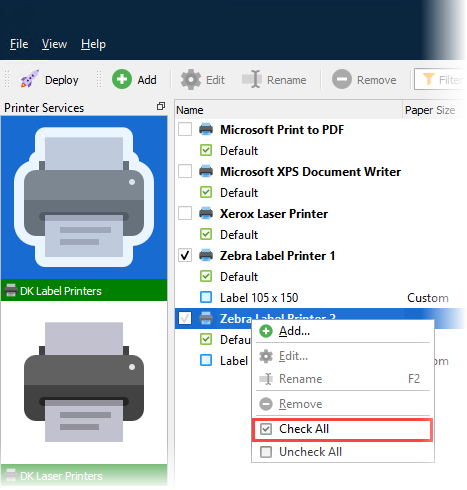
Right-click on the printer name and select Check All to deploy all printers for the selected printer service.
Printer Profiles
Check the printers you want to be accessible in Lasernet Core.
Active printers are checked; Lasernet Core will use the Default device mode settings for a printer, if the profile for a job is unspecified, or alternatively select another profile.
It also shows common device mode settings – for example, Paper Size, Orientation and Paper Source.
Click the  icon to log in to a Lasernet Core session and connect the printer profile to your workflow.
Note: Deploy will only be active if at least one printer is checked.
Click the  icon to add a new printer profile for the selected printer.
Click the  icon to edit the selected printer profile (alternatively, right-click the profile).
Click the  icon to rename the selected printer profile.
Click the  icon to delete the selected printer profile.
Type a term in the  field to filter results by printer name.
Click the  icon to list only printers with a check mark applied.
Status Indicators
The printer icon will have one of the following color indicators, depending on status for the Lasernet Printer Services running as Windows Services:
 |
Service is installed and running |
 |
Installed but not running |
 |
Not installed |
Elements of the Printer List in the Printer Service Window
Log
Click the relevant Printer Service icon in the left pane, then click Log.
Click Fetch newest to retrieve the latest log entries for processed print jobs.
Note: You can scroll up or down to fetch older or newer logs respectively.
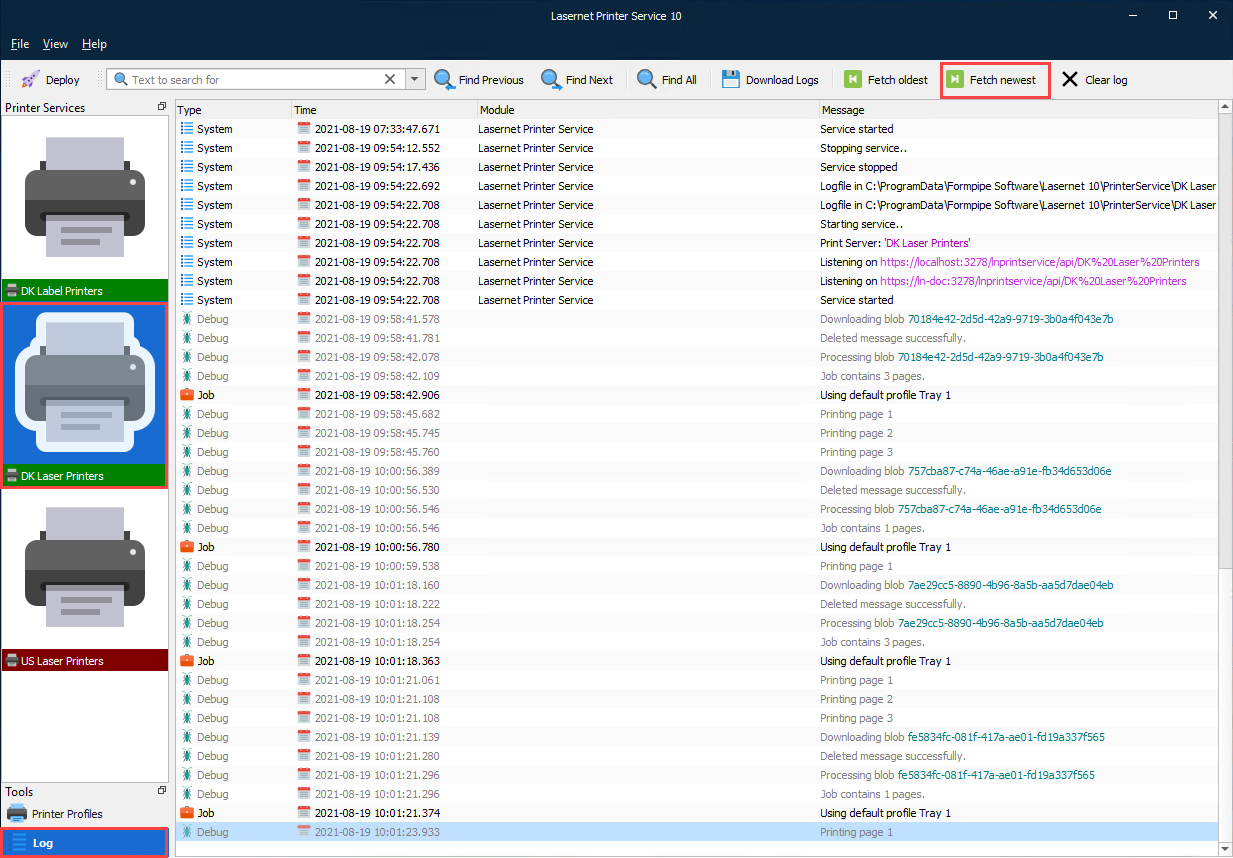
The Log toolbar contains the following commands:
Type a term in the  field to search the log. Text strings are not case-sensitive.
Click  to display the previous string found by the search.
Click  to display the next string found by the search.
Click  to display the Find All dialog from which you can define more specific search criteria:
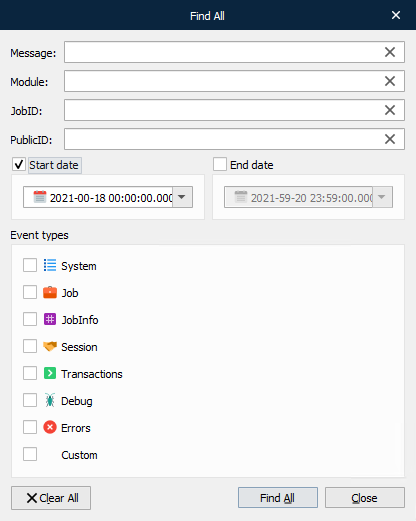
Click  to download the log files from the server / instance to the local computer as a zip file.
Click  to scroll to the oldest log entry available on the server. (Note: Alternatively, scroll up to fetch older entries.)
Click  to scroll to the newest log entry available on the server. (Note: Alternatively, scroll down to fetch newer entries.)
Click  to remove log entries from the screen.
Profile Configuration
Add
Click Add to show a dialog to input a new configuration for the selected printer.
General Tab
Enables you to name the profile and see which printer it is associated with.
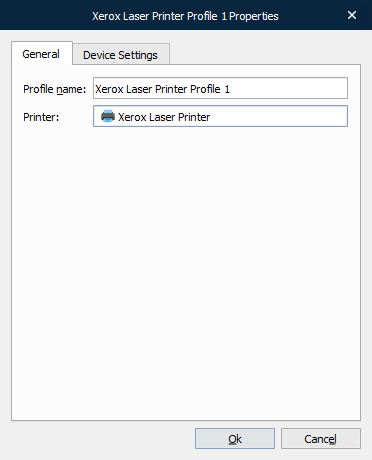
Profile name: Type a unique name to identify the profile.
Printer: The printer that the profile is for.
Device Settings Tab
Device Settings enables you to define standard properties for the printer including paper size, paper source, number of copies, color mode, duplex mode etc.
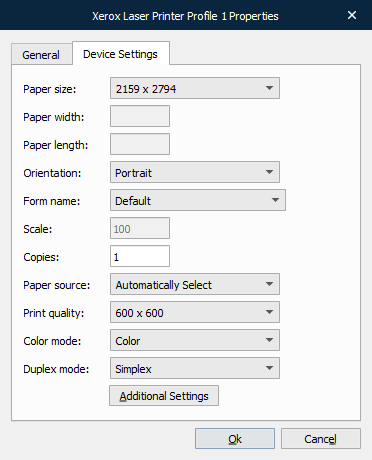
Click Additional Settings to show specific printer driver settings.
Additional Settings Dialog
The specific driver module settings can be configured.
These settings will be saved by Lasernet Core in a device mode context and can later be activated from Lasernet Core workflows.
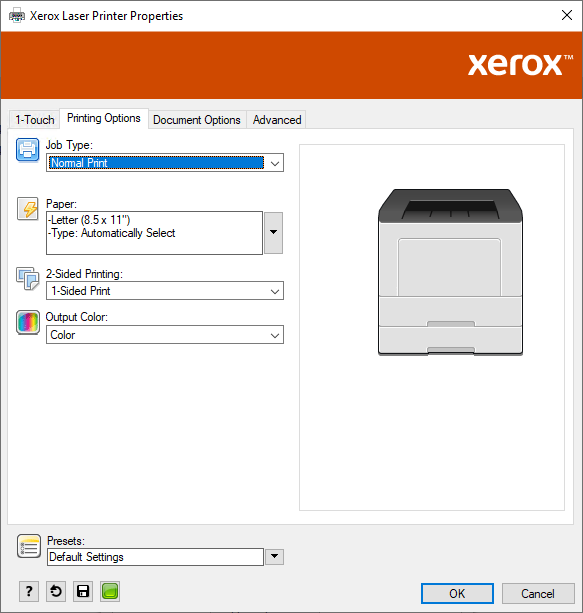
Note: The dialog shown and settings available vary depending on the printer hardware being configured.
Deploy Configuration Dialog
This dialog lists the deployment history for printer configurations.
Select the printer server instances for which you want to deploy the printer list and profiles.
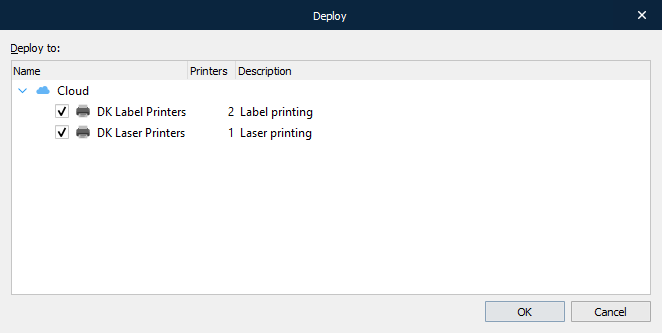
Click OK to deploy to the Configuration server.
Windows Services
Installing Printer Services
After the first deployment, where at least one printer and profile are selected, a Lasernet Printer Service for each instance will be installed and started in Windows Services.
These receive prints from Lasernet Core and print to your local printer, applying Printer Profile settings.

Uninstalling Printer Services
Deselect all printers in the Printer Service window list that are assigned to a particular printer service.
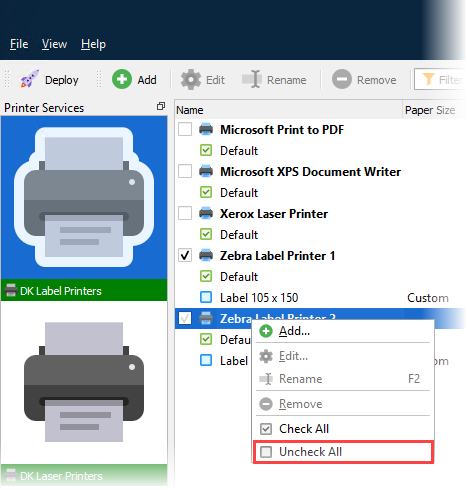
Click .
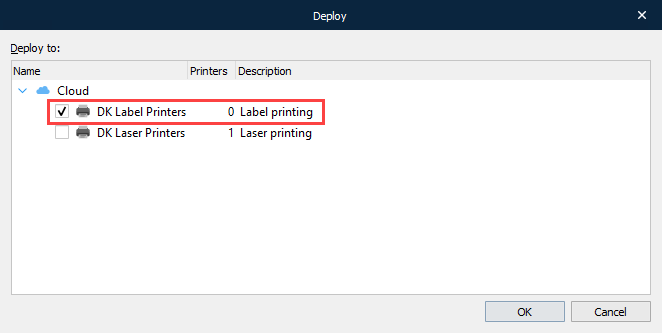
This will remove the selected printers and profiles from the configuration and uninstall them from Windows Services.