Applies to: Lasernet Core 10
Start Lasernet Developer.
Connect to the Lasernet Config server by typing the server name and your credentials.
Select Modules in the Tools menu.
Click Output then add a Printer Service module.
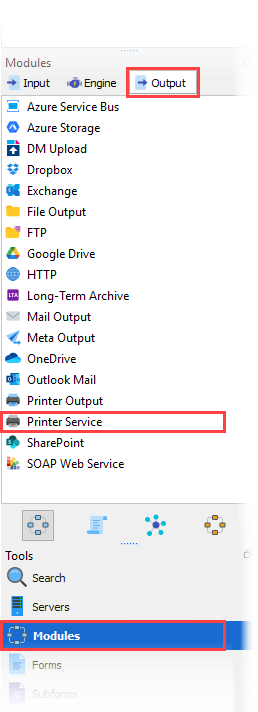
Select a printer server and a printer name from the drop-down list.
Note: This list is retrieved from the printer services added to the Lasernet Config server. See Configure Lasernet Core Print Servers and User Access.
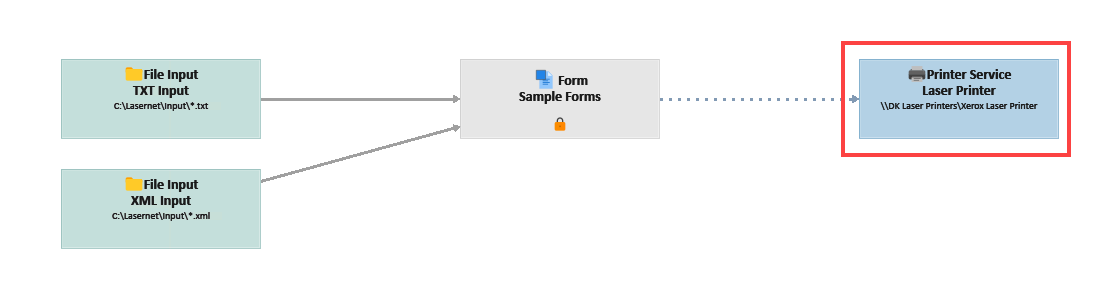
Printer Service Module
Select the printer server and connect to the specific printer using the drop-down menus.
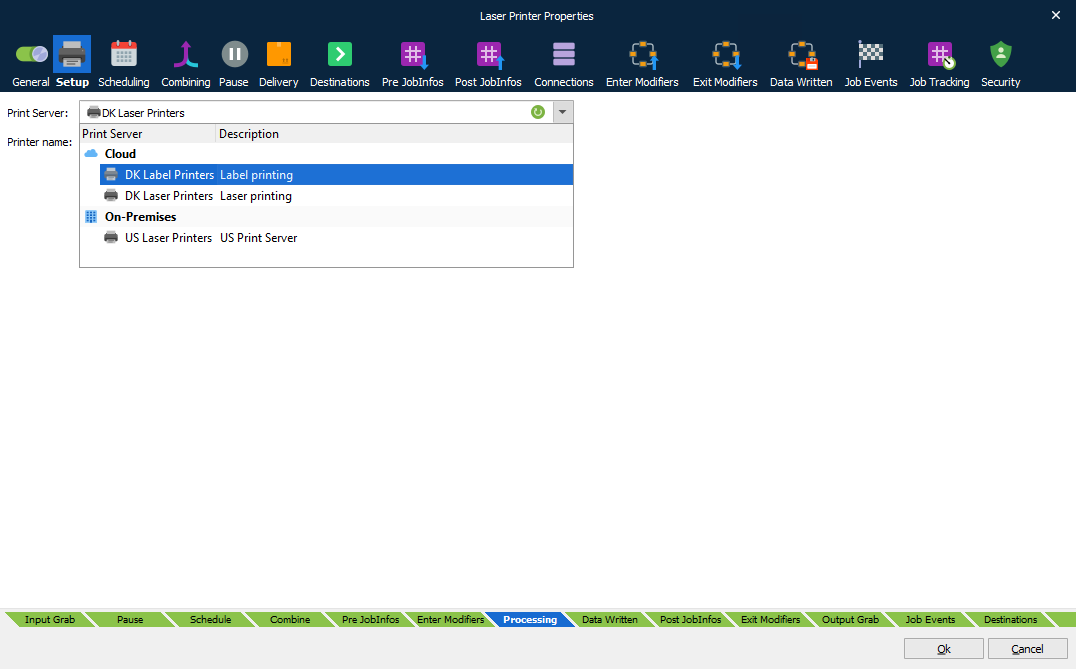
Note: You must first configure your Print Servers, on the Config Server, and add and deploy printers in the Printer Service app to do this.
Printer Profiles
Click the Profiles tab at the bottom of the left panel, then select Printer Profiles.
Here you can view the list of printer service instances, and their printer profiles, created in the Printer Service app.
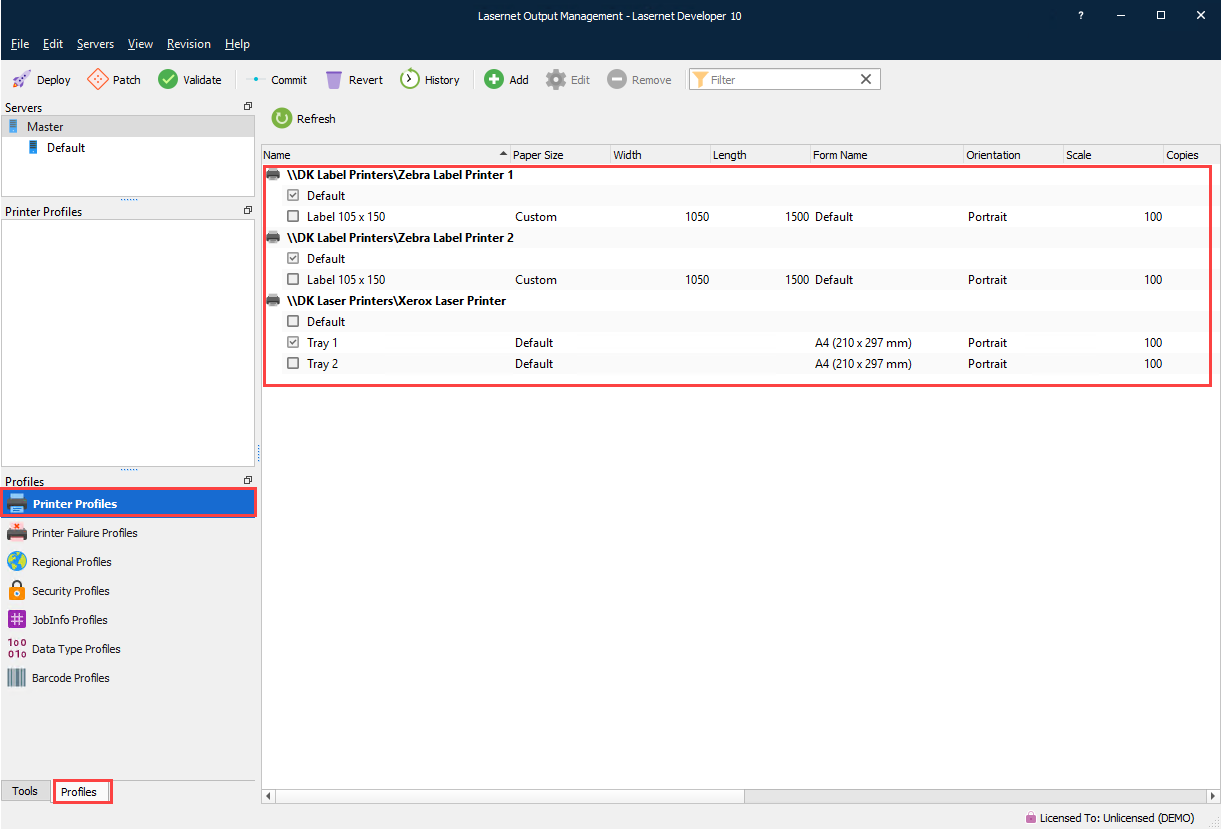
Printer profiles are supported for documents created in the EMF format only.
Printing PDF and DOCX files
The Print Service module and application can autodetect and print PDF and DOCX documents, called printer attachments, without the need for third-party software. This includes the selection of paper source in the printer by detecting the PDF page sizes in the PDF documents. Other printer settings are selected by the default printer settings defined in the Windows printer settings.
JobInfos
The following JobInfos can override the printer settings:
| ColorMode | ColorMode is used set monochrome or color printing. Known values are: Default, monochrome and color. |
| Copies | Set Copies to control the number of printed copies. |
| DocName | DocName JobInfo is used to control the name of the print job for the Windows Print Spooler. If not set the default value is set to “Unnamed – Lasernet document”. |
| DuplexMode | Duplex printing allows the printing of a sheet of paper on both sides automatically. Examples of values are: Default, Simplex, Vertical and Horizontal. |
| Orientation | Manage the Orientation of the paper. Example of values are Portrait or Landscape. |
| PaperHeight | Defines the height of the paper form. |
| PaperSource | Selects the Paper Source in the printer. Example of values are: Auto, Tray 1, Tray 2, Upper Tray, Lower Tray. |
| PaperWidth | Defines the width of the paper form. |
| PrintAttachment | May contain a list of documents in binary representation for printing externally. It is used together with PrintAttachmentFilename and PrintAttachmentMimeType JobInfos. |
| PrintAttachmentCopies | Used to set control the number of printed copies for attached documents in the format PDF and DOCX. |
| PrintFilename | If it is not empty, it is assumed that the JobData is a PDF or Word document type which should printed separately. It is used together with PrintMimeType. |
| PrintMimeType | Contains the mime type of the file to print. It is used together with PrintFilename. |
| WinPrintUserName | Specifies the username of the print job as shown in the job list for a local printer. This can be set to just about anything. |
Lasernet Form Editor
Click Forms in the Tools menu.
To open the Sheet Options window, double-click the output page tabs in the Form Editor window.
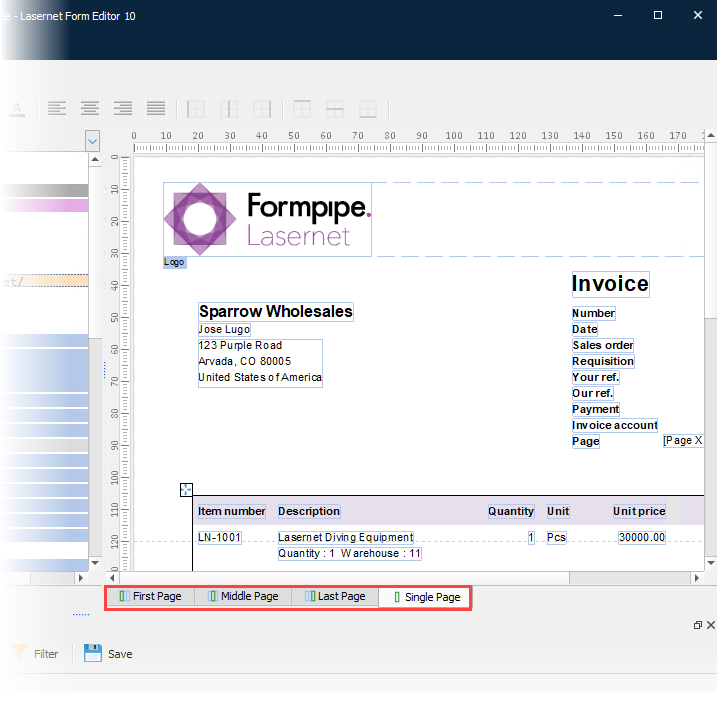
Sheet Options Dialog
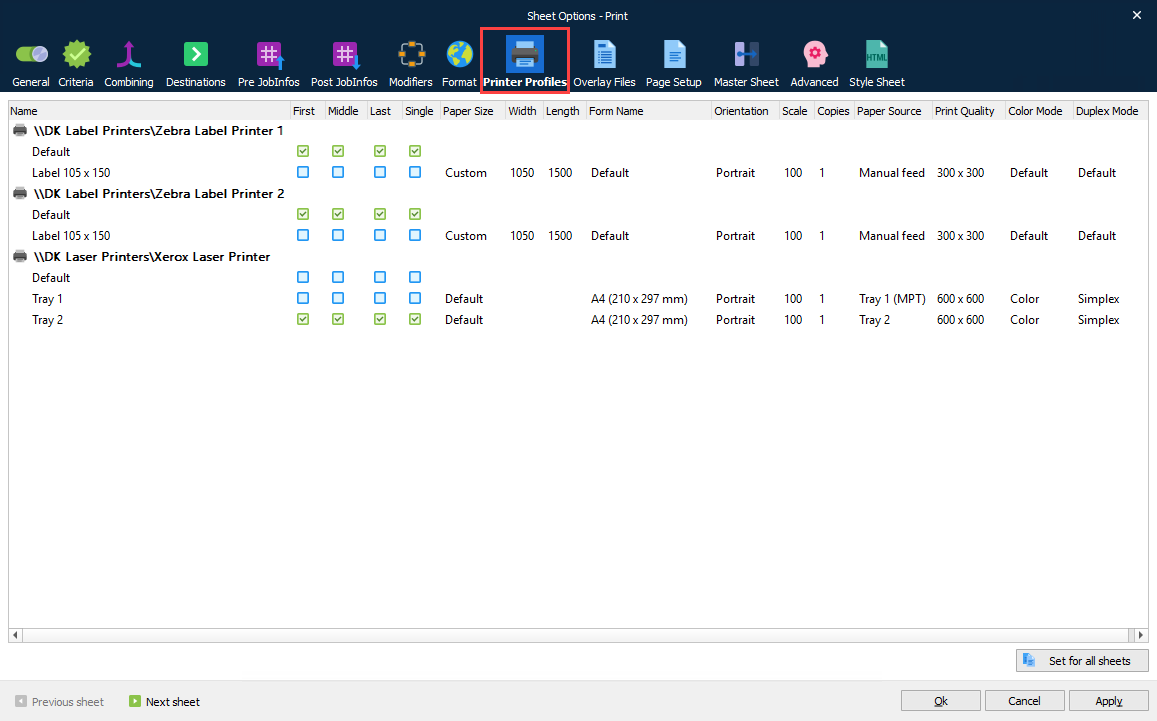
Click the Printer Profiles tab to show the relevant settings.
You can select different profiles for the First, Middle, Last and Single pages by clicking the checkboxes.
Printer Profile Priority
Printer profile settings can override the default Printer Service settings, depending on where they are configured.
This is the order of precedence, from highest to lowest:
Form Editor – Printer Profile selection at sheet level
Printer Service application – Printer Profile selection
Windows local printer queue – printer settings