
This page describes how to start Archive and introduces you to the parts of Lasernet Archive that you use to maintain and manage the system.
Log In to Lasernet Archive
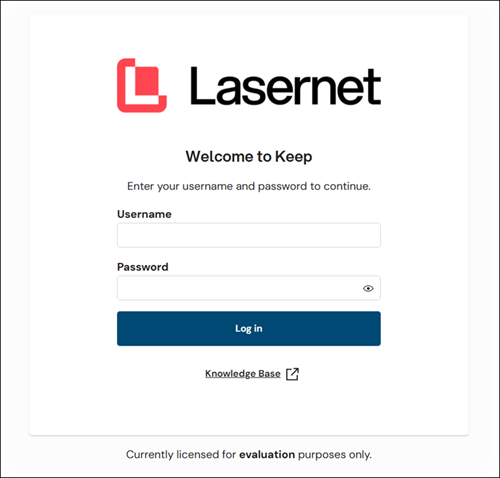
To log in to Archive, follow these steps:
In a web browser, go to Archive’s URL.
Note
The Archive URL has the following structure:
https://<host name>:<port>/archive/
Appropriately substitute<host name>and<port>.If Archive is using the default HTTPS port (443), you can omit:<port>. For example:https://archive-server/archiveEnter your Username and Password, then click Log in. You might log in as the built-in admin user, or as a separately created Archive user that has the Admin User role.
Find Your Way Around Lasernet Archive

Number | Item | More information |
|---|---|---|
1 | Search configurations | To begin a search, click a tile. If you have not been granted access to use a particular search, Archive displays a no entry icon at the upper-right corner of that tile instead of a magnifying glass icon.
To modify a search configuration, click the menu (three vertical dots) button then click the Edit icon that appears when you hover the mouse pointer over the search configuration’s tile.
To create a search configuration, click New Search. |
2 | Upload configurations | To begin an upload, click Uploads and then select an upload configuration from the Your Uploads pane.
If you have not been granted access to use a particular upload configuration, Archive displays a no entry icon beside that upload’s name. To modify an upload configuration, click the menu (three vertical dots) button, then click the Edit icon that appears when you hover the mouse pointer over the upload configuration’s tile. To create an upload configuration, click New Upload. |
3 | Search box | For quick access to an Archive page (such as Users or Key Definitions), click the search box (or press Ctrl + K) and then enter the page name. |
4 | Dark mode switch | |
5 | Account | To open the Account info pane and access the Sign out button, click this button. You can also change your own password here. For more information, see Account Info Pane. |
6 | Return to home page | At any time, click Home to return to this home page. |
7 | User management menu | Provides access to the following areas of Archive: |
8 | Archive structure menu | Provides access to the following areas of Archive: |
9 | Reports and info menu | Provides access to the following areas of Archive: |
10 | Settings | Provides access to various Lasernet Archive settings. |
11 | Expand | To expand the left-side menu so that it displays icon names alongside icons, click Expand. |
12 | Admin menu | The menu on the left side of Archive is available only to users who have the Admin User role. |
.png)
.png)
.png)
Account Info Pane
The Account Info pane displays information (such as username) about the user account that you are logged in as. It also provides links to relevant license agreements and documentation.
Click Change Password to change your own password for Archive.
To sign out of Archive, click Sign out.
Click x to close the pane.
.png)
Change Your Password
To change your password for Archive, follow these steps:
Open the Account Info pane.
Click Change Password.
Enter your current password into the Current Password box.
Enter your new password into the New Password and Confirm New Password boxes.
Note
Archive will notify you if the new password does not satisfy password complexity rules.
Click Confirm. Archive will log you out.
Use your new password to log in to Archive.