Applies to: Lasernet Core 10
Grab mode is used by the Lasernet Core environment to store a copy of the job data in a user defined server grab directory. Grab files are required by the Form Editor as input data for designing forms or the XML Transformer Editor to modify XML data.
Server settings
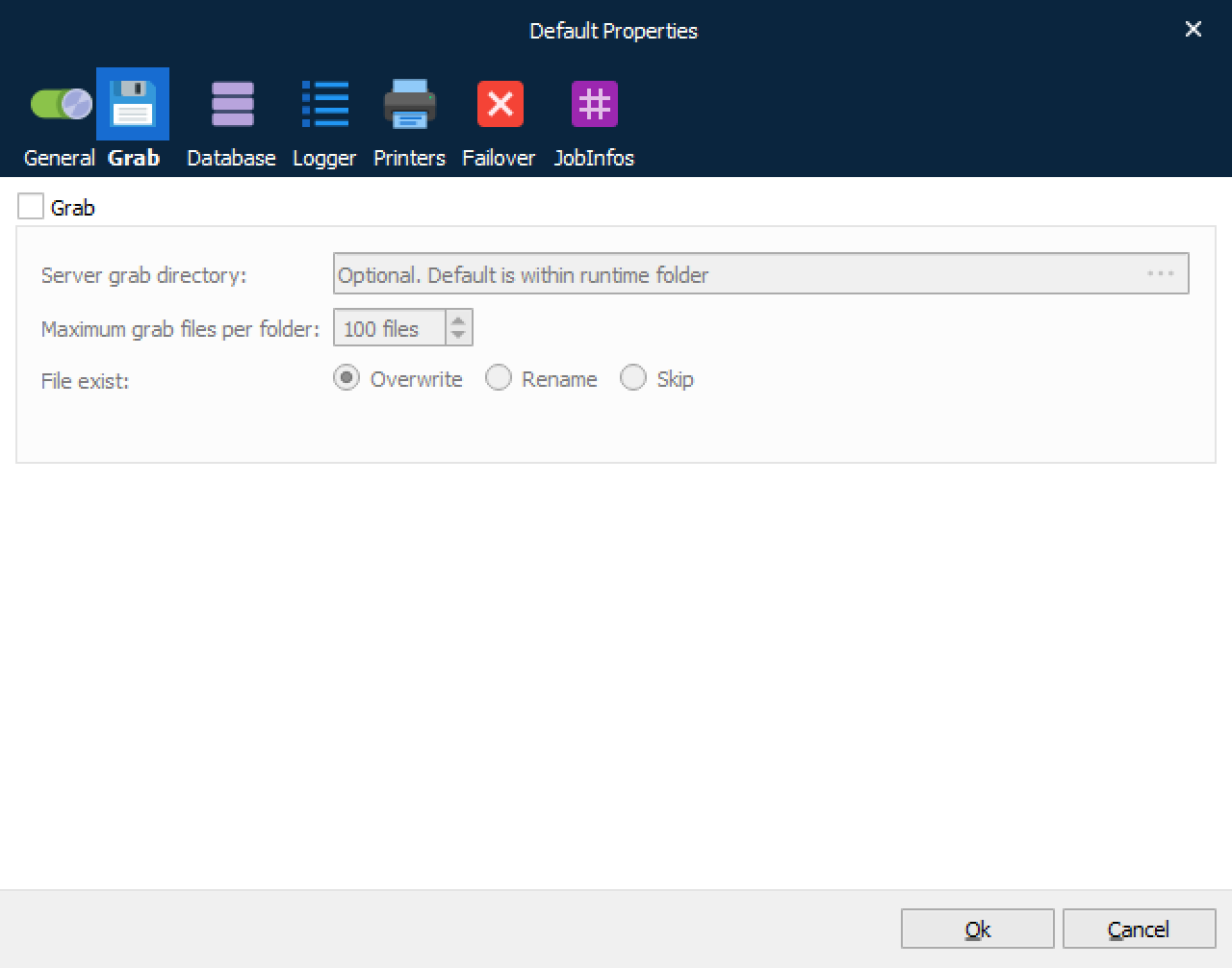
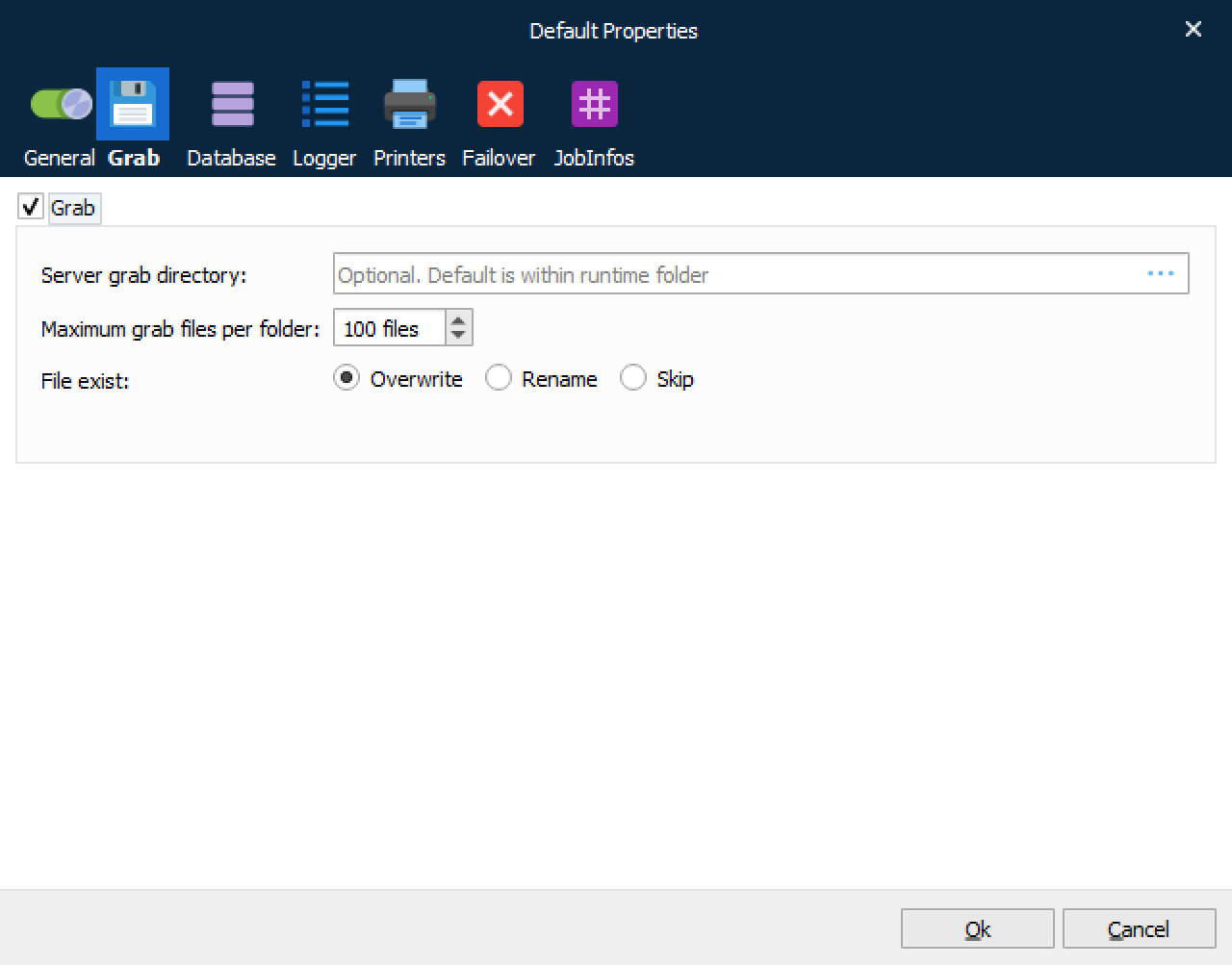
| Enable grab mode | Select this checkbox to activate the grab mode for forms and modules where grab mode turned is on. Lasernet Core will not enter grab mode, for any form or module before the configuration is uploaded to the server. The Lasernet Core service will always start up in grab mode, after a restart of a Lasernet Core service, or when this setting is activated. In the general settings for modules and forms, you must also define what event level the Lasernet Core service should create grab files, before the grab mode will take place. Enabling/disabling Grab mode at module and form level can also be managed from the Grab page in the Lasernet Monitor. This is convenient if you want to remotely activate/de-activate grab mode, without updating the configuration. |
| Server grab directory | The root directory for grab data. A sub directory will be created in the root directory containing the name of module or form name where grab mode was activated. The Server grab directory will automatically be created on the Lasernet Core environment during processing of job data. If no directory is specified grab files will be stored in the Server runtime data directory specified in the General tab settings. |
| Maximum grab files per folder | Maximum number of grab files per folder, before the oldest grab files are automatically deleted. |
| File Exist | Set behaviour if the file name already exists in the folder. Select overwrite, rename or skip. Rename will enable additional settings where you can define a splitter symbol and the number of digits in the filename.
|
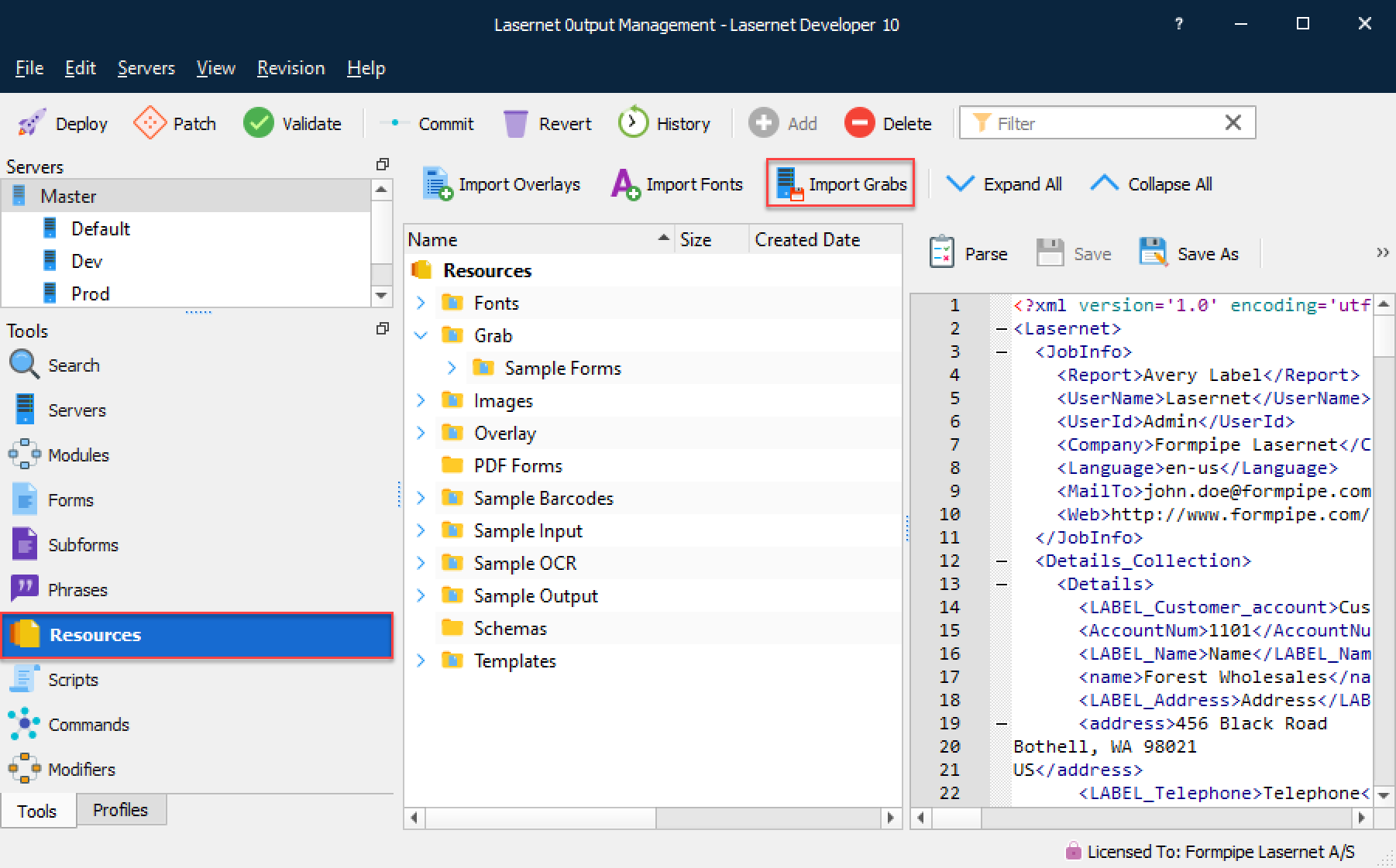
| Download grabs from server | Go to Resources and select the Import Grabs button to import all stored grab files from the selected server.
Grab files will be transferred from the server grab directory to the destination of the Lasernet Core configuration file. After being transferred, downloaded grab files will be removed from server. |
Activate grab mode at module and form level
Grab mode can be activated on any module added to the configuration. In the module you can define if the grab mode should run before data enters the module (input) or when data exits the module (output). Grab mode has to be activated in the server settings first, before enabling grab mode on a module will have any effect.
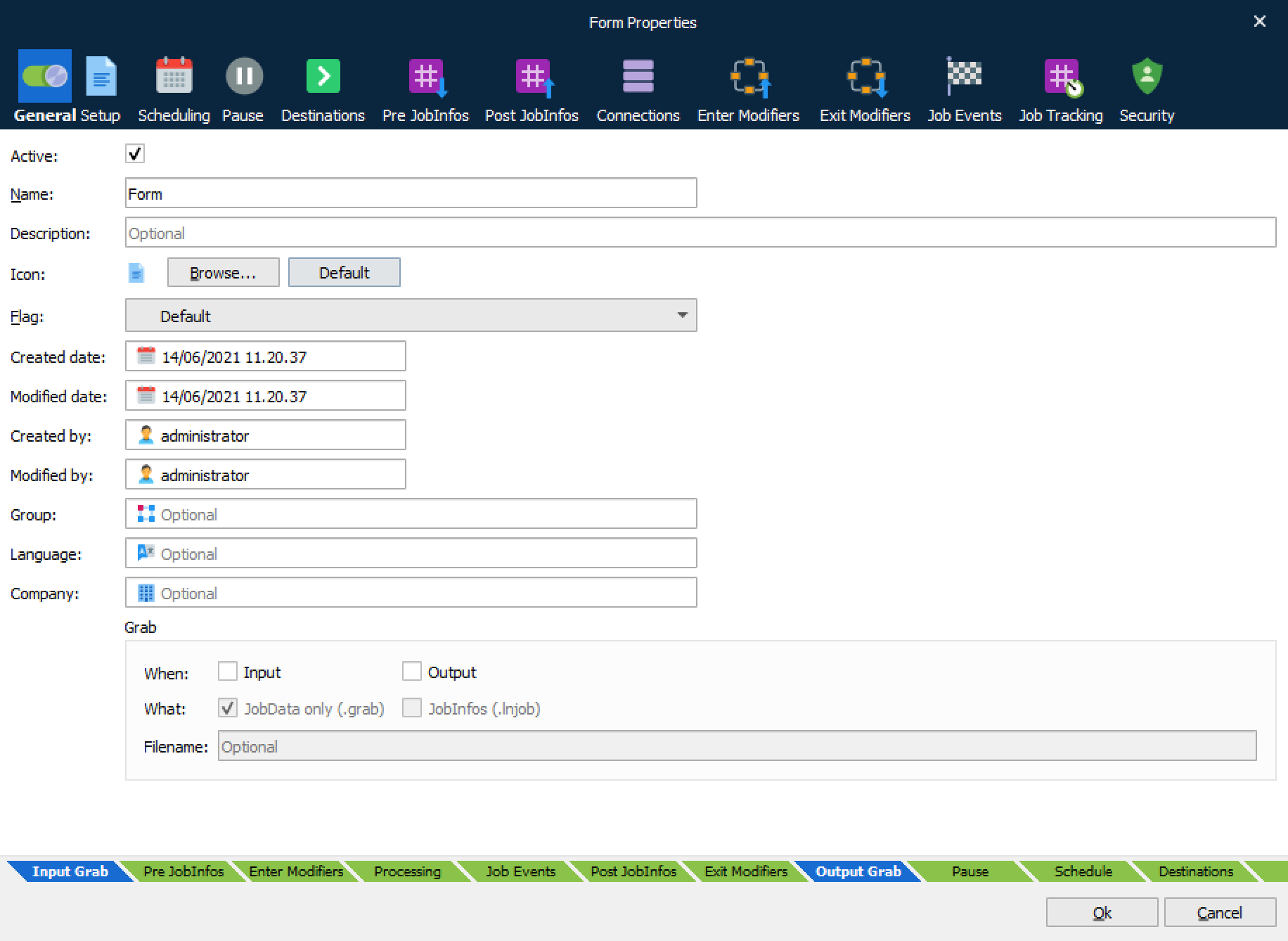
To help understand what event grab data will be stored, the tab bar at the bottom of the general settings shows the order that data is processed in the specific modules. Input grab mode is always performed before JobInfos and Enter Modifiers are executed, and output grab is always performed after Exit Modifiers are run. This can have an effect on what the contents of the grab file is.
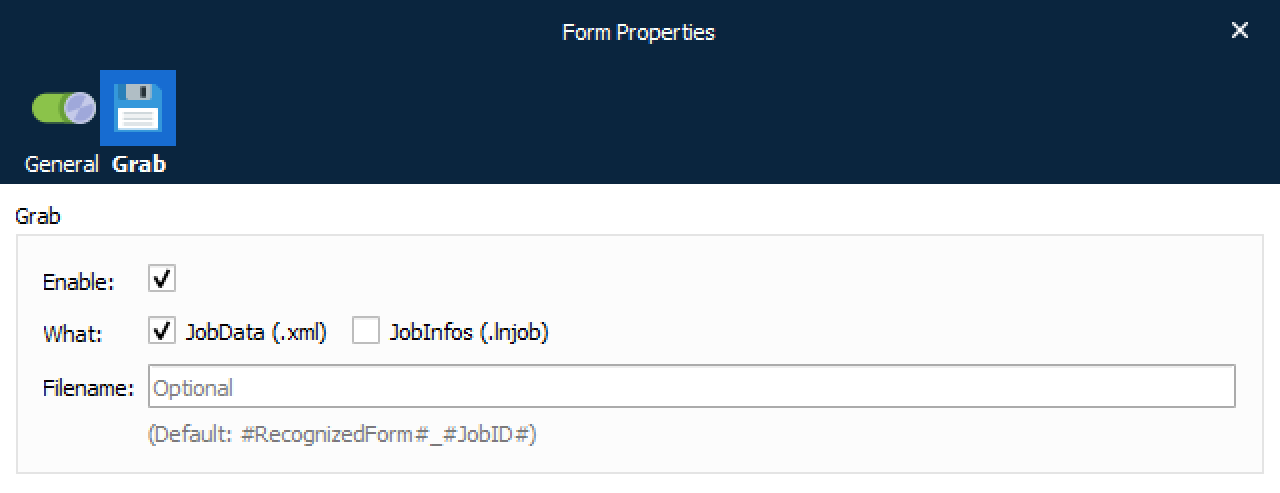
If you only need to grab specific forms, grab mode can also be activated and de-activated at form level. To set grab mode for multiple forms, enable the grab mode on the property editor and select what to grab.
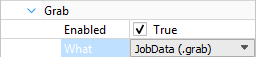
When adding new modules, the ‘enable’ setting is deactivated by default. To activate grab mode at module level you have to activate both the grab mode in the server settings and in the module settings.
In the form object, the ‘enable’ setting is activated by default when adding new forms. The is also true for XML forms added to the XML Transformer Engine.
We recommend that you keep these default settings as they will ensure that Lasernet Core 10 behaves in the same way as previous versions. Grabbing data at form level is the most common way of grabbing data in Lasernet Core and is essential when working with data design in the Form Editor or XML Transformer Editor.
Enabling grab mode at module level is often only used to analyze data or to create a backup of a processed job at that level, where it is most convenient to re-use the job in a future test.
The hierarchy of grab folders
Grab files are stored in a hierarchical folder structure off the top-level folder defined in the server settings. When grab files are downloaded from the server, the folder structure is retained in the configuration directory.
In the following example, grab modes have been activated for the forms, “Avery Label”, “Postings”, “Product Sheet”, “Sales Confirmation” and “Sales Invoice”. On the module “XML Input”, grab mode has been activated at the input event.
In the grab folder, the grab files will be stored in a relative folder containing the name of the form or the name of the module + grab event (Input/Output). This will help you locate the grab data when browsing for grab files.
Grab /ERP Forms /Avery Label
/Postings
/Product Sheet
/Sales Confirmation
/Sales Invoice
/XML Input /Input
If you want to setup a more general grab mode that works for all forms, you can disable grab mode on form event and activate grab mode on the Form Engine at the input event. This will grab any job parsed through the Form Engine where grab mode has been activated.
If you want to analyze the output for all forms generated by the Form Engine, you can activate grab mode on output level. If both grab events are activated, the grab files will be saved in the following folder structure:
Grab /ERP Forms /Input
/Output
The same way of activating grab mode will also work for the Overlay Engine and XML Transformer Engine, both of which can contain a list of forms.
Types of Grab File
You can adjust the “What” setting in order to grab both at module and at form level. This will cause the Lasernet Core environment to save one or two grab files for each job.
| JobData (.grab) | A file which contains only the content of the JobInfo ‘JobData’. No JobInfos are available. |
| JobInfos (.lnjob) | A file which contains the full Job including all JobInfos. |
Activate grab mode from Lasernet Monitor
You can remotely activate any module or form added to the configuration from the Lasernet Monitor.
More information about how to activate grab mode from the Lasernet Monitor is available in the Lasernet Monitor 10 Guide.
Work with grab data in the Lasernet Form Editor
More information about how to work with grab data in the Lasernet Form Editor is available from the Lasernet Form Editor Guide.