
This article provides a guide to enable the New and Delete buttons found on the standard attachment forms in Dynamics 365. This is where a user can see the documents attached to a record from Document Handling and manually attach information.
Steps
Navigate to your record, select the paperclip icon to view the attachments, and check whether the New and Delete buttons are grayed out.
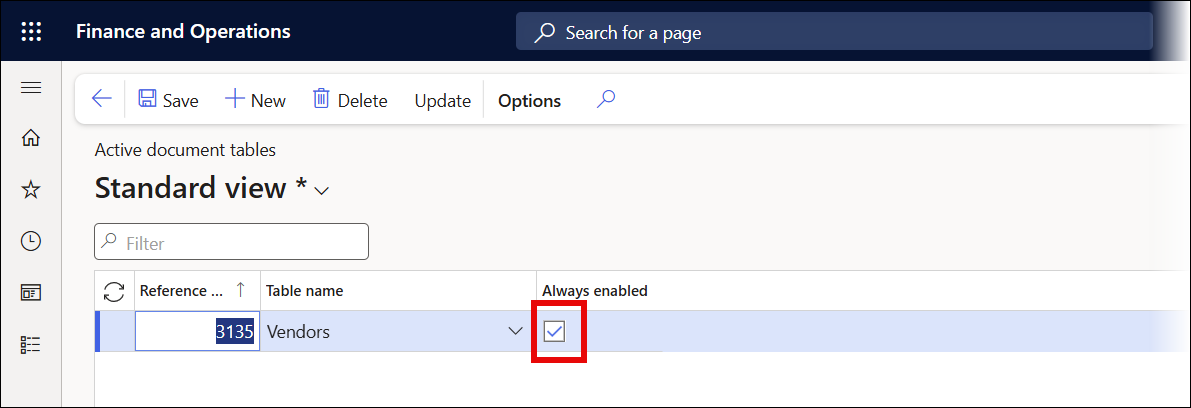
Navigate to Organization administration > Document management > Active document tables.

Add a new record, choose the reference tables for the attachments, and select the Always enabled checkbox.
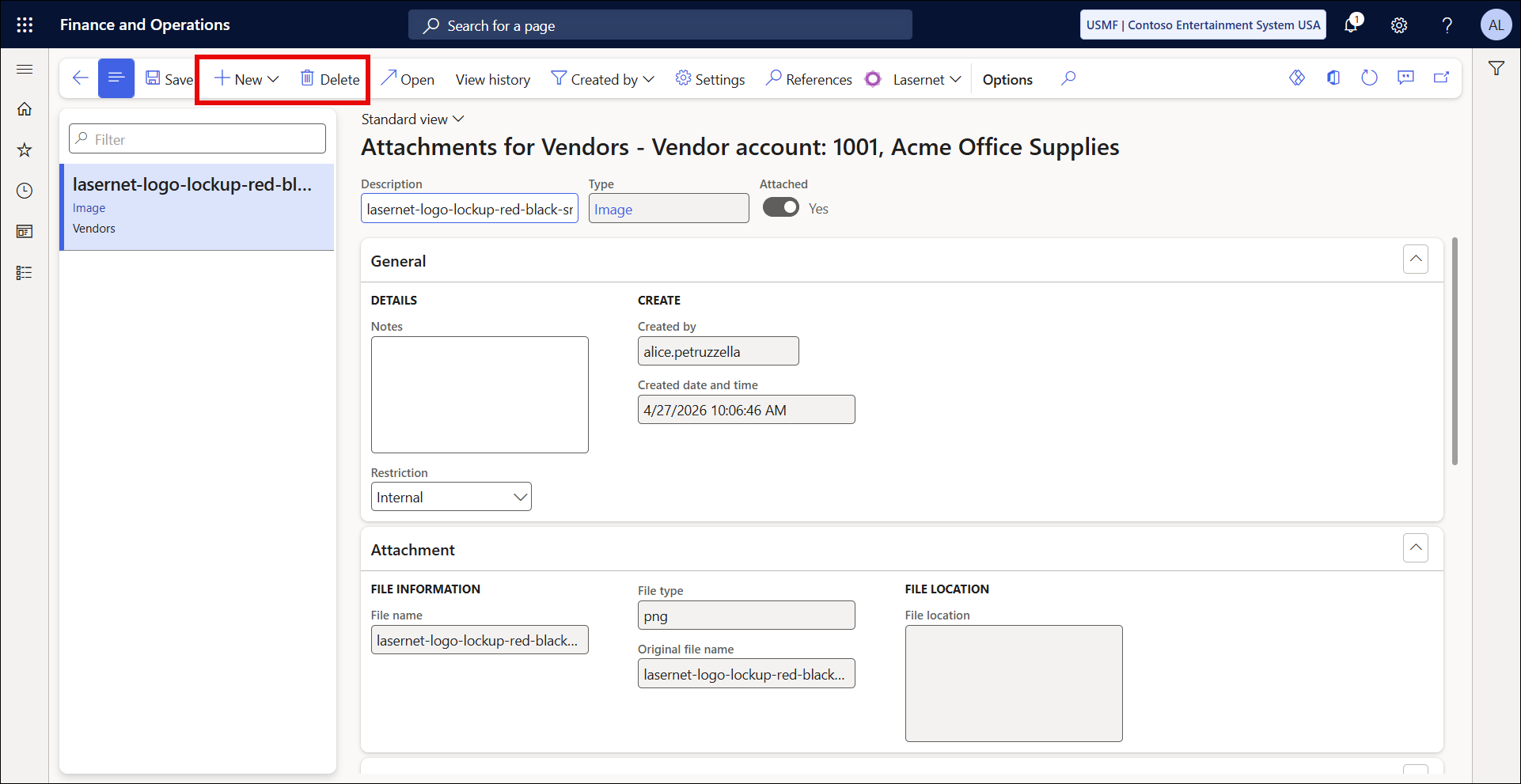
Verify. The New and Delete buttons are now available for selection.
Additional information
More information can be found on Microsoft's website.