Note
This article describes legacy software. Although the software will no longer receive updates, existing documentation, such as this article, will be retained for reference purposes but will no longer be updated. If you have any questions, contact Lasernet Support.
Occasionally, when printing to Lasernet Print Capture, strange characters will appear in the generated Overlays. This is called a ligature. A ligature occurs when two or more letters are joined together as a single glyph (character/symbol):
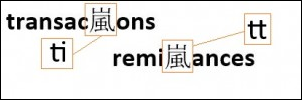
To resolve this, the software that prints to Lasernet Print Capture printer must have its ligature option set to disabled. Follow these steps for Microsoft Word and Microsoft Publisher:
Microsoft Word ®
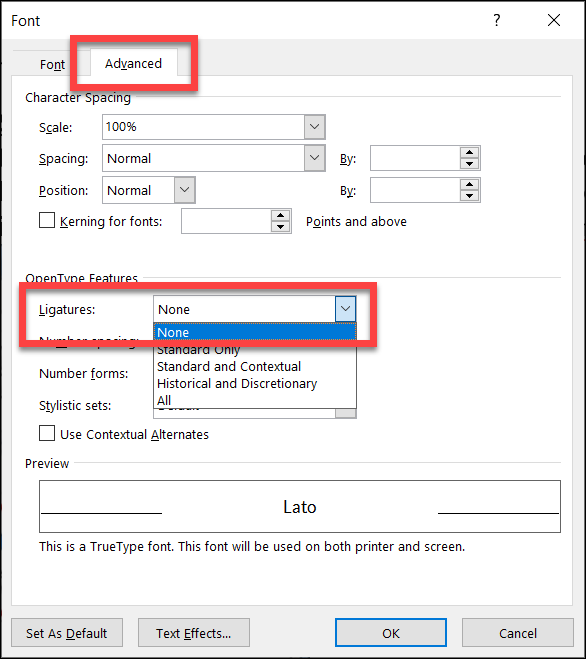
Press Ctrl+D and then open the Advanced tab.
Click the dropdown menu next to Ligatures and select None.
Microsoft Publisher
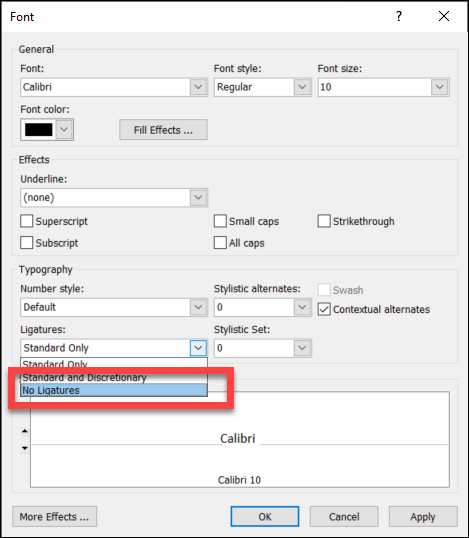
Click the arrow in the font pane to open the Font box.
Click the dropdown menu next to Ligatures and select No Ligatures.
Alternative Solution
As fonts are designed to display specific ligatures, to prevent ligatures from being produced, use a different font.