
Issue
The Archive button on Form Links leads to the file saved in the Lasernet Archive. This button is active if an archived file exists.
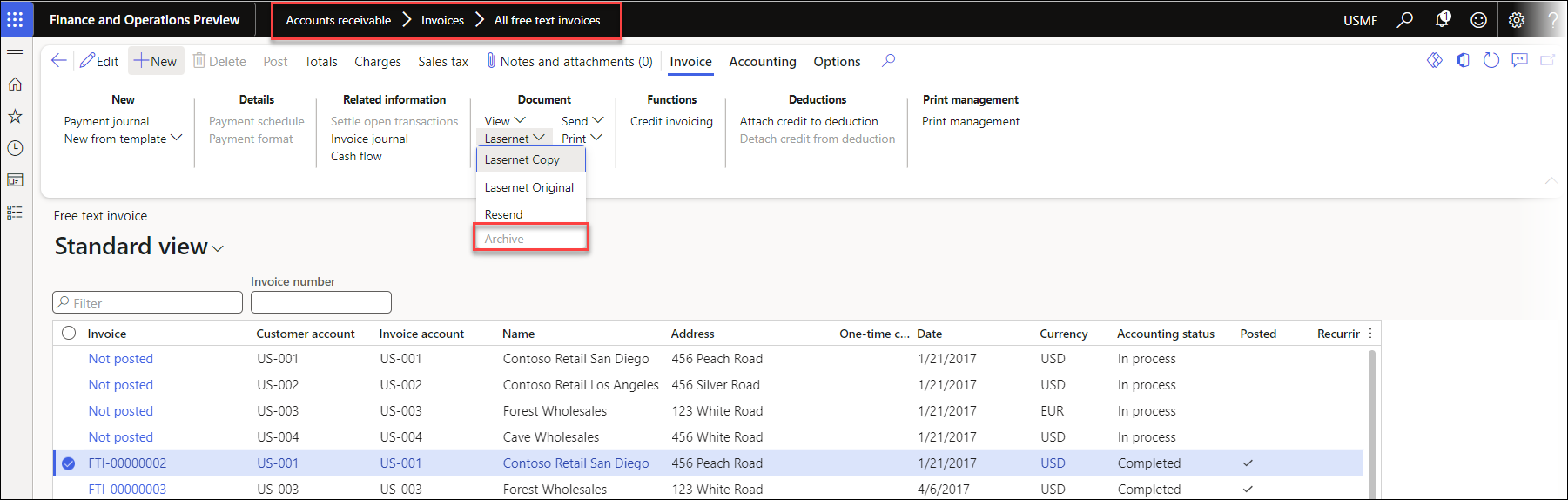
However, in some cases, this button may be grayed out, even when an archived file exists.
In the following image, the Archive button is grayed out for a free text invoice on the All free text invoices list page:
Cause
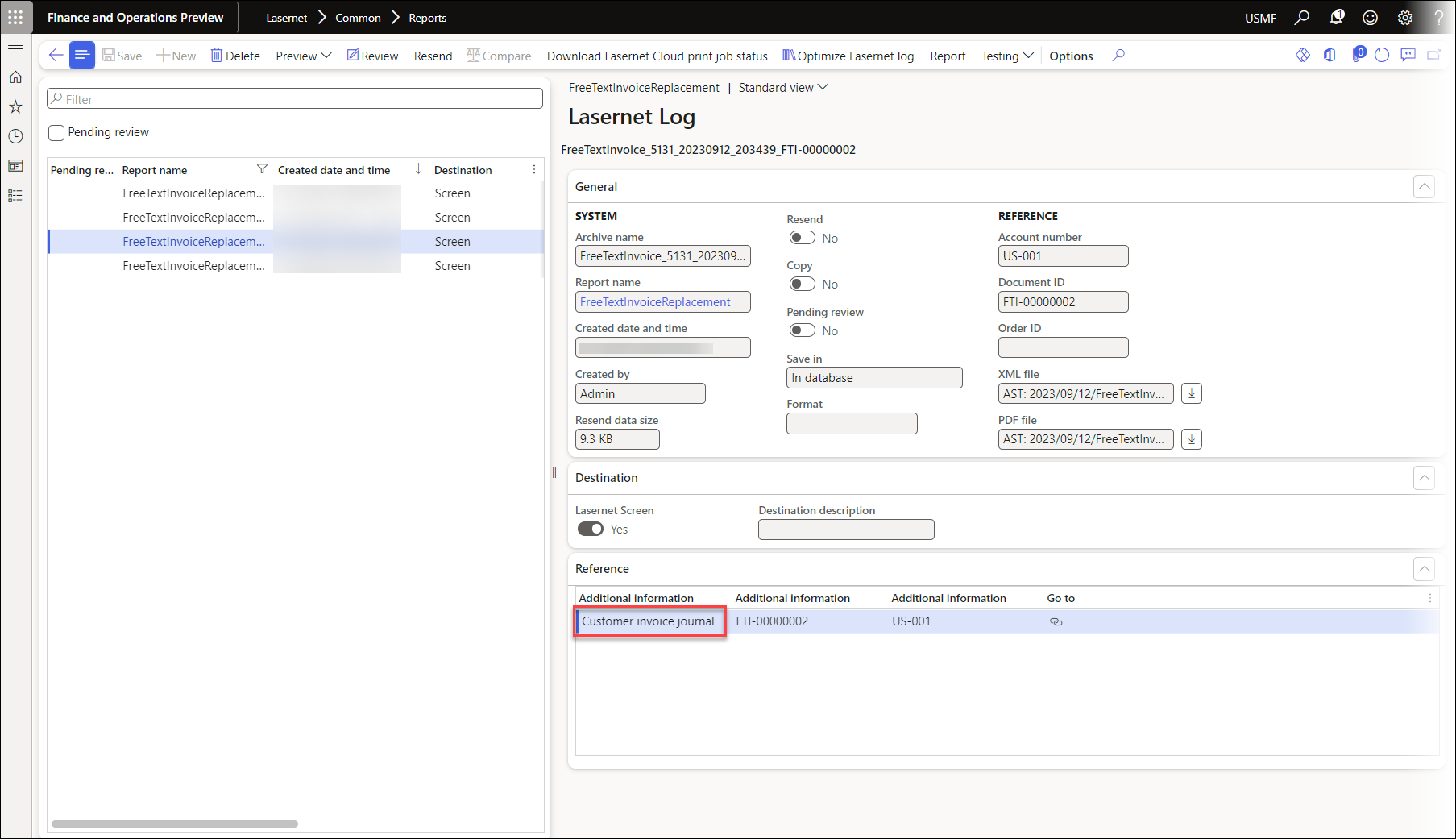
The button is not active because the archived file’s reference archive table differs from the data source on this form.
In the following image, the archived file’s reference archive table is the Customer invoice journal:
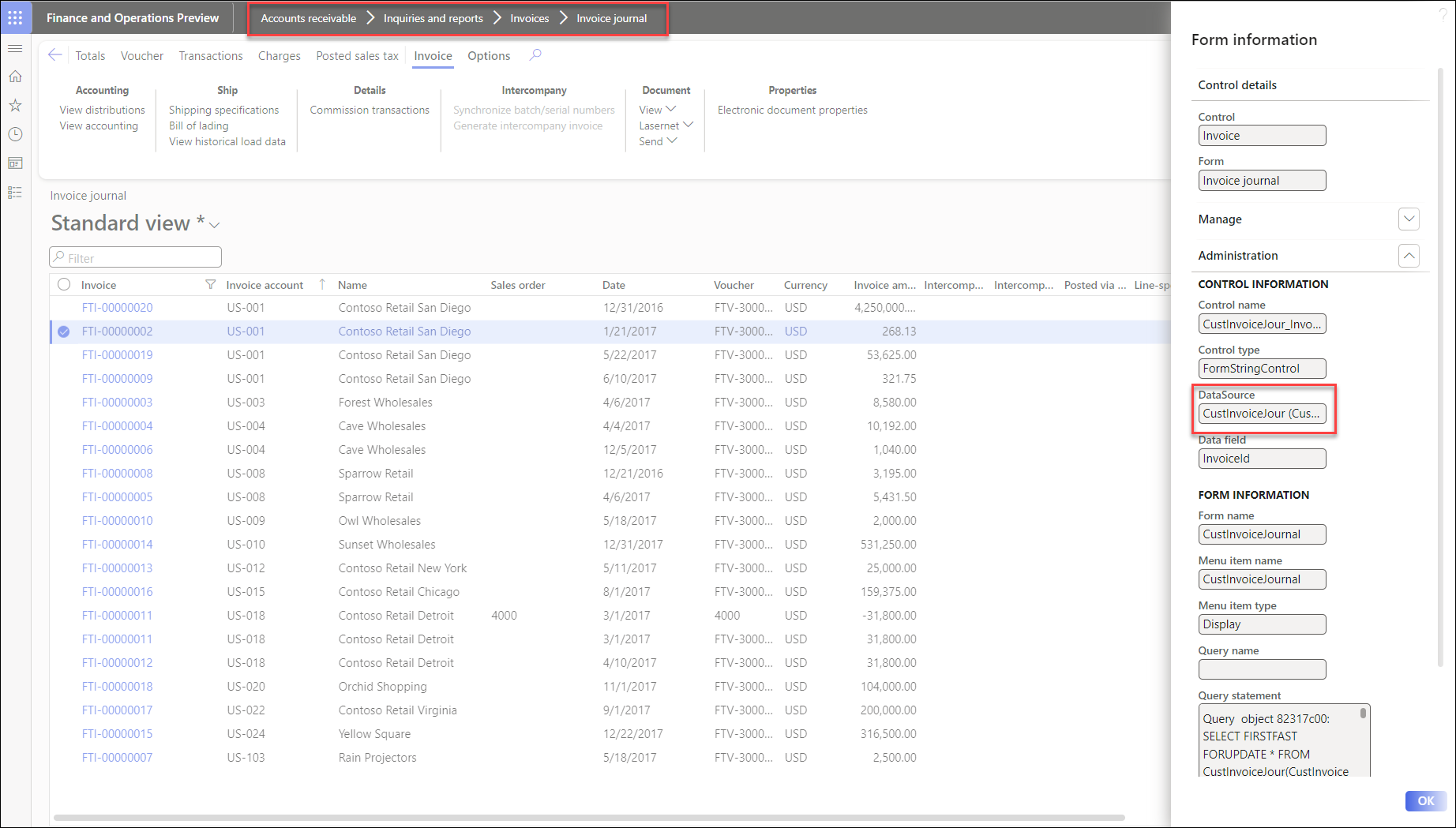
However, the Form Link with the Archive button is on the All free text invoices list page. The data source for this form is CustInvoiceTable.
Solution
The report’s Table for archive must be updated to match the data source on the form where you are trying to select the Archive button. To do so, follow these steps:
Set the CustInvoiceTable as the Table for archive.
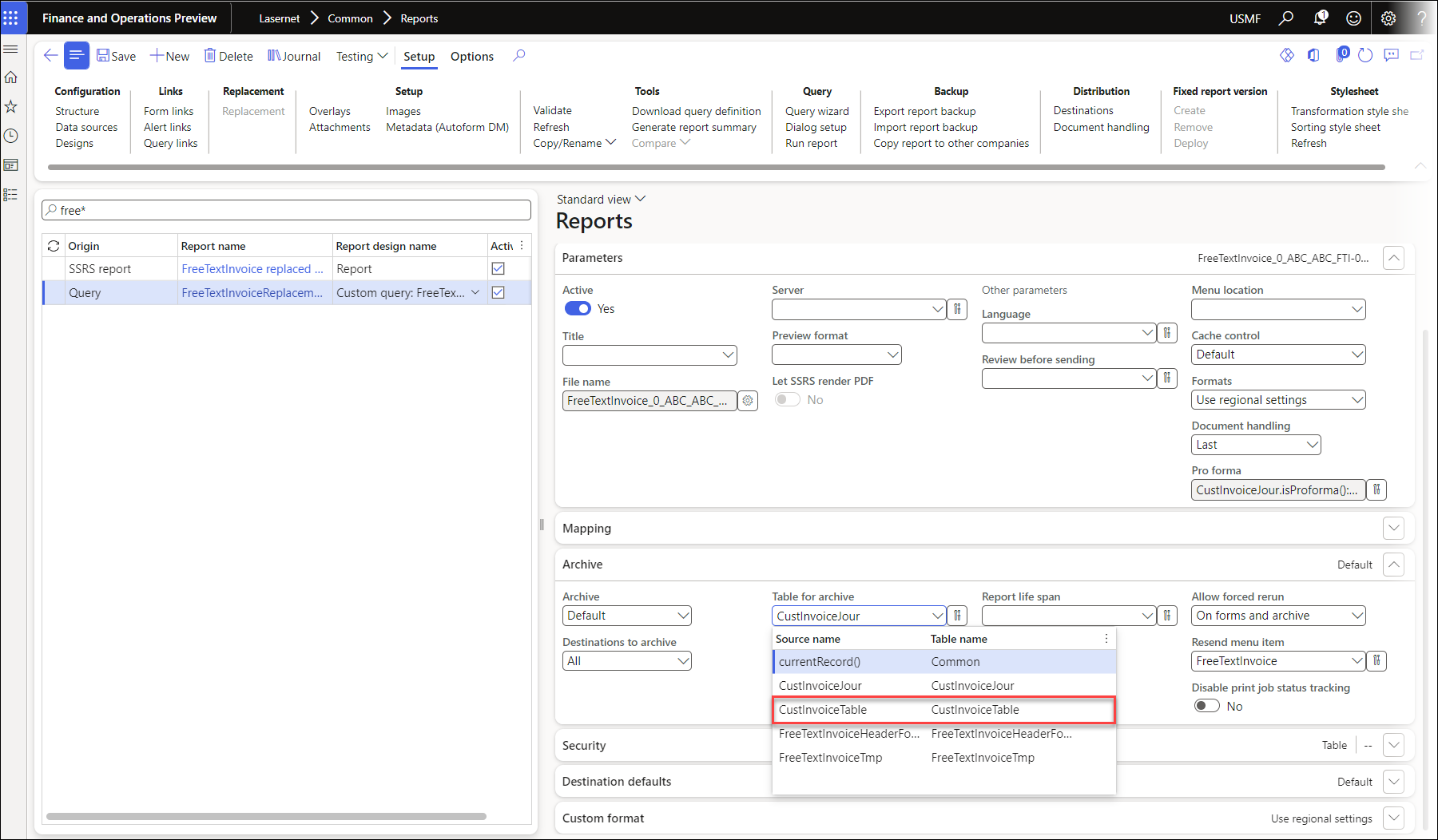
Print the report again to create an archive file with a reference to the new Table for archive.
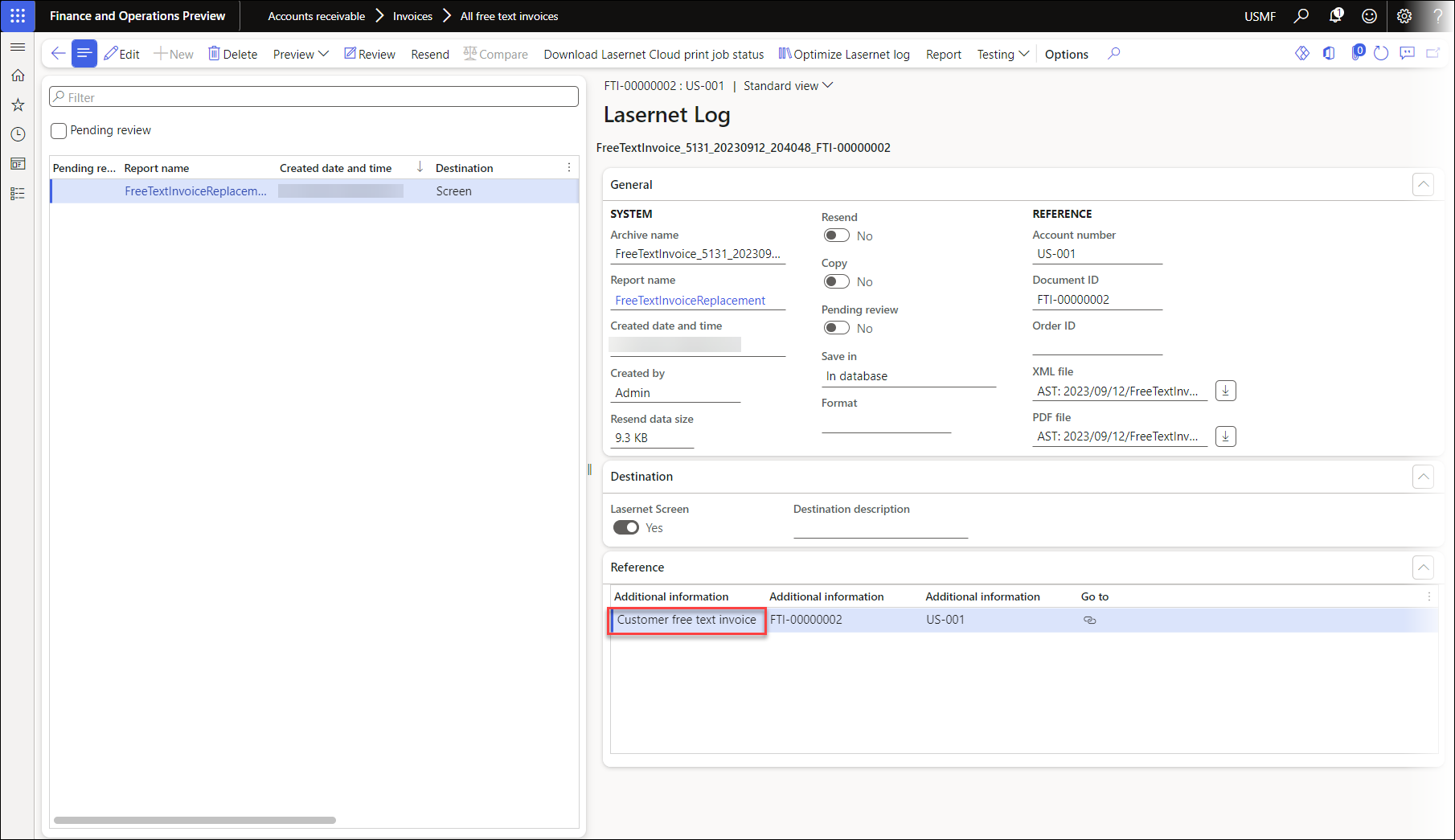
The Archive button is now active on the All free text invoices list page.
Note
If you cannot locate the DataSource for the report, open the Query Wizard and check the main table (for instance, if you are dealing with a custom report that is using the PurchTable, set the Table for archive to be PurchConfirmationRequestJour).
Typically, the Table for archive is set from the workspace where the report is run. For example, when running a record from Sales Confirmation, expect a relevant Table for archive to be there.
This information can be found by right-clicking a record and viewing the form information.