Applies to: Lasernet Core 10
Lasernet Developer provides an easy-to-use environment for configuring and maintaining input and output management solutions on your Lasernet Server. You can design great looking forms, workflows and connections to a wide range of communication channels.
Installation
Welcome
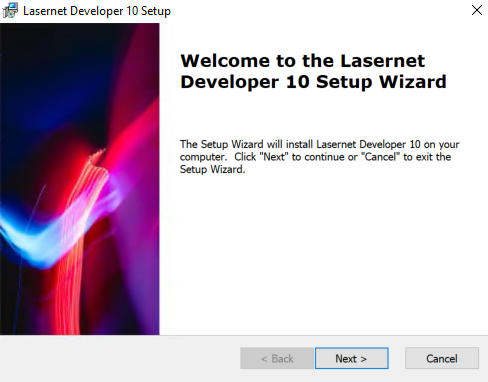
Click Next to continue.
Select Installation Folder
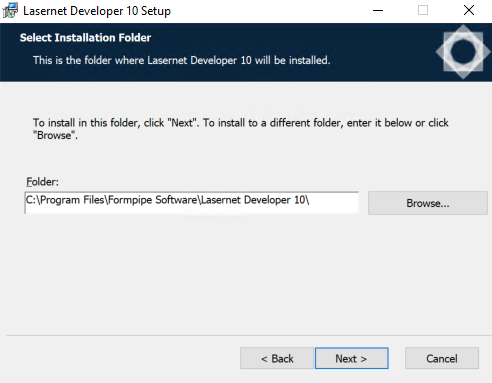
Choose the path for the installation folder and click Next.
Ready to Install
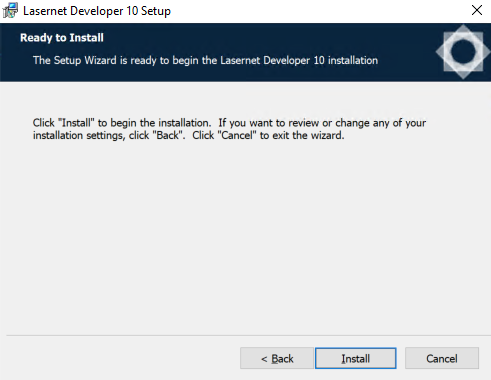
Click Install to begin the installation process.
Installing Files
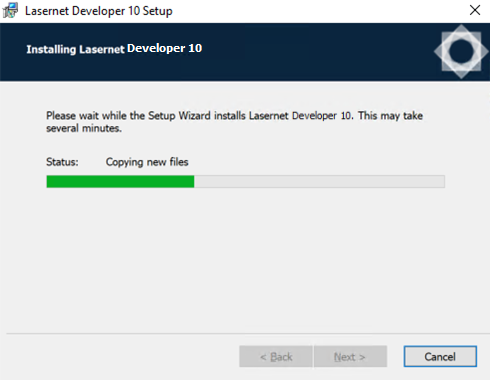
Please wait while Lasernet Developer is installed, or click Cancel to abort.
Installation Complete
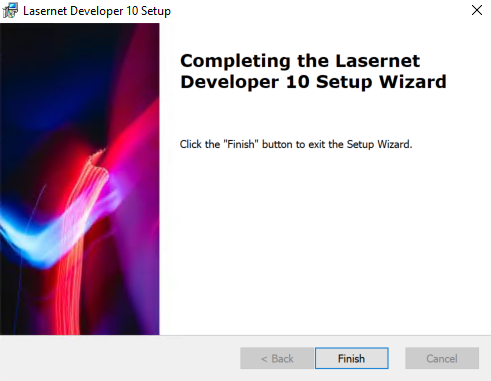
Click Finish to close the installer.
Note
With the Lasernet Core 10.2 release, Lasernet Launcher has been removed. You can access Lasernet Core modules in the Start menu or via desktop shortcuts.
Licensing
Add Developer License Instance(s)
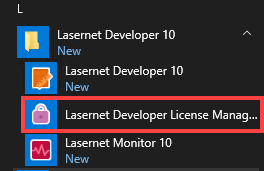
Go to the Start menu and open Lasernet Developer License Manager.
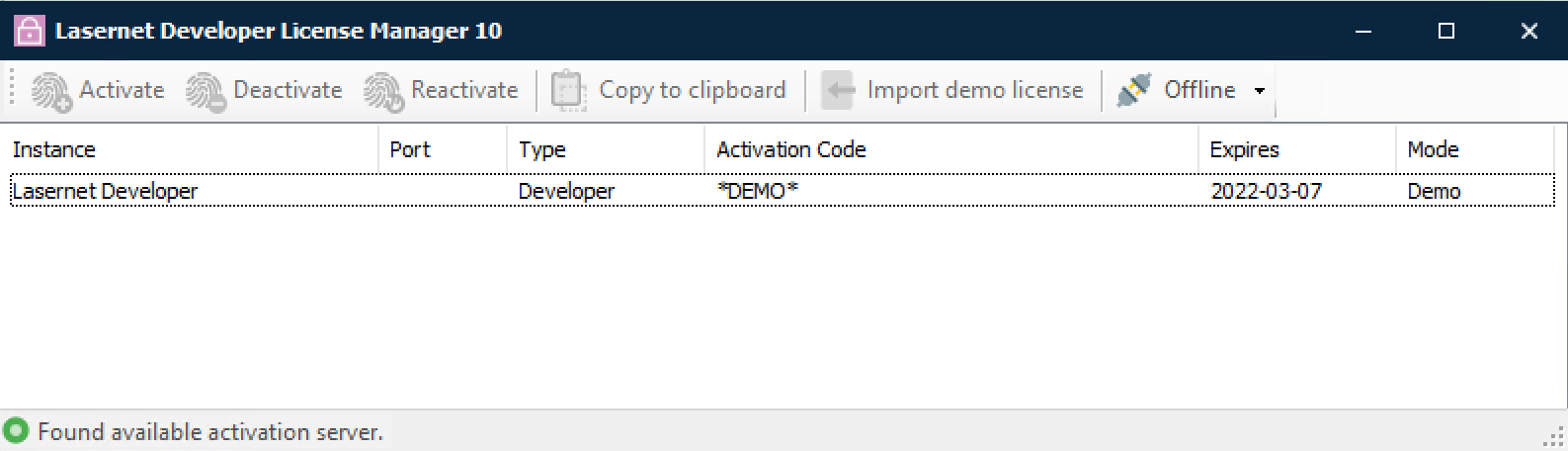
Add and activate the required license(s).
Lasernet Developer License Manager
The Lasernet Developer License Manager is used to administer your licenses for Lasernet Developer.
Important
License activation is bound to the name and domain of the machine on which Lasernet Core is installed. If the computer name or domain is changed, the license will stop working. It will also not be possible for you to deactivate your license if you change the name and/or domain of your machine. Before renaming your machine, you must deactivate your license.
If you forget to deactivate your license before changing the name and/or domain, you must restore the machine and domain name to the one used to activate your license. Then you will be able to deactivate your license so you can activate it again after the name change.
Activation codes
The license code is used to activate your license on a machine. You will receive separate codes for each Lasernet Developer you have purchased.
The activation code will allow you to install Lasernet Developer on a single machine.
Note
A Lasernet Developer activation code will start the letters “DEV-“, followed by 8 groups of 4 characters each.
Important
The activation is bound to the machine using the machine name and, if available, the domain name. If you decide to rename the machine, join or leave a domain, you must deactivate your license first. You will not be able to deactivate your license once the machine name and/or domain has changed.
Online deactivation
Start the Lasernet Developer License Manager.
Select Lasernet Developer and click Deactivate in the toolbar to remove the license.
Note
You must deactivate your license before moving Lasernet Developer to another computer. You will not be able to activate Lasernet Developer using your activation code if the same activation code has been used to activate Lasernet Core on another computer. The maximum number of times a license can be registered will be stated in the license agreement.
Note
To deactivate your Lasernet Developer, internet access is required throughout the deactivation process.
Offline activation/deactivation procedures
See Activate and Deactivate Licenses Offline for information about offline licensing procedures.
Connecting to Lasernet Core
Click the Lasernet Developer icon in the Start menu.

Type in the server name of the Lasernet Core configuration server and click Connect.
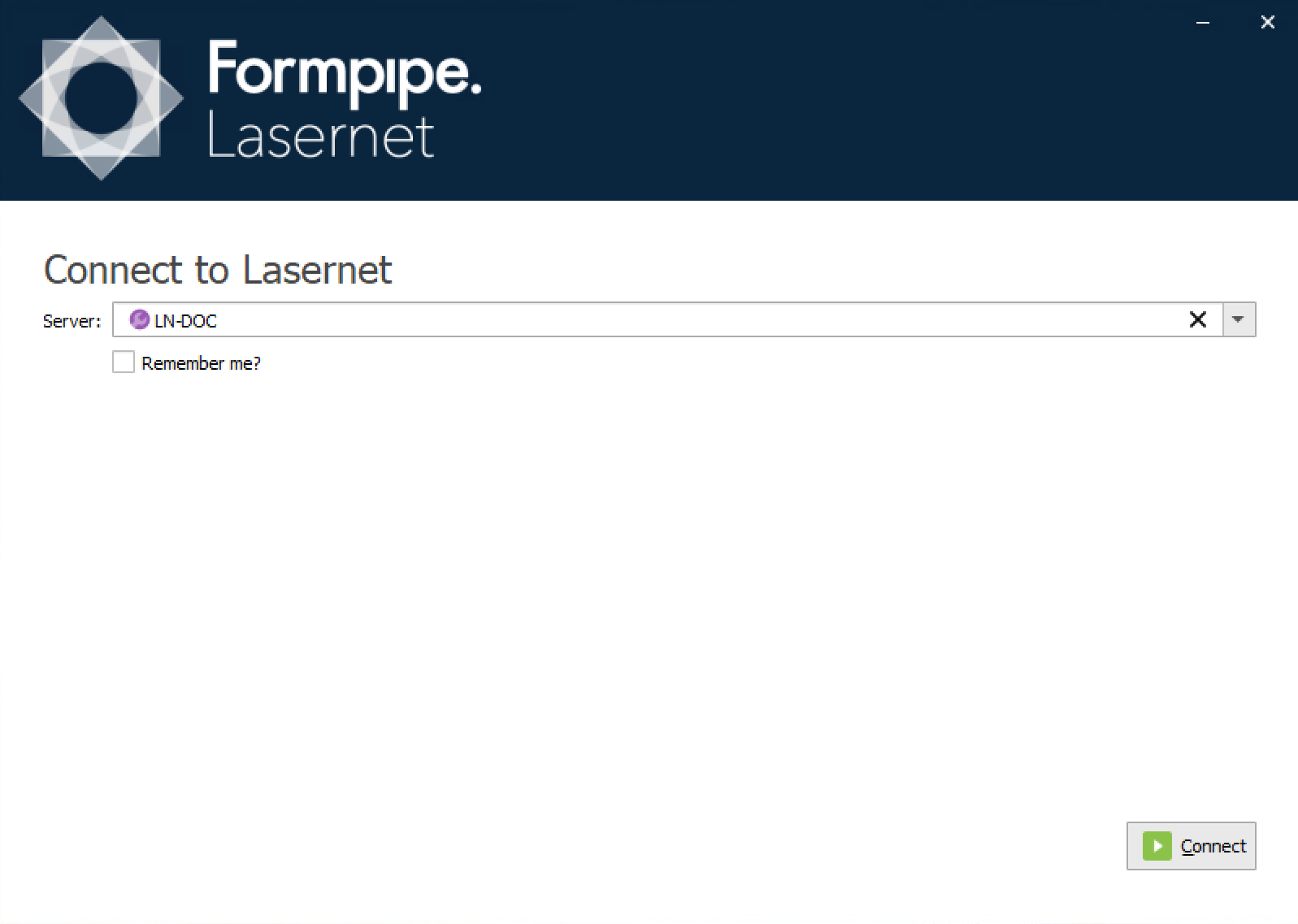
Sign in with your credentials and click Next.
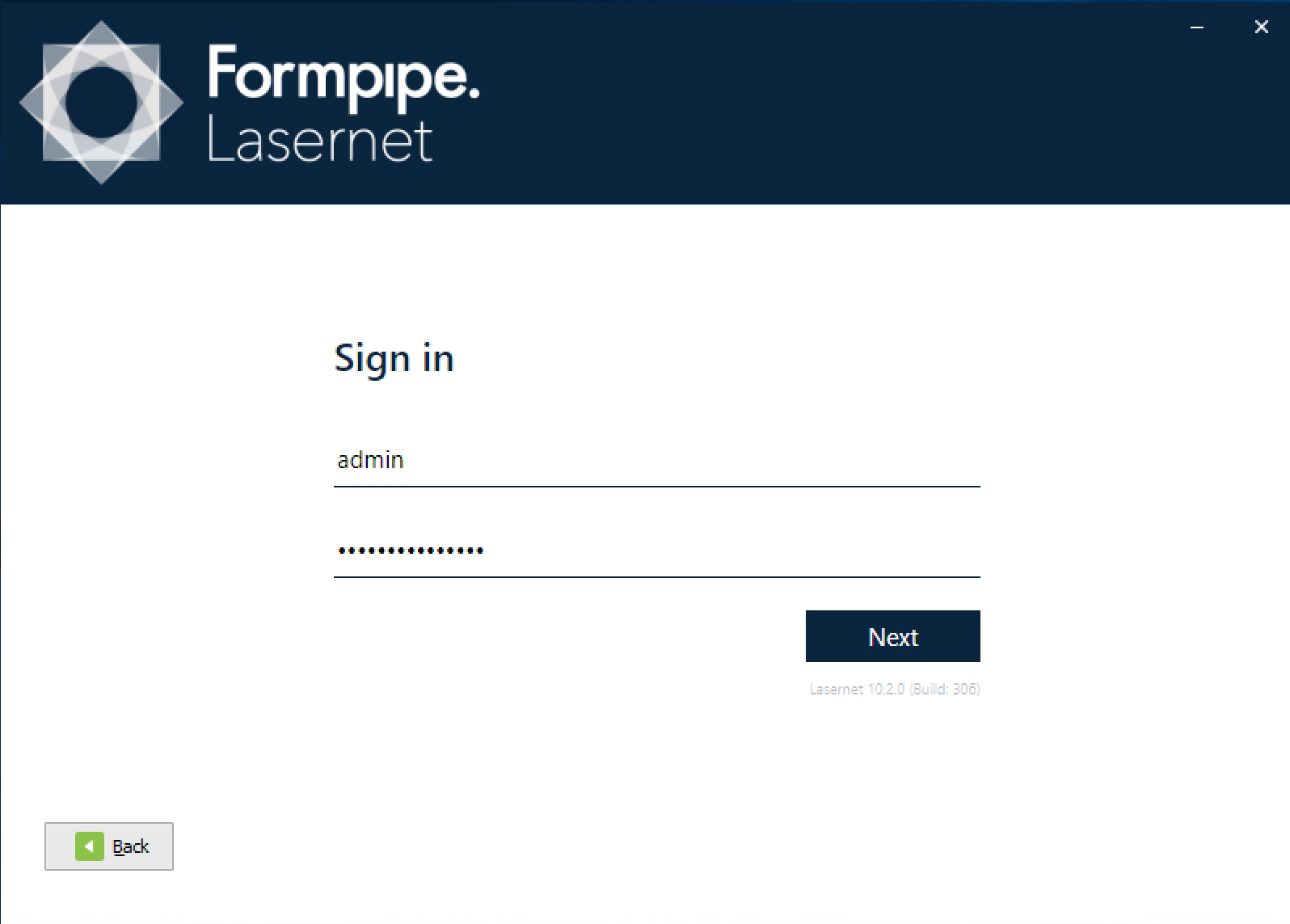
The first time you connect the Lasernet Developer to the Config Server, it will download the application and synchronize your client software with the server software. This is the same procedure for all applications in the suite of Lasernet Core applications, but will only occur for the first application being installed on a computer.
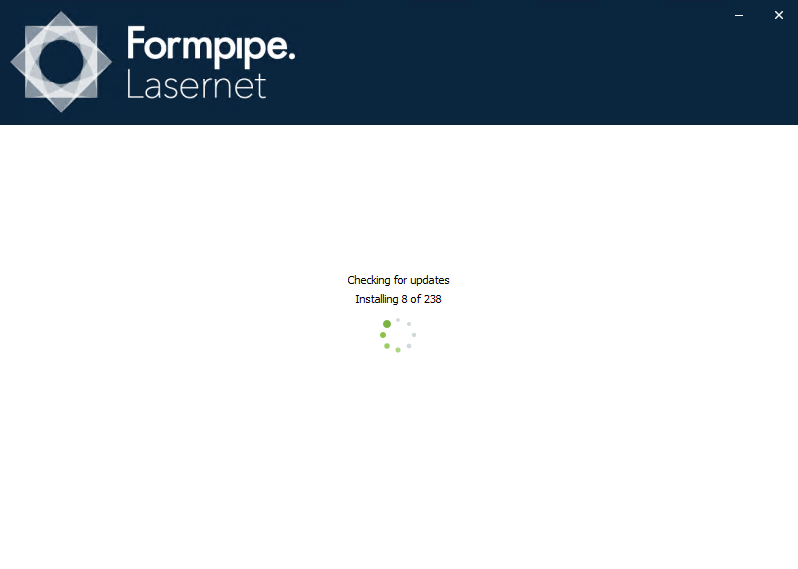
Each time you connect to a server, Lasernet Core installs a synchronized version of Lasernet Developer to your client, if it is not present.
Lasernet Core will install up to 5 different versions of Lasernet Developer on the client. When you synchronize with a sixth version, the oldest installed version will automatically be deleted in order to save disk space.
When Lasernet Developer synchronizes with server and the version already exists locally, it will start immediately, without the need to download.