Applies to: Lasernet Core 10
Lasernet Printer Service is a standalone application and must be installed before use.
Note
For more information, please refer to the Lasernet Printer Service 10 Guide.
Installation
Run the standalone installer Lasernet Printer Service 10.msi
Note
We recommend using the default settings.
Welcome
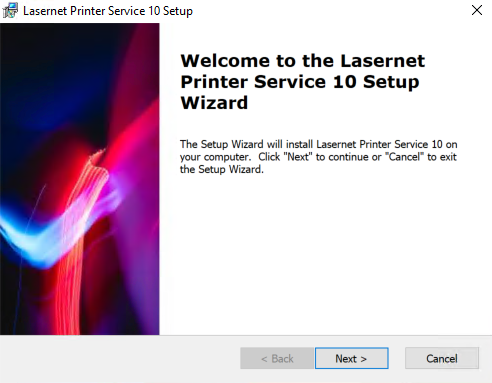
Click Next to continue.
Select Installation Folder
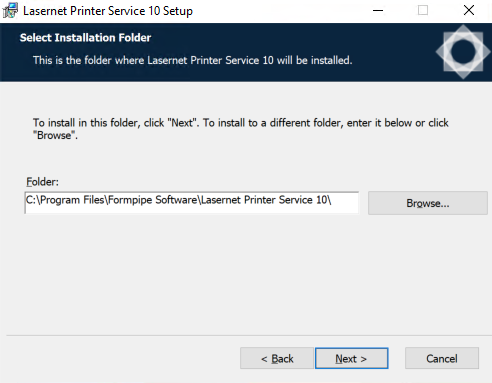
Choose the path for the installation folder and click Next.
Ready to Install
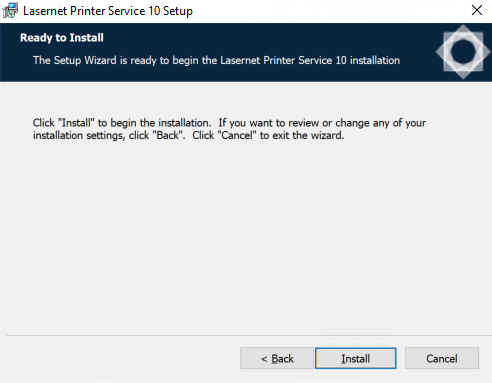
Click Install to begin the installation process.
Installing Files
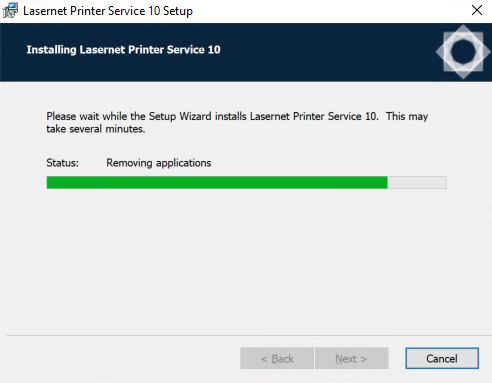
Please wait while Lasernet Developer is installed, or click Cancel to abort.
Installation Complete
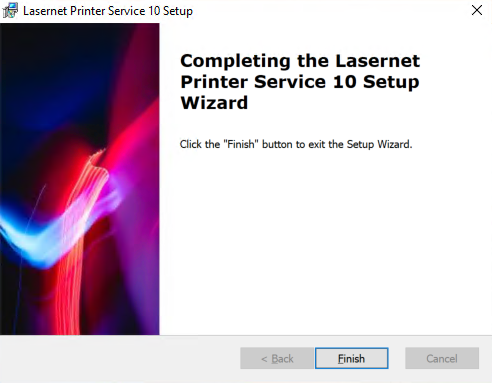
Click Finish to close the installer.
Connecting to Lasernet Core
Click the Lasernet Printer Service icon in the Start menu.

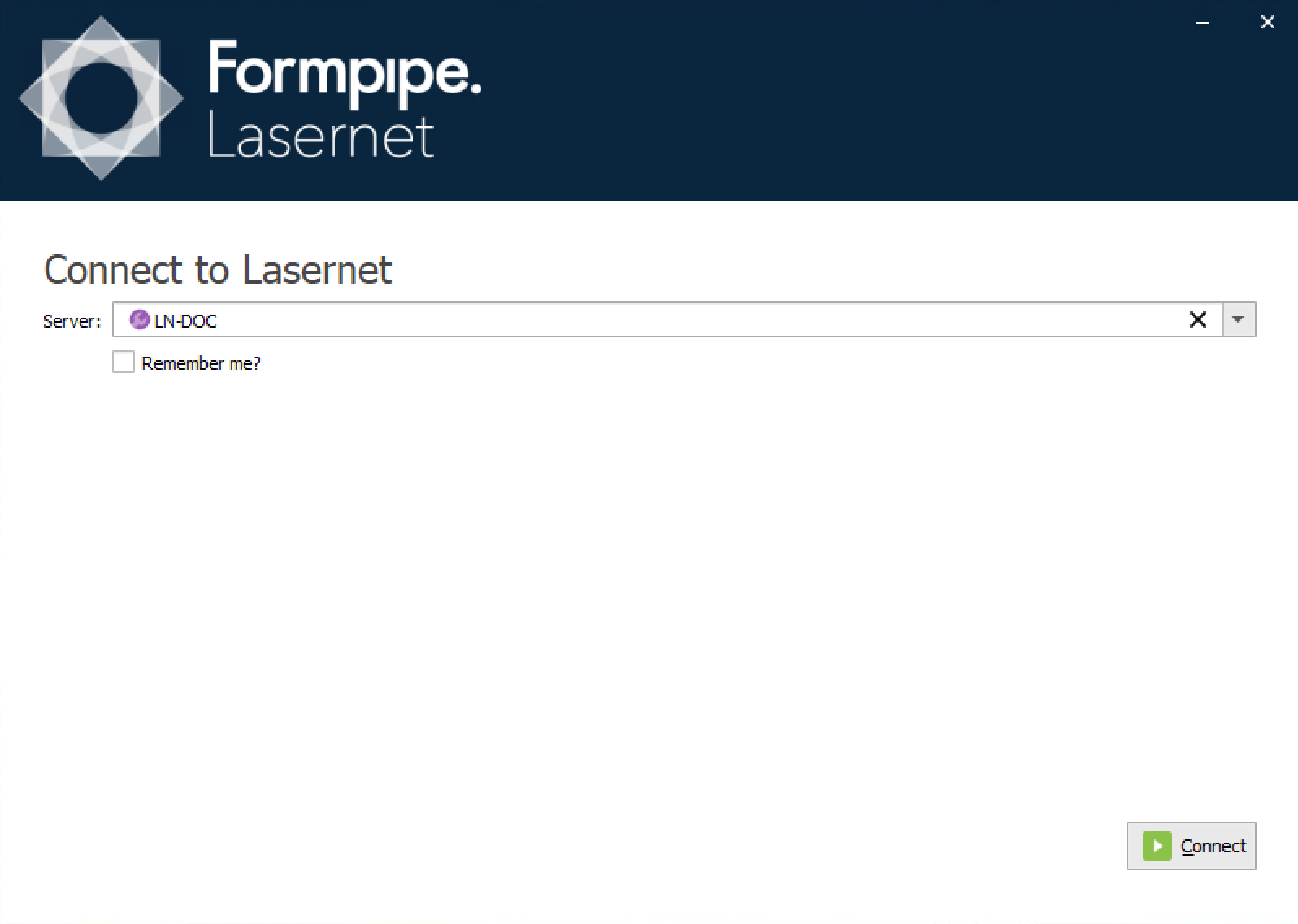
Type in the server name of the Lasernet Core configuration server and click Connect.
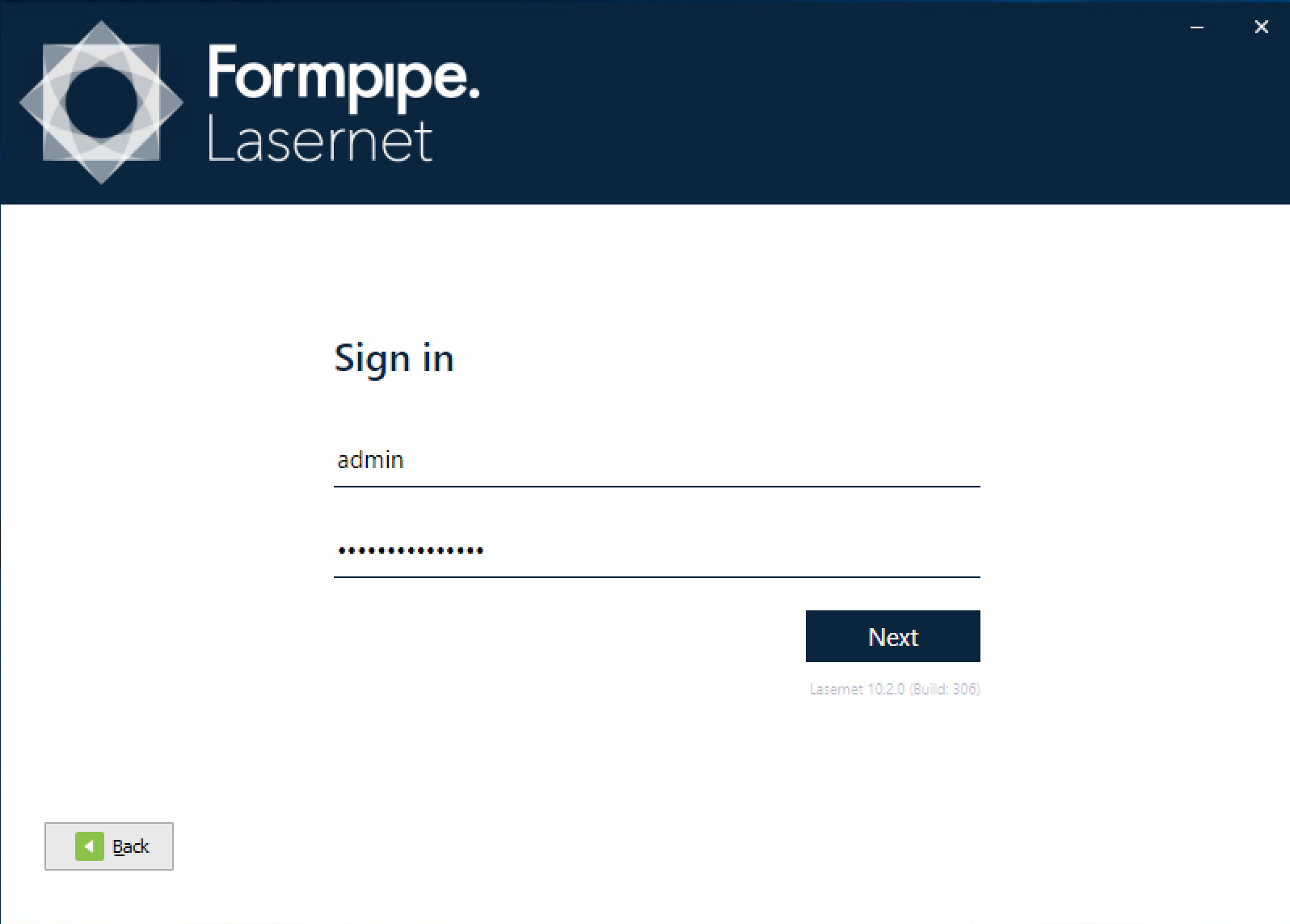
Sign in with your credentials and click Next.
The first time you connect the Lasernet Printer Service to the server, it will download the application and synchronize your client software with the server software.
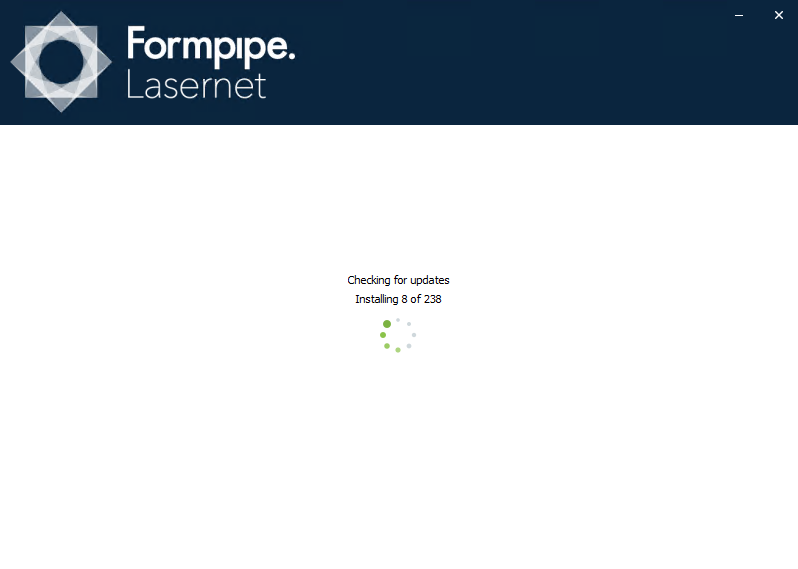
Each time you connect to a server, Lasernet Core installs the identical version of Lasernet Printer Service to your client, if it is not present.
Lasernet Core will install up to 5 different versions of Lasernet Printer Service user interface on the client. The Windows Printer Service, installed by the application, will remain the same version as registered first time by the printer service queues. When you synchronize with a sixth version, the oldest installed version will automatically be deleted in order to save disk space.
When Lasernet Printer Service synchronizes with server and the version already exists locally, it will start immediately, without the need to download the user interface.