Applies to: Lasernet Core 10
Run the necessary installer file(s) to begin the installation procedure.
Note
This document covers Lasernet Server 10.2.0.msi and Lasernet Developer 10.2.0.msi. Additional optional modules are available with separate installers. Please contact a Lasernet Group representative for more information.
System requirements
Lasernet Core 10 has the following minimum requirements:
Note
Lasernet Core 10 requires at least 1GB of available disk space. This is for the installation only. Additional disk space will be required; the amount will vary depending on your configuration.
Note
You can only install Lasernet Core 10 on 64-bit systems.
Note
A minimum of two cores and 64-bit (x64) processors are required.
Supported operating systems
Windows 8.1
Windows 10
Windows 11
Windows Server 2012 R2
Windows Server 2016
Windows Server 2019
Windows Server 2022
Lasernet Core x64
Microsoft SQL Server 2017 LocalDB
Microsoft OLE DB Driver 18 for SQL Server
Microsoft Visual C++ 2019 Redistributable x64
Microsoft .NET Framework 4.8
During the installation, the above components will also be added / downloaded automatically by the installer. If there is no internet connection, please ensure that you manually download and install the .NET frameworks because they are not included in the installer.
Lasernet Server
Welcome
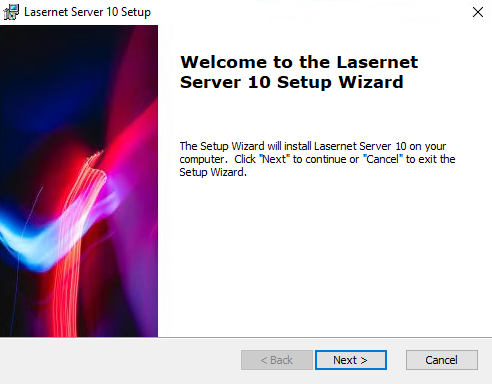
Click Next to continue.
Select Installation Folder
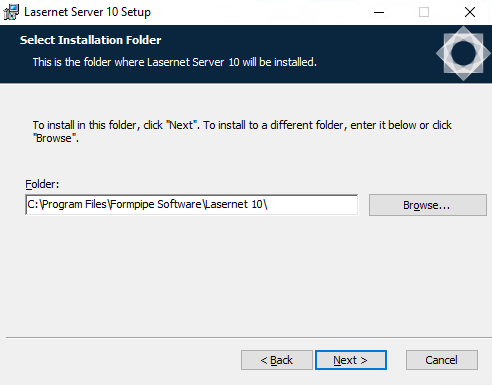
Choose the file path for the executable and click Next.
Select Optional Features
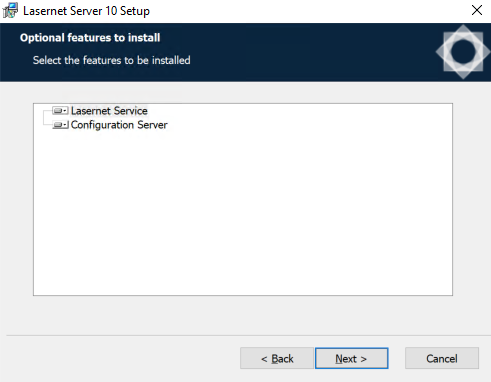
Click to expand the nodes and view or select optional features.
Note
We recommend the default settings.
Click Next.
Ready to Install
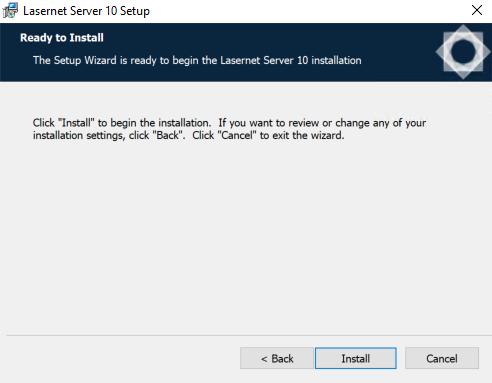
Click Install to begin the installation process.
Installing files
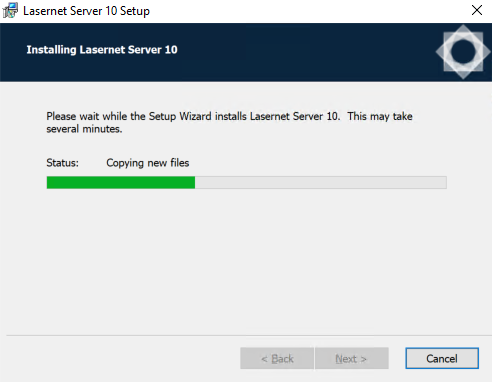
Please wait while Lasernet Server is installed, or click Cancel to abort.
Installation Complete
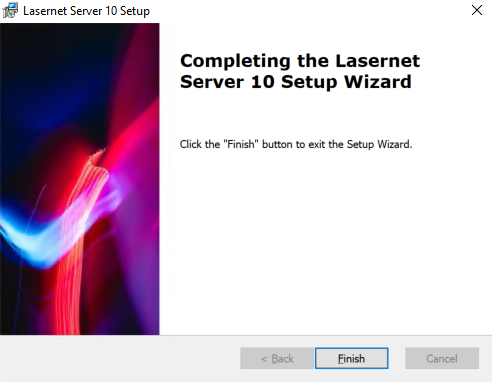
Click Finish to close the installer.
Note
With the Lasernet Core 10.2 release, Lasernet Launcher has been removed. You can access Lasernet Core modules in the Start menu or via desktop shortcuts.
Add Server License Instance(s)
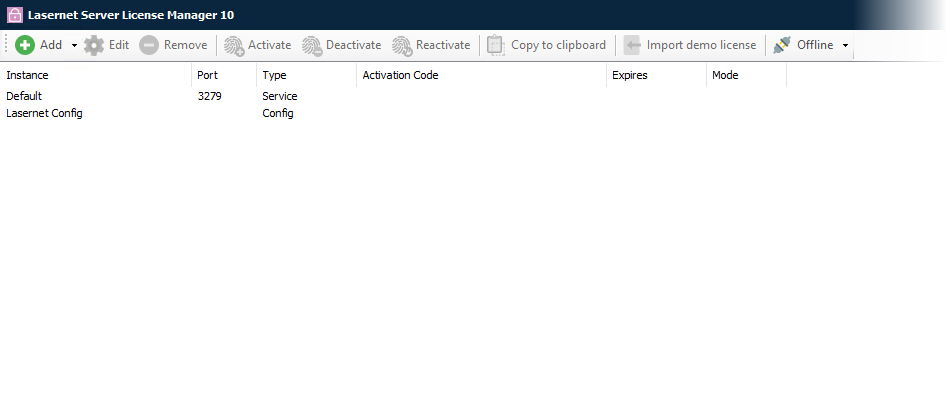
Go to the Start menu and open Lasernet Server License Manager.
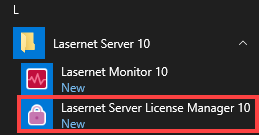
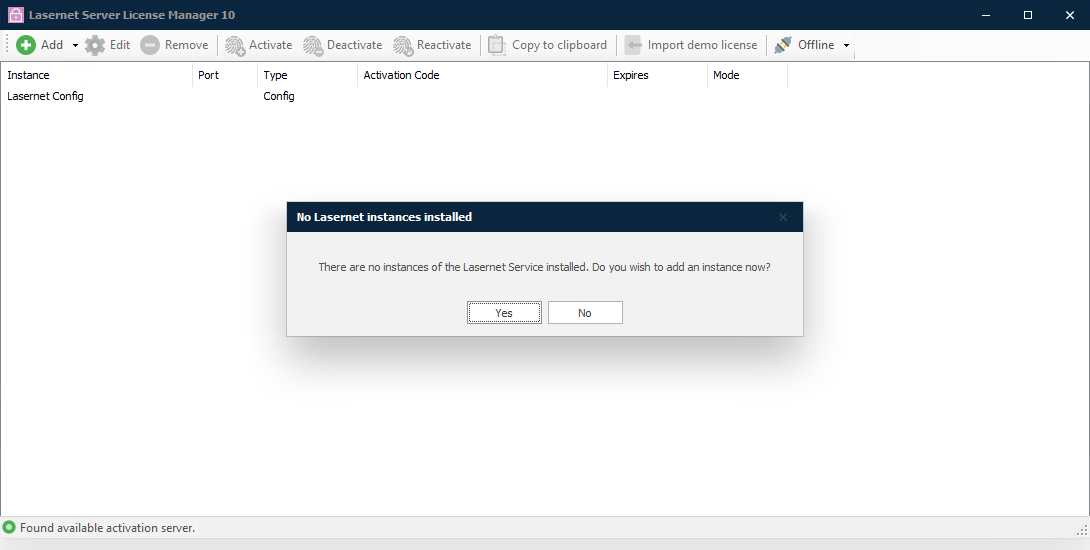
Note
A prompt is displayed because there are no instances of Lasernet Service installed.
Click Yes.
Add and activate the required license(s).
For more information, please refer to Lasernet Server License Manager, or the Lasernet Config & Deployment guide.
Lasernet Developer
Welcome
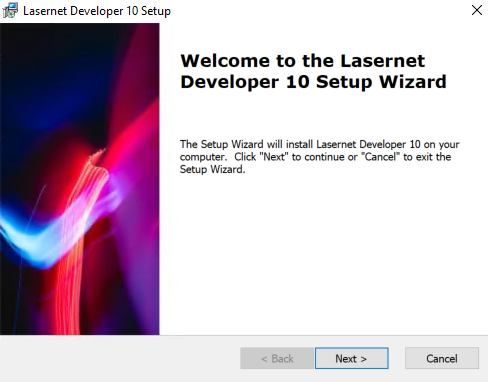
Click Next to continue.
Select Installation Folder
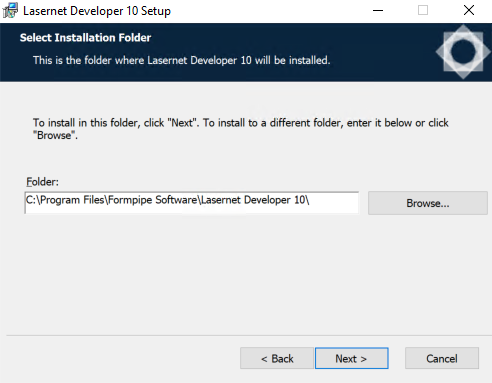
Choose the file path for the executable and click Next.
Ready to Install
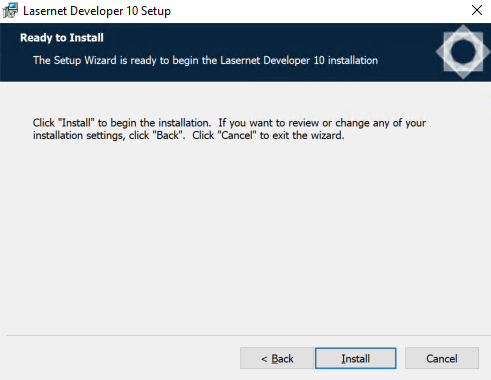
Click Install to begin the installation process.
Installing files
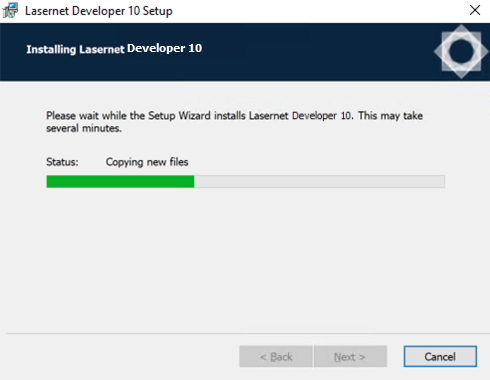
Please wait while Lasernet Developer is installed, or click Cancel to abort.
Installation Complete
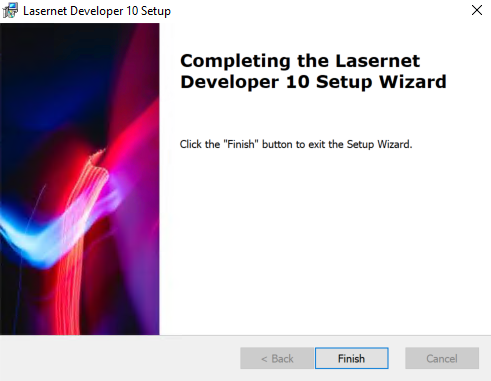
Click Finish to close the installer.
Note
With the Lasernet Core 10.2 release, Lasernet Launcher has been removed. You can access Lasernet Core modules in the Start menu or via desktop shortcuts.
Add Developer License Instance(s)
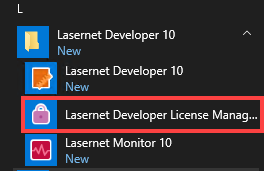
Go to the Start menu and open Lasernet Developer License Manager.
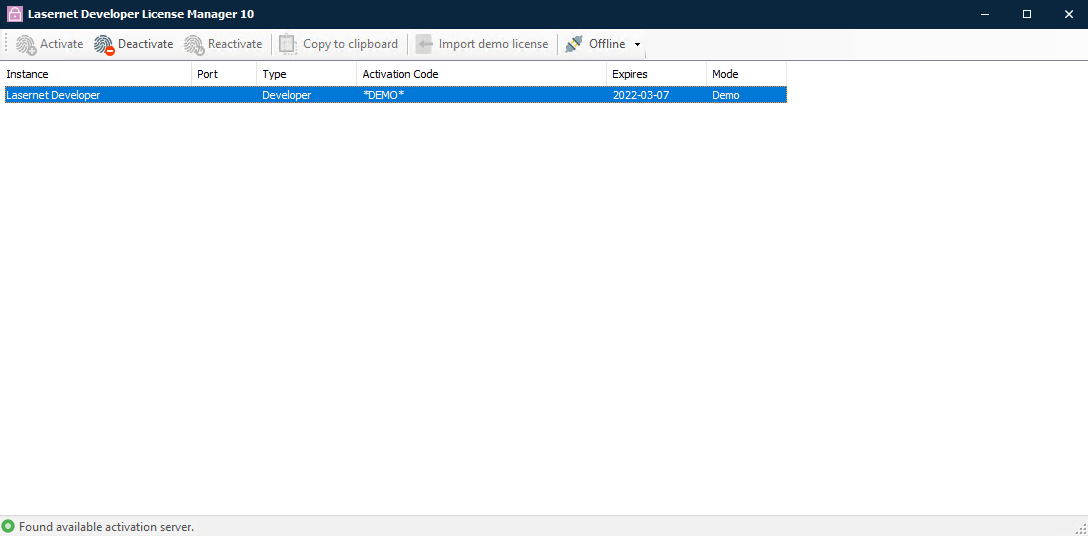
Add and activate the required license(s).
For more information, please refer to Lasernet Developer License Manager, or the Lasernet Config & Deployment guide.