Applies to: Lasernet Core 10
This section is split into two sections because there are separate license mangers for Lasernet Server and Lasernet Developer.
Lasernet Server License Manager
The Lasernet Server License Manager is used to administer your licenses for Lasernet Server. The application also allows you to add and remove Lasernet Core service instances.
Important
License activation is bound to the name and domain of the machine on which Lasernet Core is installed. If the computer name or domain is changed, the license will stop working. It will also not be possible for you to deactivate your license if you change the name and/or domain of your machine. Before renaming your machine, you must deactivate your license.
If you forget to deactivate your license before changing the name and/or domain, you must restore the machine and domain name to the one used to activate your license. Then you will be able to deactivate your license so you can activate it again after the name change.
Activation codes
The license code is used to activate your license on a machine. You will receive separate codes for each Lasernet Server you have purchased.
The activation code will allow you to install Lasernet Server on a single machine.
Note
A Lasernet Server activation code will start with the letters “SRV-“, followed by 8 groups of 4 characters each.
Important
The activation is bound to the machine using the machine name and, if available, the domain name. If you decide to rename the machine, join or leave a domain, you must deactivate your license first. You will not be able to deactivate your license once the machine name and/or domain has changed.
Add service instance
Lasernet Core service instances are not added automatically by the installer. To add one manually, start the Lasernet Server License Manager, click the Add button, then click Lasernet Service.
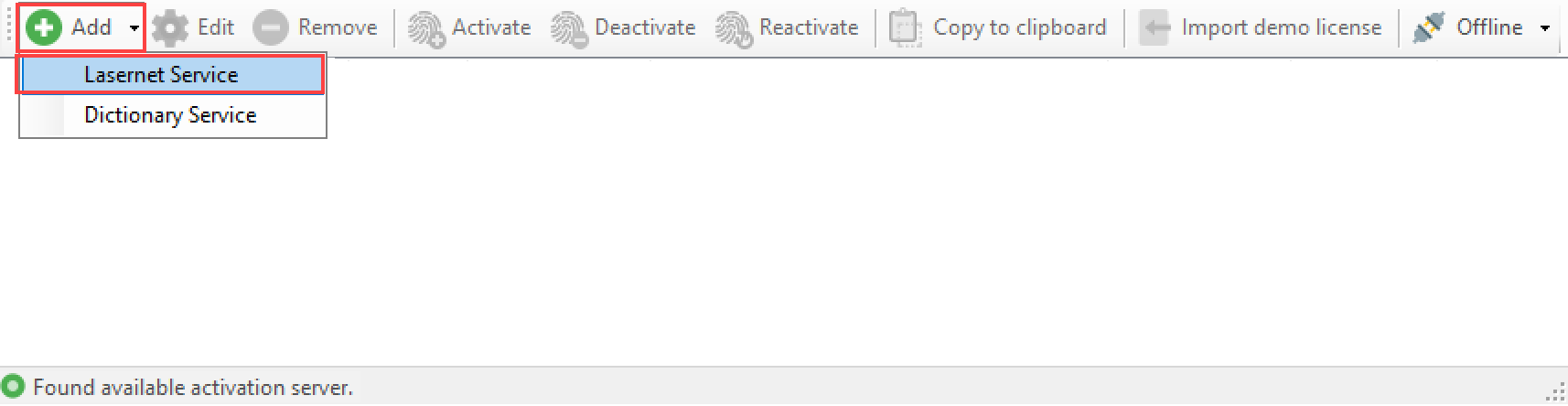
Type an instance name and free port number that is not already in use by other applications running on the same server. We recommend that you name your Lasernet Service instance with its primary function, so that it is easy to identify. For example, “Default”, “Prod”, “PreProd”, “Development” or a company or location ID.
The port number has to be unique and not used by other Lasernet Core service instances or applications running on the same server. The default port is 3279.
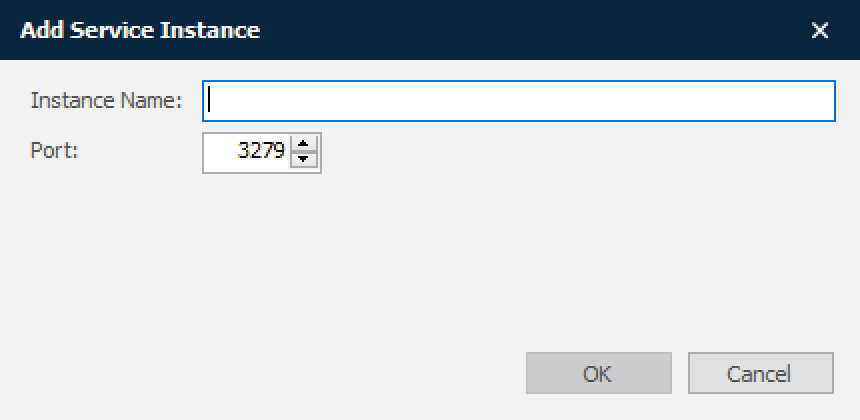
Click OK to accept the settings.
Note
It is also possible to add a license for the Dictionary Service at this stage. To learn more about the Dictionary Service, please refer to the Lasernet OCR guide. The Lasernet OCR 10 module must also be installed.
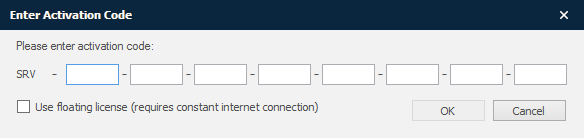
You will now be prompted to insert an activation code. A valid Lasernet Server activation code starts with SRV and contains 8 groups of 4 characters each, e.g. SRV-BMDS-SUGX -ABCD-EFGH-IJKL-MNOP-QRST.
Check the Use floating license option if you are using a primarily cloud-based system that has a constant internet connection. The license is updated and renewed at regular short intervals. Should the server go down and become unable to perform a renewal, the license is then made available for a failover server to use, to ensure minimal disruption in service.
Unless you have properly configured your cloud systems for high availability, we recommend that you use a static license.
If you do not enter a valid activation code and then cancel the window, the service will be installed with the selected instance name and port number, but will not be able to process any jobs.
When the activation code has been accepted, you will be able to view the list of activated instances:

and services in Windows:

To protect your activation code, part of it is obscured with asterisks. If you want to see the activation code in full, right-click on the instance in the Lasernet Server License Manager and click Copy to clipboard.
By default, you can add up to five instances of the Lasernet 10 service, each with a unique port number. If support for additional instances is required, please contact a Lasernet Group representative for more information.
Online activation
The Lasernet Server License Manager can be used to add new instances of the Lasernet Service or to activate, deactivate or reactive an activation code for existing instances.
Select the instance you want to activate and click the Activate button in the toolbar.
A valid Lasernet Server activation code starts with SRV and contains of 8 groups of 4 characters each, e.g. SRV-Z7J3-3VUS -ABCD-EFGH-IJKL-MNOP-QRST.
Note
An internet connection is required to activate Lasernet Server. Once activated, an internet connection is no longer required.
When the activation code has been entered, click OK to activate your license.
When the activation code is accepted, the instance of Lasernet Service 10 will be running with the modules and packages attached to your license.
Important
If you want to move the software to another computer, you must first deactivate your license before uninstalling and then reinstalling on another computer.
Online deactivation
Start the Lasernet Server License Manager.
Select the Lasernet Service instance that you want to deactivate. Click Deactivate in the toolbar to remove the license.
Note
You must deactivate your license before moving Lasernet Core to another machine/server, or before changing the name or domain of the server. You will not be able to activate Lasernet Core using your activation code, if the same activation code has been used to activate Lasernet Core on another server.
Note
To deactivate your Lasernet Server, internet access is required throughout the deactivation process.
Online reactivation
If you decide to upgrade your Lasernet Core server with additional modules and packages, you will receive a communication stating which packages and modules are now included in your license. This communication will contain the same activation code as your previous license.
In order to benefit from the new features available in your license, you need to reactivate it. Select the relevant Lasernet Service instance and click Reactivate in the toolbar.
Lasernet Developer License Manager
The Lasernet Developer License Manager is used to administer your licenses for Lasernet Developer. The application also allows you to add and remove Lasernet Core service instances.
Important
License activation is bound to the name and domain of the machine on which Lasernet Core is installed. If the computer name or domain is changed, the license will stop working. It will also not be possible for you to deactivate your license if you change the name and/or domain of your machine. Before renaming your machine, you must deactivate your license.
If you forget to deactivate your license before changing the name and/or domain, you must restore the machine and domain name to the one used to activate your license. Then you will be able to deactivate your license so you can activate it again after the name change.
Activation codes
The license code is used to activate your license on a machine. You will receive separate codes for each Lasernet Developer you have purchased.
The activation code will allow you to install Lasernet Developer on a single machine.
Note
A Lasernet Developer activation code will start the letters “DEV-“, followed by 8 groups of 4 characters each.
Important
The activation is bound to the machine using the machine name and, if available, the domain name. If you decide to rename the machine, join or leave a domain, you must deactivate your license first. You will not be able to deactivate your license once the machine name and/or domain has changed.
Add service instance
Lasernet Core service instances are not added automatically by the installer. To add one manually, start the Lasernet Developer License Manager, click the Add button, then click Lasernet Service.
Type an instance name and free port number that is not already in use by other applications running on the same server. We recommend that you name your Lasernet Service instance with its primary function, so that it is easy to identify. For example, “Default”, “Prod”, “PreProd”, “Development” or a company or location ID.
The port number has to be unique and not used by other Lasernet Core service instances or applications running on the same server. As default Lasernet Core will suggest port 3279.
Click OK to accept the settings.
Note
It is also possible to add a license for the Dictionary Service at this stage. To learn more about the Dictionary Service, please refer to the Lasernet OCR guide. The Lasernet OCR 10 module must also be installed.
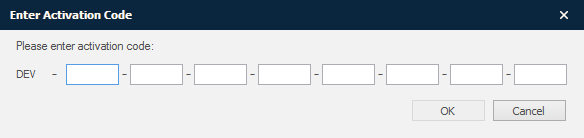
You will now be prompted to insert an activation code. A valid Lasernet Developer activation code starts with DEV and contains 8 groups of 4 characters each, e.g. DEV-BMDS-SUGX -ABCD-EFGH-IJKL-MNOP-QRST.
If you do not enter a valid activation code and then cancel the window, the service will be installed with the selected instance name and port number, but will not be able to process any jobs.
When the activation code has been accepted, you will be able to view the list of activated instances:

and services in Windows:
To protect your activation code, part of it is obscured with asterisks. If you want to see the activation code in full, right-click on the instance in the Lasernet Developer License Manager and click Copy to clipboard.
By default, you can add up to five instances of the Lasernet 10 service, each with a unique port number. If support for additional instances is required, please contact a Lasernet Group representative for more information.
Online activation
The Lasernet License Manager can be used to add new instances of the Lasernet Service or to activate, deactivate or reactive an activation code for existing instances.
Select the instance you want to activate and click the Activate button in the toolbar.
A valid Lasernet Developer activation code starts with DEV and contains of 8 groups of 4 characters each, e.g. DEV-HG3J-A7HV-ABCD-EFGH-IJKL-MNOP-QRST-UVWY
Note
An internet connection is required to activate Lasernet Developer. Once activated, an internet connection is no longer required.
When the activation code has been entered, click OK to activate your license.
When the activation code is accepted, the instance of Lasernet Developer 10 will be running with the modules and packages attached to your license.
Important
If you want to move the software to another computer, you must first deactivate your license before uninstalling and then reinstalling on another computer.
Online deactivation
Start the Lasernet Developer License Manager.
Select the Lasernet Core service instance or Lasernet Developer that you want to deactivate. Click Deactivate in the toolbar to remove the license.
Note
You must deactivate your license before moving Lasernet Core to another machine/server, or before changing the name or domain of the server. You will not be able to activate Lasernet Core using your activation code, if the same activation code has been used to activate Lasernet Core on another server.
Note
To deactivate your Lasernet Server, internet access is required throughout the deactivation process.
Online reactivation
If you decide to upgrade your Lasernet Core server with additional modules and packages, you will receive a communication stating which packages and modules are now included in your license. This communication will contain the same activation code as your previous license.
In order to benefit from the new features available in your license, you need to reactivate it. Select the relevant Lasernet Service instance and click Reactivate in the toolbar.
Offline Licensing Procedures
Note
All offline licensing procedures apply to both the Lasernet Server License Manager and Lasernet Developer License Manager. Where these are interchangeable, the term License Manager application is used.
Offline activation
It is possible to activate Lasernet Core applications using an offline activation process if the machine running Lasernet Core does not have access to the internet. We recommend that you use the online activation process whenever possible.
The offline activation process requires another machine with internet access that has the License Manager applications installed.
For this example, the machine that needs activation will be referred to as the Lasernet Server, and the machine with a License Manager and internet access will be referred to as the helper machine.
The offline activation process requires a number of steps to complete. First, you must generate an activation request file on the Lasernet Server (or Lasernet Developer) for the instance that needs activation. The file must be transferred to the helper machine manually; for example, via network or a USB stick. On the helper machine, the activation request file will be forwarded to the Lasernet activation server via the internet. When the activation request has been processed by the activation server, it will return an activation response file. This file must be transferred back to the Lasernet Server manually and imported using the relevant License Manager application.
Important
The offline activation process is vulnerable to failure if the following steps are not performed correctly.
Lasernet Server
The following steps are done on the Lasernet Server:
On the Lasernet Server, open the relevant License Manager application and select the Lasernet Service or Lasernet Developer instance that requires activation.
Click Offline in the toolbar and select Create activation request from the drop-down menu.
Enter a valid activation code and click OK.
You can copy and paste the activation code from the license letter.Choose a location in which to save the activation request file. You must make a note of the location of the file in order to copy it to the helper machine.
Copy the activation request file from the Lasernet Server to the helper machine. This can be done by any means available, such as over a network connection or via a USB stick.
Helper Machine
The following steps are done on the helper machine:
On the helper machine, start the relevant License Manager application.
Click Offline in the toolbar and select Process request from the drop-down menu.
Browse to the location of the activation request file that was copied to the helper machine in step 5 of the Lasernet Server steps above. Select the activation request file and click Open. The License Manager application will now forward the request to the activation server via the internet.
Choose a location in which to save the activation response file. You must make a note of the location of the file in order to copy it to the Lasernet Server.
Copy the activation response file to the Lasernet Server using any means available.
Lasernet Server
The following steps are done on the Lasernet Server:
On the Lasernet Server, open the relevant License Manager application, and select the service instance or developer that requires offline activation.
Click Offline in the toolbar and select Import activation response from the drop-down menu.
Browse to the location of the activation response file that was copied to the Lasernet Core server in step 5 of the Helper Machine steps above. Select the activation response file and click Open.
Note
The activation process is now complete, and the Lasernet Core instance is licensed and ready for use.
Offline deactivation
It is possible to deactivate a Lasernet Server using an offline deactivation process if the machine running Lasernet Core does not have access to the internet. We recommend that you use the online deactivation process whenever possible.
The offline deactivation process requires another machine with internet access that has the relevant Lasernet License Manager application installed.
For this example, the machine that needs deactivation will be referred to as the Lasernet Server, and the machine with the License Manager application and internet access will be referred to as the helper machine.
The offline activation process requires a number of steps to complete. First, you must generate a deactivation request file on the Lasernet Server (or Lasernet Developer) for the instance that needs deactivation. The file must then be transferred to the helper machine manually (for example via network or a USB stick). On the helper machine, the deactivation request will be forwarded to the Lasernet activation server via the internet.
Unlike the activation process, there is no deactivation response file transferred back to the Lasernet Server.
Important
The offline deactivation process is vulnerable to failure if the following steps are not performed correctly.
Important
The Lasernet Service (or Lasernet Developer) instance will be deactivated as soon as you generate the deactivation request. You must ensure that the deactivation request is processed in accordance with the following steps in order to be able to use the activation key again later. You will not be able to activate another Lasernet Core machine with your activation key until you have completed the deactivation process using the following steps, or contacted a Lasernet Group representative and had the current registration removed.
Lasernet Server
The following steps are done on the Lasernet Server:
On the Lasernet Server, open the relevant License Manager application and select the Lasernet Service or Lasernet Developer instance that needs deactivation.
Click Offline in the toolbar and select Create deactivation request from the drop-down menu.
Choose a location in which to save the deactivation request file. You must make a note of the location of the file in order to copy it to the helper machine.
Copy the deactivation request file to the helper machine. This can be done by any means available, such as over a network connection or via a USB stick. The following steps are done on the helper machine.
Helper Machine
The following steps are done on the helper machine:
On the helper machine, start the relevant License Manager application.
Click Offline in the toolbar and select Process request in the drop-down menu.
Browse to the location of the deactivation request file copied to the helper machine in step 4 of the Lasernet Server steps above. Select the deactivation request file and click Open. The request will now be forwarded to the activation server via the internet.
Note
You can now use the activation key to activate a different server.
Offline reactivation
In order to perform an offline reactivation, you must first deactivate the Lasernet Server or Lasernet Developer using the offline deactivation process. When the deactivation process is complete, you must perform the offline activation process.
Cancelling an offline activation request
It is possible to cancel a pending offline activation request on the Lasernet Core server by selecting the service instance or developer for which an offline activation request was generated, and clicking the Offline button in the tool bar and selecting the ‘Cancel activation request’ menu item.
This function must only be used to cancel an activation request that has not yet been forwarded to the activation server via the helper machine.
If you cancel a pending activation request that has already been forwarded to the activation server using the helper machine, the activation response will be invalid. You will not be able to import the activation response file on the Lasernet Core server, and you will not be able to remove the activation registration on the activation server. This means you will no longer be able to use your activation key to activate a different server.
Note
If you cancel an offline activation request that has already been processed by the activation server, please contact a Lasernet Group representative to have the activation cancelled.