Applies to: Lasernet Core 10
JobInfo profiles are used to display a list of relevant JobInfos in the Lasernet Client. Read the “Lasernet 10 – Client” manual for more information. Once configured, the key data is shown in columns for the job. JobInfo profiles can be used to show useful information such as invoice numbers or names and email addresses of clients, etc.
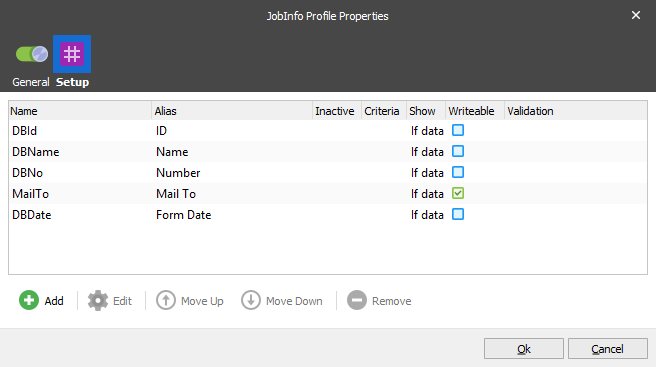
JobInfo names are not always user friendly, therefore it is possible to specify an alias if desired.
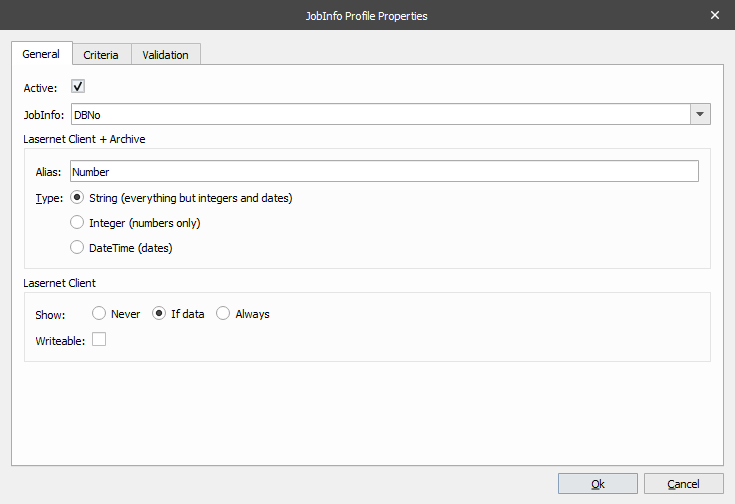
Three types of JobInfos are supported and handled accordingly: String, Integer and DateTime.
The Show property specifies whether or not a JobInfo should be shown as a column in the Client. As all stored JobInfos are searchable, it is not always necessary or desirable to make them visible in the Lasernet Client.
The Writeable property specifies whether or not a JobInfo is allowed to be edited in the Lasernet Client. As all stored JobInfos are searchable, it is not always necessary or desirable to make them editable in the Lasernet Client.
The Criteria tab can be used to ensure that only JobInfos that match specific conditions are stored. 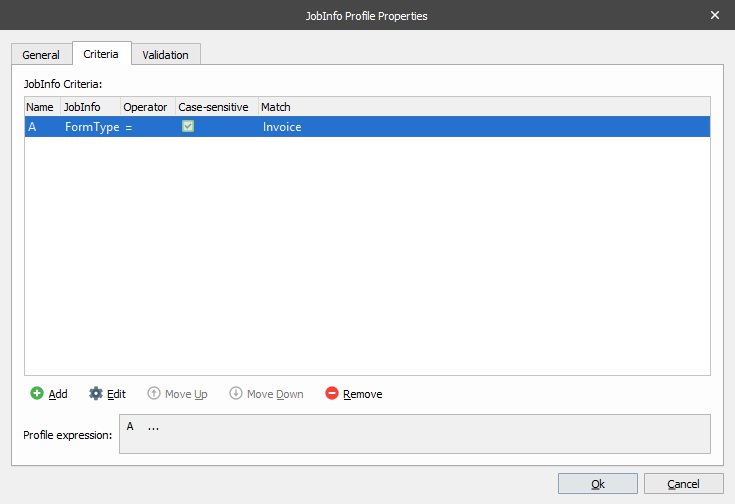
The Validation tab is used to validate the contents of a JobInfo in the Lasernet Client. JobInfos not matching specified conditions will be marked as either tentative (yellow) or unsuccessful (red).
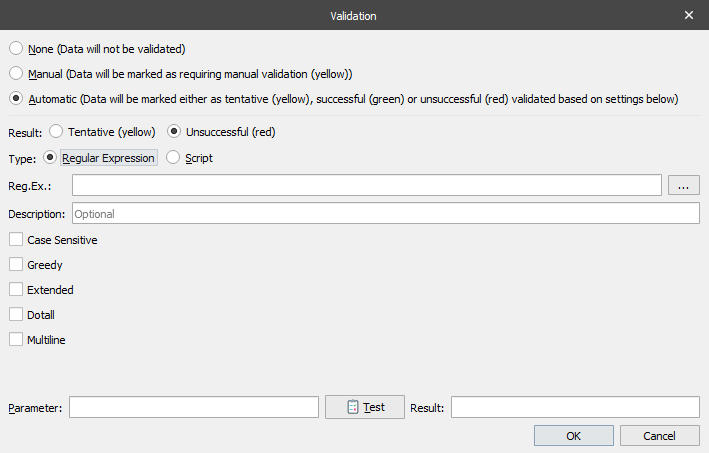
Type a regular expression or a script to validate the contents of a JobInfo.
Validate via Regular Expression
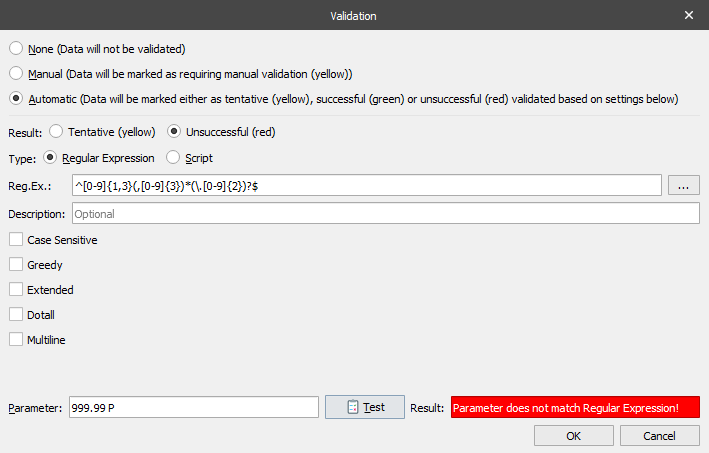
In this example we have created a regular expression matching a number in the US format which uses a comma as a thousand delimiter and a dot as comma delimiter.
Regular Expression: ^[0-9]{1,3}(,[0-9]{3})*(\.[0-9]{2})?$
The $ sign at the end of the regular expression is essential to match the full string and not a part of the string.
The Parameter field and Test button are useful to validate the expected result of the regular expression. This functionality is for online testing only in Lasernet Developer.

A wide range of resources that describe the syntax for regular expressions are available on the Internet.
Validate via JavaScript
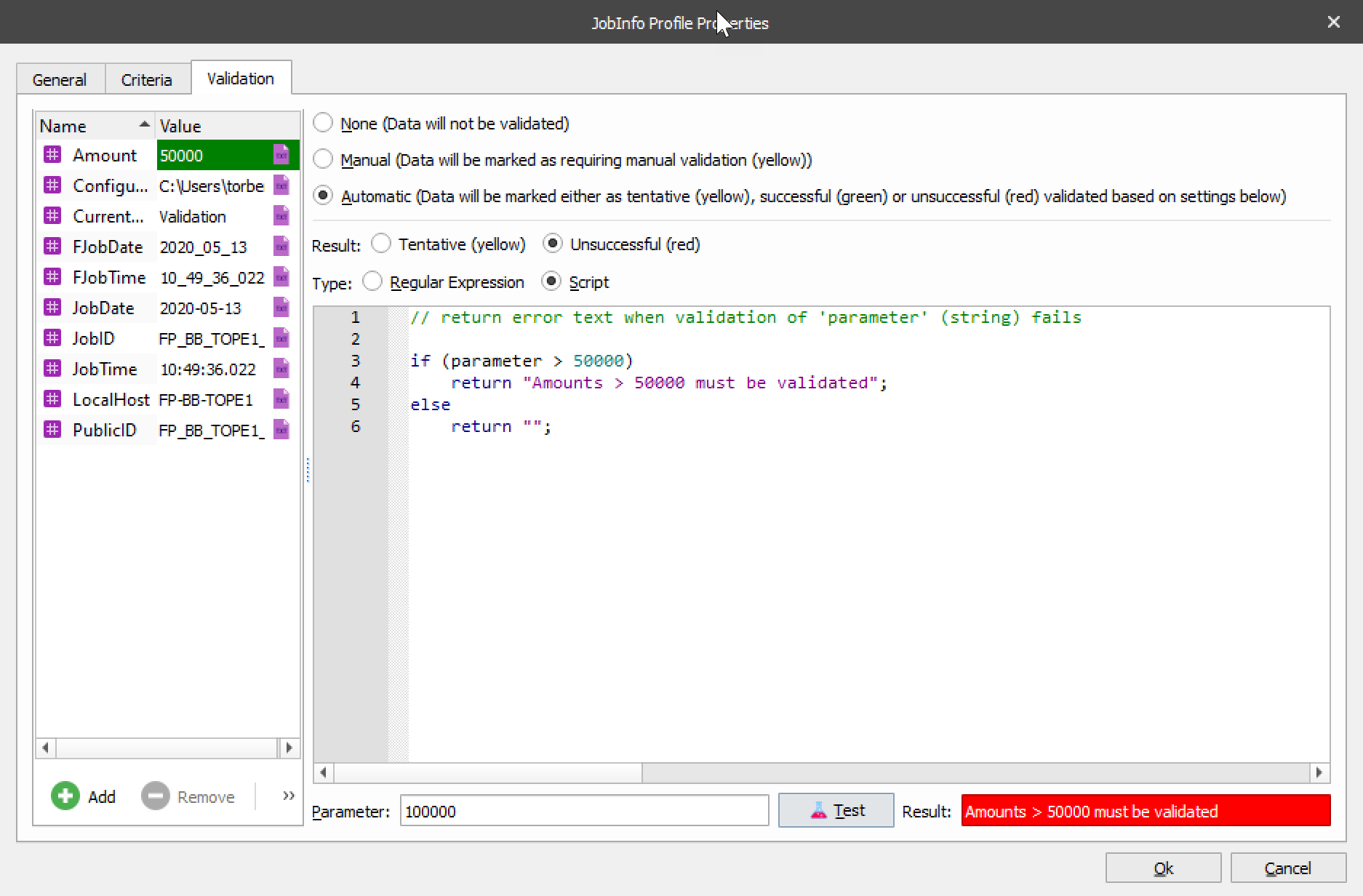
In this example we have created a JavaScript matching if a parameter is higher than a specific amount. The parameter string is essential and contains the contents of the JobInfo to be validated. The expression will return an empty string when validation of the parameter is successful and error text when it fails validation.
if (parameter > 50000)
  return "Amounts > 50.000 must be validated";
else
  return "";
If you want to validate against a JobInfo included in the script, click Add to add the JobInfo Name and Value in the JobInfo grab window.
if (parseFloat(parameter) > parseFloat(job.getJobInfo("Amount")))
  return "Amounts > 50.000 must be validated";
else
  return "";
The Parameter field and Test button are useful to validate the expected result of the JavaScript. This functionality is for online testing only in the Lasernet Developer.


Supported JavaScript Functions
The JavaScript tool in the validation dialog supports a limited range of system functions compared the Job Engine. The supported convert functions, job classes and arrays are:
Static functions:
Convert.toDate
Convert.toDateRP
Convert.toNumber
Convert.toNumberRP
Job class:
- All functions in the job class (see Job in the Lasernet Core 10 Scripting Guide).
Arrays:
Azure commands
Database commands
Modifier commands
SharePoint commands
Note
The system functions are not supported for validation in Lasernet Meta, where validation runs on the client side instead of the server side.
Job Tracking
Add the list of JobInfo Profiles in the module’s Job Tracking tab. This will activate storage of metadata in the database for paused, scheduled, succeeded, archived or failed jobs.
When a module is configured to pause (Pause tab) or to use scheduling (Scheduling tab), it is possible to specify which JobInfos should be stored for later viewing in the Lasernet Client. This is achieved by first creating one or more JobInfo profiles and then mapping them to the module on the Job Tracking tab. More than one JobInfo profile can be added to the same queue and a JobInfo profile can be used on several different queues.
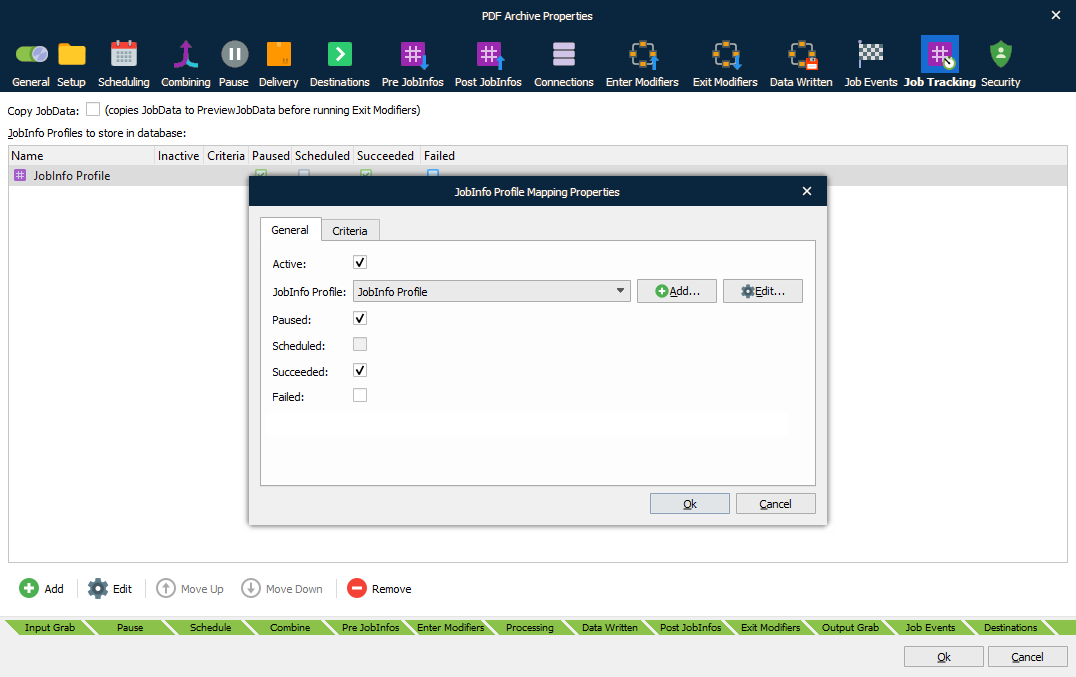
It is possible to use different JobInfo profiles based on criteria.