Applies to: Lasernet Core 10
The regional profile settings look similar to Windows “Region and Language > Formats” dialog. In a Regional Profile, you can specify number, currency, time and date formats to use in forms added to the Form Engine. You can also import a pre-defined Regional Profile.
In the Regional Profiles, you can select the Default regional profile as well as importing a pre-defined profile.
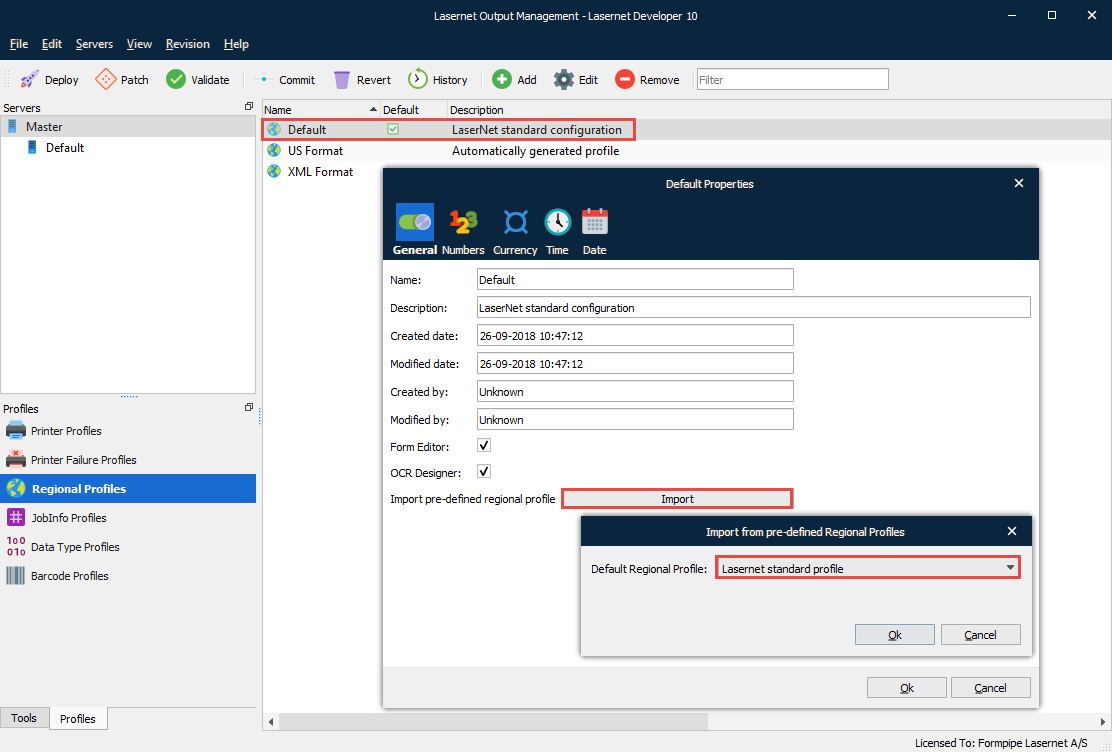
The default regional profile, named Default, is added to all new configurations. It can be changed, renamed and removed in the same way as other regional profiles that are manually added to the configuration.
The default regional profile, marked with a  , will be used if no regional profile is assigned to a form, a sheet or a rearrange processed by the Lasernet Form Editor/Engine.
Information about how to use regional profiles is available from the Regional Profiles article in the Lasernet Form Editor Guide.
Click the Add button in the toolbar to add additional regional profiles to the configuration.
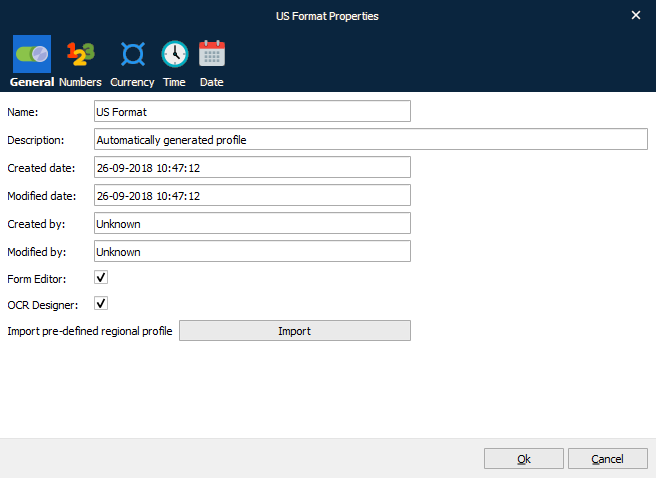
The Import button brings up a dialog with a dropdown list where the user can select pre-defined settings to be imported to the new profile.
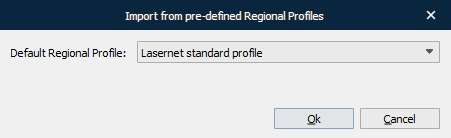
After selecting a profile, the user can review and change the settings for numbers, currency, time and date. Pressing Ok will save the profile. Pressing Cancel or Esc closes the dialog without saving the profile.
All configurations need at least one profile; therefore, it is not possible to remove the last remaining profile in a configuration.
Form Editor: If activated this profile will be available in the Form Editor.
OCR Designer: If activated this profile will be available in the OCR Designer.