Applies to: Lasernet Core 10
Used for picking up files from an email mailbox.
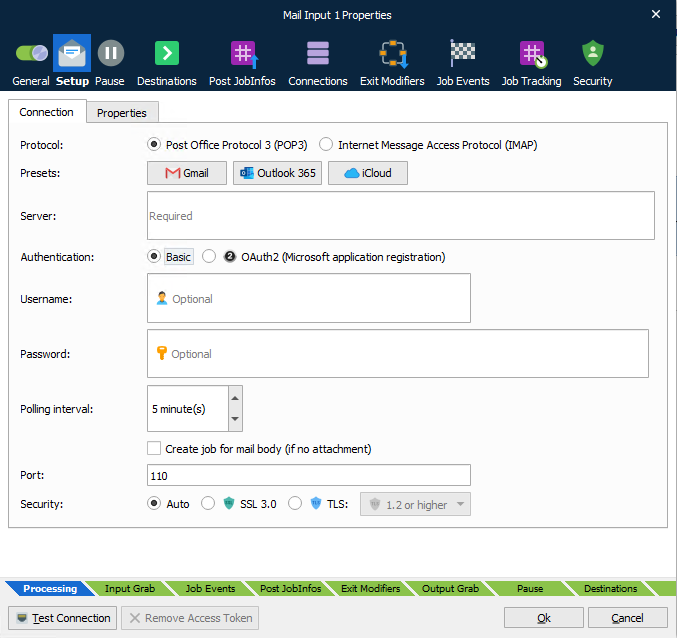
The following mail servers are supported:
Servers using the POP3 standard.
Services using Internet Message Access Protocol (IMAP).
General
| Protocol | POP3 and IMAP |
| Server Address | DNS name or IP address of POP3 server. |
| Authentication | Select Basic authentication or OAuth2 (Microsoft application registration) authentication. |
| Username | Username for mail account. |
| Password (Basic authentication only) |
Password for mail account. |
| Tenant Domain (OAuth2 authentication only) |
Tenant domain of the app registration. |
| Client ID (OAuth2 authentication only) |
Client ID of the app registration. |
| Client secret (OAuth2 authentication only) |
Client secret of the app registration. |
| Polling Interval | Sets how often Lasernet Core should look for new mail. |
| Create job for mail body | If selected, a job will be created for the mail body. |
| Port | Number of SSL port, if SSL is used. |
| Security | Selectable choices for security protocols are None, SSL 3.0 and TLS. Activate SSL port and set up the port number (default 465) to provide encrypted communication and secure identification. Configure the TLS protocol to use specifically version 1.0, 1.1, 1.2 or 1.3 of the protocol or configure it to negotiate with the server the use of a particular version or higher (for example, 1.2 or higher). |
Properties
| Scan Folder | Specifies the folder to look in for incoming mail. If left blank, the Inbox folder will be used. |
| Processed Mail Folder | Sends mail to this folder after handling it. If left blank, the mail will remain in the incoming mail folder, but will be marked as read. |
| Delete mail after processing it | If checked, will delete the mail after handled by Lasernet Core. |
OAuth2 Configuration
To set up OAuth2 authentication, you must complete tasks in Microsoft Entra ID and Exchange in addition to configuring this Lasernet Core module.
Follow this overall process:
In Entra ID, create an application registration for Lasernet Core and then grant it the following permissions:
For POP access: POP.AccessAsApp
For IMAP access: IMAP.AccessAsApp
For SMTP access: SMTP.SendAsApp
In Entra ID, get tenant admin consent for the Lasernet Core application registration to access Exchange mailboxes through POP, IMAP, or SMTP.
In Exchange, use the New-ServicePrincipal cmdlet to register the service principal.
- Note: This step must be completed by an Exchange administrator.
In Exchange, use the Add-MailboxPermission cmdlet to grant the application the necessary access to specific mailboxes.
- For example: Add-MailboxPermission -Identity "john.smith@example.com" -User 3f2504e0-4f89-11d3-9a0c-0305e82c3301 -AccessRights FullAccess
Note
The process above summarises the following Microsoft documentation. For full instructions and accompanying examples, go to https://learn.microsoft.com/en-us/exchange/client-developer/legacy-protocols/how-to-authenticate-an-imap-pop-smtp-application-by-using-oauth#use-client-credentials-grant-flow-to-authenticate-smtp-imap-and-pop-connections
JobInfos
When an email is received, a job is created for each single attachment – JobData is set to the contents of the attachment and the following JobInfos are set if available:
| Extension | Extension of the file prefixed with a dot. | |
| InputAttachmentCount | Total number of attachments included in the incoming email. | |
| InputAttachmentNumber | Handling attachment number for the incoming email. | |
| InputBody | The plain text content of the mail body if any. | |
| InputBodyHTML | The HTML contents of the mail body if any. | |
| InputFromName | The display name of the sender. | |
| InputFromEmail | The email address of the sender. | |
| InputHeaderFieldName and InputHeaderFieldValue | A pair of JobInfo lists that contain the names and values of the custom mail headers received by this module. Each header’s name is an item in InputHeaderFieldName. That header’s value is the corresponding item in InputHeaderFieldValue. For example, if InputHeaderFieldName[5] = X-Priority, the value of the X-Priority mail header (in this example, 3) is in InputHeaderFieldValue[5]. | |
| InputMimeType | The mimetype of the attachment. | |
| InputFilename | The filename of the attachment. | |
| InputLongFilename | The long filename of the attachment. | |
InputMessageID InputReplyTo |
Unique identifier for the incoming mail. The ”reply to” address of the sender for the incoming email. |
|
| InputSubject | The subject of the mail. | |
| InputToEmail | The email address of the receiver. | |
| InputToName | The display name of the receiver. | |